sync
1026 Topics
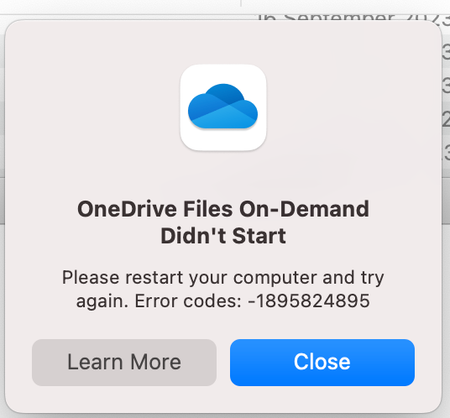
OneDrive Files On-Demand Didn't Start
Recently moved from an Intel iMac to a M2 Mac mini running Sonoma. Trying to use Onedrive on an external drive with the above error message keep coming up. Initially it work ok for a few days but then this error occurred. Now I cannot get it to go pass this page and only gives me an option to close. Tried everything without successSolved11KViews1like3Comments
Files-On-Demand status on OneDrive for Mac is confusing
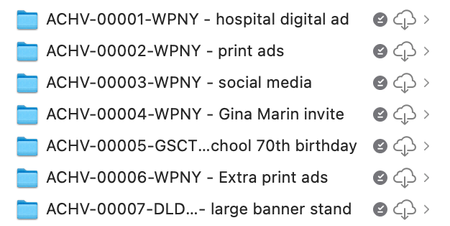
Setting the scene: I'm on an M1 MacBook Pro, MacOS Sequoia 15.5, OneDrive for Mac v.26.017.0126.0002 (standalone) Mystery #1: Okay, so I've got a folder chock full of large files (all neatly placed in nested subfolders, of course). This one folder totals about 400 GB, in fact. For obvious reasons I had set that folder to be cloud-only by electing it and choosing 'Free Up Space' from the contextual menu. It took a while to unload all that data but eventually my finder window showed '900 GB available' instead of '500 GB available', which is what it has said previously. Great. Except that when I looked at the actual folder in ~/Library/CloudStorage and used Cmd-i to 'Get info' on that folder, the info window said that the folder size was… 400GB. The third party disk analysis tool Daisy Disk also reported that folder as being 400 GB in size. Surely if the files have been released back to the cloud and only placeholder 'stubs' remain on the local file system, that folder should have a much smaller size. So what's up? Mystery #2: I want to make a cloned copy of my Mac for backup purposes and I want to include my OneDrive content in that backup (in case the Microsoft OneDrive servers explode, or get overrun by fire ants, or something). I know that there's no point backing up the placeholder stubs — they've got no real data in them (or do they? See Mystery #1) so I select that big old 400GB folder and select 'Always keep on this device'. The menubar icon shows activity, and I can see the individual files downloading if I click that menubar icon. About 20 hours later (because 400 GB) OneDrive finally reports 'Your files are synced'. And the Finder, sure enough, tells me that I now only have 500GB available, not 900 GB. HOWEVER, that folder, and each folder and file inside that folder, has both a 'downloaded locally' checkmark icon (dark grey) AND a 'in the cloud' icon (cloud with a downward arrow in it). Cmd-i (Get info) on one of the subfolders reports a theoretical size for that subfolder of ~230 GB but with only 11.4 MB on disk. If I click on the cloud-with arrow icon then OneDrive seems to redownload the file or folder-and-contents. At least I assume that that's what it's doing; this time the OneDrive menubar icon does NOT show activity, nor do any files show as being processed/downloaded if I open up that menubar window. But whatever the process is, it seems to take about as long as I would expect the download to take and the cloud-with-arrow icon turns into one of those 'time-remaining' icons that looks like a pie chart being filled up. So far I've only done this with small folders as an experiment, because if I'm right about what's going on then that 230 GB folder is going to be showing that pie chart icon for a LOOOONG time. So WTF is going on? If 'Always keep on this device' hasn't actually downloaded the full-fat versions of my files then what the heck was OneDrive doing all through the night and the whole of today? Pretending to download it just to mess with me? Do I actually have to download it twice? Can somebody either explain how and why this is the way that OneDrive is supposed to work (I can't believe that it is), or tell me what I'm doing wrong, or suggest a solution? Or even just confirm to me that I've not gone crazy?23Views0likes0Comments
Built an Android app for OneDrive duplicate detection (something I wish Microsoft offered natively)
After years of dealing with duplicate photos and videos in OneDrive, I built a solution and wanted to share it with the community. **The problem:** - Samsung Gallery sync creates duplicates in both "Camera Roll" and "Samsung Gallery" folders - WhatsApp media gets backed up twice (original + shared copy) - App resets/reinstalls trigger re-uploads with "(1)" suffixes - No native duplicate detection in OneDrive **What I built:** OneDrive MediaOps - an Android app that scans for duplicates directly in the cloud. No need to download files to a desktop first. Key features: - Cloud-based scanning (no downloads required) - Algorithm visually identical photos even with different filenames - Preview before deleting - Batch deletion **Why cloud-based matters:** With 50GB+ of photos, downloading everything to run a desktop duplicate finder wasn't practical. This scans media directly via the Graph API. Available on Google Play: https://play.google.com/store/apps/details?id=com.onedrive.mediaops&pcampaignid=web_share Would love feedback from the community - especially if you've been dealing with the Samsung/OneDrive sync duplicate issue.212Views0likes2Comments
Sensitive titled word doc now appears in company's onedrive and won't delete!
I bought myself a laptop that I also use at work. I have to log into onedrive to access my work's server. I have been very careful with not putting personal stuff onto this laptop, and if I do, I make sure its not syncing to the work's onedrive. As if someone is playing a trick on me, somehow a cover letter I was working on for a potential other job now appears if I log into my work's onedrive account online and it won't let me delete it! I no longer have access to the cover letter as it was deleted! HOW DO YOU DELETE THIS?!!!71Views0likes1Comment
URGENT: OneDrive Restore Completed but Files Missing – No Engineer Assigned Since Dec 27
Hello, I am posting here as a last resort after more than 6 weeks of unresolved support. On December 26, 2025, I accidentally deleted a large number of files and emptied the Recycle Bin. On December 27, 2025, I immediately initiated a full OneDrive restore to a snapshot from December 19, 2025. The restore job shows: • Restore status: Completed • Thousands of restore events processed • However, hundreds of events failed (Save Conflict, Item Not Found in Recycle Bin) My storage usage dropped significantly (from 10+ GB to ~2.7 GB), and thousands of photos never reappeared. Restore logs show: • Multiple “Save Conflict” errors • Multiple “Item Not Found in Recycle Bin” errors • Backend SharePoint references (SPException) I opened an official support case on December 27, 2025. The current status still says: “A support agent is being assigned to your request.” No OneDrive engineer has contacted me in over a month. I am a paying Microsoft 365 subscriber. My questions: 1. Is there a way to confirm whether backend snapshot data still exists? 2. Does “Restore Completed” guarantee that the backend restore fully executed? 3. Can Save Conflict errors prevent large portions of data from being re-materialized? 4. Is escalation to the OneDrive backend team still possible beyond front-line support? This is not a basic user error case. The restore logs clearly show backend-level operations. If anyone from the OneDrive engineering team is monitoring this forum, I am urgently requesting technical escalation. Thank you.49Views0likes0Comments3 file limit error in Personal Vault in spite of 1TB family subscription
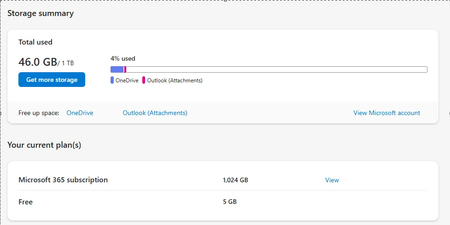
I am having issues with my Personal Vault on One Drive. Its giving me error that I have hit 3 files limit in the Personal Vault on One Drive. In order to use more than 3 files , I have to upgrade to a 1TB plan. I am already a part of the Family Subscription and have 1 TB of space. I have just used 46GB of 1TB. Support is barely able to help me. Best they could do was tell me to logout and login. I have uninstalled and reinstalled my One Drive, and after setting up the Personal Vault, I am seeing the same issue. On 1TB , I can save as many files on Vault but I cant do for some reason now. It was working fine for last so many years but just today it broke after I edited and saved a file. Family subscription with 1TB allows unlimited files on Personal vault but basic plan allows only 3 files. Please help if anyone has a solution.2.5KViews0likes3CommentsOneDrive stuck on "signing in"
Hi, I'm trying to use Onedrive and Onenote, but it seems to be really terrible 50% of the time. Sometimes when I log on my pc, it says I have to log in, and in doing so, is stuck on a "signing in" loop, until it says some error code about me not having an internet connection. Here's what I've tried: 1. Close and open Onedrive 2. Removing auth from the pc and adding it again 3. Reinstalling Onedrive 4. Change Wi-Fi 5. Do a /reset in Windows run AND cmd 6. Update drivers 7. Install the newest Onedrive from the website 8. Try the app-version found in Windows Store What am I supposed to do? I don't want to restart my pc every time it doesn't work, that's a terrible fix.324KViews6likes57CommentsMacOS 14.8.1 OneDrive - Timestamped Sync Root directory?
Hello community, Attempted a plethora of web searches to find someone else who may have seen this. I utilize Shared Libraries with my MacOS OneDrive, and it seems within my ./Library/CloudStorage/ there are two versions of the Sync Root: OneDrive-SharedLibraries-*Company*/Directories & OneDrive-SharedLibraries-*Company* (Timestamp)/Directories This Timestamped Sync Root has over 140GBytes of 'reported' storage space consumption. Some of the folders already exist in OneDrive-ShareLibraries-*Company*/Directories, but others do not. Was curious if anyone else has seen this before and knows if the related storage can be 'freed'?90Views0likes2CommentsRecently saved local file not available
I saved an excel file to my OneDrive Documents directory (.xlsx) when I was offline. OneDrive notified that a local copy was saved due to being offline. However, the file does not exist where I saved it. I searched the entire documents dir with explorer and it is not there. What's going on? When I was back online I was able to open it. This is not the behavior I selected in OneDrive, I selected always save a local copy. When I was offline I was able to open other workbooks. There have been other files that I can't access when offline. This makes me want to quit using OneDrive. Can someone please explain how to fix this?127Views0likes1Comment