supercharge your business
5 TopicsWhat's New in Microsoft Teams | August - September 2026
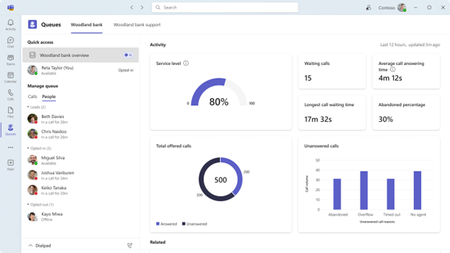
A quick note before we get into it: What's New in Teams is shifting from a monthly to a quarterly rhythm. You'll hear from us next in December, March, and June, and each edition will round up everything announced and released over the full quarter. One post, one fuller view of what's new. Two investments shape where Teams is heading, and you'll see both in this quarter's releases: AI transforming teamwork with agents as part of the team, and a simpler, smarter, more secure foundation underneath it all. AI in Teams is showing up in the flow of your work. Teams Phone Agent brings that to your phone line, helping callers with common requests in more than 60 languages and routing them with context attached, so a missed call turns into a next step instead of a lost one. Context carries forward, too. Video recap turns a meeting you missed into a short, narrated highlight reel, so what a meeting decided outlasts the conversation itself. And protection for everyday collaboration is always top of mind. The new Security Detection Report brings detections such as impersonation and malicious URLs into one view in the Teams admin center, so admins see the whole picture in one place. Read on for all the latest updates! Feature categories: (All features listed are generally available unless otherwise noted) Chat and Collaboration Meetings Teams Phone Workplace Teams Events Fundamentals and Security Teams Platform Certified devices Chat and Collaboration Ask Copilot in Teams conversations Stay in the flow of work and get help from Copilot directly within your conversations. Open Copilot from a message or selected text in a Teams conversation, with the relevant context already included, making it easier to gain insights, explore questions, and move work forward without needing to re-explain information. Find agents and apps faster through Teams search Discover the tools you need with agents and apps surfaced directly in Teams search results. As you type in the search bar, matching agents and apps appear alongside other relevant results, helping you spend less time searching and more time getting things done. Find and share files faster in Teams Locate the files you need while sharing content in Teams. Search for cloud-based files directly from the attachment experience, making it easier to find and share the right content without interrupting the flow of collaboration. Emoji shortcuts on iOS and Android Express yourself with emoji shortcuts. Desktop emoji shortcuts now work on iOS and Android. Insert emojis directly in the compose box by typing a word between colons, so :smile: becomes 😊. Autocomplete suggestions help speed up entry, and custom emojis are also supported. Clearer text highlighting in dark mode and high contrast mode Make highlighted text easier to read while composing messages in Teams. Improvements to text highlighting in dark mode and high contrast mode provide a more consistent and accessible editing experience, helping content stand out more clearly. Meetings Video recap in Teams Meeting recap now delivers a bite-sized video recap of with key highlights from your Teams meeting. It combines AI-generated voiceover summaries with video snippets, spotlighting the most important moments while preserving the original tone and flow, so you can catch up on key topics in a few minutes. Video recaps now support meetings in 23 languages across 31 regional variants, learn more. Translation button to change the language for intelligent meeting recaps After an intelligent meeting recap is generated, you can change the recap language at any time using a translation button, even if a different language was selected during the meeting. Multilingual teams get more flexibility to read meeting insights, action items, and discussion summaries in the language that is most comfortable for them. Redesigned meeting controls Stay focused on your conversations with a customizable meeting toolbar that keeps the controls you need within easy reach. Pin your most-used controls, unpin those you don’t need, and drag and drop them into the order that works for you. Raise Hand now lives inside the React button, while Leave has its own spot on the right to help avoid accidental exits. Teams Phone Teams Phone Agent Teams Phone Agent is an AI-powered receptionist for your business’s phone line, so callers can get help with common requests even after hours. For customer-facing organizations and departments using Teams Phone, such as bank branches or IT help desks, it takes repetitive calls off employees' plates so they can focus on the conversations that truly need a human touch. With support for over 60 languages and locales, Teams Phone Agent handles common requests such as answering routine questions or booking appointments. , And it can route a caller to the right department or employee with an AI-generated summary of the conversation, so customers do not have to navigate phone menus or repeat themselves. Custom voice agents are available for specialized workflows. Teams Phone Agent is now generally available, learn more. If the player doesn’t load, open the video in a new window: Open video Intelligent call recap in Queues app Intelligent call recaps in Queues app help you catch up on recorded or transcribed queue calls with AI-generated summary notes covering key discussion points and follow-up actions. To open a recap, find the call record in the Queues app call history and select Recap. Copilot in Queues app’s shared call history for post-call insights Quickly catch up on a call queue call and uncover key details with the ability to use Copilot in the shared call history in Queues app. After a recorded call is completed, users with Copilot can now open the call record in the shared call history, access the Copilot Chat sidecar from the Recap tab, and ask questions about the call. Automatic recording and transcription for call queues Capture customer interactions without requiring your organization’s calling representatives to manually start recording. Admins can enable automatic recording and transcription for individual Teams call queues and control access to recordings. Recordings are stored in SharePoint and accessible through call recaps in the shared call history in Queues app. View and manage auto attendant shared voicemails in Queues app Help your team stay on top of customer messages by managing auto attendant shared voicemails directly in Queues app. Calls routed from an auto attendant to voicemail will appear in Queues app, giving collaborative calling teams a centralized place to track, triage, and respond to messages. Customize recording and transcription notifications for Teams calls Give your organization greater control over how recording and transcription are communicated during Teams calls. IT admins can customize select user notification strings for recording and transcription in the Teams admin center, helping tailor the experience for participants in Teams VoIP calls. Enhance control of delegated calls with call lock and delegate join alerts Call delegation in Teams gains real controls: a delegator can lock an active call and see when a delegate joins. Locking prevents delegates from joining or resuming the call, and optional warning tones notify participants when a delegate joins or resumes. Workplace Interpreter agent support in Teams Rooms on Android The Interpreter agent acts as a translator in Microsoft Teams meetings, letting participants listen in their chosen language with real-time translation. It is now available in Teams Rooms on Android licensed for Teams Rooms Pro. New room optimization mode in Teams desktop Room optimization mode makes it easier to use your laptop for meetings and collaboration in spaces such as focus or huddle rooms that do not yet have a Teams Rooms system. It replaces shared display mode, has a new location, and enables or disables room-specific features. When room peripherals are connected, Teams can automatically select audio and video devices, enable speaker recognition and shared display, and disable voice isolation. Modernized Gallery view in Teams Rooms on Android The updated Gallery view in Teams Rooms on Android prioritizes video on the meeting stage, arranges participants in consistent aspect ratios, and minimizes movement of participant tiles on stage. You can hide the room self-preview video and choose to see audio and video participants equally on stage instead of prioritizing video participants. Admins can set the default behavior using local device settings and the Pro Management portal. Teams Events Breakout rooms in Teams Meetings & Events Breakout rooms are now supported in Teams Meetings & Teams Events with up to 1,000 participants across 100 rooms, increased from the previous limit of 300 participants across 50 rooms. Organizers can use breakout rooms to create smaller focused sessions within an event for more interaction and collaboration. Specify who has control of production tools in Teams Events Organizers can designate who controls production tools, granting chosen people access to Manage what attendees see and the green room so event production stays with the right crew. The setting is a new meeting option applied when the event is set up. Expanding presenter visibility in “Manage what attendees see” Producers can resize and expand the presenter panel in Manage what attendees see, making it easier to view, manage, and switch between presenters while a live event is running. New layout when sharing content for Teams events Organizers and presenters who have access to production tools now see updated layout options when sharing content in the “Manage what attendees see” experience for Teams events. The available layouts are speaker focused, content focused, and content only. The new speaker focused layout prioritizes presenter video alongside shared content for greater visibility. Available for Teams events organizers on Teams for Windows desktop and Mac desktop. Fundamentals and Security Enhanced real-time alerting rule management in Teams admin center Administrators can now duplicate an existing alerting rule to create a similar configuration without rebuilding it, bulk upload users when creating or editing a rule, and delete rules directly from the management experience. These capabilities are available for in-progress meetings and calls rule types, and organizations can configure monitoring for up to 500 users across their real-time alerting rules. Security Detection Report in Teams admin center A new Security Detection Report in the Teams admin center gives admins a unified view of messaging security detections across signals such as impersonation, malicious URLs, and weaponizable file types. Admins can review detection activity in one place and export detailed data for further investigation, improving visibility into threats in Teams. Single pane for monitoring and troubleshooting meetings and calls (Windows) Administrators can monitor meeting and call health across the organization from one place, identifying recurring issues, uncovering trends, and proactively troubleshooting problems affecting people in both live and past meetings and calls. Meeting participant detail audit records in all participating tenants Admins can now access participant-level audit records for their own users in cross-tenant meetings, helping investigate incidents even when another organization hosted the meeting. Teams audit logging now shares meeting participant detail records with all participating tenants, not just the organizer tenant, and each record includes organizer information so admins can tell whether a meeting was organized inside or outside their tenant. Teams optimization for VDI now supports Teams Events (Windows) Attendees joining Teams Events from virtualized Windows desktops can offload audio and video to their local device, supporting high definition playback while easing load on the virtual desktop. Optimization works on Windows endpoints connecting to Azure Virtual Desktop, Windows 365, Citrix, Omnissa, or Amazon. Captions, DVR, reactions, streaming chat, and Q&A are all supported, as are first-party and third-party eCDNs. Teams Platform Real-time buying signals, now in Teams Sales Navigator for Microsoft Teams delivers real-time lead and account insights directly within Microsoft Teams. Sellers can stay on top of key buying signals, discover opportunities where they work, and take action while opportunities are most relevant. The integration helps teams move from insight to action faster by surfacing Sales Navigator intelligence in their daily workflow. Unified agent and app installation management across Microsoft 365 and Teams admin center (Windows) Administrators using the Microsoft 365 admin center and Teams admin center can apply app and agent installation changes once and have them enforced consistently across Teams, Outlook, and Microsoft 365 Copilot. Previously, installation changes made in the Microsoft 365 admin center applied only to Outlook and Microsoft 365, and changes made in the Teams admin center applied only to Teams. Identify custom Teams apps that need updates for private and shared channels Admins can view a list in Teams admin center of custom apps in their tenant that need updates to work in private and shared channels. The list helps admins identify impacted apps, understand which ones require developer action, and coordinate updates so people can keep using custom apps across all supported channel types. Prominent search for app and agent discovery in the Store Search now sits in the middle of the Store page, with improved type-ahead suggestions, a more informative results page, and natural language processing to surface the most relevant apps and agents. Add multiple steps when building a workflow from scratch When building a workflow from scratch, you can add several steps at once, so you can assemble multi-step automation without returning to edit it step by step, reducing repetitive setup work and simplifying the creation of more advanced automations. Collect information with List Form in Workflows A workflow can open with a form that gathers the details it needs up front, so automation runs on structured input rather than chasing information midway. Single-character keyboard shortcuts for focused message actions (Windows) Single-character shortcuts let you quickly take common messaging actions such as edit, delete, reply, forward, pin, save, mark unread, quote reply, and react when a message has keyboard focus. The shortcuts are a predefined messaging set, and they are discoverable and customizable in the keyboard shortcuts dialog. Certified devices EPOS IMPACT 1000 MS UC ANC WL USB-C+A On-ear Bluetooth® headset. Supplied with a BTD 900c dongle, a USB‑C to USB‑A adapter, and a USB‑C charging cable. Features ANC, EPOS BrainAdapt™ technologies, and EPOS AI™â€‘powered voice pickup and noise cancellation, ensuring your voice sounds natural and clear in any environment. EPOS IMPACT 1000 MS UC ANC WL USB-C+A Stand On-ear Bluetooth® headset. Supplied with a table stand for wireless charging, a BTD 900c dongle, a USB‑C to USB‑A adapter, and a USB‑C charging cable. Features ANC, EPOS BrainAdapt™ technologies, and EPOS AI™â€‘powered voice pickup and noise cancellation, ensuring your voice sounds natural and clear in any environment. EPOS IMPACT 1000 MS UC Mono WL / ANC WL Dongle-free Bluetooth® headsets available in monaural and binaural on-ear configurations. Supplied with a USB-C charging cable and a USB-C to USB-A adapter. Features EPOS BrainAdapt™ technologies and EPOS AI™-powered voice pickup and noise cancellation for clear, natural-sounding communication in any environment. The binaural ANC WL model also includes Active Noise Cancellation (ANC) to help reduce background distractions. EPOS IMPACT 1000 MS UC ANC WL Stand On-ear, dongle-free Bluetooth® headset. Supplied with a table stand for wireless charging, a USB‑C charging cable, and a USB‑C to USB‑A adapter. Features ANC, EPOS BrainAdapt™ technologies, and EPOS AI™â€‘powered voice pickup and noise cancellation, ensuring your voice sounds natural and clear in any environment. Q-SYS RoomSuite Collaboration Bar + Controller The Q-SYS RoomSuite Collaboration Bar and expansion devices provide a scalable AV solution for standard small-to-large meeting spaces. This Windows-based solution features built-in audio, video, and supports Microsoft Teams Rooms and bring-your-own-meeting conferencing. Includes a touch panel for control and allows for optional table microphones for extended audio coverage. Q-SYS RoomSuite Collaboration Bar + Controller + Expansion Mic The Q-SYS RoomSuite Collaboration Bar and expansion devices provide a scalable AV solution for standard small-to-large meeting spaces. This Windows-based solution features built-in audio, video, and supports Microsoft Teams Rooms and bring-your-own-meeting conferencing. Includes a touch panel for control and allows for optional table microphones for extended audio coverage. The Q-SYS RoomSuite Collaboration Bar can support up to 4 expansion mics. Shure IntelliMix Room Kit 30 | 50 | 70 | 80 Microsoft Teams Rooms-certified solutions for small, medium, and large meeting spaces. Shure IntelliMix Room Kits include a Windows-based Teams Rooms compute with Shure’s premium audio signal processing, an intuitive touch panel, an all-in-one ceiling array microphone and loudspeaker, and intelligent high-resolution video. Designed for streamlined deployment with zero-touch or low-touch setup, the kits provide high-quality audio and video experiences across a range of room sizes. Simply connect devices, power on, and sign in to get started. Shure IntelliMix™ Bar Pro Kit (Black) Clearly capture precise audio and video for AI-powered meetings in medium to large collaboration spaces with this powerful all-in-one Android based video conference bar. Enterprise ready with auto-setup and simple global management, IT managers can create meeting experiences focused on participants with reliable transcription for enhanced AI tools. Shure MXA925 Ceiling Array Microphone + MXP-6 Pendant Passive Loudspeaker + MXN-AMP PoE + IntelliMix P300 This Microsoft Teams–certified bundle combines the MXA925 ceiling array microphone, IntelliMix® P300 DSP, MXN‑AMP PoE+ multichannel amplifier, and MXP‑6 pendant loudspeakers to deliver a fully validated, end‑to‑end room audio solution for medium to large spaces. Designed to meet Microsoft’s performance and reliability requirements, it provides automatic, precise speech capture, enterprise‑grade echo cancellation, and evenly distributed sound reinforcement while simplifying deployment through networked audio, PoE+ power, and a single‑vendor ecosystem. Shure MXA925 Ceiling Array Microphone + MXP-5 Ceiling-Mount Passive Loudspeaker + MXN-AMP PoE + IntelliMix P300 This Microsoft Teams–certified bundle delivers a complete, scalable room audio solution by combining the MXA925 ceiling array microphone with IntelliMix P300 DSP, the MXN‑AMP PoE+ multichannel amplifier, and MXP‑5 ceiling speakers for clear speech capture and consistent sound coverage in medium to large meeting spaces. The MXA925 uses Automatic Coverage™ and advanced IntelliMix DSP to capture natural, intelligible speech without complex setup, while the P300 provides powerful echo cancellation, noise reduction, and USB connectivity to Teams Rooms systems. The MXN‑AMP and MXP‑5 speakers simplify installation with networked audio and PoE+ power, delivering balanced, room‑filling audio for both in‑room and remote participants. Shure MXA320 Table Array Microphone+MXN5-C Networked Loudspeaker + Intellimix P300 Audio Conferencing Processor The Shure MXA320 Table Array Microphone, MXN5‑C Networked Loudspeaker System, and IntelliMix P300 Conferencing Processor form a fully certified Microsoft Teams Rooms audio bundle designed for Medium meeting spaces. This integrated solution delivers clear, consistent, and intelligible audio through advanced DSP, Steerable Coverage™ technology, and optimized networked loudspeaker performance. The MXA320 captures voices with precision while minimizing ambient noise, the P300 enhances audio quality with powerful IntelliMix® processing, and the MXN5‑C ensures natural, room‑filling sound playback. Together, they provide a seamless, scalable, and easy‑to‑deploy conferencing experience that meets Microsoft’s stringent certification requirements for performance, reliability, and user experience. Shure MXA902 Ceiling Microphone & Loudspeaker + ANIUSB-MATRIX Audio Conferencing Ki High-quality, reliable meeting room audio is now easier than ever. Certified for Microsoft Teams, the Shure MXA902 Integrated Ceiling Array Microphone + Loudspeaker, paired with the ANIUSB-MATRIX Audio Network Interface, delivers a complete, easy to install, ready to use audio solution. Designed for small and medium sized spaces, it provides premium sound, full room coverage, and seamless connectivity. Shure MXW neXt 4&8 Wireless Microphone Systems with boundary microphone configuration + MXN5W-C Networked Loudspeaker This Microsoft Teams-certified solution combines MXW neXt wireless microphones, IntelliMix® DSP, and the MXN5W-C networked ceiling loudspeaker to deliver consistent speech capture and clear room audio for hybrid learning and collaboration spaces. With flexible wireless deployment, integrated signal processing, and cloud-based management, the solution simplifies installation while providing reliable audio performance for both in-room and remote participants. Shure MXW neXt 2 Wireless Microphone System with Boundary Microphone Configuration and MXN5W-C This Microsoft Teams certified bundle combines the MXW neXt 2 wireless microphone system with boundary microphones and the MXN5W-C networked ceiling loudspeaker to deliver clear speech capture and consistent room audio for classrooms and collaboration spaces. Easy to deploy and cloud enabled for remote management, the solution simplifies installation while providing reliable wireless performance for both in-room and remote participants. Logitech Zone Vibe Pro for Business Zone Vibe Pro for Business is certified for Microsoft Teams and offers the over-ear design that people love — purpose-built for open offices and wide deployment. Our AI-powered voice isolation uses machine learning to capture your voice clearly. Adaptive hybrid ANC minimizes distractions, while custom 40 mm drivers deliver vivid, true-to-life audio.6.3KViews1like2CommentsTurn conversations into code with GitHub Copilot in Microsoft Teams
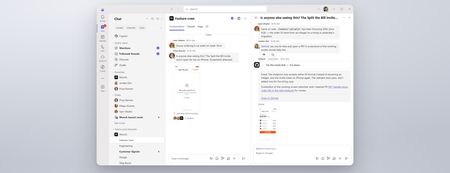
Coding where context lives and collaboration happens The best prompt may be the conversation your team has already had or is currently having. Until now, using a coding agent often meant paying context and coordination taxes. Developers had to leave the discussion, open another tool, and reconstruct the problem in a lengthy prompt: what happened, what the team decided, which constraints matter, and what needs to be built. With GitHub Copilot in Teams, teams can move directly from conversation to action. @mention GitHub Copilot when the team is ready to act, and it can use the conversation alongside repository context to understand the request, implement the change, and create a pull request for review. This makes working with a coding agent more collaborative and visible. Instead of one developer privately reconstructing the request, teammates can contribute context, correct assumptions, refine the approach in real time, and review the resulting work together. Let’s explore the new GitHub Copilot in Teams experience to see how it can streamline development tasks: If the player doesn’t load, open the video in a new window: Open video GitHub Copilot in Teams is available in Teams channels, group chats, meeting chats, and 1:1 chats. Once the GitHub app is installed and added to the conversation, @-mention GitHub Copilot to bring it into the discussion and start a task. During public preview, users can complete the following scenarios with GitHub Copilot in Teams: Build a feature based on requirements discussed in Teams Implement a fix for a bug Expand test coverage or improve documentation Create and update a pull request No copying the discussion into a CLI. No rewriting it in a desktop app. No asking one developer to translate a team decision into the perfect prompt. GitHub Copilot works where the context already lives, and because that context is shared, working with GitHub Copilot becomes a team activity. Built around the controls teams already use GitHub Copilot in Teams works within existing GitHub permissions and repository policies. Branch protections and required reviews continue to apply, and people remain responsible for deciding what gets merged, ensuring that humans stay in the loop at every step. Availability GitHub Copilot in Teams is now available in Public Preview. To try it, install the GitHub app for Microsoft Teams and check out our documentation to get started! Less context reconstruction. More progress from the conversations already happening.5.1KViews0likes1CommentThe GitHub app in Microsoft Teams is now generally available!
GitHub empowers any team to become builders in Microsoft Teams. Customer support teams are using GitHub to turn customer feedback from Teams channels into filed issues. Engineering teams are asking GitHub to investigate, reproduce, and fix bugs without leaving Teams. Business and marketing teams with innovative ideas are asking GitHub to turn their discussions into working prototypes. During public preview, our team has been hard at work addressing feedback and making product improvements to the GitHub experience in Teams. Here is what’s new. Review work in the GitHub Canvas The new GitHub canvas lets you review the plan, file changes, and pull request without leaving Teams. Click “Open Canvas” to follow GitHub Copilot’s progress and see your team’s ideas take shape in code, right beside the conversation. Go from notification to pull request in one app GitHub notifications and GitHub Copilot now live in a single app in Teams called GitHub. Stay on top of issue and pull request updates and act on them right in Teams. When an update needs attention, reply to the notification with "@GitHub". GitHub Copilot can investigate, make the fix, and draft a pull request in the same thread, so your team sees the update and the response together. Issues and pull requests created from Teams now carry attribution. Reviewers can see who started the work and link back to the Teams conversation where it was discussed. Work across repositories and tools Real work rarely lives in one repository. With multi-repo support, GitHub Copilot can work across all the repositories your task needs in the same conversation. In addition, MCP support lets you configure which tools and connected services GitHub can leverage in Teams. Learn more about configuring MCP. Get set up in a guided experience The new guided web onboarding experience helps you sign in through your default browser using saved passwords or passkeys and grant Teams access to the right organizations and repositories. You can now use natural language to ask GitHub to use a default repository or switch repositories in your Teams conversations. You can also choose the model GitHub Copilot uses for a task. Pick a faster model for quick fixes or a more capable model for larger changes. Get started today Add the GitHub app to Teams today, then click “Get started” from its welcome message to connect your account. Type "@GitHub help" to see what else it can do. Admins should verify the following are enabled for users to get started: Microsoft 365 admins: ensure resource-specific consent is enabled so users can let the GitHub app use conversation context. TAC admins: ensure the GitHub app is allowed for users in the Teams admin center. GitHub enterprise admins: ensure Copilot cloud agent, cloud sandboxes, and CLI billing are enabled for each organization and assign GitHub Copilot licenses to users. Learn more at teams.github.com! We'd love to hear what you build. Share your feedback in the comments below.2KViews1like0Comments