study and learn
1 TopicAssign Study and Learn or Copilot from Assignments
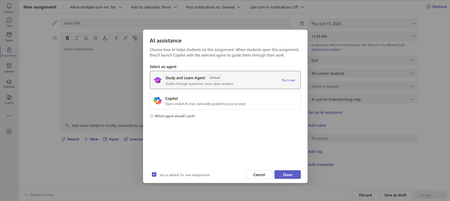
This blog is co-authored by Anoo Padte and Leif Brenne. A student opens an assignment. They know what they're being asked to do, but they're stuck on a concept they need to understand before they can get started. Or they've worked through the first part and aren't sure how to tackle the next. Study and Learn already helps students through these moments with questions, explanations, and practice. Now, educators can bring that coaching directly into an assignment, grounded in the work they've asked students to do. We're introducing the ability to assign Study and Learn or Copilot from Assignments in Teams or your LMS using Microsoft 365 LTI. Educators choose the experience and set expectations for AI use. Students open the help their educator has selected, right from the assignment. Your assignment, your expectations Start with the assignment you'd normally create in Teams. Add the instructions, learning goal, and resources. Then set the Student AI Guideline and choose Study and Learn or Copilot under AI Assistance. You can allow AI use, limit it to editing or brainstorming, or specify no AI use. Customize the guideline titles and descriptions to match your classroom or school policy. Set a default guideline and agent for your class, and change them for an individual assignment when the work calls for something different. These guidelines make your expectations visible to students. They don't technically block AI use outside the assignment. Choosing No AI use allowed means students won't see an agent launch option on that assignment. Before you publish, use Student preview to see what students will see. Select Try it out to try the selected agent yourself. A conversation that knows what you're working on When students select Open Study and Learn, the assignment title, instructions, and supported files come into the conversation automatically. They can start with the question they're stuck on, without having to reconstruct the assignment in a prompt. Study and Learn uses that context to suggest a starting point and coach students through the concepts they need for each part of the assignment. It asks questions, offers hints, and gives feedback on their attempts. When it draws on supported assignment resources, it includes citations so students can connect the discussion to their course materials. Take a biology assignment asking students to explain how energy moves through an ecosystem. A student might understand a food chain but struggle to explain what happens when one population changes. Study and Learn can help them work through those relationships, check their reasoning, and practice before they write their explanation. As the conversation develops, the agent keeps track of the parts they've worked through and helps them return to what still needs attention. Students can ask to focus on a different part or spend more time on a concept they haven't understood yet. Throughout, Study and Learn stays in tutoring mode. It helps students build the understanding to complete the assignment themselves. The learning features students already use Everything students already use in Study and Learn continues in the assigned experience. Images can help make an unfamiliar concept visible. A conversation can turn into a practice quiz, a set of flashcards, a matching activity, or a fill-in-the-blank exercise, then continue with coaching on what the student missed. That works across subjects, grade levels, and topic complexity for eligible learners ages 13 and older. Students can practice an algebra concept, work through a science explanation, or strengthen the reasoning behind an essay. The assignment gives the conversation a focus, while students still have room to ask questions and practice where they need help. Copilot, with a starting point from you Educators can also choose Copilot to give students access to general-purpose Copilot Chat from an assignment. Add an optional starter prompt to give students a starting point. They'll see it on the assignment, and it will be pre-filled when they select Open Copilot. Unlike Study and Learn, Copilot doesn't automatically receive the assignment instructions or files. Include the context students need in your starter prompt. Study and Learn uses its own learning-focused instructions, so there's no separate educator-written starter prompt for that experience. Try it with your next assignment Assigning Study and Learn or Copilot is supported on standard Teams assignments. Quiz assignments and Learning Accelerator assignments aren't supported; practice quizzes within a Study and Learn conversation still work. Students need to be 13 or older, have a Microsoft 365 Education A1, A3, or A5 license, and have Copilot Chat enabled. IT administrators must enable access for learners ages 13-17. Study and Learn opens on the web and Windows desktop. Pick an assignment, attach the materials students need, and try the conversation before you publish. The assignment setup guide walks you through it.168Views0likes0Comments