storage
3 TopicsAnnouncing Native NVMe in Windows Server 2025: Ushering in a New Era of Storage Performance
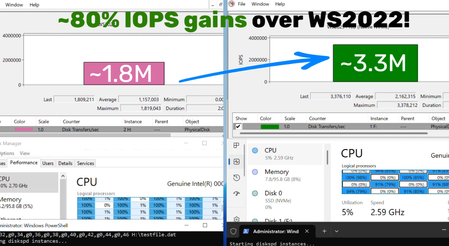
We’re thrilled to announce the arrival of Native NVMe support in Windows Server 2025—a leap forward in storage innovation that will redefine what’s possible for your most demanding workloads. Modern NVMe (Non-Volatile Memory Express) SSDs now operate more efficiently with Windows Server. This improvement comes from a redesigned Windows storage stack that no longer treats all storage devices as SCSI (Small Computer System Interface) devices—a method traditionally used for older, slower drives. By eliminating the need to convert NVMe commands into SCSI commands, Windows Server reduces processing overhead and latency. Additionally, the whole I/O processing workflow is redesigned for extreme performance. This release is the result of close collaboration between our engineering teams and hardware partners, and it serves as a cornerstone in modernizing our storage stack. Native NVMe is now generally available (GA) with an opt-in model (disabled by default as of October’s latest cumulative update for WS2025). Switch onto Native NVMe as soon as possible or you are leaving performance gains on the table! Stay tuned for more updates from our team as we transition to a dramatically faster, more efficient storage future. Why Native NVMe and why now? Modern NVMe devices—like PCIe Gen5 enterprise SSDs capable of 3.3 million IOPS, or HBAs delivering over 10 million IOPS on a single disk—are pushing the boundaries of what storage can do. SCSI-based I/O processing can’t keep up because it uses a single-queue model, originally designed for rotational disks, where protocols like SATA support just one queue with up to 32 commands. In contrast, NVMe was designed from the ground up for flash storage and supports up to 64,000 queues, with each queue capable of handling up to 64,000 commands simultaneously. With Native NVMe in Windows Server 2025, the storage stack is purpose-built for modern hardware—eliminating translation layers and legacy constraints. Here’s what that means for you: Massive IOPS Gains: Direct, multi-queue access to NVMe devices means you can finally reach the true limits of your hardware. Lower Latency: Traditional SCSI-based stacks rely on shared locks and synchronization mechanisms in the kernel I/O path to manage resources. Native NVMe enables streamlined, lock-free I/O paths that slash round-trip times for every operation. CPU Efficiency: A leaner, optimized stack frees up compute for your workloads instead of storage overhead. Future-Ready Features: Native support for advanced NVMe capabilities like multi-queue and direct submission ensures you’re ready for next-gen storage innovation. Performance Data Using DiskSpd.exe, basic performance testing shows that with Native NVMe enabled, WS2025 systems can deliver up to ~80% more IOPS and a ~45% savings in CPU cycles per I/O on 4K random read workloads on NTFS volumes when compared to WS2022. This test ran on a host with Intel Dual Socket CPU (208 logical processors, 128GB RAM) and a Solidigm SB5PH27X038T 3.5TB NVMe device. The test can be recreated by running "diskspd.exe -b4k -r -Su -t8 -L -o32 -W10 -d30 testfile1.dat > output.dat" and modifying the parameters as desired. Results may vary. Top Use Cases: Where You’ll See the Difference Try Native NVMe on servers running your enterprise applications. These gains are not just for synthetic benchmarks—they translate directly to faster database transactions, quicker VM operations, and more responsive file and analytics workloads. SQL Server and OLTP: Shorter transaction times, higher IOPS, and lower tail latency under mixed read/write workloads. Hyper‑V and virtualization: Faster VM boot, checkpoint operations, and live migration with reduced storage contention. High‑performance file servers: Faster large‑file reads/writes and quicker metadata operations (copy, backup, restore). AI/ML and analytics: Low‑latency access to large datasets and faster ETL, shuffle, and cache/scratch I/O. How to Get Started Check your hardware: Ensure you have NVMe-capable devices that are currently using the Windows NVMe driver (StorNVMe.sys). Note that some NVMe device vendors provide their own drivers, so unless using the in-box Windows NVMe driver, you will not notice any differences. Enable Native NVMe: After applying the 2510-B Latest Cumulative Update (or most recent), add the registry key with the following PowerShell command: reg add HKEY_LOCAL_MACHINE\SYSTEM\CurrentControlSet\Policies\Microsoft\FeatureManagement\Overrides /v 1176759950 /t REG_DWORD /d 1 /f Alternatively, use this Group Policy MSI to add the policy that controls the feature then run the local Group Policy Editor to enable the policy (found under Local Computer Policy > Computer Configuration > Administrative Templates > KB5066835 251014_21251 Feature Preview > Windows 11, version 24H2, 25H2). Once Native NVMe is enabled, open Device Manager and ensure that all attached NVMe devices are displayed under the “Storage disks” section. Monitor and Validate: Use Performance Monitor and Windows Admin Center to see the gains for yourself. Or try DiskSpd.exe yourself to measure microbenchmarks in your own environment! A quick way to measure IOPS in Performance Monitor is to set up a histogram chart and add a counter for Physical Disk>Disk Transfers/sec (where the selected instance is a drive that corresponds to one of your attached NVMe devices) then run a synthetic workload with DiskSpd. Compare the numbers before and after enabling Native NVMe to see the realized difference in your real environment! Join the Storage Revolution This is more than just a feature—it’s a new foundation for Windows Server storage, built for the future. We can’t wait for you to experience the difference. Share your feedback, ask questions, and join the conversation. Let’s build the future of high-performance Windows Server storage together. Send us your feedback or questions at nativenvme@microsoft.com! — Yash Shekar (and the Windows Server team)Introducing the Windows NVMe-oF Initiator Preview in Windows Server Insiders Builds
What Is NVMe-over-Fabrics? NVMe-over-Fabrics (NVMe-oF) extends the NVMe protocol—originally designed for local PCIe-attached SSDs—across a network fabric. Instead of using legacy SCSI-based protocols such as iSCSI or Fibre Channel, NVMe-oF allows a host to communicate directly with remote NVMe controllers using the same NVMe command set used for local devices. In this Insider build, Windows Server supports: NVMe-oF over TCP (NVMe/TCP), allowing NVMe-oF to run over standard Ethernet networks without specialized hardware. NVMe-oF over RDMA (NVMe/RDMA), enabling low-latency, high-throughput NVMe access over RDMA-capable networks (for example, RoCE or iWARP) using supported RDMA NICs. Why NVMe-oF on Windows Server? For Windows Server deployments, NVMe-oF builds on the same principles as Native NVMe support: helping you reduce protocol overhead, improve scalability, and better align your storage stack with modern hardware. For Windows Server customers, NVMe-oF offers: Lower overhead networked storage access — NVMe-oF has less protocol overhead than iSCSI, helping extract the performance of modern NVMe devices while preserving the parallelism and efficiency of NVMe. Flexible infrastructure choices — NVMe-oF supports both TCP and RDMA transports, allowing customers to choose between standard Ethernet-based deployments or low-latency RDMA-capable networks based on their infrastructure and performance goals. A forward-looking storage foundation — NVMe-oF is designed to scale across multiple controllers, namespaces, and queues, making it a strong foundation for future disaggregated and software-defined storage architectures. This Insider release represents the first step in bringing NVMe-oF capabilities natively to Windows Server. What’s Included in This Insider Release In this Windows Server Insider build, you can evaluate the following NVMe-oF capabilities: An inbox NVMe-oF initiator with NVMe/TCP and NVMe/RDMA support A new command-line utility, nvmeofutil.exe, for configuration and management Manual configuration of discovery and I/O connections Automatic exposure of NVMe namespaces as Windows disks once connected Note: PowerShell cmdlets are not available yet. All configuration is performed using nvmeofutil.exe. Getting Started with nvmeofutil.exe To start evaluating NVMe-oF in this build, you’ll use nvmeofutil.exe, the command-line utility included with supported Windows Server Insider builds. 1. Install the Latest Windows Server Insiders Build Ensure you are running a Windows Server Insiders build that includes: The inbox NVMe-oF initiator with NVMe/TCP and NVMe/RDMA support The nvmeofutil.exe utility 2. Open an Elevated Command Prompt All NVMe-oF commands must be run from an administrator command prompt. 3. List Available NVMe-oF Initiator Adapters nvmeofutil.exe list -t ia This command displays the available NVMe-oF initiator adapters on the system. 4. Enumerate Host Gateways nvmeofutil.exe list -t hg -ia <AdapterNumber> Host gateways represent transport-specific endpoints, such as NVMe/TCP over IPv4. 5. Configure an I/O Subsystem Port Tip: You’ll need three values from your target configuration: the Subsystem NQN, the target IP/DNS, and the TCP port. If you haven’t set up a target yet, see the Target Setup section below for a quick Linux-based configuration and where to find these values. nvmeofutil.exe add -t sp -ia <Adapter> -hg <HostGateway> -dy true -pi <PortNumber> -nq <SubsystemNQN> -ta <TargetAddress> -ts <ServiceId> This defines the connection parameters to the remote NVMe-oF target. 6. Connect and Use the Namespace nvmeofutil.exe connect -ia <Adapter> -sp <SubsystemPort> Once connected, the NVMe namespace appears as a disk in Windows and can be partitioned and formatted using standard Windows tools. Target Setup (Recommendations for Early Evaluation) If you plan to evaluate NVMe-oF with an existing storage array, check with your SAN vendor to confirm support and get configuration guidance. Where possible, we also encourage you to validate interoperability using your production storage platform. For early evaluation and lab testing, the simplest and most interoperable option is to use a Linux-based NVMe-oF target, as described below. To evaluate the inbox Windows NVMe-oF initiator in this Insider release, you’ll need an NVMe-oF target that can export a block device as an NVMe namespace over TCP. Recommended: Linux kernel NVMe-oF target (nvmet) over TCP For early testing, the simplest and most interoperable option is the Linux kernel NVMe target (“nvmet”). It’s straightforward to stand up in a lab and is widely used for basic NVMe-oF interoperability validation. Lab note: The example below uses “allow any host” to reduce friction during evaluation. In production environments, you should restrict access to specific host NQNs instead. What You’ll Need A Linux system (physical or VM) A block device to export (an NVMe SSD, SATA SSD, a virtual disk, etc.) IP connectivity to your Windows Server Insider machine A TCP port opened between initiator and target (you’ll choose a port below) VMs are fine for functional evaluation. For performance testing, you’ll want to move to physical hosts and realistic networking later. Option A — Configure nvmet Directly via configfs (Minimal, Copy/Paste Friendly) On the Linux target, run the following as root (or with sudo). This configures one NVMe-oF subsystem exporting one namespace over NVMe/TCP. 1) Load kernel modules and mount configfs sudo modprobe nvmet sudo modprobe nvmet-tcp # Required for nvmet configuration sudo mount -t configfs none /sys/kernel/config 2) Create a subsystem (choose an NQN) and allow host access Pick a subsystem name/NQN. Use a proper NQN format to avoid collisions on shared networks (example shown). SUBSYS="nqn.2026-02.com.contoso:win-nvmeof-test" sudo mkdir -p /sys/kernel/config/nvmet/subsystems/$SUBSYS # Lab-only: allow any host to connect echo 1 | sudo tee /sys/kernel/config/nvmet/subsystems/$SUBSYS/attr_allow_any_host > /dev/null 3) Add a namespace (export a local block device) Choose a block device on the target (example: /dev/nvme0n1). Be careful: you are exporting the raw block device. DEV="/dev/nvme0n1" # <-- replace with your device (e.g., /dev/sdb) sudo mkdir -p /sys/kernel/config/nvmet/subsystems/$SUBSYS/namespaces/1 echo -n $DEV | sudo tee /sys/kernel/config/nvmet/subsystems/$SUBSYS/namespaces/1/device_path > /dev/null echo 1 | sudo tee /sys/kernel/config/nvmet/subsystems/$SUBSYS/namespaces/1/enable > /dev/null 4) Create a TCP port (listener) and bind the subsystem Choose: TRADDR = the Linux target’s IP address on the test network TRSVCID = the TCP port (commonly 4420, but you can use any free TCP port) PORTID=1 TRADDR="192.168.1.92" # <-- replace with target IP TRSVCID="4420" # <-- TCP port sudo mkdir -p /sys/kernel/config/nvmet/ports/$PORTID echo -n $TRADDR | sudo tee /sys/kernel/config/nvmet/ports/$PORTID/addr_traddr > /dev/null echo -n tcp | sudo tee /sys/kernel/config/nvmet/ports/$PORTID/addr_trtype > /dev/null echo -n $TRSVCID | sudo tee /sys/kernel/config/nvmet/ports/$PORTID/addr_trsvcid > /dev/null echo -n ipv4 | sudo tee /sys/kernel/config/nvmet/ports/$PORTID/addr_adrfam > /dev/null # Bind subsystem to port sudo ln -s /sys/kernel/config/nvmet/subsystems/$SUBSYS \ /sys/kernel/config/nvmet/ports/$PORTID/subsystems/$SUBSYS 5) Quick validation (optional, from any Linux host with nvme-cli) If you have a Linux host handy, nvme discover will confirm the target is advertising the subsystem and will show the subnqn value you’ll use from Windows. sudo nvme discover -t tcp -a 192.168.1.92 -s 4420 Mapping the Target Values to Your Windows nvmeofutil.exe Steps In your Windows steps, you already define the key connection parameters in the Subsystem Port add/connect flow. Use these mappings: SubsystemNQN (-nq) → the subsystem name/NQN you created (example: nqn.2026-02.com.contoso:win-nvmeof-test) TargetAddress (-ta) → the Linux target IP address (example: 192.168.1.92) ServiceId (-ts) → the TCP port you used (example: 4420) Option B — If You Prefer a Tool-Based Setup: nvmetcli If you’d rather not manipulate configfs directly, nvmetcli provides an interactive shell and can save/restore configurations from JSON (useful for repeating the setup across reboots in a lab). At a high level, nvmetcli can: Create subsystems and namespaces Configure ports (including TCP) Manage allowed hosts (or allow any host in controlled environments) Save/restore configs (for example, /etc/nvmet/config.json) Optional (Advanced): SPDK NVMe-oF Target If you already use SPDK or want to explore higher-performance user-space targets, SPDK’s NVMe-oF target supports TCP and RDMA and is configured via JSON-RPC. For early evaluation, the Linux kernel target above is usually the quickest path. Known Limitations As you evaluate this early Insider release, keep the following limitations in mind: Configuration is CLI-only (no GUI or PowerShell cmdlets yet) No multipathing Limited recovery behavior in some network failure scenarios These areas are under active development. Try It and Share Feedback We encourage you to try NVMe-oF in your lab or test environment and share your experience on Windows Server Insiders Discussions so the engineering team can review public feedback in one place. For private feedback or questions that can’t be shared publicly, you can also reach us at nvmeofpreview@microsoft.com. We look forward to your feedback as we take the next steps in modernizing remote storage on Windows Server. — Yash Shekar (and the Windows Server team)
Announcing ReFS Boot for Windows Server Insiders
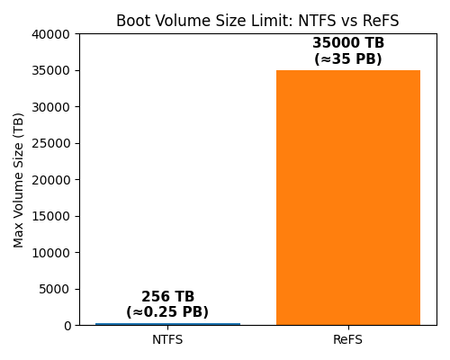
We’re excited to announce that Resilient File System (ReFS) boot support is now available for Windows Server Insiders in Insider Preview builds. For the first time, you can install and boot Windows Server on an ReFS-formatted boot volume directly through the setup UI. With ReFS boot, you can finally bring modern resilience, scalability, and performance to your server’s most critical volume — the OS boot volume. Why ReFS Boot? Modern workloads demand more from the boot volume than NTFS can provide. ReFS was designed from the ground up to protect data integrity at scale. By enabling ReFS for the OS boot volume we ensure that even the most critical system data benefits from advanced resilience, future-proof scalability, and improved performance. In short, ReFS boot means a more robust server right from startup with several benefits: Resilient OS disk: ReFS improves boot‑volume reliability by detecting corruption early and handling many file‑system issues online without requiring chkdsk. Its integrity‑first, copy‑on‑write design reduces the risk of crash‑induced corruption to help keep your system running smoothly. Massive scalability: ReFS supports volumes up to 35 petabytes (35,000 TB) — vastly beyond NTFS’s typical limit of 256 TB. That means your boot volume can grow with future hardware, eliminating capacity ceilings. Performance optimizations: ReFS uses block cloning and sparse provisioning to accelerate I/O‑heavy scenarios — enabling dramatically faster creation or expansion of large fixed‑size VHD(X) files and speeding up large file copy operations by copying data via metadata references rather than full data movement. Maximum Boot Volume Size: NTFS vs. ReFS Resiliency Enhancements with ReFS Boot Feature ReFS Boot Volume NTFS Boot Volume Metadata checksums ✅ Yes ❌ No Integrity streams (optional) ✅ Yes ❌ No Proactive error detection (scrubber) ✅ Yes ❌ No Online integrity (no chkdsk) ✅ Yes ❌ No Check out Microsoft Learn for more information on ReFS resiliency enhancements. Performance Enhancements with ReFS Boot Operation ReFS Boot Volume NTFS Boot Volume Fixed-size VHD creation Seconds Minutes Large file copy operations Milliseconds-seconds (independent of file size) Seconds-minutes (linear with file size) Sparse provisioning ✅ ❌ Check out Microsoft Learn for more information on ReFS performance enhancements. Getting Started with ReFS Boot Ready to try it out? Here’s how to get started with ReFS boot on Windows Server Insider Preview: 1. Update to the latest Insider build: Ensure you’re running the most recent Windows Server vNext Insider Preview (Join Windows Server Insiders if you haven’t already). Builds from 2/11/26 or later (minimum build number 29531.1000.260206-1841) include ReFS boot in setup. 2. Choose ReFS during setup: When installing Windows Server, format the system (C:) partition as ReFS in the installation UI. Note: ReFS boot requires UEFI firmware and does not support legacy BIOS boot; as a result, ReFS boot is not supported on Generation 1 VMs. 3. Complete installation & verify: Finish the Windows Server installation as usual. Once it boots, confirm that your C: drive is using ReFS (for example, by running fsutil fsinfo volumeInfo C: or checking the drive properties). That’s it – your server is now running with an ReFS boot volume. A step-by-step demo video showing how to install Windows Server on an ReFS-formatted boot volume, including UEFI setup, disk formatting, and post-install verification. If the player doesn’t load, open the video in a new window: Open video. Call to Action In summary, ReFS boot brings future-proof resiliency, scalability, and performance improvements to the Windows Server boot volume — reducing downtime, removing scalability limits, and accelerating large storage operations from day one. We encourage you to try ReFS boot on your servers and experience the difference for yourself. As always, we value your feedback. Please share your feedback and questions on the Windows Server Insiders Forum. — Christina Curlette (and the Windows Server team)