sqlserveralwayson
59 TopicsIntroducing Pacemaker HA Agent v2 for SQL Server on Linux (In Preview)
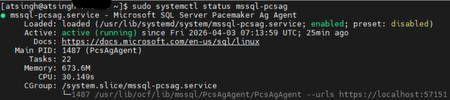
We are excited to introduce the next generation of high availability (HA) Agent for SQL Server on Linux: Pacemaker HA Agent v2. This release is a major step forward, designed to reduce planned and unplanned failover times, compared to the previous agent, based on internal engineering improvements. Why Pacemaker Is Required for SQL Server HA on Linux For users new to Linux, it’s important to understand how high availability works on this platform. On Windows Server, Always On availability groups use an underlying Windows Server Failover Cluster (WSFC) to: Monitor node health Detect failures Orchestrate automatic failovers Always On availability groups on Linux rely on an external cluster orchestrator for health monitoring and failover coordination, with Pacemaker HA Agent being one of the cluster orchestrators, responsible for: Monitoring node and application health Coordinating failover decisions Helping mitigate split‑brain scenarios through improved write‑lease evaluation Managing resources such as availability groups and listeners The Pacemaker HA Agent is the integration layer that allows Pacemaker to understand SQL Server health and manage availability groups safely. Evolution of the SQL Server Pacemaker HA Agent With SQL Server 2025 CU3 and later, Pacemaker HA Agent v2 is available in preview for Red Hat Enterprise Linux and Ubuntu through the mssql-server-ha package. Pacemaker HA agent v2 uses a service‑based architecture. The agent runs as a dedicated system service named mssql-pcsag, which is responsible for handling SQL Server–specific high availability operations and communication with Pacemaker. You can manage mssql-pcsag service by using standard system service controls to start, restart, status and stop this service by using the operating system's service manager (for example, systemctl). # Start the mssql-pcsag service sudo systemctl start mssql-pcsag # Restart the mssql-pcsag service sudo systemctl restart mssql-pcsag # Check the status of the mssql-pcsag service sudo systemctl status mssql-pcsag # Stop the mssql-pcsag service sudo systemctl stop mssql-pcsag Limitations of Pacemaker HA Agent v1 While the original agent enabled SQL Server HA on Linux, customers running production workloads encountered several challenges: Failover delays of 30 seconds to 2 minutes during planned or unplanned events Limited health detection, missing conditions such as I/O stalls and memory pressure Rigid failover behavior, unlike the flexible policies available on Windows (WSFC) Incomplete write‑lease handling, requiring custom logic No support for TLS1.3 for Pacemaker and SQL Server communications How Pacemaker HA Agent v2 Addresses These Gaps Pacemaker HA Agent v2 is a ground‑up improvement, designed to improve the reliability characteristics of SQL Server HA on Linux. 1. Faster & Smarter Failover Decisions The new agent introduces a service‑based health monitoring architecture, moving beyond basic polling. This allows SQL Server to report detailed diagnostic signals - improving detection speed and helping reduce failover delays in supported configurations. 2. Flexible Automatic Failover Policies inspired by the WSFC health model Pacemaker HA Agent v2 supports failure‑condition levels (1–5) and health‑check timeout model aligned with those available in Always On availability groups on Windows. This provides: Fine‑grained control over failover sensitivity, allowing administrators to tune when failover should occur. Improved detection of internal SQL Server conditions, such as memory pressure, internal deadlocks, orphaned spinlocks, and other engine‑level failures. Failover decisions are now driven by detailed diagnostics from sp_server_diagnostics, enabling faster and more accurate response to unhealthy states and providing enhanced resiliency capabilities for SQL Server AG on Linux. You can configure the failure condition level and health check timeout using the following commands: -- Setting failure condition level ALTER AVAILABILITY GROUP pacemakerag SET (FAILURE_CONDITION_LEVEL = 2); -- Setting health check timeout ALTER AVAILABILITY GROUP pacemakerag SET (HEALTH_CHECK_TIMEOUT = 60000); After applying the configuration, validate the setting using the sys.availability_groups DMV: 3. Robust Write Lease Validity Handling To prevent split‑brain scenarios, SQL Server on Linux uses an external write‑lease mechanism. In v1, lease information was not fully integrated into failover decisions. In v2, the agent actively evaluates the write-lease validity, before initiating transitions. This supports controlled role changes and improved data consistency behavior during failover events, depending on cluster configuration. 4. TLS 1.3 Support Pacemaker HA agent v2 includes design updates to support TLS 1.3–based communication for health checks and failover operations, when TLS 1.3 is enabled. Supported Versions & Distributions Pacemaker HA Agent v2 supports: SQL Server 2025 CU3 or later RHEL 9 or later Ubuntu 22.04 or higher. Preview upgrade & migration guidance for non-production environments New or existing non-prod deployments running SQL Server 2025 (17.x) can migrate from Pacemaker HA Agent v1 to v2 using following approach: Drop the existing AG resource sudo pcs resource delete <NameForAGResource> This temporarily pauses AG synchronization but does not delete the availability group (AG). After the resource is recreated, Pacemaker resumes management and AG synchronization automatically. Create a new AG resource using the v2 agent (ocf:mssql:agv2) sudo pcs resource create <NameForAGResource> ocf:mssql:agv2 ag_name=<AGName> meta failure-timeout=30s promotable notify=true Validate cluster health sudo pcs status Resume normal operations References Create and Configure an Availability Group for SQL Server on Linux - SQL Server | Microsoft Learn Thank You, Engineering: David Liao Attinder Pal Singh416Views2likes3CommentsCreating a Contained Availability Group and Enabling Database Creation via CAG Listener
A Contained Availability Group (CAG) is designed to simplify high availability and disaster recovery by encapsulating system databases (master, msdb) within the availability group itself. This means that logins, jobs, credentials, and other metadata are automatically replicated across replicas, eliminating the need for manual synchronization and reducing operational complexity. Starting with SQL Server 2025 CU1, you can create or restore databases directly through the CAG listener - without connecting to the physical instance - by enabling a session context key. Why Contained AGs Matter Self-contained HA unit: Each CAG has its own copy of master and msdb, making it independent of the physical SQL instance. Simplified failover: When the AG fails over, all associated metadata moves with it, ensuring applications continue to function without manual intervention. Improved automation: Supports scenarios where direct access to the SQL instance is restricted, enabling operations through the AG listener. Enhanced security: Reduces exposure by limiting instance-level access; operations can be scoped to the AG context. Streamlined management: Eliminates the need for login and job replication scripts across replicas. Step 1: Prepare the Database for Availability Group This example uses SQL Server on Linux; however, the steps are identical for SQL Server on Windows. In this walkthrough, an existing database named CAGDB is added to a Contained Availability Group (CAG). Before adding the database to the CAG, verify that it is configured for FULL recovery mode and perform a full database backup. ALTER DATABASE CAGDB SET RECOVERY FULL; GO BACKUP DATABASE CAGDB TO DISK = N'/var/opt/mssql/backups/CAGDB.bak' WITH INIT, COMPRESSION; GO Note: On Linux, ensure that the backup target directory exists and is owned by the mssql user. sudo mkdir -p /var/opt/mssql/backups sudo chown mssql:mssql /var/opt/mssql/backups Step 2: Create the Contained Availability Group On your Linux SQL Server nodes, run: CREATE AVAILABILITY GROUP [CAGDemo] WITH ( CLUSTER_TYPE = EXTERNAL, CONTAINED ) FOR DATABASE [CAGDB] REPLICA ON N'node1' WITH ( ENDPOINT_URL = N'tcp://node1:5022', AVAILABILITY_MODE = SYNCHRONOUS_COMMIT, FAILOVER_MODE = EXTERNAL, SEEDING_MODE = AUTOMATIC ), N'node2' WITH ( ENDPOINT_URL = N'tcp://node2:5022', AVAILABILITY_MODE = SYNCHRONOUS_COMMIT, FAILOVER_MODE = EXTERNAL, SEEDING_MODE = AUTOMATIC ); GO #Connect to secondary replicas and join the AG: ALTER AVAILABILITY GROUP [CAGDemo] JOIN WITH (CLUSTER_TYPE = EXTERNAL); ALTER AVAILABILITY GROUP [CAGDemo] GRANT CREATE ANY DATABASE; Step 3: Configure Listener and Connect Create a listener and connect using SSMS or sqlcmd: ALTER AVAILABILITY GROUP [CAGDemo] ADD LISTENER N'CAGDemoListener' ( WITH IP ( (N'*.*.*.*', N'255.255.255.0') ), PORT = 1453 ); GO Step 4: Connect to CAGDemoListener and attempt Database Creation (Failure) When connected through the listener: CREATE DATABASE TestCAGDB; Result:\ Msg 262, Level 14, State 1: CREATE DATABASE is not allowed in this context.\ This happens because database creation is blocked by default in a contained AG session. Step 5: Enable Database Creation in CAG Session or Instance master EXEC sp_set_session_context key = N'allow_cag_create_db', @value = 1; This enables database creation for your current session. Step 6: Retry Database Creation (Success) CREATE DATABASE TestCAGDB; Result: Database created successfully within the contained AG context. Users with dbcreator role in the CAG context can perform this action. Step 7: Backup the database. ALTER DATABASE TestCAGDB SET RECOVERY FULL; BACKUP DATABASE TestCAGDB TO DISK = N'/var/opt/mssql/data/backups/TestCAGDB.bak'; Step 8: Add database to the CAG ALTER AVAILABILITY GROUP [CAGDemo] ADD DATABASE [TestCAGDB]; Optional: To automate Steps 4 - 8, you can create a stored procedure (for example: [dbo].[sp_cag_create_db]) and execute it while connected through the Contained Availability Group (CAG) listener context. CREATE OR ALTER PROCEDURE [dbo].[sp_cag_create_db] @database_name sysname, @createdb_sql NVARCHAR(MAX) = NULL AS BEGIN SET NOCOUNT ON DECLARE @fIsContainedAGSession int EXECUTE @fIsContainedAGSession = sys.sp_MSIsContainedAGSession if (@fIsContainedAGSession = 1) BEGIN DECLARE @SQL NVARCHAR(MAX); EXEC sp_set_session_context = N'allow_cag_create_db', @value = 1; IF @createdb_sql IS NULL SET @SQL = 'CREATE DATABASE ' + QUOTENAME(@database_name); ELSE SET @SQL = @createdb_sql; PRINT @SQL EXEC sp_executesql @SQL; SET @SQL = 'ALTER DATABASE ' + QUOTENAME(@database_name) + ' SET RECOVERY FULL'; PRINT @SQL EXEC sp_executesql @SQL; SET @SQL = 'BACKUP DATABASE ' + QUOTENAME(@database_name) + ' TO DISK = N''NUL'''; PRINT @SQL EXEC sp_executesql @SQL; DECLARE _Name sysname; set _Name = (SELECT name FROM sys.availability_groups ags INNER JOIN sys.dm_exec_sessions des ON ags.group_id = des.contained_availability_group_id WHERE @@SPID = des.session_id); SET @SQL = 'use master; ALTER AVAILABILITY GROUP ' + QUOTENAME(@AG_Name) + ' add DATABASE ' + QUOTENAME (@database_name) PRINT @SQL EXEC sp_executesql @SQL; EXEC sp_set_session_context key = N'allow_cag_create_db', @value = 0; END ELSE BEGIN RAISERROR('This can only be used with a contained availability group connection.', 16, 1); END END GO At a high level, this procedure simplifies database onboarding into a CAG by orchestrating the following actions as a single workflow: Creating (or restoring) the database Setting the recovery model to FULL Taking the initial backup required for availability group seeding Adding the database to the target Contained Availability Group Example: Create a database Execute the following command to create NewTestDB and add it to the target CAG. EXEC [dbo].sp_cag_create_db @database_name = [NewTestDB]; Example: Restore a database The stored procedure also supports an optional parameter, @createdb_sql, which allows you to provide a custom SQL statement to create or restore a database (for example, restoring from a backup). Once the database backup file exists and is accessible to SQL Server, you can use this parameter to perform the operation. Important: When @createdb_sql is used, the procedure executes that SQL statement directly. Ensure the SQL statement is from a secured and trusted source. DECLARE @restoreSql NVARCHAR(MAX); SET @restoreSql = N' RESTORE DATABASE AdventureWorks2022 FROM DISK = ''/var/opt/mssql/backups/AdventureWorks2022.bak'' WITH MOVE ''AdventureWorks2022'' TO ''/var/opt/mssql/data/AdventureWorks2022.mdf'', MOVE ''AdventureWorks2022_log'' TO ''/var/opt/mssql/data/AdventureWorks2022_log.ldf'', RECOVERY; '; EXEC dbo.sp_cag_create_db @database_name = N'AdventureWorks2022', @createdb_sql = @restoreSql; Conclusion Contained Availability Groups represent a major step forward in simplifying high availability for SQL Server. By encapsulating system databases within the AG context, they eliminate the complexity of synchronizing logins, jobs, and credentials across replicas. With the new capability in SQL Server 2025 CU1 to create or restore databases directly through the AG listener using sp_set_session_context, organizations can streamline automation and reduce operational overhead. References What Is a Contained Availability Group Deploy a Pacemaker Cluster for SQL Server on Linux894Views1like0CommentsAnnouncing GA of SQL Server 2025 on RHEL 10 and Ubuntu 24.04, with additional enhancements for Linux deployments
We are excited to announce the General Availability (GA) of SQL Server 2025 on Red Hat Enterprise Linux (RHEL) 10 and Ubuntu 24.04, starting with the CU1 release. This milestone empowers enterprises to deploy SQL Server 2025 on the latest Linux distributions, ensuring robust compatibility, enhanced security, and optimal performance for mission-critical workloads. The GA reinforces our commitment to delivering a modern, secure, and AI-ready database platform across diverse Linux environments. CU1 Release Highlights Key Features: Production-Ready Support: GA support for RHEL 10 and Ubuntu 24.04, enabling production deployments on the newest Linux platforms. Important: Update your SQL Server repository To ensure you are installing the production-ready GA version of SQL Server 2025, it is essential to update your repository from mssql-server-preview.repo to mssql-server-2025.repo. Continuing to use the preview repository may result in installing pre-release builds that are not intended for production workloads. You can proceed with the installation steps as described in the official documentation: RHEL: Install SQL Server on Linux Ubuntu: Install SQL Server on Linux Enable database creation or restoration in Contained Availability Group sessions You can now use the session context key 'allow_cag_create_db' set via the existing stored procedure sp_set_session_contex to enable database creation and restoration directly within a contained availability group (CAG) session through the CAG listener. Only users with the dbcreator role can create databases in a CAG session, and only users with the db_owner or sysadmin role can restore databases. Example: EXEC sp_set_session_context @key = N'allow_cag_create_db', @value = 1; This command enables the feature for your session. To disable it, set @value = 0. Enhanced Observability: SQL Server 2025 on Linux introduces new Dynamic Management Views (DMVs) that provides comprehensive, system-level insights. These DMVs collect and expose metrics from the underlying operating system, allowing administrators to monitor and diagnose not only SQL Server’s performance, but also the impact of other processes running on the same host. This holistic visibility helps distinguish between issues caused by SQL Server and those originating from other workloads or infrastructure bottlenecks, enabling more effective troubleshooting and optimization for mission-critical deployments. sys.dm_os_linux_cpu_stats: Enables users to identify CPU saturation, investigate I/O waits, analyze system responsiveness, and correlate SQL Server performance with broader OS activity, helping to separate database-specific bottlenecks from infrastructure-wide challenges. sys.dm_os_linux_disk_stats: Facilitates detection of log flush slowness, assessment of checkpoint or read-heavy workloads, and identification of external I/O pressure from noisy neighbors on shared hosts, helping teams optimize storage tiers and queue settings. sys.dm_os_linux_net_stats: Provides real-time visibility into network interface statistics, enabling proactive monitoring and troubleshooting of connectivity and throughput issues. Collectively, these DMVs equip database professionals with actionable, OS-level metrics to maintain stability, optimize performance, and ensure reliability in mission-critical Linux deployments. References What’s New in SQL Server 2025 Contained Availability Group You can share your feedback using any of the following methods: Submit your ideas on Azure Ideas (Use the SQL Server on Linux Group on the left side of the page) Alternatively, you can open issues: Issues · microsoft/mssql-docker (github.com) on GitHub. We hope you give SQL Server 2025 CU1 on RHEL10 or Ubuntu 24.04 a try - and we look forward to hearing what you think!750Views1like1Comment
Announcing General Availability of Azure Portal Experience to Deploy Multi-Subnet Availability Group
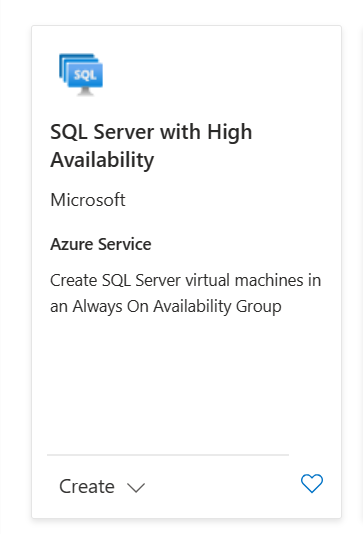
Today, we are excited to announce general availability (GA) of the end-to-end experience to deploy a multi-subnet Availability Group (AG) for SQL Server on Azure Virtual Machines.3.8KViews3likes2CommentsHPE SGLX - The new Azure VM extension for SQL Server on Linux
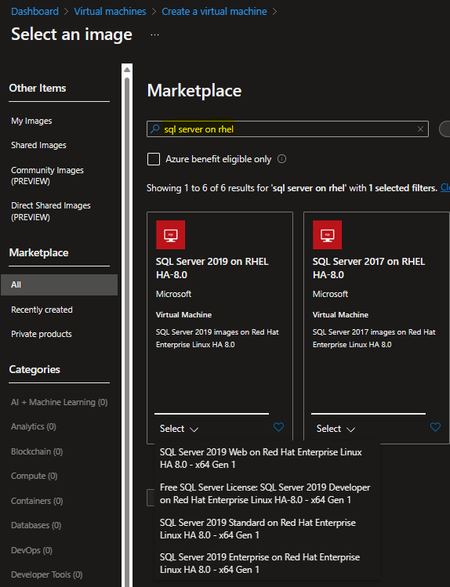
Overview Mission critical SQL Server instances have the need to utilize high availability and disaster recovery features to ensure business continuity. SQL Server on Linux supports HPE Serviceguard as one of the supported clustering solutions. To know more, please refer to HPE Serviceguard for Linux. We have an official documentation that provides detailed steps on how you can configure SQL Server Always On availability groups with HPE Serviceguard for Linux. The purpose of this blog is to inform you about the HPE Serviceguard Extension available in Azure marketplace. This extension allows users to easily create Azure linux-based VMs with SQL Server and HPE Serviceguard pre-installed. As a result, customers can quickly configure SQL Server high availability (HA) solutions. The Serviceguard - Azure VM marketplace extension is available in all Azure regions for use. Let's get started! Create an Azure virtual machine using Azure portal: Log in to Azure portal – portal.azure.com Create Resource group in Azure under the subscription or choose existing resource group of choice. Choose SQL Server on Linux based marketplace image (RHEL or SUSE) and configure the VM on the basis of disks, virtual network, etc. On the Advanced tab of VM creation, click on “Select an extension to install.” Search for HPE Serviceguard for Linux Click on load more and select the extension. Under ‘Select Serviceguard Add-on to install’ , Select Microsoft SQL server on Linux if it’s non-quorum server node machine and select ‘Centralized Serviceguard Management and Arbitration’ if you need Serviceguard quorum server and SGMGR+ (UI) to be configured,. Enter Serviceguard administrative user “sgmgr” password and confirm the same. Proceed to create the VM upon entering the SGLX extension details. After you have configured the other two VMs using the steps as outlined above, you can follow this documentation starting from "Create HPE Service guard cluster" section to configure SQL Server Always On availability groups for SQL Server on Linux4KViews1like0CommentsConfigure SQL Server AG (Read-Scale) for SQL Containers deployed on Kubernetes using Helm
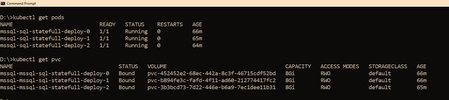
If you are trying to setup Always On availability group between SQL instances deployed as SQL containers on Kubernetes platform, then I hope that this blog provides you the required reference to successfully setup the environment. Target: By end of this blog, we should have three SQL Server instances deployed on the Kubernetes aka k8s cluster. With Always On availability group configured amongst the three SQL Server instances in Read scale mode. We will also have the READ_WRITE_ROUTING_URL setup to provide read/write connection redirection. References: Refer Use read-scale with availability groups - SQL Server Always On | Microsoft Docs to read more about read scale mode. To prepare your machine to run helm charts please refer this blog where I talk how you can setup your environment including AKS and preparing your windows client machine with helm and other tools to deploy SQL Server instances on AKS (Azure Kubernetes Service). Environment layout: 1) To set this environment up, in my case I am using Azure Kubernetes Service as my Kubernetes platform. 2) I will deploy three SQL Server container instances using helm chart in a Statefulset mode you can also deploy this even using deployment mode. 3) I will use T-SQL scripts to setup and configure the always on availability group. Let's get the engine started: Step 1: Using helm deploy three instances of SQL Server on AKS with Always on enabled and create external services of type load balancer to access the deployed SQL Servers. Download the helm chart and all its files to your windows client, switch to the directory where you have downloaded and after you have done modification to the downloaded helm chart to ensure it is as per your requirement and customization, deploy SQL Servers using the command as shown below, you can change the deployment name ("mssql") to anything that you'd like. helm install mssql. --set ACCEPT_EULA.value=Y --set MSSQL_PID.value=Developer Within few minutes, you should see the pods coming up, the number of pods that would be started depends on the "replicas" value you set in the values.yaml file, if you use it as is, then you should have three pods starting up, as the replicas value is set to three. So you have three SQL Server instances using its own pvc's up and running as shown below We also need a way to access these SQL Servers outside the kubernetes cluster, and since I am using AKS as my kubernetes cluster, to access the SQL Server instances, we have created three services one each for the SQL Server pod. The yaml file for the services is also shared with the helm chart under the folder "external services" and the yaml file name is : "ex_service.yaml". If you are using the sample helm chart, you can create the services using the command shown below: kubectl apply -f "D:\helm-charts\sql-statefull-deploy\external services\ex_service.yaml" Apart from the three external services, we will also need the pods to be able to talk to each other on port 5022 (default port used by AG for endpoints on all the replicas) so we create one clusterip service for each pod, the yaml file for this is also available in the sample helm chart under the folder "external services" and the file name is "ag_endpoint.yaml". If you have not made any changes then you can create the service using the command: kubectl apply -f "D:\helm-charts\sql-statefull-deploy\external services\ag_endpoint.yaml" If all the above steps are followed you should have the following resources in the kubernetes cluster: Note: On our cluster, we already have a secret created to store sa password using the command below, the same sa password is being used by all the three SQL Server instances. It is always recommended to change the sa password after the SQL container deployment so the same sa password is not used for all three instances. kubectl create secret generic mssql --from-literal=SA_PASSWORD="MyC0m9l&xP@ssw0rd" Step 2: Create Certificates on primary and secondary replicas followed by creation of endpoints on all replicas. Now it's time for us to create the certificate and endpoints on all the replicas. Please use the External IP address to connect to SQL Server primary instance and run the below T-SQL command to create the certificate and endpoint. --In the context of master database, please create a master key use master go CREATE MASTER KEY ENCRYPTION BY PASSWORD = '<'mycomplexpassword'>'; --under the master context, create a certificate that will be used by endpoint for --authentication. We then backup the created certificate -- to copy the certificate to all the other replicas CREATE CERTIFICATE dbm_certificate WITH SUBJECT = 'dbm'; BACKUP CERTIFICATE dbm_certificate TO FILE = '/var/opt/mssql/data/dbm_certificate.cer' WITH PRIVATE KEY ( FILE = '/var/opt/mssql/data/dbm_certificate.pvk',ENCRYPTION BY PASSWORD = '<'mycomplexpassword'>'); --Now create the endpoint and authenticate using the certificate we created above. CREATE ENDPOINT [Hadr_endpoint] AS TCP (LISTENER_PORT = 5022) FOR DATABASE_MIRRORING ( ROLE = ALL, AUTHENTICATION = CERTIFICATE dbm_certificate, ENCRYPTION = REQUIRED ALGORITHM AES ); ALTER ENDPOINT [Hadr_endpoint] STATE = STARTED; On the primary SQL Server instance pod, we should have the dbm_certificate.pvk and dbm_certificate.cer files at the location : /var/opt/mssql/data. As shown below We need to copy these files to the other pods, you can use the kubectl cp commands to copy from the primary pod to your local client and then from the local client to the secondary pods. Sample commands are shown below --Please ensure on the local machine you create the certificates folder and then run the --below command to copy the files from primary pod to the local machine kubectl cp mssql-sql-statefull-deploy-0:/var/opt/mssql/data/dbm_certificate.pvk "certificate\pvk" kubectl cp mssql-sql-statefull-deploy-0:/var/opt/mssql/data/dbm_certificate.cer "certificate\cer" --Now copy the files from the local machine to the secondary pods kubectl cp "certificate\certs" mssql-sql-statefull-deploy-1:/var/opt/mssql/data/dbm_certificate.cer kubectl cp "certificate\pvk" mssql-sql-statefull-deploy-1:/var/opt/mssql/data/dbm_certificate.pvk kubectl cp "certificate\certs" mssql-sql-statefull-deploy-2:/var/opt/mssql/data/dbm_certificate.cer kubectl cp "certificate\pvk" mssql-sql-statefull-deploy-2:/var/opt/mssql/data/dbm_certificate.pvk Post this the files should be available on every pod as shown below Please create the certificates and endpoints on the secondary replica pods by connecting to the secondary replicas and running the below T-SQL commands: --Run the below command on secondary 1&2 : mssql-sql-statefull-deploy-1 & mssql-sqlstatefull-deploy-2 --once the cert and pvk files are copied create the cert here on secondary and alsocreate the endpoint CREATE MASTER KEY ENCRYPTION BY PASSWORD ='<'mycomplexpassoword'>'; CREATE CERTIFICATE dbm_certificate FROM FILE = '/var/opt/mssql/data/dbm_certificate.cer' WITH PRIVATE KEY ( FILE = '/var/opt/mssql/data/dbm_certificate.pvk', DECRYPTION BY PASSWORD = '<'mysamecomplexpassword'>' ); CREATE ENDPOINT [Hadr_endpoint] AS TCP (LISTENER_PORT = 5022) FOR DATABASE_MIRRORING ( ROLE = ALL, AUTHENTICATION = CERTIFICATE dbm_certificate, ENCRYPTION = REQUIRED ALGORITHM AES ); ALTER ENDPOINT [Hadr_endpoint] STATE = STARTED; Step 3: Create the AG on the primary replica and then join the secondary replicas using T-SQL On the primary replica run the below command to create the AG which has Read_only_routing_list configured and also has Read_write_routing_url configured to redirect connection to primary irrespective of the instance that you connect provided you pass the database name to which you want to connect. --run the below t-sql on the primary SQL server pod CREATE AVAILABILITY GROUP MyAg WITH ( CLUSTER_TYPE = NONE ) FOR DATABASE test REPLICA ON N'mssql-sql-statefull-deploy-0' WITH ( ENDPOINT_URL = 'TCP://mssql-mirror-0:5022', AVAILABILITY_MODE = ASYNCHRONOUS_COMMIT, FAILOVER_MODE = MANUAL, SEEDING_MODE = AUTOMATIC, SECONDARY_ROLE (ALLOW_CONNECTIONS = ALL, READ_ONLY_ROUTING_URL = 'TCP://104.211.231.206:1433' ), PRIMARY_ROLE (ALLOW_CONNECTIONS = READ_WRITE, READ_ONLY_ROUTING_LIST = ('mssql-sql-statefull-deploy-1','mssql-sql-statefull-deploy-2'), READ_WRITE_ROUTING_URL = 'TCP://104.211.231.206:1433' ), SESSION_TIMEOUT = 10 ), N'mssql-sql-statefull-deploy-1' WITH ( ENDPOINT_URL = 'TCP://mssql-mirror-1:5022', AVAILABILITY_MODE = ASYNCHRONOUS_COMMIT, FAILOVER_MODE = MANUAL, SEEDING_MODE = AUTOMATIC, SECONDARY_ROLE (ALLOW_CONNECTIONS = ALL, READ_ONLY_ROUTING_URL = 'TCP://104.211.203.78:1433' ), PRIMARY_ROLE (ALLOW_CONNECTIONS = READ_WRITE, READ_ONLY_ROUTING_LIST = ('mssql-sql-statefull-deploy-0','mssql-sql-statefull-deploy-2'), READ_WRITE_ROUTING_URL = 'TCP://104.211.203.78:1433' ) , SESSION_TIMEOUT = 10 ), N'mssql-sql-statefull-deploy-2' WITH ( ENDPOINT_URL = 'TCP://mssql-mirror-2:5022', AVAILABILITY_MODE = ASYNCHRONOUS_COMMIT, FAILOVER_MODE = MANUAL, SEEDING_MODE = AUTOMATIC, SECONDARY_ROLE (ALLOW_CONNECTIONS = ALL, READ_ONLY_ROUTING_URL = 'TCP://104.211.203.159:1433' ), PRIMARY_ROLE (ALLOW_CONNECTIONS = READ_WRITE, READ_ONLY_ROUTING_LIST = ('mssql-sql-statefull-deploy-0','mssql-sql-statefull-deploy-1'), READ_WRITE_ROUTING_URL = 'TCP://104.211.203.159:1433'), SESSION_TIMEOUT = 10 ); GO ALTER AVAILABILITY GROUP [MyAg] GRANT CREATE ANY DATABASE; Note: In the above command, please ensure that you pass the service names that you created in step 1 for the enpoint_url and you pass the external IP address of the SQL Server pods when configuring the read_write_routing_url option. Any error here can result in the secondary's not able to join the AG. Now on the secondary replicas please run the T-SQL command to join the AG, sample shown below --On both the secondaries run the below T-SQL commands ALTER AVAILABILITY GROUP [MyAg] JOIN WITH (CLUSTER_TYPE = NONE); ALTER AVAILABILITY GROUP [MyAg] GRANT CREATE ANY DATABASE; The AG should be configured and the dashboard should look as shown below Step 4: Read_write_routing_url in action You can now try connecting to any of the secondary replicas and provide the AG database as the database context, you will automatically get routed to the current primary even without the presence of listener. As you can see we are connecting to 104.211.203.78 which is the external IP address for pod: mssql-sql-statefull-deploy-1 which is secondary server, but the connection got re-routed to the current primary which is : mssql-sql-statefull-deploy-0 @ 104.211.231.206 To try manual failover, please follow the steps documented here. Hope this helps!11KViews3likes2Comments
SQL Server Always on Availability Group Scalability Experiment and Result on Azure VM
Today to meet the demands of fast business growth, many Tier 1 customers need to configure their Always On Availability Groups (AG) with several hundred or more databases, and in recent years with the massive improvements of hardware technology they are now able to do it. Customers often ask how many databases they can place in an Always On Availability Group. This article shares the information and learning from our experiment of placing large number of databases within an AG, based on scalability test with high end Azure virtual machines (E64s and M128ms), with TPCE workload simulating customer’s scenarios.5KViews2likes0Comments