sqlserver
3 TopicsAzure SQL Data Sync Fails with "Cannot Insert NULL": Understanding the Root Cause
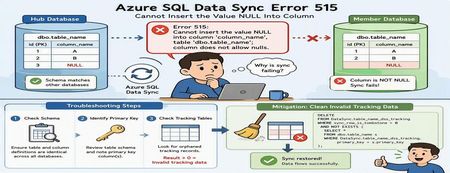
Azure SQL Data Sync is a powerful service that enables data synchronization across multiple Azure SQL Databases. While synchronization failures are relatively uncommon, one error that administrators occasionally encounter is SQL Server Error 515, indicating that a NULL value cannot be inserted into a non-nullable column. At first glance, this appears to be a straightforward data-quality problem. However, in many cases, the actual root cause lies elsewhere: inconsistencies between Azure SQL Data Sync tracking metadata and the underlying source data. This article explains: Common causes of Error 515 during synchronization How to troubleshoot the issue How to identify invalid tracking records Safe mitigation approaches to restore synchronization The Error A synchronization operation may fail with an error similar to the following: SqlException Error Code: -2146232060 SqlError Number: 515 Message: Cannot insert the value NULL into column 'column_name', table 'dbo.table_name'; column does not allow nulls. INSERT fails. SqlError Number: 3621 The statement has been terminated. Although the error references a NULL value being inserted into a destination table, the root cause is not always missing data. In many cases, the issue originates from synchronization metadata maintained by Azure SQL Data Sync. How Azure SQL Data Sync Tracks Changes Azure SQL Data Sync relies on internal tracking tables to detect and replicate data changes between Hub and Member databases. Whenever rows are inserted, updated, or deleted, synchronization metadata is recorded in tracking tables. Data Sync uses this metadata to determine what changes need to be propagated to other databases. If the tracking metadata becomes inconsistent with the actual source table contents, Data Sync may attempt to synchronize invalid records, resulting in failures such as: Cannot insert the value NULL into column... Common Root Causes Scenario 1: Schema Mismatch Between Databases One of the most common causes of synchronization failures is a schema mismatch between synchronized databases. For example: Database Column Definition Hub NULL Allowed Member A NOT NULL Member B NOT NULL If Data Sync replicates a row containing a NULL value from the Hub database, synchronization will fail when the destination database does not allow NULL values. Areas to Validate Ensure the following are identical across all synchronized databases: Column nullability (NULL vs NOT NULL) Data types Column length Constraints Primary key definitions Even small schema differences can cause synchronization failures. Scenario 2: Invalid Tracking Metadata A less obvious but frequently encountered scenario involves orphaned records in Data Sync tracking tables. This can occur when: Primary key values are updated directly Data is modified outside expected application workflows Historical tracking records become disconnected from source data Synchronization metadata references rows that no longer exist When Data Sync processes these stale entries, synchronization may fail with Error 515 even though the source data itself appears valid. Troubleshooting Process Step 1: Verify Column Definitions Begin by examining the affected table and column identified in the error message. For example: sp_help 'dbo.table_name' Review the schema on both Hub and Member databases and verify that: The affected column has the same definition everywhere NULL settings are identical Data types and lengths match If discrepancies exist, align the schemas across all synchronized databases before proceeding. Step 2: Review the Table Schema If the schema appears consistent, review the complete definition of the affected table. Pay particular attention to: Primary key columns Identity columns Constraints Nullable settings Identifying the primary key is especially important for the next validation step. Step 3: Check for Orphaned Tracking Records Run the following query against both Hub and Member databases. Replace: table_name primary_key with the actual table and primary key column names. SELECT COUNT(*) FROM DataSync.table_name_dss_tracking t WHERE sync_row_is_tombstone = 0 AND NOT EXISTS ( SELECT * FROM dbo.table_name s WHERE t.primary_key = s.primary_key ); For tables with composite primary keys, include all key columns in the comparison. How to Interpret the Results Result > 0 One or more orphaned tracking records exist. This indicates that the tracking table contains entries that reference records no longer present in the source table. This is a strong indicator that invalid synchronization metadata is causing the failure. Result = 0 No orphaned records were detected. If the synchronization error persists, further investigation should focus on schema consistency, data quality, and additional synchronization diagnostics. Mitigation Option 1: Correct Schema Differences If schema inconsistencies are found: Align the table definition across all synchronized databases. Ensure NULL and NOT NULL settings are consistent. Verify primary key definitions match. Reinitialize synchronization if necessary. After schema alignment, synchronization can typically resume successfully. Mitigation Option 2: Clean Invalid Tracking Data If orphaned tracking records are identified, remove the invalid synchronization metadata. Important: Always validate and test cleanup operations in a non-production environment before executing them in production. The following query removes tracking entries that no longer correspond to records in the source table: DELETE FROM DataSync.table_name_dss_tracking WHERE sync_row_is_tombstone = 0 AND NOT EXISTS ( SELECT * FROM dbo.table_name s WHERE DataSync.table_name_dss_tracking.primary_key = s.primary_key ); Replace: table_name primary_key with the appropriate values for your environment. After cleanup, Data Sync can rebuild valid change tracking information and synchronization typically returns to a healthy state. Additional Validation Query The following query can help identify historical deletion records that exist in tracking tables: SELECT tr.id1 FROM DataSync.table2_dss_tracking tr LEFT JOIN dbo.table2 orig ON tr.id1 = orig.id1 WHERE tr.sync_row_is_tombstone = 1 AND orig.id1 IS NULL AND tr.last_change_datetime > DATEADD(day, -20, GETUTCDATE()); This can provide additional insight into how synchronization metadata is tracking deleted records. Understanding the Underlying Cause The most important takeaway is that the NULL value reported in the synchronization error is often not the actual problem. A common sequence looks like this: A primary key value is modified directly. UPDATE dbo.table_name SET primary_key = new_value; Data Sync tracking metadata continues to reference the original key value. The source table and tracking table become inconsistent. During synchronization, Data Sync attempts to process the stale tracking record. The synchronization operation fails and surfaces a "Cannot insert the value NULL into column" error. In these scenarios, cleaning invalid tracking records resolves the inconsistency and restores successful synchronization. Best Practices to Prevent Recurrence To minimize the likelihood of synchronization failures: Keep schemas identical across all synchronized databases Avoid updating primary key values whenever possible Use surrogate keys for synchronized tables Validate schema consistency before deploying schema changes Periodically investigate Data Sync tracking tables when troubleshooting synchronization failures Test schema modifications in non-production environments before deployment Conclusion When Azure SQL Data Sync reports a: Cannot insert the value NULL into column... error, it is important not to assume that the problem is caused by missing data in the source table. A structured troubleshooting approach should include: Verifying schema consistency across synchronized databases Reviewing primary key definitions Investigating Data Sync tracking tables for orphaned records Cleaning invalid synchronization metadata when appropriate In many real-world cases, stale tracking records are the true root cause. Identifying and removing these invalid entries can restore synchronization quickly and avoid unnecessary application or schema changes. Have you encountered similar Azure SQL Data Sync issues in your environment? Share your experience and troubleshooting techniques in the comments below.199Views0likes0CommentsUnderstanding and Monitoring Class 2 Transactions in Azure SQL Database
During a recent customer engagement, we investigated sustained transaction log growth in Azure SQL Database without obvious large user transactions. The customer was familiar with PostgreSQL diagnostics and wanted to understand how similar insights can be obtained in Azure SQL Database—especially around Class 2 (system) transactions. This post summarizes what we discussed, explains why Azure SQL behaves differently, and walks through practical DMV‑based monitoring patterns you can use today. Azure SQL Database vs. PostgreSQL: Diagnostic Model Differences One of the first clarifications we made is that Azure SQL Database does not expose diagnostic settings equivalent to PostgreSQL’s system‑level log diagnostics. Azure SQL Database is a fully managed PaaS service, and many internal operations—such as checkpoints, version store cleanup, and background maintenance—are abstracted from direct control. Instead of low‑level engine logs, Azure SQL provides cumulative Dynamic Management Views (DMVs) that expose the effects of system activity rather than the internal implementation. What Are Class 2 Transactions? In Azure SQL Database, Class 2 transactions generally refer to system‑generated transactions, not directly initiated by user workloads. These commonly include: Checkpoint operations Version store cleanup Ghost record cleanup Background metadata maintenance Although they are not user‑driven, these transactions still generate transaction log activity, which can be surprising when log usage grows steadily without large user transactions. Key DMVs to Monitor Class 2 Activity 1. Transaction Log Usage SELECT * FROM sys.dm_db_log_space_usage; This DMV provides: Total log size Used log space Used log percentage If log usage grows steadily without large user transactions, it is often a signal that background system activity (Class 2 transactions) is responsible. Checkpoint Activity SELECT * FROM sys.dm_exec_requests WHERE command = 'CHECKPOINT'; Frequent checkpoints result in: More frequent log flushes Increased system log writes In Azure SQL Database, checkpoint frequency is system‑managed and cannot be tuned through configuration or diagnostic settings. Version Store Usage (Common Class 2 Contributor) SELECT * FROM sys.dm_tran_version_store_space_usage; High version store usage often leads to: Background cleanup tasks Increased system transactions Additional transaction log generation This is especially common in workloads using: Snapshot Isolation Read Committed Snapshot Isolation (RCSI) Long‑running transactions or readers Automating Monitoring with Azure Elastic Jobs Because these DMVs are cumulative, capturing them over time is key. During the call, we discussed automating data collection using Azure Elastic Jobs. Elastic Jobs allow you to: Schedule DMV snapshots Store historical trends Correlate spikes with workload patterns Microsoft provides full guidance on creating and managing Elastic Jobs using T‑SQL here: Create and manage Elastic Jobs using T‑SQL Index Management and Class 2 Impact Index maintenance can indirectly increase Class 2 activity by: Increasing version store usage Triggering additional background cleanup Instead of manual index tuning, we recommended enabling Query Performance Insight – Index recommendations in the Azure Portal. This allows Azure SQL Database to automatically: Suggest index creation Suggest index removal based on real workload patterns. Why Checkpoints Cannot Be Tuned A common question is whether checkpoint frequency can be reduced to lower system log activity. In Azure SQL Database: Checkpoints are engine‑managed There is no diagnostic or configuration setting to control their frequency This design ensures platform stability and predictable recovery behavior As a result, monitoring—not tuning—is the correct approach. Practical Takeaways From this case, the key lessons are: Not all transaction log growth is user‑driven Class 2 transactions are a normal part of Azure SQL Database DMVs provide the best visibility into system behavior Trend‑based monitoring is more valuable than point‑in‑time checks Automation via Elastic Jobs is essential for long‑term analysis Conclusion Class 2 transactions are often misunderstood because they operate quietly in the background. By using the right DMVs and collecting data over time, you can clearly distinguish expected system behavior from genuine workload issues. If you’re coming from PostgreSQL or on‑prem SQL Server, the key mindset shift is this: Azure SQL Database exposes outcomes, not internals—and that’s by design.199Views0likes0CommentsTroubleshooting Azure SQL Data Sync Failure: SQL Error 8106 During Bulk Insert
Azure SQL Data Sync is widely used to maintain consistency across distributed databases in hub–member topologies. However, synchronization may occasionally fail due to schema mismatches between participating databases — even when everything appears correctly configured at first glance. In this post, we’ll walk through a real-world troubleshooting scenario involving a Data Sync failure caused by a schema inconsistency related to an IDENTITY column, and how it was mitigated. Sample Error: sync_7726d6cb22124c0f901192c434f49106bd618f8ab16343b2adc03250f8367ff4\3953fb7d-1dba-4656-8150-83153d5d019b.batch. See the inner exception for more details. Inner exception: Failed to execute the command 'BulkInsertCommand' for table 'schema.table_name'; the transaction was rolled back. Ensure that the command syntax is correct. Inner exception: SqlException ID: e19b3677-d67e-4c8e-bc49-13d3df61ad0e, Error Code: -2146232060 - SqlError Number:8106, Message: SQL error with code 8106 For more information, provide tracing ID ‘92e76130-f80a-4372-9a48-ec0ede8b0288’ to customer support." Scenario Overview A synchronization operation began failing for a specific table within an Azure SQL Data Sync group. The failure was observed during the sync process when applying changes using a batch file. The error surfaced as part of a failed BulkInsertCommand execution on a synced table, causing the transaction to roll back. Further investigation revealed the following SQL exception: SqlError Number: 8106 Table does not have the identity property. Cannot perform SET operation. Initial Troubleshooting Steps Before identifying the root cause, the following actions were taken: The affected table was removed from the sync group. A sync operation was triggered. The table was re-added to the sync group. Sync was triggered again. Despite performing these steps, the issue persisted with the same error. This indicated that the failure was not related to sync metadata or temporary configuration inconsistencies. Root Cause Analysis After reviewing the table definitions across the sync topology, it was discovered that: The synchronized table had an IDENTITY column defined on one side of the topology (Hub or Member) but not on the other. This schema mismatch led to the sync service attempting to apply SET IDENTITY_INSERT operations during the bulk insert phase — which failed on the database where the column lacked the identity property. Azure SQL Data Sync relies on consistent schema definitions across all participating databases. Any deviation — particularly involving identity columns — can interrupt data movement operations. Mitigation Approach To resolve the issue, the following corrective steps were applied: Remove the affected table from the sync group and save the configuration. Refresh the sync schema. Recreate the table to include the appropriate IDENTITY property. Add the corrected table back to the sync group. Trigger a new sync operation. These steps ensured that the table definitions were aligned across all sync participants, allowing the synchronization process to proceed successfully. Best Practices to Avoid Similar Issues To prevent identity-related sync failures in Azure SQL Data Sync: ✅ Ensure table schemas are identical across all participating databases before onboarding them into a sync group. ✅ Pay special attention to: IDENTITY properties Primary keys Data types Nullable constraints ✅ Always validate schema consistency when: Adding new tables to a sync group Modifying existing table definitions Final Thoughts Schema mismatches — especially those involving identity columns — are a common but often overlooked cause of Data Sync failures. By ensuring consistent table definitions across your hub and member databases, you can significantly reduce the risk of synchronization errors and maintain reliable data movement across regions.100Views0likes0Comments