sql server management studio
11 TopicsLessons Learned #560: SQL Is Slow — What Can Query Store and SSMS Copilot Uncover?
In our recently delivered session, “SQL Is Slow — What Can Query Store and SSMS Copilot Uncover?”, we demonstrated step by step how to investigate a performance problem by combining Query Store with Copilot’s capabilities in SSMS. The demonstration starts with a PHP program executing queries while we grow a table from a few hundred to millions of rows. As different execution plans appear and performance changes, we follow the evidence in Query Store to uncover what is happening and decide what to investigate next. One clue stood out. The query took about 12 milliseconds per execution in one interval and almost 2.5 seconds in another interval under the same Plan ID. Other plans appeared during the complete lab. Understanding both the differences between plans and the changes within a plan became part of the investigation. Along the way, we demonstrated how a guided conversation with Copilot can become an Agent investigation, and how the investigation itself can be captured in a reusable skill. The useful result was a method that keeps asking for evidence before accepting an explanation. The session brings the two tools together: Query Store supplies the recorded history, and Copilot helps us examine it and decide what to investigate next. The same troubleshooting story lets the audience follow Ask mode, Agent mode and the reusable skill without losing the connection to the underlying SQL evidence. A growing table and several execution plans For our sessions, we use a PHP program that generates 16 different simulations of performance and connectivity problems, allowing us to demonstrate how to investigate these scenarios through practical demos. We also have code developed in .NET and Java. In this demonstration, we add records to dbo.Notes in stages, reaching approximately 200, 32,000, 65,000, 2 million, and 4 million rows, while the PHP program executes dbo.GiveNotes with different @N values. This lets us observe how performance and execution plans evolve as the data volume grows. Several execution plans accumulated during the complete demonstration. We compared all of them, then inspected the runtime intervals within each Plan ID. The reference run revealed this change within the history of one plan: Average per execution Healthy interval Degraded interval Approximate increase CPU 7.69 ms 1,443.19 ms 188 times Duration 12.39 ms 2,473.68 ms 200 times Logical reads 68.39 12,233.10 179 times The duration increase was approximately 200 times. This comparison covers two intervals for one Plan ID, not the whole sequence of table sizes. It does not assign a particular plan or timing to each row-count stage. These are lab observations; identifiers and timings vary between runs. The reads were particularly revealing. Each execution was touching far more pages. A later plan change could not, by itself, explain degradation that had already started while the earlier plan remained in use. The next step was to investigate what had increased the work per execution. Build the timeline before choosing the explanation We first compared workload contributors using total CPU, elapsed duration, logical reads and execution count. Total consumption identified where the workload impact was concentrated; averages per execution helped distinguish expensive executions from a high volume of individually inexpensive calls. Next, we collected every plan for the selected query and compared runtime intervals chronologically. We discovered the identifiers from the database instead of supplying fixed Query IDs or Plan IDs. We asked both when another plan appeared and whether the cost had already increased before that change. A plan summary alone can hide this story. One average across a plan’s entire history blends its healthy and degraded periods. The interval history shows when the work changed and whether that happened before another plan appeared. Aggregation mattered. When combining runtime statistics, we weighted each average by its execution count. A simple average of interval averages would give a lightly used interval the same influence as a heavily used one. We also kept units explicit and separated execution types where needed. Weighted average = SUM(average value * execution count) / SUM(execution count) The increase in logical reads directed the investigation toward the amount of data processed and the access path. Waits could help explain elapsed time, but waits alone would not explain that increase in reads. dbo.GiveNotes filtered dbo.Notes on ID < @N and grouped by Name. The clustered primary key was on id2, a different column from the predicate. As rows were added, a reused plan could process more data; changing @N could also change how many rows qualified. A new Plan ID was a separate event to investigate, not an explanation to assume. Different @N values can qualify different numbers of rows, and table growth can increase the work even with an unchanged plan. We inspected distribution, statistics and access paths to test that explanation. Query Store interval averages alone do not tell us the parameter used by every execution, and parameter-sensitive behavior does not automatically prove parameter sniffing. One investigation through three Copilot experiences In Ask mode, we guided the conversation one question at a time. We first requested the Query Store overview, then asked which contributor to investigate and how its plans behaved over time. The staged prompts delayed statistics, index and parameter analysis until the runtime evidence justified those questions. Where required, we ran generated diagnostic T-SQL and brought the results back into the conversation. In Agent mode, we supplied the investigation goal and allowed Copilot to choose and execute diagnostic steps using the available SQL tools. We reviewed the proposed actions and kept the investigation read-only. The agent could use each result to decide what to inspect next. Finally, we captured the sequence in an Agent Skill. We wanted the next investigation to preserve the critical question: did the query become more expensive while the same plan was still being reused? Agent Skills provide task-specific instructions that Copilot can discover and use in Agent mode. We also demonstrated the reusable method through GitHub Copilot CLI. Database execution still requires a configured SQL tool or MCP server; without that capability, the workflow must generate diagnostics for the engineer to run. What we put into the reusable skill The SQL Performance Investigator pack captures the diagnostic sequence alongside the calculation rules and starting prompts. The agent is instructed to: Identify the main workload contributor and retain its Query ID. Collect all associated plans and their runtime history. Check whether degradation began while the same plan remained in use. Investigate relevant selectivity, statistics and index evidence. Separate confirmed observations from hypotheses and propose validation. A skill makes the method reusable; it does not guarantee the diagnosis is correct. Missing history, incorrect aggregation or a plausible but unsupported inference still need an engineer’s attention. We kept discovery read-only, with SQL permissions enforcing the access boundary. A proposed index still needs evidence of improvement In the demonstration, we evaluated an index with ID as its leading key and Name as an included column: CREATE NONCLUSTERED INDEX NOTES_IX1 ON dbo.Notes (ID) INCLUDE (Name); The key matches the range predicate, while the included column makes Name available for the aggregation. Whether this improves the workload depends on selectivity, data volume and the competing plans. Its storage and write costs also matter. We treated this as a remediation candidate. Validation requires a comparable workload, including parameter distribution and concurrency, followed by a Query Store comparison of reads, CPU, duration and variability. We did not equate an index recommendation with a demonstrated improvement. Statistics also need careful interpretation. An index histogram describes its leading key; adding Name as an INCLUDE column does not create a histogram on Name. An existing auto-created statistic should not be dropped merely because its column appears in a covering index. The lesson we took from the demonstration The complete story contained a growing table and multiple plans. Within that history, one plan became much more expensive before a later plan could explain the change. Comparing plans and examining changes within each plan gave us complementary evidence. Copilot helped us follow it, and the skill preserved the investigation sequence for another database. We enjoyed presenting this session. For DBAs, developers and support engineers, the session offers a practical way to watch a performance investigation unfold, from the PHP workload and Query Store history to the prompts and reusable skill. We look forward to continuing this demonstration and discussion with SQL user groups and the wider technical community. If you have encountered a query that became slower while the same plan remained in use, which evidence helped you explain the change? We would be interested to hear how you approached it. References and prerequisites For the SSMS Agent and Skills experience described here, Microsoft documents SSMS 22.7 or later with the AI Assistance workload and GitHub Copilot access. Query Store must be enabled with relevant history available. Specify the target server and database in the Agent prompt rather than relying on the active editor context. Check the current documentation before reproducing the session. GitHub Copilot Agent mode in SSMS Agent Skills in SSMS Monitoring performance by using Query Store Query Store runtime statistics Try the investigation with our prompts These prompts offer a practical starting point for the method demonstrated in our session. The Ask prompt is the opening prompt from our session workflow. The Agent prompts are adapted from our accompanying pack to make the target server, database and investigation window explicit. Replace the angle-bracket placeholders before submitting them. Start with Ask mode We began with a request for evidence, deliberately postponing diagnosis. Run the generated diagnostic query against the intended lab database and use its results for the next questions. I want to start a SQL performance troubleshooting investigation using Query Store. Generate a single read-only T-SQL query that I can execute in the current database to identify the main performance contributors. The query must use Query Store and return, for each query: * Query ID * Query text * Object or stored procedure name, when available * Number of execution plans * Number of executions * Total CPU time * Average CPU time per execution * Total duration * Average duration per execution * Total logical reads * Average logical reads per execution Aggregate Query Store runtime statistics correctly across runtime intervals and execution plans. Use weighted calculations based on count_executions. Do not calculate averages by simply averaging Query Store average values. Return CPU and duration values in milliseconds. Rank the results by total CPU consumption, but include all the metrics above so that we can determine later which resource is having the highest impact. Do not perform root-cause analysis yet. Do not include execution plan analysis, parameter sensitivity, statistics analysis, index analysis, or remediation recommendations. Only generate the read-only diagnostic T-SQL query that I should execute. We then asked which resource deserved investigation, which query contributed most, how all its plans performed over time, and whether the same Plan ID had become more expensive. Only after those answers did we investigate selectivity, statistics and indexes. The complete session workflow contains the staged follow-up prompts. Convert the conversation into an Agent investigation We moved the recurring calculation rules and diagnostic sequence into sql-performance-investigator. The starting prompt could then state the goal, scope and execution boundaries. The skill supplies the detailed method; the available SQL tools supply execution capability. The agent retains the discovered query and plan identifiers within the investigation. It should not ask the engineer to copy them between steps or assume the identifiers from a previous lab run. Run the method in SSMS Agent mode Make the skill available to SSMS, select Agent mode and verify the SQL tools are enabled. Specify the target explicitly because Agent mode does not inherit the active query editor context. Investigate the SQL performance problem on server <server>, database <database>, using Query Store for <UTC start> to <UTC end>. Use the sql-performance-investigator skill. Use the available sql-tools to execute read-only diagnostics and continue through the investigation, requesting approval where the host requires it. Automatically discover the dominant performance metric, target query, Query ID, all Plan IDs, runtime history, and any same-plan degradation. Retain the discovered identifiers internally. Investigate the evidence needed to explain the change, including selectivity, data distribution, statistics and existing indexes when relevant. Do not assume a plan change caused the degradation or label it parameter sniffing without evidence. Keep confirmed evidence, inference, hypotheses and missing evidence separate. Use execution-weighted averages and explicit units. If the requested history or permissions are unavailable, report the limitation. Do not create/drop indexes, update/drop statistics, force plans, clear caches, modify Query Store, or change data/schema. Finish with a supported diagnosis or remaining uncertainty, a proposed remediation if justified, and a Query Store before/after validation plan. Do not execute remediation. Use the same method in GitHub Copilot Our pack places the skill at .github/skills/sql-performance-investigator/SKILL.md and the Custom Agent at .github/agents/sql-performance-investigator.agent.md. The skill references workflow.md and query-store-rules.md for the detailed method. In GitHub Copilot CLI, select the SQL Performance Investigator custom agent and use this adapted starting prompt: Use the SQL Performance Investigator custom agent and the sql-performance-investigator skill. Investigate SQL performance on <server>, database <database>, for <UTC start> to <UTC end>, using Query Store from evidence to diagnosis. If a SQL execution tool/MCP is available, run only read-only diagnostics and continue through the investigation. Discover Query IDs and Plan IDs automatically and retain them internally. Follow the host approval requirements. If no SQL execution capability is available, generate one self-contained read-only diagnostic batch for me to run, then continue when I provide the result. Do not claim that SQL was executed. Do not apply remediation. Propose an index/statistics action only after the evidence supports it. Finish with a before/after Query Store validation plan. The reusable asset is the investigation procedure behind these prompts. Query Store supplies the evidence, Copilot helps carry out the investigation, and the engineer reviews whether the explanation and proposed change are supported by the results.193Views0likes0CommentsLessons Learned #552:10 Lines in an SSMS MSAL Trace That Tell You Almost Everything You Need to Know
In one of our support cases, a customer reported higher-than-expected connection times when connecting from SQL Server Management Studio (SSMS) to Azure SQL Database using Microsoft Entra authentication. The behavior was also not completely consistent. Sometimes the connection required interaction with the account selection experience. Other times, subsequent connections were noticeably faster. At first, there were several possible areas to investigate: Was Azure SQL taking too long to authenticate the user? Was there a networking, proxy, or firewall issue? Was access to login.microsoftonline.com being delayed or denied? Was Microsoft Entra authentication itself taking the time? Was Conditional Access or MFA involved? Was SSMS using the expected Microsoft Entra account? Was the delay happening before or after the access token was obtained? The important question became: Where exactly was the connection time being spent? Instead of treating the SSMS connection as a single operation, I enabled verbose MSAL tracing in SSMS and started following the authentication process. SSMS exposes the MSAL Output Window Trace Level under Tools → Options → Azure Services. The same options page exposes the Microsoft Entra authority, Azure SQL Database service principal name, and Web Account Manager settings. The resulting trace was large—hundreds of lines. But while analyzing it, I realized something useful: I didn't need to understand every line in the MSAL trace. A small number of search strings were enough to reconstruct almost the entire authentication story. These are the 10 things I learned to look for. 1. CorrelationId — First, make sure I am following the same authentication request One of the first things I learned was not to read the trace only by timestamp. MSAL performs several related operations: GetAccounts. AcquireTokenSilent. ReadAccountById AcquireTokenInteractive Broker operations Token cache operations Some can happen almost at the same time, and they don't necessarily share the same correlation ID. For example, in one reproduction, the silent authentication attempt had one correlation ID, while the subsequent interactive request used another one. So my first search became: CorrelationId I learned not to calculate latency by simply subtracting two nearby timestamps. First I identify: Operation + CorrelationId + Start / End and only then interpret the timing. This becomes particularly valuable if the logs later need to be correlated with identity-service investigations. MSAL exposes the correlation ID specifically to piece together an authentication flow. 2. ApiId — Was SSMS trying silent or interactive authentication? My second search became: ApiId In the first connection attempt I found: ApiId - AcquireTokenSilent That immediately told me that SSMS was not initially trying to display an authentication UI. It first attempted to obtain the token silently. But later in the same reproduction I found: ApiId - AcquireTokenInteractive Now the flow was becoming clearer: SSMS ->AcquireTokenSilent -> Silent authentication cannot continue -> AcquireTokenInteractive This was my first important lesson from the case: An SSMS Microsoft Entra connection isn't necessarily interactive from the beginning. MSAL can first try silent authentication and only switch to an interactive mechanism if necessary. Microsoft documents MsalUiRequiredException precisely for situations in which a non-interactive acquisition cannot continue without user interaction—for example because sign-in, MFA, consent, or another requirement must be satisfied. 3. Authority — Where was the authentication request actually going? The next thing I wanted to know was whether the delay could be associated with reaching Microsoft Entra. I searched for: Authority - The trace showed: Authority - https://login.microsoftonline.com/<tenant-id>/ This single line gives us two very important pieces of information: https://login.microsoftonline.com/ -> Microsoft Entra tenant -> Identity authority That means that before blaming Azure SQL, I can establish which identity endpoint SSMS/MSAL is using. This is also where a frequently reported problem such as: "It looks like access to login.microsoftonline.com is denied." can be investigated much more precisely. If I see something such as: MsalServiceException StatusCode: 403 AADSTS.... then I need to inspect the Microsoft Entra response and its error code. If I see a DNS, TLS, proxy, connection timeout, or similar exception, the network path to the identity endpoint becomes much more relevant. Those are very different problems. MSAL distinguishes client/library errors (MsalClientException), token-provider/service responses (MsalServiceException), and scenarios requiring interaction (MsalUiRequiredException). Network failures that MSAL doesn't handle are propagated to the application. One thing I would not conclude from a 403 alone is: "The firewall is blocking login.microsoftonline.com." The ErrorCode, AADSTS code, StatusCode, and ResponseBody together are much more useful than the HTTP status alone. 4. Scopes — Which resource was SSMS requesting the token for? Another line that became essential was: Scopes - Our trace showed: Scopes - https://database.windows.net//.default This helped me separate two parts of the connection that are easy to mix together: Microsoft Entra Authority login.microsoftonline.com -> issues / obtains identity token Token requested for database.windows.net -> Azure SQL The Authority tells me where authentication is being performed. The scope tells me for which resource the token is being requested. SSMS documents https://database.windows.net/ as the Azure SQL Database service principal name used when obtaining a Microsoft Entra token. That gave me another troubleshooting rule: Don't treat a Microsoft Entra token acquisition problem and an Azure SQL authorization problem as the same thing. 5. LoginHint — What identity did SSMS suggest? The next search gave us one of the most interesting findings of the investigation: LoginHint In one reproduction we had: LoginHint provided: True and later: LoginHint - user@contoso.com In another reproduction, a different login hint was supplied, and MSAL eventually returned: MsalUiRequiredException ErrorCode: no_account_for_login_hint with the explanation that no account in the token cache matched that login hint. At first sight, it is tempting to interpret: no_account_for_login_hint as: Incorrect username But the other traces showed me that this interpretation is too simplistic. LoginHint is better understood as: "Try to locate or preselect this identity" It doesn't necessarily mean: "This is already the resolved MSAL account" . That distinction turned out to be very important. 6. Account provided and GetAllAccounts — LoginHint and Account are not the same thing This became perhaps my favorite finding from the investigation. I started searching for: GetAllAccounts and: Account provided In one trace we had: GetAllAccounts ... found 1 accounts but: LoginHint provided: True Account provided: false MSAL nevertheless ended with: no_account_for_login_hint This originally looked contradictory. There was an account in the cache, but MSAL said there was no account for the login hint. It isn't contradictory. What I learned was: An account exists ≠ An account matching this LoginHint exists Then I captured another scenario: LoginHint provided: False Account provided: Account username: user@contoso.com Now SSMS/MSAL wasn't trying to resolve a textual login hint. It already had a concrete account. I started thinking of the two cases like this: LoginHint -> "Try this identity" Account provided -> "Use this resolved identity" This distinction can be especially useful when investigating aliases, UPNs, multiple Windows accounts, cached identities, or cross-tenant accounts. The same error can also have another explanation Another reproduction made the lesson even clearer. This time the trace started with: GetAllAccounts ... found 0 accounts Found 0 RTs and 0 accounts SSMS attempted: LoginHint provided: True Account provided: false and again received: ErrorCode: no_account_for_login_hint But this time the UPN itself was valid. The cache simply contained no suitable account. So another important lesson was: Never diagnose no_account_for_login_hint from the error text alone. Check GetAllAccounts, LoginHint, and Account provided together. 7. ErrorCode, AADSTS, StatusCode — The error tells me where to investigate next At this point I realized that one of the fastest troubleshooting searches was simply: ErrorCode together with: AADSTS StatusCode ResponseBody MsalUiRequiredException MsalServiceException MsalClientException For example: MsalUiRequiredException ErrorCode: no_account_for_login_hint immediately tells me that I am still dealing with token acquisition/account resolution. I haven't reached the point where Azure SQL database permissions would explain this particular failure. This became my mental decision table: Evidence in the trace Where I would investigate first no_account_for_login_hint LoginHint / cached account / account resolution MsalUiRequiredException Why silent authentication requires interaction authentication_canceled Interactive UI / broker / user cancellation AADSTSxxxxx Microsoft Entra authentication or policy MsalServiceException Token provider/service response MsalClientException Client/library/device side DNS/TLS/proxy exception Connectivity to identity service Access token obtained successfully Move the investigation beyond token acquisition 8. Broker, WAM, authorization_type — Who was really authenticating me? This was another part that changed how I read SSMS authentication traces. I searched for: Broker WAM RuntimeBroker auth_flow authorization_type and found: Broker is configured followed by: Using Windows account picker and: Calling SignInInteractivelyAsync The telemetry then reported: auth_flow: Broker authorization_type: Interactive So the authentication path was more accurately represented as: SSMS -> MSAL -> Windows Web Account Manager -> Account / authentication broker -> Microsoft Entra WAM is a Windows component that MSAL can use as an authentication broker. It can integrate with accounts already known to Windows and provide SSO and account-selection capabilities. But another trace showed: authorization_type: WindowsIntegratedAuth during a silent acquisition. That taught me something else: The same SSMS connection target does not necessarily follow the same identity path every time. Account state, cache state, WAM, tenant, identity configuration, MFA, Conditional Access, and whether interaction is required can all affect the path. 9. AccessToken returned — This is the line that changes the investigation Eventually, I found the line that I consider one of the most useful in the entire trace: AccessToken returned: True In our successful authentication we also had: AccessToken Type: Bearer and later: === Token Acquisition finished successfully source: Broker This became a very useful troubleshooting boundary for me: Identity troubleshooting: Account LoginHint MSAL WAM MFA / CA Authority Token acquisition -> AccessToken returned: True -> Azure SQL Token validation Principal resolution Database authentication Authorization Permissions If the token has been successfully obtained, asking: "Why can't MSAL authenticate?" is probably no longer the most useful question. Now I want to know: "What happens when this token is presented to Azure SQL?" That doesn't prove that the complete SQL connection will succeed, but it gives us a very useful point at which to change troubleshooting direction. 10. DurationTotalInMs — Finally, I could see where the connection time was going This was the original reason for the support investigation. The customer reported high connection times. So eventually the most important searches became: DurationTotalInMs DurationInHttpInMs DurationInCacheInMs request_duration time_in_queue_ms Microsoft defines DurationTotalInMs as the total time spent by MSAL acquiring a token, including network and cache operations. DurationInHttpInMs represents time spent in HTTP calls made by MSAL to the identity provider, and DurationInCacheInMs measures cache activity. And now we finally had evidence from our reproduction. The first token acquisition reported: DurationTotalInMs: 2185 DurationInCacheInMs: 0 DurationInHttpInMs: 0 But the broker telemetry contained another very interesting metric: time_in_queue_ms: 2152 and request_duration: 2183 That changed the quality of the diagnosis completely. Instead of saying: "SSMS authentication seems to take around two seconds." I could say: The captured token acquisition took approximately 2.18 seconds, and approximately 2.15 seconds were represented as broker queue time in the MSAL/WAM telemetry. That is actionable evidence. Putting the 10 searches together By the end of the investigation, this became the sequence I would use when somebody sends me an SSMS MSAL trace: Search for What I want to know CorrelationId Am I following the same authentication operation? ApiId Silent or interactive token acquisition? Authority Which Microsoft Entra endpoint and tenant? Scopes Which resource is the token intended for? LoginHint Which identity did SSMS suggest? Account provided / GetAllAccounts Is an identity already resolved or cached? ErrorCode / AADSTS Why did the authentication step fail? Broker / WAM / authorization_type Which authentication mechanism actually handled the request? AccessToken returned / source: Was a usable token obtained, and from where? DurationTotalInMs and related metrics Where was the authentication time spent? With those ten searches, a trace containing hundreds of lines becomes much easier to read. Appendix – Sanitized MSAL Trace Sample The following extract is a sanitized and condensed version of the MSAL trace used in this investigation. User names, tenant IDs, correlation IDs, account identifiers, and other PII have been replaced with placeholders. The goal is to provide a practical sample where you can apply the 10 searches described in this article. First connection ==== GetAccounts started ==== GetAllAccounts ... found 0 accounts Found 0 RTs and 0 accounts in MSAL cache === AcquireTokenSilent Parameters === LoginHint provided: True Account provided: false Authority - https://login.microsoftonline.com/<tenant-id>/ Scopes - https://database.windows.net//.default ApiId - AcquireTokenSilent CorrelationId - <correlation-id-1> === Token Acquisition (SilentRequest) started === MsalUiRequiredException ErrorCode: no_account_for_login_hint No account was found in the token cache having this login hint. MSAL then moved to interactive authentication: === InteractiveParameters Data === LoginHint provided: True Prompt: select_account Authority - https://login.microsoftonline.com/<tenant-id>/ Scopes - https://database.windows.net//.default ApiId - AcquireTokenInteractive LoginHint - user@contoso.com CorrelationId - <correlation-id-2> Broker is configured Using Windows account picker Calling SignInInteractivelyAsync The broker successfully obtained the token: auth_flow: Broker authorization_type: Interactive time_in_queue_ms: 2152 request_duration: 2183 WAM response status success Successfully retrieved token AccessToken returned: True AccessToken Type: Bearer === Token Acquisition finished successfully === source: Broker DurationTotalInMs: 2185 DurationInCacheInMs: 0 DurationInHttpInMs: 0 Second connection A few seconds later, the account was already available: GetAllAccounts ... found 1 accounts Returning 1 accounts === AcquireTokenSilent Parameters === LoginHint provided: False Account provided: Account username: user@contoso.com Authority - https://login.microsoftonline.com/<tenant-id>/ Scopes - https://database.windows.net//.default ApiId - AcquireTokenSilent CorrelationId - <correlation-id-3> This time the broker completed the request silently: Acquiring token silently authorization_type: WindowsIntegratedAuth auth_flow: AT request_duration: 2 WAM response status success Successfully retrieved token AccessToken returned: True === Token Acquisition finished successfully === source: Broker DurationTotalInMs: 13 DurationInCacheInMs: 0 DurationInHttpInMs: 0 What changed? First connection No account → LoginHint → AcquireTokenSilent → no_account_for_login_hint → Interactive / WAM → Token → 2185 ms Second connection Resolved Account → AcquireTokenSilent → WAM → Token → 13 ms These extracts contain the main strings I now look for when reviewing an SSMS MSAL trace: CorrelationId ApiId Authority Scopes LoginHint Account provided / GetAllAccounts ErrorCode / AADSTS Broker / WAM AccessToken returned DurationTotalInMs405Views0likes0Comments
SSMS 21/22 Error Upload BACPAC file to Azure Storage
Hello All In my SSMS 20, I can use "Export Data-tier Application" to export an BACPAC file of Azure SQL database and upload to Azure storage in the same machine, the SSMS 21 gives error message when doing the same export, it created the BACPAC files but failed on the last step, "Uploading BACPAC file to Microsoft Azure Storage", The error message is "Could not load file or assembly 'System.IO.Hashing, Version=6.0.0.0, Culture=neutral, PublicKeyToken=cc7b13ffcd2ddd51' or one of its dependencies. The system cannot find the file specified. (Azure.Storage.Blobs)" I tried the fresh installation of SSMS 21 in a brand-new machine (Windows 11), same issue, Can anyone advice? Thanks785Views0likes5CommentsAssess and upgrade to SQL Server 2025 with SSMS Migration Component
Upgrade to SQL Server 2025 with confidence. Starting with SSMS 22, the Hybrid & Migration component now includes upgrade assessment for SQL Server 2025. This feature enables you to quickly evaluate readiness for upgrade. SSMS also provides a streamlined migration path to the instance of higher version if in-place upgrade is not preferred.3.6KViews2likes0Comments
Question about decimal numbers in SQL Server Management Studio
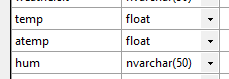
Hello, everyone, I am new using SSMS, I created a data base. I used the "import flat file option" to import a csv file, in preview data I uncheck the use rich data type detection, in the modify colum section I see that temp and atemp are float, hum is nvarchar(50) I can see the decimal numbers in a text editor and preview data in SSMS. The file has some colums have decimal numbers, this is part of the table in SSMS preview data: After I import the file, I run select * from bike_share_yr_0 , the temp and atem are not decimal numbers I tried using ChatGPT to see if there are something I can change in the configuartions of SSMS, but nothing worked. Other option is doing some calculations like: UPDATE bike_share_yr_0 SET atemp = atemp / 10000; This work fine for few colums, but what happend if a have a lot of files an every colum have decimales like atemp. Is possible to fix and see in SSMS the decimal numbers like in preview data? What can I do to fix that? Thank you for helpingSolved2.3KViews0likes3Comments
SSMS 20.1 constantly crashing (suspecting .NET issue)
I cannot make SSMS to work. After installing SSMS 20.1 (or any other version) it constantly crashes. I get various errors such as: Cannot create the window Exception has been thrown by the target of an invocation JIT compiler encountered an internal limitation Crashing after the splash screen without any error message Losing profile data Crashing after login Crashing after various operations (SELECT TOP 1000 from the context menu etc., when starting various dialogs etc.) Examining the event viewer I suspect a .NET issue. Some examples: Faulting application name: Ssms.exe, version: 20.1.10.0, time stamp: 0x660d7b89 Faulting module name: clrjit.dll, version: 4.8.9241.0, time stamp: 0x6604a357 Exception code: 0xc0000005 Fault offset: 0x00004964 Faulting process id: 0x3b28 Faulting application start time: 0x01dac5542e795318 Faulting application path: C:\Program Files (x86)\Microsoft SQL Server Management Studio 20\Common7\IDE\Ssms.exe Faulting module path: **C:\Windows\Microsoft.NET\Framework\v4.0.30319\clrjit.dll** Report Id: 9cf7bd0e-2bdc-48f9-ac31-575919dab13a Faulting package full name: Faulting package-relative application ID: Application: Ssms.exe Framework Version: v4.0.30319 Description: The process was terminated due to an unhandled exception. Exception Info: System.AccessViolationException at System.Windows.Media.Visual.GetDpi() at System.Windows.FrameworkElement.MeasureCore(System.Windows.Size) at System.Windows.UIElement.Measure(System.Windows.Size) at System.Windows.Interop.HwndSource.SetLayoutSize() at System.Windows.Interop.HwndSource.set_RootVisualInternal(System.Windows.Media.Visual) at System.Windows.Interop.HwndSource.set_RootVisual(System.Windows.Media.Visual) at System.Windows.Window.SetRootVisual() at System.Windows.Window.SetRootVisualAndUpdateSTC() at System.Windows.Window.SafeCreateWindowDuringShow() at System.Windows.Window.ShowHelper(System.Object) at System.Windows.Window.Show() at Microsoft.VisualStudio.PlatformUI.WpfHostPrivate+UIWPFElementContainer.ShowWindow() I also noticed that if I am unsuccessful the first time I try to run SSMS, then I'm doomed until I restart and try again. I already tried the following: I reinstalled my PC few times. Tried both with Windows 10 and Windows 11 fully updated, but still no luck when it comes to running SSMS correctly. I tried .NET Framework repair tool. No luck. I tried repairing SSMS. No luck. I tried uninstalling and installing .NET (Windows features On/Off). No luck. On a manual installation it says a current/newer version is already installed. Everything was fine until few months ago. Then SSMS started crashing. I suspect some Windows update may have caused this because now it doesn't work even on a freshly installed and updated PC. Any solution?3.2KViews0likes6Comments
SQL: need to create a sql job
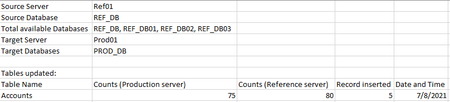
Hi Team, I want to automate one of my SQL project and need help for same. I’m inserting a data in my dimension table on production server from our reference server based on any new row found in reference table. I’d like implement following things to get it automate .. Query .. INSERT INTO PROD_DB.[dbo].[DimAccount] Select * from Ref01.REF_DB.[dbo].[DimAccount] D1 left join PROD_DB.[dbo].[DimAccount] D2 on D1.ID=D2.ID where ID is null Create a job that should run Bi weekly to run update query by itself and produce such results in pdf or excel.1.2KViews0likes1Comment