sql database
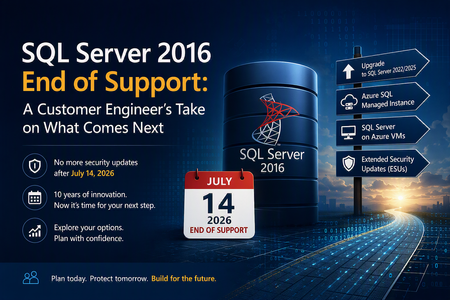
93 TopicsSQL Server 2016 Reaches End of Support: A Customer Engineer's Perspective on What's Next
Why This Day Matters July 14, 2026 marks the end of Extended Support for SQL Server 2016. After today, organizations running SQL Server 2016 will no longer receive security updates, non-security hotfixes, or product support unless they have a specific support strategy in place. As a Customer Engineer, I've spent years helping customers navigate technology lifecycle events. This one feels particularly significant because SQL Server 2016 remains heavily deployed across enterprise environments. For official lifecycle dates and milestones, see the Microsoft Lifecycle Policy for SQL Server 2016: Reference: https://learn.microsoft.com/lifecycle/products/sql-server-2016 Why SQL Server 2016 Feels Different SQL Server 2016 introduced capabilities that many organizations still rely on today, including: Query Store Always Encrypted Native JSON Support Stretch Database Enhanced security and performance capabilities For many businesses, SQL Server 2016 became the standard data platform supporting ERP systems, billing applications, healthcare workloads, manufacturing systems, and custom line-of-business applications. Ten years is a long time in IT. During that period, databases often evolve from "just another server" into business-critical infrastructure. Learn more about SQL Server 2016 features: Reference: https://learn.microsoft.com/sql/sql-server/what-s-new-in-sql-server-2016 What "End of Support" Really Means One of the most common misconceptions I hear is: "Will my SQL Server stop working tomorrow?" No. The server will continue running. Applications will continue connecting. What changes is your risk profile. Organizations will no longer receive: Security updates Product fixes Technical support Regulatory assurance associated with supported software Microsoft's official guidance on end-of-support considerations can be found here: Reference: https://learn.microsoft.com/sql/sql-server/end-of-support/sql-server-end-of-support-overview Option 1: Upgrade to a Supported SQL Server Version For many organizations, the most straightforward path is upgrading to SQL Server 2022 or SQL Server 2025. Benefits include: Continued support Latest security protections Performance improvements New AI and data platform capabilities Before upgrading, review compatibility considerations and perform application testing. Reference: https://learn.microsoft.com/sql/database-engine/install-windows/upgrade-sql-server Reference: https://learn.microsoft.com/sql/sql-server/sql-server-release-notes Option 2: Move to Azure SQL Managed Instance Azure SQL Managed Instance is often my recommendation when customers want to reduce operational overhead while maintaining high SQL Server compatibility. Advantages include: Automated patching Built-in high availability Automated backups Near full SQL Server compatibility Reduced infrastructure management Learn more: Reference: https://learn.microsoft.com/azure/azure-sql/managed-instance/sql-managed-instance-paas-overview Option 3: Lift and Shift to SQL Server on Azure Virtual Machines For organizations seeking minimal application changes, SQL Server on Azure Virtual Machines can provide a familiar environment while eliminating hardware refresh requirements. This option also enables customers to take advantage of Extended Security Updates through Azure while planning broader modernization initiatives. Reference: https://learn.microsoft.com/azure/azure-sql/virtual-machines/windows/sql-server-on-azure-vm-iaas-what-is-overview Option 4: Purchase Extended Security Updates (ESUs) If immediate migration is not possible, Extended Security Updates provide up to three additional years of Critical security updates. ESUs can be valuable when: Vendor certification delays upgrades Hardware refresh projects are underway Business priorities prevent immediate migration However, ESUs should be viewed as a temporary bridge rather than a long-term strategy. Reference: https://learn.microsoft.com/sql/sql-server/end-of-support/sql-server-extended-security-updates Don't Skip the Assessment Phase The most successful migration projects begin with discovery and assessment. Common issues identified include: Deprecated features Compatibility concerns Linked Server dependencies SQL Agent jobs CLR integrations Legacy SSIS and SSRS workloads Resources that can help: https://learn.microsoft.com/azure/migrate/migrate-services-overview https://learn.microsoft.com/sql/sql-server/azure-arc/overview https://learn.microsoft.com/sql/dma/dma-overview Migration Tools Worth Evaluating Different migration scenarios require different tools. Microsoft provides several options: Data Migration Assistant (DMA) SQLPackage Azure Database Migration Service Managed Instance Link Distributed Availability Groups Comprehensive migration guidance: https://techcommunity.microsoft.com/blog/microsoftdatamigration/microsoft-options-to-migrate-sql-server-databases/4407666 https://learn.microsoft.com/azure/dms/dms-overview https://learn.microsoft.com/sql/tools/sqlpackage/sqlpackage Lessons Learned from Customer Engagements After supporting numerous SQL Server modernization projects, several themes consistently emerge: The database is rarely the hardest part. Applications and dependencies drive complexity. Downtime requirements significantly influence migration strategy. Organizations that start 6–9 months early typically experience smoother transitions. ESUs buy time, but they do not replace a modernization plan. For migration planning best practices: https://learn.microsoft.com/azure/cloud-adoption-framework/migrate/ Final Thoughts If you're reading this on or shortly after July 14, 2026, and SQL Server 2016 is still running in your environment, you're not alone. Whether your path forward is: SQL Server 2025 Azure SQL Managed Instance SQL Server on Azure Virtual Machines Extended Security Updates the most important step is to begin with an assessment and establish a modernization plan. SQL Server 2016 served organizations exceptionally well for nearly a decade. The conversation now is not about the end of SQL Server 2016. It's about preparing your data platform for the next decade.795Views3likes1CommentManaged SQL Deployments Like Terraform
Introduction This is the next post in our series on CI/CD for SQL projects. In this post we will challenge some long held beliefs on how we should manage SQL Deployments. Traditionally we've always had this notion that we should never drop data in any environment. Deployments should almost extensively be done via SQL scripts and manually ran to ensure completion and to prevent any type of data loss. We will challenge this and propose a solution that falls more in line with other modern DevOps tooling and practices. If this sounds appealing to you then let's dive into it. Why We've always approached the data behind our applications as the differentiating factor when it comes to Intellectual Property (IP). No one wants to hear the words that we've lost data or that the data is unrecoverable. Let me be clear and throw a disclaimer on what I am going to propose, this is not a substitute for proper data management techniques to prevent data loss. Rather we are going to look at a way to thread the needle on keeping the data that we need while removing the data that we don't. Shadow Data We've all heard about "shadow IT", well what about "shadow data"? I think every developer has been there. For example, taking a backup of a table/database to ensure we don't inadvertently drop it during a deployment. Heck sometimes we may even go a step further and backup this up into a lower environment. The caveat is that we very rarely ever go back and clean up that backup. We've effectively created a snapshot of data which we kept for our own comfort. This copy is now in an ungoverned, unmanaged, and potentially in an insecure state. This issue then gets compounded if we have automated backups or restore to QA operations. Now we keep amplifying and spreading our shadow data. Shouldn't we focus on improving the Software Delivery Lifecycle (SDLC), ensuring confidence in our data deployments? Let's take it a step further and shouldn't we invest in our data protection practice? Why should we be doing this when we have technology that backs up our SQL schema and databases? Another consideration, what about those quick "hot fixes" that we applied in production. The ones where we changed a varchar() column length to accommodate the size of a field in production. I am not advocating for making these changes in production...but when your CIO or VP is escalating since this is holding up your businesses Data Warehouse and you so happen to have the SQL admin login credentials...stuff happens. Wouldn't it be nice if SQL had a way to report back that this change needs to be accommodated for in the source schema? Again, the answer is in our SDLC process. So, where is the book of record for our SQL schemas? Well, if this is your first read in this series or if you are unfamiliar with source control I'd encourage you to read Leveraging DotNet for SQL Builds via YAML | Microsoft Community Hub where I talk about the importance of placing your database projects under source control. The TL/DR...your database schema definitions should be defined under source control, ideally as a .sqlproj. Where Terraform Comes In At this point I've already pointed out a few instances on how our production database instance can differ from what we have defined in our source project. This certainly isn't anything new in software development. So how does other software development tooling and technologies account for this? Generally, application code simply gets overwritten, and we have backup versions either via release branches, git tags, or other artifacts. Cloud infrastructure can be defined as Infrastructure as Code (IaC) and as such still follow something similar to our application code workflow. There are two main flavors of IaC for Azure: Bicep/ARM and Terraform. Bicep/ARM adheres to an incremental deployment, which has its pros and cons. The quick version is Azure Resource Manager (ARM) deployments will not delete resources that are not defined in its template. Part of this has led to Azure Deployment Stacks which can help enforce resource deletion when it's been removed from a template. If interested in understanding a Terraform workflow I will point you to one of my other posts on the topic. At a high level Terraform evaluates your IaC definition and determines what properties need to be updated, and more importantly, what resources need to be removed. Now how does Terraform do this and more importantly, how can we tell what properties will be updated and/or removed? Terraform has a concept known as a plan. This plan will run your deployment against what is known as the state file, in Bicep/ARM this is the Deployment Stack, and produce a summary of changes that will occur. This includes new resources to be created, modification of existing resources, and deletion of resources previously deployed to the same state file. Typically, I recommend running a Terraform plan across all environments at CI. This ensures one can evaluate changes being proposed across all potential environments and summarize these changes at the time of the Pull Request (PR). I then advise re-executing this plan prior to deployment as a way to confirm/re-evaluate if anything has been updated since the original plan ran. Some will argue the previous plan can be "approved" to deploy to the next environment; however, there is little overhead in running a second plan and I prefer this option. Here's the thing....SQL actually has this same functionality. Deploy Reports Via SqlPackage there is additional functionality we can leverage with our .dacpacs. We are going to dive a little more on Deploy Reports. If you have followed this series, you may know we use the SqlPackage Publish command wrapped behind the SqlAzureDacpacDeployment@1 task. More information on this can be found at Deploying .dapacs to Azure SQL via Azure DevOps Pipelines | Microsoft Community Hub . So, what is a Deploy Report? A Deploy Report is the XML representation of the changes your .dacpac will make to a database. Here is an example of one denoting that there is a risk of potential data loss: This report is the key to our whole argument for modeling a SQL Continuous Integration/Continous Delivery after one that Terraform uses. We already will have a separate .dacpac file, built from the same .sqlproj, for each environment when leveraging pre/post scripts as we saw in Deploying .dacpacs to Multiple Environments via ADO Pipelines | Microsoft Community Hub. So now we need to take each one of those and run a Deploy Report against the appropriate target. This is the same as effectively running a `tf plan` with a different variable file against each environment to determine what actions a Terraform `apply` will execute. These Deploy Reports are then what we will include in our PR approval to validate and approve any changes we will make to our SQL database. Dropping What's Not in Source Control This is the controversial part and the biggest sell in our adoption of a Terraform like approach to SQL deployments. It has long been considered a best practice to have whatever is deployed match what is under source control. This provides for a consistent experience when developing and then deploying across multiple environments. Within IaC, we have our cloud infrastructure defined in source control and deployed across environments. Typically, it is seen as a good practice to delete resources which have been removed from source control. This helps simplify the environment, reduces cost, and reduces potential security surface areas. So why not the same for databases? Typically, it is due to us having the fear of losing data. To prevent this, we should have proper data protection and recovery processes in place. Again, I am not addressing that aspect. If we have those accounted for, then by all means, our source control version of our databases should match our deployed environments. What about security and indexing? Again, this can be accounted for in Deploying .dacpacs to Multiple Environments via ADO Pipelines | Microsoft Community Hub. Where we have two different post deployment security scripts, and these scripts are under source control! How can we see if data loss will occur? Refer back to the Deploy Reports for this! There potentially is some natural hesitation as the default method for deploying a .dacpac has safeguards to prevent deployments in the event of potential data loss. This is not a bad thing as it prevents a destructive activity from automatically occurring; however, we by no means need to accept the default behavior. We will need to refer to SqlPackage Publish - SQL Server | Microsoft Learn. From this list we will be able to identify and explicitly set the value for various parameters. These will enable our package to deploy even in the event of potential data loss. Conclusion This post hopefully challenges the mindset we have when it comes to database deployments. By taking an approach that more closely relates to modern DevOps practices, we can gain confidence that our source control and database match, increased reliability and speed with our deployments, and we are closing potential security gaps in our database deployment lifecycle. This content was not designed to be technical. In our next post we will demo, provide examples, and talk through how to leverage YAML Pipelines to accomplish what we have outlined here. Be sure to follow me on LinkedIn for the latest publications. For those who are technically sound and want to skip ahead feel free to check out my code on my GitHub : https://github.com/JFolberth/cicd-adventureWorks and https://github.com/JFolberth/TheYAMLPipelineOne
Monitor SQL database size increase
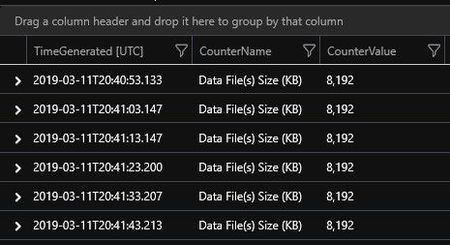
Hi I want to be able to monitor how the size of my database increases over time. I have created a SQL server VM and have wired up the Log Analytics and set it to capture the SQL performance counter called "SQLServer:Databases(*)\Data Files(s) Size (KB)". The data is being captured because when I run the following query I get results. Perf | where ObjectName =="SQLServer:Databases" and CounterName == "Data File(s) Size (KB)" and InstanceName == "Jason_DB" | project TimeGenerated, CounterName, CounterValue I have been running a SQL Job over night on the database to insert two rows into a table every 5 min but I'm only seeing the database size of "8,192"! The chart is linear and show no "Data file" size increase! Is there something wrong with my query or do I not understand the SQL performance counter in collecting? Current query Perf | where ObjectName =="SQLServer:Databases" and CounterName == "Data File(s) Size (KB)" and InstanceName == "Jason_DB" | project TimeGenerated, CounterName, CounterValue | summarize avg(CounterValue) by CounterName, bin(TimeGenerated, 5m) | render timechart Rendered chartSolved7.6KViews0likes3CommentsRestore database across servers(Azure SQL Database and Azure SQL managed instance)- Azure Automation
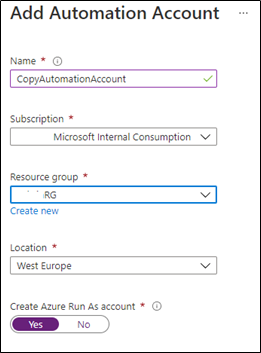
In this article, we consider the scenario where customers would like to restore their Azure SQL database and managed database from one Azure SQL server to another Azure SQL server, for example for development reasons. The article will provide you with the steps to achieve this by automating the job using Azure Automation14KViews5likes5CommentsHow Get Application name in a Login Failure
Group How could I get the name of an application, in a login failure, by SQL Server. Where normally the error code would be Login failed for user '(???)'. Reason: Password did not match that for the login provided. [CLIENT: <local machine>] Error: 18456, Severity: 14, State: 8.3.3KViews0likes7Comments
Deleted Azure SQL Database with existing diagnostic settings
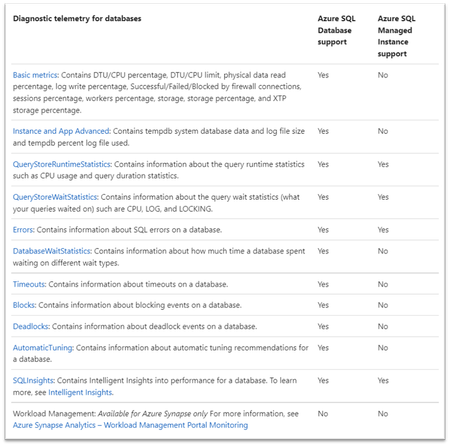
In this article, we consider the scenario where customers would like to delete Azure SQL database which has an existing diagnostic setting. The article will provide you with the steps you need to achieve this with Azure Portal.4.4KViews7likes0CommentsLearning from Expertise#10: Why no restore point available?!
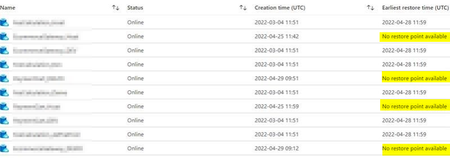
Introduction In today's blog article, we will try to address and clarify some points on how Azure SQL DB and Managed Instance Point in Time Restore (PiTR) works, especially when it comes to failover group and Geo-replication (Azure SQL DB), and we are going to provide answers to common queries. Use case: On some occasions, after the failover is initiated, the current Primary DR will start a new backup chain from that point and old backups are available on the current secondary DR. If we want to restore the backups which exists in Secondary it will not allow us to perform, apparently restore cannot be initiated on the Primary as the backup is not available. Also, sometimes we observe in secondary DR for few databases, PitR restore point is available and for few databases it shows “no restore point available” Common Questions. Do we expect to lose the PITR ability after failover? Why are the backups still listed and available on the new secondary if they are not usable? Why do some databases show the restore point and why for few databases it shows “no restore point available”? Here is the scenario: Day 1 - > Geo-Replication/ Failover group setup, Primary in North Europe and Secondary in West Europe, PITR backup retention is set to 7 days. Day 2 -> Customer initiated failover, now Primary is in West Europe and secondary is in North Europe Day 4 -> Customer would like to restore the database to the state of Day1 which is possible as 7 days retention was set to PITR backups, and Day1 is 3 days back from current point in time As we are running backups only for the Primary DR, the new Primary in West Europe does not have the requested PITR backup (Day 1) The needed backup is “visible” on the backups listed for current secondary in North Europe The customer cannot restore to requested PITR as The restore cannot be initiated on the secondary as this is not possible for Secondary DR. The restore cannot be initiated on the primary as the backup is not there. Also, sometimes you will be seeing available PITR backups on Failover secondary server databases and for some databases it shows as “No restore point available” For the databases where the restore point is available, they can’t be able to restore it. The restore cannot be initiated on the secondary as this is not possible for Secondary DR. The restore cannot be initiated on the primary as the backup is not there. Clarifications In case the database was recently created, the first full backup might be still in the queue, so it might be a promising idea that you wait for some time before checking again. Failover groups is a disaster recovery feature that allows our customers to recover multiple related databases in a secondary region, after a catastrophic failure or other unplanned event that results in full or partial loss of service’s availability in the primary region. Database backups are an essential part of any business continuity and disaster recovery strategy because they protect your data from accidental corruption or deletion. It is important for us to understand that we are not losing any backups, in case the current region was not the primary at the desired point in time where your restoring point is holding, we will need to failover to the other region and make it as Primary, then you should be able to restore it. Backups are only taken on the Primary server, there can be several justifications why we can see PitR on some DBs and not for others on the Secondary Server. For the Databases that have PitR it is most probably because there was a failover that caused the Primary to become Secondary, as we have already had backups taken on the old primary which is secondary now. The DBs that do not have PitR They could have been provisioned after the last failover happened, so the backups are only available on the primary server Or they were added to the failover group after the last failover that will also cause the backups to be taken on the primary It should be fair to say that we will likely “fail back” once availability is restored in the original primary region because we might have picked that region for a reason. Note: - In case no geo-failover happened nor the database was recently created, and you still see “no restore point available,” please contact Microsoft support. Alternatives: you can perform Export operation on the secondary and import it on Primary DR. You can leverage geo redundant backup and Geo-restore, taking into consideration that Geo-restore is the most basic disaster-recovery solution available in SQL Database and SQL MI. It relies on automatically created geo-replicated backups with a recovery point objective (RPO) up to 1 hour and an estimated recovery time of up to 12 hours. Note: Azure SQL Managed Instance does not currently support exporting a database to a BACPAC file using the Azure portal or Azure PowerShell. To export a managed instance into a BACPAC file, use SQL Server Management Studio (SSMS) or SQLPackage. References: Restore a database from a backup - Azure SQL Database & SQL Managed Instance | Microsoft Docs Automatic, geo-redundant backups - Azure SQL Database & Azure SQL Managed Instance | Microsoft Docs Azure SQL Database Point in Time Restore | Azure Blog and Updates | Microsoft Azure Azure SQL Database Geo-Restore | Azure Blog and Updates | Microsoft Azure Disclaimer Please note that the products and options presented in this article are subject to change. This article reflects the database backup options available for Azure SQL database and Azure SQL managed instance in June 2022. Closing remarks We hope you find this article helpful. If you have any feedback, please do not hesitate to provide it in the comment section below. Raviteja Devarakonda (Author) Ahmed Mahmoud (Co-Author)6KViews2likes4CommentsHelp with log analytics query to check SQL database availability
I need a log analytics query that will tell me whether a particular SQL database is available or not. In some instances, database was down. We would like to create an alert using a query in case database is not available. Can anyone help with this?3KViews0likes1Comment