speech
3 TopicsBuild an Offline AI Voice Notebook on Raspberry Pi with Microsoft Foundry Local
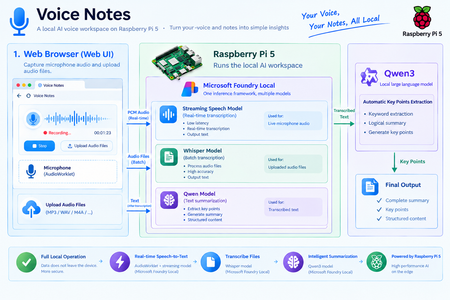
Can a Raspberry Pi turn spoken reflections into useful notes without sending audio to the cloud? In this walkthrough, you will build Voice Notes, a single-user voice notebook that captures speech in the browser, transcribes it with Microsoft Foundry Local, and drafts a summary on-device. Along the way, educators and learners can explore audio processing, web APIs, model lifecycle management, and responsible AI on resource-constrained hardware. Video demo: Watch the Voice Notes demo on Bilibili. Scope and versions: This is an educational prototype based on a recorded Raspberry Pi 5 experiment, not a managed classroom service or a Raspberry Pi hardware-certification statement. The walkthrough uses Microsoft Foundry Local Python SDK 2.1.0 and Foundry Local CLI Preview 0.10.3. These are separate packages with independent version numbers. Commands, model aliases, and APIs can change. The community sample is pinned to a specific revision so readers can follow the same implementation. What you'll build The finished application provides three workflows: Live transcription: Capture speech in the browser and display recognized text while recording. File transcription: Upload up to ten WAV or MP3 files and process them sequentially with Whisper. Local note generation: After a live recording ends, unload the speech model and use Qwen3 to extract topics, key points, decisions, and action items. Completed live sessions provide a playable WAV recording, a TXT transcript, and a JSON record. File-upload jobs provide TXT and JSON results; they do not create a new recording or automatically generate a summary. The sample's interface and generated summaries are in English. Transcripts retain the language recognized by the selected speech model. Local inference does not require an Azure subscription, an Azure resource, or a cloud inference API key. Installation, model acquisition, and any required runtime-component downloads need connectivity. After preparation, you will explicitly test the cached workflow without internet access rather than assuming it is offline-ready. Prerequisites Hardware and operating system Requirement Recommendation for this walkthrough Raspberry Pi Raspberry Pi 5 with 8 GB RAM; this matches the recorded device's memory capacity Operating system A 64-bit ARM Linux installation; the source experiment used Debian GNU/Linux 13, trixie Storage A 64 GB microSD card or SSD, with several gigabytes free for models and additional space for recordings Power and cooling A suitable Raspberry Pi 5 power supply and active cooling Audio input A USB microphone or a camera exposed to the Pi's operating system as an audio input Browser access A display connected to the Pi and a recent Chromium/Chrome/Edge/Firefox running on the Pi These are reproduction recommendations, not official minimum specifications. Software, accounts, and models You will need: Python 3.11 or later with an ARM64 wheel available for the selected SDK version. Git, curl, tar, and Python virtual-environment support. The sample's Python dependencies: Flask and foundry-local-sdk on Linux. A modern browser supporting getUserMedia, Web Audio, and AudioWorklet. Internet access for the initial downloads. A short speech recording you own or have permission to use. A GitHub account is not required to clone the public sample. The sample offers these model aliases: Task Alias used by the sample Starting point English live transcription nemotron-speech-streaming-en-0.6b Use for the English exercise below Multilingual live transcription nemotron-3.5-asr-streaming-0.6b Optional; validate the alias on the target device File transcription whisper-tiny, whisper-small Start with whisper-tiny Summarization qwen3-0.6b Loaded after speech recognition finishes The official live-transcription guide also shows the multilingual alias nvidia-nemotron-3.5-asr-streaming-multilingual-0.6b. Do not assume the two names are interchangeable in every catalog. The sample validates a fixed list of allowed aliases, so a catalog-name change must be reflected in the backend constants, not just typed into an API request. Architecture Foundry Local is an on-device runtime and SDK, not simply a command-line server. In this application, Flask calls Foundry Local in the same Python process. There is no separate Foundry REST endpoint in the application's inference path. Figure 2. Capture, web application, inference, and storage all run on the Raspberry Pi. Model acquisition needs connectivity; prepared inference uses local resources. The application runs one inference job at a time. This follows Foundry Local's single-user, hardware-constrained design and avoids keeping speech and chat models in memory together. For live audio, the browser sends approximately 100 ms of sound per chunk. Flask accepts ordered chunks, saves the recording, and feeds the native speech session. The UI polls for results, waiting 100 ms after each completed status request rather than issuing overlapping requests. Neither 100 ms chunks nor 100 ms polling means 100 ms recognition latency. Model processing and finalization are separate costs. The browser captures the Pi's microphone and sends audio only to the loopback-bound application on the same device. The inference path does not call a cloud model service. Step-by-step walkthrough All commands in this walkthrough run in a Bash terminal on the Raspberry Pi. Open the web application in a browser running on that same Pi. 1. Check the Pi and prepare the Python environment Confirm the architecture and available resources: uname -m cat /etc/os-release free -h df -h / Expect aarch64 for the ARM64 environment used here. armv7l indicates a 32-bit installation and cannot use the ARM64 archive below. Install the basic tools if necessary: sudo apt update sudo apt install -y git curl ca-certificates tar python3 python3-venv Clone the sample, select the article revision, and create an isolated environment: cd "$HOME" git clone https://github.com/shijiong/flask-audio-transcription.git cd flask-audio-transcription git checkout --detach e3047faa6e9181332e830b7f435b0ee6109521ef python3 -m venv .venv source .venv/bin/activate python -m pip install --upgrade pip python -m pip install -r requirements.txt "foundry-local-sdk==2.1.0" The repository allows a wider SDK 2.x dependency range. The explicit constraint above selects the version used in the source experiment; it does not claim that 2.1.0 is the latest version. Evaluate upgrades separately. On Linux, use foundry-local-sdk, not the Windows-specific foundry-local-sdk-winml package. Both expose the Python import name foundry_local_sdk. If pip cannot find a compatible distribution, check the operating-system architecture and Python version against the package's available wheels. Do not solve that error by installing an unrelated package or renaming the import. 2. Optionally install the CLI to validate file transcription The application does not require the CLI. This separate exercise is useful for checking the device, catalog, and a speech model before working through the web application. The CLI Preview 0.10.3 release includes a Linux ARM64 archive: cd "$HOME/Downloads" curl -fL -o foundry-0.10.3-linux-arm64.tar.gz https://github.com/microsoft/foundry-local/releases/download/cli-preview-0.10.3/foundry-0.10.3-linux-arm64.tar.gz printf '%s %s\n' 'c530e6354f29335fee4fd676b0f945e53a2dedcfc73c64fe336a39d27dbaec82' 'foundry-0.10.3-linux-arm64.tar.gz' | sha256sum --check Continue only if checksum verification reports OK. The digest above applies to this exact release asset. The screenshots in this step come from the original CLI 0.10.3 session. Some commands were run from its lib directory and the original audio filenames differ from the exercise filenames below. The commands in this article consistently use ./lib/foundry from the installation root. tar xzf foundry-0.10.3-linux-arm64.tar.gz -C "$HOME" cd "$HOME/foundry-0.10.3-linux-arm64" Keep the complete extracted directory; copying only the executable can omit required runtime files. Check the executable and inspect the device: ./lib/foundry --version ./lib/foundry status recorded status output identifies the device and resources. Inspect the command help and model catalog: ./lib/foundry --help ./lib/foundry model --help ./lib/foundry model list ./lib/foundry server status Inspect and cache the lightweight file-transcription model: ./lib/foundry model info whisper-tiny ./lib/foundry model download whisper-tiny ./lib/foundry transcribe --help For an existing English speech file saved as Documents/Recording.mp3, run: ./lib/foundry transcribe -m whisper-tiny -l en -f "$HOME/Documents/Recording.mp3" Replace the path with your actual recording. The screenshot below shows the original English MP3 test rather than the synthetic classroom reflection introduced later. For an existing Chinese recording, use a Chinese language hint: ./lib/foundry transcribe -m whisper-tiny -l zh -f "$HOME/Documents/output_16k_mono.wav" These file-based CLI checks are separate from the timed live-streaming benchmarks discussed in Test the solution. After this exercise, stop the CLI server so it does not compete with the web application for memory: ./lib/foundry server stop 3. Prepare the models through the application's SDK path Return to the sample and activate the same environment: cd "$HOME/flask-audio-transcription" source .venv/bin/activate Save the following as prepare_models.py in the repository root: from src.foundry_backend import FoundryBackend backend = FoundryBackend() aliases = ( "nemotron-speech-streaming-en-0.6b", "whisper-tiny", "qwen3-0.6b", ) for alias in aliases: with backend.model(alias, print) as model: print(f"Ready: {alias} -> {model.info.id}") Run it before starting Flask, not alongside another inference process: python prepare_models.py FoundryBackend is the sample's adapter, not a class supplied by the SDK. It initializes FoundryLocalManager, registers execution providers, looks up each alias through manager.catalog.get_model(), downloads the model, loads it, and unloads it when the context ends. A missing model causes an explicit error. The application does not silently substitute another model. Add the multilingual model or whisper-small to this preparation list only if you intend to use them. The adapter also contains a Linux SDK 2.1.0-specific compatibility workaround, setting CI=1 before SDK initialization for the issue described in the sample README. Treat this as version-scoped sample behavior, not a universal telemetry configuration or an offline guarantee. 4. Configure storage and start the workbench Use the default local data directory, or choose another writable location: export TRANSCRIPTION_DATA_DIR="$HOME/voice-notes-data" export PORT=5000 python src/app.py The sample binds to 127.0.0.1:5000 with debug mode disabled. Run a single application process: the active job, inference slot, and native sessions are held in memory. Multiple worker processes or the Flask debug reloader can create conflicting state and duplicate model allocations. On the Pi, open: http://127.0.0.1:5000 Browser microphone APIs require a secure context. The Pi's loopback address qualifies. Keep the application bound to loopback and use the browser and microphone on the Pi for this walkthrough. 5. Capture speech and generate notes Select Live transcription. Choose a microphone and nemotron-speech-streaming-en-0.6b. Select English and click Start live transcription. Grant microphone permission, wait for the model to become ready, and check that the input-level indicator responds. Speak a short reflection. Click Stop & summarize, then wait for finalization and summary generation. Behind the interface, the browser converts its microphone stream to 16 kHz, mono, signed 16-bit little-endian PCM. A full 100 ms chunk contains 1,600 samples, or 3,200 bytes. The last chunk may be shorter. Each upload carries an increasing X-Audio-Sequence number. Retrying an accepted sequence does not append duplicate audio. On stop, the browser flushes its remaining samples, uploads queued audio, and finishes the input stream before the native session closes. The UI understands interim and confirmed text, but a model is not guaranteed to emit interim results. Interim hypotheses replace earlier interim text; confirmed segments are appended; the final aggregate replaces the accumulated transcript rather than duplicating it. After recognition finishes, the service unloads the speech model and loads Qwen3. If summarization fails, the warning remains visible and the application still attempts to preserve the recording and transcript. 6. Transcribe existing audio files Select Audio files, choose whisper-tiny, select a language, and upload one or more WAV or MP3 files. The sample permits up to ten files and a 100 MiB total request limit. Files are processed sequentially. A decoding or inference failure for one accepted file does not discard successful results from the others. For a predictable first test, use 16 kHz mono audio and 16-bit PCM encoding for WAV. If FFmpeg is installed, an optional preparation command is: ffmpeg -i input.mp3 -ar 16000 -ac 1 -c:a pcm_s16le lesson.wav The web application does not run an external conversion step, and its extension checks do not validate every audio-format property. The published benchmark also demonstrates that the runtime accepted a 24 kHz stereo MP3. Therefore, 16 kHz mono is preparation guidance here, not a demonstrated universal file-input restriction. Code and configuration A compact file-to-summary pipeline To see model sequencing without the browser, save this as transcribe_and_summarize.py in the repository root, next to a short Recording.mp3 file: from pathlib import Path from src.foundry_backend import FoundryBackend audio_path = Path("Recording.mp3") if not audio_path.is_file(): raise FileNotFoundError(f"Audio file not found: {audio_path.resolve()}") backend = FoundryBackend() with backend.model("whisper-tiny", print) as speech_model: transcript = backend.transcribe(speech_model, audio_path, "en") if not transcript.strip(): raise RuntimeError("No speech was recognized. Check the audio and language.") print("\nTranscript:\n", transcript) summary = backend.summarize(transcript, print) print("\nDraft summary:\n", summary) Run it while Flask and other inference jobs are stopped: python transcribe_and_summarize.py The context manager unloads Whisper before summarize() loads Qwen3. This script deliberately adds a file-to-summary flow; it does not change the file-upload tab's transcription-only behavior. Summarization settings and longer recordings The pinned sample uses a native ChatSession with an OpenAI-format JSON payload. These are the relevant generation settings, excerpted from that payload: { "temperature": 0.2, "max_tokens": 700, "chat_template_kwargs": { "enable_thinking": false } } The prompt asks for English topics, key points, decisions, and action items, preserves names and numbers, and treats the transcript as data rather than instructions. The implementation disables Qwen's thinking mode explicitly, removes residual thinking markup, and reports an error for an empty answer. It does not substitute reasoning text for a summary. For transcripts longer than 3,500 characters, the adapter summarizes sections and combines their notes recursively, for at most eight levels. If compression stops reducing the text, it preserves section summaries instead of silently truncating the source transcript. Character limits are an implementation heuristic, not a model-independent token budget. Low temperature and a careful prompt do not guarantee faithful output or prevent all prompt-injection behavior. Keep the original transcript and require human review. Explore the full implementation Sample component What to inspect Flask application Host and origin checks, request tokens, input validation, and artifact routes Job service One-job scheduling, ordered audio, finalization, and persistent artifacts Foundry Local adapter SDK initialization, native audio sessions, file transcription, and hierarchical summaries AudioWorklet Continuous resampling, PCM encoding, level reporting, and final flush Test suite Fake inference backends, native buffer checks, and browser-side regression tests The native streaming implementation retains Python audio-buffer references until the native request, session, and queue close. If you adapt that code, preserve the lifetime handling: a successful queue insertion is not proof that native inference has finished reading the buffer. Test the solution Run the automated tests From the sample repository root: python -m pip install -r requirements-dev.txt python -m pytest tests -q -rs Most tests use fake inference backends. Native buffer tests require the standard SDK; browser regression tests require Chromium and can otherwise be skipped. Inspect the skip reasons. A passing test run does not establish real-model accuracy, microphone functionality, or catalog availability on your Pi. Recorded Raspberry Pi benchmark results The public benchmark results contain four complementary experiments: Whisper file transcription, English live transcription, Chinese live transcription, and Qwen3 summarization. The reports describe measurements made on October 19, 2026. The common platform was a Raspberry Pi 5 Model B Rev 1.1 with 8 GB RAM and four Cortex-A76 cores, running Linux ARM64 and Foundry Local SDK 2.1.0 with CPUExecutionProvider. The reports record Python 3.14.8; use the supported interpreter/wheel combination available for your own installation. Each model or scenario ran three times in a fresh process, with models already downloaded and no concurrent inference. Unless stated otherwise, times are medians, parenthesized intervals are observed minimum-to-maximum ranges, and memory is the maximum process peak RSS across the runs. Operating-system file caches and desktop background workloads were not cleared. Fresh processes are not equivalent to cold-machine tests. 1. Whisper: English audio-file transcription The Whisper report uses the original, unmodified 16.488-second, 24 kHz stereo MP3 with language auto-detection. The runtime handled decoding and preprocessing inside the measured transcription call. Metric whisper-tiny whisper-small Median model loading time 1.875 s (1.781-2.634) 2.810 s (2.754-5.656) Median transcription time 2.676 s (2.421-3.175) 10.398 s (10.239-10.803) Median real-time factor 0.162 0.631 Maximum process peak RSS 338.7 MiB 824.7 MiB Median SDK/catalog/cache/load-to-ready time 4.736 s 8.499 s Median SDK/catalog/cache/load-plus-transcription time 7.165 s 19.303 s The resolved variants were openai-whisper-tiny-generic-cpu:4 and openai-whisper-small-generic-cpu:4. Real-time factor = transcription time / audio duration. The medians correspond to approximately 6.16 times and 1.59 times real-time batch processing speed. Tiny transcribed this clip about 3.89 times faster; Small used about 2.43 times as much peak process memory. Small's text was more fluent in a text-only review, but there was no verified reference transcript or listening-based accuracy assessment. Do not infer word error rate, character error rate, or a general accuracy ranking from that observation. HTTP upload, artifact saving, summarization, and model unload are outside these timing boundaries. 2. English and Chinese live transcription The English live report and Chinese live report exercise the real NativeLiveSession and the application's transcript-assembly logic. They do not include browser capture, Flask HTTP, UI polling, or summary generation. English input: The same 16.488-second MP3, decoded with FFmpeg to 16 kHz mono PCM16LE before timing. The harness sent 527,616 bytes in 165 chunks at approximately real-time pacing. Chinese input: A 15.998563-second, 16 kHz mono PCM16 WAV. The harness extracted its original PCM without resampling and sent 511,954 bytes in 160 chunks. Language was explicitly zh-CN, not auto-detection. Pacing: A full chunk was 100 ms; the final shorter chunk was preserved. No additional trailing silence was inserted. Stream timing began immediately before the first audio append. Metric English live transcription Chinese live transcription Model alias nemotron-speech-streaming-en-0.6b nemotron-3.5-asr-streaming-0.6b Catalog download-size metadata 696 MB 756 MB Cached model loading time 3.197 s (3.162-6.185) 3.583 s (3.268-3.857) First nonempty interim/partial event No nonempty partials in any run No nonempty partials in any run First application-confirmed text 1.501 s (1.500-5.113) 1.482 s (1.468-4.996) First event containing a Chinese character Not applicable 1.482 s (1.468-4.996) Finish-to-stream-drained time 0.673 s (0.549-0.780) 0.559 s (0.546-2.066) First audio append to completed stream 17.161 s (17.037-17.269) 16.558 s (16.545-18.067) Maximum process peak RSS 936.8 MiB 994.0 MiB The Chinese final transcripts were identical across the three runs and contained 74 Chinese characters and two <zh-CN> markers. The first nonempty confirmed event already contained Chinese characters, so the first-Chinese-character metric was not shortened by a language tag arriving alone. The report flags wording in the raw output for human checking rather than silently correcting it. The English output also included awkward wording, such as You uh ban could give their fans. Successful streaming and repeatable output do not establish recognition accuracy. Preserve raw language tags and transcripts if you add display-layer cleanup. 3. Qwen3: English summarization of a completed transcript The Qwen3 report uses a 786-character English transcript containing language tags. Its subject is a trip to New York, not the classroom sensor example above. Each run called the real FoundryBackend.summarize() path with qwen3-0.6b-generic-cpu:4, temperature=0.2, max_tokens=700, and enable_thinking=false. Metric Recorded result Catalog download-size metadata 593 MB Model loading time 12.085 s (10.006-12.519) Model-ready summary-processing time 14.052 s (13.488-16.568) Complete summarize() call 26.842 s (23.751-28.945) Separately measured harness catalog lookup 62.864 s (62.763-63.508) Complete fresh benchmark subprocess 90.140 s (87.790-92.496) Maximum process peak RSS 1333.5 MiB Output lengths for runs 1, 2, and 3 532, 716, and 427 characters Hierarchical summarization Not triggered in any of the three runs The 14.052-second figure measures processing after the model is ready: prompt/payload construction, the native request, response parsing, and cleanup. It excludes model loading and unloading and is not a token-decoding-kernel measurement. The 26.842-second value includes the model context inside summarize(), but the harness had already initialized the SDK and queried metadata. The 90.140-second subprocess measurement additionally includes harness setup, a separate catalog lookup, cleanup, telemetry, and result writing. It is not a measured Flask/browser interaction time or pure inference time. These timing boundaries differ, and medians of separate stages need not sum to a combined median. Low temperature did not make the outputs identical. The report notes that some outputs were closer to sentence-by-sentence extraction and omitted details such as a travel companion or purchases. No human-reference summary score was calculated. Because the input was below 3,500 characters, this experiment does not validate long-transcript hierarchical summarization. Troubleshooting and considerations Common issues Symptom What to check CLI reports Permission denied Inspect the exact executable named in the error. Restore owner execute permission only for that trusted file; also check for a noexec mount. Do not use blanket chmod 777 or routinely run inference as root. CLI works but its server cannot start Inspect foundrylocald permissions and use ./lib/foundry server logs. This is separate from the SDK application's in-process inference path. No module named 'foundry_local_sdk' Use the same virtual-environment interpreter for dependency installation and Flask startup. Model alias is unavailable Check the target catalog and update the sample's allowed model constants if necessary; a UI option is not a hardware-availability guarantee. Browser microphone APIs are unavailable Open http://127.0.0.1:5000 in the browser running on the Pi and check microphone permission. Input level remains zero Check the selected microphone, browser permission, operating-system mute/input volume, and cable or USB connection. WAV contains speech but text is missing Check the model's language support, actual inference errors, and native buffer-lifetime handling if you changed the implementation. HTTP 409 while starting another job Wait for the active job, including summarization, to finish. A multilingual transcript contains language tags The model can emit markers such as <zh-CN>. Preserve raw output; make any display cleanup an explicit application choice. Edge-device and responsible-use considerations CPU, not assumed acceleration: The recorded Pi used CPU execution. An ARM64 package does not automatically enable the Pi GPU or an add-on AI accelerator; compatible drivers, execution providers, and model variants are required. Power and thermals: Use active cooling and stable power. Where available, inspect vcgencmd measure_temp and vcgencmd get_throttled; other Linux installations may not provide these utilities. Storage and memory: A 60-minute, 16 kHz mono PCM16 recording contains approximately 115.2 MB of audio before its small WAV header. The streaming adapter also retains approximately that much PCM in memory until the session closes, in addition to model and object overhead. Persistence is not disaster recovery: Completed artifacts remain on disk, but data is not deleted automatically. Active sessions cannot resume after a process restart, and power loss can leave an incomplete recording. Local is not automatically secure: The sample does not provide user accounts, per-user authorization, or encryption at rest. Its request token protects against cross-site writes; it is not user authentication. Do not expose the demo as a classroom server: Binding to all interfaces is not a deployment strategy. A networked service needs HTTPS, authentication, authorization, retention policies, rate limits, and an appropriate application-serving architecture. Check network and privacy requirements: Inference is local, but model downloads, updates, and SDK diagnostics or telemetry are separate concerns. Review the Foundry Local privacy FAQ and applicable terms, and verify the actual network behavior required by your environment. Keep people in the loop: Use synthetic or consented recordings for teaching. Review names, numbers, decisions, and action items before sharing notes. This prototype is not a validated accommodation service or a tool for high-stakes assessment. Next steps Start with one microphone, a short English recording, and the three prepared models. Once that path is reliable, extend the project deliberately: Compare model trade-offs. Use representative recordings and a human-verified reference to compare Whisper Tiny and Small on time, memory, and word or character error rate. Explore multilingual reflections. Verify a multilingual model on the Pi, test each intended language, and distinguish transcription language from English summary language. Improve note quality. Ask learners to compare summaries with transcripts, identify unsupported claims, and test whether a revised prompt actually improves factual fidelity. Add retention controls. Implement an explicit delete/export workflow and consider operating-system storage encryption before using sensitive material. Improve long-session robustness. Evaluate segmented recording, bounded native-session memory, and crash-safe artifact handling. Design a different architecture for shared use. A multi-user classroom application needs more than extra Flask workers; reassess state management, authorization, and the inference runtime. Useful resources: What is Foundry Local? Get started with Foundry Local Foundry Local architecture overview Tutorial: Build a voice-to-text note taker Live transcribe audio from a microphone Foundry Local CLI reference Complete Voice Notes community sample MDN: AudioWorklet MDN: Secure contexts197Views0likes1CommentModel Mondays S2E11: Exploring Speech AI in Azure AI Foundry
1. Weekly Highlights This week’s top news in the Azure AI ecosystem included: Lakuna — Copilot Studio Agent for Product Teams: A hackathon project built with Copilot Studio and Azure AI Foundry, Lakuna analyzes your requirements and docs to surface hidden assumptions, helping teams reflect, test, and reduce bias in product planning. Azure ND H200 v5 VMs for AI: Azure Machine Learning introduced ND H200 v5 VMs, featuring NVIDIA H200 GPUs (over 1TB GPU memory per VM!) for massive models, bigger context windows, and ultra-fast throughput. Agent Factory Blog Series: The next wave of agentic AI is about extensibility: plug your agents into hundreds of APIs and services using Model Connector Protocol (MCP) for portable, reusable tool integrations. GPT-5 Tool Calling on Azure AI Foundry: GPT-5 models now support free-form tool calling—no more rigid JSON! Output SQL, Python, configs, and more in your preferred format for natural, flexible workflows. Microsoft a Leader in 2025 Gartner Magic Quadrant: Azure was again named a leader for Cloud Native Application Platforms—validating its end-to-end runway for AI, microservices, DevOps, and more. 2. Spotlight On: Azure AI Foundry Speech Playground The main segment featured a live demo of the new Azure AI Speech Playground (now part of Foundry), showing how developers can experiment with and deploy cutting-edge voice, transcription, and avatar capabilities. Key Features & Demos: Speech Recognition (Speech-to-Text): Try real-time transcription directly in the playground—recognizing natural speech, pauses, accents, and domain terms. Batch and Fast transcription options for large files and blob storage. Custom Speech: Fine-tune models for your industry, vocabulary, and noise conditions. Text to Speech (TTS): Instantly convert text into natural, expressive audio in 150+ languages with 600+ neural voices. Demo: Listen to pre-built voices, explore whispering, cheerful, angry, and more styles. Custom Neural Voice: Clone and train your own professional or personal voice (with strict Responsible AI controls). Avatars & Video Translation: Bring your apps to life with prebuilt avatars and video translation, which syncs voice-overs to speakers in multilingual videos. Voice Live API: Voice Live API (Preview) integrates all premium speech capabilities with large language models, enabling real-time, proactive voice agents and chatbots. Demo: Language learning agent with voice, avatars, and proactive engagement. One-click code export for deployment in your IDE. 3. Customer Story: Hilo Health This week’s customer spotlight featured Helo Health—a healthcare technology company using Azure AI to boost efficiency for doctors, staff, and patients. How Hilo Uses Azure AI: Document Management: Automates fax/document filing, splits multi-page faxes by patient, reduces staff effort and errors using Azure Computer Vision and Document Intelligence. Ambient Listening: Ambient clinical note transcription captures doctor-patient conversations and summarizes them for easy EHR documentation. Genie AI Contact Center: Agentic voice assistants handle patient calls, book appointments, answer billing/refill questions, escalate to humans, and assist human agents—using Azure Communication Services, Azure Functions, FastAPI (community), and Azure OpenAI. Conversational Campaigns: Outbound reminders, procedure preps, and follow-ups all handled by voice AI—freeing up human staff. Impact: Hilo reaches 16,000+ physician practices and 180,000 providers, automates millions of communications, and processes $2B+ in payments annually—demonstrating how multimodal AI transforms patient journeys from first call to post-visit care. 4. Key Takeaways Here’s what you need to know from S2E11: Speech AI is Accessible: The Azure AI Foundry Speech Playground makes experimenting with voice recognition, TTS, and avatars easy for everyone. From Playground to Production: Fine-tune, export code, and deploy speech models in your own apps with Azure Speech Service. Responsible AI Built-In: Custom Neural Voice and avatars require application and approval, ensuring ethical, secure use. Agentic AI Everywhere: Voice Live API brings real-time, multimodal voice agents to any workflow. Healthcare Example: Hilo’s use of Azure AI shows the real-world impact of speech and agentic AI, from patient intake to after-visit care. Join the Community: Keep learning and building—join the Discord and Forum. Sharda's Tips: How I Wrote This Blog I organize key moments from each episode, highlight product demos and customer stories, and use GitHub Copilot for structure. For this recap, I tested the Speech Playground myself, explored the docs, and summarized answers to common developer questions on security, dialects, and deployment. Here’s my favorite Copilot prompt this week: "Generate a technical blog post for Model Mondays S2E11 based on the transcript and episode details. Focus on Azure Speech Playground, TTS, avatars, Voice Live API, and healthcare use cases. Add practical links for developers and students!" Coming Up Next Week Next week: Observability! Learn how to monitor, evaluate, and debug your AI models and workflows using Azure and OpenAI tools. Register For The Livestream – Sep 1, 2025 Register For The AMA – Sep 5, 2025 Ask Questions & View Recaps – Discussion Forum About Model Mondays Model Mondays is your weekly Azure AI learning series: 5-Minute Highlights: Latest AI news and product updates 15-Minute Spotlight: Demos and deep dives with product teams 30-Minute AMA Fridays: Ask anything in Discord or the forum Start building: Register For Livestreams Watch Past Replays Register For AMA Recap Past AMAs Join The Community Don’t build alone! The Azure AI Developer Community is here for real-time chats, events, and support: Join the Discord Explore the Forum About Me I'm Sharda, a Gold Microsoft Learn Student Ambassador focused on cloud and AI. Find me on GitHub, Dev.to, Tech Community, and LinkedIn. In this blog series, I share takeaways from each week’s Model Mondays livestream.549Views0likes0CommentsPower Up Your Open WebUI with Azure AI Speech: Quick STT & TTS Integration
Introduction Ever found yourself wishing your web interface could really talk and listen back to you? With a few clicks (and a bit of code), you can turn your plain Open WebUI into a full-on voice assistant. In this post, you’ll see how to spin up an Azure Speech resource, hook it into your frontend, and watch as user speech transforms into text and your app’s responses leap off the screen in a human-like voice. By the end of this guide, you’ll have a voice-enabled web UI that actually converses with users, opening the door to hands-free controls, better accessibility, and a genuinely richer user experience. Ready to make your web app speak? Let’s dive in. Why Azure AI Speech? We use Azure AI Speech service in Open Web UI to enable voice interactions directly within web applications. This allows users to: Speak commands or input instead of typing, making the interface more accessible and user-friendly. Hear responses or information read aloud, which improves usability for people with visual impairments or those who prefer audio. Provide a more natural and hands-free experience especially on devices like smartphones or tablets. In short, integrating Azure AI Speech service into Open Web UI helps make web apps smarter, more interactive, and easier to use by adding speech recognition and voice output features. If you haven’t hosted Open WebUI already, follow my other step-by-step guide to host Ollama WebUI on Azure. Proceed to the next step if you have Open WebUI deployed already. Learn More about OpenWeb UI here. Deploy Azure AI Speech service in Azure. Navigate to the Azure Portal and search for Azure AI Speech on the Azure portal search bar. Create a new Speech Service by filling up the fields in the resource creation page. Click on “Create” to finalize the setup. After the resource has been deployed, click on “View resource” button and you should be redirected to the Azure AI Speech service page. The page should display the API Keys and Endpoints for Azure AI Speech services, which you can use in Open Web UI. Settings things up in Open Web UI Speech to Text settings (STT) Head to the Open Web UI Admin page > Settings > Audio. Paste the API Key obtained from the Azure AI Speech service page into the API key field below. Unless you use different Azure Region, or want to change the default configurations for the STT settings, leave all settings to blank. Text to Speech settings (TTS) Now, let's proceed with configuring the TTS Settings on OpenWeb UI by toggling the TTS Engine to Azure AI Speech option. Again, paste the API Key obtained from Azure AI Speech service page and leave all settings to blank. You can change the TTS Voice from the dropdown selection in the TTS settings as depicted in the image below: Click Save to reflect the change. Expected Result Now, let’s test if everything works well. Open a new chat / temporary chat on Open Web UI and click on the Call / Record button. The STT Engine (Azure AI Speech) should identify your voice and provide a response based on the voice input. To test the TTS feature, click on the Read Aloud (Speaker Icon) under any response from Open Web UI. The TTS Engine should reflect Azure AI Speech service! Conclusion And that’s a wrap! You’ve just given your Open WebUI the gift of capturing user speech, turning it into text, and then talking right back with Azure’s neural voices. Along the way you saw how easy it is to spin up a Speech resource in the Azure portal, wire up real-time transcription in the browser, and pipe responses through the TTS engine. From here, it’s all about experimentation. Try swapping in different neural voices or dialing in new languages. Tweak how you start and stop listening, play with silence detection, or add custom pronunciation tweaks for those tricky product names. Before you know it, your interface will feel less like a web page and more like a conversation partner.2.9KViews3likes2Comments