slm
43 TopicsGetting Started - Generative AI with Phi-3-mini: A Guide to Inference and Deployment
Getting started with Microsoft Phi-3-mini - Inference Phi-3-mini models, Discover how Phi-3-mini, a new series of models from Microsoft, enables deployment of Large Language Models (LLMs) on edge devices and IoT devices. Learn how to use Semantic Kernel, Ollama/LlamaEdge, and ONNX Runtime to access and infer phi3-mini models, and explore the possibilities of generative AI in various application scenarios52KViews4likes13CommentsGetting Started - Generative AI with Phi-3-mini: Running Phi-3-mini in Intel AI PC
In 2024, with the empowerment of AI, we will enter the era of AI PC. On May 20, Microsoft also released the concept of Copilot + PC, which means that PC can run SLM/LLM more efficiently with the support of NPU. We can use models from different Phi-3 family combined with the new AI PC to build a simple personalized Copilot application for individuals. This content will combine Intel's AI PC, use Intel's OpenVINO, NPU Acceleration Library, and Microsoft's DirectML to create a local Copilot.33KViews2likes2CommentsGetting started with Microsoft Phi-3-mini - Try running the Phi-3-mini on iPhone with ONNX Runtime
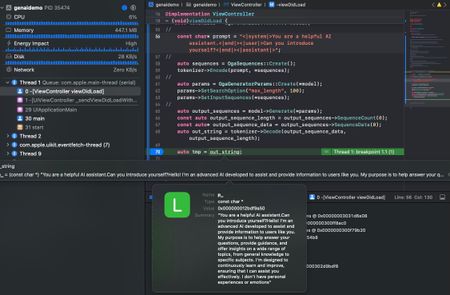
In this article, we explore how to deploy generative AI applications to mobile devices, specifically on iPhone, using ONNX Runtime. We cover the steps to compile ONNX Runtime for iOS and then create an App application in Xcode. We also show you how to copy the ONNX quantized INT4 model to the project and add the C++ API to generate text. This is a preliminary exploration of deploying generative AI on mobile devices, but it provides a good starting point for further development.20KViews2likes2CommentsAccelerate Phi-3 use on macOS: A Beginner's Guide to Using Apple MLX Framework
Learn how to use macOS and Apple Silicon to speed up machine learning models with this easy guide. We’ll cover the Apple MLX Framework, a tool that helps you run and fine-tune models like Phi-3-mini right on your Mac. First, install MLX by running pip install mlx-lm in your terminal. You can then use commands to run or fine-tune models. Apple's Metal Performance Shaders make this possible by using your Mac's GPU. We'll also show you how to use LoRA for better fine-tuning results and compare the performance of different models.14KViews2likes0CommentsEngineering a Local-First Agentic Podcast Studio: A Deep Dive into Multi-Agent Orchestration
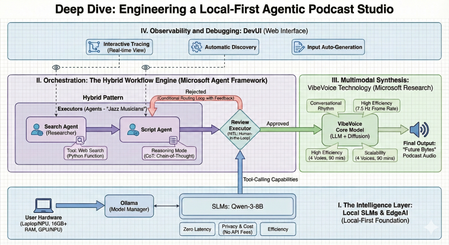
The transition from standalone Large Language Models (LLMs) to Agentic Orchestration marks the next frontier in AI development. We are moving away from simple "prompt-and-response" cycles toward a paradigm where specialized, autonomous units—AI Agents—collaborate to solve complex, multi-step problems. As a Technology Evangelist, my focus is on building these production-grade systems entirely on the edge, ensuring privacy, speed, and cost-efficiency. This technical guide explores the architecture and implementation of The AI Podcast Studio. This project demonstrates the seamless integration of the Microsoft Agent Framework, Local Small Language Models (SLMs), and VibeVoice to automate a complete tech podcast pipeline. I. The Strategic Intelligence Layer: Why Local-First? At the core of our studio is a Local-First philosophy. While cloud-based LLMs are powerful, they introduce friction in high-frequency, creative pipelines. By using Ollama as a model manager, we run SLMs like Qwen-3-8B directly on user hardware. 1. Architectural Comparison: Local vs. Cloud Choosing the deployment environment is a fundamental architectural decision. For an agentic podcasting workflow, the edge offers distinct advantages: Dimension Local Models (e.g., Qwen-3-8B) Cloud Models (e.g., GPT-5.2) Latency Zero/Ultra-low: Instant token generation without network "jitter". Variable: Dependent on network stability and API traffic. Privacy Total Sovereignty: Creative data and drafts never leave the local device. Shared Risk: Data is processed on third-party servers. Cost Zero API Fees: One-time hardware investment; free to run infinite tokens. Pay-as-you-go: Costs scale with token count and frequency of calls. Availability Offline: The studio remains functional without an internet connection. Online Only: Requires a stable, high-speed connection. 2. Reasoning and Tool-Calling on the Edge To move beyond simple chat, we implement Reasoning Mode, utilizing Chain-of-Thought (CoT) prompting. This allows our local agents to "think" through the podcast structure before writing. Furthermore, we grant them "superpowers" through Tool-Calling, allowing them to execute Python functions for real-time web searches to gather the latest news. II. The Orchestration Engine: Microsoft Agent Framework The true complexity of this project lies in Agent Orchestration—the coordination of specialized agents to work as a cohesive team. We distinguish between Agents, who act as "Jazz Musicians" making flexible decisions, and Workflows, which act as the "Orchestra" following a predefined score. 1. Advanced Orchestration Patterns Drawing from the WorkshopForAgentic architecture, the studio utilizes several sophisticated patterns: Sequential: A strict pipeline where the output of the Researcher flows into the Scriptwriter. Concurrent (Parallel): Multiple agents search different news sources simultaneously to speed up data gathering. Handoff: An agent dynamically "transfers" control to another specialist based on the context of the task. Magentic-One: A high-level "Manager" agent decides which specialist should handle the next task in real-time. III. Implementation: Code Analysis (Workshop Patterns) To maintain a production-grade codebase, we follow the modular structure found in the WorkshopForAgentic/code directory. This ensures that agents, clients, and workflows are decoupled and maintainable. 1. Configuration: Connecting to Local SLMs The first step is initializing the local model client using the framework's Ollama integration. # Based on WorkshopForAgentic/code/config.py from agent_framework.ollama import OllamaChatClient # Initialize the local client for Qwen-3-8B # Standard Ollama endpoint on localhost chat_client = OllamaChatClient( model_id="qwen3:8b", endpoint="http://localhost:11434" ) 2. Agent Definition: Specialized Roles Each agent is a ChatAgent instance defined by its persona and instructions. # Based on WorkshopForAgentic/code/agents.py from agent_framework import ChatAgent # The Researcher Agent: Responsible for web discovery researcher_agent = client.create_agent( name="SearchAgent", instructions="You are my assistant. Answer the questions based on the search engine.", tools=[web_search], ) # The Scriptwriter Agent: Responsible for conversational narrative generate_script_agent = client.create_agent( name="GenerateScriptAgent", instructions=""" You are my podcast script generation assistant. Please generate a 10-minute Chinese podcast script based on the provided content. The podcast script should be co-hosted by Lucy (the host) and Ken (the expert). The script content should be generated based on the input, and the final output format should be as follows: Speaker 1: …… Speaker 2: …… Speaker 1: …… Speaker 2: …… Speaker 1: …… Speaker 2: …… """ ) 3. Workflow Setup: The Sequential Pipeline For a deterministic production line, we use the WorkflowBuilder to connect our agents. # Based on WorkshopForAgentic/code/workflow_setup.py from agent_framework import WorkflowBuilder # Building the podcast pipeline search_executor = AgentExecutor(agent=search_agent, id="search_executor") gen_script_executor = AgentExecutor(agent=gen_script_agent, id="gen_script_executor") review_executor = ReviewExecutor(id="review_executor", genscript_agent_id="gen_script_executor") # Build workflow with approval loop # search_executor -> gen_script_executor -> review_executor # If not approved, review_executor -> gen_script_executor (loop back) workflow = ( WorkflowBuilder() .set_start_executor(search_executor) .add_edge(search_executor, gen_script_executor) .add_edge(gen_script_executor, review_executor) .add_edge(review_executor, gen_script_executor) # Loop back for regeneration .build() ) IV. Multimodal Synthesis: VibeVoice Technology The "Future Bytes" podcast is brought to life using VibeVoice, a specialized technology from Microsoft Research designed for natural conversational synthesis. Conversational Rhythm: It automatically handles natural turn-taking and speech cadences. High Efficiency: By operating at an ultra-low 7.5 Hz frame rate, it significantly reduces the compute power required for high-fidelity audio. Scalability: The system supports up to 4 distinct voices and can generate up to 90 minutes of continuous audio. V. Observability and Debugging: DevUI Building multi-agent systems requires deep visibility into the agentic "thinking" process. We leverage DevUI, a specialized web interface for testing and tracing: Interactive Tracing: Developers can watch the message flow and tool-calling in real-time. Automatic Discovery: DevUI auto-discovers agents defined within the project structure. Input Auto-Generation: The UI generates input fields based on workflow requirements, allowing for rapid iteration. VI. Technical Requirements for Edge Deployment Deploying this studio locally requires specific hardware and software configurations to handle simultaneous LLM and TTS inference: Software: Python 3.10+, Ollama, and the Microsoft Agent Framework. Hardware: 16GB+ RAM is the minimum requirement; 32GB is recommended for running multiple agents and VibeVoice concurrently. Compute: A modern GPU/NPU (e.g., NVIDIA RTX or Snapdragon X Elite) is essential for smooth inference. Final Perspective: From Coding to Directing The AI Podcast Studio represents a significant shift toward Agentic Content Creation. By mastering these orchestration patterns and leveraging local EdgeAI, developers move from simply writing code to directing entire ecosystems of intelligent agents. This "local-first" model ensures that the future of creativity is private, efficient, and infinitely scalable. Download sample Here Resource EdgeAI for Beginners - https://github.com/microsoft/edgeai-for-beginners Microsoft Agent Framework - https://github.com/microsoft/agent-framework Microsoft Agent Framework Samples - https://github.com/microsoft/agent-framework-samples9.3KViews3likes0CommentsToken Economics: The New FinOps for Agentic AI
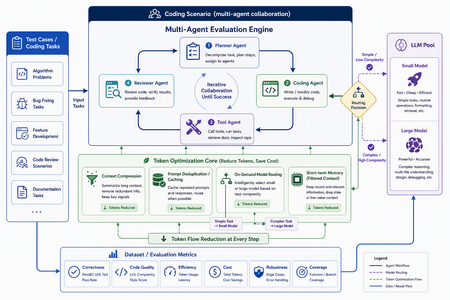
In AI applications, tokens are now cost — and token economics deserves architectural attention For a long time, AI application design started with model capability: Can the model write code? Can it reason? Can it use tools? Can it handle long context? Those questions still matter, but in the age of agentic applications, they are no longer sufficient. The more important production question is this: How many tokens does the architecture burn to complete one useful task? A classic chat application often maps one user turn to one model call. An agentic system is different. One user goal can trigger planning, retrieval, tool selection, tool execution, result interpretation, reflection, repair, and summarization. The user sees one instruction; the system may execute dozens of model calls behind the scenes. Tokens are no longer just a measure of text length. They become a measure of system design, runtime behavior, developer workflow, and business cost. GitHub Copilot’s 2026 move to usage-based billing through GitHub AI Credits captures the industry shift clearly. Usage is now aligned with token consumption, including input, output, and cached tokens. That matters because Copilot has evolved from an in-editor assistant into an agentic platform that can handle long, multi-step coding sessions across repositories. In that world, a tiny prompt and a multi-hour autonomous coding workflow should not be treated as the same economic unit. Token economics is therefore not about telling developers to “write shorter prompts.” It is about designing systems where: useful context is preserved, while noise is removed; repeated context is cached or deduplicated; simple tasks do not pay for frontier models; short-term state is managed structurally instead of copied repeatedly; every model call is metered, comparable, and governed. In short: token economics is the practice of making agentic AI economically sustainable. Scenario thinking: GitHub Copilot billing, Copilot SDK, GPT-5.5, Anthropic, and MAI-Code Model The new GitHub Copilot billing model provides a useful framing for developers. Copilot is no longer only autocomplete. It is becoming a programmable agentic platform. It can use models, call tools, work across files, stream responses, and participate in long-running coding workflows. With the GitHub Copilot SDK, developers can embed that agentic runtime into their own applications, services, and developer tools. That is powerful, but it also changes the cost model. Once an agent loop becomes programmable, token cost also needs to become programmable. If a system can plan, call tools, edit files, retry, repair, and summarize, it also needs to meter, route, cache, compress, and evaluate. EvalAgentic gives this idea a concrete playground. The project groups models into cost and capability tiers: Tier Example models Example price / 1K tokens Typical use LARGE claude-opus-4.8, gpt-5.5 $0.030 Agents, code generation, multi-step reasoning MID gpt-5.4-mini $0.012 Dialogue, summarization, extraction TINY gpt-5-mini $0.001 Classification, keyword matching, rule-like tasks This tiering lets us reason about real scenarios: GPT-5.5-class models are valuable for hard reasoning and engineering workflows, but they should not be the default for every step. Using a frontier model for simple classification is like hiring a principal architect to label folders. Anthropic high-capability models can be excellent for complex reasoning and coding, but they benefit from routing discipline. Requirements analysis, test interpretation, deployment explanation, and code generation may not need the same model tier. MAI-Code Model-style coding models should be treated as specialized capability layers. Their value is not just “better code generation”; it is deciding when code-specialized intelligence should be invoked in a larger agent pipeline. The real question is not “Which model is the best?” It is: Which model is the most economical and reliable for this step of this workflow? Four engineering techniques for saving tokens Context Compression: turn long text into executable structure Implementation principle Context Compression converts long natural-language context into the structured information an agent actually needs. Business documents are often verbose: resumes, contracts, product manuals, requirements, and support logs contain narrative text, boilerplate, repeated explanations, and low-value context. The next agent step may only need a few fields. EvalAgentic demonstrates this with a long resume-like input that is compressed into a compact JSON object. Instead of injecting the full original text into every prompt, the system extracts key fields and dynamically injects only the data required by the current task. A practical compression pipeline includes: Redundancy detection — identify long-tail text, repeated descriptions, stale history, and low-value context. Structured extraction — use Copilot or a mid-tier model to transform prose into JSON, tables, or typed schemas. Dynamic injection — inject only the fields needed for the next step. Recoverable references — preserve source pointers so compressed context remains auditable. How to evaluate Prompt token reduction before and after compression. Answer quality and task success rate. Schema fidelity and missing-field rate. Latency improvement. Cost per successful task. Compression is not summarization. Summaries are designed for humans. Structured compression is designed for agents. Prompt Deduplication / Cache: stop paying twice for the same context Implementation principle Many agent systems waste tokens because they repeatedly send the same context. The same resume, contract, repository README, user profile, API documentation, or business rule can be copied across turns and agents. Prompt Deduplication / Cache applies a simple principle: if context has already been processed, do not pay to process it again unless it has changed. A concrete design includes: compute a hash or semantic key for source context; reuse extracted structured results when content is identical or equivalent; apply a TTL for repeated entities, such as the 24-hour cache pattern shown in EvalAgentic; organize stable prompt prefixes to benefit from provider-level prompt caching where available; store shared context in an artifact store or memory layer so multiple agents do not copy the same blob. How to evaluate Cache hit rate. Cached token ratio. Duplicate prompt rate. Cost delta before and after caching. Correctness under cache, especially stale-cache failures. Caching is not “save everything forever.” Good caching knows when to reuse and when to invalidate. On-Demand Model Routing: let task complexity decide model tier Implementation principle On-Demand Model Routing routes each request to the cheapest model that can complete the task reliably. The entry point can use a rule tree, a lightweight classifier, or a hybrid complexity score. EvalAgentic’s routing tree is intentionally easy to explain: INCOMING REQUEST └─ Prompt < 500 tokens? ── YES ─→ TINY: classify / extract └─ NO ──→ multi-step reasoning? ├─ NO ─→ MID: dialogue / summary └─ YES ─→ LARGE: agent / code The engineering logic is straightforward: simple classification and keyword matching go to TINY; summarization and structured conversion go to MID; multi-step reasoning, coding, cross-file changes, and orchestration go to LARGE; code-specialized models such as MAI-Code Model can be placed in the coding phase rather than used across the whole pipeline. How to evaluate Routing accuracy. Cost per route. Quality regression by tier. Escalation rate from small models to larger models. End-to-end success rate. Routing does not mean “always use the smallest model.” It means frontier intelligence is reserved for the steps where it actually changes the outcome. Short-term Memory: preserve state instead of replaying history Implementation principle Short-term Memory controls context growth across multi-turn and multi-agent workflows. Without it, agents often replay the full conversation history, full tool outputs, and full intermediate reasoning on every turn. The context grows; quality may not improve; the bill definitely does. A better design stores state structurally: user goal; current plan; tool outputs and references; failure reasons; next actions; handoff artifacts between agents. In a multi-agent coding pipeline, the Requirements Agent should hand off a structured spec. The Coding Agent should read that spec, not the entire prior conversation. The Testing Agent should consume testable artifacts, not every word produced by the Coding Agent. How to evaluate Context growth curve across turns. Memory retrieval precision. Rework rate caused by missing state. Recovery quality after failed steps. Average input tokens per turn. Short-term memory is not about remembering everything. It is about remembering the next useful thing. EvalAgentic as a concrete evaluation example EvalAgentic is effective as an evangelism project because it turns token economics into an observable before/after system. The architecture has five layers: Frontend — frontend/index.html provides Tabs A / B / C, live SSE logs, and before/after charts. API — backend/server.py exposes FastAPI routes and Server-Sent Events streaming. Orchestration — eval.py handles A/B evaluation; coding_agents.py handles the multi-agent coding scenario. Core — compressor.py, router.py, gh_models.py, and token_meter.py implement compression, routing, Copilot SDK calls, and token metering. Providers — GitHub Copilot SDK and Microsoft Agent Framework provide model access and agent orchestration. Tab A: Compression comparison Tab A compares long-form context before and after structured compression. The key message is that token saving does not come from writing a clever sentence. It comes from converting verbose context into a structured artifact that downstream agents can consume efficiently. Tab B: On-demand model routing Tab B demonstrates that cost is not only about raw token count. If a system routes simple tasks to cheaper tiers and reserves expensive models for complex reasoning, total cost can fall even if some token counts increase. This is a subtle but important point: token economics is not token starvation; it is model portfolio optimization. Tab C: Coding scenario — multi-agent with Agent Framework Tab C is the most persuasive demo. The same deliverable — a Taobao-like goods-list site with HTML + JavaScript frontend, Flask backend, and Docker deployment — is produced twice by a four-agent pipeline: Requirements Agent; Coding Agent; Testing Agent; Deployment Agent. The before pipeline uses no compression and sends every agent to GPT-5.5 / LARGE. The after pipeline injects a compressed JSON spec and uses on-demand routing: requirements can use MID, coding can use LARGE, testing can use MID, and deployment can use TINY. This mirrors real enterprise development. Architecture and complex code generation may deserve frontier models. Test interpretation, deployment packaging, and simple validation often do not. Summary and refinement based on the project diagrams The EvalAgentic README describes three important visuals: the architecture flow, the routing tree, and the token-meter design. Together, they form a governance loop: User Scenario ↓ Context Compression ↓ Prompt Deduplication / Cache ↓ On-Demand Model Routing ↓ Short-term Memory ↓ Token Metering & Budget Actions ↓ Before / After Evaluation Optimize the path, not only the prompt Many teams start token optimization by editing prompt wording. That helps, but the largest waste usually lives in the execution path: how many calls are made, how much context is repeated, how often tools retry, and whether every step uses the same expensive model. EvalAgentic makes the path visible through A/B comparisons. Token Meter is the control plane of cost governance EvalAgentic’s token_meter.py uses a non-invasive interceptor pattern: INTERCEPTOR (@token_meter) ↓ COUNTER CORE: accounting / budget threshold / trigger ↓ ACTION HUB: throttle (>80% budget) / rollback (>budget) This is the right architectural instinct. Production systems need thresholds, throttling, rollback, and traceability. Without those controls, one retry loop can quietly turn a small user request into a budget incident. Cost metrics must be evaluated with quality metrics A system that cuts cost by 80% but drops success rate by 50% is not optimized. It is broken more cheaply. The evaluation matrix should combine cost, quality, latency, and reliability: Dimension Metric Why it matters Cost Cost per successful task Measures the real unit economics Token Input / output / cached tokens Identifies compression and cache opportunities Quality Pass rate / regression rate Ensures cheaper tiers do not break outcomes Efficiency Latency / retry count Prevents cheap models from causing expensive retries Governance Budget breach / rollback count Validates runtime control Narrative A simple three-line narrative works well for demos: Token is no longer a technical detail. It is the bill of your architecture. EvalAgentic shows the same scenario before and after cost-aware design. The goal is not to make models cheaper; the goal is to make agent systems economically governable. For a developer audience, the sharper version is: A good agent does not use the biggest model everywhere. It uses the right intelligence at the right step, with the right context, under the right budget. Practical recommendations for real projects Establish a token baseline first. Measure input, output, retries, tool calls, and cost per scenario before optimizing. Make compression a component, not a prompt habit. Define schemas, cache policies, and fallback behavior. Introduce a model routing matrix. Route by task type, complexity, risk, latency, and cost. Define handoff contracts between agents. Pass structured artifacts, not endless conversation history. Evaluate every optimization with A/B tests. Compare cost, quality, latency, and stability. Add budget actions. Throttle at a threshold, rollback on breach, and add circuit breakers for failed retries. Closing: token economics is the second curve of agent engineering The first phase of AI application development was about calling models. The second phase was about putting models into products. The next phase of agentic AI is about running those systems reliably, affordably, and governably. EvalAgentic matters because it turns Context Compression, Prompt Deduplication / Cache, On-Demand Model Routing, and Short-term Memory into something developers can run, compare, and explain. It moves token economics from opinion to instrumentation. Future AI applications will not only ask: How smart is this agent? They will ask: How many tokens does it spend per completed task? Which model did it use? Did it hit cache? Did retries run away? Did the system reserve frontier intelligence for the steps that deserved it? References kinfey/EvalAgentic GitHub Copilot is moving to usage-based billing Updates to GitHub Copilot billing and plans Copilot SDK - GitHub Docs7.4KViews4likes0Comments
Getting Started with the AI Dev Gallery
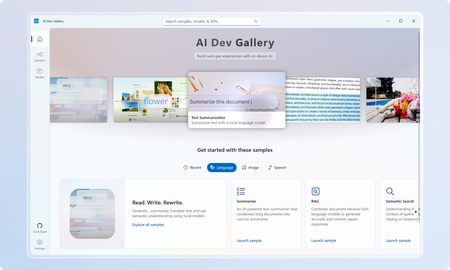
March Update: The Gallery is now available on the Microsoft Store! The AI Dev Gallery is a new open-source project designed to inspire and support developers in integrating on-device AI functionality into their Windows apps. It offers an intuitive UX for exploring and testing interactive AI samples powered by local models. Key features include: Quickly explore and download models from well-known sources on GitHub and HuggingFace. Test different models with interactive samples over 25 different scenarios, including text, image, audio, and video use cases. See all relevant code and library references for every sample. Switch between models that run on CPU and GPU depending on your device capabilities. Quickly get started with your own projects by exporting any sample to a fresh Visual Studio project that references the same model cache, preventing duplicate downloads. Part of the motivation behind the Gallery was exposing developers to the host of benefits that come with on-device AI. Some of these benefits include improved data security and privacy, increased control and parameterization, and no dependence on an internet connection or third-party cloud provider. Requirements Device Requirements Minimum OS Version: Windows 10, version 1809 (10.0; Build 17763) Architecture: x64, ARM64 Memory: At least 16 GB is recommended Disk Space: At least 20GB free space is recommended GPU: 8GB of VRAM is recommended for running samples on the GPU Using the Gallery The AI Dev Gallery has can be navigated in two ways: The Samples View The Models View Navigating Samples In this view, samples are broken up into categories (Text, Code, Image, etc.) and then into more specific samples, like in the Translate Text pictured below: On clicking a sample, you will be prompted to choose a model to download if you haven’t run this sample before: Next to the model you can see the size of the model, whether it will run on CPU or GPU, and the associated license. Pick the model that makes the most sense for your machine. You can also download new models and change the model for a sample later from the sample view. Just click the model drop down at the top of the sample: The last thing you can do from the Sample pane is view the sample code and export the project to Visual Studio. Both buttons are found in the top right corner of the sample, and the code view will look like this: Navigating Models If you would rather navigate by models instead of samples, the Gallery also provides the model view: The model view contains a similar navigation menu on the right to navigate between models based on category. Clicking on a model will allow you to see a description of the model, the versions of it that are available to download, and the samples that use the model. Clicking on a sample will take back over to the samples view where you can see the model in action. Deleting and Managing Models If you need to clear up space or see download details for the models you are using, you can head over the Settings page to manage your downloads: From here, you can easily see every model you have downloaded and how much space on your drive they are taking up. You can clear your entire cache for a fresh start or delete individual models that you are no longer using. Any deleted model can be redownload through either the models or samples view. Next Steps for the Gallery The AI Dev Gallery is still a work in progress, and we plan on adding more samples, models, APIs, and features, and we are evaluating adding support for NPUs to take the experience even further If you have feedback, noticed a bug, or any ideas for features or samples, head over to the issue board and submit an issue. We also have a discussion board for any other topics relevant to the Gallery. The Gallery is an open-source project, and we would love contribution, feedback, and ideation! Happy modeling!7.1KViews5likes3CommentsBuilding Your First Local RAG Application with Foundry Local
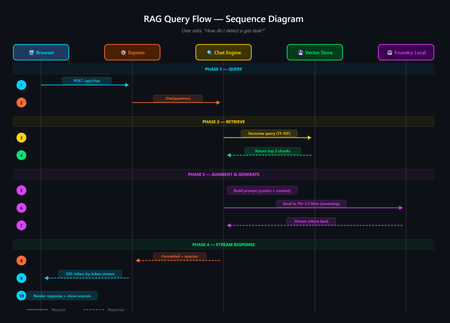
A developer's guide to building an offline, mobile-responsive AI support agent using Retrieval-Augmented Generation, the Foundry Local SDK, and JavaScript. Imagine you are a gas field engineer standing beside a pipeline in a remote location. There is no Wi-Fi, no mobile signal, and you need a safety procedure right now. What do you do? This is the exact problem that inspired this project: a fully offline RAG-powered support agent that runs entirely on your machine. No cloud. No API keys. No outbound network calls. Just a local language model, a local vector store, and your own documents, all accessible from a browser on any device. In this post, you will learn how it works, how to build your own, and the key architectural decisions behind it. If you have ever wanted to build an AI application that runs locally and answers questions grounded in your own data, this is the place to start. The finished application: a browser-based AI support agent that runs entirely on your machine. What Is Retrieval-Augmented Generation? Retrieval-Augmented Generation (RAG) is a pattern that makes AI models genuinely useful for domain-specific tasks. Rather than hoping the model "knows" the answer from its training data, you: Retrieve relevant chunks from your own documents using a vector store Augment the model's prompt with those chunks as context Generate a response grounded in your actual data The result is fewer hallucinations, traceable answers with source attribution, and an AI that works with your content rather than relying on general knowledge. If you are building internal tools, customer support bots, field manuals, or knowledge bases, RAG is the pattern you want. RAG vs CAG: Understanding the Trade-offs If you have explored AI application patterns before, you have likely encountered Context-Augmented Generation (CAG). Both RAG and CAG solve the same core problem: grounding an AI model's answers in your own content. They take different approaches, and each has genuine strengths and limitations. RAG (Retrieval-Augmented Generation) How it works: Documents are split into chunks, vectorised, and stored in a database. At query time, the most relevant chunks are retrieved and injected into the prompt. Strengths: Scales to thousands or millions of documents Fine-grained retrieval at chunk level with source attribution Documents can be added or updated dynamically without restarting Token-efficient: only relevant chunks are sent to the model Supports runtime document upload via the web UI Limitations: More complex architecture: requires a vector store and chunking strategy Retrieval quality depends on chunking parameters and scoring method May miss relevant content if the retrieval step does not surface it CAG (Context-Augmented Generation) How it works: All documents are loaded at startup. The most relevant ones are selected per query using keyword scoring and injected into the prompt. Strengths: Drastically simpler architecture with no vector database or embeddings All information is always available to the model Minimal dependencies and easy to set up Near-instant document selection Limitations: Constrained by the model's context window size Best suited to small, curated document sets (tens of documents) Adding documents requires an application restart Want to compare these patterns hands-on? There is a CAG-based implementation of the same gas field scenario using whole-document context injection. Clone both repositories, run them side by side, and see how the architectures differ in practice. When Should You Choose Which? Consideration Choose RAG Choose CAG Document count Hundreds or thousands Tens of documents Document updates Frequent or dynamic (runtime upload) Infrequent (restart to reload) Source attribution Per-chunk with relevance scores Per-document Setup complexity Moderate (ingestion step required) Minimal Query precision Better for large or diverse collections Good for keyword-matchable content Infrastructure SQLite vector store (single file) None beyond the runtime For the sample application in this post (20 gas engineering procedure documents with runtime upload), RAG is the clear winner. If your document set is small and static, CAG may be simpler. Both patterns run fully offline using Foundry Local. Foundry Local: Your On-Device AI Runtime Foundry Local is a lightweight runtime from Microsoft that downloads, manages, and serves language models entirely on your device. No cloud account, no API keys, no outbound network calls (after the initial model download). What makes it particularly useful for developers: No GPU required: runs on CPU or NPU, making it accessible on standard laptops and desktops Native SDK bindings: in-process inference via the foundry-local-sdk npm package, with no HTTP round-trips to a local server Automatic model management: downloads, caches, and loads models automatically Hardware-optimised variant selection: the SDK picks the best variant for your hardware (GPU, NPU, or CPU) Real-time progress callbacks: ideal for building loading UIs that show download and initialisation progress The integration code is refreshingly minimal: import { FoundryLocalManager } from "foundry-local-sdk"; // Create a manager and discover models via the catalogue const manager = FoundryLocalManager.create({ appName: "gas-field-local-rag" }); const model = await manager.catalog.getModel("phi-3.5-mini"); // Download if not cached, then load into memory if (!model.isCached) { await model.download((progress) => { console.log(`Download: ${Math.round(progress * 100)}%`); }); } await model.load(); // Create a chat client for direct in-process inference const chatClient = model.createChatClient(); const response = await chatClient.completeChat([ { role: "system", content: "You are a helpful assistant." }, { role: "user", content: "How do I detect a gas leak?" } ]); That is it. No server configuration, no authentication tokens, no cloud provisioning. The model runs in the same process as your application. The Technology Stack The sample application is deliberately simple. No frameworks, no build steps, no Docker: Layer Technology Purpose AI Model Foundry Local + Phi-3.5 Mini Runs locally via native SDK bindings, no GPU required Back end Node.js + Express Lightweight HTTP server, everyone knows it Vector Store SQLite (via better-sqlite3 ) Zero infrastructure, single file on disc Retrieval TF-IDF + cosine similarity No embedding model required, fully offline Front end Single HTML file with inline CSS No build step, mobile-responsive, field-ready The total dependency footprint is three npm packages: express , foundry-local-sdk , and better-sqlite3 . Architecture Overview The five-layer architecture, all running on a single machine. The system has five layers, all running on a single machine: Client layer: a single HTML file served by Express, with quick-action buttons and a responsive chat interface Server layer: Express.js starts immediately and serves the UI plus SSE status and chat endpoints RAG pipeline: the chat engine orchestrates retrieval and generation; the chunker handles TF-IDF vectorisation; the prompts module provides safety-first system instructions Data layer: SQLite stores document chunks and their TF-IDF vectors; documents live as .md files in the docs/ folder AI layer: Foundry Local runs Phi-3.5 Mini on CPU or NPU via native SDK bindings Building the Solution Step by Step Prerequisites You need two things installed on your machine: Node.js 20 or later: download from nodejs.org Foundry Local: Microsoft's on-device AI runtime: winget install Microsoft.FoundryLocal The SDK will automatically download the Phi-3.5 Mini model (approximately 2 GB) the first time you run the application. Getting the Code Running # Clone the repository git clone https://github.com/leestott/local-rag.git cd local-rag # Install dependencies npm install # Ingest the 20 gas engineering documents into the vector store npm run ingest # Start the server npm start Open http://127.0.0.1:3000 in your browser. You will see the status indicator whilst the model loads. Once the model is ready, the status changes to "Offline Ready" and you can start chatting. Desktop view Mobile view How the RAG Pipeline Works Let us trace what happens when a user asks: "How do I detect a gas leak?" The query flow from browser to model and back. 1 Documents are ingested and indexed When you run npm run ingest , every .md file in the docs/ folder is read, parsed (with optional YAML front-matter for title, category, and ID), split into overlapping chunks of approximately 200 tokens, and stored in SQLite with TF-IDF vectors. 2 Model is loaded via the SDK The Foundry Local SDK discovers the model in the local catalogue and loads it into memory. If the model is not already cached, it downloads it first (with progress streamed to the browser via SSE). 3 User sends a question The question arrives at the Express server. The chat engine converts it into a TF-IDF vector, uses an inverted index to find candidate chunks, and scores them using cosine similarity. The top 3 chunks are returned in under 1 ms. 4 Prompt is constructed The engine builds a messages array containing: the system prompt (with safety-first instructions), the retrieved chunks as context, the conversation history, and the user's question. 5 Model generates a grounded response The prompt is sent to the locally loaded model via the Foundry Local SDK's native chat client. The response streams back token by token through Server-Sent Events to the browser. Source references with relevance scores are included. A response with safety warnings and step-by-step guidance The sources panel shows which chunks were used and their relevance Key Code Walkthrough The Vector Store (TF-IDF + SQLite) The vector store uses SQLite to persist document chunks alongside their TF-IDF vectors. At query time, an inverted index finds candidate chunks that share terms with the query, then cosine similarity ranks them: // src/vectorStore.js search(query, topK = 5) { const queryTf = termFrequency(query); this._ensureCache(); // Build in-memory cache on first access // Use inverted index to find candidates sharing at least one term const candidateIndices = new Set(); for (const term of queryTf.keys()) { const indices = this._invertedIndex.get(term); if (indices) { for (const idx of indices) candidateIndices.add(idx); } } // Score only candidates, not all rows const scored = []; for (const idx of candidateIndices) { const row = this._rowCache[idx]; const score = cosineSimilarity(queryTf, row.tf); if (score > 0) scored.push({ ...row, score }); } scored.sort((a, b) => b.score - a.score); return scored.slice(0, topK); } The inverted index, in-memory row cache, and prepared SQL statements bring retrieval time to sub-millisecond for typical query loads. Why TF-IDF Instead of Embeddings? Most RAG tutorials use embedding models for retrieval. This project uses TF-IDF because: Fully offline: no embedding model to download or run Zero latency: vectorisation is instantaneous (it is just maths on word frequencies) Good enough: for 20 domain-specific documents, TF-IDF retrieves the right chunks reliably Transparent: you can inspect the vocabulary and weights, unlike neural embeddings For larger collections or when semantic similarity matters more than keyword overlap, you would swap in an embedding model. For this use case, TF-IDF keeps the stack simple and dependency-free. The System Prompt For safety-critical domains, the system prompt is engineered to prioritise safety, prevent hallucination, and enforce structured responses: // src/prompts.js export const SYSTEM_PROMPT = `You are a local, offline support agent for gas field inspection and maintenance engineers. Behaviour Rules: - Always prioritise safety. If a procedure involves risk, explicitly call it out. - Do not hallucinate procedures, measurements, or tolerances. - If the answer is not in the provided context, say: "This information is not available in the local knowledge base." Response Format: - Summary (1-2 lines) - Safety Warnings (if applicable) - Step-by-step Guidance - Reference (document name + section)`; This pattern is transferable to any safety-critical domain: medical devices, electrical work, aviation maintenance, or chemical handling. Runtime Document Upload Unlike the CAG approach, RAG supports adding documents without restarting the server. Click the upload button to add new .md or .txt files. They are chunked, vectorised, and indexed immediately. The upload modal with the complete list of indexed documents. Adapting This for Your Own Domain The sample project is designed to be forked and adapted. Here is how to make it yours in four steps: 1. Replace the documents Delete the gas engineering documents in docs/ and add your own markdown files. The ingestion pipeline handles any markdown content with optional YAML front-matter: --- title: Troubleshooting Widget Errors category: Support id: KB-001 --- # Troubleshooting Widget Errors ...your content here... 2. Edit the system prompt Open src/prompts.js and rewrite the system prompt for your domain. Keep the structure (summary, safety, steps, reference) and update the language to match your users' expectations. 3. Tune the retrieval In src/config.js : chunkSize: 200 : smaller chunks give more precise retrieval, less context per chunk chunkOverlap: 25 : prevents information falling between chunks topK: 3 : how many chunks to retrieve per query (more gives more context but slower generation) 4. Swap the model Change config.model in src/config.js to any model available in the Foundry Local catalogue. Smaller models give faster responses on constrained devices; larger models give better quality. Building a Field-Ready UI The front end is a single HTML file with inline CSS. No React, no build tooling, no bundler. This keeps the project accessible to beginners and easy to deploy. Design decisions that matter for field use: Dark, high-contrast theme with 18px base font size for readability in bright sunlight Large touch targets (minimum 44px) for operation with gloves or PPE Quick-action buttons that wrap on mobile so all options are visible without scrolling Responsive layout that works from 320px to 1920px+ screen widths Streaming responses via SSE, so the user sees tokens arriving in real time The mobile chat experience, optimised for field use. Testing The project includes unit tests using the built-in Node.js test runner, with no extra test framework needed: # Run all tests npm test Tests cover the chunker, vector store, configuration, and server endpoints. Use them as a starting point when you adapt the project for your own domain. Ideas for Extending the Project Once you have the basics running, there are plenty of directions to explore: Embedding-based retrieval: use a local embedding model for better semantic matching on diverse queries Conversation memory: persist chat history across sessions using local storage or a lightweight database Multi-modal support: add image-based queries (photographing a fault code, for example) PWA packaging: make it installable as a standalone offline application on mobile devices Hybrid retrieval: combine TF-IDF keyword search with semantic embeddings for best results Try the CAG approach: compare with the local-cag sample to see which pattern suits your use case Ready to Build Your Own? Clone the RAG sample, swap in your own documents, and have an offline AI agent running in minutes. Or compare it with the CAG approach to see which pattern suits your use case best. Get the RAG Sample Get the CAG Sample Summary Building a local RAG application does not require a PhD in machine learning or a cloud budget. With Foundry Local, Node.js, and SQLite, you can create a fully offline, mobile-responsive AI agent that answers questions grounded in your own documents. The key takeaways: RAG is ideal for scalable, dynamic document sets where you need fine-grained retrieval with source attribution. Documents can be added at runtime without restarting. CAG is simpler when you have a small, stable set of documents that fit in the context window. See the local-cag sample to compare. Foundry Local makes on-device AI accessible: native SDK bindings, in-process inference, automatic model selection, and no GPU required. TF-IDF + SQLite is a viable vector store for small-to-medium collections, with sub-millisecond retrieval thanks to inverted indexing and in-memory caching. Start simple, iterate outwards. Begin with RAG and a handful of documents. If your needs are simpler, try CAG. Both patterns run entirely offline. Clone the repository, swap in your own documents, and start building. The best way to learn is to get your hands on the code. This project is open source under the MIT licence. It is a scenario sample for learning and experimentation, not production medical or safety advice. local-rag on GitHub · local-cag on GitHub · Foundry Local6.9KViews2likes0CommentsBuild AI Agents with MCP Tool Use in Minutes with AI Toolkit for VSCode
We’re excited to announce Agent Builder, the newest evolution of what was formerly known as Prompt Builder, now reimagined and supercharged for intelligent app development. This powerful tool in AI Toolkit enables you to create, iterate, and optimize agents—from prompt engineering to tool integration—all in one seamless workflow. Whether you're designing simple chat interactions or complex task-performing agents with tool access, Agent Builder simplifies the journey from idea to integration. Why Agent Builder? Agent Builder is designed to empower developers and prompt engineers to: 🚀 Generate starter prompts with natural language 🔁 Iterate and refine prompts based on model responses 🧩 Break down tasks with prompt chaining and structured outputs 🧪 Test integrations with real-time runs and tool use such as MCP servers 💻 Generate production-ready code for rapid app development And a lot of features are coming soon, stay tuned for: 📝 Use variables in prompts �� Run agent with test cases to test your agent easily 📊 Evaluate the accuracy and performance of your agent with built-in or your custom metrics ☁️ Deploy your agent to cloud Build Smart Agents with Tool Use (MCP Servers) Agents can now connect to external tools through MCP (Model Control Protocol) servers, enabling them to perform real-world actions like querying a database, accessing APIs, or executing custom logic. Connect to an Existing MCP Server To use an existing MCP server in Agent Builder: In the Tools section, select + MCP Server. Choose a connection type: Command (stdio) – run a local command that implements the MCP protocol HTTP (server-sent events) – connect to a remote server implementing the MCP protocol If the MCP server supports multiple tools, select the specific tool you want to use. Enter your prompts and click Run to test the agent's interaction with the tool. This integration allows your agents to fetch live data or trigger custom backend services as part of the conversation flow. Build and Scaffold a New MCP Server Want to create your own tool? Agent Builder helps you scaffold a new MCP server project: In the Tools section, select + MCP Server. Choose MCP server project. Select your preferred programming language: Python or TypeScript. Pick a folder to create your server project. Name your project and click Create. Agent Builder generates a scaffolded implementation of the MCP protocol that you can extend. Use the built-in VS Code debugger: Press F5 or click Debug in Agent Builder Test with prompts like: System: You are a weather forecast professional that can tell weather information based on given location. User: What is the weather in Shanghai? Agent Builder will automatically connect to your running server and show the response, making it easy to test and refine the tool-agent interaction. AI Sparks from Prototype to Production with AI Toolkit Building AI-powered applications from scratch or infusing intelligence into existing systems? AI Sparks is your go-to webinar series for mastering the AI Toolkit (AITK) from foundational concepts to cutting-edge techniques. In this bi-weekly, hands-on series, we’ll cover: 🚀SLMs & Local Models – Test and deploy AI models and applications efficiently on your own terms locally, to edge devices or to the cloud 🔍 Embedding Models & RAG – Supercharge retrieval for smarter applications using existing data. 🎨 Multi-Modal AI – Work with images, text, and beyond. 🤖 Agentic Frameworks – Build autonomous, decision-making AI systems. Watch on Demand Share your feedback Get started with the latest version, share your feedback, and let us know how these new features help you in your AI development journey. As always, we’re here to listen, collaborate, and grow alongside our amazing user community. Thank you for being a part of this journey—let’s build the future of AI together! Join our Microsoft Azure AI Foundry Discord channel to continue the discussion 🚀Accelerate the development of Generative AI application with GitHub Models
Introducing GitHub Models, a new feature for over 100 million developers to become AI engineers using top AI models. Access models like Llama 3.1, GPT-4o, GPT-4o mini, Phi 3, and Mistral Large 2 through a built-in playground on GitHub. Test prompts and model settings for free. When ready, seamlessly integrate models into Codespaces and VS Code. For production, Azure AI offers responsible AI, enterprise-grade security, data privacy, and global availability. Models are accessible in over 25 Azure regions with provisioned throughput. Now, building and running your AI application is easier than ever.4.4KViews0likes0Comments