sharepoint
3929 Topics
SharePoint at 25: The knowledge platform for Copilot and agents
Join us for a global digital event to celebrate the 25th birthday of SharePoint! Gear up for an exciting look at SharePoint’s historic moments along with an exclusive look ahead to the next chapter of SharePoint’s AI future! You will discover how SharePoint’s new content AI capabilities and intelligent experiences will transform the way people create, manage, and collaborate. Be sure to stick around after for our live Ask Microsoft Anything (AMA), where you can ask your questions about the exciting new SharePoint features directly to the product team! 🛠️ Don’t miss the SharePoint Hackathon in March 2026 Design, create, share! We are excited to invite you to a hackathon dedicated to crafting exceptional employee experiences using AI and the latest SharePoint features. More details coming soon.1.2KViews11likes4CommentsSharePoint Online Content Security Policy (CSP): Enforcement Dates and Guidance
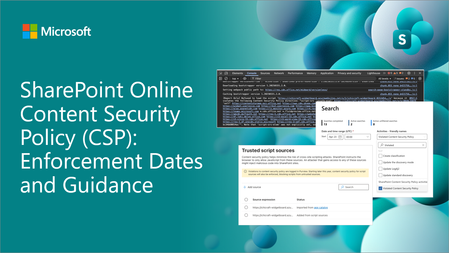
Content Security Policy (CSP) is a critical browser security feature designed to protect web applications. SharePoint Online is rolling out CSP enforcement for all tenants starting March 1, 2026.3.8KViews1like24CommentsJoin us for the SharePoint at 25 Birthday Event
For nearly 25 years, SharePoint has powered how organizations connect, collaborate, and manage knowledge at scale. Today, more than a billion people rely on SharePoint every month to store content, share ideas, and turn information into impact. As SharePoint celebrates its 25th birthday, we’re marking the occasion with a global digital event that reflects on this journey and looks ahead to what’s next. Join global leaders, innovators, and the SharePoint product team for a premier digital event that honors SharePoint’s evolution and its role as the knowledge platform for Copilot and agents, marking both a celebration and a look ahead at the future. Tune in to celebrate and participate. During the event, we’ll spotlight SharePoint’s most defining innovations while sharing a forward-looking view of the platform’s next chapter. One shaped by AI, Copilot, and agentic experiences designed for modern knowledge work. Tune in live to hear what’s new, what’s coming next, and how you can be part of where SharePoint goes from here, including details on how to participate in this year’s SharePoint Hackathon. What you can expect: Explore new content AI capabilities that help structure and enrich information to improve Copilot responses. Discover what’s changing in the way teams create, manage, and collaborate on content in SharePoint. Understand how SharePoint continues to serve as the knowledge platform for Copilot and agents, and what that means for organizations adopting AI at scale. Understand how the community of enthusiasts play a pivotal role in SharePoint’s history and future. After the broadcast, stick around for a live Ask Microsoft Anything (AMA) with the SharePoint product team to dig deeper, ask questions, and help shape the future of the product. Early information about the 2026 SharePoint Hackathon Get ready for the SharePoint Hackathon Following the SharePoint at 25 celebration, we’ll also be hosting a SharePoint Hackathon! A hands-on opportunity to build modern employee experiences using SharePoint, Copilot, and the latest AI capabilities. Whether you’re an end user, designer, maker, developer, or intranet leader, the Hackathon invites you to experiment, build, and share ideas that shape the future of work. Kickoff: During the SharePoint at 25 live event Dates: March 2 – March 16, 2026 What to expect: Additional Microsoft‑led live streams, guidance from product teams, and opportunities to showcase your ideas This 2-week hackathon event is open for anyone to join with some great awards ready for the participants. Learn more about participation and submission categories at: aka.ms/SharePoint/Hackathon Register today Registration is open so claim your spot now! Event Details Date: March 2, 2026 Time: 9:00 AM PT Format: Global Digital Event One registration gives you access to: The full SharePoint 25th birthday broadcast Exclusive previews of new AI and Copilot powered capabilities A live AMA with the SharePoint product team For those engineers, customers, and administrators that like myself, have been here since the beginning of SharePoint- I am so proud of what we've delivered to millions around the world for decades. And the best is yet to come. Stay connected Learn more about SharePoint’s 25th birthday: aka.ms/SPat25 Stay connected with monthly product updates: aka.ms/SharePointShowcase Explore the global SharePoint community: aka.ms/SPCommunity Get ready for SharePoint Hackathon 2026: aka.ms/SharePoint/Hackathon1.2KViews4likes0CommentsSharePoint/OneDrive Migrations
What's the strategy supposed to be for tenant to tenant SharePoint/OneDrive migrations now that Microsoft have retired Mover.io? I'm supposed to use Microsoft Migration Manager but this doesnt include tenant to tenant connectors like Mover did.1.1KViews0likes4CommentsA Method to track current and upcoming changes to M365 Products
Good evening (from Ireland at least), I've spent most of today traipsing down a variety of dead-ends and soon-to-be-discontinued features looking to create a useful location where I can find/send all new updates to products that I can peruse and ultimately highlight ones that may be of particular importance in my organisation. I've had a long chat with Copilot today and while I've made significant progress in some areas (had upwards of 30 great questions according to Copilot! ;P), when it comes to the final product, there's always some missing connector, or some RSS feed that is no longer supported. What I'm looking for here is any input on how you manage to stay ahead of changes and I'll share everything I'm doing and have learned as well, in the hope that the discussion is somewhat mutually beneficial. What I do: Message Centre: Manually check the Message Center (under Service Health in M365 Admin Center). You can sort by product here and by relevance which is quite handy. Link: https://admin.cloud.microsoft/?#/MessageCenter (Access to the M365 Admin Center on your tenant is required for this). Today I found out you can also send emails to yourself (and Teams channels) here so awaiting the next message to see if this has worked. Unfortunately, there doesn't seem to be a way of migrating past messages over so I'll have to go through these myself first. Road Maps: These have been the bane of my day. Currently, I actively check the road maps of the products I manage but going forward, I'd like to be able to track major changes to products used in my organisation so I can give users a heads up. I initially tried Power Automate to send updates to myself, however, it's not a feature widely used in our org yet and isn't well supported, so I wasn't too surprised when my efforts were blocked by existing policy. Not long after, I found RSS feeds, which seemed to be the answer to my problems. I created RSS Feeds for each of the Road Maps that I found useful, assured by Copilot that these would work. The assurance wasn't fell founded however as, true to form, once I showed Copilot by errors, they remembered that they were there all along! :') I'm yet to find a useful solution here beyond my current efforts so any assistance would be greatly appreciated. Community Blogs The final recommendation was these Community Blog posts which, to be fair, I've had immense success with to date. However, there is a slight issue with filtering. While I did finally get the RSS Feed to work on something (the Tech Comm M365 RSS Feed), it did then proceed to send me a mass of emails on every topic under the Sun & Moon. I've decided to return to the drawing board tomorrow with this, but I'm content in knowing that RSS isn't just a myth at least. I think what I'd like here is just to receive notifications when approved Blogs are posted (i.e., Monthly OneDrive Updates and the equivalent for other products). OneDrive Office Hours: This is a fansastic resource I do use every month as it gives you the opportunity to get in contact with the people who know the most about the product and the issues you're facing. I've spent weeks in a ticket before, only to raise it in one of these meetings and get a solution that took half an hour to set up. You'll get a yes or a no, but at least you'll have an answer. Copilot Chat: I don't have the full Copilot license because I haven't had a need for it yet. Everything I've wanted to do, I've been able to do in Copilot Chat. We haven't yet looked too much into Agents, and as a Public body, aren't going to rush into it until we know it's viable and can be supported. In the interim, I'm happy to test the waters with Copilot Chat asking it for Monthly Summaries on a variety of products, time frames, etc. It isn't perfect but it's faster than I am. It can find the sources for me and I can take it from there. As an organisation, we'll be pushing out all users on the most recent version (-1) on the Monthly Enterprise Channel. This means that they'll be supported whilst also being shielded from any brand new features. Our team will be on the most recent version and will be able to note any upcoming changes ahead of time. These are what I'm using so far but would be very grateful for any further input. Thanks in advance, Chris Martin57Views0likes2CommentsSharePoint Site Administrators Can Now Control Restricted Content Discovery
Restricted Content Discovery (RCD) is a feature that blocks access by Microsoft 365 Copilot and agents to the files stored in a SharePoint Online site. Instead of relying on tenant administrators, site administrators can now enable or disable RCD. It’s a natural evolution of what is an essential feature to keep sensitive and confidential information being leaked inadvertently by AI. https://office365itpros.com/2026/01/13/rcd-site-level/33Views0likes0Comments
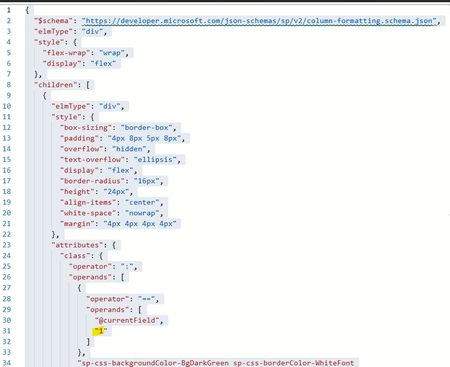
Conditional formatting in SharePoint lists using JSON
I have my conditional formatting working if I only refer to one number. As can be seen in the image below if the cell I want to format has the number "1" in it the formatting works. I would like the same formatting to work if for example the number was less than "2" or between 3 and 5. I've tried several options with starting with "=if...", but it either breaks the conditional formatting or doesn't make a change. I have been able to find an example that matches the attributes. Full disclosure the conditional formatting continues so I can apply different colors to other individual numbers. I'm hoping the if I resolve on the set of numbers the others will follow the same framework.77Views0likes3Comments
OneDrive/SharePoint permission problem
Hello, the problem is that we have a user which wants to share file(s) with another user. If he shares the file and he gives him permissions for read and write the he is still not allowed to open it, even if he askes for permissions an those will be granted it still does not work. This works (or does not work) with several files, but not with all. If those files ares shared with other users it works instantly. We have another user with this problems, the only thing they have in common is, that both were deactivated over a period of I think 5-6 months or even longer. It is not with every file, and it does not matter if those files were uploaded in SharePoint or OneDrive and it does not really matter who uploaded it. If I e.g. downloads a file which does NOT work and I upload it again it works. I am not sure if I described it properly, but this problem only appears for 2 users which were disabled and unlicensed for a longer period of time. Is the only way to fix this to delete the account and create a new one, so that a whole new User ID is created and nothing is related to the old user or is there a proper way to handle it, because to delete the account and create a new one is more or less the last thing I want to do. Thanks in advance80Views1like3Comments