sharepoint support
27 TopicsAwareness of temporary adjustments in SharePoint Online
On March 24 th we shared in an announcement in the M365 message center (MC207439) details around temporary adjustments we are making to select capabilities in SharePoint Online and OneDrive. During these unprecedented times, we are taking steps to ensure that SharePoint Online and OneDrive services remain available and reliable for your users who depend on the service more than ever in remote work scenarios.18KViews7likes0CommentsSharePoint Access Request e-mails are not delivered, but alerts work
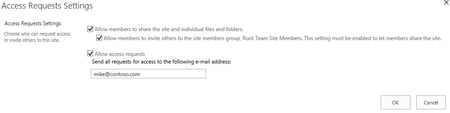
Problem Summary I recently worked on a few cases where SharePoint “Access Request” e-mails are not delivered, but “Alert” e-mails work. Since Alert e-mail are working, we know that outgoing e-mail is configured properly. However, when users request access to a new site, the access request email would never make it to the site admin entered in the “Access Request Settings”. Example: Cause Before getting into the cause, let’s talk about the difference between a normal alert e-mail and an “Access Request” e-mails. A normal Alert e-mail will be sent from the SharePoint Admin account configured in the outgoing e-mail settings. Alert E-mail: However, an “Access Request” e-mail will be sent from the user making the request. So in this case, the SharePoint Application Pool account will attempt to impersonate the sender, so when the e-mail arrives in the Access Request Admin’s inbox, they will know who is requesting access by the e-mail sender. Access Request E-Mail: So now we know the different between “Alert” e-mails and “Access Request” e-mails, let’s get into why “Access Request” e-mails are not being delivered. This issue is most likely caused by configuration of the Exchange Receive Connector. Before SharePoint 2019, SMTP authentication was not supported by SharePoint. So, SharePoint could only deliver e-mail without authentication. Any attempt to authenticate during the SMTP session would end with a failure. If you are reading this you probably have an issue with “Access Request” e-mails, so let’s look at the ULS logs to determine what’s going on. If you know which WFE is attempting to send the alert e-mail you can look at the logs in real-time using ULSViewer . Then the filter to be category contains “e-mail”. Now reproduce the issue by asking a user to request access to a site. Looking at ULS, you may see the e-mail fails. Let’s look closer at the exception: Failed attempt 3 sending mail to recipients: mike@contoso.com. Mail Subject: User1 wants to access 'Team Site'. Error: SmtpException while sending email: System.Net.Mail.SmtpException: Mailbox unavailable. The server response was: 5.7.60 SMTP; Client does not have permissions to send as this sender at System.Net.Mail.DataStopCommand.CheckResponse(SmtpStatusCode statusCode, String serverResponse) at System.Net.Mail.DataStopCommand.Send(SmtpConnection conn) at System.Net.ClosableStream.Close() at System.Net.Mail.SmtpClient.Send(MailMessage message) at Microsoft.SharePoint.Email.SPSmtpClient.Send(MailMessage msg) at Microsoft.SharePoint.Email.SPSmtpClient.TrySend(MailMessage msg) We are seeing an SMTP error “5.7.60” ( I have also seen 5.7.1 for this issue) , which states 2 things, “Mailbox Unavailable” and “Client does not have permissions to send as this sender”. So why is SharePoint trying to use authentication when it’s not supported? Good question! This seems to only effect SharePoint 2013. However, during an e-mail impersonation attempt from SharePoint 2013, SharePoint will attempt use NTLM and authenticate as a user if offered by the e-mail server may fail after specifying “From”. Example: In summary, the failure is occurring because the impersonator (SharePoint Application Pool Account) does not have an Exchange Mailbox or does not have “send as” rights for the impersonated user (The person making the access request). Resolution This issue can be resolved a few ways. Disable “Integrated Windows Authentication” from the default receive connector, so NTLM is not offered as a supported Authentication type. This will force SharePoint send the mail anonymously (as intended). Disable the “Exchange Users” permission group from the default receive connector, this will cause the user Authentication to fail and SharePoint will fall back to anonymous. Create an Exchange mailbox for the Application Pool Account that hosts the SharePoint site and ensure that account is given “Send as” rights to all mailboxes. Summary In summary, SharePoint 2013 will use NTLM if offered and fail when attempting to impersonate a user due to a lack of “Send As” permissions. Most of the time this is due to the fact that the Application Pool Account does not have a Mailbox hosted in the Exchange Server or does not have “send as” rights. More Information See the following documents for more information: Plan outgoing email for a SharePoint Server farm https://docs.microsoft.com/en-us/sharepoint/administration/outgoing-email-planning Configure outgoing email for a SharePoint Server farm https://docs.microsoft.com/en-us/sharepoint/administration/outgoing-email-configuration8.8KViews1like0CommentsSharePoint E-Mail enabled lists are not displayed in the Outlook Address List
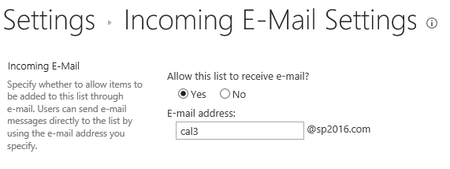
Problem I recently worked on an issue where lists in SharePoint were enabled for incoming e-mail and created in Active Directory / Exchange using the “Directory Management Service. These new lists should be created as e-mail enabled contacts with an external e-mail target address in Exchange. However, after setting an e-mail address on a SharePoint list, these contact would never show up in Outlook or OWA. Enabling incoming e-mail on a list: The “Directory Management Service” will create contact with an external e-mail address in the destination OU. However, when looking at this contact in Exchange, you will see it’s missing e-mail addresses. Also, the “Email Address Policy Enabled” is not set. When looking at “All Contacts” in Outlook, this new contact will not be displayed. Attempting to update the “All Contacts” address list, will allow using “Update-AddressList” from the Exchange Management Console, will force the contact to be displayed. Now the new contact will be displayed. However, when selecting the contact, there will be an error stating, “The recipient couldn’t be added. There is no email address” To work around this issue, you can update the existing contact with an e-mail address that matches your Internal Exchange users. However, when saving your changes and error stating, “The object must be upgraded to the current Exchange Version”. Now the contact has the email address policy enabled. After going through this process, the e-mail contact should be displayed in the address book and functional. Cause This issue occurs because SharePoint is creating the e-mail enabled contact with an incompatible object version, as a result the e-mail address policy cannot be applied. Resolution E-mail enabled objects that are created by the SharePoint Directory Management Service is not setting the “ExchangeVersion”, so it defaults to “0.0 (6.5.6500.0)”. However, when creating an e-mail enabled contact from within Exchange Management Tool, the “ExchangeVersion” is set to “0.20 (15.0.0.0)”. To resolve this issue, we can “touch” each effected object based on the “ExchangeVersion” that is created by the SharePoint Directory Management Service. To accomplish this, use “Set-contact” from the Exchange Management Shell to loop through all contacts that reside in the SharePoint OU (Organizational Unit). For example, I used “SharePoint Groups” in my case. Here is an example of the command based on my Organizational Unit. Get-contact -organizationalunit “SharePoint Groups” | where {$_.Exchangeversion -like “0.0 *”} | Set-contact This command will find all objects in the “SharePoint Groups” OU that have “0.0 *” set in the “Exchangeversion” property and update the object the current supported version. After running this command all objects that were created by the SharePoint Directory Management Service and are not displayed in the address book will updated by the recipient update service and accessible by Outlook clients.3.8KViews0likes0CommentsSharePoint throws 500 or 403 and remains inaccessible until IISRESET
Summary I have seen this very obscure SharePoint issue a few times and almost impossible to identity and resolve without extensive debugging. So, I just wanted to get this blog out there to help the next SharePoint Admin that may experience this situation with a quick resolution. Symptom: While trying to access the site http://sharepoint users are intermittently presented with 403 and 500 errors and the site remains inaccessible until performing a manual IIS RESET. However, after resetting IIS the site may remain operational for a very short time before the issue reoccurs. When this issue occurs, you will find the following COMException recorded in the ULS Logs. 12/14/2018 14:48:11.11 w3wp.exe (0x22A0) 0x270C SharePoint Foundation Runtime tkau Unexpected System.Runtime.InteropServices.COMException: Cannot complete this action. Please try again. at Microsoft.SharePoint.Library.SPRequestInternalClass.GetFileAndMetaInfo(String bstrUrl, Byte bPageView, Byte bPageMode, Byte bGetBuildDependencySet, String bstrCurrentFolderUrl, Int32 iRequestVersion, Boolean& pbCanCustomizePages, Boolean& pbCanPersonalizeWebParts, Boolean& pbCanAddDeleteWebParts, Boolean& pbGhostedDocument, Boolean& pbDefaultToPersonal, Boolean& pbIsWebWelcomePage, String& pbstrSiteRoot, Guid& pgSiteId, UInt32& pdwVersion, String& pbstrTimeLastModified, String& pbstrContent, Byte& pVerGhostedSetupPath, UInt32& pdwPartCount, Object& pvarMetaData, Object& pvarMultipleMeetingDoclibRootFolders, String& pbstrRedirectUrl, Boolean& pbObjectIsList, Guid& pgListId, UInt32& pdwItemId, Int64& pllListFlags, Boolean& pbAccessDenied, Guid& pgDocid, Byte& piLevel, UInt64& ppermMask, Object& pvarBuildDependencySet, UInt32& pdwNumBuildDependencies, Object& pvarBuildDependencies, String& pbstrFolderUrl, String& pbstrContentTypeOrder) at Microsoft.SharePoint.Library.SPRequest.GetFileAndMetaInfo(String bstrUrl, Byte bPageView, Byte bPageMode, Byte bGetBuildDependencySet, String bstrCurrentFolderUrl, Int32 iRequestVersion, Boolean& pbCanCustomizePages, Boolean& pbCanPersonalizeWebParts, Boolean& pbCanAddDeleteWebParts, Boolean& pbGhostedDocument, Boolean& pbDefaultToPersonal, Boolean& pbIsWebWelcomePage, String& pbstrSiteRoot, Guid& pgSiteId, UInt32& pdwVersion, String& pbstrTimeLastModified, String& pbstrContent, Byte& pVerGhostedSetupPath, UInt32& pdwPartCount, Object& pvarMetaData, Object& pvarMultipleMeetingDoclibRootFolders, String& pbstrRedirectUrl, Boolean& pbObjectIsList, Guid& pgListId, UInt32& pdwItemId, Int64& pllListFlags, Boolean& pbAccessDenied, Guid& pgDocid, Byte& piLevel, UInt64& ppermMask, Object& pvarBuildDependencySet, UInt32& pdwNumBuildDependencies, Object& pvarBuildDependencies, String& pbstrFolderUrl, String& pbstrContentTypeOrder) Cause: This issue is caused by an excessive amount of AD / SharePoint groups or user permissions being added to site collections, list & libraries or pages, which fully consumes the maximum allowed “in-memory security cache” (owssvr!VsecCacheManager) which is 2mb by default. Once this memory has been exceeded, SharePoint is unable to verify user security and responds with a 500/403 error for all users at the server level. Resolution: To resolve this problem, increase the “SecurityCacheMemoryAllowed” setting from the default of 2MB to 20MB. Registry DISCLAIMER: Modifying REGISTRY settings incorrectly can cause serious problems that may prevent your computer from booting properly. Microsoft cannot guarantee that any problems resulting from the configuring of REGISTRY settings can be solved. Modifications of these settings are at your own risk. Steps: Click Start, click Run, type regedit, and then click OK In Registry Editor, locate and then click the following registry key: HKEY_LOCAL_MACHINE\SOFTWARE\Microsoft\Shared Tools\Web Server Extensions\14.0 Right-click 14.0, point to New, and then click Key Note: If you are using SharePoint 2013 the key will be under 15.0 and 16.0 with SharePoint 2016. Type SecurityCacheOptions, and then press ENTER Right-click SecurityCacheOptions, point to New, and then click DWORD value Type SecurityCacheMemoryAllowed, and then press ENTER Right-click SecurityCacheMemoryAllowed, and then click Modify In the Value data box, change the Base to decimal, type the value 20, and then click OK Execute an IISRESET and manually restart the “IIS Administration service”5.2KViews3likes4CommentsSharePoint / Test-SPContentDatabase incorrectly reports missing features
It’s a best practice to test the compatibility of a migrated content database against the new target Farm before attaching the database and allowing users to access the migrated sites. This compatibly test is achieved by running Test-SPContentDatabase. Sounds too easy, right? Well, I recently worked on a case where “Test-SPContentDatabase” was reporting missing features even though the features were installed and working. The cause was not obvious and the ULS logs didn’t report the actual problem. So, I’m just publishing this quick blog to help the next Sharepoint Admin who encounters this scenario.3.1KViews0likes0CommentsScript to check if a reg key is set on multiple servers
Summary If your servers require a registry key and unsure if its properly configured. You can use this script to check if the key is present or is set to the correct value across multiple servers. The Script # Simple Server list $servers = Get-Content C:\servers.txt # Loop through all servers and check key foreach ($server in $servers) { $REG = [Microsoft.Win32.RegistryKey]::OpenRemoteBaseKey('LocalMachine', $server) $REGKEY = $REG.OpenSubKey("SYSTEM\CurrentControlSet\Control\Lsa") $val = $REGKEY.GetValue("DisableLoopBackCheck") # If the key is missing or not set it will be displayed in red # If the key is set it will be displayed in green if (!$val){ Write-Host $server "is not set" -ForegroundColor Red break } #specify the value here if ($val -ne "1"){ Write-Host $server "is not set properly" -ForegroundColor Red } else{ Write-Host $server "is set" -ForegroundColor Green } } What the Script Does In the sample above it will check the “DisableLoopBackCheck” key across a list of servers and if the key does not exist or not set to “1” it will be reported in the output. Example: You can simply change which key to check and the desired value to make this work for your scenario. I hope this helps make your job easier in the future.7.5KViews2likes0CommentsScript to backup event logs using a server list
Summary Have you ever needed to back up event logs for root cause analysis or auditing? Did you access each server and manually export the requested log file? If yes, I hope you find this script handy. The Script # Specify which Log File $EventLogName = “Application” # Specify drive to store event logs $drive= “c$” # Specify server to store event logs $dest = "SERVERNAME" #Simple Server list $servers = Get-Content C:\servers.txt # For loop to do the work foreach ($server in $servers) { # Create a target folder on host if does not exist $TARGETROOT = "\\$server\$drive\logs" if(!(Test-Path -Path $TARGETROOT)){ New-Item -ItemType directory -Path $TARGETROOT } # This is the WMI call to select the application log from each server $logFile = Get-WmiObject -EnableAllPrivileges -ComputerName $server Win32_NTEventlogFile | Where-Object {$_.logfilename -eq $EventLogName} # Creating a file name based on server, log and time $exportFileName = $server + “_” + $EventLogName + “_” +(get-date -f yyyyMMdd) + “.evt” # Perform the backup $logFile.backupeventlog($TARGETROOT + “\” + $exportFileName) # Create an export folder if it does not exist $target = "\\$dest\$drive\logs\export" if(!(Test-Path -Path $target)){ New-Item -ItemType directory -Path $target } # Since WMI does the work on the remote machine you can’t copy to file share. # This is a workaround to move to files to a single location after the backup Move-Item $TARGETROOT\$exportFileName $target } What does it the script do? This script will read a list of servers and backup the specified event logs to a local folder on the source servers. After the backup is complete it will move the event logs files to network share specified by the destination, so all backed up files are stored in a single location. Server List and Script completion example: I hope you find this useful the next time you need to backup event logs from multiple servers.5.2KViews2likes0CommentsScript to copy specified IIS logs from multiple Servers
Summary Need to copy a set of IIS logs from multiple servers for data analysis? Are you doing it manually? If so, please check out this script as it will help expedite the process. The Script: #Modify Inputs # Host and Drive to store the IISLogs $Hostdir = "\\HOSTSERVER\c$" # Actual Location of the IIS Logs on the Server $iislogsfolder = "c$\inetpub\logs\LogFiles\W3SVC1892304237" #A wild card parameter to determine a file range $thefiles = "*ex1906*" # Create a target folder on host if does not exist $TARGETROOT = "$Hostdir\logs" if(!(Test-Path -Path $TARGETROOT)){ New-Item -ItemType directory -Path $TARGETROOT } # Create an export folder if it does not exist $target = "$Hostdir\logs\export" if(!(Test-Path -Path $target)){ New-Item -ItemType directory -Path $target } #Simple Server list $servers = Get-Content C:\servers.txt # For loop to do the work foreach ($server in $servers) { #make a new folder by server name if it does not exist $TARGETDIR = "$target\$Server" if(!(Test-Path -Path $TARGETDIR)){ New-Item -ItemType directory -Path $TARGETDIR } #Get the files $iislogLogDir = "\\$server\$iislogsfolder" $iislogName = Get-ChildItem "$iislogLogDir" -Recurse -Include "$thefiles" | Get-Item #Start a loop to copy all the files to the host locatiion foreach ($log in $iislogName) { copy-Item -path $log $TARGETDIR } } What the Script Does You only need to modify the inputs and create a server list. Then the script will do the following: Use a list of servers to collect the data from. Create a "logs" folder on the specified drive. Create an "export" sub folder under "logs". Create a sub folder under "export" using server name of each server. Use the wild card file name you specified to target specific files. Copy each targeted file to the correct serer name folder. Notes: If you want to collet 1 file from each server, just specify use the full date name in the search input (ie 190606). You can run this more than once if another file is needed and they will be added to the existing folders. The "export" folder will contain all the files needed. Just compress the folder and your ready to share.5.2KViews3likes1CommentSharePoint / How is mail deleted from the “DROP” Folder?
Summary I recently work on a case that involved slow incoming mail destined to SharePoint libraries. We found the problem was caused by a buildup of mail in the "drop" folders across multiple servers. Looking closer at the issue, we found that most of the messages were intended for aliases that no longer existed. Example: 03/11/2019 12:19:09.61 OWSTIMER.EXE (0x2DB0) 0x2598 SharePoint Foundation E-Mail 6871 Information The Incoming E-Mail service has completed a batch. The elapsed time was 00:00:00. The service processed 3 message(s) in total. Errors occurred processing 3 message(s): Message ID: Message ID: Message ID: The following aliases were unknown: docs72 docs74 docs73 9dfbc79e-e62a-a083-7f7d-713af476a4e7 After the drop folder accumulates about 400 files, it prolongs the "job-email-delivery" timer job and can cause delivery delays. What was done? To resolve this issue, we provided a few scripts to keep the drop folder clean, by moving messages destined an unknown aliases to a holding folder and managed outside of the drop folder. The first script uses a "search string" to match the unknown alias found the ULS events. Example: ###################### #Move Mail based on name# ###################### $SrcDir = "c:\inetpub\mailroot\drop" $DestDir = "c:\inetpub\mailroot\badmail\spmail" if(!(Test-Path -Path c:\inetpub\mailroot\badmail\spmail)){ New-Item -ItemType directory -Path $DestDir} $SearchString = "To: <docs72@sp2016.com>" Get-Childitem $SrcDir -filter *.eml | ? {select-string $SearchString $_ -quiet} | move-item -Destination $DestDir The 2 nd script simply moved any message that was not processed after 10 minutes. So, after cleaning up all the known badmail, nothing should last longer than 10 minutes. If so, assume its bad and move it. Example: ####################### #Move Mail after 10 minutes# ####################### $SrcDir = "c:\inetpub\mailroot\drop" $DestDir = "c:\inetpub\mailroot\badmail\spmail" if(!(Test-Path -Path c:\inetpub\mailroot\badmail\spmail)){ New-Item -ItemType directory -Path $DestDir} Foreach($file in (Get-ChildItem $SrcDir)) { If($file.LastWriteTime -lt (Get-Date).AddMinutes(+10)) {Move-Item -Path $file.fullname -Destination $DestDir} } How does SharePoint handle it? SharePoint does delete mail directly from the drop folder if it has not been processed after 24 hours via the OWSTIMER process and within the timer job. Example: As you can see from PROCMON , the OWSTIMER deletes the "eml" file directly from the DROP folder. However, since each bad mail will take 24 hours to be deleted, expect a large queue of messages in the drop folder on busy farms. Conclusion If you are in the process of a migration, chances are you will have e-mail destined to folders that no longer exist. Once a large build up of mail is created in the drop folder, expect delays. However, I hope this blog creates awareness and helps you manage the issue more efficiently, if you find yourself in this situation in the future.4.3KViews2likes0CommentsFun with SharePoint Service Application Pools!
Summary The blog referenced in the resource section below does a great job at demonstrating how to create a new SharePoint Web Application Pool and associate it with the Web App using PowerShell. However, as mentioned in the blog the process is a little different for Service Applications. The following information is just a quick demonstration on how to create a new service application app pool, and re-associate the existing service app to the new pool, then delete the old pool. The Fun Stuff: # The following commands are available when working with SharePoint Service Application Pools. # New-SPServiceApplicationPool # Get-SPServiceApplicationPool # Set-SPServiceApplicationPool # Remove-SPServiceApplicationPool # Check to ensure Microsoft.SharePoint.PowerShell is loaded $snapin = Get-PSSnapin | Where-Object {$_.Name -eq 'Microsoft.SharePoint.Powershell'} if ($snapin -eq $null) { Write-Host "Loading SharePoint Powershell Snapin" Add-PSSnapin Microsoft.SharePoint.Powershell } #Get the Service App you are working with and store it in a variable. Get-SPServiceApplication | FL DisplayName #Pick which Service App you wish to modify from the list generated above #Add the display name to the {$_.Name -eq " "} below $spsvcapp = Get-SPServiceApplication | where {$_.Name -eq "BDC Service APP"} #run $spsvcapp alone to ensure you have bound to the correct application. $spsvcapp # Note: # For the next command, the "-account" used below should be Managed account in SharePoint. # Before to executing the script use "New-SPManagedAccount" if a new account will be created. # Example: # $cred = Get-Credential # New-SPManagedAccount -Credential $cred #Time to create to new App Pool $newpool = New-SPServiceApplicationPool -Name "New_BDC_AppPool" -Account "mylab\spservice" #Store the old App Pool in a variable. $oldapppool = $spsvcapp.ApplicationPool #Did it store properly? $oldapppool #Now associate the new app pool to the exiting service app. $spsvcapp.ApplicationPool = $newpool $spsvcapp.Update() #Removing the old App Pool if necessary. Remove-SPServiceApplicationPool $oldapppool Resources Create a SharePoint Application Pool using PowerShell https://blogs.technet.microsoft.com/fromthefield/2014/03/26/create-a-sharepoint-application-pool-using-powershell New-SPManagedAccount https://docs.microsoft.com/en-us/powershell/module/sharepoint-server/new-spmanagedaccount?view=sharepoint-ps Get-SPServiceApplicationPool https://docs.microsoft.com/en-us/powershell/module/sharepoint-server/get-spserviceapplicationpool?view=sharepoint-ps New-SPServiceApplicationPool https://docs.microsoft.com/en-us/powershell/module/sharepoint-server/new-spserviceapplicationpool?view=sharepoint-ps Remove-SPServiceApplicationPool https://docs.microsoft.com/en-us/powershell/module/sharepoint-server/remove-spserviceapplicationpool?view=sharepoint-ps4KViews0likes0Comments