sharepoint on-prem
33 Topics
Upgrading a content DB from Sharepoint 2016 to Sharepoint 2019 Fails.
When upgrading a Content DB from Sharepoint 2016 to Sharepoint 2019 fails with following error message Microsoft.SharePoint.Upgrade.SPUpgradeException: An extension defined in the database is not registered with the farm. at Microsoft.SharePoint.Administration.SPContentDatabaseExtensionValidator.LogAndThrowIfNotSubset(IEnumerable`1 farmExtensionTypes, SPContentDatabaseExtensionCollection databaseExtensions) at Microsoft.SharePoint.Administration.SPContentDatabaseExtensionValidator.VerifyDatabaseCompatibility(SPContentDatabase database) at Microsoft.SharePoint.Administration.SPContentDatabaseCollection.Add(SPContentDatabase database, Boolean provision, Guid webApplicationLockId, Int32 addFlags) at Microsoft.SharePoint.Administration.SPContentDatabaseCollection.Add(Guid newDatabaseId, String strDatabaseServer, String strDatabaseName, String strDatabaseUsername, String strDatabasePassword, String strDatabaseFailOverServer, Int32 warningSiteCount, Int32 maximumSiteCount, Int32 status, Boolean provision, Guid lockId, Int32 addFlags) at Microsoft.SharePoint.Administration.SPWebApplication.AddContentDatabase(SPWebApplication application, String strDatabaseServer, String strDatabase, String strDatabaseUser, String strDatabasePassword, String strDatabaseFailOverServer, Int32 cSiteWarning, Int32 cSiteLimit, Boolean bAssignDatabaseId, Int32 iAddFlags) at Microsoft.SharePoint.PowerShell.SPCmdletNewContentDatabase.InternalProcessRecord() at Microsoft.SharePoint.PowerShell.SPCmdlet.ProcessRecord() The ULS Log clearly shows PowerShell.exe (0x2478) 0x2EFC SharePoint Foundation Database Extensions aopbd Medium Ensuring farm m_extensions. PowerShell.exe (0x2478) 0x2EFC SharePoint Foundation Database Extensions aopbe Medium Ensuring database m_extensions. PowerShell.exe (0x2478) 0x2EFC SharePoint Foundation Database Extensions aopa1 Verbose m_extensions is already initialized PowerShell.exe (0x2478) 0x2EFC SharePoint Foundation Database Extensions aopa1 Verbose m_extensions is already initialized PowerShell.exe (0x2478) 0x2EFC SharePoint Foundation Database Extensions aopbi High The m_extensions of the database were not a subset of the m_extensions of the farm. PowerShell.exe (0x2478) 0x2EFC SharePoint Foundation Database Extensions aopbk High farm extension: System.RuntimeType PowerShell.exe (0x2478) 0x2EFC SharePoint Foundation Database Extensions aopa1 Verbose m_extensions is already initialized PowerShell.exe (0x2478) 0x2EFC SharePoint Foundation Database Extensions aopbl High database extension: Microsoft.SharePoint.Administration.SPGlobalExtension, value 16.0.6.0, latestVersion 16.0.8.0 PowerShell.exe (0x2478) 0x2EFC SharePoint Foundation Database Extensions aopbl High database extension: Microsoft.Office.Project.Server.Database.Extension.ProjectDatabaseExtension, value 16.1.310.0, latestVersion 17.0.288.0 PowerShell.exe (0x2478) 0x2EFC SharePoint Foundation Database Extensions aopa1 Verbose m_extensions is already initialized PowerShell.exe (0x2478) 0x2EFC SharePoint Foundation Database Extensions aq4ea Medium Calling extension method for SPGlobalExtension on object SPContentDatabase Name=SP19_Content. PowerShell.exe (0x2478) 0x2EFC SharePoint Foundation Database Extensions aq4ea Medium Calling extension method for ProjectDatabaseExtension on object SPContentDatabase Name=SP19_Content. Compare the extensions registered and we can see project extension is missing. here is how you can compare. $contentservice=[Microsoft.sharepoint.Administration.SPwebservice]::ContentService $contentservice.RegisteredDatabaseExtensionTypes >>SP2016Farm_registered_Extn.txt $contentservice=[Microsoft.sharepoint.Administration.SPwebservice]::ContentService $contentservice.RegisteredDatabaseExtensionTypes >>SP2019Farm_registered_Extn.txt Resolution: Execute the following to register the missing extension $svc = [Microsoft.SharePoint.Administration.SPWebService]::ContentService [System.Reflection.Assembly]::LoadWithPartialName("Microsoft.Office.Project.Server.Database.Extension") | FL $svc.RegisteredDatabaseExtensionTypes.EnsureAdded([Microsoft.Office.Project.Server.Database.Extension.ProjectDatabaseExtension]) $svc.Update($true)3.3KViews0likes0CommentsSharePoint Online: News from associated sites are not displayed in the hub News Webpart
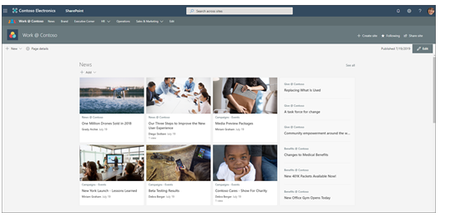
Summary I recently worked on a case where News from associated sites are not displayed in the hub News Webpart. This took several months to resolve due to the complexity of hub news webpart and how it integrates with the Search Engine to retrieve and display news from the associated sites. Before getting into the problem, just providing a quick example of the News webpart configuration with a Hub Site. Hub Site Example: The following image shows a Hub site named “hubsite” and 2 associated sites (“hubsitechild1” and hubsitechild2”) Posting News items from the Hub: This is what the News Webpart looks like from the root Hub Site: Now let’s look at a child site: By default, the News Webpart will only show news from the current site: Site Admins will need to change this Webpart to view news from the Hub or any associated Hub site. In this example I will choose the “Hubsite”. With this configuration “Hubsitechild1” will display News posts from the Hub site Note: Since the retrieval of the new posts are based on search, you will not see new posts show up in the news webpart for about 5-15 minutes. How does it work? The News Webpart triggers a request to the SP Home Microservice with “DepartmentID” Example: https://sphome_base_url/api/v1/news/hub/filtered?departmentId=47060b5d-eb3a-4f7b-a1c0-421fc86cd0f6&start=0&count=13 Note: The DepartmentID will be the Site ID of the root hub site. The SP Home Micrososervice then calls the Search service with “ContentTypeId”, “PromotedState”, “DepartmentId” to retrieve the News items. Example: GET: https://tenant.sharepoint.com/search/_api/search/query?querytext='(*)'&QueryTemplate='PromotedState:2 AND ContentTypeId:0x0101009D1CB255DA76424F860D91F20E6C4118* AND (DepartmentId:47060b5d-eb3a-4f7b-a1c0-421fc86cd0f6 OR DepartmentId:{47060b5d-eb3a-4f7b-a1c0-421fc86cd0f6})'&Properties='ClientFunction:HubNewsArticles ,EnableDynamicGroups:True'&ClientType='SPHomePagesWeb'&SelectProperties='DocID,Path,DocID,SiteID,NormSiteId,WebID,NormWebId,GroupID,Title,Description,PictureThumbnailURL,AuthorOWSUSER,SiteTitle,SPSiteUrl,SiteLogo,PromotedState,FirstPublishedDate,UniqueId,ViewCountLifetime,SiteTemplate,IsExternalContent,SPWebUrl,ContentTypeId,Language,Color,ListItemID,DepartmentId'&SourceId='8413cd39-2156-4e00-b54d-11efd9abdb89'&Sortlist='FirstPublishedDate:1'&BypassResultTypes=true&TrimDuplicates=true&EnableQueryRules=false&EnableSorting=true&StartRow=0&RowLimit=13 The Search results are sent back to the News Webpart and displayed as configured. However, in the case that I was working, the Webpart was not displaying any news, even though the Search request was correct. Cause We found that the default Search Schema had been modified either manually or by a 3 rd party product. In this case the managed property “ AuthorOWSUSER” is used to locate News items. If the value of this property is unexpected or NULL, Hub News items will not be displayed within the Webpart. Here is the default setting for the “AuthorOWSUSER “managed property. As you can see there are 2 crawled properties by default. ows_q_USER__AuthorByline ows_q_USER_Author If either one of these crawled properties are missing, Hub News will not be displayed. Also, we found that in some cases there is a new managed property that uses “AuthorOWSUSER” as an alias. Resolution To resolve this issue, simply fix the modified search schema, which can be modified at the tenant level or the site collection level . The AuthorOWSUSER property exists at both tenant level and site level. How do we reach tenant level settings? Copy this URL and open in the new tab where tenant admin is already signed in https://admin.microsoft.com/sharepoint?page=classicfeatures&modern=true. Under Search, select Open. Select Manage Search Schema on the search administration page. How do we reach site level settings? On one of your affected hub sites, select Settings, and then select Site Settings. If you don't see Site settings, select Site information, and then select View all site settings. Under Site Collection Administration, select Search Schema. At this point your URL should look like this https://TENANT-NAME.sharepoint.com/sites/Hub-SITE-NAME/_layouts/15/listmanagedproperties.aspx?level=sitecol After opening the managed properties list at the tenant/hub site level: 1. Search for “AuthorOWSUSER” 2. You see all matches, including any custom managed properties that set AuthorOWSUSER as an alias. 3. Locate the problematic Managed property and correct the issue by deleting the property or changing the alias. In this example, I will change the alias of “Thiswillbreaknews”. 4. Make sure AuthorOWSUSER is mapped to “ows_q_USER__AuthorByline” and “ows_q_USER_Author”, if the mapping is incorrect, fix it. Please Note: Since these some of these properties are used in real-time, the problem should be resolved almost immediately. In a worst-case scenario, you will have to re-index the site , wait for Search to complete (about 15 minutes), then re-create the News Webpart. Steps to Re-index the site: On the hub site site, select Settings and then select Site settings. If you don't see Site settings, select Site information, and then select View all site settings. Under Search, click Search and offline availability. In the Reindex site section, click Reindex site. More Information For additional reading on the topics discussed in this blog see the following articles. What is a SharePoint hub site? Create a hub site in SharePoint Use the News web part on a SharePoint page Manage the search schema in SharePoint Online Manually request crawling and re-indexing of a site, a library or a list15KViews4likes1CommentSharePoint 2013/2016/2019: How to replace expired WorkFlow Manager Certificates
SharePoint 2013/2016/2019: How to replace expired WorkFlow Manager Certificates Having trouble with your SharePoint 2013-based workflows because your Workflow Manager certificates expired? Here is how you can fix this scenario...45KViews3likes4CommentsSharePoint Access Request e-mails are not delivered, but alerts work
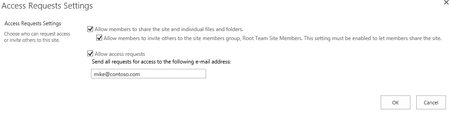
Problem Summary I recently worked on a few cases where SharePoint “Access Request” e-mails are not delivered, but “Alert” e-mails work. Since Alert e-mail are working, we know that outgoing e-mail is configured properly. However, when users request access to a new site, the access request email would never make it to the site admin entered in the “Access Request Settings”. Example: Cause Before getting into the cause, let’s talk about the difference between a normal alert e-mail and an “Access Request” e-mails. A normal Alert e-mail will be sent from the SharePoint Admin account configured in the outgoing e-mail settings. Alert E-mail: However, an “Access Request” e-mail will be sent from the user making the request. So in this case, the SharePoint Application Pool account will attempt to impersonate the sender, so when the e-mail arrives in the Access Request Admin’s inbox, they will know who is requesting access by the e-mail sender. Access Request E-Mail: So now we know the different between “Alert” e-mails and “Access Request” e-mails, let’s get into why “Access Request” e-mails are not being delivered. This issue is most likely caused by configuration of the Exchange Receive Connector. Before SharePoint 2019, SMTP authentication was not supported by SharePoint. So, SharePoint could only deliver e-mail without authentication. Any attempt to authenticate during the SMTP session would end with a failure. If you are reading this you probably have an issue with “Access Request” e-mails, so let’s look at the ULS logs to determine what’s going on. If you know which WFE is attempting to send the alert e-mail you can look at the logs in real-time using ULSViewer . Then the filter to be category contains “e-mail”. Now reproduce the issue by asking a user to request access to a site. Looking at ULS, you may see the e-mail fails. Let’s look closer at the exception: Failed attempt 3 sending mail to recipients: mike@contoso.com. Mail Subject: User1 wants to access 'Team Site'. Error: SmtpException while sending email: System.Net.Mail.SmtpException: Mailbox unavailable. The server response was: 5.7.60 SMTP; Client does not have permissions to send as this sender at System.Net.Mail.DataStopCommand.CheckResponse(SmtpStatusCode statusCode, String serverResponse) at System.Net.Mail.DataStopCommand.Send(SmtpConnection conn) at System.Net.ClosableStream.Close() at System.Net.Mail.SmtpClient.Send(MailMessage message) at Microsoft.SharePoint.Email.SPSmtpClient.Send(MailMessage msg) at Microsoft.SharePoint.Email.SPSmtpClient.TrySend(MailMessage msg) We are seeing an SMTP error “5.7.60” ( I have also seen 5.7.1 for this issue) , which states 2 things, “Mailbox Unavailable” and “Client does not have permissions to send as this sender”. So why is SharePoint trying to use authentication when it’s not supported? Good question! This seems to only effect SharePoint 2013. However, during an e-mail impersonation attempt from SharePoint 2013, SharePoint will attempt use NTLM and authenticate as a user if offered by the e-mail server may fail after specifying “From”. Example: In summary, the failure is occurring because the impersonator (SharePoint Application Pool Account) does not have an Exchange Mailbox or does not have “send as” rights for the impersonated user (The person making the access request). Resolution This issue can be resolved a few ways. Disable “Integrated Windows Authentication” from the default receive connector, so NTLM is not offered as a supported Authentication type. This will force SharePoint send the mail anonymously (as intended). Disable the “Exchange Users” permission group from the default receive connector, this will cause the user Authentication to fail and SharePoint will fall back to anonymous. Create an Exchange mailbox for the Application Pool Account that hosts the SharePoint site and ensure that account is given “Send as” rights to all mailboxes. Summary In summary, SharePoint 2013 will use NTLM if offered and fail when attempting to impersonate a user due to a lack of “Send As” permissions. Most of the time this is due to the fact that the Application Pool Account does not have a Mailbox hosted in the Exchange Server or does not have “send as” rights. More Information See the following documents for more information: Plan outgoing email for a SharePoint Server farm https://docs.microsoft.com/en-us/sharepoint/administration/outgoing-email-planning Configure outgoing email for a SharePoint Server farm https://docs.microsoft.com/en-us/sharepoint/administration/outgoing-email-configuration8.8KViews1like0CommentsSharePoint E-Mail enabled lists are not displayed in the Outlook Address List
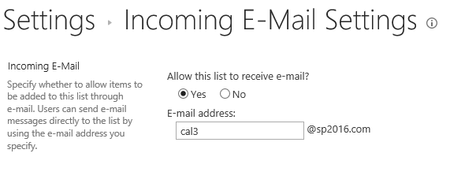
Problem I recently worked on an issue where lists in SharePoint were enabled for incoming e-mail and created in Active Directory / Exchange using the “Directory Management Service. These new lists should be created as e-mail enabled contacts with an external e-mail target address in Exchange. However, after setting an e-mail address on a SharePoint list, these contact would never show up in Outlook or OWA. Enabling incoming e-mail on a list: The “Directory Management Service” will create contact with an external e-mail address in the destination OU. However, when looking at this contact in Exchange, you will see it’s missing e-mail addresses. Also, the “Email Address Policy Enabled” is not set. When looking at “All Contacts” in Outlook, this new contact will not be displayed. Attempting to update the “All Contacts” address list, will allow using “Update-AddressList” from the Exchange Management Console, will force the contact to be displayed. Now the new contact will be displayed. However, when selecting the contact, there will be an error stating, “The recipient couldn’t be added. There is no email address” To work around this issue, you can update the existing contact with an e-mail address that matches your Internal Exchange users. However, when saving your changes and error stating, “The object must be upgraded to the current Exchange Version”. Now the contact has the email address policy enabled. After going through this process, the e-mail contact should be displayed in the address book and functional. Cause This issue occurs because SharePoint is creating the e-mail enabled contact with an incompatible object version, as a result the e-mail address policy cannot be applied. Resolution E-mail enabled objects that are created by the SharePoint Directory Management Service is not setting the “ExchangeVersion”, so it defaults to “0.0 (6.5.6500.0)”. However, when creating an e-mail enabled contact from within Exchange Management Tool, the “ExchangeVersion” is set to “0.20 (15.0.0.0)”. To resolve this issue, we can “touch” each effected object based on the “ExchangeVersion” that is created by the SharePoint Directory Management Service. To accomplish this, use “Set-contact” from the Exchange Management Shell to loop through all contacts that reside in the SharePoint OU (Organizational Unit). For example, I used “SharePoint Groups” in my case. Here is an example of the command based on my Organizational Unit. Get-contact -organizationalunit “SharePoint Groups” | where {$_.Exchangeversion -like “0.0 *”} | Set-contact This command will find all objects in the “SharePoint Groups” OU that have “0.0 *” set in the “Exchangeversion” property and update the object the current supported version. After running this command all objects that were created by the SharePoint Directory Management Service and are not displayed in the address book will updated by the recipient update service and accessible by Outlook clients.3.8KViews0likes0CommentsSharePoint throws 500 or 403 and remains inaccessible until IISRESET
Summary I have seen this very obscure SharePoint issue a few times and almost impossible to identity and resolve without extensive debugging. So, I just wanted to get this blog out there to help the next SharePoint Admin that may experience this situation with a quick resolution. Symptom: While trying to access the site http://sharepoint users are intermittently presented with 403 and 500 errors and the site remains inaccessible until performing a manual IIS RESET. However, after resetting IIS the site may remain operational for a very short time before the issue reoccurs. When this issue occurs, you will find the following COMException recorded in the ULS Logs. 12/14/2018 14:48:11.11 w3wp.exe (0x22A0) 0x270C SharePoint Foundation Runtime tkau Unexpected System.Runtime.InteropServices.COMException: Cannot complete this action. Please try again. at Microsoft.SharePoint.Library.SPRequestInternalClass.GetFileAndMetaInfo(String bstrUrl, Byte bPageView, Byte bPageMode, Byte bGetBuildDependencySet, String bstrCurrentFolderUrl, Int32 iRequestVersion, Boolean& pbCanCustomizePages, Boolean& pbCanPersonalizeWebParts, Boolean& pbCanAddDeleteWebParts, Boolean& pbGhostedDocument, Boolean& pbDefaultToPersonal, Boolean& pbIsWebWelcomePage, String& pbstrSiteRoot, Guid& pgSiteId, UInt32& pdwVersion, String& pbstrTimeLastModified, String& pbstrContent, Byte& pVerGhostedSetupPath, UInt32& pdwPartCount, Object& pvarMetaData, Object& pvarMultipleMeetingDoclibRootFolders, String& pbstrRedirectUrl, Boolean& pbObjectIsList, Guid& pgListId, UInt32& pdwItemId, Int64& pllListFlags, Boolean& pbAccessDenied, Guid& pgDocid, Byte& piLevel, UInt64& ppermMask, Object& pvarBuildDependencySet, UInt32& pdwNumBuildDependencies, Object& pvarBuildDependencies, String& pbstrFolderUrl, String& pbstrContentTypeOrder) at Microsoft.SharePoint.Library.SPRequest.GetFileAndMetaInfo(String bstrUrl, Byte bPageView, Byte bPageMode, Byte bGetBuildDependencySet, String bstrCurrentFolderUrl, Int32 iRequestVersion, Boolean& pbCanCustomizePages, Boolean& pbCanPersonalizeWebParts, Boolean& pbCanAddDeleteWebParts, Boolean& pbGhostedDocument, Boolean& pbDefaultToPersonal, Boolean& pbIsWebWelcomePage, String& pbstrSiteRoot, Guid& pgSiteId, UInt32& pdwVersion, String& pbstrTimeLastModified, String& pbstrContent, Byte& pVerGhostedSetupPath, UInt32& pdwPartCount, Object& pvarMetaData, Object& pvarMultipleMeetingDoclibRootFolders, String& pbstrRedirectUrl, Boolean& pbObjectIsList, Guid& pgListId, UInt32& pdwItemId, Int64& pllListFlags, Boolean& pbAccessDenied, Guid& pgDocid, Byte& piLevel, UInt64& ppermMask, Object& pvarBuildDependencySet, UInt32& pdwNumBuildDependencies, Object& pvarBuildDependencies, String& pbstrFolderUrl, String& pbstrContentTypeOrder) Cause: This issue is caused by an excessive amount of AD / SharePoint groups or user permissions being added to site collections, list & libraries or pages, which fully consumes the maximum allowed “in-memory security cache” (owssvr!VsecCacheManager) which is 2mb by default. Once this memory has been exceeded, SharePoint is unable to verify user security and responds with a 500/403 error for all users at the server level. Resolution: To resolve this problem, increase the “SecurityCacheMemoryAllowed” setting from the default of 2MB to 20MB. Registry DISCLAIMER: Modifying REGISTRY settings incorrectly can cause serious problems that may prevent your computer from booting properly. Microsoft cannot guarantee that any problems resulting from the configuring of REGISTRY settings can be solved. Modifications of these settings are at your own risk. Steps: Click Start, click Run, type regedit, and then click OK In Registry Editor, locate and then click the following registry key: HKEY_LOCAL_MACHINE\SOFTWARE\Microsoft\Shared Tools\Web Server Extensions\14.0 Right-click 14.0, point to New, and then click Key Note: If you are using SharePoint 2013 the key will be under 15.0 and 16.0 with SharePoint 2016. Type SecurityCacheOptions, and then press ENTER Right-click SecurityCacheOptions, point to New, and then click DWORD value Type SecurityCacheMemoryAllowed, and then press ENTER Right-click SecurityCacheMemoryAllowed, and then click Modify In the Value data box, change the Base to decimal, type the value 20, and then click OK Execute an IISRESET and manually restart the “IIS Administration service”5.2KViews3likes4CommentsSharePoint / Test-SPContentDatabase incorrectly reports missing features
It’s a best practice to test the compatibility of a migrated content database against the new target Farm before attaching the database and allowing users to access the migrated sites. This compatibly test is achieved by running Test-SPContentDatabase. Sounds too easy, right? Well, I recently worked on a case where “Test-SPContentDatabase” was reporting missing features even though the features were installed and working. The cause was not obvious and the ULS logs didn’t report the actual problem. So, I’m just publishing this quick blog to help the next Sharepoint Admin who encounters this scenario.3.1KViews0likes0CommentsOn Premise Diagnostics (OPD) for SharePoint 2016 and 2019 is now available!
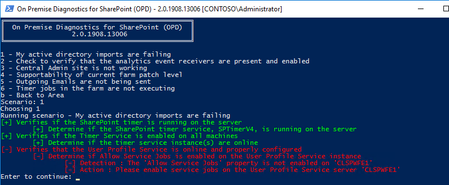
The On Premise Diagnostic (OPD) for SharePoint is a collection of diagnostic scenarios, analyzers, rules, and insights for diagnosing common issues in the SharePoint 2016 and 2019 On Premise environments.6.7KViews2likes0CommentsScript to check if a reg key is set on multiple servers
Summary If your servers require a registry key and unsure if its properly configured. You can use this script to check if the key is present or is set to the correct value across multiple servers. The Script # Simple Server list $servers = Get-Content C:\servers.txt # Loop through all servers and check key foreach ($server in $servers) { $REG = [Microsoft.Win32.RegistryKey]::OpenRemoteBaseKey('LocalMachine', $server) $REGKEY = $REG.OpenSubKey("SYSTEM\CurrentControlSet\Control\Lsa") $val = $REGKEY.GetValue("DisableLoopBackCheck") # If the key is missing or not set it will be displayed in red # If the key is set it will be displayed in green if (!$val){ Write-Host $server "is not set" -ForegroundColor Red break } #specify the value here if ($val -ne "1"){ Write-Host $server "is not set properly" -ForegroundColor Red } else{ Write-Host $server "is set" -ForegroundColor Green } } What the Script Does In the sample above it will check the “DisableLoopBackCheck” key across a list of servers and if the key does not exist or not set to “1” it will be reported in the output. Example: You can simply change which key to check and the desired value to make this work for your scenario. I hope this helps make your job easier in the future.7.5KViews2likes0Comments