servers
77 TopicsEpisode 2: Reduce restarts with Hotpatch for Windows Server 2025 | The Azure Arc Check-In
Once a month, the Azure Arc team releases an episode covering a new hybrid and multicloud management scenario. To request a topic or view additional episodes, visit aka.ms/the-azure-arc-check-in. Scenario: Your infrastructure team needs to apply monthly security updates across hybrid Windows servers, but every restart creates another maintenance window and potential workload interruption. Hotpatch can reduce that restart-driven effort while helping you keep eligible servers protected. Try now in Azure aka.ms/aaci-episode2 Why Hotpatch matters Security updates are essential, but coordinating restarts across a distributed server estate takes time and can disrupt workloads. Hotpatch updates Windows security code in memory, allowing eligible security updates to take effect without requiring a restart. For Azure Arc-enabled Windows Server 2025 machines, enabling and using Hotpatch is available at no additional charge. Hotpatch reduces restart frequency, but it does not eliminate every restart. Baseline updates and updates outside the Hotpatch program can still require one. Confirm that your server is eligible Before enabling Hotpatch, confirm that the machine meets the operating system, Azure Arc, and security prerequisites. The server must: Run Windows Server 2025 Standard or Datacenter, build 26100.1742 or later. Run a generally available release. Preview and Windows Server Insider builds are not supported. Meet the Azure Connected Machine agent prerequisites and be connected to Azure Arc. Support virtualization-based security and Virtual Secure Mode. Use Unified Extensible Firmware Interface (UEFI) with Secure Boot enabled. Be a Generation 2 virtual machine when hosted on Hyper-V. Windows Server 2025 Datacenter: Azure Edition follows a different path because Hotpatch is enabled by default and does not require Azure Arc connectivity. For the latest requirements, see Enable Hotpatch for Azure Arc-enabled servers. Verify Virtual Secure Mode Run the following PowerShell command on the server to check its Virtual Secure Mode status: Get-CimInstance -Namespace 'root/Microsoft/Windows/DeviceGuard' -ClassName 'win32_deviceGuard' | Select-Object -ExpandProperty 'VirtualizationBasedSecurityStatus' A result of 2 means Virtual Secure Mode is configured and running. If the result is not 2, resolve the prerequisite before enrolling the machine in Hotpatch. Enabling Virtual Secure Mode requires a server restart, so make that change during a planned maintenance window. Enable Hotpatch through Azure Arc After confirming the prerequisites, enroll the server from the Azure portal: Open Azure Arc, then select Machines. Select the eligible server. Select Hotpatch. Review the confirmation, then select Confirm. Allow about ten minutes for the changes to apply. Verify that enrollment completes and the status is no longer pending. The portal enrollment is intentionally short. Most of the work is making sure the server meets the prerequisites before you begin. Choose how to manage updates Hotpatch enrollment and update installation are separate. After enrollment, continue to manage available updates according to your organization's patch policy and change-control process. Supported options for Arc-connected machines include: Windows Update Azure Update Manager Group Policy SConfig Supported non-Microsoft patch-management solutions Choose the method that fits your existing operations model. Enrolling a server in Hotpatch does not, by itself, install every available update automatically. Plan for the restart cadence Hotpatch changes the monthly update rhythm, but restart planning still matters. Every three months, Microsoft releases a planned baseline with the latest cumulative update. Installing a baseline requires a restart. Hotpatch releases normally follow during the next two months, allowing eligible security updates to be applied without a restart. An unplanned baseline can replace a scheduled Hotpatch release when necessary and will also require a restart. Updates outside the Hotpatch program can require restarts as well, including: Nonsecurity Windows updates .NET updates Drivers Firmware Other non-Windows updates The practical operating model is fewer restart-driven maintenance windows, not a server that never needs to restart. FAQs 1. Does Hotpatch mean I never need to restart the server? No. Planned baselines arrive every three months and require a restart. Unplanned baselines and updates outside the Hotpatch program can also require restarts. Hotpatch reduces restart frequency for eligible security updates; it does not eliminate restart planning. See Hotpatch for Windows Server. 2. Is Hotpatch an extra-cost service for Azure Arc-enabled Windows Server 2025? Enabling and using Hotpatch on eligible Azure Arc-enabled Windows Server 2025 machines is available at no additional charge. Optional Azure management services may have separate pricing. 3. Does enrolling in Hotpatch install every update automatically? No. Enrollment makes the machine eligible to receive Hotpatch updates. Continue using Windows Update or a supported patch-management tool, such as Azure Update Manager, Group Policy, SConfig, or a non-Microsoft solution, to manage available updates according to your patch policy. 4. Can I use Hotpatch with Windows Server Core? Yes. Both Server Core and Server with Desktop Experience are supported when the machine meets all other Hotpatch prerequisites. 5. What does a Virtual Secure Mode status of 2 mean? For the documented Device Guard PowerShell query, a result of 2 means Virtual Secure Mode is configured and running. If you receive another result, resolve the prerequisite before attempting enrollment. Review the current Hotpatch enablement guidance and Hotpatch concepts and update cadence, then visit The Azure Arc Check-in for more episodes.327Views2likes0Comments
Can't share a folder on a local network in Microsoft Windows Server 2025 STD
We have two Microsoft Windows Server 2025 Standard (Version 24H2, Build Number 26100.32995) servers in our Active Directory. We can't share folders; it constantly asks for a username and password. We've tried every solution, but nothing worked. I found a similar thread, but the solutions there didn't work either. topic : https://learn.microsoft.com/en-us/answers/questions/5559013/opening-fire-share-on-2025-server-from-another-202 How can i solve this sharing problem ?599Views0likes1CommentGenerally Available: Transition to WS2012 / R2 ESUs enabled by Azure Arc from Volume Licensing
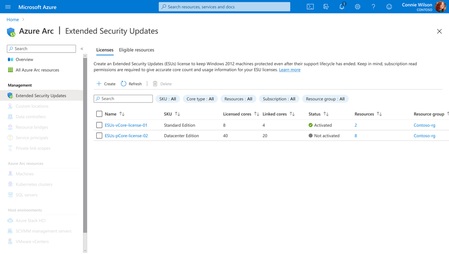
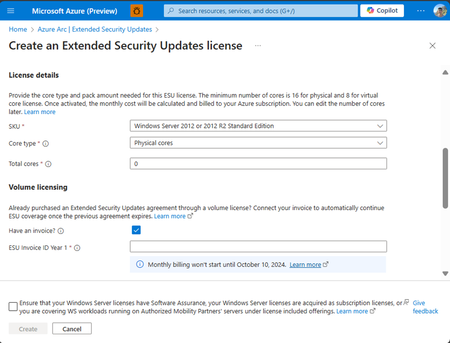
Customers that have enrolled in WS2012/ R2 ESUs through Volume Licensing for Year 1 can transition to Azure Arc for Year 2 of the program by specifying their Volume Licensing entitlements (Invoice Ids) in provisioning new Azure Arc WS2012/R2 ESU licenses. Extended Security Updates afford customers with critical security patches for end of support Windows Server 2012/R2 machines.6.3KViews3likes4CommentsFive Key Updates on WS2012 ESUs enabled by Azure Arc
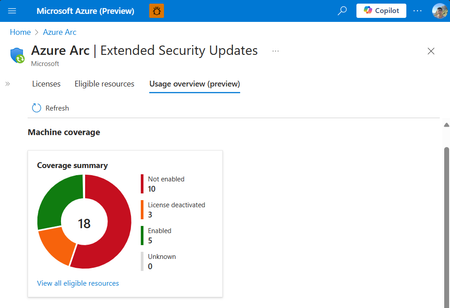
We’re excited to announce the public preview of the Azure Arc ESU Usage View and Transition Scenario from Year 1 Volume Licensing. Additionally, we have made a breadth of improvements to pre-requisites, billing service, and included capabilities.4.2KViews4likes3CommentsGenerally Available: Windows Server 2012 and 2012 R2 Extended Security Updates enabled by Azure Arc
Secure your End-of-Life Windows Server infrastructure on your own terms with Azure Arc. Benefit from the flexibility of a monthly Azure billed service and free access to Azure management services by leveraging Extended Security Updates enabled by Azure Arc for your Windows Server 2012 and 2012 R2 machines.45KViews3likes4CommentsThe first Windows Server 2012/R2 ESU Patches are out! Are you protected?
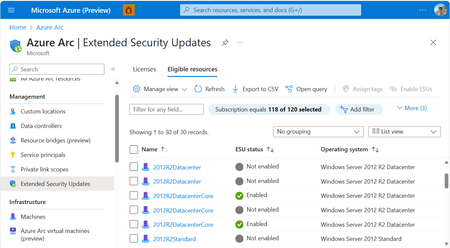
Receive critical security patches for your WS2012/R2 machines enrolled in ESUs enabled by Azure Arc. Follow these detailed instructions outlining all of the enrollment and prerequisites, so you are protecting your EOL infrastructure.11KViews1like6CommentsEpisode 1: Onboarding Azure Arc at Scale | The Azure Arc Check-In
Once a month the Azure Arc team will release an episode covering a variety of topics. To request a topic or view additional episodes please visit: aka.ms/the-azure-arc-check-in Episode 1: Onboarding Azure Arc at Scale Scenario: Imagine your organization has 1,000 Windows and Linux servers spread across multiple locations. You want them all in Azure Arc, but first you need to deploy the Azure Connected Machine agent at scale. Try now in Azure aka.ms/aaci-episode1 Why onboarding strategy matters Interactive sign-in works well for testing and proof-of-concepts, but it quickly becomes impractical when you’re onboarding large server estates. At scale, organizations need a deployment model that can: Automate onboarding across many machines Align with existing management tooling Apply consistent configuration and governance from day one Minimize manual effort and human error This episode focuses on using non-interactive authentication and automation to onboard large server fleets efficiently. One of the key recommendations is to use a dedicated authentication mechanism designed for scale rather than relying on interactive administrator sign-ins. Onboard a Linux fleet with Ansible The Ansible deployment begins with an Ansible node that is already connected to Azure Arc. The deployment uses the credential on the Ansible node to deploy the Azure Connected Machine agent to the Linux fleet. To enable this, the managed identity of the Ansible node has the Azure Connected Machine Onboarding role in Azure assigned. Below are the steps for role assignment in the Azure portal: Open the resource group where the servers will be deployed. In Access control, add a role assignment. Select the Azure Connected Machine Onboarding role. Choose managed identities, select Machine - Azure Arc, and find the Ansible node. Review and assign the role. Configure the Ansible playbook With the permissions in place, the deployment uses three files: inventory.ini: Represents the machines configured by the playbook. arc-vars.yml: Contains non-secret configuration, including the resource group name, subscription and tenant IDs, location, and tags. arc-onboard.yml: References arc-vars.yml and configures the playbook to use managed identity, or MSI, for authentication. After the playbook runs, Ansible deploys the Azure Connected Machine agent to the Linux fleet. You can return to the resource group, refresh the view, and verify that your Linux machines appear as Azure Arc connected servers. Onboard Windows machines with Group Policy For Windows Server environments joined to Active Directory, Group Policy remains one of the simplest and most scalable deployment mechanisms. The process includes: Creating the required onboarding identity Preparing a shared location for deployment assets Downloading the Azure Arc GPO deployment package Generating a Group Policy Object with the required settings Linking that GPO to the appropriate organizational unit (OU) Allowing targeted servers to automatically onboard during policy refresh cycles For organizations that already manage Windows Server through Active Directory, this approach enables onboarding at scale without introducing additional management infrastructure. FAQs What is the best way to onboard servers to Azure Arc at scale? For large Windows and Linux server environments, use automated deployment with non-interactive authentication rather than signing in interactively on each machine. This approach lets you deploy the Azure Connected Machine agent consistently across many servers while reducing manual effort and human error. Azure Connected Machine Agent Deployment Options - Azure Arc Can I use Ansible to onboard Linux servers to Azure Arc? Yes. You can use an Azure Arc-enabled Ansible node to deploy the Azure Connected Machine agent across a Linux server fleet. In the approach demonstrated here, the Ansible node uses its managed identity, which is assigned the Azure Connected Machine Onboarding role, to authenticate the deployment. Connect machines to Azure Arc at scale using Ansible - Azure Arc Can I use Group Policy to onboard Windows servers to Azure Arc? Yes. Group Policy can automate Azure Arc onboarding for Windows Server machines that are joined to Active Directory. The process uses a Group Policy Object linked to the appropriate organizational unit, allowing targeted servers to onboard automatically during Group Policy refresh cycles. Connect machines at scale using Group Policy with a PowerShell script - Azure Arc What files are needed to onboard Linux servers to Azure Arc with Ansible? The Ansible deployment shown in this episode uses three files: inventory.ini to identify the target machines, arc-vars.yml to store non-secret configuration such as subscription, tenant, resource group, location, and tags, and arc-onboard.yml to run the onboarding playbook using managed identity authentication. Should I use Ansible or Group Policy for Azure Arc onboarding? Use Ansible when onboarding Linux servers in an environment that already uses Ansible playbooks and automation. Use Group Policy when onboarding domain-joined Windows servers managed through Active Directory. Both approaches help organizations automate Azure Connected Machine agent deployment by using tools already present in their server-management environment. Additional options are available for onboarding servers at scale. See Azure Connected Machine Agent deployment options.697Views1like0CommentsGenerally Available: Windows Server 2016 Extended Security Updates enabled by Azure Arc
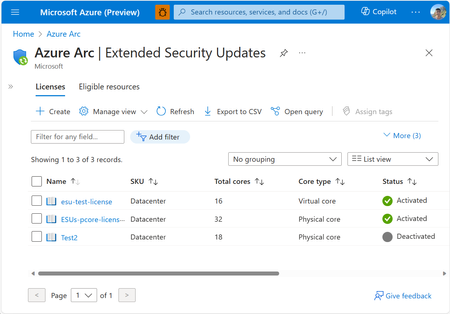
Today, the Azure Arc team is pleased to announce that Extended Security Updates (ESUs) enabled by Azure Arc is now generally available for Windows Server 2016. By connecting your Windows Server 2016 machines to Azure Arc-enabled servers, you can enroll in ESUs and receive security updates. Enroll machines into ESUs through the Azure portal, a streamlined, cloud-connected experience that protects your on-premises and multicloud workloads while you plan your upgrade or migration journey. Extended Security Updates give you access to Critical and Important security updates for Windows Server 2016 for up to three years after end of support, covering January 12, 2027 through January 2030. They provide a supported bridge for business-critical applications that need more time to migrate, without new features or non-security fixes, and without leaving systems exposed while you plan your move. Extended Security Updates enabled by Azure Arc Once your servers are connected to Azure Arc, ESUs enabled by Azure Arc provide flexible pricing and simpler delivery. Key benefits include: Pay-as-you-go billing means a monthly subscription you can stop when a server is migrated or decommissioned, so you only pay for the coverage you use. Azure-billed pricing draws down from your existing Microsoft Azure Consumption Commitment (MACC) and lets you analyze spend with Microsoft Cost Management and Billing. Built-in asset inventory shows the coverage and enrollment status of your machines directly in the Azure portal, highlighting gaps at a glance. Keyless delivery removes the need to acquire, install, or activate keys on each server. Access to Azure management services When you enroll eligible Azure Arc-enabled servers in Windows Server 2016 ESUs or you have Windows Server Software Assurance, you also gain free access to a set of Azure services that help you manage and secure those machines from the Azure portal: Azure Update Manager is a unified service which provides assessing, scheduling, deploying and managing OS updates across Azure and hybrid machines, including visibility into ESU patch compliance for your Windows Server 2016 estate. Change Tracking and Inventory provides a centralized asset inventory and tracks changes to servers hosted in Azure, on-premises, and other public cloud environments. Azure Policy guest configuration helps define, enforce, and audit compliance rules for Azure resources and guest OS settings across hybrid environments. It includes out of the box policy rules to help meet standards like CIS Benchmark. How to get started Everything starts by connecting your servers to Azure Arc, whether they run on-premises or in other public clouds. Getting started takes only a few steps: Connect your Windows Server 2016 machines to Azure Arc by installing the Azure Connected Machine agent. Enroll eligible servers in Extended Security Updates from the Azure portal, or at scale using Azure Policy (no keys required). Check out our click through demo to see how to apply Extended Security Updates using the Azure portal. Deliver ESU patches through Azure Update Manager or your existing patching solution once servers are enrolled. Extended Security Updates support the Standard and Datacenter editions of Windows Server 2016 and generally require Software Assurance through a Volume Licensing program (machines licensed through SPLA or a Server Subscription do not). For larger estates, you can onboard at scale using Configuration Manager, a Group Policy scheduled task, or VMware vCenter and SCVMM integration with Azure Arc. Beyond Extended Security Updates Enrolling in ESUs is often a customer's first step into Azure Arc — and it opens the door to more. Because your Windows Server 2016 machines are now attached to Azure Arc, you can manage, secure, and govern them alongside your wider hybrid and multicloud estate with Azure Policy, Azure Update Manager, and Microsoft Defender for Cloud. That same Arc foundation makes your next step easier when you are ready: upgrading to Windows Server 2025 or migrating to Azure. Learn more To plan for Windows Server 2016 end of support, explore these resources: Extended security updates enabled by Azure Arc guide Planning ahead for Windows Server 2016 end of support Windows Server and SQL Server End of Support | Microsoft Prepare to deliver Extended Security Updates through Azure Arc Join the Azure Arc customer and engineering virtual meetup Fill in this short intake form to join the quarterly Azure Arc and Windows Server customer meetup: https://aka.ms/arcserverforumsignup5.4KViews2likes0CommentsAzure Arc Server June Forum
Please find the recording for the monthly Azure Arc Server Forum on YouTube! During the June 2026 Azure Arc Server Forum, we discussed: Arc Server AI Agent assists with onboarding and troubleshooting through an integrated LLM with plans for surfacing the experience through Azure Copilot and in Azure Portal. Azure Arc Multicloud Connector Updates focused on both the Public Preview of the Google Cloud Platform (GCP) Connector and Public Preview of Azure Arc-enablement of detected EKS Clusters. WS 2016 ESU Updates with planned changes versus WS 2012 ESUs and expected timelines anticipating the WS 2016 end-of-support date of January 2027. Note, WS 2012 ESUs will end in October 2026. SQL 2016 ESU Updates discussed enrollment processes, licensing basics, and overall guidance with end-of-support in July 2026. To sign up for the Azure Arc Server Forum and newsletter, please register with contact details at https://aka.ms/arcserverforumsignup/. For the latest agent release notes, check out What's new with Azure Connected Machine agent - Azure Arc | Microsoft Learn. We are skipping July and August, and will resume after summer holidays with the September forum to be held on Thursday, September 17 at 9:30 AM PST / 12:30 PM EST. Finally, I wanted to thank everyone for the attendance and community over the last few years, I will no longer be leading the community calls. Please stay in touch, and Mason Torres, Yunis Hussein, and Meagan McCrory from the Arc PM team will be taking the community forward. We look forward to you joining us, thank you!384Views1like0Comments