servers
71 TopicsStay ahead of Azure Arc agent health with Azure Advisor
Azure Advisor helps you stay ahead of potential connectivity issues by analyzing your Azure Arc-enabled servers and providing reliability recommendations when servers have been disconnected for an extended period. These recommendations give you visibility into potential issues and help you act before they affect your ability to manage your hybrid environment through Azure Arc. Understand your Azure Arc-enabled server health A reliable connection to Azure is an important part of keeping your Azure Arc-enabled servers healthy and manageable. The Azure Connected Machine agent sends regular heartbeats to Azure to confirm that connection and help identify when a server needs attention. If Azure does not receive a heartbeat for more than 15 minutes, the server is marked Disconnected. While disconnected, Azure-based management is limited, although existing extensions can continue running locally. If the server remains disconnected for an extended period, the agent’s managed identity certificate can eventually expire. The certificate is valid for 90 days, and the agent attempts to renew it when 45 or fewer days remain. Once the certificate expires, simply restoring connectivity is not enough. You’ll need to re-onboard the server to Azure Arc to restore management. For more information about how connectivity affects Arc-enabled servers, see Troubleshoot Azure Arc-enabled servers in disconnected scenarios. A look into the Azure Advisor recommendations Azure Advisor provides recommendations based on how long an Arc-enabled server has been disconnected: Restore connectivity for a server disconnected for 30–44 days. This provides an early opportunity to investigate the server and restore its connection to Azure. Reconnect a server that has been disconnected for at least 45 days. At this stage, the server's managed identity certificate is still valid, but connectivity should be restored so the agent can renew its credential before it expires. Re-onboard an expired server. If the server's managed identity certificate has expired, Azure Arc management capabilities remain unavailable until the server is reconnected using onboarding credentials. Azure Advisor helps surface connectivity conditions earlier, giving you an opportunity to identify disconnected servers and restore connectivity before they reach an expired state. How to view recommendations Azure Portal You can start in Azure Advisor to review recommendations across your environment or open an individual Azure Arc-enabled server and focus on that singular machine. From Azure Advisor blade In the Azure portal, search for and select Advisor. Select Operational Excellence. Use the subscription and resource type filters to narrow the results, but for only Azure Arc-enabled servers ensure the Type filter only has Machines - Azure Arc selected. If applicable to your machine, the health recommendation will be shown. From an Azure Arc-enabled server In the Azure portal, search for and select Azure Arc Select Machines. Select the server you want to review to open its resource page. Open the server’s Recommendations from the Overview page. If applicable to your machine, the health recommendation will be shown. Azure Resource Graph You can also use Azure Resource Graph to view Azure Advisor recommendations for Azure Arc-enabled servers across your selected subscriptions. In the Azure Resource Graph Explorer input the following query: advisorresources | where type =~ "microsoft.advisor/recommendations" | where properties.recommendationStatus == "New" | extend recommendationTypeId = tostring(properties.recommendationTypeId) | where recommendationTypeId in~ ( "18700d61-0b5a-4807-86a1-b7d669475335", // Restore connectivity (30-44 days) "5a6e1150-2d8a-4865-b423-df234577d29b", // Reconnect before cert expires (45+ days) "157eb7ac-9b3d-4a0c-9bfb-dd2ffa37d1ae" // Re-onboard expired server ) | extend id = tostring(properties.resourceMetadata.resourceId) | extend machineName = tostring(split(id, "/")[8]) | extend recommendation = case( recommendationTypeId =~ "18700d61-0b5a-4807-86a1-b7d669475335", "Restore connectivity (disconnected 30-44 days)", recommendationTypeId =~ "5a6e1150-2d8a-4865-b423-df234577d29b", "Reconnect before certificate expires (disconnected 45+ days)", recommendationTypeId =~ "157eb7ac-9b3d-4a0c-9bfb-dd2ffa37d1ae", "Re-onboard expired server", "Unknown") | distinct recommendation, machineName, id | order by recommendation asc, machineName asc Keep your Arc environment healthy As your Azure Arc environment grows, regularly reviewing Azure Advisor recommendations can help you identify servers that need attention and address connectivity issues before they become more disruptive. If you see an Azure Arc-related recommendation in Azure Advisor, review the affected server, investigate its agent and network connectivity, and take the recommended action to return it to a Connected state. Learn more: Resolve Azure Advisor recommendations for Azure Arc-enabled servers42Views0likes0CommentsSimplify Azure Arc agent updates with Automatic Agent Upgrade, now generally available
Keeping the Azure Connected Machine agent up to date across a large server estate requires persistent coordination and manual work. When enabled, Automatic Agent Upgrade simplifies this process by allowing Microsoft to manage agent upgrades for you. What is Automatic Agent Upgrade? Automatic Agent Upgrade helps keep the Azure Connected Machine agent up to date. When enabled, machines are scheduled to upgrade to the latest agent version without requiring you to manually deploy each new agent version. Upgrades are rolled out in batches across regions and initiated during off-peak hours to help maintain stability and minimize disruption. This helps: Reduce operational overhead associated with manually managing agent upgrades. Stay current with the latest available security, reliability, quality, and platform improvements. Manage upgrades at scale across Azure Arc-enabled server environments. Enable Automatic Agent Upgrade at scale Since the initial public preview, we’ve added additional ways to make Automatic Agent Upgrade easier to adopt and manage across your environment. Azure Policy Use the built-in Configure Azure Arc-enabled Servers to enable automatic upgrades policy to turn on Automatic Agent Upgrade across an assigned scope and remediate machines that are not yet configured. For setup guidance, see the Azure Policy walkthrough. Enable during onboarding Automatic Agent Upgrade can also be used when connecting a new server to Azure Arc by adding --enable-automatic-upgrade to the azcmagent connect command. This makes it easier to include Automatic Agent Upgrade as part of existing at-scale onboarding processes. For setup guidance, see the onboarding walkthrough. Azure portal onboarding When generating an onboarding script through the Azure portal, you can select Automatic Agent Upgrade so that the generated script includes the required configuration. For setup guidance, see the Portal onboarding walkthrough. Frequently asked questions What is Automatic Agent Upgrade for Azure Arc-enabled servers? Automatic Agent Upgrade is a feature that helps keep the Azure Connected Machine agent up to date. After you turn it on, Microsoft manages agent upgrades for your Azure Arc-enabled servers. How does Automatic Agent Upgrade work? Machines are scheduled to receive the latest agent version. Upgrades roll out in batches across regions and occur during off-peak hours to help maintain stability and minimize disruption. What are the benefits of Automatic Agent Upgrade? Automatic Agent Upgrade reduces the operational work of managing upgrades manually, helps servers stay current with security, reliability, quality, and platform improvements, and supports upgrade management at scale. How can I turn on Automatic Agent Upgrade at scale? You can use the built-in Configure Azure Arc-enabled Servers to enable automatic upgrades policy across an assigned scope. The policy can also remediate machines that are not yet configured. Can I configure Automatic Agent Upgrade while onboarding a server? Yes. Add --enable-automatic-upgrade to the azcmagent connect command, or select Automatic Agent Upgrade when generating an onboarding script in the Azure portal. Get started Automatic Agent Upgrade is now generally available for Azure Arc-enabled servers. To get started, review the Automatic Agent Upgrade documentation for prerequisites and the available options for enabling and managing automatic upgrades across your environment.193Views4likes1CommentScheduled backups for Azure Local with disconnected operations: Advancing control plane resilience
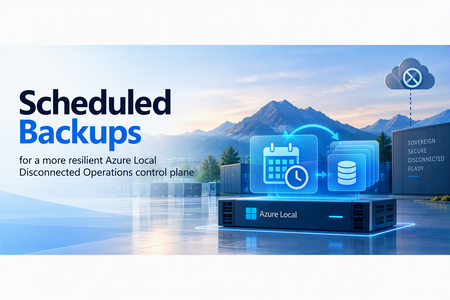
For organizations operating in sovereign and disconnected environments, resilience is more than keeping infrastructure available. It also means having a reliable way to recover critical platform services when something goes wrong. Backup and restore capabilities of the control plane for the Azure Local with disconnected operations is available today. Operators can create an on-demand backup of the control plane and use it to recover the environment when needed. With the Azure Local 2609 release, we are building on this foundation by introducing scheduled backups. We built this capability to reduce reliance on manual backup processes and help customers maintain recovery points more consistently. By automating backups on a defined cadence, organizations can improve recovery readiness and better align protection of the control plane with their recovery objectives. From on-demand recovery to routine protection On-demand backup and restore established an important recovery path for the disconnected operations control plane. However, the value of any backup depends on having an appropriate recovery point available when an incident occurs. When backups depend entirely on manual execution, they can be delayed or missed. Scheduled backups help address this operational risk by automatically creating control plane backups at a defined cadence. This moves the experience from: “An operator can create a backup” to: “Backups run automatically as part of regular platform operations.” Operators can continue to initiate on-demand backups whenever they need an additional recovery point. What scheduled backups provide With scheduled backups, operators can: Configure recurring control plane backups Select a frequency ranging from twice-daily, daily, weekly, or monthly Use the default backup configuration or create named configurations View the current schedule and its next planned run Pause, resume, update, or remove the schedule Continue creating on-demand backups when needed Backup schedules are managed through PowerShell. A schedule can reference either the default backup configuration or a named configuration, giving operators flexibility in how backup destinations are organized. Supporting recovery objectives Scheduled backups make it easier to maintain recovery points at a consistent cadence. They provide a more predictable and an automated mechanism to implement the recovery point objectives as required by the organization. Reduced manual dependency: Backups run automatically after the schedule is configured. More consistent recovery points: Organizations can establish a cadence aligned with their operational requirements. Greater flexibility: On-demand backups remain available before significant changes or whenever an additional recovery point is needed. Simpler operations: Operators can manage the schedule and backup configurations through a consistent PowerShell experience. Continuing the resilience journey Backup and restore established a supported recovery foundation for the Azure Local disconnected operations control plane. Scheduled backups strengthen that foundation by making backup creation automatic, recurring, and easier to incorporate into regular operations. This is an important step toward greater recovery readiness, helping operators maintain more consistent recovery points and reduce reliance on manual processes. Learn more in the Azure Local documentation: https://learn.microsoft.com/en-us/azure/azure-local/manage/disconnected-operations-back-up-restore?view=azloc-2609#configure-scheduled-backups267Views3likes0CommentsEpisode 2: Reduce restarts with Hotpatch for Windows Server 2025 | The Azure Arc Check-In
Once a month, the Azure Arc team releases an episode covering a new hybrid and multicloud management scenario. To request a topic or view additional episodes, visit aka.ms/the-azure-arc-check-in. Scenario: Your infrastructure team needs to apply monthly security updates across hybrid Windows servers, but every restart creates another maintenance window and potential workload interruption. Hotpatch can reduce that restart-driven effort while helping you keep eligible servers protected. Try now in Azure aka.ms/aaci-episode2 Why Hotpatch matters Security updates are essential, but coordinating restarts across a distributed server estate takes time and can disrupt workloads. Hotpatch updates Windows security code in memory, allowing eligible security updates to take effect without requiring a restart. For Azure Arc-enabled Windows Server 2025 machines, enabling and using Hotpatch is available at no additional charge. Hotpatch reduces restart frequency, but it does not eliminate every restart. Baseline updates and updates outside the Hotpatch program can still require one. Confirm that your server is eligible Before enabling Hotpatch, confirm that the machine meets the operating system, Azure Arc, and security prerequisites. The server must: Run Windows Server 2025 Standard or Datacenter, build 26100.1742 or later. Run a generally available release. Preview and Windows Server Insider builds are not supported. Meet the Azure Connected Machine agent prerequisites and be connected to Azure Arc. Support virtualization-based security and Virtual Secure Mode. Use Unified Extensible Firmware Interface (UEFI) with Secure Boot enabled. Be a Generation 2 virtual machine when hosted on Hyper-V. Windows Server 2025 Datacenter: Azure Edition follows a different path because Hotpatch is enabled by default and does not require Azure Arc connectivity. For the latest requirements, see Enable Hotpatch for Azure Arc-enabled servers. Verify Virtual Secure Mode Run the following PowerShell command on the server to check its Virtual Secure Mode status: Get-CimInstance -Namespace 'root/Microsoft/Windows/DeviceGuard' -ClassName 'win32_deviceGuard' | Select-Object -ExpandProperty 'VirtualizationBasedSecurityStatus' A result of 2 means Virtual Secure Mode is configured and running. If the result is not 2, resolve the prerequisite before enrolling the machine in Hotpatch. Enabling Virtual Secure Mode requires a server restart, so make that change during a planned maintenance window. Enable Hotpatch through Azure Arc After confirming the prerequisites, enroll the server from the Azure portal: Open Azure Arc, then select Machines. Select the eligible server. Select Hotpatch. Review the confirmation, then select Confirm. Allow about ten minutes for the changes to apply. Verify that enrollment completes and the status is no longer pending. The portal enrollment is intentionally short. Most of the work is making sure the server meets the prerequisites before you begin. Choose how to manage updates Hotpatch enrollment and update installation are separate. After enrollment, continue to manage available updates according to your organization's patch policy and change-control process. Supported options for Arc-connected machines include: Windows Update Azure Update Manager Group Policy SConfig Supported non-Microsoft patch-management solutions Choose the method that fits your existing operations model. Enrolling a server in Hotpatch does not, by itself, install every available update automatically. Plan for the restart cadence Hotpatch changes the monthly update rhythm, but restart planning still matters. Every three months, Microsoft releases a planned baseline with the latest cumulative update. Installing a baseline requires a restart. Hotpatch releases normally follow during the next two months, allowing eligible security updates to be applied without a restart. An unplanned baseline can replace a scheduled Hotpatch release when necessary and will also require a restart. Updates outside the Hotpatch program can require restarts as well, including: Nonsecurity Windows updates .NET updates Drivers Firmware Other non-Windows updates The practical operating model is fewer restart-driven maintenance windows, not a server that never needs to restart. FAQs 1. Does Hotpatch mean I never need to restart the server? No. Planned baselines arrive every three months and require a restart. Unplanned baselines and updates outside the Hotpatch program can also require restarts. Hotpatch reduces restart frequency for eligible security updates; it does not eliminate restart planning. See Hotpatch for Windows Server. 2. Is Hotpatch an extra-cost service for Azure Arc-enabled Windows Server 2025? Enabling and using Hotpatch on eligible Azure Arc-enabled Windows Server 2025 machines is available at no additional charge. Optional Azure management services may have separate pricing. 3. Does enrolling in Hotpatch install every update automatically? No. Enrollment makes the machine eligible to receive Hotpatch updates. Continue using Windows Update or a supported patch-management tool, such as Azure Update Manager, Group Policy, SConfig, or a non-Microsoft solution, to manage available updates according to your patch policy. 4. Can I use Hotpatch with Windows Server Core? Yes. Both Server Core and Server with Desktop Experience are supported when the machine meets all other Hotpatch prerequisites. 5. What does a Virtual Secure Mode status of 2 mean? For the documented Device Guard PowerShell query, a result of 2 means Virtual Secure Mode is configured and running. If you receive another result, resolve the prerequisite before attempting enrollment. Review the current Hotpatch enablement guidance and Hotpatch concepts and update cadence, then visit The Azure Arc Check-in for more episodes.374Views2likes0CommentsEpisode 1: Onboarding Azure Arc at Scale | The Azure Arc Check-In
Once a month the Azure Arc team will release an episode covering a variety of topics. To request a topic or view additional episodes please visit: aka.ms/the-azure-arc-check-in Episode 1: Onboarding Azure Arc at Scale Scenario: Imagine your organization has 1,000 Windows and Linux servers spread across multiple locations. You want them all in Azure Arc, but first you need to deploy the Azure Connected Machine agent at scale. Try now in Azure aka.ms/aaci-episode1 Why onboarding strategy matters Interactive sign-in works well for testing and proof-of-concepts, but it quickly becomes impractical when you’re onboarding large server estates. At scale, organizations need a deployment model that can: Automate onboarding across many machines Align with existing management tooling Apply consistent configuration and governance from day one Minimize manual effort and human error This episode focuses on using non-interactive authentication and automation to onboard large server fleets efficiently. One of the key recommendations is to use a dedicated authentication mechanism designed for scale rather than relying on interactive administrator sign-ins. Onboard a Linux fleet with Ansible The Ansible deployment begins with an Ansible node that is already connected to Azure Arc. The deployment uses the credential on the Ansible node to deploy the Azure Connected Machine agent to the Linux fleet. To enable this, the managed identity of the Ansible node has the Azure Connected Machine Onboarding role in Azure assigned. Below are the steps for role assignment in the Azure portal: Open the resource group where the servers will be deployed. In Access control, add a role assignment. Select the Azure Connected Machine Onboarding role. Choose managed identities, select Machine - Azure Arc, and find the Ansible node. Review and assign the role. Configure the Ansible playbook With the permissions in place, the deployment uses three files: inventory.ini: Represents the machines configured by the playbook. arc-vars.yml: Contains non-secret configuration, including the resource group name, subscription and tenant IDs, location, and tags. arc-onboard.yml: References arc-vars.yml and configures the playbook to use managed identity, or MSI, for authentication. After the playbook runs, Ansible deploys the Azure Connected Machine agent to the Linux fleet. You can return to the resource group, refresh the view, and verify that your Linux machines appear as Azure Arc connected servers. Onboard Windows machines with Group Policy For Windows Server environments joined to Active Directory, Group Policy remains one of the simplest and most scalable deployment mechanisms. The process includes: Creating the required onboarding identity Preparing a shared location for deployment assets Downloading the Azure Arc GPO deployment package Generating a Group Policy Object with the required settings Linking that GPO to the appropriate organizational unit (OU) Allowing targeted servers to automatically onboard during policy refresh cycles For organizations that already manage Windows Server through Active Directory, this approach enables onboarding at scale without introducing additional management infrastructure. FAQs What is the best way to onboard servers to Azure Arc at scale? For large Windows and Linux server environments, use automated deployment with non-interactive authentication rather than signing in interactively on each machine. This approach lets you deploy the Azure Connected Machine agent consistently across many servers while reducing manual effort and human error. Azure Connected Machine Agent Deployment Options - Azure Arc Can I use Ansible to onboard Linux servers to Azure Arc? Yes. You can use an Azure Arc-enabled Ansible node to deploy the Azure Connected Machine agent across a Linux server fleet. In the approach demonstrated here, the Ansible node uses its managed identity, which is assigned the Azure Connected Machine Onboarding role, to authenticate the deployment. Connect machines to Azure Arc at scale using Ansible - Azure Arc Can I use Group Policy to onboard Windows servers to Azure Arc? Yes. Group Policy can automate Azure Arc onboarding for Windows Server machines that are joined to Active Directory. The process uses a Group Policy Object linked to the appropriate organizational unit, allowing targeted servers to onboard automatically during Group Policy refresh cycles. Connect machines at scale using Group Policy with a PowerShell script - Azure Arc What files are needed to onboard Linux servers to Azure Arc with Ansible? The Ansible deployment shown in this episode uses three files: inventory.ini to identify the target machines, arc-vars.yml to store non-secret configuration such as subscription, tenant, resource group, location, and tags, and arc-onboard.yml to run the onboarding playbook using managed identity authentication. Should I use Ansible or Group Policy for Azure Arc onboarding? Use Ansible when onboarding Linux servers in an environment that already uses Ansible playbooks and automation. Use Group Policy when onboarding domain-joined Windows servers managed through Active Directory. Both approaches help organizations automate Azure Connected Machine agent deployment by using tools already present in their server-management environment. Additional options are available for onboarding servers at scale. See Azure Connected Machine Agent deployment options.731Views1like0CommentsGenerally Available: Windows Server 2016 Extended Security Updates enabled by Azure Arc
Today, the Azure Arc team is pleased to announce that Extended Security Updates (ESUs) enabled by Azure Arc is now generally available for Windows Server 2016. By connecting your Windows Server 2016 machines to Azure Arc-enabled servers, you can enroll in ESUs and receive security updates. Enroll machines into ESUs through the Azure portal, a streamlined, cloud-connected experience that protects your on-premises and multicloud workloads while you plan your upgrade or migration journey. Extended Security Updates give you access to Critical and Important security updates for Windows Server 2016 for up to three years after end of support, covering January 12, 2027 through January 2030. They provide a supported bridge for business-critical applications that need more time to migrate, without new features or non-security fixes, and without leaving systems exposed while you plan your move. Extended Security Updates enabled by Azure Arc Once your servers are connected to Azure Arc, ESUs enabled by Azure Arc provide flexible pricing and simpler delivery. Key benefits include: Pay-as-you-go billing means a monthly subscription you can stop when a server is migrated or decommissioned, so you only pay for the coverage you use. Azure-billed pricing draws down from your existing Microsoft Azure Consumption Commitment (MACC) and lets you analyze spend with Microsoft Cost Management and Billing. Built-in asset inventory shows the coverage and enrollment status of your machines directly in the Azure portal, highlighting gaps at a glance. Keyless delivery removes the need to acquire, install, or activate keys on each server. Access to Azure management services When you enroll eligible Azure Arc-enabled servers in Windows Server 2016 ESUs or you have Windows Server Software Assurance, you also gain free access to a set of Azure services that help you manage and secure those machines from the Azure portal: Azure Update Manager is a unified service which provides assessing, scheduling, deploying and managing OS updates across Azure and hybrid machines, including visibility into ESU patch compliance for your Windows Server 2016 estate. Change Tracking and Inventory provides a centralized asset inventory and tracks changes to servers hosted in Azure, on-premises, and other public cloud environments. Azure Policy guest configuration helps define, enforce, and audit compliance rules for Azure resources and guest OS settings across hybrid environments. It includes out of the box policy rules to help meet standards like CIS Benchmark. How to get started Everything starts by connecting your servers to Azure Arc, whether they run on-premises or in other public clouds. Getting started takes only a few steps: Connect your Windows Server 2016 machines to Azure Arc by installing the Azure Connected Machine agent. Enroll eligible servers in Extended Security Updates from the Azure portal, or at scale using Azure Policy (no keys required). Check out our click through demo to see how to apply Extended Security Updates using the Azure portal. Deliver ESU patches through Azure Update Manager or your existing patching solution once servers are enrolled. Extended Security Updates support the Standard and Datacenter editions of Windows Server 2016 and generally require Software Assurance through a Volume Licensing program (machines licensed through SPLA or a Server Subscription do not). For larger estates, you can onboard at scale using Configuration Manager, a Group Policy scheduled task, or VMware vCenter and SCVMM integration with Azure Arc. Beyond Extended Security Updates Enrolling in ESUs is often a customer's first step into Azure Arc — and it opens the door to more. Because your Windows Server 2016 machines are now attached to Azure Arc, you can manage, secure, and govern them alongside your wider hybrid and multicloud estate with Azure Policy, Azure Update Manager, and Microsoft Defender for Cloud. That same Arc foundation makes your next step easier when you are ready: upgrading to Windows Server 2025 or migrating to Azure. Learn more To plan for Windows Server 2016 end of support, explore these resources: Extended security updates enabled by Azure Arc guide Planning ahead for Windows Server 2016 end of support Windows Server and SQL Server End of Support | Microsoft Prepare to deliver Extended Security Updates through Azure Arc Join the Azure Arc customer and engineering virtual meetup Fill in this short intake form to join the quarterly Azure Arc and Windows Server customer meetup: https://aka.ms/arcserverforumsignup5.8KViews2likes0CommentsAzure Arc Server June Forum
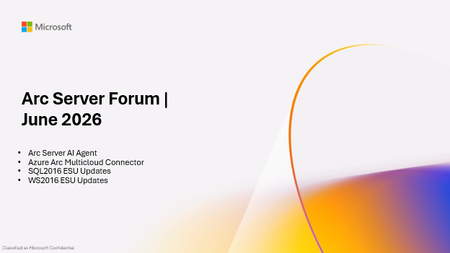
Please find the recording for the monthly Azure Arc Server Forum on YouTube! During the June 2026 Azure Arc Server Forum, we discussed: Arc Server AI Agent assists with onboarding and troubleshooting through an integrated LLM with plans for surfacing the experience through Azure Copilot and in Azure Portal. Azure Arc Multicloud Connector Updates focused on both the Public Preview of the Google Cloud Platform (GCP) Connector and Public Preview of Azure Arc-enablement of detected EKS Clusters. WS 2016 ESU Updates with planned changes versus WS 2012 ESUs and expected timelines anticipating the WS 2016 end-of-support date of January 2027. Note, WS 2012 ESUs will end in October 2026. SQL 2016 ESU Updates discussed enrollment processes, licensing basics, and overall guidance with end-of-support in July 2026. To sign up for the Azure Arc Server Forum and newsletter, please register with contact details at https://aka.ms/arcserverforumsignup/. For the latest agent release notes, check out What's new with Azure Connected Machine agent - Azure Arc | Microsoft Learn. We are skipping July and August, and will resume after summer holidays with the September forum to be held on Thursday, September 17 at 9:30 AM PST / 12:30 PM EST. Finally, I wanted to thank everyone for the attendance and community over the last few years, I will no longer be leading the community calls. Please stay in touch, and Mason Torres, Yunis Hussein, and Meagan McCrory from the Arc PM team will be taking the community forward. We look forward to you joining us, thank you!395Views1like0CommentsPlan for Upcoming Changes to Extended Security Updates on Azure Local
Beginning April 1 2026, Microsoft introduced a consistent pricing model for Extended Security Updates (ESU) for SQL Server and Windows products, including SQL Server 2016, Windows 10 Enterprise LTSB 2016 and Windows Server 2016. This update aims to simplify the Extended Security Update pricing so that customers pay the same list price for ESUs regardless of deployment location (Azure, on-premises, or other public clouds) or purchasing channel (Microsoft Customer Agreement, Enterprise agreements, Cloud Solution Provider program, or other licensing programs). ESUs on Azure Local This pricing change affects any new Extended Security Update offerings starting on or after April 1, 2026, including Windows 10 Enterprise LTSB 2016 (reaching end of support October 13, 2026) and Windows Server 2016 (reaching end of support January 12, 2027). Existing ESU offerings, including Windows Server 2012 or Windows 10 version 22H2, are not affected by this pricing change. This means that customers who already leverage ESUs will continue to have them available on Azure Local at no cost through Azure Verification for VMs. Next Steps As products reach end of support, it is recommended to upgrade your servers to the latest release available. For customers needing to remain on older versions after the end of support date has passed, further guidance on pricing and availability of ESUs will be shared in the coming months. Keep an eye on Extended Security Updates on Azure Local for more details. For More Information Microsoft Services: Pricing Consistency Update | Microsoft Licensing Resources Plan for Windows Server 2016 and Windows 10 2016 LTSB end of support - Windows IT Pro Blog1.1KViews0likes0CommentsAzure Arc Server May 2026 Forum
Please find the recording for the monthly Azure Arc Server Forum on YouTube! During the May 2026 Azure Arc Server Forum, we discussed: Private Preview of Windows Server 2016 Extended Security Updates (ESUs): Customers with Windows Server 2016 Servers with an NDA and willingness to provide feedback can sign up at https://aka.ms/WS2016ESU-PrivatePreview Special Announcement: Windows Server Hotpatch enabled by Azure Arc is now available at no additional cost for Windows Server 2025 machines connected to Azure Arc Feedback opportunity to product group on Azure Arc + RDP Capability: Customers can sign up at https://aka.ms/arc-rdp To sign up for the Azure Arc Server Forum and newsletter, please register with contact details at https://aka.ms/arcserverforumsignup/. For the latest agent release notes, check out What's new with Azure Connected Machine agent - Azure Arc | Microsoft Learn. Our June 2026 forum will be held on Thursday, June 18 at 9:30 AM PST / 12:30 PM EST. We look forward to you joining us, thank you!525Views1like1CommentBuild, deploy, and govern sovereign AI with Foundry Local on Azure Local
Not every AI workload can run in the cloud. For many of our customers, data needs to stay within defined boundaries, connectivity may be limited or absent, and latency, governance, and auditability are non-negotiable. With Foundry Local on Azure Local, you can use the same model catalog, developer workflows, and governance capabilities you know from Azure, while running AI entirely within your own environment where your data resides. Foundry Local provides the model catalog and developer experience. Azure Local provides the customer-managed infrastructure. Azure Arc provides unified policy, governance, and lifecycle management across cloud and local environments. This gives developers a consistent way to build, deploy, and operate AI. The same az commands, the same model catalog, the same Arc policies, all running on hardware you control. Expansion of Foundry Local on Azure Local We're expanding the Foundry Local model offering on Azure Local, with support for multi-node deployments and new agents and tools that run locally, in preview. Deploy and run AI models locally. Run models with Foundry Local in customer-managed environments on Azure Local, across sovereign, private, and edge scenarios, including fully disconnected operation. Choose from a flexible, high-performance model catalog. Access proprietary and community models through Foundry Local, now expanded with vLLM-optimized models alongside ONNX-based offerings. You explore and deploy through the same catalog API experience, then operate locally on Azure Local. Build for production realities. Bring governance, identity, and auditability into your applications while keeping execution inside your controlled boundary. See what’s new in Foundry Local on Azure Local in the Tech Community blog. From intelligence to action: agents and tools inside the enterprise boundary Most production AI use cases need two things: grounded answers and the ability to act on them, without sending data outside the environment. Here's how we're enabling that locally. Preview: Agentic retrieval with Foundry Local: Ground agents in enterprise data using retrieval-augmented generation across local Microsoft 365 services, including Exchange and SharePoint. Read the Tech Community blog to learn more. Preview: Agents and tools with Foundry Local: Build AI systems that reason, retrieve information, and take action within customer-controlled environments. Learn more. Preview: Developer acceleration templates: Jump-start local AI application development with new Foundry solution templates, including local chat experiences and video agents, powered by Azure AI Video Indexer. Read the Tech Community to learn more. GitHub Enterprise Local: Now available in public preview Sovereign AI is also about how systems are built and secured, not just where they run. With GitHub Enterprise Local on Azure Local, you can bring your full software development lifecycle on-premises: Source control and repositories CI/CD pipelines Security and DevSecOps workflows GitHub Enterprise Local deploys entirely within customer-owned infrastructure, so teams get the developer tools they expect without compromising on data residency or operational control. This extends modern DevSecOps practice into sovereign environments and pairs naturally with the AI development workflows above: build, secure, and ship your AI applications within the same boundary where they run. Read the tech community blog to learn more about GitHub Enterprise Local and how to join the preview. Accelerating High-performance AI at the Edge with NVIDIA We are expanding our collaboration with NVIDIA to deliver high-performance AI capabilities directly at the edge. At Build, we are bringing: Azure Local and Foundry Local on NVIDIA-powered GPUs, including NVIDIA RTX PRO 6000 Blackwell Server Edition, with expanded GPU support coming soon Integration with Nemotron models, optimized for enterprise performance A scalable foundation for data-intensive, low-latency workloads This partnership ensures that organizations can run advanced AI workloads where data is generated - without dependency on centralized cloud infrastructure. Hardware options: AI factory configurations are available now in the catalog Alongside our hardware partners, we’re bringing integrated solutions to customers building AI within sovereign environments. The Azure Local hardware catalog now includes AI factory configurations from our OEM partners, including NVIDIA-certified 8xH100 systems, with options from DataON, Dell, HPE, and Lenovo. These configurations are sized for the performance that model serving and agentic workloads require on customer-managed infrastructure. Together with Microsoft, we are advancing sovereign AI by bringing the open NVIDIA Nemotron model family to Microsoft Foundry Local on Azure Local. This collaboration gives organizations a production-ready AI platform that enables them to deploy AI where their data resides while maintaining the governance, control, and performance needed to scale AI across the enterprise.” Kari Briski, VP Generative AI Software Products, NVIDIA ”Sovereign AI is becoming increasingly important for governments, regulated industries, and enterprises that want to use AI while maintaining control of their data, location, and operations. Lenovo’s ThinkAgile MX Series delivers trusted, enterprise-grade infrastructure with global deployment expertise to help customers run AI wherever their data resides. Co-engineered with Foundry Local and Azure Local, this solution provides an optimized platform to deploy, run, and scale AI locally with greater simplicity, consistency, and control, while helping meet strict data residency, security, and compliance requirements." Scott Patti - VP Infrastructure Solutions Group (ISG), Lenovo From AI models to trusted, mission-critical systems: what this unlocks for developers and operators AI is evolving from systems that answer questions to systems that plan, reason, and take action across workloads. These capabilities move AI from a cloud-only assumption to something you can deploy where sensitive work actually happens, with governance and operational controls intact. For our customers, this means you can now: Keep data, identities, and audit trails inside your sovereign boundary. Run AI inference and agentic workloads in connected, intermittently connected, or fully disconnected modes. Apply consistent policy and governance across cloud and local environments through Azure Arc. Use the same Foundry catalog and developer experience you already know, on infrastructure you own. Build, secure, and ship your AI applications with GitHub Enterprise Local, keeping source control, CI/CD, and DevSecOps workflows inside the same sovereign boundary. Resources Join us at Build OD837 Shipping physical AI to the edge with Azure Local and Foundry Local https://github.com/microsoft/build26-OD837 OD839 Foundry Local: AI solutions for industrial and sovereign needs https://github.com/microsoft/build26-OD839 LTG425 Expanding horizons: Foundry Local for devices and on-prem https://build.microsoft.com/en-US/sessions/LTG425 Request to join the Foundry Local on Azure Local preview Hands-on walkthrough: Your first model deployment on Foundry Local on Azure Local: from catalog to inference in 10 minutes | Microsoft Community Hub Read our Tech Community blogs: Foundry Local announcing multi-node and vLLM support Agentic Retrival with Foundry Local blog: https://aka.ms/AgentsAndToolsBuildBlog2026 Code sample / model catalog blog: https://aka.ms/foundry-local-model-catalog-blog For more details on the expanded capabilities of Foundry Local for highly secure environments, contact your Microsoft account team Discover Microsoft Sovereign Cloud Explore product documentation at: Foundry Local models on Azure Local: https://aka.ms/FoundryLocalonAzureLocal_documentation Local Agentic retrieval with Foundry Local: https://aka.ms/edge-agentic-retrieval-docs2.1KViews0likes1Comment