selenium
16 Topics
How AI Is Transforming Performance Testing
Performance testing has always been a cornerstone of software quality engineering. Yet, in today’s world of distributed microservices, unpredictable user behaviour, and global-scale cloud environments, traditional performance testing methods are struggling to keep up. Enter Artificial Intelligence (AI) — not as another industry buzzword, but as a real enabler of smarter, faster, and more predictive performance testing. Why Traditional Performance Testing Is No Longer Enough Modern systems are complex, elastic, and constantly evolving. Key challenges include: Microservices-based architectures Cloud-native and containerized deployments Dynamic scaling and highly event-driven systems Rapidly shifting user patterns This complexity introduces variability in metrics and results: Bursty traffic and nonlinear workloads Frequent resource pattern shifts Hidden performance bottlenecks deep within distributed components Traditional tools depend on fixed test scripts and manual bottleneck identification, which are slower, reactive, and often incomplete. When systems behave in unscripted ways, AI-driven performance testing offers adaptability and foresight. How AI Elevates Performance Testing AI enhances performance testing in five major dimensions: 1.AI-Driven Workload Modelling Instead of guessing load patterns, AI learns real-world user behaviours from production data: Detects actual peak-hour usage patterns Classifies user journeys dynamically Generates synthetic workloads that mirror true behaviour Results: More realistic test coverage Better scalability predictions Improved reliability for production scenarios Example: Instead of a generic “add 100 users per minute” approach, AI can simulate lunch-hour bursts or regional traffic spikes with precision. Intelligent Anomaly Detection AI systems can automatically detect performance deviations by learning what "normal" looks like. Key techniques: Unsupervised learning (Isolation Forest, DBSCAN) Deep learning models (LSTMs, Autoencoders) Real-time correlation with upstream metrics prioritized, actionable recommendations and code-fix suggestions aligned with best practices Example: An AI model can flag a microservice’s 5% latency spike — even when it recurs every 18 minutes — long before a human would notice. Predictive Performance Modelling AI enables you to anticipate performance issues before load tests reveal them. Capabilities: Forecasting resource saturation points Estimating optimal concurrency limits Running “what-if” simulations with ML or reinforcement learning Example: AI predicts system failure thresholds (e.g., CPU maxing out at 22K concurrent users) before that load is ever applied. AI-Powered Root-Cause Analysis When performance degrades, finding the “why” can be challenging. AI shortens this phase by: Mapping cross-service dependencies Correlating metrics and logs automatically Highlighting the most probable root causes Example: AI uncovers that a spike in Service D was due to cache misses in Service B — a connection buried across multiple log streams. Automated Insights and Reporting With the help of Large Language Models (LLMs) like ChatGPT or open-source equivalents: Summarize long performance reports Suggest optimization strategies Highlight anomalies automatically within dashboards This enables faster, data-driven decision-making across engineering and management teams. The Difference Between AIOps and AI-Driven Performance Testing Aspect AIOps AI-Enhanced Performance Testing Primary Focus IT operations automation Performance engineering Objective Detect and resolve incidents Predict and optimize system behaviour Data Sources Logs, infrastructure metrics Testing results, workload data Outcome Self-healing IT systems Pre-validated, performance-optimized code before release Key takeaway: AIOps acts in production; AI-driven testing acts pre-production. Real Tools Adopting AI in Performance Testing Category Tools Capabilities Performance Testing Tools JMeter, LoadRunner, Neoload, Locust (ML Plugins), k6 (AI extensions) Intelligent test design, smart correlation, anomaly detection AIOps & Observability Platforms Dynatrace (Davis AI), New Relic AI, Datadog Watchdog, Elastic ML Metric correlation, predictive analytics, auto-baselining These tools improve log analysis, metric correlation, predictive forecasting, and test script generation. Key Benefits of AI Integration ✅ Faster test design — Intelligent load generation automates script creation ✅ Proactive analytics — Predict failures before release ✅ Higher test accuracy — Real-world traffic reconstruction ✅ Reduced triage effort — Automated root-cause identification ✅ Great scalability — Run leaner, smarter tests Challenges and Key Considerations ⚠ Data quality — Poor or biased input leads to faulty AI insights ⚠ Overfitting — AI assumes repetitive patterns without variability ⚠ Opaque models — Black-box decisions can hinder trust ⚠ Skill gaps — Teams require ML understanding ⚠ Compute costs — ML training adds overhead A balanced adoption strategy mitigates these risks. Practical Roadmap: Implementing AI in Performance Testing Step 1: Capture High-Quality Data Logs, traces, metrics, and user journeys from real environments. Step 2: Select a Use Case Start small — e.g., anomaly detection or predictive capacity modelling. Step 3: Integrate AI-Ready Tools Adopt AI-enabled load testing and observability platforms. Step 4: Create Foundational Models Use Python ML, built-in analytics, or open-source tools to generate forecasts or regressions. Step 5: Automate in CI/CD Integrate AI-triggered insights into continuous testing pipelines. Step 6: Validate Continuously Always align AI predictions with real-world performance measurements. Future Outlook: The Next 5–10 Years AI will redefine performance testing as we know it: Fully autonomous test orchestration Self-healing systems that tune themselves dynamically Real-time feedback loops across CI/CD pipelines AI-powered capacity planning for cloud scalability Performance engineers will evolve from test executors to system intelligence strategists — interpreting, validating, and steering AI-driven insights. Final Thoughts AI is not replacing performance testing — it’s revolutionizing it. From smarter workload generation to advanced anomaly detection and predictive modelling, AI shifts testing from reactive validation to proactive optimization. Organizations that embrace AI-driven performance testing today will lead in speed, stability, and scalability tomorrow.1.2KViews1like0Comments
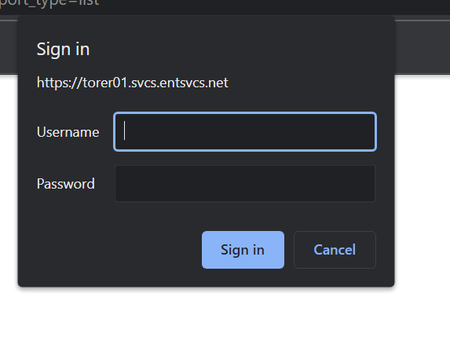
Entering credentials at a chrome prompt or form using Powershell.
HI , I'm automating 1 website using Selenium Module in PowerShell, but encountered this issue in the beginning.(see the image below) I cannot get the id or class or name of the elements like here (Username, Password, Sign in). How can I enter Username & Password there, and Click on Sign in? Kindly share your thoughts, It'll help me a lotSolved4.4KViews0likes2CommentsAdvanced Logger for UI Tests - now on NuGet Package!
Need a way to create reports for your Selenium, WinAppDriver or Xamarin UI TESTS? Use this NuGet package to create HTML reports with embedded screenshots and step descriptions for your tests flows. Inside is code and git repo example.8.1KViews2likes3CommentsAdding Chome Extension to Edge 85 with Selenium Java
I want to add chrome extension from Selenium Java to Newest Edge Version with msedgedriver. But when the browser instance opens the extension is not getting added and developer mode is not i. Edge Developer mode gets turned off when new instance is opened. ii. Allow extensions from other stores is also automatically turned off. I tried different codes with seleenium 4.0 alpha 6.0 as well as with the stable versions. public static WebDriver ini() { System.setProperty("webdriver.edge.driver", "D:\\SeleniumTest\\new\\msedgedriver.exe"); DesiredCapabilities desiredCapabilities = new DesiredCapabilities (); EdgeOptions options = new EdgeOptions(); ArrayList<String> extensionList=new ArrayList<String>(); String extensionLocation="C:\\Program Files (x86)\\Microsoft\\Edge\\Application\\85.0.564.51\\Extensions\\CombinedExtension"; extensionList.add(extensionLocation); options.setCapability( "disable-infobars", true); options.setCapability("extensionPaths", extensionList); options.merge(desiredCapabilities); WebDriver driver = new EdgeDriver(options); return driver; } The above code works fine with edge legacy. Also different other answers i have tried most of them doesnt work. I tried the below code too System.setProperty("webdriver.edge.driver", "<windowsMsEdgeChromiumDriverPath>"); final ChromeOptions chromeOptions = new ChromeOptions(); chromeOptions.setBinary("C:\\Program Files (x86)\\Microsoft\\Edge Beta\\Application\\msedge.exe"); chromeOptions.setExperimentalOption("useAutomationExtension", false); chromeOptions.setExperimentalOption("excludeSwitches", Collections.singletonList("enable-automation")); final EdgeOptions edgeOptions = new EdgeOptions().merge(chromeOptions); final WebDriver webDriver = new EdgeDriver(edgeOptions);Solved2.8KViews0likes4Comments