security
10 TopicsAutomating Daily MDE Compliance Monitoring Across Azure VMs
The Problem We’re Solving Most security teams have no automated way to know when a VM silently falls out of MDE coverage, whether because the agent stopped, the VM was newly provisioned without onboarding, or the device stopped reporting. This Logic App closes that gap and puts the right information in front of the right people every day. Disclaimer: This solution is designed for Azure Virtual Machines only. For non-Azure VMs onboarded to Microsoft Defender for Endpoint through Azure Arc, a separate companion blog will be published soon to cover that scenario. What changes once you deploy this Challenge Without This Logic App How This Logic App Helps Security gaps go undetected for days or weeks Any VM that is not onboarded or has stopped reporting is caught within 24 hours of the daily run No automated owner notification The VM's ServerOwner tag is read automatically, and the owner is emailed directly with full compliance details VMs with no owner fall through the cracks Flagged explicitly in the IT summary report with instructions for how to assign the tag Manual compliance reporting is time-consuming Full CSV report auto-attached to every daily IT summary; no manual extraction needed Agents silently stop reporting after onboarding Detects "Onboarded, Not Reporting" as a distinct status, separate from "Not Onboarded" Large multi-subscription environments are hard to cover Paginated queries across all enabled subscriptions; every running VM is checked Compliance States Detected Compliance Status Priority What It Means Not Onboarded P2, High The VM is running in Azure but has never appeared in MDE. There is zero security telemetry for this machine. Onboarded, Not Reporting P3, Medium The VM was previously enrolled but has not checked in within the configured window. The MDE agent may be stopped or the VM may have lost network connectivity to MDE. Compliant No alert VM is onboarded and checked in within the required time window. It is excluded from all notifications. Running VMs Only: This workflow queries Azure Resource Graph with a filter of powerState == "VM running". Deallocated, stopped, and powered-off VMs are intentionally excluded — they are not expected to report to MDE while offline. Only machines that are turned on are evaluated. Workflow Architecture The workflow runs as a sequential daily pipeline. All Azure VM data and MDE device data are collected into memory first, then each VM is evaluated in a single For Each loop. Execution Pipeline Recurrence trigger fires daily at 08:00 IST. CONFIG compose action reads MDE_LASTSEEN_HOURS (default 24). This defines the compliance window: how recently a VM must have reported to MDE to be considered Compliant. Init-varITTeamEmail and Init-varSenderEmail load the configurable email addresses used for sending and receiving notifications. Get-AllSubscriptions calls the Azure Management API to discover all subscriptions in the tenant. ForEach-Subscription runs a paginated Azure Resource Graph query per enabled subscription, collecting all running VMs along with Private IP, OS Type, Location, ServerOwner tag, and VM UUID. Init-MDEVariables then Paginate-MDEDevices call the MDE Security Center API in pages of 10,000 to load every enrolled device into the AllMDEDevices array. ForEach-AzureVM looks each Azure VM up in AllMDEDevices and determines compliance status and priority. Non-compliant handling builds HTML and CSV rows. If the VM has a ServerOwner tag, a compliance alert email goes to the owner with the IT Team CC'd. If there's no owner, the VM is appended to NoOwnerList. IT Summary email is sent once all VMs are processed. If any non-compliant VMs were found, the consolidated IT report is sent with the CSV attachment. Otherwise an All Clear email is sent. How Azure VM Data is Matched to MDE Data Each Azure VM is matched against the MDE device list using a two-level strategy. Both checks run for every VM on every run. Match Method How It Works Primary: Azure VM ID Compares azureVmId from the MDE device record (lowercase) against the VmId captured from Azure Resource Graph (lowercase). Immune to hostname changes; this is the preferred match. Fallback: Hostname + IP Checks that MDE computerDnsName starts with the Azure VM name (case-insensitive) AND lastIpAddress matches the Azure Private IP. Both conditions must be true. Not Found A synthetic MDE record with onboardingStatus: "NotFound" is created. The VM is treated as Not Onboarded and a P2 High alert is raised. Pagination Design The workflow handles large environments through two independent pagination mechanisms that run before any compliance evaluation begins. Data Source Page Size Mechanism Azure Resource Graph 1,000 VMs per page Uses $skipToken from the response. The Until loop re-queries with the token until no token is returned (last page). Variables VMSkipToken and VMFetchComplete manage loop state per subscription. Supports up to 50,000 VMs (50 pages). MDE Security Center API 10,000 devices per page Uses the $skip offset parameter. MDESkip is incremented by 10,000 each iteration. The loop stops when a page returns fewer than 10,000 records. Supports up to 500,000 MDE devices (50 pages × 10,000). Prerequisites Azure Resources Resource Requirement Notes Azure Logic App Standard plan, Stateful workflow Consumption plan also supported Managed Identity System-assigned on the Logic App Enable under Logic App > Identity Sender mailbox (varSenderEmail) Licensed Microsoft 365 account Emails are sent FROM this address IT Team email (varITTeamEmail) Valid email address or distribution list Receives all reports; CC'd on owner alerts Azure VMs Running, with ServerOwner tag (recommended) Tag value must be a valid email address MDE licensing Microsoft Defender for Endpoint P1 or P2 Tenant must be enrolled in MDE The ServerOwner Tag Server owner notifications rely on a VM-level Azure tag. Without it, the VM is included in the IT summary, but no individual alert is sent to an owner. Tag Name Expected Value Effect ServerOwner Valid email, e.g. john@yourcompany.com Compliance alert sent TO this address; IT Team CC'd If the tag is missing or empty, the VM is flagged in the Action Required: No Owner Tag Found section of the IT summary email, with step-by-step instructions for tagging it in the Azure Portal. Required Permissions & Why The Logic App's Managed Identity must be granted three API permissions. These are Application permissions that cannot be assigned through the Azure Portal UI, so the PowerShell script in Section 4.3 must be used. Admin consent is required. Permission Summary Permission API / Service AppId Why It Is Required user_impersonation Azure Management 797f4846-ba00-4fd7-ba43-dac1f8f63013 Allows the Managed Identity to call the Azure Resource Graph API to query VM inventory across all subscriptions. Without this, the workflow cannot discover VMs. WindowsDefenderATP.Read.All MDE Security Center fc780465-2017-40d4-a0c5-307022471b92 Allows reading all device records from the MDE API (/api/machines). This returns onboarding status, last seen time, and health status — the core compliance data. Mail.Send Microsoft Graph 00000003-0000-0000-c000-000000000000 Allows sending emails via the Graph /sendMail endpoint on behalf of the varSenderEmail mailbox. Without this, no alerts or reports can be sent. Important: The Azure Management and MDE permissions belong to separate service principals — they are NOT part of Microsoft Graph. Each permission must be assigned to its own service principal using the AppId shown above. The script in Section 4.2 handles this correctly. Where to find the required values Parameter Where to find it in Azure Portal $tenantID Azure Portal > Microsoft Entra ID > Overview > Tenant ID $managedIdentityObjectId Logic App > Settings > Identity > System assigned tab > Object (principal) ID Permission Assignment Script Run this in Azure Cloud Shell or any terminal with the Microsoft.Graph PowerShell module installed. Update $tenantID and $managedIdentityObjectId before running. # PowerShell # ── Update these two values before running ─────────────────────────── $tenantID = "<tenantID>" # Your Tenant ID $managedIdentityObjectId = "<objectID>" # MI Object ID # Install Microsoft.Graph if not already present if (!(Get-Module -ListAvailable -Name Microsoft.Graph)) { Install-Module -Name Microsoft.Graph -Scope CurrentUser -Force } # Connect to Microsoft Graph Connect-MgGraph -TenantId $tenantID ` -Scopes "AppRoleAssignment.ReadWrite.All","Application.Read.All" # MDE Compliance Logic App needs 3 permissions across 3 different service principals $permissions = @( @{ Permission="user_impersonation"; AppId="797f4846-ba00-4fd7-ba43-dac1f8f63013" }, @{ Permission="WindowsDefenderATP.Read.All"; AppId="fc780465-2017-40d4-a0c5-307022471b92" }, @{ Permission="Mail.Send"; AppId="00000003-0000-0000-c000-000000000000" } ) foreach ($entry in $permissions) { $sp = Get-MgServicePrincipal -Filter "AppId eq '$($entry.AppId)'" $appRole = $sp.AppRoles | Where-Object { $_.Value -eq $entry.Permission } if ($appRole -ne $null) { New-MgServicePrincipalAppRoleAssignment ` -ServicePrincipalId $sp.Id ` -PrincipalId $managedIdentityObjectId ` -ResourceId $sp.Id ` -AppRoleId $appRole.Id Write-Host "Assigned: $($entry.Permission)" -ForegroundColor Green } else { Write-Host "Not found: $($entry.Permission)" -ForegroundColor Yellow } } Write-Host "All permissions assigned." -ForegroundColor Green Verify Permissions Assigned # PowerShell # Run after the assignment script to verify all 3 permissions are present Get-MgServicePrincipalAppRoleAssignment ` -ServicePrincipalId $managedIdentityObjectId | Select-Object AppRoleId, PrincipalDisplayName | Format-Table -AutoSize Note: You should see three assignment rows in the output — one for each permission. If any are missing, re-run the assignment script. An error saying the assignment already exists is normal and can be safely ignored. Creating the Logic App Create the resource Azure Portal > search Logic Apps > + Create. Select your Subscription and Resource Group. Logic App name: la-mde-compliance-monitor. Plan type: Standard > Windows > select or create a Hosting Plan > Review + Create > Create. Once deployed, click Go to resource. Enable System-assigned Managed Identity Open the Logic App > left menu: Settings > Identity. On the System assigned tab, toggle Status to On. Click Save > Yes on the confirmation dialog. The Object (principal) ID appears. Copy this value for the PowerShell script. Run the Permissions Assignment script to assign all three permissions to this identity. Why Managed Identity: A System-assigned Managed Identity is automatically scoped to this Logic App and deleted when the Logic App is deleted. It authenticates to Azure Management API, MDE API, and Microsoft Graph without any stored passwords or client secrets. Create the workflow and import the JSON Logic App > left menu: Workflows > + Add. Workflow name: MDEComplianceMonitor. State type: Stateful. Click Create. Click the workflow name > left menu: Code. Press Ctrl + A > Delete to clear the editor completely. Paste the complete workflow JSON from the companion file (see Appendix A). Click Save. It should succeed with no validation errors. Important: Always use Stateful. Stateless workflows do not support run history, have a 5-minute timeout, and do not retain intermediate state — all of which are required by this workflow's pagination loops. Configuration: What You Can Change After importing the JSON, update only the values described below. Everything else runs automatically. Email Address Variables Variable Description Where to Update varITTeamEmail The IT Team email address. All IT Summary reports are sent TO this address. All per-VM owner emails CC this address. 3000 varSenderEmail The Microsoft 365 licensed account that emails are sent FROM via Graph API. Must have Mail.Send permission granted to the Managed Identity. 3000 Compliance look-up window: MDE_LASTSEEN_HOURS This setting in the CONFIG compose action defines how recently a VM must have reported to MDE to count as Compliant. Default is 24 hours. Value Behaviour 24 (default) Compliant if the VM checked in with MDE within the last 24 hours. Recommended starting point. 12 Stricter check; suitable for high-security environments requiring near-real-time coverage. 48 More relaxed; suitable for environments with scheduled maintenance windows or intermittent connectivity. Running VMs Only The Azure Resource Graph query includes a filter for powerState == "VM running". This means: Deallocated VMs are excluded (not expected to report to MDE while offline). Stopped (allocated) VMs are excluded. Newly started VMs are included and checked on the next daily run. To Change the Filter: To change the power state filter, locate the "query" string inside the Build-VMQuery-Paged action and modify the | where powerState == clause. For example, removing the filter entirely will check all VMs regardless of state. Sample Email Notifications The screenshots below show actual emails generated by this workflow. All sensitive data (email addresses, VM names, subscription IDs, IP addresses) has been redacted. Per-VM owner alert Sent to the server owner (ServerOwner tag) when their VM is non-compliant. The IT Team is CC'd. The email contains full server details, compliance status, priority, last MDE check-in time, and resolution SLA. Note: If no ServerOwner tag is set the VM is skipped here and included in the "No Owner Tag Found" section of the IT summary instead. IT Team Daily Summary Report Sent once per day to the IT Team after all owner emails are dispatched. Shows up to 20 VMs inline with a full CSV attachment containing the complete list, plus a dedicated section for VMs with no owner tag. Note: The CSV attachment always contains the complete list of all non-compliant VMs regardless of count. The inline HTML table is limited to 20 rows to keep the email size manageable. All Compliant VMs: If all VMs are compliant, you’ll see email like this: Post-Deployment Checklist Before you leave the workflow running unattended, walk through this checklist once. # Item 1 Logic App resource created (Standard plan, Stateful workflow) 2 System-assigned Managed Identity enabled; Object ID copied 3 PowerShell script run; user_impersonation, WindowsDefenderATP.Read.All, and Mail.Send assigned 4 Permissions verified using Get-MgServicePrincipalAppRoleAssignment (3 rows expected) 5 Workflow JSON pasted into Code view; saved without validation errors 6 varITTeamEmail updated to your IT security team or distribution list address 7 varSenderEmail updated to a licensed Microsoft 365 mailbox 8 MDE_LASTSEEN_HOURS reviewed (default 24, adjust if needed) 9 At least one Azure VM has the ServerOwner tag set with a valid email 10 Manual run triggered: Logic App > Overview > Run Trigger > Run 11 Run history shows Succeeded; no 401 or 403 errors on any HTTP action 12 IT Team received the daily summary email with CSV attachment 13 Server owner received a per-VM alert with the IT Team CC'd 14 Recurrence trigger confirmed running daily at 08:00 IST Wrapping Up What I love about this is how much it accomplishes with so little: a Logic App, a Managed Identity, and three permissions. No connectors, no secrets to rotate, no third-party services. Yet every morning, your security team starts the day knowing exactly which VMs are out of MDE coverage and which owners have already been notified. If you adopt this pattern, here are a few natural next steps to consider: Hook into Microsoft Sentinel by writing non-compliant VMs to a custom table for trend analysis. Auto-create ServiceNow or Jira tickets for VMs that remain non-compliant for more than 48 hours. Extend the match logic to include Arc-enabled servers, not just Azure VMs. Add a Teams adaptive card notification alongside email for faster response. I'd love to hear how you're solving MDE coverage gaps in your environment. Appendix A: Workflow JSON The complete Logic App workflow definition is provided below. To import it: open the Logic App in Azure Portal, navigate to the workflow, click Code view, press Ctrl + A to clear the existing content, paste the entire JSON, then click Save. { "definition": { "$schema": "https://schema.management.azure.com/providers/Microsoft.Logic/schemas/2016-06-01/workflowdefinition.json#", "contentVersion": "1.0.0.0", "triggers": { "Recurrence": { "recurrence": { "frequency": "Day", "interval": 1, "schedule": { "hours": [ "8" ], "minutes": [ 0 ] }, "timeZone": "India Standard Time" }, "evaluatedRecurrence": { "frequency": "Day", "interval": 1, "schedule": { "hours": [ "8" ], "minutes": [ 0 ] }, "timeZone": "India Standard Time" }, "type": "Recurrence" } }, "actions": { "CONFIG": { "runAfter": {}, "type": "Compose", "inputs": { "MDE_LASTSEEN_HOURS": 24 } }, "Set-ExcludedSubscriptions": { "runAfter": { "CONFIG": [ "Succeeded" ] }, "type": "Compose", "inputs": [] }, "Init-varITTeamEmail": { "runAfter": { "Set-ExcludedSubscriptions": [ "Succeeded" ] }, "type": "InitializeVariable", "inputs": { "variables": [ { "name": "varITTeamEmail", "type": "string", "value": "admin@contoso.onmicrosoft.com" } ] } }, "Init-varSenderEmail": { "runAfter": { "Init-varITTeamEmail": [ "Succeeded" ] }, "type": "InitializeVariable", "inputs": { "variables": [ { "name": "varSenderEmail", "type": "string", "value": "admin@contoso.onmicrosoft.com" } ] } }, "Get-AllSubscriptions": { "runAfter": { "Init-varSenderEmail": [ "Succeeded" ] }, "type": "Http", "inputs": { "uri": "https://management.azure.com/subscriptions?api-version=2022-12-01", "method": "GET", "headers": { "Content-Type": "application/json" }, "authentication": { "type": "ManagedServiceIdentity", "audience": "https://management.azure.com" }, "retryPolicy": { "type": "fixed", "count": 3, "interval": "PT60S" } } }, "Parse-AllSubscriptions": { "runAfter": { "Get-AllSubscriptions": [ "Succeeded" ] }, "type": "ParseJson", "inputs": { "content": "@body('Get-AllSubscriptions')", "schema": { "type": "object", "properties": { "value": { "type": "array", "items": { "type": "object", "properties": { "subscriptionId": { "type": "string" }, "displayName": { "type": "string" }, "state": { "type": "string" } } } } } } } }, "Init-AllVMs": { "runAfter": { "Parse-AllSubscriptions": [ "Succeeded" ] }, "type": "InitializeVariable", "inputs": { "variables": [ { "name": "AllVMs", "type": "array", "value": [] }, { "name": "VMSkipToken", "type": "string", "value": "INIT" }, { "name": "VMFetchComplete", "type": "boolean", "value": false } ] } }, "ForEach-Subscription": { "foreach": "@body('Parse-AllSubscriptions')?['value']", "actions": { "Check-SubscriptionEnabled": { "actions": { "Reset-VMSkipToken": { "type": "SetVariable", "inputs": { "name": "VMSkipToken", "value": "INIT" } }, "Reset-VMFetchComplete": { "runAfter": { "Reset-VMSkipToken": [ "Succeeded" ] }, "type": "SetVariable", "inputs": { "name": "VMFetchComplete", "value": false } }, "Until": { "actions": { "Build-VMQuery-Paged": { "type": "Compose", "inputs": { "subscriptions": [ "@{items('ForEach-Subscription')?['subscriptionId']}" ], "query": "Resources | where type == 'microsoft.compute/virtualmachines' | extend VMName = tostring(name), ResourceGroup = tostring(resourceGroup), Location = tostring(location), OSType = tostring(properties.storageProfile.osDisk.osType), VMSize = tostring(properties.hardwareProfile.vmSize), ServerOwner = tostring(tags.ServerOwner), Environment = tostring(tags.Environment), SubscriptionId = tostring(subscriptionId), nicId = tolower(tostring(properties.networkProfile.networkInterfaces[0].id)), VmId = tolower(tostring(properties.vmId)) | join kind=leftouter (Resources | where type == 'microsoft.network/networkinterfaces' | extend privateIP = tostring(properties.ipConfigurations[0].properties.privateIPAddress) | project nicId = tolower(id), privateIP) on nicId | join kind=leftouter (Resources | where type == 'microsoft.compute/virtualmachines' | extend powerState = tostring(properties.extended.instanceView.powerState.displayStatus) | project id, powerState) on id | where powerState == 'VM running' | project VMName, ResourceGroup, Location, OSType, VMSize, ServerOwner, Environment = 'Azure', SubscriptionId, PrivateIP = privateIP, VmId, CloudEnvironment = 'Azure'", "options": { "$skipToken": "@if(equals(variables('VMSkipToken'), 'INIT'), '', variables('VMSkipToken'))" }, "$top": 1000 } }, "Get-VMs-Paged": { "runAfter": { "Build-VMQuery-Paged": [ "Succeeded" ] }, "type": "Http", "inputs": { "uri": "https://management.azure.com/providers/Microsoft.ResourceGraph/resources?api-version=2021-03-01", "method": "POST", "headers": { "Content-Type": "application/json" }, "body": "@outputs('Build-VMQuery-Paged')", "authentication": { "type": "ManagedServiceIdentity", "audience": "https://management.azure.com" } }, "runtimeConfiguration": { "contentTransfer": { "transferMode": "Chunked" } } }, "ForEach-VM-Result-Paged": { "foreach": "@body('Get-VMs-Paged')?['data']", "actions": { "Append-SingleVM-Paged": { "type": "AppendToArrayVariable", "inputs": { "name": "AllVMs", "value": "@items('ForEach-VM-Result-Paged')" } } }, "runAfter": { "Get-VMs-Paged": [ "Succeeded" ] }, "type": "Foreach" }, "Check-VMSkipToken": { "actions": { "Set-VMFetchComplete": { "type": "SetVariable", "inputs": { "name": "VMFetchComplete", "value": true } } }, "runAfter": { "ForEach-VM-Result-Paged": [ "Succeeded" ] }, "else": { "actions": { "Set-VMSkipToken": { "type": "SetVariable", "inputs": { "name": "VMSkipToken", "value": "@body('Get-VMs-Paged')?['$skipToken']" } } } }, "expression": { "or": [ { "equals": [ "@string(body('Get-VMs-Paged')?['$skipToken'])", "" ] } ] }, "type": "If" } }, "runAfter": { "Reset-VMFetchComplete": [ "Succeeded" ] }, "expression": "@equals(variables('VMFetchComplete'), true)", "limit": { "count": 50, "timeout": "PT1H" }, "type": "Until" } }, "else": { "actions": {} }, "expression": { "and": [ { "equals": [ "@items('ForEach-Subscription')?['state']", "Enabled" ] } ] }, "type": "If" } }, "runAfter": { "Init-AllVMs": [ "Succeeded" ] }, "type": "Foreach" }, "Init-MDEVariables": { "runAfter": { "ForEach-Subscription": [ "Succeeded" ] }, "type": "InitializeVariable", "inputs": { "variables": [ { "name": "AllMDEDevices", "type": "array" }, { "name": "MDESkip", "type": "integer", "value": 0 }, { "name": "MDEFetchComplete", "type": "boolean", "value": false } ] } }, "Paginate-MDEDevices": { "actions": { "Get-MDEDevices-Page": { "type": "Http", "inputs": { "uri": "https://api.securitycenter.microsoft.com/api/machines?$select=computerDnsName,id,osPlatform,lastSeen,onboardingStatus,healthStatus,lastIpAddress&$top=10000&$skip=@{variables('MDESkip')}", "method": "GET", "headers": { "Content-Type": "application/json" }, "authentication": { "type": "ManagedServiceIdentity", "audience": "https://api.securitycenter.microsoft.com" }, "retryPolicy": { "type": "fixed", "count": 3, "interval": "PT60S" } }, "runtimeConfiguration": { "contentTransfer": { "transferMode": "Chunked" } } }, "Parse-MDEPage": { "runAfter": { "Get-MDEDevices-Page": [ "Succeeded" ] }, "type": "ParseJson", "inputs": { "content": "@body('Get-MDEDevices-Page')", "schema": { "type": "object", "properties": { "value": { "type": "array", "items": { "type": "object", "properties": { "computerDnsName": { "type": [ "string", "null" ] }, "id": { "type": [ "string", "null" ] }, "osPlatform": { "type": [ "string", "null" ] }, "lastSeen": { "type": [ "string", "null" ] }, "onboardingStatus": { "type": [ "string", "null" ] }, "healthStatus": { "type": [ "string", "null" ] }, "lastIpAddress": { "type": [ "string", "null" ] }, "azureVmId": { "type": [ "string", "null" ] } } } } } } } }, "Append-MDEPage-ToArray": { "foreach": "@body('Parse-MDEPage')?['value']", "actions": { "Append-SingleMDEDevice": { "type": "AppendToArrayVariable", "inputs": { "name": "AllMDEDevices", "value": "@items('Append-MDEPage-ToArray')" } } }, "runAfter": { "Parse-MDEPage": [ "Succeeded" ] }, "type": "Foreach" }, "Check-PageSize": { "actions": { "Set-FetchComplete-True": { "type": "SetVariable", "inputs": { "name": "MDEFetchComplete", "value": true } } }, "runAfter": { "Append-MDEPage-ToArray": [ "Succeeded" ] }, "else": { "actions": { "Increment-MDESkip": { "type": "IncrementVariable", "inputs": { "name": "MDESkip", "value": 10000 } } } }, "expression": { "and": [ { "less": [ "@length(body('Parse-MDEPage')?['value'])", 10000 ] } ] }, "type": "If" } }, "runAfter": { "Init-MDEVariables": [ "Succeeded" ] }, "expression": "@equals(variables('MDEFetchComplete'), true)", "limit": { "count": 50, "timeout": "PT1H" }, "type": "Until" }, "Init-Variables": { "runAfter": { "Paginate-MDEDevices": [ "Succeeded" ] }, "type": "InitializeVariable", "inputs": { "variables": [ { "name": "EmailsSent", "type": "array", "value": [] }, { "name": "NoOwnerList", "type": "array", "value": [] }, { "name": "NonCompliantList", "type": "array", "value": [] }, { "name": "SummaryStats", "type": "object", "value": { "TotalNonCompliant": 0, "P1Critical": 0, "P2High": 0, "P3Medium": 0, "P4Low": 0, "EmailsSent": 0, "NoOwnerFound": 0 } }, { "name": "HTMLRows", "type": "string" }, { "name": "NonCompliantCount", "type": "integer", "value": 0 }, { "name": "CSVRows", "type": "string", "value": "@{concat('\"VM Name\",\"Private IP\",\"OS Type\",\"Location\",\"Server Owner\",\"MDE Status\",\"Last Seen\",\"Priority\",\"Action Taken\",\"Subscription ID\"', decodeUriComponent('%0A'))}" }, { "name": "HTMLRowCount", "type": "integer", "value": 0 } ] } }, "ForEach-AzureVM": { "foreach": "@variables('AllVMs')", "actions": { "Find-VMInMDE-Filter": { "type": "Query", "inputs": { "from": "@variables('AllMDEDevices')", "where": "@or(and(not(equals(item()?['azureVmId'], null)), not(equals(item()?['azureVmId'], '')), equals(toLower(item()?['azureVmId']), toLower(items('ForEach-AzureVM')?['VmId']))), and(or(equals(item()?['azureVmId'], null), equals(item()?['azureVmId'], '')), startsWith(toLower(item()?['computerDnsName']), toLower(items('ForEach-AzureVM')?['VMName'])), equals(item()?['lastIpAddress'], items('ForEach-AzureVM')?['PrivateIP'])))" } }, "Find-VMInMDE": { "runAfter": { "Find-VMInMDE-Filter": [ "Succeeded" ] }, "type": "Compose", "inputs": "@if(greater(length(body('Find-VMInMDE-Filter')), 0), first(body('Find-VMInMDE-Filter')), json('{\"computerDnsName\":\"NOT_FOUND\",\"onboardingStatus\":\"NotFound\",\"lastSeen\":\"1900-01-01T00:00:00Z\",\"lastIpAddress\":\"N/A\",\"healthStatus\":\"Unknown\"}'))" }, "Get-ComplianceStatus": { "runAfter": { "Find-VMInMDE": [ "Succeeded" ] }, "type": "Compose", "inputs": "@if(equals(outputs('Find-VMInMDE')?['computerDnsName'], 'NOT_FOUND'), 'Not Onboarded', if(equals(outputs('Find-VMInMDE')?['onboardingStatus'], 'Onboarded'), if(greater(outputs('Find-VMInMDE')?['lastSeen'], addHours(utcNow(), mul(-1, outputs('CONFIG')?['MDE_LASTSEEN_HOURS']))), 'Compliant', 'Onboarded - Not Reporting'), 'Not Onboarded'))" }, "Get-Priority": { "runAfter": { "Get-ComplianceStatus": [ "Succeeded" ] }, "type": "Compose", "inputs": "@if(equals(outputs('Get-ComplianceStatus'), 'Not Onboarded'), 'P2 - High', if(equals(outputs('Get-ComplianceStatus'), 'Onboarded - Not Reporting'), 'P3 - Medium', if(equals(outputs('Get-ComplianceStatus'), 'Compliant'), 'Compliant', 'P4 - Low')))" }, "Is-NonCompliant": { "actions": { "Append-CSVRows": { "type": "AppendToStringVariable", "inputs": { "name": "CSVRows", "value": "\"@{items('ForEach-AzureVM')?['VMName']}\",\"@{if(equals(items('ForEach-AzureVM')?['PrivateIP'], ''), 'N/A', items('ForEach-AzureVM')?['PrivateIP'])}\",\"@{items('ForEach-AzureVM')?['OSType']}\",\"@{items('ForEach-AzureVM')?['Location']}\",\"@{if(equals(items('ForEach-AzureVM')?['ServerOwner'], ''), 'No Owner Tag', items('ForEach-AzureVM')?['ServerOwner'])}\",\"@{outputs('Get-ComplianceStatus')}\",\"@{if(equals(outputs('Find-VMInMDE')?['onboardingStatus'], 'Onboarded'), if(equals(outputs('Find-VMInMDE')?['lastSeen'], '1900-01-01T00:00:00Z'), 'Never', concat(convertTimeZone(outputs('Find-VMInMDE')?['lastSeen'], 'UTC', 'India Standard Time', 'dd-MM-yyyy HH:mm:ss'), ' (', string(div(sub(ticks(utcNow()), ticks(outputs('Find-VMInMDE')?['lastSeen'])), 864000000000)), ' days ago)')), concat(outputs('Find-VMInMDE')?['onboardingStatus'], ' - Last Seen: ', convertTimeZone(outputs('Find-VMInMDE')?['lastSeen'], 'UTC', 'India Standard Time', 'dd-MM-yyyy HH:mm:ss')))}\",\"@{outputs('Get-Priority')}\",\"@{if(equals(items('ForEach-AzureVM')?['ServerOwner'], ''), 'IT Team Notified', 'Email sent to Server Owner')}\",\"@{items('ForEach-AzureVM')?['SubscriptionId']}\"@{decodeUriComponent('%0A')}" } }, "Check-HTMLRowCount": { "actions": { "Append-HTMLRows": { "type": "AppendToStringVariable", "inputs": { "name": "HTMLRows", "value": "<tr><td style=\"padding:8px 10px;border:1px solid #ddd;font-weight:600;\">@{items('ForEach-AzureVM')?['VMName']}</td><td style=\"padding:8px 10px;border:1px solid #ddd;word-wrap:break-word;\">@{if(equals(items('ForEach-AzureVM')?['PrivateIP'], ''), 'N/A', items('ForEach-AzureVM')?['PrivateIP'])}</td><td style=\"padding:8px 10px;border:1px solid #ddd;word-wrap:break-word;\">@{items('ForEach-AzureVM')?['OSType']}</td><td style=\"padding:8px 10px;border:1px solid #ddd;word-wrap:break-word;\">@{items('ForEach-AzureVM')?['Location']}</td><td style=\"padding:8px 10px;border:1px solid #ddd;word-wrap:break-word;\">@{if(equals(items('ForEach-AzureVM')?['ServerOwner'], ''), 'No Owner Tag', items('ForEach-AzureVM')?['ServerOwner'])}</td><td style=\"padding:8px 10px;border:1px solid #ddd;color:#c80000;\">@{outputs('Get-ComplianceStatus')}</td><td style=\"padding:8px 10px;border:1px solid #ddd;word-wrap:break-word;\">@{if(equals(outputs('Find-VMInMDE')?['onboardingStatus'], 'Onboarded'), if(equals(outputs('Find-VMInMDE')?['lastSeen'], '1900-01-01T00:00:00Z'), 'Never', concat(convertTimeZone(outputs('Find-VMInMDE')?['lastSeen'], 'UTC', 'India Standard Time', 'dd-MM-yyyy HH:mm:ss'), ' (', string(div(sub(ticks(utcNow()), ticks(outputs('Find-VMInMDE')?['lastSeen'])), 864000000000)), ' days ago)')), concat(outputs('Find-VMInMDE')?['onboardingStatus'], ' - Last Seen: ', convertTimeZone(outputs('Find-VMInMDE')?['lastSeen'], 'UTC', 'India Standard Time', 'dd-MM-yyyy HH:mm:ss')))}</td><td style=\"padding:8px 10px;border:1px solid #ddd;word-wrap:break-word;\">@{outputs('Get-Priority')}</td><td style=\"padding:8px 10px;border:1px solid #ddd;word-wrap:break-word;\">@{if(equals(items('ForEach-AzureVM')?['ServerOwner'], ''), 'IT Team Notified', 'Email sent to Server Owner')}</td><td style=\"padding:8px 10px;border:1px solid #ddd;word-break:break-all;\">@{items('ForEach-AzureVM')?['SubscriptionId']}</td></tr>" } }, "Increment-HTMLRowCount": { "runAfter": { "Append-HTMLRows": [ "Succeeded" ] }, "type": "IncrementVariable", "inputs": { "name": "HTMLRowCount", "value": 1 } } }, "runAfter": { "Append-CSVRows": [ "Succeeded" ] }, "else": { "actions": {} }, "expression": { "and": [ { "less": [ "@variables('HTMLRowCount')", 20 ] } ] }, "type": "If" }, "Increment-NonCompliantCount": { "runAfter": { "Check-HTMLRowCount": [ "Succeeded" ] }, "type": "IncrementVariable", "inputs": { "name": "NonCompliantCount", "value": 1 } }, "Check-ServerOwner": { "actions": { "Send-OwnerEmail": { "type": "Http", "inputs": { "uri": "@{concat('https://graph.microsoft.com/v1.0/users/', encodeURIComponent(variables('varSenderEmail')), '/sendMail')}", "method": "POST", "headers": { "Content-Type": "application/json" }, "body": { "message": { "subject": "[@{outputs('Get-Priority')}] MDE Compliance Alert - @{items('ForEach-AzureVM')?['VMName']}", "body": { "contentType": "HTML", "content": "<html><body style=\"font-family:Segoe UI,Arial,sans-serif;color:#1a1a1a;\"><div style=\"max-width:680px;margin:24px auto;border:1px solid #e0e0e0;border-radius:8px;overflow:hidden;\"><div style=\"background:#c80000;padding:20px 28px;\"><h2 style=\"color:#fff;margin:0;\">MDE Compliance Alert</h2><p style=\"color:#ffcccc;margin:6px 0 0;font-size:13px;\">Priority: @{outputs('Get-Priority')}</p></div><div style=\"padding:28px;\"><p style=\"margin-top:0;font-size:14px;\">Your server <strong>@{items('ForEach-AzureVM')?['VMName']}</strong> has a Microsoft Defender for Endpoint compliance issue requiring immediate attention.</p><table style=\"width:100%;border-collapse:collapse;font-size:14px;\"><thead><tr style=\"background:#f5f5f5;\"><th style=\"text-align:left;padding:10px 14px;border:1px solid #ddd;width:38%;\">Field</th><th style=\"text-align:left;padding:10px 14px;border:1px solid #ddd;word-wrap:break-word;\">Value</th></tr></thead><tbody><tr><td style=\"padding:9px 14px;border:1px solid #ddd;font-weight:600;\">Server Name</td><td style=\"padding:9px 14px;border:1px solid #ddd;word-wrap:break-word;\">@{items('ForEach-AzureVM')?['VMName']}</td></tr><tr style=\"background:#fafafa;\"><td style=\"padding:9px 14px;border:1px solid #ddd;font-weight:600;\">Private IP</td><td style=\"padding:9px 14px;border:1px solid #ddd;word-wrap:break-word;\">@{if(equals(items('ForEach-AzureVM')?['PrivateIP'], ''), 'N/A', items('ForEach-AzureVM')?['PrivateIP'])}</td></tr><tr><td style=\"padding:9px 14px;border:1px solid #ddd;font-weight:600;\">OS Type</td><td style=\"padding:9px 14px;border:1px solid #ddd;word-wrap:break-word;\">@{items('ForEach-AzureVM')?['OSType']}</td></tr><tr style=\"background:#fafafa;\"><td style=\"padding:9px 14px;border:1px solid #ddd;font-weight:600;\">Location</td><td style=\"padding:9px 14px;border:1px solid #ddd;word-wrap:break-word;\">@{items('ForEach-AzureVM')?['Location']}</td></tr><tr><td style=\"padding:9px 14px;border:1px solid #ddd;font-weight:600;\">Compliance Status</td><td style=\"padding:9px 14px;border:1px solid #ddd;color:#c80000;font-weight:700;\">@{outputs('Get-ComplianceStatus')}</td></tr><tr style=\"background:#fafafa;\"><td style=\"padding:9px 14px;border:1px solid #ddd;font-weight:600;\">Priority</td><td style=\"padding:9px 14px;border:1px solid #ddd;font-weight:700;\">@{outputs('Get-Priority')}</td></tr><tr><td style=\"padding:9px 14px;border:1px solid #ddd;font-weight:600;\">MDE Onboarding Status</td><td style=\"padding:9px 14px;border:1px solid #ddd;word-wrap:break-word;\">@{outputs('Find-VMInMDE')?['onboardingStatus']}</td></tr><tr style=\"background:#fafafa;\"><td style=\"padding:9px 14px;border:1px solid #ddd;font-weight:600;\">Last Seen in MDE (IST)</td><td style=\"padding:9px 14px;border:1px solid #ddd;word-wrap:break-word;\">@{if(equals(outputs('Find-VMInMDE')?['lastSeen'], '1900-01-01T00:00:00Z'), 'Never', concat(convertTimeZone(outputs('Find-VMInMDE')?['lastSeen'], 'UTC', 'India Standard Time', 'dd-MM-yyyy HH:mm:ss'), ' (', string(div(sub(ticks(utcNow()), ticks(outputs('Find-VMInMDE')?['lastSeen'])), 864000000000)), ' days ago)'))}</td></tr><tr><td style=\"padding:9px 14px;border:1px solid #ddd;font-weight:600;\">Resource Group</td><td style=\"padding:9px 14px;border:1px solid #ddd;word-wrap:break-word;\">@{items('ForEach-AzureVM')?['ResourceGroup']}</td></tr><tr style=\"background:#fafafa;\"><td style=\"padding:9px 14px;border:1px solid #ddd;font-weight:600;\">Subscription ID</td><td style=\"padding:9px 14px;border:1px solid #ddd;word-break:break-all;\">@{items('ForEach-AzureVM')?['SubscriptionId']}</td></tr></tbody></table><br/><table style=\"width:100%;border-collapse:collapse;\"><tr style=\"background:#fff8e1;\"><td style=\"padding:10px 14px;border:1px solid #ffe082;font-size:13px;\"><strong>Resolution SLA:</strong> P1 Critical - 24hrs | P2 High - 48hrs | P3 Medium - 72hrs</td></tr></table><br/><p style=\"font-size:13px;color:#555;\">For assistance contact IT Security: <a href=\"mailto:@{variables('varITTeamEmail')}\">@{variables('varITTeamEmail')}</a></p></div></div></body></html>" }, "toRecipients": [ { "emailAddress": { "address": "@{items('ForEach-AzureVM')?['ServerOwner']}" } } ], "ccRecipients": [ { "emailAddress": { "address": "@variables('varITTeamEmail')" } } ] }, "saveToSentItems": "true" }, "authentication": { "type": "ManagedServiceIdentity", "audience": "https://graph.microsoft.com" }, "retryPolicy": { "type": "fixed", "count": 2, "interval": "PT60S" } }, "runtimeConfiguration": { "contentTransfer": { "transferMode": "Chunked" } } }, "Append-EmailsSent": { "runAfter": { "Send-OwnerEmail": [ "Succeeded" ] }, "type": "AppendToArrayVariable", "inputs": { "name": "EmailsSent", "value": "@{items('ForEach-AzureVM')?['VMName']} → @{items('ForEach-AzureVM')?['ServerOwner']}" } } }, "runAfter": { "Increment-NonCompliantCount": [ "Succeeded" ] }, "else": { "actions": { "Append-NoOwnerList": { "type": "AppendToArrayVariable", "inputs": { "name": "NoOwnerList", "value": "<tr><td style=\"padding:8px 10px;border:1px solid #ddd;font-weight:600;\">@{items('ForEach-AzureVM')?['VMName']}</td><td style=\"padding:8px 10px;border:1px solid #ddd;word-wrap:break-word;\">@{if(equals(items('ForEach-AzureVM')?['PrivateIP'], ''), 'N/A', items('ForEach-AzureVM')?['PrivateIP'])}</td><td style=\"padding:8px 10px;border:1px solid #ddd;word-wrap:break-word;\">@{outputs('Get-ComplianceStatus')}</td><td style=\"padding:8px 10px;border:1px solid #ddd;font-weight:700;\">@{outputs('Get-Priority')}</td></tr>" } } } }, "expression": { "and": [ { "not": { "equals": [ "@items('ForEach-AzureVM')?['ServerOwner']", "" ] } } ] }, "type": "If" } }, "runAfter": { "Get-Priority": [ "Succeeded" ] }, "else": { "actions": {} }, "expression": { "and": [ { "not": { "equals": [ "@outputs('Get-ComplianceStatus')", "Compliant" ] } } ] }, "type": "If" } }, "runAfter": { "Init-Variables": [ "Succeeded" ] }, "type": "Foreach", "runtimeConfiguration": { "concurrency": { "repetitions": 1 } } }, "Check-AnyNonCompliant": { "actions": { "Send-ITSummaryEmail": { "type": "Http", "inputs": { "uri": "@{concat('https://graph.microsoft.com/v1.0/users/', encodeURIComponent(variables('varSenderEmail')), '/sendMail')}", "method": "POST", "headers": { "Content-Type": "application/json" }, "body": { "message": { "subject": "MDE Compliance Report (Azure Workloads) - @{variables('NonCompliantCount')} Non-Compliant VMs Found", "body": { "contentType": "HTML", "content": "<html><body style=\"font-family:Segoe UI,Arial,sans-serif;color:#1a1a1a;\"><div style=\"max-width:1400px;margin:24px auto;border:1px solid #e0e0e0;border-radius:8px;\"><div style=\"background:#0078d4;padding:20px 28px;\"><h2 style=\"color:#fff;margin:0;\">MDE Compliance Daily Report</h2><p style=\"color:#cce4ff;margin:6px 0 0;font-size:13px;\">Generated: @{convertTimeZone(utcNow(), 'UTC', 'India Standard Time', 'dd-MM-yyyy HH:mm:ss')} IST</p></div><div style=\"padding:28px;\"><table style=\"border-collapse:collapse;font-size:14px;margin-bottom:28px;\"><thead><tr style=\"background:#f0f0f0;\"><th style=\"padding:10px 18px;border:1px solid #ddd;word-wrap:break-word;\">Metric</th><th style=\"padding:10px 18px;border:1px solid #ddd;word-wrap:break-word;\">Value</th></tr></thead><tbody><tr><td style=\"padding:9px 18px;border:1px solid #ddd;word-wrap:break-word;\">Total Non-Compliant VMs</td><td style=\"padding:9px 18px;border:1px solid #ddd;font-weight:700;color:#c80000;\">@{variables('NonCompliantCount')}</td></tr><tr style=\"background:#fafafa;\"><td style=\"padding:9px 18px;border:1px solid #ddd;word-wrap:break-word;\">Server Owners Notified</td><td style=\"padding:9px 18px;border:1px solid #ddd;color:#107c10;font-weight:600;\">@{length(variables('EmailsSent'))}</td></tr><tr><td style=\"padding:9px 18px;border:1px solid #ddd;word-wrap:break-word;\">No Owner Tag</td><td style=\"padding:9px 18px;border:1px solid #ddd;color:#e65100;font-weight:600;\">@{length(variables('NoOwnerList'))}</td></tr></tbody></table><p style=\"background:#fff3cd;border:1px solid #ffc107;padding:10px 14px;border-radius:4px;font-size:13px;margin-bottom:16px;\">This report shows the first <strong>20 non-compliant VMs</strong> only. <strong>Please check the attached CSV file</strong> for the complete list.</p><table style=\"width:100%;table-layout:fixed;border-collapse:collapse;font-size:13px;\"><colgroup><col style=\"width:120px\"><col style=\"width:90px\"><col style=\"width:70px\"><col style=\"width:100px\"><col style=\"width:160px\"><col style=\"width:110px\"><col style=\"width:165px\"><col style=\"width:80px\"><col style=\"width:90px\"><col style=\"width:195px\"></colgroup><thead><tr style=\"background:#0078d4;color:#fff;\"><th style=\"padding:10px 12px;border:1px solid #005a9e;\">VM Name</th><th style=\"padding:10px 12px;border:1px solid #005a9e;\">Private IP</th><th style=\"padding:10px 12px;border:1px solid #005a9e;\">OS Type</th><th style=\"padding:10px 12px;border:1px solid #005a9e;\">Location</th><th style=\"padding:10px 12px;border:1px solid #005a9e;\">Server Owner</th><th style=\"padding:10px 12px;border:1px solid #005a9e;\">MDE Status</th><th style=\"padding:10px 12px;border:1px solid #005a9e;\">Last Seen (IST)</th><th style=\"padding:10px 12px;border:1px solid #005a9e;\">Priority</th><th style=\"padding:10px 12px;border:1px solid #005a9e;\">Action Taken</th><th style=\"padding:10px 12px;border:1px solid #005a9e;\">Subscription ID</th></tr></thead><tbody>@{variables('HTMLRows')}</tbody></table><br/><h3 style=\"border-bottom:2px solid #e65100;padding-bottom:8px;\">Action Required - No Owner Tag Found</h3><div style=\"background:#fff8f0;border:1px solid #ffccbc;padding:16px;border-radius:4px;font-size:13px;margin-bottom:16px;\"><p style=\"margin:0 0 8px 0;\">The following <strong>@{length(variables('NoOwnerList'))}</strong> server(s) have no <strong>ServerOwner</strong> tag assigned.</p><ol style=\"margin:0;padding-left:20px;\"><li style=\"margin-bottom:6px;\">Identify the owner of each server below</li><li style=\"margin-bottom:6px;\">Go to the VM in Azure Portal → Tags → Add tag</li><li style=\"margin-bottom:6px;\"><strong>Tag Name:</strong> ServerOwner | <strong>Tag Value:</strong> owner email address</li><li>Once tagged, the next daily report will automatically notify the owner</li></ol></div><table style=\"width:100%;table-layout:fixed;border-collapse:collapse;font-size:13px;\"><thead><tr style=\"background:#e65100;color:#fff;\"><th style=\"padding:10px 12px;border:1px solid #bf360c;text-align:left;\">VM Name</th><th style=\"padding:10px 12px;border:1px solid #bf360c;text-align:left;\">Private IP</th><th style=\"padding:10px 12px;border:1px solid #bf360c;text-align:left;\">MDE Status</th><th style=\"padding:10px 12px;border:1px solid #bf360c;text-align:left;\">Priority</th></tr></thead><tbody>@{if(equals(length(variables('NoOwnerList')), 0), '<tr><td colspan=\"4\" style=\"padding:12px;text-align:center;\">None - All servers have owner tags assigned</td></tr>', join(variables('NoOwnerList'), ''))}</tbody></table></div></div></body></html>" }, "toRecipients": [ { "emailAddress": { "address": "@variables('varITTeamEmail')" } } ], "attachments": [ { "@@odata.type": "#microsoft.graph.fileAttachment", "name": "@{concat('MDE-Compliance-Report-', convertTimeZone(utcNow(), 'UTC', 'India Standard Time', 'dd-MM-yyyy'), '.csv')}", "contentType": "text/csv", "contentBytes": "@{base64(variables('CSVRows'))}" } ] }, "saveToSentItems": "true" }, "authentication": { "type": "ManagedServiceIdentity", "audience": "https://graph.microsoft.com" } }, "runtimeConfiguration": { "contentTransfer": { "transferMode": "Chunked" } } } }, "runAfter": { "ForEach-AzureVM": [ "Succeeded" ] }, "else": { "actions": { "Send-AllClearEmail": { "type": "Http", "inputs": { "uri": "@{concat('https://graph.microsoft.com/v1.0/users/', encodeURIComponent(variables('varSenderEmail')), '/sendMail')}", "method": "POST", "headers": { "Content-Type": "application/json" }, "body": { "message": { "subject": "[@{convertTimeZone(utcNow(), 'UTC', 'India Standard Time', 'dd-MM-yyyy')}] MDE Compliance Report - All VMs Compliant", "body": { "contentType": "HTML", "content": "<html><body style=\"font-family:Segoe UI,Arial,sans-serif;color:#1a1a1a;\"><div style=\"max-width:600px;margin:24px auto;border:1px solid #e0e0e0;border-radius:8px;overflow:hidden;\"><div style=\"background:#107c10;padding:20px 28px;\"><h2 style=\"color:#fff;margin:0;\">MDE Compliance Report</h2><p style=\"color:#c8e6c9;margin:6px 0 0;font-size:13px;\">Generated: @{convertTimeZone(utcNow(), 'UTC', 'India Standard Time', 'dd-MM-yyyy HH:mm:ss')} IST</p></div><div style=\"padding:28px;text-align:center;\"><h2 style=\"color:#107c10;\">All VMs Compliant</h2><p style=\"font-size:15px;color:#555;\">All Azure Virtual Machines are onboarded to Microsoft Defender for Endpoint and reporting within the required 24-hour window.</p><p style=\"font-size:13px;color:#888;\">No action required. The next report will be sent tomorrow at 08:00 IST.</p></div></div></body></html>" }, "toRecipients": [ { "emailAddress": { "address": "@variables('varITTeamEmail')" } } ] }, "saveToSentItems": "true" }, "authentication": { "type": "ManagedServiceIdentity", "audience": "https://graph.microsoft.com" } }, "runtimeConfiguration": { "contentTransfer": { "transferMode": "Chunked" } } } } }, "expression": { "and": [ { "greater": [ "@variables('NonCompliantCount')", 0 ] } ] }, "type": "If" } }, "parameters": { "$connections": { "type": "Object", "defaultValue": {} } } }, "parameters": { "$connections": { "type": "Object", "value": {} } } }Hardening OpenClaw on AKS: Mitigating Container Escapes with Kata microVM Isolation
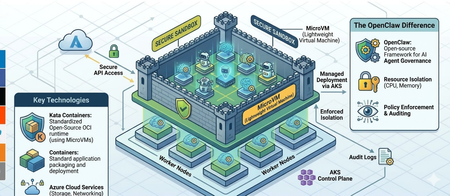
What is OpenClaw, and what security challenges does it pose with container escapes? OpenClaw is an open-source autonomous AI agent designed for power users and developers to automate tasks, such as managing emails, files, and scheduling via chat apps like WhatsApp or Telegram. While OpenClaw functions as a powerful autonomous assistant, its runtime model creates a massive security paradox: to be truly useful, the agent requires broad permissions to your filesystem and APIs, yet this "God Mode" access often lacks the rigorous containerized isolation typical of enterprise workloads. Because many users run the framework natively rather than within a hardened sandbox, the primary security challenge is that a single malicious "Skill" or an indirect prompt injection can escalate into full system compromise. This structural vulnerability, exemplified by high-profile exploits like CVE-2026-25253, transforms the agent from a helpful tool into a high-risk entry point for lateral movement and data exfiltration within a private network. Why container escapes matter in OpenClaw-style deployments: because containers share the host kernel, a successful container escape turns a single compromised container into a host compromise (or at least a compromise of other co-located workloads). This is especially important when OpenClaw runs code from many tenants, many teams, or varying trust levels on the same worker nodes. That soft isolation is often permeable due to the following structural and configuration-based weaknesses: Shared-kernel attack surface: the container boundary is not a hypervisor boundary. Kernel vulnerabilities (e.g., privilege escalation bugs) can allow a process in a container to gain host-level privileges. Excessive privileges / misconfiguration: running with --privileged, broad Linux capabilities, hostPath mounts, access to the Docker socket, or device passthrough (e.g., /dev/kvm, /dev/fuse) can provide direct paths to host control. Filesystem and namespace boundary breaks: mount namespace confusion, writable host mounts, or mistakes in chroot/pivot_root handling can expose host files and credentials. Supply-chain and image risk: a malicious image or dependency can execute within the container and then attempt escalation/escape. Blast radius: once the host is compromised, attackers can access node-level secrets (service account tokens, registry creds), tamper with the runtime, sniff traffic, or pivot to other containers and the broader cluster. In short, OpenClaw’s security challenge is not that containers are inherently insecure, but that the isolation boundary is thinner than a VM boundary. When the threat model includes adversarial code execution, a “container-only” isolation strategy often requires additional hardening or a stronger sandbox. What are MicroVMs and Kata Containers, and how do they help mitigate OpenClaw container-escape risks? MicroVMs are lightweight virtual machines optimized for running short-lived or container-like workloads with much lower overhead than traditional VMs. They use hardware virtualization (via a hypervisor such as KVM) but keep the device model and boot path minimal, reducing startup time and the overall attack surface compared to a full general-purpose VM. Kata Containers is an “OCI-compatible containers in a VM” approach: it runs each container (or pod sandbox) inside a dedicated microVM by default (implementation varies by runtime/config). To the orchestration layer (e.g., Kubernetes), it still looks like a container runtime, but isolation is provided by a hypervisor boundary rather than only namespaces/cgroups. Stronger isolation boundary: a container escape that relies on Linux kernel exploitation is far less likely to directly compromise the host, because the workload’s “host” kernel is typically the guest kernel inside the microVM. Reduced blast radius: compromise is contained to the microVM/pod sandbox; lateral movement to other workloads on the same node becomes significantly harder. Smaller and more controllable attack surface: minimal device models, tighter default privileges, and fewer host mounts/devices exposed to the workload. Defense-in-depth with container controls: you still can (and should) apply seccomp, capabilities dropping, read-only root filesystems, and LSMs inside the guest, but the hypervisor boundary becomes an additional layer. Better fit for hostile multi-tenant workloads: when OpenClaw executes third-party jobs/plugins, Kata-style sandboxing aligns better with an adversarial threat model. Solution overview Figure 1 illustrates a Kubernetes-based sandboxing architecture for running OpenClaw workloads with stronger isolation. The design keeps the developer experience and packaging model of containers (OCI images, Kubernetes scheduling) while ensuring that untrusted agent code executes inside a microVM boundary using Kata Containers. This reduces the likelihood that a container escape can compromise the underlying node or other co-located workloads. Key components: (1) Application gateway for HTTPS traffic to the backend, (2) Kubernetes as the orchestration, scheduling and policy enforcement plane, (3) a container runtime (e.g., containerd) configured with a Kata Containers runtime class, (4) KVM-backed microVMs that provide the isolation boundary for each untrusted workload and (5) Azure files for persistent storage which allows scaling of OpenClaw. Figure 1: Solution architecture diagram End-to-end flow: Traffic Entry via Application Gateway: Incoming user requests (e.g., from WhatsApp or Discord) first hit the Azure Application Gateway. Orchestration in AKS: The traffic is routed into an Azure Kubernetes Service (AKS) cluster, which manages the lifecycle of the OpenClaw agent and its associated "Skills." Hardened Execution via Kata Containers: Instead of running in standard shared-kernel containers, the OpenClaw agent runs inside Kata Containers. This provides a dedicated lightweight VM for the agent, creating a hardware-level isolation boundary that prevents "container escapes" from compromising the host. Stateful Storage in Azure Files: The agent interacts with Azure Files to read and write persistent data, such as conversation history, configuration files, and downloaded assets, ensuring data remains available even if the container is restarted. Security posture: by shifting isolation from “shared-kernel containers” to “containers inside microVMs,” the architecture limits the blast radius of kernel-level exploits and common escape paths. Even if an attacker achieves code execution within an OpenClaw container, they must additionally break the microVM/hypervisor boundary to affect the node or neighboring workloads, providing a strong defense-in-depth improvement over standard container alone. Implement the solution This section describes how to deploy the solution architecture. In this post, you’ll perform the following tasks: Create a Kata VM-isolated AKS node pool Mount a NFS persistent storage Create the application ConfigMap Deploy the OpenClaw gateway Expose the gateway internally Set up TLS termination Route external traffic through the Azure application gateway for containers. Ensure that you have the following prerequisites deployed before moving to the next section: An AKS cluster provisioned in Azure An Azure NFS File Share with private link enabled. An Application gateway for containers managed by ALB controller Kubectl configured and pointing to the cluster Az CLI authenticated with the correct subscription Initialise environment variables In your Linux terminal, export these variables with your own values. They will be used in later commands. export cluster_name=<CLUSTER_NAME> export resource_group=<RESOURCE_GROUP> Create the AKS Node Pool with Kata VM Isolation The OpenClaw gateway pods require Kata VM isolation (runtimeClassName: kata-vm-isolation). You must create a dedicated AKS node pool that supports this runtime before deploying any workloads. Use the Azure CLI to add a node pool with the Kata VM isolation workload runtime to your existing AKS cluster: az aks nodepool add \ --resource-group $resource_group \ --cluster-name $cluster_name \ --name katanp \ --node-count 2 \ --node-vm-size Standard_D4s_v3 \ --os-sku AzureLinux \ --workload-runtime KataMshvVmIsolation \ --labels agentpool=katanp **Important:** The `--workload-runtime KataMshvVmIsolation` flag enables the `kata-vm-isolation` runtime class on the node pool. The VM size must support nested virtualization (D-series v3/v5, E-series v3/v5, etc.). Create NFS Persistent Volume The deployment uses an Azure Files NFS share for persistent workspace storage. The PersistentVolume must exist before the PVC can bind to it. Replace volumeHandle and volumeAttributes with your own Azure Files values. cat <<EOF | kubectl apply -f - apiVersion: v1 kind: PersistentVolume metadata: name: openclaw-nfs-pv spec: capacity: storage: 100Gi accessModes: - ReadWriteMany persistentVolumeReclaimPolicy: Retain mountOptions: - sec=sys - noresvport - actimeo=30 csi: driver: file.csi.azure.com volumeHandle: <resource-group>#<storage-account>#<share-name> volumeAttributes: resourceGroup: <resource-group> shareName: <share-name> protocol: nfs server: <storage-account>.privatelink.file.core.windows.net EOF Verify that the persistent volume is created. kubectl get pv openclaw-nfs-pv Figure 2: Persistent volume Create the NFS PersistentVolumeClaim The PVC binds to the PV created. The deployment references this PVC by name (`pvc-openclaw-nfs`). cat <<EOF | kubectl apply -f - apiVersion: v1 kind: PersistentVolumeClaim metadata: # The name of the PVC name: pvc-openclaw-nfs spec: accessModes: - ReadWriteMany resources: requests: # The real storage capacity in the claim storage: 50Gi # This field must be the same as the storage class name in StorageClass storageClassName: "" volumeName: openclaw-nfs-pv EOF Verify that the persistent volume claim is created successfully. The status should show bound. Figure 3: Persistent Volume Claim Create the ConfigMap The ConfigMap provides the openclaw.json configuration file to the gateway pods. It configures allowed CORS origins for the control UI and the gateway token. Replace the allowed origins with your own ALB frontend URL. The ConfigMap also stores the gateway auth token, so DO NOT hardcode your token here. Always keep it as a variable rather than storing it in plain text so that, if attackers gain access to this file, they cannot see the OpenClaw gateway auth token. cat <<EOF | kubectl apply -f - apiVersion: v1 kind: ConfigMap metadata: name: openclaw-config data: openclaw.json: | { "gateway": { "auth": { "token": "${AUTH_TOKEN}" }, "controlUi": { "allowedOrigins": [ "https://<YOUR ALB FRONTEND URL>.alb.azure.com" ] } } } EOF Create the Auth Token Secret The OpenClaw gateway requires an authentication token to secure access. The deployment references a Kubernetes Secret named openclaw-auth-token and injects it into the container as the AUTH_TOKEN environment variable via secretKeyRef. Generate a random token (or use an existing one) and create the kubernetes secret. # Generate a random 32-byte hex token AUTH_TOKEN=$(openssl rand -hex 32) echo "$AUTH_TOKEN" # save this — you'll need it to authenticate with the gateway kubectl create secret generic openclaw-auth-token \ --from-literal=token="$AUTH_TOKEN" If the secret does not exist when the deployment is applied, pods will fail with `CreateContainerConfigError`. Deploy the OpenClaw Gateway This is the main application deployment. It depends on all previous steps: - Kata node pool (pods require runtimeClassName: kata-vm-isolation and nodeSelector: agentpool=katanp) - PVC (pvc-openclaw-nfs for persistent workspace data) - ConfigMap (openclaw-config for openclaw.json) Key details: - Runs 2 replicas with a rolling update strategy - Uses an init container to copy the config file to a writable volume - Exposes port 18789 - Includes liveness and readiness probes on /health - Resource requests: 500m CPU, 512Mi memory - Resource limits: 2 CPU, 2Gi memory cat <<EOF | kubectl apply -f - apiVersion: apps/v1 kind: Deployment metadata: name: openclaw-gateway spec: replicas: 2 selector: matchLabels: app: openclaw-gateway strategy: type: RollingUpdate rollingUpdate: maxUnavailable: 1 maxSurge: 1 template: metadata: labels: app: openclaw-gateway spec: runtimeClassName: kata-vm-isolation nodeSelector: agentpool: katanp securityContext: fsGroup: 1000 initContainers: - name: copy-openclaw-config image: alpine/openclaw:latest env: - name: HOME value: /writable command: - sh - -c - | cp /config/openclaw.json /writable/openclaw.json \ && chown 1000:1000 /writable/openclaw.json \ && echo "--- Config file contents ---" \ && cat /writable/openclaw.json volumeMounts: - name: openclaw-config-volume mountPath: /config - name: openclaw-writable mountPath: /writable containers: - name: gateway image: alpine/openclaw:latest ports: - containerPort: 18789 env: - name: NODE_OPTIONS value: "--max-old-space-size=4096" - name: AUTH_TOKEN valueFrom: secretKeyRef: name: openclaw-auth-token key: token # Start gateway the way the tutorial indicates command: ["openclaw", "gateway"] args: ["run", "--allow-unconfigured", "--bind", "lan"] volumeMounts: - name: openclaw-writable mountPath: /home/node/.openclaw - name: openclaw-data mountPath: /home/node/workspace subPath: workspace resources: requests: cpu: "500m" memory: "2Gi" limits: cpu: "1000m" memory: "4Gi" livenessProbe: httpGet: path: /health port: 18789 initialDelaySeconds: 60 periodSeconds: 15 failureThreshold: 3 readinessProbe: httpGet: path: /health port: 18789 initialDelaySeconds: 10 periodSeconds: 5 volumes: - name: openclaw-data persistentVolumeClaim: claimName: pvc-openclaw-nfs - name: openclaw-config-volume configMap: name: openclaw-config items: - key: openclaw.json path: openclaw.json - name: openclaw-writable emptyDir: {} --- apiVersion: v1 kind: Service metadata: name: openclaw-gateway-service spec: type: ClusterIP selector: app: openclaw-gateway ports: - protocol: TCP port: 18789 targetPort: 18789 EOF Verify that the deployment succeeds. Wait until all pods show `Running` and `READY 2/2`. kubectl get deployment openclaw-gateway kubectl get pods -l app=openclaw-gateway Figure 4: OpenClaw deployment Create the TLS secret (for HTTPS) The Application Gateway for Containers references a TLS secret (gateway-tls-secret) for HTTPS termination. This blog post uses a self-signed certificate; in a production environment, use a certificate signed by a certificate authority. Replace `<path-to-tls-cert>` and `<path-to-tls-key>` with paths to your TLS certificate and private key files. kubectl create secret tls gateway-tls-secret \ --cert=<path-to-tls-cert> \ --key=<path-to-tls-key> Create the Gateway The Gateway resource defines the HTTPS listener on the Azure Application Load Balancer (ALB). Update the `alb.network.azure.com/application-gateway-id` annotation to match your ALB traffic controller resource ID. You will also need to reference the gateway-tls-secret to enable HTTPS. cat <<EOF | kubectl apply -f - apiVersion: gateway.networking.k8s.io/v1 kind: Gateway metadata: name: https annotations: alb.network.azure.com/application-gateway-id: /subscriptions/<subscription id>/resourceGroups/mc_openclaw_openclaw-cluster_centralus/providers/Microsoft.ServiceNetworking/trafficControllers/<alb id> alb.networking.azure.io/alb-namespace: default alb.networking.azure.io/alb-name: alb-openclaw spec: gatewayClassName: azure-alb-external listeners: - name: https protocol: HTTPS port: 443 allowedRoutes: namespaces: from: All tls: mode: Terminate certificateRefs: - kind: Secret group: "" name: gateway-tls-secret EOF kubectl get gateway https Wait until the Gateway shows a `Programmed=True` condition. Create the HTTPRoute The HTTPRoute connects the Gateway to the backend Service. It routes all traffic (`/` prefix) from the HTTPS Gateway to `openclaw-gateway-service` on port 18789. cat <<EOF | kubectl apply -f - kind: HTTPRoute apiVersion: gateway.networking.k8s.io/v1 metadata: name: http-route spec: parentRefs: - name: https rules: - matches: - path: type: PathPrefix value: / backendRefs: - name: openclaw-gateway-service kind: Service namespace: default port: 18789 EOF Test OpenClaw application Get the external endpoint. kubectl get gateway https -o jsonpath='{.status.addresses[0].value}' Paste the endpoint into your browser to reach the OpenClaw application. If you are using a self-signed certificate, you will see a “Not secure” warning; click Advanced to proceed. In a production environment with a certificate signed by a certificate authority, you should not see that warning. Figure 5: OpenClaw Authentication Paste in your Gateway Token (the auth token created earlier). You will notice that even though the token is valid, it throws back a “pairing required” error. Pairing is required in OpenClaw whenever a new device, browser profile, or CLI client attempts to connect to the gateway for the first time, ensuring only authorized clients can control the AI agent. POD=$(kubectl get pod -l app=openclaw-gateway -o jsonpath='{.items[0].metadata.name}') POD2=$(kubectl get pod -l app=openclaw-gateway -o jsonpath='{.items[1].metadata.name}') TOKEN=$(kubectl get secret openclaw-auth-token -o jsonpath='{.data.token}' | base64 -d) kubectl exec "$POD" -c gateway -- openclaw devices approve --latest --token "$TOKEN" kubectl exec "$POD2" -c gateway -- openclaw devices approve --latest --token "$TOKEN" You should see a message like the one in the image below. You can now open the OpenClaw application and start using it. Figure 6: OpenClaw pairing success message Figure 7: OpenClaw Application You have successfully deployed OpenClaw within a microVM hosted on Azure Kubernetes Service. Test microVM kernel isolation From within the OpenClaw pod, try to read the host’s root filesystem via /proc/1/root. You should see an error like: ls: cannot access '/proc/1/root/etc/kubernetes': No such file or directory. kubectl exec -it "$POD" -c gateway -- ls /proc/1/root/etc/kubernetes 2>&1 In a standard container deployment, PID 1 inside the container is still running on the host kernel, so traversing /proc/1/root/ exposes the host's root filesystem — including sensitive paths like /etc/kubernetes (which holds kubelet credentials). With Kata VM isolation, the picture is completely different. When we run ls /proc/1/root/etc/kubernetes from inside the OpenClaw pod, it returns "No such file or directory". This is because PID 1 is no longer a process on the host — it's running inside a dedicated guest VM with its own kernel. The /proc/1/root/ path leads to the microVM's root filesystem, not the host's, and that microVM has no knowledge of the node's Kubernetes configuration or machine identity. The host is simply invisible. This is the core security guarantee of Kata Containers: even if an attacker achieves a full container escape, there is nothing to escape to — they land inside a lightweight VM boundary, not on the shared host, making lateral movement to other pods or the node itself impossible. Conclusion This post discussed why running OpenClaw workloads in standard containers can be risky when the workload includes untrusted or semi-trusted code: containers share the host Linux kernel, so a single container escape or privileged misconfiguration can expand into node-level compromise and a much larger blast radius. To address this, we introduced microVM-based sandboxing with Kata Containers on Azure Kubernetes Service (AKS) and walked through an implementation approach (a node pool with Kata VM isolation, storage, gateway deployment, and ingress). Finally, we validated the isolation properties by demonstrating that common host-visibility techniques (for example, probing /proc/1/root) no longer reveal host paths when the workload runs inside a microVM. Separate kernel boundary: Kata runs the container inside a microVM, so the workload executes against a guest kernel rather than the shared host kernel—kernel exploits and escape attempts don’t directly translate into host control. Host filesystem is no longer “in scope”: paths that often leak host context in standard containers (for example, traversals via /proc) resolve inside the microVM’s filesystem, not the node’s root filesystem. Reduced blast radius per workload: each sandbox has its own VM boundary, making it much harder to pivot from one compromised workload to other pods/containers on the same node. Stronger default device and privilege separation: the hypervisor boundary and minimal virtual device model limit exposure to host devices and privileged interfaces that commonly enable breakouts. Defense-in-depth still applies: you can keep container hardening (seccomp, capability dropping, read-only filesystems, restricted mounts) while gaining an additional isolation layer that is independent of Linux namespaces/cgroups. Overall, this post helps you deploy OpenClaw on AKS with Kata microVM isolation so you can run agent workloads with a significantly reduced risk of host-kernel compromise from container escape techniques.Extracting and Auditing Azure DevOps Permissions at Scale with PowerShell
Managing access in Azure DevOps is easy at small scale — and increasingly opaque as organizations grow. This post introduces ADO Permissions Output, an open-source PowerShell toolset that queries Azure DevOps REST APIs across 30+ security namespaces, decodes bitmask permissions, resolves cryptic GUIDs and tokens into readable names, and produces structured JSON/CSV output ready for Power BI. It also surfaces "ghost" members — users who appear in ADO through nested Entra groups but hold no active entitlement — which the standard Graph API alone cannot detect. Whether you're preparing for a compliance review or just want to know who actually has access to what, this tool closes the gap between the ADO portal and a complete audit picture.OPNsense Firewall as Network Virtual Appliance (NVA) in Azure
This blog is available as a video on YouTube: youtube.com/watch?v=JtnIFiB7jkE Introduction to OPNsense In today’s cloud-driven world, securing your infrastructure is more critical than ever. One powerful solution is OPNsense. OPNsense is a powerful open-source firewall that can be used to secure your virtual networks. Originally forked from pfSense, which itself evolved from m0n0wall. OPNsense could run on Windows, MacOS, Linux including OpenBSD and FreeBSD. It provides a user-friendly web interface for configuration and management. What makes OPNsense Firewall stand out is its rich feature set: VPN Support for point-to-site and site-to-site connections using technologies like WireGuard and OpenVPN. DNS Management with options such as OpenDNS and Unbound DNS. Multi-network handling enabling you to manage different LANs seamlessly. Advanced security features including intrusion detection and forward proxy integration. Plugin ecosystem supporting official and community extensions for third-party integrations. In this guide, you’ll learn how to install and configure OPNsense Firewall on an Azure Virtual Machine, leveraging its capabilities to secure your cloud resources effectively. We'll have three demonstrations: Installing OPNsense on an Azure virtual machine Setting up point-to-site VPN using WireGuard Here is the architecture we want to achieve in this blog, except the Hb and Spoke configuration which is planned for the second part coming soon. 1. Installing OPNsense on an Azure Virtual Machine There are three ways to have OPNsense in a virtual machine. Create a VM from scratch and install OPNsense. Install using the pre-packaged ISO image created by Deciso the company that maintains OPNsense. Use a pre-built VM image from the Azure Marketplace. In this demo, we will use the first approach to have more control over the installation and configuration. We will create an Azure VM with FreeBSD OS and then install OPNsense using a shell script through the Custom Script Extension. All the required files are in this repository: github.com/HoussemDellai/azure-network-course/205_nva_opnsense. The shell script configureopnsense.sh will install OPNsense and apply a predefined configuration file config.xml to set up the firewall rules, VPN, and DNS settings. It will take 4 parameters: GitHub path where the script and config file are hosted, in our case it is /scripts/. OPNsense version to install, currently set to 25.7. Gateway IP address for the trusted subnet. Public IP address of the untrusted subnet. This shell script is executed after the VM creation using the Custom Script Extension in Terraform represented in the file vm_extension_install_opnsense.tf. OPNsense is intended to be used an NVA so it would be good to apply some of the good practices. One of these practices is to have two network interfaces: Trusted Interface: Connected to the internal network (spokes). Untrusted Interface: Connected to the internet (WAN). This setup allows OPNsense to effectively manage and secure traffic between the internal network and the internet. Second good practice is to start with a predefined configuration file config.xml that includes the basic settings for the firewall, VPN, and DNS. This approach saves time and ensures consistency across deployments. It is recommended to start with closed firewall rules and then open them as needed based on your security requirements. But for demo purposes, we will allow all traffic. Third good practice is to use multiple instances of OPNsense in a high-availability setup to ensure redundancy and failover capabilities. However, for simplicity, we will use a single instance in this demo. Let's take a look at the resources that will be created by Terraform using the AzureRM provider: Resource Group Virtual Network (VNET) named vnet-hub with two subnets: Trusted Subnet: Internal traffic between spokes. Untrusted Subnet: Exposes the firewall to the internet. Network Security Group (NSG): attached to the untrusted subnet, with rules allowing traffic to the VPN, OPNsense website and to the internet. Virtual Machine: with the following configuration: FreeBSD OS image using version 14.1. VM size: Standard_D4ads_v6 with NVMe disk for better performance. Admin credentials: feel free to change the username and password with more security. Two NICs (trusted and untrusted) with IP forwarding enabled to allow traffic to pass through the firewall. NAT Gateway: attached to the untrusted subnet for outbound internet connectivity. Apply Terraform configuration To deploy the resources, run the following commands in your terminal from within the 205_nva_opnsense directory: terraform init terraform apply -auto-approve Terraform provisions the infrastructure and outputs resource details. In the Azure portal you should see the newly created resources. Accessing the OPNsense dashboard To access the OPNsense dashboard: Get the VM’s public IP from the Azure portal or from Terraform output. Paste it into your browser. Accept the TLS warning (TLS is not configured yet). Log in with Username: root and Password: opnsense you can change it later in the dashboard. You now have access to the OPNsense dashboard where you can: Monitor traffic and reports. Configure firewall rules for LAN, WAN, and VPN. Set up VPNs (WireGuard, OpenVPN, IPsec). Configure DNS services (OpenDNS, UnboundDNS). Now that the OPNsense firewall is up and running, let's move to the next steps to explore some of its features like VPN. 2. Setting up Point-to-Site VPN using WireGuard We’ll demonstrate how to establish a WireGuard VPN connection to OPNsense firewall. The configuration file config.xml used during installation already includes the necessary settings for WireGuard VPN. For more details on how to set up WireGuard on OPNsense, refer to the official documentation. We will generate a Wireguard peer configuration using the OPNsense dashboard. Navigate to VPN > WireGuard > Peer generator then add a name for the peer, fill in the IP address for the OPNsense which is the public IP of the VM in Azure, use the same IP if you want to use the pre-configured UnboundDNS. Then copy the generated configuration and click on Store and generate next and Apply. Next we'll use that configuration to set up WireGuard on a Windows client. Here you can either use your current machine as a client or create a new Windows VM in Azure. We'll go with this second option for better isolation. We'll deploy the client VM using Terraform file vpn_client_vm_win11.tf. Make sur it is deployed using command terraform apply -auto-approve. Once the VM is ready, connect to it using RDP, download and install WireGuard. Alternatively, you can install WireGuard using the following Winget command: winget install -e --id WireGuard.WireGuard --accept-package-agreements --accept-source-agreements Launch WireGuard application, click on Add Tunnel > Add empty tunnel..., then paste the peer configuration generated from OPNsense and save it. Then click on Activate to start the VPN connection. We should see the data transfer starting. We'll verify the VPN connection by pinging the VM, checking the outbound traffic passes through the Nat Gateway's IPs and also checking the DNS resolution using UnboundDNS configured in OPNsense. ping 10.0.1.4 # this is the trusted IP of OPNsense in Azure # Pinging 10.0.1.4 with 32 bytes of data: # Reply from 10.0.1.4: bytes=32 time=48ms TTL=64 # ... curl ifconfig.me/ip # should display the public IP of the Nat Gateway in Azure # 74.241.132.239 nslookup microsoft.com # should resolve using UnboundDNS configured in OPNsense # Server: UnKnown # Address: 135.225.126.162 # Non-authoritative answer: # Name: microsoft.com # Addresses: 2603:1030:b:3::152 # 13.107.246.53 # 13.107.213.53 # ... The service endpoint ifconfig.me is used to get the public IP address of the client. You can use any other similar service. What's next ? Now that you have OPNsense firewall set up as an NVA in Azure and have successfully established a WireGuard VPN connection, we can explore additional features and configurations such as integrating OPNsense into a Hub and Spoke network topology. That will be covered in the next part of this blog. Special thanks to 'behind the scene' contributors I would like to thank my colleagues Stephan Dechoux thanks to whom I discovered OPNsense and Daniel Mauser who provided a good lab for setting up OPNsense in Azure available here https://github.com/dmauser/opnazure. Disclaimer The sample scripts are not supported under any Microsoft standard support program or service. The sample scripts are provided AS IS without warranty of any kind. Microsoft further disclaims all implied warranties including, without limitation, any implied warranties of merchantability or of fitness for a particular purpose. The entire risk arising out of the use or performance of the sample scripts and documentation remains with you. In no event shall Microsoft, its authors, or anyone else involved in the creation, production, or delivery of the scripts be liable for any damages whatsoever (including, without limitation, damages for loss of business profits, business interruption, loss of business information, or other pecuniary loss) arising out of the use of or inability to use the sample scripts or documentation, even if Microsoft has been advised of the possibility of such damages.
Using the Microsoft Defender for Endpoint Files API to Validate Malware Hashes
Introduction Security advisories frequently include file hashes (SHA-1 or SHA-256) as indicators of compromise (IoCs). Microsoft Defender for Endpoint (MDE) exposes a Files API that lets SecOps quickly look up Microsoft’s verdict and metadata for a given hash. This enables rapid assessment—whether a file is classified as Malicious, Suspicious, Clean, or Unknown—and helps analysts decide the next response action without needing to download or execute the sample. What is the Files API in MDE and why is it used in Security Operations? The Files API is part of the Defender for Endpoint REST APIs that returns a file profile by hash identifier. Analysts use it to: • Validate whether Microsoft has a global verdict for a hash named in an advisory. • Retrieve telemetry such as global prevalence and first/last observed times to gauge risk and spread. • Pivot to related alerts and devices when needed. This lookup shortens triage time and avoids unnecessary handling of potentially dangerous samples. Prerequisites To call the Files API using application (client credentials) context, you need: A Microsoft Entra ID App Registration (Web app / service). API permissions on the WindowsDefenderATP resource (Microsoft Defender for Endpoint). Minimum: File.Read.All (Application). Admin consent granted for the permissions. Network access to the MDE API endpoint (region-based base URL) and the Microsoft identity platform (OAuth 2.0). Tip: For interactive testing, you can also use the API Explorer in the Microsoft Defender portal under Partners & APIs, which runs requests under your user context and RBAC scope. How to use the Files API via PowerShell 1) Acquire an OAuth token from the Microsoft identity platform using your app’s client ID and secret with the .default scope for the Defender API. 2) Send an HTTP GET request to the Files endpoint with the hash (SHA-1 or SHA-256) as the identifier. 3) Inspect the JSON response field "fileClassification" and other metadata (globalPrevalence, first/last observed). 4) Use the verdict to decide next actions (e.g., create an Indicator to block, hunt in Advanced Hunting, or open related alerts). Actual Script ===== STEP 1: Get OAuth Token (MDE v1) ===== $tenantId = "xxxxxxxxxxxxxxxxxxxxxxxxxxxxxx" $appId = "xxxxxxxxxxxxxxxxxxxxxxxxxxx" $appSecret = "xxxxxxxxxxxxxxxxxxxxxxxxxxx" # update with your tenant and app values $tokenUri = "https://login.microsoftonline.com/$tenantId/oauth2/v2.0/token" $body = @{ client_id = $appId scope = "https://api.securitycenter.microsoft.com/.default" client_secret = $appSecret grant_type = "client_credentials" } $tokenResponse = Invoke-RestMethod -Uri $tokenUri -Method Post -Body $body -ContentType "application/x-www-form-urlencoded" $token = $tokenResponse.access_token # ===== STEP 2: Call MDE v1 Files API ===== $hash = "97bf5e1a903a978b2281496e0a897688e9d8e6f981238cf91e39bae20390defe" # Replace with your actual hash values. $uri = "https://api.securitycenter.microsoft.com/api/v1.0/files/$hash" try { $response = Invoke-RestMethod -Uri $uri -Headers @{ Authorization = "Bearer $token" Accept = "application/json" } -Method Get } catch { Write-Error "API call failed: $($_.Exception.Message)" if ($_.ErrorDetails.Message) { Write-Host $_.ErrorDetails.Message } return } switch ($response.fileClassification) { "Malicious" { Write-Host "MDE recognises this hash as MALICIOUS. Threat Name: $($response.threatName)" -ForegroundColor Red } "Suspicious" { Write-Host "MDE recognises this hash as SUSPICIOUS." -ForegroundColor Yellow } "Clean" { Write-Host "MDE recognises this hash as CLEAN." -ForegroundColor Green } default { Write-Host "MDE does NOT have a signature for this hash (Unknown)." -ForegroundColor Gray } } $response | ConvertTo-Json -Depth 5 Script Explanation Token acquisition: Uses OAuth 2.0 client credentials flow to obtain an access token; scope targets Defender for Endpoint API. Endpoint call: Builds a GET request to the Files endpoint with the hash identifier. Error handling: Catches HTTP errors and prints server-provided details if available. Verdict mapping: Reads the fileClassification field and prints a color-coded verdict (Malicious, Suspicious, Clean, Unknown). Response output: Prints the full JSON for deeper analysis and logging. Recommended Inputs The Files endpoint accepts SHA-1 or SHA-256 identifiers; ensure you pass the correct hash type. Consider using certificate credentials or managed identity instead of client secrets for production automation. Sample Output API Explorer - Other Option to query File API The Microsoft Defender for Endpoint API Explorer is a tool that helps you explore various Defender for Endpoint APIs interactively. The API Explorer makes it easy to construct and do API queries, test, and send requests for any available Defender for Endpoint API endpoint. Use the API Explorer to take actions or find data that might not yet be available through the user interface. The tool is useful during app development. It allows you to perform API queries that respect your user access settings, reducing the need to generate access tokens. You can also use the tool to explore the gallery of sample queries, copy result code samples, and generate debug information. With the API Explorer, you can: Run requests for any method and see responses in real-time. Quickly browse through the API samples and learn what parameters they support. Make API calls with ease; no need to authenticate beyond the management portal signin. Access API Explorer From the left navigation menu, select Partners & APIs > API Explorer. Supported APIs API Explorer supports all the APIs offered by Defender for Endpoint. The list of supported APIs is available in the APIs documentation. Get started with the API Explorer In the left pane, there's a list of sample requests that you can use. Follow the links and click Run query. Some of the samples may require specifying a parameter in the URL, for example, {File Hash}. Permissions Required You need to log in with an account that has appropriate RBAC roles in Microsoft Defender for Endpoint. API Explorer enforces the same role-based access control (RBAC) as the portal: Security Administrator or Global Administrator for high-privilege actions (e.g., offboarding a device, submitting indicators). Lower roles (e.g., Security Reader) can only run read-only queries like Get file information or Get alerts. No additional API permissions or app registration are needed because requests run under your user context. Conclusion The MDE Files API gives SecOps an immediate way to validate hashes from advisories and threat feeds, reducing time-to-triage and enabling consistent response. When a hash is classified as Malicious or Suspicious, teams can move directly to containment (e.g., creating an Indicator to block). When it is Clean or Unknown, analysts can pivot to hunting, sandboxing, or further intelligence before acting. Integrating this lookup into runbooks helps security operations quickly and safely respond to emerging threats. References Get file information API: https://learn.microsoft.com/en-us/defender-endpoint/api/get-file-information Supported MDE APIs (Endpoint URI & versioning): https://learn.microsoft.com/en-us/defender-endpoint/api/exposed-apis-list Access the Microsoft Defender for Endpoint APIs (intro & app context): https://learn.microsoft.com/en-us/defender-endpoint/api/apis-intro Create an app to access MDE without a user (app registration & permissions): https://learn.microsoft.com/en-us/defender-endpoint/api/exposed-apis-create-app-webapp API Explorer: https://learn.microsoft.com/en-us/defender-endpoint/api/api-explorerTransforming Enterprise AKS: Multi-Tenancy at Scale with Agentic AI and Semantic Kernel
In this post, I’ll show how you can deploy an AI Agent on Azure Kubernetes Service (AKS) using a multi-tenant approach that maximizes both security and cost efficiency. By isolating each tenant’s agent instance within the cluster and ensuring that every agent has access only to its designated Azure Blob Storage container, cross-tenant data leakage risks are eliminated. This model allows you to allocate compute and storage resources per tenant, optimizing usage and spending while maintaining strong data segregation and operational flexibility—key requirements for scalable, enterprise-grade AI applications.Azure Arc and Defender for Servers: Connectivity and Monitoring Script
2. Overview of Defender for Servers Microsoft Defender for Servers is a plan within Microsoft Defender for Cloud that provides advanced threat protection for Windows and Linux servers, whether they are hosted in Azure, on-premises, or in other cloud environments. It includes capabilities such as endpoint detection and response (EDR), vulnerability assessment, file integrity monitoring, and adaptive application controls. Defender for Servers integrates with Microsoft Defender for Endpoint to provide unified security management and threat detection. For more information on Defender for servers visit documentation at the link below. https://learn.microsoft.com/en-us/azure/defender-for-cloud/tutorial-enable-servers-plan 3. Onboarding On-Premises Servers via Azure Arc To onboard on-premises servers to Defender for Servers, Azure Arc is used to project non-Azure machines into Azure. This enables the application of Azure policies, monitoring, and security configurations. The onboarding process involves: - Installing the Azure Connected Machine Agent on the server - Registering the server with Azure Arc - Enabling Defender for Servers in Microsoft Defender for Cloud - Ensuring the server is reporting and compliant with security policies. For more information on connecting on-premises servers to Azure Arc visit documentation in the link below. Connect hybrid machines to Azure using a deployment script - Azure Arc | Microsoft Learn 4. Script Purpose and Details This PowerShell script is designed to help infrastructure administrators verify the health of the HIMDS service (used by Microsoft Defender for Endpoint) and the connectivity status of the Azure Connected Machine Agent (Azure Arc) on multiple servers. It is especially useful in scenarios where administrators do not have access to the Azure portal but need to ensure that servers are properly onboarded and connected. Key functions of the script include: - Reading a list of computer names from a CSV file - Checking the status of the HIMDS service on each machine - Running the 'azcmagent show' command remotely to verify Azure Arc connectivity - Logging and displaying the results with color-coded output 5. PowerShell Script # Path to the CSV file $csvPath = "C:\Path\To\computers.csv" # Import computer names from CSV $computers = Import-Csv -Path $csvPath | Select-Object -ExpandProperty ComputerName # Array to store connected machines $connectedMachines = @() foreach ($computer in $computers) { Write-Host "Checking $computer..." -ForegroundColor Cyan try { # Check HIMDS service $himdsService = Get-Service -ComputerName $computer -Name "himds" -ErrorAction Stop $himdsStatus = $himdsService.Status # Run azcmagent show remotely and parse output $azcmOutput = Invoke-Command -ComputerName $computer -ScriptBlock { try { $output = azcmagent show | Out-String return $output } catch { Write-Error "Failed to run azcmagent: $_" return $null } } if ($azcmOutput -ne $null) { $statusLine = $azcmOutput -split "`n" | Where-Object { $_ -match "Agent Status\s*:\s*Connected" } if ($statusLine) { Write-Host "[$computer] HIMDS Service: $himdsStatus, Azure Arc Status: Connected" -ForegroundColor Green $connectedMachines += $computer } else { Write-Host "[$computer] HIMDS Service: $himdsStatus, Azure Arc Status: Not Connected" -ForegroundColor Yellow } } else { Write-Host "[$computer] HIMDS Service: $himdsStatus, Azure Arc Status: Unknown (command failed)" -ForegroundColor Red } } catch { Write-Host "[$computer] Error: $_" -ForegroundColor Red } } # Output connected machines Write-Host "`nConnected Machines:" -ForegroundColor Cyan $connectedMachines | ForEach-Object { Write-Host $_ -ForegroundColor Green } 6. How It Simplifies Administrative Tasks This script streamlines the process of verifying Azure Arc connectivity across multiple servers. Instead of manually logging into each server and running individual checks, administrators can execute this script to: - Quickly identify which machines are connected to Azure Arc - Detect issues with the HIMDS service - Generate a list of healthy and connected machines - Save time and reduce the risk of human errorToken Protection by using Microsoft Entra ID.
As organizations move to the cloud and adopt SaaS applications, identities are becoming increasingly crucial for accessing resources. Cybercriminals exploit legitimate and authorized identities to steal data and access credentials through methods like phishing, malware, data breaches, brute-force/password spray attacks, and prior compromises. As in past years, password-based attacks on users constitute most identity-related attacks. As MFA blocks most password-based attacks, threat actors are shifting their focus, moving up the cyberattack chain in three ways: 1) attacking infrastructure, 2) bypassing authentication, and 3) exploiting applications. They are leaning more heavily into adversary-in-the-middle (AiTM) phishing attacks and token theft. Over the last year, as Microsoft Digital Defense Report (MDDR 2024) a 146% rise in AiTM phishing attacks. In AiTM attack , the attackers steal tokens instead of passwords. The Frameworks used by attackers go far beyond credential phishing, by inserting malicious infrastructure between the user and the legitimate application the user is trying to access. When the user is phished, the malicious infrastructure captures both the credentials of the user, and the token. By compromising and replaying a token issued to an identity that has already completed multifactor authentication, the threat actor satisfies the validation of MFA and access is granted to organizational resources accordingly. Now it is imperative that tokens must be protected from token theft. Let us understand more on tokens. An Entra identity token is a security token issued by Microsoft Entra ID for authentication and authorization. There are several types: Access Tokens: Grant access to resources on behalf of an authenticated user, containing user and resource information. ID Tokens: Authenticate users, issued in the OpenID Connect flow, containing user identity and authentication details. Refresh Tokens: Obtain new access tokens without re-authentication, usually issued with access tokens and have a longer lifespan. Ensuring Token Security By following best practices, you can significantly enhance the security of your tokens and protect your applications from unauthorized access. Use Secure Transmission: Always transmit tokens over secure channels such as HTTPS to prevent interception by unauthorized parties. Token Binding: Implement Token Protection (formerly known as token binding) to cryptographically tie tokens to client secrets. This prevents token replay attacks from different devices. Conditional Access Policies: Use Conditional Access policies to enforce compliant network checks. This ensures that tokens are only used from trusted networks and devices. Continuous Access Evaluation (CAE): Implement CAE to continuously evaluate the security state of the session. This helps in detecting and revoking tokens if there are changes in the user's security posture, such as network location changes. Short Token Lifetimes: Use short lifetimes for access tokens and refresh tokens to limit the window of opportunity for attackers. Secure Storage: Store tokens securely on the client side, using secure storage mechanisms provided by the operating system, such as Keychain on iOS or Keystore on Android. Regular Audits and Monitoring: Regularly audit token usage and monitor for any unusual activity. This helps in early detection of potential security breaches. Now we will discuss Entra ID new features for Token Protection. Token protection using conditional access : This feature will provide refresh token protection. Compliant network check with Conditional Access: This feature will provide both refresh token and Access token protection. Token protection using conditional access: Token protection (sometimes referred to as token binding in the industry) attempts to reduce attacks using token theft by ensuring a token is usable only from the intended device. When an attacker is able to steal a token, by hijacking or replay, they can impersonate their victim until the token expires or is revoked. Token theft is thought to be a relatively rare event, but the damage from it can be significant. Token protection creates a cryptographically secure tie between the token and the device (client secret) it's issued to. Without the client secret, the bound token is useless. When a user registers a Windows 10 or newer device in Microsoft Entra ID, their primary identity is bound to the device. What this means: A policy can ensure that only bound sign-in session (or refresh) tokens, otherwise known as Primary Refresh Tokens (PRTs) are used by applications when requesting access to a resource. Token protection is currently in public preview Create a Conditional Access policy Users who perform specialized roles like those described in Privileged access security levels are possible targets for this functionality. We recommend piloting with a small subset to begin. The steps that follow help create a Conditional Access policy to require token protection for Exchange Online and SharePoint Online on Windows devices. Sign in to the Microsoft Entra admin center as at least a Conditional Access Administrator. Browse to Protection > Conditional Access > Policies. Select New policy. Give your policy a name. We recommend that organizations create a meaningful standard for the names of their policies. Under Assignments, select Users or workload identities. Under Include, select the users or groups who are testing this policy. Under Exclude, select Users and groups and choose your organization's emergency access or break-glass accounts. 6.Under Target resources > Resources (formerly cloud apps) > Include > Select resources Under Select, select the following applications supported by the preview: Office 365 Exchange Online Office 365 SharePoint Online Choose Select. 7. Under Conditions: Under Device platforms: Set Configure to Yes. Include > Select device platforms > Windows. Select Done. Under Client apps: Set Configure to Yes Under Modern authentication clients, only select Mobile apps and desktop clients. Leave other items unchecked. Select Done. 8. Under Access controls > Session, select Require token protection for sign-in sessions and select Select. 9. Confirm your settings and set Enable policy to Report-only. 10.Select Create to create to enable your policy. After administrators confirm the settings using report-only mode, they can move the Enable policy toggle from Report-only to On. Capture logs and analyze Monitoring Conditional Access enforcement of token protection before and after enforcement. Sign-in logs Use Microsoft Entra sign-in log to verify the outcome of a token protection enforcement policy in report only mode or in enabled mode. Sign in to the Microsoft Entra admin center as at least a Conditional Access Administrator. Browse to Identity > Monitoring & health > Sign-in logs. Select a specific request to determine if the policy is applied or not. Go to the Conditional Access or Report-Only pane depending on its state and select the name of your policy requiring token protection. Under Session Controls check to see if the policy requirements were satisfied or not. You can refer below link to know more about license requirements, prerequisites & limitations. Token protection in Microsoft Entra Conditional Access - Microsoft Entra ID | Microsoft Learn Enable compliant network check with Conditional Access Organizations who use Conditional Access along with the Global Secure Access, can prevent malicious access to Microsoft apps, third-party SaaS apps, and private line-of-business (LoB) apps using multiple conditions to provide defense-in-depth. These conditions might include device compliance, location, and more to provide protection against user identity or token theft. Global Secure Access introduces the concept of a compliant network within Microsoft Entra ID Conditional Access. This compliant network check ensures users connect from a verified network connectivity model for their specific tenant and are compliant with security policies enforced by administrators. The Global Secure Access Client installed on devices or users behind configured remote networks allows administrators to secure resources behind a compliant network with advanced Conditional Access controls. This compliant network feature makes it easier for administrators to manage access policies, without having to maintain a list of egress IP addresses. This removes the requirement to hairpin traffic through organization's VPN. Compliant network check enforcement Compliant network enforcement reduces the risk of token theft/replay attacks. Compliant network enforcement happens at the authentication plane (generally available) and at the data plane (preview). Authentication plane enforcement is performed by Microsoft Entra ID at the time of user authentication. If an adversary has stolen a session token and attempts to replay it from a device that is not connected to your organization’s compliant network (for example, requesting an access token with a stolen refresh token), Entra ID will immediately deny the request and further access will be blocked. Data plane enforcement works with services that support Continuous Access Evaluation (CAE) - currently, only SharePoint & Exchange Online. With apps that support CAE, stolen access tokens that are replayed outside your tenant’s compliant network will be rejected by the application in near-real time. Without CAE, a stolen access token will last up to its full lifetime (default 60-90 minutes). This compliant network check is specific to each tenant. Using this check, you can ensure that other organizations using Microsoft's Global Secure Access services can't access your resources. For example: Contoso can protect their services like Exchange Online and SharePoint Online behind their compliant network check to ensure only Contoso users can access these resources. If another organization like Fabrikam was using a compliant network check, they wouldn't pass Contoso's compliant network check. The compliant network is different than IPv4, IPv6, or geographic locations you might configure in Microsoft Entra. Administrators are not required to review and maintain compliant network IP addresses/ranges, strengthening the security posture and minimizing the ongoing administrative overhead. Enable Global Secure Access signaling for Conditional Access To enable the required setting to allow the compliant network check, an administrator must take the following steps. Sign in to the Microsoft Entra admin center as a Global Secure Access Administrator. Browse to Global Secure Access > Settings > Session management > Adaptive access. Select the toggle to Enable CA Signaling for Entra ID (covering all cloud apps). This will automatically enable CAE signaling for Office 365 (preview). Browse to Protection > Conditional Access > Named locations. a. Confirm you have a location called All Compliant Network locationswith location type Network Access. Organizations can optionally mark this location as trusted. You can refer below link to know more about license requirements, prerequisites & limitations Protect your resources behind the compliant network The compliant network Conditional Access policy can be used to protect your Microsoft and third-party applications. A typical policy will have a 'Block' grant for all network locations except Compliant Network. The following example demonstrates the steps to configure this type of policy: Sign in to the Microsoft Entra admin center as at least a Conditional Access Administrator. Browse to Protection > Conditional Access. Select Create new policy. Give your policy a name. We recommend that organizations create a meaningful standard for the names of their policies. Under Assignments, select Users or workload identities. Under Include, select All users. Under Exclude, select Users and groupsand choose your organization's emergency access or break-glass accounts. 6. Under Target resources > Include and select All resources (formerly 'All cloud apps'). If your organization is enrolling devices into Microsoft Intune, it is recommended to exclude the applications Microsoft Intune Enrollmentand Microsoft Intune from your Conditional Access policy to avoid a circular dependency. 7. Under Network. Set Configureto Yes. Under Include, select Any location. Under Exclude, select the All Compliant Network locationslocation. 8. Under Access controls: Grant, select Block Access, and select Select. 9. Confirm your settings and set Enable policy to On. 10. Select the Create button to create to enable your policy. User exclusions Conditional Access policies are powerful tools, we recommend excluding the following accounts from your policies: Emergency access or break-glass accounts to prevent lockout due to policy misconfiguration. In the unlikely scenario all administrators are locked out, your emergency-access administrative account can be used to log in and take steps to recover access. More information can be found in the article, Manage emergency access accounts in Microsoft Entra ID. Service accounts and Service principals, such as the Microsoft Entra Connect Sync Account. Service accounts are non-interactive accounts that aren't tied to any particular user. They're normally used by back-end services allowing programmatic access to applications but are also used to sign in to systems for administrative purposes. Calls made by service principals won't be blocked by Conditional Access policies scoped to users. Use Conditional Access for workload identities to define policies targeting service principals. If your organization has these accounts in use in scripts or code, consider replacing them with managed identities. Try your compliant network policy On an end-user device with the Global Secure Access client installed and running, browse to https://outlook.office.com/mail/ or https://yourcompanyname.sharepoint.com/, you have access to resources. Pause the Global Secure Access client by right-clicking the application in the Windows tray and selecting Pause. Browse to https://outlook.office.com/mail/ or https://yourcompanyname.sharepoint.com/, you're blocked from accessing resources with an error message that says You cannot access this right now. You can refer below link to know more about license requirements, prerequisites & limitations Enable compliant network check with Conditional Access - Global Secure Access | Microsoft LearnBest Practices for Investigating Phishing Incidents in Microsoft Defender for Office 365
Discover best practices for investigating phishing incidents with Microsoft Defender for Office 365. Learn how to use the Incidents tab, analyze threats, and accelerate response with Security Copilot’s AI-powered guidance.How to easily apply DISA STIGs with Intune
Introduction In today's digital landscape, ensuring the security and compliance of IT infrastructure is paramount. The Defense Information Systems Agency (DISA) provides Security Technical Implementation Guides (STIGs) to optimize security for various software and systems. Utilizing Microsoft Intune, administrators can create configuration profiles that adhere to these STIGs, thereby enhancing their organization's security posture. This blog will walk you through the process of creating Intune Configuration Profiles for DISA STIGs, complete with screenshots and detailed steps. Prerequisites Before diving into the configuration process, ensure you have the following: Access to the Intune admin center. Appropriate administrative privileges to create and manage configuration profiles. Familiarity with DISA STIGs and their requirements. Step-by-Step Guide Step 1: Access Intune Acquire DISA STIG Files: The first step in this process is to acquire the DISA STIG files from their official website (Group Policy Objects – DoD Cyber Exchange). These files contain the specific security guidelines and requirements you need to implement. Visit the DISA website, locate the relevant STIG files for your systems, and download them to your local machine. Prep files: Unzip the file you just downloaded then inside you should find another zipped file named like “Intune STIG Policy Baselines.” Unzip this file as well. Login to Intune with proper permissions: To begin, navigate to the Intune admin center at https://intune.microsoft.com or https://Intune.microsoft.us for Intune Government GCC-H/DoD (I am using a GCC-H instance of Intune, but these steps should be the same no matter what impact level you are using). Sign in with your administrator credentials: If you are using RBAC and least privilege you will need to have at least the “Policy and Profile Manager” role. Step 2: Create a New Configuration Profile Once logged in, follow these steps to create a new configuration profile: In the left-hand menu, select Devices -> Configuration profiles. Click on the Create profile button at the top, select “import policy” Select “Browse for files” and browse to the location where you unzipped the Intune STIG Policy Baselines, inside that folder go to the Intune Policies folder then Settings Catalog. Select your STIG of choice and provide a meaningful name and description for the profile and select save. Step 3: Configure Profile Settings Next, verify the profile settings align with the DISA STIG requirements: Once the profile has been created select view policy. Navigate through the settings and ensure every setting is meticulously configured to meet the STIG compliance guidelines. This may include settings such as password policies, encryption, and network security configurations. Ensure every setting meets the compliance standards of your organization. For example, Windows Spotlight is a feature that rotates the wallpaper and screensaver randomly if your organization uses custom wallpaper or screensavers you may want to have this completely disabled. Step 4: Assign the Profile and TEST, TEST, and TEST Again!! After configuring the profile settings, assign the profile to the appropriate groups: Next to Assignments select edit. Select the user or device groups that the profile should apply to, this should be a small but diverse group of devices or users that can provide feedback on the user experience of the settings being applied and or issues they cause because STIGS never break anything right!? Once you have assigned your groups click Review & Save then Save. Conclusion Creating Intune Configuration Profiles for DISA STIGs is a crucial step in maintaining robust security and compliance within your organization. By following this step-by-step guide, you can effectively configure and deploy profiles that adhere to stringent security standards, safeguarding your IT infrastructure. Stay vigilant and periodically review your profiles to ensure they remain compliant with evolving STIG requirements. Disclaimer While DISA has made this a fairly easy process with Microsoft Intune there are some caveats. In the folder where we found the Intune policies is a “Support files” folder which hold an excel spreadsheet with valuable information. There are still several STIG settings that are not natively set by Intune for various reasons (Not in Windows CSP, organization specific settings, etc.) They have also provided the Desired State Configuration (DSC) files to set a lot of these settings that will need to be deployed as a Win32_APP. This is outside the scope of this blog but stay tuned! Lastly, the spreadsheet provides STIG settings that will be a false positive when you use the Security Content Automation Protocol (SCAP) tool. This is due to the settings being set now through the Configuration Service Providers (CSP) and the tool is looking at the legacy registry locations. Unfortunately, until that tool gets updated to look in the new locations we will need to provide that to prove the settings have been configured. All screenshots and folder paths are from a non-production lab environment and can/will vary per environment. All processes and directions are of my own opinion and not of Microsoft and are from my years of experience with the Intune product in multiple customer environments Additional Resources Microsoft Intune Documentation: Microsoft Intune documentation | Microsoft Learn DISA STIGs: Security Technical Implementation Guides (STIGs) – DoD Cyber Exchange Intune Admin Center: intune.microsoft.com (Commercial/GCC) or Intune.microsoft.us for government (GCC-High/DoD) Stay tuned for future posts where we delve deeper into advanced configurations and best practices. Happy securing!