retirement
11 TopicsMicrosoft Project Online is retiring: What you need to know
After more than a decade of supporting project managers and teams around the world, Project Online will officially retire on September 30, 2026. We know this is a significant change, and we want to acknowledge the impact it may have on your organization, your workflows, and your planning processes. This update is exclusive to Project Online and does not affect Project desktop, Project Server, or Planner. Why this change is happening Project Online has served organizations well, but its legacy architecture limits innovation and integration that enhance today’s collaborative work environments, as we announced in 2018. With certain SharePoint Online workflow design tools deprecating in 2026, Microsoft is prioritizing innovation within Planner, Microsoft 365 Copilot, and the Project Manager agent, which represents a new generation of work management tools designed to be more intuitive, scalable, and powered by AI. These tools are built to support both simple task tracking and complex project planning, while integrating deeply across Microsoft 365. What this means for you No immediate disruption: Your current Project Online environment will continue to function as expected until the retirement date. Key dates: October 1, 2025: End of sale for new customers for Project Online-only SKUs. September 30, 2026: Official retirement date – Project Online will no longer be available. Project desktop remains available and is not impacted by this change. Planner remains available, bringing together the simplicity of To Do, the collaboration of Planner, the power of Project for the web, and the intelligence of Microsoft 365 Copilot into a simple, familiar experience. Transition options There are several transition options available, depending on your organization’s needs: Planner: A unified solution for modern work and project management. Premium features in Planner (included in Planner and Project Plan 3 and Planner and Project Plan 5) deliver portfolios, baselines, dependencies, and Gantt charts. Premium license holders (including Project Online customers) already have access to Planner and Project desktop. Now in public preview, Planner introduces Project Manager agent—an AI assistant that automates task creation, status reporting, and execution, adapting to your project’s context and generating professional reports across Planner views—for Microsoft 365 Copilot users. Project Server Subscription Edition: Designed for organizations needing advanced project and portfolio management (PPM) or a close match to the feature set of Project Online. Project Server Subscription Edition provides comprehensive planning, scheduling, and resource management tools, built on the latest SharePoint Server technology. Dynamics 365 Project Operations: Tailored for customers who require robust timesheet management and resource scheduling, Dynamics 365 Project Operations offers integrated tools for project delivery and financials. How to prepare This retirement will happen automatically on the specified dates with no admin action required. You may want to notify your users and update any internal documentation to reflect the above changes. Evaluate the alternatives proposed above and plan the transition immediately. Back up your data, if needed, before the retirement date. To learn more, see Prepare for Project Online retirement. Looking ahead We fully understand the challenge associated with this or any product retirement. We remain excited about the future of our Work Management solutions with enhancements coming to Planner, including advancements in AI-powered project management. With Planner and our AI-powered roadmap, we’re building a future where project management is intuitive, collaborative, and deeply integrated into the flow of work across Microsoft 365. Planner and the Project Manager agent are just the beginning of a more intelligent, integrated, and collaborative project management experience. For more information, visit the Planner Blog or reach out to your Microsoft account team. Frequently asked questions What exactly is being retired? Only Project Online is being retired. This does not affect: Project desktop Project Server Subscription Edition Planner – basic and premium capabilities When is Project Online retiring? October 1, 2025: End of sale for Project Online-only SKUs for new customers. September 30, 2026: Official retirement date. Will my current projects in Project Online stop working before the official retirement date? No. Existing customers can continue to use Project Online with full support until September 30, 2026. Your current projects, integrations, and team member access will remain functional during this period. Why is Microsoft retiring Project Online? The legacy architecture of Project Online limits our ability to deliver modern, AI-powered experiences. Microsoft is investing in Planner and the Project Manager agent to provide more intuitive, scalable, and collaborative project management tools. What are my options after Project Online retires? Depending on your needs, you can transition to: Planner – Planner with premium licenses already included if you have a Planner and Project Plan 3 or Planner and Project Plan 5 license Project Server Subscription Edition Dynamics 365 Project Operations Project desktop – available with Project Standard 2024 or Project Professional 2024 Is Planner included in my Microsoft 365 subscription? Planner with premium features is available through Planner Plan 1, Planner and Project Plan 3, or Planner and Project Plan 5 licenses. Planner Basic is included in Microsoft 365 E3 and E5 subscriptions. Users with E3, E5, and equivalent licenses can also participate as team members on Planner premium plans. What is the Project Manager agent? An AI-powered assistant that helps automate task creation, status reporting, and execution. It works across Planner views and helps teams stay on track with minimal manual effort. It also provides Copilot chat capabilities inside Planner. Can I continue using Project desktop? Yes. Project desktop is not impacted by this change and will continue to be available. What happens to my Project Online projects at the end of September 2026? After Project Online is retired in September 2026, you will no longer be able to access your projects or any associated data within the service. To avoid disruption and potential data loss, it is essential that you back up your data/projects and complete your transition to either Planner or Project Server Subscription Edition before the retirement date. I’m an existing customer of Project Online, when will I stop being able to create new tenants? Starting April 1, 2026, current customers will no longer be able to create new tenants in Project Online. What is happening to Project Server 2016 and Project Server 2019? Both products will come to extended support on July 14, 2026. We recommend upgrading to Project Server Subscription Edition. Where can I find more information and updates? Visit the Planner Adoption page. Visit the Microsoft 365 Roadmap for feature descriptions and estimated release dates. Stay up to date on the latest announcements from the Planner and Project team by visiting the Planner Blog and Project Blog. Visit the Planner help & learning page to learn more about existing capabilities in Planner. Watch Planner demos for inspiration on how to get the most out of Planner in Microsoft Teams.330KViews14likes218CommentsTransitioning to Microsoft Planner and retiring Microsoft Project for the web
Today, we are announcing the transition to Planner, which aims to provide a unified work management experience through a modern work stack integrating Project for the web, To Do, and Planner. In August 2025, we will retire Project for the web, as well as the Project and Roadmap apps in Microsoft Teams. Users will be redirected to Planner for the web and Planner in Teams as Project for the web becomes Planner. Streamlined tools with a focus on innovation and user experience Previously, Project for the web, Project in Teams, and Roadmap in Teams operated as separate endpoints from Planner. Since Planner for the web and Planner in Teams include the same premium plans as Project for the web, we are consolidating our endpoints to ease confusion. Additionally, Planner integrates basic plans—those created with a Microsoft 365 E3 or E5 license—into a single solution. By unifying our platforms and capabilities, we’ve created an integrated experience within one app, allowing users to seamlessly access both premium and basic plans with a premium plan license for an improved work management experience. This transition is the next step in delivering the experience announced at Microsoft Ignite 2023. No migration or change in licensing is required—all plans previously created in Project for the web are accessible in both Planner for the web and Planner in Teams. With a premium license, Planner provides access to familiar capabilities such as basic plans, along with premium features like Goals, Sprints, Task History, Advanced Dependencies with lead and lag, Baselines, and more. Additionally, it includes our next-generation AI-powered work management tools, including Copilot and the Project Manager agent. Transitioning to Planner (redirect from Project for the web and Project and Roadmap apps in August 2025) Starting in early August, for users who have not already transitioned, when launching Project for the web or Roadmap for the web, users will see a page redirecting them to open Planner for the web https://planner.cloud.microsoft/; you may also use Planner in Teams. Existing Project and Roadmap tabs in Teams will no longer open the associated projects but will inform users to re-pin their tab using the Planner tab for Teams. The Project tab and Roadmap tab apps are no longer available in the Teams app store. Users can manage and create premium plans in Planner, like their current usage in Project for the web. The Project Power App will retain its user experience and be renamed “Planner Power App.” Benefits of using Planner, plus new capabilities Customers find that having too many work management apps can reduce collaboration, miss opportunities, and lower productivity. Planner addresses this by offering one work management solution: A consolidated view of all tasks in “My Tasks” and “My Day.” Access to premium and basic plans and features, from task management to enterprise-level capabilities with low code/no code extensibility. Planner supports your company's work management journey with familiar features, enhanced experiences, and a focus on innovation with a foundation of AI and security including: AI capabilities to automate and boost productivity. Enterprise-grade security at every level. Collaboration between humans and AI for efficient team project management. Copilot in Planner (public preview) and Microsoft 365 Copilot with the new Project Manager agent (public preview) help users work smarter. Project Manager agent automates project management tasks, from plan creation to task execution for you and your team. Easily create new plans, generate tasks by adding goals, assign tasks to the agent, and tracks the agent’s progress. Between late April and early September 2025, we will introduce the following functionalities to Planner: Planner rollout to Government Cloud Community (GCC) High. Users will be able view and manage non-default environment (named organization) plans directly in Planner. The Project Power App will be renamed “Planner Power App” (buttons will be updated accordingly). Project Microsoft 365 admin center settings will migrate to the Planner page. Tenants with premium licenses with no Microsoft 365 license will gain access to basic plan functionality in Planner. Project for the web features that will not be available in Planner to simplify the solution include: Roadmaps: Planner will not support opening Roadmaps. Instead, users can use the Planner Portfolio feature to re-create their existing Roadmaps as Portfolios. Note that Portfolios in Planner will not support adding rows for Azure DevOps or Project Online. Roadmap data will remain available in Dataverse. Import .mpp files: The ability to import a plan created in Project desktop is not available in Planner but can be done through Planner (formerly Project) Power Apps/Accelerator. Learn how to move your project from Project desktop to Planner Power Apps. Roadmap tab in Teams: Users are not able to pin Portfolios as a tab in Teams. How can you prepare for the transition? To ensure a smooth transition to Planner, we recommend that administrators notify users and update any internal documentation to reflect the changes. This retirement will happen automatically in August with no admin action required before or after the rollout. We recommend that you re-create existing Roadmaps as Portfolios in Planner before the redirect begins; and to proactively re-pin your Project in Teams tabs using the Planner in Teams tabs. Supporting resources are available, including detailed guidelines on how to re-create existing Roadmaps as Portfolios in Planner, how to create a new plan with Copilot in Planner (public preview), and how to access and use the Project Manager agent to generate tasks for a plan and assign Project Manager to tasks for execution. We also recommend visiting the Microsoft Planner adoption page for additional helpful resources and information. Resources Check out the “Transitioning to Planner and retiring Project for the web” section in our Frequently asked questions about Microsoft Planner article. Visit the Planner Adoption page. Visit the Microsoft 365 Roadmap for feature descriptions and estimated release dates. Stay up to date on the latest announcements from the Planner and Project team by visiting the Planner Blog and Project Blog. Visit the Planner help & learning page to learn more about existing capabilities in Planner. Watch Planner demos for inspiration on how to get the most out of Planner in Microsoft Teams.488KViews12likes155CommentsFeedback about MS-102 retirement
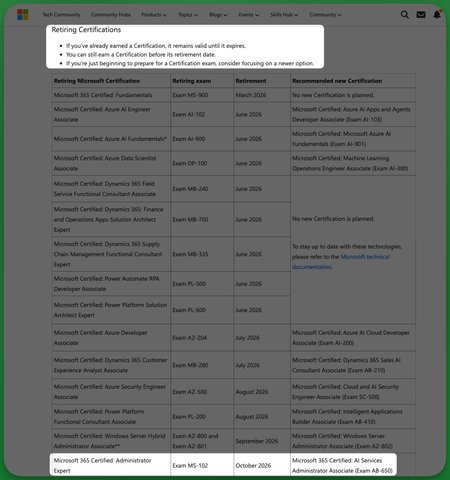
TL;DR: I don't think you should retire the MS-102 as it really is a big downgrade losing and expert M-365 administor certification just for it to be replaced by an unrelated and under leveled AI Services administrator one. Hello community, This is my first post and I think it's a good time to open a thread to share some feedback about the retirement of the MS-102 exam and certification and I encourage others learners and users to do the same. For those who don't know It was announced last June 25th that exam MS-102 and Microsoft 365 Certified: Administrator Expert are retiring October 2026 replaced by AB-650 Microsoft 365 Certified: AI Services Administrator Associate, exam beta on July 26. You can check the announcement here: https://techcommunity.microsoft.com/blog/skills-hub-blog/microsoft-credentials-roundup-june-2026/4528350?WT.mc_id=studentamb_165290 I was shocked to read that because last week I scheduled my exam and I didn't see any notice about future retirement. I just rechecked today and there isn't still any update on the retirement on the MS-102 cert or exam pages: Cert page: https://learn.microsoft.com/en-us/credentials/certifications/m365-administrator-expert/ Exam page: https://learn.microsoft.com/en-us/credentials/certifications/exams/ms-102/ So even today, lot's of users are scheduling the MS-102 exam right now without knowing that it is expected to be retired soon I think's it's a weird move to retire an expert Microsoft 365 administrator certification just for it to be replaced by just an associate certifciation AI Services Administrator Associate. So we lose and expert certification abount managing M365 and we can only get an associate certification about AI services in it's place I think it would've better to have AB-650 as an additional certification, maybe even a prerequisite for the M365 Administrator Expert just like MS-700 or the SC-401 Lot's of recruitments department look for expertise about managing M365 and MS-102 take a big part on lot's of admins resumes to provee their knowledge about managing M365, so we won't only lose a cert or exam, we lose a way to prove knowledge about managing M365 at an expert level. I've read lot's of users complaining about this retirement and I hope you could get feedback about it and rearrange this move. Thank you for reading.8.3KViews63likes65CommentsThe AI job boom is here. Are you ready to showcase your skills?
AI isn’t just changing jobs descriptions, it’s redefining how work gets done across every industry, role, and skill level. From marketing to manufacturing, AI is reshaping workflows, speeding up decisions, and opening entirely new career paths. And the impact is massive. According to the World Economic Forum The Future of Jobs Report 2025, advances in AI and tech could create 78 million new jobs by 2030. “We’re in the middle of a once‑in‑a‑generation shift in how work gets done,” says Elisa Graceffo, General Manager of Global Skilling at Microsoft. “For over 30 years, Microsoft Certifications have set the benchmark for skills validation. We’re evolving them as fast as roles are changing so you can prove your skills for the future of work.” To keep pace with this shift, we’re launching a new wave of Certifications designed for AI‑powered roles, from entry level to advanced, from developers and data pros to business professionals. These new Certifications reflect the major industry drivers shaping today’s workplace, including the rise of generative AI and autonomous agents and the emergence of integrated cloud and AI systems. They also highlight how business professionals are evolving into orchestrators of AI‑powered workflows and innovation. And because AI is ultimately a force that amplifies human capability, these Certifications can help ensure that your skills stay relevant, practical, and aligned with the real‑world work of 2026 and beyond. What’s new in cloud, AI, and security Certifications The new Certification exams roll out in beta beginning this month, with additional releases following over the next few months and are expected to go live later this year. The Microsoft Certified: Machine Learning Operations Engineer Associate Certification is ideal for professionals who deploy, operationalize, and maintain machine learning and generative AI solutions in production to automate, govern, deploy, monitor, and optimize performance. Exam AI-300 beta and training available in March 2026; exam expected to go live in May 2026. The Microsoft Certified: Azure Databricks Data Engineer Associate Certification covers designing and implementing scalable, secure data pipelines by using Azure Databricks. It’s intended for data professionals who want to build real-time analytics and AI-ready data foundations in the cloud. Exam DP-750 beta and training available in March 2026; exam expected to go live in May 2026. The Microsoft Certified: SQL AI Developer Associate Certification validates your ability to integrate AI into modern database solutions with governance and DevOps practices. It’s designed for developers who want to build intelligent, AI-augmented database applications. Exam DP-800 beta and training available in March 2026; exam expected to go live in May 2026. The Microsoft Certified: Azure AI Fundamentals Certification explores how you can build modern AI apps and agents by using Microsoft Foundry. It’s ideal for beginners who want to build AI applications on Microsoft platforms. Exam AI-901 beta available in April 2026; training expected to be available in March 2026; exam expected to go live in June 2026. The Microsoft Certified: Azure AI Apps and Agents Developer Associate Certification aligns with today’s generative and agentic architectures for planning and managing AI resources in Microsoft Foundry, building generative apps and multistep reasoning workflows, and developing production‑ready agents with multi‑agent orchestration capabilities. Exam AI-103 beta available in April 2026; training expected to be available in March 2026; exam expected to go live in June 2026. The Microsoft Certified: Cybersecurity Business Professional Certification validates your ability to recognize security risks, apply secure practices, and make informed business decisions that reduce organizational exposure while enabling productivity and AI adoption. Exam SC-730 beta available in May 2026; training expected to be available in May 2026; exam expected to go live in July 2026. The Microsoft Certified: Azure AI Cloud Developer Associate Certification is designed for developers who want to validate their ability to build, integrate, and monitor AI solutions on Azure by using containerized compute, vector-enabled databases, event-driven AI pipelines, serverless functions, secret management, and distributed observability. Exam AI-200 beta and training expected to be available in May 2026; exam expected to go live in July 2026. The Microsoft Certified: Cloud and AI Security Engineer Associate Certification expands the security role to include cloud and AI model protection. Prove that you can design and implement secure environments for building and running AI solutions by using current security patterns and controls in enterprise deployments. Exam SC-500 beta available in May 2026; training and exam expected to be available in July 2026. The Microsoft Certified: Windows Server Administrator Associate Certification combines previous hybrid infrastructure tracks to validate skills across Azure and on-premises environments. Exam AZ-802 beta available in July 2026; training and exam expected to be available in August 2026. Retiring Certifications: What you need to know As we introduce new Certifications aligned to evolving AI roles, we’re also retiring several existing ones. The following table itemizes what’s changing and provides key dates for Certification and training retirements in 2026. If your Certification is eligible for renewal, please renew it before the retirement date. Retiring Microsoft Certification Certification retirement date Training retirement date* Replacement Certification Azure Data Scientist Associate (Exam DP-100) June 1, 2026 April 2026 Machine Learning Operations Engineer Associate (Exam AI-300) Azure AI Fundamentals (Exam AI-900) June 30, 2026 April 2026 Azure AI Fundamentals (Exam AI-901) Azure AI Engineer Associate (Exam AI-102) June 30, 2026 April 2026 Azure AI Apps and Agents Developer Associate (Exam AI-103) Azure Developer Associate (Exam AZ-204) July 31, 2026 May 2026 Azure AI Cloud Developer Associate (Exam AI-200) Azure Security Engineer Associate (Exam AZ-500) August 31, 2026 August 2026 Cloud and AI Security Engineer Associate (Exam SC-500) Windows Server Hybrid Administrator (Exam AZ-800 and Exam AZ-801) September 2026* September 2026 Windows Server Administrator Associate (Exam AZ-802) * Planned dates Navigating the transition: FAQs The following questions and answers can help you determine how these retirements and expanded portfolio could impact your learning journey: Q. I’ve already earned one of the retiring Certifications. What happens now? A. If you’ve already earned any of the retiring Certifications, your credential remains valid and, on your transcript, until it expires. Retirement does not revoke or invalidate Certifications that were earned. Q. Can I still renew a soon-to-retire Certification? A. Yes, as long as it’s eligible for renewal and you renew it before the Certification officially retires. Fundamentals Certifications don’t expire. Q. I’m preparing for an exam that’s retiring. What should I do? If you’re actively preparing for an exam that’s retiring: If you’ve already registered for the exam, you may continue preparing for it and take it while it’s still available. Keep in mind that after the exam retires, you won’t be able to retake it if you don’t pass, and you won’t be able to renew it. If you haven’t registered for the exam, we strongly recommend that you prepare for and take the new exam instead, as noted in the following table. If you’re not close to testing for this exam Prepare for and take this exam instead Learning path and instructor-led training expected to be available in Exam DP-100 Exam AI-300 March 2026 Exam AI-900 Exam AI-901 March 2026 Exam AI-102 Exam AI-103 March 2026 Exam AZ-204 Exam AI-200 May 2026 Exam AZ-500 Exam SC-500 July 2026 Exam AZ-800 and Exam AZ-801 Exam AZ-802 August 2026 Take the next step: Build your AI-ready skill set Technology is changing fast, and AI is accelerating that change. Our Certifications are built to help you and your organization stay ahead with job‑ready skills. Earning one isn’t just a milestone, it’s a signal that you’re ready to grow with the future of work. We’ll share updates for each new Certification, including beta exams and go live dates, on The Skills Hub Blog. Stay tuned for an announcement of new Certifications focused on AI business solutions in the coming month. Explore more Microsoft Credentials on AI Skills Navigator.587KViews51likes270Comments
Alternatives After the Deprecation of the Azure SQL Migration Extension in Azure Data Studio
The Azure SQL Migration extension for Azure Data Studio is being deprecated and will be retired by February 28, 2026. As part of our unified and streamlined migration strategy for Azure SQL, we are consolidating all migration experiences into a consistent, scalable platform. If you are currently using the Azure SQL Migration extension, this blog will guide you through recommended replacement options for every phase of migration, whether you are moving to Azure SQL Managed Instance, SQL Server on Azure Virtual Machines, or Azure SQL Database. What is happening to the Azure SQL Migration extension in ADS? As you already know, Azure data studio will officially retire on February 28, 2026. The Azure SQL Migration extension in Azure Data Studio will also retire along with Azure Data Studio on February 28, 2026. The Azure SQL Migration extension will no longer be available in the marketplace of Azure Data Studio. What should you use instead? Below is the updated guidance for the migration tool categorized by migration phase and target. 1) Pre‑Migration: Discovery & Assessments Prior to migration, it is advisable to evaluate the SQL Server environment for readiness and to determine the right-sized Azure SQL SKU. Below are the recommended options: A) SQL Server enabled by Azure Arc Use the SQL Server migration experience in the Azure Arc portal for: Instance discovery at scale Migration assessments at scale, including: Readiness assessment for all Azure SQL targets. Performance-based, right-sized target recommendations. Projected Azure costs with the recommended target configuration. Reference: Steps to get started with the Azure Arc assessments- Deploy Azure Arc on your servers. SQL Server instances on Arc-enabled servers are automatically connected to Azure Arc. See options to optimize this. B) Automated assessments at scale using Azure DMS PowerShell and Azure CLI The Azure DataMigration modules in Azure PowerShell and Azure CLI can be used to automate assessments at scale. Learn more about how to do this. Here are the sample templates to automate the assessment workflow: Azure PowerShell DataMigration cmdlets DMS Azure CLI commands C) Azure Migrate For scenarios where assessments are required at data center level including different types of workloads like Applications, VM Servers and databases, use Azure Migrate to perform discovery and assessments at scale. Learn more about Azure Migrate. References: Review inventory Create SQL Assessment Review SQL Assessment 2) Migrations Based on the migration targets, here are the recommended tools you can use to carry out the migration: A. To Azure SQL Managed Instance The following options are available for migrating data to Azure SQL Managed Instance: 1. SQL Migration experience in Azure Arc For migrations to Azure SQL MI, leverage the streamlined SQL Migration experience in Azure Arc which lets you complete the end-to-end migration journey in a single experience. This experience provides: Evergreen assessments and right-fit Azure SQL target recommendation. Inline Azure SQL Target creation. Free Azure SQL MI Next generation General Purpose service that lets you experience the power of Azure SQL MI for free for 12 months. Near zero downtime migration using Managed Instance link powered by Distributed Availability Group technology. Secure connectivity. Reference blog: SQL Server migration in Azure Arc 2. Automated migration at scale using Azure DMS PowerShell and Azure CLI To Orchestrate migrations to Azure SQL MI at scale programmatically, use: DMS PowerShell cmdlets DMS Azure CLI commands Learn more about how to do this. B. To SQL Server on Azure Virtual Machines To migrate to SQL Server on Azure Virtual Machines, use: 1. Azure Database Migration Service (DMS) DMS supports migrating to SQL Server on Azure Virtual Machines using both online and offline methods. Your SQL Server backups can be in Azure Blob Storage or on a network SMB file share. For details on each option, see: Backups stored in Azure Blob Storage Backups maintained on network SMB file shares Note: The migration experience from SQL Server on-premises to SQL Server on Azure VM will soon be available in SQL Server enabled by Azure Arc. 2. Automated migration at scale using Azure DMS PowerShell and Azure CLI For programmatic migrations to Azure SQL Virtual Machines: DMS PowerShell cmdlets DMS Azure CLI commands Learn more about how to do this. 3. SSMS option: SQL Server Management Studio (SSMS) migration component If you can connect to both SQL Server on-premises and SQL Server running on Azure VM using SQL Server Management Studio, the migration component in SSMS can help you to migrate to SQL Server on Azure VM. For details, see SSMS Migration component. C. To Azure SQL Database Migrating a SQL Server database to Azure SQL Database typically involves migrating schema and data separately. Here are the options to perform offline and online migration to Azure SQL Database: 1. Offline migration to Azure SQL Database a. Azure Database Migration Service (DMS) portal experience Use Azure DMS portal to migrate both schema and data. Azure DMS uses Azure Data Factory and leverages the Self-hosted Integration Runtime (SHIR). Installation steps are here. b. Automated migration at scale using Azure DMS PowerShell and Azure CLI Use Azure DMS PowerShell and Azure CLI command line to orchestrate the schema and data migration to Azure SQL Database at scale: DMS PowerShell cmdlets DMS Azure CLI commands Learn more about how to do this. 2. Online migration to Azure SQL Database Using Striim To enable online migration of your mission critical databases to Azure SQL Database leverage Striim. Microsoft and Striim have entered a strategic partnership to enable continuous data replication from off-Azure SQL Servers to Azure SQL Database with near-zero downtime. For more details, refer to: Zero downtime migration from SQL Server to Azure SQL Database | Microsoft Community Hub Removing barriers to migrating databases to Azure with Striim’s Unlimited Database Migration program... To leverage the Striim program for migrations, please reach out to your Microsoft contact or submit the below feedback to get started. Summary The table below provides a summary of the available alternatives for each migration scenario. Migration Scenario Guided experience Automation experience Pre-Migration (Discovery + Assessment) SQL Migration experience in Azure Arc / Azure Migrate DMS PowerShell / Azure CLI To Azure SQL Managed Instance SQL Migration experience in Azure Arc DMS PowerShell / Azure CLI To SQL Server on Azure Virtual Machine DMS Azure Portal / SSMS migration component DMS PowerShell / Azure CLI To Azure SQL Database DMS Azure portal (offline & schema migration) / Striim (online migration) DMS PowerShell / Azure CLI (offline & schema migration) Final Thoughts Simplify your SQL migration journey and improve migration velocity to all Azure SQL targets, leverage the connected migration experiences in SQL Server enabled by Azure Arc, DMS, and SSMS. For SSMS, as a first step we brought the capabilities to perform assessment and migration to higher versions of SQL Server including to SQL Server on Azure Virtual Machines. As a next step, we are bringing cloud migration capabilities as well into SSMS. Feedback We love hearing from our customers. If you have feedback or suggestions for the product group, please use the following form: Feedback form As you begin your migration to Azure, we welcome your feedback. If you do not see suitable alternatives for any migration phases, use the feedback form to let us know so we can update the options accordingly.2.7KViews1like0CommentsAnnouncing retirement of Microsoft Data Migration Assistant (DMA) Tool
Announcement As part of our ongoing commitment to deliver streamlined and modern migration solutions, Microsoft regularly evaluates its tools and services to ensure they meet evolving customer needs. In line with this effort, we are announcing the retirement of the Microsoft Data Migration Assistant (DMA) tool, effective July 16, 2025. After this date, the DMA tool will no longer be available for download from the Microsoft Download Center. Important Dates Announcement date: June 16, 2025 Retirement date: July 16, 2025 Alternative Options for Migration and Assessment As DMA reaches the end of its lifecycle, customers are encouraged to leverage alternative tools and features for assessment and data migration. Below, we outline the alternatives: Upgrade to higher version of SQL Server If you are seeking to upgrade to higher versions of SQL Server you can now use the new Migration component integrated into SQL Server Management Studio (SSMS). For detailed steps please see documentation for version upgrade using SSMS here: https://learn.microsoft.com/ssms/migrate-sql-server-component Migration to Azure SQL If you relied on DMA for assessments and migration to Azure SQL you have several options: SQL Server enabled by Azure Arc (Assessments) In addition to all the core benefits of enabling Azure Arc, SQL Server enabled by Azure Arc also provides automatic migration assessments that are continuously updated on a weekly schedule by default. See more details of the continuous Migration Assessment in SQL Server enabled by Azure Arc here : https://learn.microsoft.com/sql/sql-server/azure-arc/migration-assessment Azure Database Migration Service (DMS) automation using Azure Powershell and Azure CLI You can use the datamigration module in Azure PowerShell and Azure CLI to perform assessments and migration. The ability to script and automate enables migration factory pattern approaches. See the documentation for automating assessments and migrations here : https://learn.microsoft.com/ azure/dms/migration-dms-powershell-cli. You can also find more information and sample scripts here: https://github.com/Azure-Samples/data-migration-sql Azure Portal Azure Migrate (Assessments) For large scale assessments such as datacenter exit scenarios, the Azure Migrate provides SQL Assessment at scale. Deploying the Azure Migrate appliance facilitates discovery, assessment, and business case evaluation at large scale for not just SQL Server but many other workloads as well. Learn more about SQL assessments in Azure Migrate here: https://learn.microsoft.com/en-us/azure/migrate/how-to-create-azure-sql-assessment Azure Database Migration Service (Migration) For SQL Server migration to Azure SQL offerings, you can use the Azure Database Migration Service (DMS). This service supports migration to all Azure SQL offerings. For example, see how you can migrate to Azure SQL DB using DMS portal here : https://learn.microsoft.com/data-migration/sql-server/database/database-migration-service?tabs=portal. Additional Information Azure Data Studio is on the deprecation path and we are building the replacement assessment and migration experiences in SQL Server Management Studio (SSMS) 1 . Till then, for smaller scale scenarios, you can continue to use the Azure SQL Migration extension in Azure Data Studio (ADS) for assessment and migration to Azure SQL. Learn more about Azure SQL Assessment and Migration in Azure Data Studio here: https://learn.microsoft.com/azure-data-studio/extensions/azure-sql-migration-extension For more details and detailed migration guides, refer to the Azure SQL Migration Guide here: https://learn.microsoft.com/en-us/data-migration/sql-server/overview Next Steps We encourage you to begin transitioning to alternative migration tools and solutions well ahead of the DMA tool's retirement date (July 16, 2025). This will ensure smooth continuity in your migration and assessment workflows. Thank you for your understanding and cooperation during this transition. Disclaimer The information provided in this announcement is for general informational purposes only and reflects Microsoft’s current plans as of the announcement date. All product features, timelines, and retirement schedules are subject to change without notice. Users are responsible for verifying the accuracy of product capabilities and ensuring that all migration activities are conducted in accordance with applicable technical documentation and licensing terms. Microsoft does not guarantee the performance or availability of any third-party tools or scripts referenced herein. For the most up-to-date guidance, please refer to official Microsoft documentation and support channels. References Version upgrade assessment in SSMS: https://learn.microsoft.com/ssms/migrate-sql-server-component General Availability of SQL Server Migration Component in SSMS: General Availability of SQL Server Migration Component in SSMS 21 | Microsoft Community Hub Azure SQL Assessment and Migration in ADS: https://learn.microsoft.com/azure-data-studio/extensions/azure-sql-migration-extension Continuous Migration Assessment in SQL Server enabled by Azure Arc: https://learn.microsoft.com/sql/sql-server/azure-arc/migration-assessment Automate assessment and migration using datamigration modules: https://learn.microsoft.com/en-us/azure/migrate/how-to-create-azure-sql-assessment Sample scripts for Azure SQL Assessment and Migration using Azure Powershell and CLI: https://github.com/Azure-Samples/data-migration-sql SQL Assessment in Azure Migrate: https://learn.microsoft.com/en-us/azure/migrate/how-to-create-azure-sql-assessment Migration to Azure SQL Database using Azure Database Migration Service Portal: https://learn.microsoft.com/data-migration/sql-server/database/database-migration-service?tabs=portal Azure SQL Migration Guide: https://learn.microsoft.com/en-us/data-migration/sql-server/overview13KViews1like6CommentsRetirement and FIRE Estimators
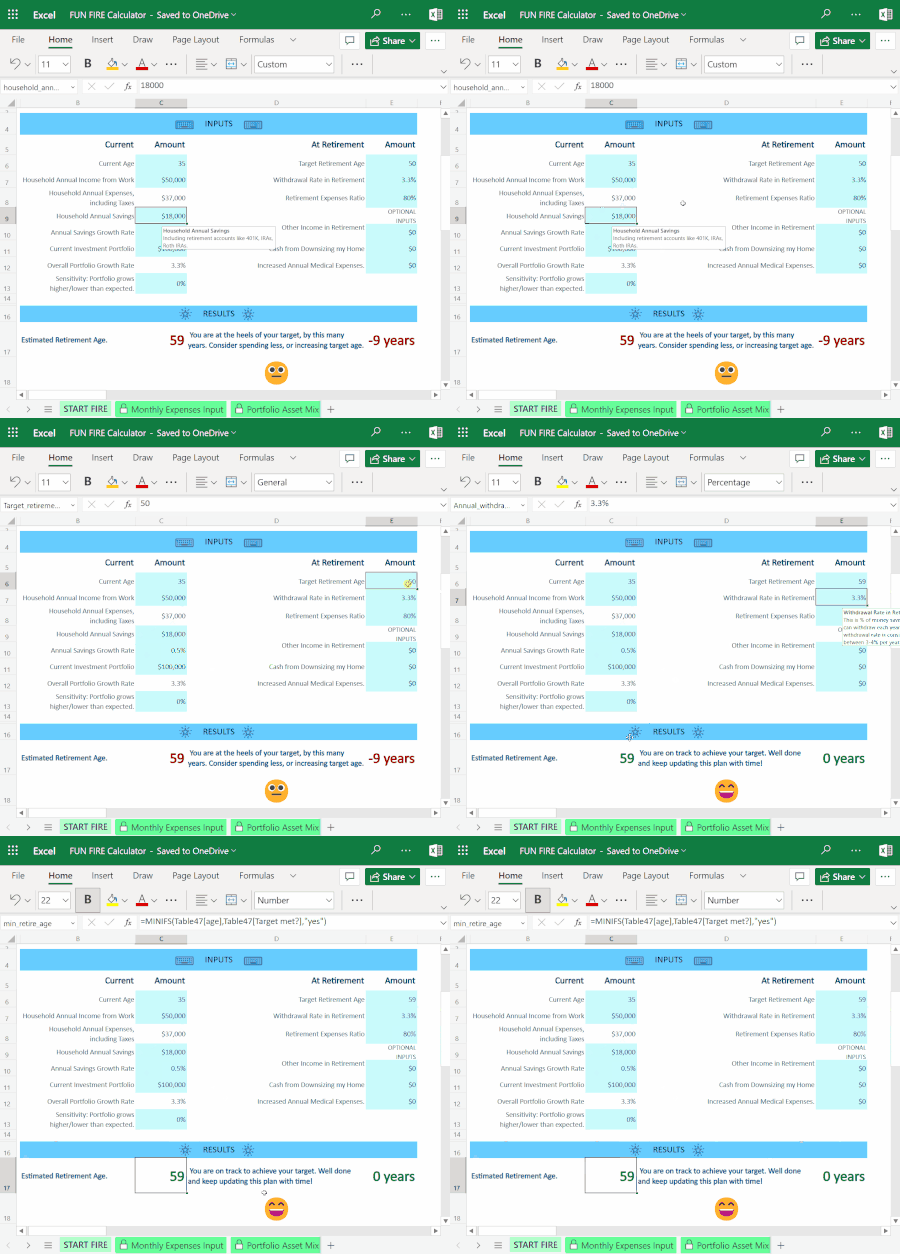
Pondering over your family finances during tax season? Or do you simply love planning and dreaming for the future? For some people, that means budgeting, planning for a regular retirement or FIRE (early retirement). Excel has templates and estimators for all three scenarios.71KViews5likes6CommentsMicrosoft Signals the End for Exchange Web Services
On September 19, 2023 Microsoft announced their intention to retire the Exchange Web Services API on 1 October 2026. The suggested replacement is the Microsoft Graph API. Microsoft acknowledges that some gaps exist that they need to close before EWS retirement happens, but one big issue they didn’t discuss is what happens to the backup products that currently use EWS to backup Exchange Online. https://office365itpros.com/2023/09/20/exchange-web-services-retire/3.4KViews0likes0Comments