remediation
49 TopicsIntegrating Proofpoint and Mimecast Email Security with Microsoft Sentinel
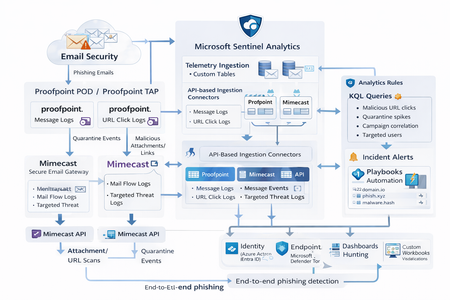
Microsoft Sentinel can ingest rich email security telemetry from Proofpoint and Mimecast to power advanced phishing detection. The Proofpoint On Demand (POD) Email Security and Proofpoint Targeted Attack Protection (TAP) connectors pull threat logs (quarantines, spam, phishing attempts) and user click data into Sentinel. Similarly, the Mimecast Secure Email Gateway connector ingests detailed mail flow and targeted-threat logs (attachment/URL scans, impersonation events). These integrations use Azure-hosted ingestion (via Logic Apps or Azure Functions) and the new Codeless Connector framework to call vendor APIs on a schedule. The result is a consolidated dataset in Sentinel’s Log Analytics, enabling correlated alerting and hunting across email, identity, and endpoint signals. Figure: Phishing emails are processed by Mimecast’s gateway and Proofpoint POD/TAP services. Security logs (delivery/quarantine events, malicious attachments/links, user clicks) flow into Microsoft Sentinel. In Sentinel, these mail signals are correlated with identity (Azure AD), endpoint (Defender) and network telemetry for end-to-end phishing detection. Proofpoint POD (Email Protection) Connector The Proofpoint POD connector ingests core email protection logs. It creates two tables, ProofpointPODMailLog_CL and ProofpointPODMessage_CL. These logs include per-message metadata (senders, recipients, subject, message size, timestamps), threat scores (spamScore, phishScore, malwareScore, impostorScore), and attachment details (number of attachments, names, hash values and sandbox verdicts). Quarantine actions are recorded (quarantine folder/rule) and malicious indicators (URL or file hash) and campaign IDs are tagged in the threatsInfoMap field. For example, each ProofpointPODMessage_CL record may carry a sender_s (sender email domain hashed), recipient list, subject, and any detected threat type (Phish/Malware/Spam/Impostor) with associated threat hash or URL. Deployment: Proofpoint POD uses Sentinel’s codeless connector (an Azure Function behind the scenes). You must provide Proofpoint API credentials (Cluster ID and API token) in the connector UI. The connector periodically calls the Proofpoint SIEM API to fetch new log events (typically in 1–2 hour batches). The data lands in the above tables. (Older custom logic-app approaches similarly parse JSON output from the /v2/siem/messages endpoints.) Proofpoint TAP (Targeted Attack Protection) Connector Proofpoint TAP provides user-click and message-delivery events. Its connector creates four tables: ProofPointTAPMessagesDeliveredV2_CL, ProofPointTAPMessagesBlockedV2_CL, ProofPointTAPClicksPermittedV2_CL, and ProofPointTAPClicksBlockedV2_CL. The message tables report emails with detected threats (URL or attachment defense) that were delivered or blocked by TAP. They include the same fields as POD (message GUID, sender, recipients, subject, threat campaign ID, scores, attachments info). The click tables log when users click on URLs: each record has the URL, click timestamp (clickTime), the user’s IP (clickIP), user-agent, the message GUID, and the threat ID/category. These fields allow you to see who clicked which malicious link and when. As the connector description notes, these logs give “visibility into Message and Click events in Microsoft Sentinel” for hunting. Deployment: The TAP connector also uses the codeless framework. You supply a TAP API service principal and secret (proofpoint SIEM API credentials) in the Sentinel content connector. The function app calls TAP’s /v2/siem/clicks/blocked, /permitted, /messages/blocked, and /delivered endpoints. The Proofpoint SIEM API limits queries to 1-hour windows and 7-day history, with no paging (all events in the interval are returned). (A Logic App approach could also be used, as shown in the Tech Community blog: one HTTP GET per event type and a JSON Parse before sending to Log Analytics.) Mimecast Secure Email Gateway Connector The Mimecast connector ingests the Secure Email Gateway (SEG) logs and targeted-threat (TTP) logs. Inbound, outbound and internal mail events from the Mimecast MTA (receipt, processing, delivery stages) are pulled via the API. Typical fields include the unique message ID (aCode), sender, recipient, subject, attachment count/names, and the policy actions or holds (e.g. spam quarantine). For example, the Mimecast “Process” log shows AttCnt, AttNames, and if the message was held (Hld) for review. Delivery logs include the success/failure and TLS details. In addition, Mimecast TTP logs are collected: URL Protect logs (when a user clicks a blocked URL) include the clicked URL (url), category (urlCategory), sender/recipient, and block reason. Impersonation Protect logs capture spoofing detections (e.g. if an internal name is impersonated), with fields like Sender, Recipient, Definition and Action (hold/quarantine). Attachment Protect logs record malicious file detections (filename, hash, threat type). Deployment: Like Proofpoint, Mimecast’s connector uses Azure Functions via the Sentinel content hub. You install the Mimecast solution, open the connector page, then enter Azure app credentials and Mimecast API keys (API Application ID/Key and Access/Secret for the service account). As shown in the deployment guide, you must provide the Azure Subscription, Resource Group, Log Analytics Workspace and the Azure Client (App) ID, Tenant ID and Object ID of the admin performing the setup. On the Mimecast side, you supply the API Base URL (regional), App ID/Secret and user Access/Secret. The connector creates a Function App that polls Mimecast’s SIEM APIs on a cron schedule (default every 30 minutes). You can optionally specify a start date for backfilling up to 7 days of logs. The default tables are MimecastSIEM_CL (for email flow logs) and MimecastDLP_CL (for DLP/TTP events), though custom names can be set. Ingestion Considerations Data Latency: All these connectors are pull-based and typically run on a schedule (often 30–60 minutes). For example, the Proofpoint POD docs note hourly log increments, and Mimecast logs are aggregated every 30 minutes. Expect a delay of up to an hour or more from event occurrence to Sentinel ingestion. Schema Nuances: The APIs often return nested arrays and optional fields. For instance, the Proofpoint blog warns that some JSON fields can be null or vary in type, so the parse schema should account for all possibilities. Similarly, Mimecast logs come in pipe-delimited or JSON format, with values sometimes empty (e.g. no attachments). In KQL, use tostring() or parse_json() on the raw _CL columns, and mv-expand on any multivalue fields (like message parts or threat lists). Table Names: Use the connector’s tables as listed. For Proofpoint: ProofpointPODMailLog_CL and ProofpointPODMessage_CL; for TAP: ProofPointTAPMessagesDeliveredV2_CL, ProofPointTAPMessagesBlockedV2_CL, ProofPointTAPClicksPermittedV2_CL, ProofPointTAPClicksBlockedV2_CL. For Mimecast SEG/TTP: MimecastSIEM_CL (seg logs) and MimecastDLP_CL (TTP logs). API Behavior: The Proofpoint TAP API has no paging. Be aware of timezones (Proofpoint uses UTC) and use the Sentinal ingestion TimeGenerated or event timestamp fields for binning. Detection Engineering and Correlation To detect phishing effectively, we correlate these email logs with identity, endpoint and intel data: Identity (Azure AD): Mail logs contain recipient addresses and (hashed) sender user parts. A common tactic is to correlate SMTP recipients or sender domains with Azure AD user records. For example, join TAP clicks by recipient to the user’s UPN. The Proofpoint logs also include the clicker’s IP (clickIP); we can match that to Azure AD sign-in logs or VPN logs to find which device/location clicked a malicious link. Likewise, anomalous Azure AD sign-ins (impossible travel, MFA failure) after a suspicious email can strengthen the case. Endpoints (Defender): Once a user clicks a bad link or opens a malicious attachment (captured in TAP or Mimecast logs), watch for follow-on behaviors. For instance, use Sentinel’s DeviceSecurityEvents or DeviceProcessEvents to see if that user’s machine launched unusual processes. The threatID or URL hash from email events can be looked up in Defender’s file data. Correlate by username (if available) or IP: if the email log shows a link click from IP X, see if any endpoint alerts or logon events occurred from X around the same time. As the Mimecast integration touts, this enables “correlation across Mimecast events, cloud, endpoint, and network data”. Threat Intelligence: Use Sentinel’s ThreatIntelligenceIndicator tables or Microsoft’s TI feeds to tag known bad URLs/domains in the email logs. For example, join ProofPointTAPClicksBlockedV2_CL on the clicked url against ThreatIntelligenceIndicator (type=URL) to automatically flag hits. Proofpoint’s logs already classify threats (malware/phish) and provide a threatID; one can enrich that with external intel (e.g. check if the hash appears in TI feeds). Mimecast’s URL logs include a urlCategory field, which can be mapped to known malicious categories. Automated playbooks can also pull Intel: e.g. use Sentinel’s TI REST API or Azure Sentinel watchlists containing phishing domains to annotate events. In summary, a robust detection strategy might look like: (1) Identify malicious email events (high phish scores, quarantines, URL clicks). (2) Correlate these events by user with Azure AD logs (did the user log in from a new IP after a phish click?). (3) Correlate with endpoint alerts (Defender found malware on that device). (4) Augment with threat intelligence lookups on URLs and attachments from the email logs. By linking the Proofpoint/Mimecast signals to identity and endpoint events, one can detect the full attack chain from email compromise to endpoint breach. KQL Query Here are representative Kusto queries for common phishing scenarios (adapt table/field names as needed): Malicious URL Click Detection: Identify users who clicked known-malicious URLs. For example, join TAP click logs to TI indicators:This flags any permitted click where the URL matches a known threat indicator. Alternatively, aggregate by domain: let TI = ThreatIntelligenceIndicator | where Active == true and _EntityType == "URL"; ProofPointTAPClicksPermittedV2_CL | where url_s != "" | project ClickTime=TimeGenerated, Recipient=recipient_s, URL=url_s, SenderIP=senderIP_s | join kind=inner TI on $left.URL == TI._Value | project ClickTime, Recipient, URL, Description=TI.Description This flags any permitted click where the URL matches a known threat indicator. Alternatively, aggregate by domain: ProofPointTAPClicksPermittedV2_CL | extend clickedDomain = extract(@"https?://([^/]+)", 1, url_s) | summarize ClickCount=count() by clickedDomain | where clickedDomain has "maliciousdomain.com" or clickedDomain has "phish.example.com" Quarantine Spike (Burst) Detection: Detect sudden spikes in quarantined messages. For example, using POD mail log:This finds hours with an unusually high number of held (quarantined) emails, which may indicate a phishing campaign. You could similarly use ProofPointTAPMessagesBlockedV2_CL. ProofpointPODMailLog_CL | where action_s == "Held" | summarize HeldCount=count() by bin(TimeGenerated, 1h) | order by TimeGenerated desc | where HeldCount > 100 Targeted User Phishing: Find if a specific user received multiple malicious emails. E.g., for user email address removed for privacy reasons:This lists recent phish attempts targeting Username. You might also join with TAP click logs to see if she clicked anything. ProofpointPODMessage_CL | where recipient has "email address removed for privacy reasons" | where array_length(threatsInfoMap) > 0 and threatsInfoMap_classification_s == "Phish" | project TimeGenerated, sender_s, subject_s, threat=threatsInfoMap_threat_s Campaign-Level Analysis: Group emails by Proofpoint campaign ID to see scope of each campaign:This shows each campaign ID with how many unique recipients were hit and one example subject. Combining TAP and POD tables on GUID_s or QID_s can further link click events back to the originating message/campaign. ProofpointPODMessage_CL | mv-expand threatsInfoMap | summarize Recipients=make_set(recipient), Count=dcount(recipient) by CampaignID=threatsInfoMap_campaignId_s | project CampaignID, RecipientCount=Count, Recipients, SampleSubject=any(subject_s) Each query can be refined (for instance, filtering only within a recent time window) and embedded in Sentinel Analytics rules or hunting. The key is using the connectors’ fields – URLs, sender/recipient addresses, campaign IDs – to pivot between email data and other security signals.2.2KViews8likes1CommentIdentity Attack Graph in Microsoft Sentinel
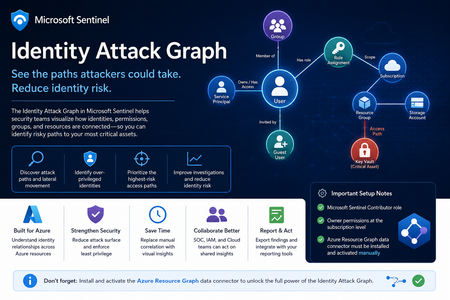
Identity is now one of the most important attack surfaces in cloud security. In many real-world incidents, attackers do not rely only on malware or network movement. Instead, they abuse identities, permissions, role assignments, group memberships, service principals, and misconfigured access paths to move from an initial compromise to high-value resources. This is why the new Identity Attack Graph in Microsoft Sentinel is an important capability. It helps security teams visualize how identities are connected to Azure resources and how an attacker could potentially move from one identity to another resource through permissions and relationships. What is the Identity Attack Graph? The Identity Attack Graph in Microsoft Sentinel provides a visual way to understand how identities, permissions, groups, and Azure resources are connected. Instead of manually checking multiple portals, logs, and role assignments, the graph helps analysts understand relationships such as: Which identities have access to specific Azure resources Which users or service principals are over-privileged Which groups provide indirect access to sensitive resources Which identities may have a path to critical assets What the potential blast radius of a compromised identity could be How attackers could move laterally through identity and permission relationships This is especially useful because identity risk is often not obvious when looking at a single user, group, or role assignment in isolation. The real risk usually appears when these relationships are connected together. A user may not directly have access to a sensitive resource, but the user may be a member of a group that has access to another resource, which then has permissions that create a path toward a high-value asset. The Identity Attack Graph helps expose these hidden relationships. Why this matters In many Azure environments, permissions grow over time. Users change roles, groups are reused, emergency access is granted, service principals are created, and temporary permissions are not always removed. As a result, organizations often end up with: Too many privileged identities Unused or stale permissions Service principals with excessive access Guest users with unnecessary permissions Groups that provide indirect access to sensitive resources Subscription-level roles that are broader than required Lack of visibility into who can reach critical assets Traditional investigation usually requires analysts to move between several places, including Microsoft Entra ID, Azure RBAC, Azure Activity logs, Sentinel queries, Defender XDR, and Azure Resource Graph. The Identity Attack Graph reduces this complexity by presenting identity relationships as a connected graph. This makes it easier to answer practical security questions such as: “What can this identity access?” “What happens if this user is compromised?” “Which identities have a path to critical resources?” “Which access path should we remediate first?” “Which permissions create the highest risk?” “Why does this identity have access to this asset?” Key use cases The feature can support several important identity security and cloud security scenarios. 1. Attack path discovery Security teams can use the graph to identify how an attacker could move from a compromised identity to a sensitive Azure resource. This is useful during both proactive assessments and active incident response. For example, if a user account is suspected to be compromised, the graph can help identify which resources may be reachable through that identity’s direct or indirect permissions. 2. Blast-radius analysis When an identity is compromised, one of the first questions is: What could the attacker access with this identity? The Identity Attack Graph can help analysts understand the potential impact of a compromised user, group, service principal, or managed identity. This can help with containment, prioritization, and communication with stakeholders. 3. Over-privileged identity detection The graph can help identify identities that have more permissions than they need. Include: Users with Owner or Contributor access at subscription level Service principals with broad permissions Guest users with privileged access Groups that grant access to sensitive resources Identities that have access to multiple critical assets This is useful for enforcing least privilege and reducing identity attack surface. 4. Privileged access review IAM and cloud security teams can use the graph to support access reviews. Instead of only reviewing a list of role assignments, teams can understand the real impact of those permissions. This helps answer: Is this role assignment still required? Does this group create unnecessary risk? Does this identity have access to critical resources? Is this access direct or inherited? Is this path expected or suspicious? 5. Incident response and threat hunting For SOC teams, the graph can support investigations involving: Suspicious sign-ins Compromised users Privilege escalation Suspicious role assignments Lateral movement Service principal abuse Unusual access to sensitive resources The graph does not replace logs or hunting queries, but it gives analysts a faster way to understand relationships and prioritize what to investigate next. Important prerequisites and setup notes During my evaluation, there were a few important setup requirements that should be clearly highlighted. Microsoft Sentinel permissions The environment must already be onboarded to Microsoft Sentinel, and the user testing or configuring the feature must have the appropriate Microsoft Sentinel permissions. The documented role requirement includes Microsoft Sentinel Contributor. However, in my experience, this is not always enough for the full onboarding and validation experience. Subscription-level Owner permission One important prerequisite that should be clearly mentioned is that Owner permissions at the Azure subscription level may be required. This is especially important during onboarding and activation, because the graph depends on access to Azure resource and permission relationships. If the user does not have sufficient subscription-level permissions, some setup steps or visibility into resources and relationships may not work as expected. Recommended permission note: In addition to Microsoft Sentinel permissions, ensure that the user configuring the preview has Owner permissions at the subscription level for the subscriptions that should be represented in the graph. This should be made very clear in the onboarding documentation to avoid confusion during deployment. Required data connector: Azure Resource Graph Another very important setup step is the Azure Resource Graph data connector. The Azure Resource Graph connector must be: Installed manually Activated manually Connected to the relevant Sentinel workspace This is a key point. The connector is not automatically enabled just because the Identity Attack Graph feature is available. Without this connector, Sentinel may not have the required Azure resource relationship data needed to build a useful graph. Why Azure Resource Graph is important Azure Resource Graph provides visibility across Azure resources, subscriptions, and relationships. For an identity attack graph, this data is essential. The graph needs to understand not only identities, but also the resources those identities can reach. This may include: Subscriptions Resource groups Storage accounts Key Vaults Virtual machines Managed identities Role assignments Resource relationships Resource hierarchy Critical assets Without Azure Resource Graph data, the attack graph may not provide the full picture of how identities connect to Azure resources. For this reason, I believe the onboarding instructions should explicitly state: The Azure Resource Graph data connector must be manually installed and activated before using the Identity Attack Graph. Recommended onboarding checklist Before using the Identity Attack Graph, I would recommend validating the following: Requirement Recommendation Microsoft Sentinel workspace Ensure the workspace is active and accessible Sentinel role Microsoft Sentinel Contributor or equivalent access Subscription permissions Owner permissions at subscription level Azure Resource Graph connector Manually install and activate the connector Azure RBAC visibility Ensure access to relevant role assignments Microsoft Entra ID visibility Ensure identity and group data is available Resource visibility Validate that relevant subscriptions and resources are visible Data freshness Allow enough time for data collection and graph population This checklist can help avoid issues where the feature appears available but does not show the expected relationships. How the Identity Attack Graph improves investigation Before using a graph-based approach, an analyst often needs to manually collect and correlate data from multiple sources. A typical investigation may include: Checking the user in Microsoft Entra ID Reviewing group memberships Reviewing Azure RBAC assignments Checking subscription-level access Looking at resource-level permissions Reviewing PIM activations Searching Sentinel logs Running KQL queries Checking Azure Activity logs Validating access with cloud or IAM teams This process can be time-consuming. The Identity Attack Graph helps reduce this effort by showing relationships visually. This allows the analyst to understand the possible path faster and decide where to focus. For example, instead of manually asking: “Does this user have access to this resource through any group, role, or inherited permission?” The graph can help show the relationship directly. This is valuable because many risky permissions are indirect. The user may not have direct access, but may inherit access through a group, role assignment, nested relationship, or service principal path. Where validation is still needed Although the graph provides strong visibility, I would still validate findings before taking remediation action. This is especially important because removing access can affect business operations or production systems. I would still validate with: Microsoft Sentinel KQL queries Microsoft Entra sign-in logs Microsoft Entra audit logs Azure Activity logs Azure RBAC role assignments PIM activation history Defender XDR signals Defender for Cloud recommendations Azure Resource Graph queries IAM team input Cloud platform team input Application owner confirmation The graph is very useful for discovery and prioritization, but final remediation decisions should still be validated. GQL and graph-based investigation One of the interesting aspects of this feature is the use of graph-based thinking. Security teams are already familiar with query languages such as KQL for log analytics. However, graph investigation is different. KQL is excellent for searching and analyzing events over time, such as sign-ins, alerts, audit logs, and activity logs. Graph Query Language, or GQL, is designed for querying connected data. Instead of only asking what happened at a specific time, graph queries help answer how entities are connected. In identity security, this is very powerful because the risk often exists in the relationship between objects. Graph entities include: Users Groups Service principals Managed identities Roles Subscriptions Resource groups Azure resources Permissions Sessions Attack paths Graph relationships include: User is member of group Group has role assignment Identity has access to resource Service principal owns application Managed identity can access Key Vault User can escalate privilege Identity can reach critical asset This allows analysts to ask more relationship-focused questions, such as: Which identities can reach this resource? What is the shortest path from this user to a critical asset? Which groups create privileged access? Which service principals have paths to sensitive resources? Which identities have indirect access through nested relationships? Which attack paths include subscription Owner or Contributor permissions? KQL vs GQL: why both are useful KQL and GQL serve different but complementary purposes. Area KQL GQL / Graph Querying Main purpose Analyze logs and events Analyze relationships and paths Best for Time-based investigation Connected identity/resource investigation question “Did this user sign in from a risky location?” “What resources can this user reach?” Data model Tables Nodes and edges Common use Detection, hunting, analytics Attack path discovery, relationship mapping Strength Event correlation Path discovery In practice, security teams need both. KQL can identify a suspicious sign-in. The Identity Attack Graph can show what the compromised identity could access. KQL can then be used again to validate whether the attacker interacted with those resources. This creates a strong workflow between event-based detection and relationship-based investigation. Graph investigation scenarios The following are conceptual are the types of graph questions that would be useful in identity attack path analysis. Find paths from a user to critical resources A useful graph query would help answer: Show me all paths from this user to critical Azure resources. This could help determine whether a compromised identity has a direct or indirect route to sensitive assets. Find identities with paths to Key Vaults Key Vaults often contain secrets, certificates, and keys. A graph query could help identify: Which users, groups, service principals, or managed identities have a path to Key Vault resources? This would be useful for prioritizing access review and remediation. Find subscription-level privileged identities Subscription-level roles are high-impact because they can provide broad access. A graph query could help find: Which identities have Owner or Contributor access at subscription level? This is especially important because subscription-level permissions can create wide attack paths. Find indirect access through groups Many access paths are created through group membership. A graph query could help answer: Which users have access to this resource through group membership? This can help IAM teams clean up excessive or unnecessary group-based access. Find service principals with broad access Service principals are often used for automation and applications, but they can become high-risk if over-privileged. A useful query would identify: Which service principals have broad access to subscriptions or critical resources? This is important because service principal compromise can lead to significant impact. How GQL can improve analyst workflows Adding strong GQL support to the graph explorer would make the feature more powerful for advanced users. You could use graph queries to: Search for specific paths Filter by identity type Filter by role Filter by resource type Find shortest paths Find high-risk paths Exclude known approved paths Focus on critical assets Query only privileged relationships Identify unexpected permission chains This would help both SOC analysts and cloud security engineers move from visual exploration to repeatable analysis. A SOC analyst may want a quick visual graph during an incident, while a cloud security engineer483Views3likes0Comments
Audit logs for Vulnerability Management Remediations
Hello all, Are there any audit logs that can be queried for the creation of Remediations under Endpoint Vulnerability Management (https://security.microsoft.com/remediation/remediation-activities)? I know that there are API endpoints that can be queried for this information, but we are looking for additional options. The endgame is to have a ticket created in our external help desk ticketing system when someone creates a Remediation from a Recommendation. Any advice is appreciated! Thanks, - Steve289Views0likes1Comment
Defender MDO permissions broken (again)
Defender wasn't letting me approve pending AIR remediation options, something I do every day, with my usual custom RBAC role checked out. Nor could I move or delete emails. I also had Security Operator checked out. I checked out Security Admin and tried again, no dice. It wasn't until I checked out Global Admin until I got the permissions I needed.337Views0likes1Comment
Full Automation Capabilities in Linux OS
Hello eveyone, We have configured Defender to detect viruses, and our goal is that if one of our assets downloads or encounters a virus, it is automatically hidden or removed. Based on the documentation regarding the automation levels in Automated Investigation and Remediation capabilities, we have set it to "Full - remediate threats automatically." While this works correctly on Windows devices, we have noticed that on Linux devices, the defender still detect the virus but it was not prevented. I was wondering if anyone has encountered this issue and, if so, how it was resolved? Additionally, as I am new to the Defender platform, I wanted to ask if could this issue potentially be resolved through specific Linux policies or functionalities? Best regards Mathiew306Views1like1Comment
Invalidating kerberos tickets via XDR?
Since we have alerts every now and then, regarding suspected Pass the Ticket-incidents, I want to know if there's a way to make a user's kerberos ticket invalid? Like we have the "Revoke Session" in Entra ID, is there anything similar that we can do in XDR?482Views0likes3CommentsMicrosoft Sentinel MCP Entity Analyzer: Explainable risk analysis for URLs and identities
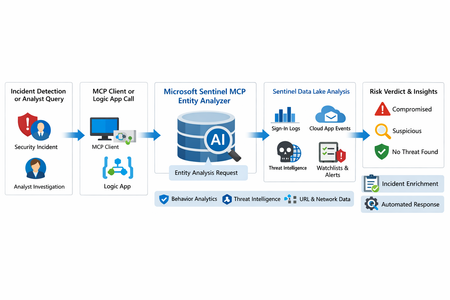
What makes this release important is not just that it adds another AI feature to Sentinel. It changes the implementation model for enrichment and triage. Instead of building and maintaining a chain of custom playbooks, KQL lookups, threat intel checks, and entity correlation logic, SOC teams can call a single analyzer that returns a reasoned verdict and supporting evidence. Microsoft positions the analyzer as available through Sentinel MCP server connections for agent platforms and through Logic Apps for SOAR workflows, which makes it useful both for interactive investigations and for automated response pipelines. Why this matters First, it formalizes Entity Analyzer as a production feature rather than a preview experiment. Second, it introduces a real cost model, which means organizations now need to govern usage instead of treating it as a free enrichment helper. Third, Microsoft’s documentation is now detailed enough to support repeatable implementation patterns, including prerequisites, limits, required tables, Logic Apps deployment, and cost behavior. From a SOC engineering perspective, Entity Analyzer is interesting because it focuses on explainability. Microsoft describes the feature as generating clear, explainable verdicts for URLs and user identities by analyzing multiple modalities, including threat intelligence, prevalence, and organizational context. That is a much stronger operational model than simple point-enrichment because it aims to return an assessment that analysts can act on, not just more raw evidence What Entity Analyzer actually does The Entity Analyzer tools are described as AI-powered tools that analyze data in the Microsoft Sentinel data lake and provide a verdict plus detailed insights on URLs, domains, and user entities. Microsoft explicitly says these tools help eliminate the need for manual data collection and complex integrations usually required for investigation and enrichment hat positioning is important. In practice, many SOC teams have built enrichment playbooks that fetch sign-in history, query TI feeds, inspect click data, read watchlists, and collect relevant alerts. Those workflows work, but they create maintenance overhead and produce inconsistent analyst experiences. Entity Analyzer centralizes that reasoning layer. For user entities, Microsoft’s preview architecture explains that the analyzer retrieves sign-in logs, security alerts, behavior analytics, cloud app events, identity information, and Microsoft Threat Intelligence, then correlates those signals and applies AI-based reasoning to produce a verdict. Microsoft lists verdict examples such as Compromised, Suspicious activity found, and No evidence of compromise, and also warns that AI-generated content may be incorrect and should be checked for accuracy. That warning matters. The right way to think about Entity Analyzer is not “automatic truth,” but “high-value, explainable triage acceleration.” It should reduce analyst effort and improve consistency, while still fitting into human review and response policy. Under the hood: the implementation model Technically, Entity Analyzer is delivered through the Microsoft Sentinel MCP data exploration tool collection. Microsoft documents that entity analysis is asynchronous: you start analysis, receive an identifier, and then poll for results. The docs note that analysis may take a few minutes and that the retrieval step may need to be run more than once if the internal timeout is not enough for long operations. That design has two immediate implications for implementers. First, this is not a lightweight synchronous enrichment call you should drop carelessly into every automation branch. Second, any production workflow should include retry logic, timeouts, and concurrency controls. If you ignore that, you will create fragile playbooks and unnecessary SCU burn. The supported access path for the data exploration collection requires Microsoft Sentinel data lake and one of the supported MCP-capable platforms. Microsoft also states that access to the tools is supported for identities with at least Security Administrator, Security Operator, or Security Reader. The data exploration collection is hosted at the Sentinel MCP endpoint, and the same documentation notes additional Entity Analyzer roles related to Security Copilot usage. The prerequisite many teams will miss The most important prerequisite is easy to overlook: Microsoft Sentinel data lake is required. This is more than a licensing footnote. It directly affects data quality, analyzer usefulness, and rollout success. If your organization has not onboarded the right tables into the data lake, Entity Analyzer will either fail or return reduced-confidence output. For user analysis, the following tables are required to ensure accuracy: AlertEvidence, SigninLogs, CloudAppEvents, and IdentityInfo. also notes that IdentityInfo depends on Defender for Identity, Defender for Cloud Apps, or Defender for Endpoint P2 licensing. The analyzer works best with AADNonInteractiveUserSignInLogs and BehaviorAnalytics as well. For URL analysis, the analyzer works best with EmailUrlInfo, UrlClickEvents, ThreatIntelIndicators, Watchlist, and DeviceNetworkEvents. If those tables are missing, the analyzer returns a disclaimer identifying the missing sources A practical architecture view An incident, hunting workflow, or analyst identifies a high-interest URL or user. A Sentinel MCP client or Logic App calls Entity Analyzer. Entity Analyzer queries relevant Sentinel data lake sources and correlates the findings. AI reasoning produces a verdict, evidence narrative, and recommendations. The result is returned to the analyst, incident record, or automation workflow for next-step action. This model is especially valuable because it collapses a multi-query, multi-tool investigation pattern into a single explainable decisioning step. Where it fits in real Sentinel operations Entity Analyzer is not a replacement for analytics rules, UEBA, or threat intelligence. It is a force multiplier for them. For identity triage, it fits naturally after incidents triggered by sign-in anomaly detections, UEBA signals, or Defender alerts because it already consumes sign-in logs, cloud app events, and behavior analytics as core evidence sources. For URL triage, it complements phishing and click-investigation workflows because it uses TI, URL activity, watchlists, and device/network context. Implementation path 1: MCP clients and security agents Microsoft states that Entity Analyzer integrates with agents through Sentinel MCP server connections to first-party and third-party AI runtime platforms. In practice, this makes it attractive for analyst copilots, engineering-side investigation agents, and guided triage experiences The benefit of this model is speed. A security engineer or analyst can invoke the analyzer directly from an MCP-capable client without building a custom orchestration layer. The tradeoff is governance: once you make the tool widely accessible, you need a clear policy for who can run it, when it should be used, and how results are validated before action is taken. Implementation path 2: Logic Apps and SOAR playbooks For SOC teams, Logic Apps is likely the most immediately useful deployment model. Microsoft documents an entity analyzer action inside the Microsoft Sentinel MCP tools connector and provides the required parameters for adding it to an existing logic app. These include: Workspace ID Look Back Days Properties payload for either URL or User The documented payloads are straightforward: { "entityType": "Url", "url": "[URL]" } And { "entityType": "User", "userId": "[Microsoft Entra object ID or User Principal Name]" } Also states that the connector supports Microsoft Entra ID, service principals, and managed identities, and that the Logic App identity requires Security Reader to operate. This makes playbook integration a strong pattern for incident enrichment. A high-severity incident can trigger a playbook, extract entities, invoke Entity Analyzer, and post the verdict back to the incident as a comment or decision artifact. The concurrency lesson most people will learn the hard way Unusually direct guidance on concurrency: to avoid timeouts and threshold issues, turn on Concurrency control in Logic Apps loops and start with a degree of parallelism of . The data exploration doc repeats the same guidance, stating that running multiple instances at once can increase latency and recommending starting with a maximum of five concurrent analyses. This is a strong indicator that the correct implementation pattern is selective analysis, not blanket analysis. Do not analyze every entity in every incident. Analyze the entities that matter most: external URLs in phishing or delivery chains accounts tied to high-confidence alerts entities associated with high-severity or high-impact incidents suspicious users with multiple correlated signals That keeps latency, quota pressure, and SCU consumption under control. KQL still matters Entity Analyzer does not eliminate KQL. It changes where KQL adds value. Before running the analyzer, KQL is still useful for scoping and selecting the right entities. After the analyzer returns, KQL is useful for validation, deeper hunting, and building custom evidence views around the analyzer’s verdict. For example, a simple sign-in baseline for a target user: let TargetUpn = "email address removed for privacy reasons"; SigninLogs | where TimeGenerated between (ago(7d) .. now()) | where UserPrincipalName == TargetUpn | summarize Total=count(), Failures=countif(ResultType != "0"), Successes=countif(ResultType == "0"), DistinctIPs=dcount(IPAddress), Apps=make_set(AppDisplayName, 20) by bin(TimeGenerated, 1d) | order by TimeGenerated desc And a lightweight URL prevalence check: let TargetUrl = "omicron-obl.com"; UrlClickEvents | where TimeGenerated between (ago(7d) .. now()) | search TargetUrl | take 50 Cost, billing, and governance GA is where technical excitement meets budget reality. Microsoft’s Sentinel billing documentation says there is no extra cost for the MCP server interface itself. However, for Entity Analyzer, customers are charged for the SCUs used for AI reasoning and also for the KQL queries executed against the Microsoft Sentinel data lake. Microsoft further states that existing Security Copilot entitlements apply The April 2026 “What’s new” entry also explicitly says that starting April 1, 2026, customers are charged for the SCUs required when using Entity Analyzer. That means every rollout should include a governance plan: define who can invoke the analyzer decide when playbooks are allowed to call it monitor SCU consumption limit unnecessary repeat runs preserve results in incident records so you do not rerun the same analysis within a short period Microsoft’s MCP billing documentation also defines service limits: 200 total runs per hour, 500 total runs per day, and around 15 concurrent runs every five minutes, with analysis results available for one hour. Those are not just product limits. They are design requirements. Limitations you should state clearly The analyze_user_entity supports a maximum time window of seven days and only works for users with a Microsoft Entra object ID. On-premises Active Directory-only users are not supported for user analysis. Microsoft also says Entity Analyzer results expire after one hour and that the tool collection currently supports English prompts only. Recommended rollout pattern If I were implementing this in a production SOC, I would phase it like this: Start with a narrow set of high-value use cases, such as suspicious user identities and phishing-related URLs. Confirm that the required tables are present in the data lake. Deploy a Logic App enrichment pattern for incident-triggered analysis. Add concurrency control and retry logic. Persist returned verdicts into incident comments or case notes. Then review SCU usage and analyst value before expanding coverage.1.4KViews8likes0CommentsObserved Automation Discrepancies
Hi Team ... I want to know the logic behind the Defender XDR Automation Engine . How it works ? I have observed Defender XDR Automation Engine Behavior contrary to expectations of identical incident and automation handling in both environments, discrepancies were observed. Specifically, incidents with high-severity alerts were automatically closed by Defender XDR's automation engine before reaching their SOC for review, raising concerns among clients and colleagues. Automation rules are clearly logged in the activity log, whereas actions performed by Microsoft Defender XDR are less transparent . A high-severity alert related to a phishing incident was closed by Defender XDR's automation, resulting in the associated incident being closed and removed from SOC review. Wherein the automation was not triggered by our own rules, but by Microsoft's Defender XDR, and sought clarification on the underlying logic.597Views2likes4CommentsEndpoint and EDR Ecosystem Connectors in Microsoft Sentinel
Most SOCs operate in mixed endpoint environments. Even if Microsoft Defender for Endpoint is your primary EDR, you may still run Cisco Secure Endpoint, WithSecure Elements, Knox, or Lookout in specific regions, subsidiaries, mobile fleets, or regulatory enclaves. The goal is not to replace any tool, but to standardize how signals become detections and response actions. This article explains an engineering-first approach: ingestion correctness, schema normalization, entity mapping, incident merging, and cross-platform response orchestration. Think of these connectors as four different lenses on endpoint risk. Two provide classic EDR detections (Cisco, WithSecure). Two provide mobile security and posture signals (Knox, Lookout). The highest-fidelity outcomes come from correlating them with Microsoft signals (Defender for Endpoint device telemetry, Entra ID sign-ins, and threat intelligence). Cisco Secure Endpoint Typical signal types include malware detections, exploit prevention events, retrospective detections, device isolation actions, and file/trajectory context. Cisco telemetry is often hash-centric (SHA256, file reputation) which makes it excellent for IOC matching and cross-EDR correlation. WithSecure Elements WithSecure Elements tends to provide strong behavioral detections and ransomware heuristics, often including process ancestry and behavioral classification. It complements hash-based detections by providing behavior and incident context that can be joined to Defender process events. Samsung Knox Asset Intelligence Knox is posture-heavy. Typical signals include compliance state, encryption status, root/jailbreak indicators, patch level, device model identifiers and policy violations. This data is extremely useful for identity correlation: it helps answer whether a successful sign-in came from a device that should be trusted. Lookout Mobile Threat Defense Lookout focuses on mobile threats such as malicious apps, phishing, risky networks (MITM), device compromise indicators, and risk scores. Lookout signals are critical for identity attack chains because mobile phishing is often the precursor to token theft or credential reuse. 2. Ingestion architecture: from vendor API to Sentinel tables Most third‑party connectors are API-based. In production, treat ingestion as a pipeline with reliability requirements. The standard pattern is vendor API → connector runtime (codeless connector or Azure Function) → DCE → DCR transform → Log Analytics table. Key engineering controls: Secrets and tokens should be stored in Azure Key Vault where supported; rotate and monitor auth failures. Use overlap windows (poll slightly more than the schedule interval) and deduplicate by stable event IDs. Use DCR transforms to normalize fields early (device/user/IP/severity) and to filter obviously low-value noise. Monitor connector health and ingestion lag; do not rely on ‘Connected’ status alone. Ingestion health checks (KQL) // Freshness & lag per connector table (adapt table names to your workspace) let lookback = 24h union isfuzzy=true (<CiscoTable> | extend Source="Cisco"), (<WithSecureTable> | extend Source="WithSecure"), (<KnoxTable> | extend Source="Knox"), (<LookoutTable> | extend Source="Lookout") | where TimeGenerated > ago(lookback) | summarize LastEvent=max(TimeGenerated), Events=count() by Source | extend IngestDelayMin = datetime_diff("minute", now(), LastEvent) | order by IngestDelayMin desc // Schema discovery (run after onboarding and after connector updates) Cisco | take 1 | getschema WithSecureTable | take 1 | getschema Knox | take 1 | getschema Lookout | take 1 | getschema 3. Normalization: make detections vendor-agnostic The most common failure mode in multi-EDR SOCs is writing separate rules per vendor. Instead, build one normalization function that outputs a stable schema. Then write rules once. Recommended canonical fields: Vendor, AlertId, EventTime, SeverityNormalized DeviceName (canonical), AccountUpn (canonical), SourceIP FileHash (when applicable), ThreatName/Category CorrelationKey (stable join key such as DeviceName + FileHash or DeviceName + AlertId) // Example NormalizeEndpoint() pattern. Replace column_ifexists(...) mappings after getschema(). let NormalizeEndpoint = () { union isfuzzy=true ( Cisco | extend Vendor="Cisco" | extend DeviceName=tostring(column_ifexists("hostname","")), AccountUpn=tostring(column_ifexists("user","")), SourceIP=tostring(column_ifexists("ip","")), FileHash=tostring(column_ifexists("sha256","")), ThreatName=tostring(column_ifexists("threat_name","")), SeverityNormalized=tolower(tostring(column_ifexists("severity",""))) ), ( WithSecure | extend Vendor="WithSecure" | extend DeviceName=tostring(column_ifexists("hostname","")), AccountUpn=tostring(column_ifexists("user","")), SourceIP=tostring(column_ifexists("ip","")), FileHash=tostring(column_ifexists("file_hash","")), ThreatName=tostring(column_ifexists("classification","")), SeverityNormalized=tolower(tostring(column_ifexists("risk_level",""))) ), ( Knox | extend Vendor="Knox" | extend DeviceName=tostring(column_ifexists("device_id","")), AccountUpn=tostring(column_ifexists("user","")), SourceIP="", FileHash="", ThreatName=strcat("Device posture: ", tostring(column_ifexists("compliance_state",""))), SeverityNormalized=tolower(tostring(column_ifexists("risk",""))) ), ( Lookout | extend Vendor="Lookout" | extend DeviceName=tostring(column_ifexists("device_id","")), AccountUpn=tostring(column_ifexists("user","")), SourceIP=tostring(column_ifexists("source_ip","")), FileHash="", ThreatName=tostring(column_ifexists("threat_type","")), SeverityNormalized=tolower(tostring(column_ifexists("risk_level",""))) ) | extend CorrelationKey = iff(isnotempty(FileHash), strcat(DeviceName, "|", FileHash), strcat(DeviceName, "|", ThreatName)) | project TimeGenerated, Vendor, DeviceName, AccountUpn, SourceIP, FileHash, ThreatName, SeverityNormalized, CorrelationKey, * } 4. Entity mapping and incident merging Sentinel’s incident experience improves dramatically when alerts include entity mapping. Map Host, Account, IP, and File (hash) where possible. Incident grouping should merge alerts by DeviceName and AccountUpn within a reasonable window (e.g., 6–24 hours) to avoid alert storms. 5. Correlation patterns that raise confidence High-confidence detections come from confirmation across independent sensors. These patterns reduce false positives while catching real compromise chains. 5.1 Multi-vendor confirmation (two EDRs agree) NormalizeEndpoint() | where TimeGenerated > ago(24h) | summarize Vendors=dcount(Vendor), VendorSet=make_set(Vendor, 10) by DeviceName | where Vendors >= 2 5.2 Third-party detection confirmed by Defender process telemetry let tp = NormalizeEndpoint() | where TimeGenerated > ago(6h) | where ThreatName has_any ("powershell","ransom","credential","exploit") | project TPTime=TimeGenerated, DeviceName, AccountUpn, Vendor, ThreatName tp | join kind=inner ( DeviceProcessEvents | where Timestamp > ago(6h) | where ProcessCommandLine has_any ("EncodedCommand","IEX","FromBase64String","rundll32","regsvr32") | project MDETime=Timestamp, DeviceName=tostring(DeviceName), Proc=ProcessCommandLine ) on DeviceName | where MDETime between (TPTime .. TPTime + 30m) | project TPTime, MDETime, DeviceName, Vendor, ThreatName, Proc 5.3 Mobile phishing signal followed by successful sign-in let mobile = NormalizeEndpoint() | where TimeGenerated > ago(24h) | where Vendor == "Lookout" and ThreatName has "phish" | project MTDTime=TimeGenerated, AccountUpn, DeviceName, SourceIP mobile | join kind=inner ( SigninLogs | where TimeGenerated > ago(24h) | where ResultType == 0 | project SigninTime=TimeGenerated, AccountUpn=tostring(UserPrincipalName), IPAddress, AppDisplayName ) on AccountUpn | where SigninTime between (MTDTime .. MTDTime + 30m) | project MTDTime, SigninTime, AccountUpn, DeviceName, SourceIP, IPAddress, AppDisplayName 5.4 Knox posture and high-risk sign-in let noncompliant = NormalizeEndpoint() | where TimeGenerated > ago(7d) | where Vendor=="Knox" and ThreatName has "NonCompliant" | project DeviceName, AccountUpn, KnoxTime=TimeGenerated noncompliant | join kind=inner ( SigninLogs | where TimeGenerated > ago(7d) | where RiskLevelDuringSignIn in ("high","medium") | project SigninTime=TimeGenerated, AccountUpn=tostring(UserPrincipalName), RiskLevelDuringSignIn, IPAddress ) on AccountUpn | where SigninTime between (KnoxTime .. KnoxTime + 2h) | project KnoxTime, SigninTime, AccountUpn, DeviceName, RiskLevelDuringSignIn, IPAddress 6. Response orchestration (SOAR) design Response should be consistent across vendors. Use a scoring model to decide whether to isolate a device, revoke tokens, or enforce Conditional Access. Prefer reversible actions, and log every automation step for audit. 6.1 Risk scoring to gate playbooks let SevScore = (s:string) { case(s=="critical",5,s=="high",4,s=="medium",2,1) } NormalizeEndpoint() | where TimeGenerated > ago(24h) | extend Score = SevScore(SeverityNormalized) | summarize RiskScore=sum(Score), Alerts=count(), Vendors=make_set(Vendor, 10) by DeviceName, AccountUpn | where RiskScore >= 8 | order by RiskScore desc High-severity playbooks typically execute: (1) isolate device via Defender (if onboarded), (2) revoke tokens in Entra ID, (3) trigger Conditional Access block, (4) notify and open ITSM ticket. Medium-severity playbooks usually tag the incident, add watchlist entries, and notify analysts.786Views8likes1CommentThreat Intelligence & Identity Ecosystem Connectors
Microsoft Sentinel’s capability can be greatly enhanced by integrating third-party threat intelligence (TI) feeds (e.g. GreyNoise, Team Cymru) with identity and access logs (e.g. OneLogin, PingOne). This article provides a detailed dive into each connector, data types, and best practices for enrichment and false-positive reduction. We cover how GreyNoise (including PureSignal/Scout), Team Cymru, OneLogin IAM, PingOne, and Keeper integrate with Sentinel – including available connectors, ingested schemas, and configuration. We then outline technical patterns for building TI-based lookup pipelines, scoring, and suppression rules to filter benign noise (e.g. GreyNoise’s known scanners), and enrich alerts with context from identity logs. We map attack chains (credential stuffing, lateral movement, account takeover) to Sentinel data, and propose KQL analytics rules and playbooks with MITRE ATT&CK mappings (e.g. T1110: Brute Force, T1595: Active Scanning). The report also includes guidance on deployment (ARM/Bicep examples), performance considerations for high-volume TI ingestion, and comparison tables of connector features. A mermaid flowchart illustrates the data flow from TI and identity sources into Sentinel analytics. All recommendations are drawn from official documentation and industry sources. Threat Intel & Identity Connectors Overview GreyNoise (TI Feed): GreyNoise provides “internet background noise” intelligence on IPs seen scanning or probing the Internet. The Sentinel GreyNoise Threat Intelligence connector (Azure Marketplace) pulls data via GreyNoise’s API into Sentinel’s ThreatIntelligenceIndicator table. It uses a daily Azure Function to fetch indicators (IP addresses and metadata like classification, noise, last_seen) and injects them as STIX-format indicators (Network IPs with provider “GreyNoise”). This feed can then be queried in KQL. Authentication requires a GreyNoise API key and a Sentinel workspace app with Contributor rights. GreyNoise’s goal is to help “filter out known opportunistic traffic” so analysts can focus on real threats. Official docs describe deploying the content pack and workbook template. Ingested data: IP-based indicators (malicious vs. benign scans), classifications (noise, riot, etc.), organization names, last-seen dates. All fields from GreyNoise’s IP lookup (e.g. classification, last_seen) appear in ThreatIntelligenceIndicator.NetworkDestinationIP, IndicatorProvider="GreyNoise", and related fields. Query: ThreatIntelligenceIndicator | where IndicatorProvider == "GreyNoise" | summarize arg_max(TimeGenerated, *) by NetworkDestinationIP This yields the latest GreyNoise record per IP. Team Cymru Scout (TI Context): Team Cymru’s PureSignal™ Scout is a TI enrichment platform. The Team Cymru Scout connector (via Azure Marketplace) ingests contextual data (not raw logs) about IPs, domains, and account usage into Sentinel custom tables. It runs via an Azure Function that, given IP or domain inputs, populates tables like Cymru_Scout_IP_Data_* and Cymru_Scout_Domain_Data_CL. For example, an IP query yields multiple tables: Cymru_Scout_IP_Data_Foundation_CL, ..._OpenPorts_CL, ..._PDNS_CL, etc., containing open ports, passive DNS history, X.509 cert info, fingerprint data, etc. This feed requires a Team Cymru account (username/password) to access the Scout API. Data types: Structured TI metadata by IP/domain. No native ThreatIndicator insertion; instead, analysts query these tables to enrich events (e.g. join on SourceIP). The Sentintel TechCommunity notes that Scout “enriches alerts with real-time context on IPs, domains, and adversary infrastructure” and can help “reduce false positives”. OneLogin IAM (Identity Logs): The OneLogin IAM solution (Microsoft Sentinel content pack) ingests OneLogin platform events and user info via OneLogin’s REST API. Using the Codeless Connector Framework, it pulls from OneLogin’s Events API and Users API, storing data in custom tables OneLoginEventsV2_CL and OneLoginUsersV2_CL. Typical events include user sign-ins, MFA actions, app accesses, admin changes, etc. Prerequisites: create an OpenID Connect app in OneLogin (for client ID/secret) and register it in Azure (Global Admin). The connector queries hourly (or on schedule), within OneLogin’s rate limit of 5000 calls/hour. Data mapping: OneLoginEventsV2_CL (CL suffix indicates custom log) holds event records (time, user, IP, event type, result, etc.); OneLoginUsersV2_CL contains user account attributes. These can be joined or used in analytics. For example, a query might look for failed login events: OneLoginEventsV2_CL | where Event_type_s == "UserSessionStart" and Result_s == "Failed" (Actual field names depend on schema.) PingOne (Identity Logs): The PingOne Audit connector ingests audit activity from the PingOne Identity platform via its REST API. It creates the table PingOne_AuditActivitiesV2_CL. This includes administrator actions, user logins, console events, etc. You configure a PingOne API client (Client ID/Secret) and set up the Codeless Connector Framework. Logs are retrieved (with attention to PingOne’s license-based rate limits) and appended to the custom table. Analysts can query, for instance, PingOne_AuditActivitiesV2_CL for events like MFA failures or profile changes. Keeper (Password Vault Logs – optional): Keeper, a password management platform, can forward security events to Sentinel via Azure Monitor. As of latest docs, logs are sent to a custom log table (commonly KeeperLogs_CL) using Azure Data Collection Rules. In Keeper’s guide, you register an Azure AD app (“KeeperLogging”) and configure Azure Monitor data collection; then in the Keeper Admin Console you specify the DCR endpoint. Keeper events (e.g. user logins, vault actions, admin changes) are ingested into the table named (e.g.) Custom-KeeperLogs_CL. Authentication uses the app’s client ID/secret and a monitor endpoint URL. This is a bulk ingest of records, rather than a scheduled pull. Data ingested: custom Keeper events with fields like user, action, timestamp. Keeper’s integration is essentially via Azure Monitor (in the older Azure Sentinel approach). Connector Configuration & Data Ingestion Authentication and Rate Limits: Most connectors require API keys or OAuth credentials. GreyNoise and Team Cymru use single keys/credentials, with the Azure Function secured by a Managed Identity. OneLogin and PingOne use client ID/secret and must respect their API limits (OneLogin ~5k calls/hour; PingOne depends on licensing). GreyNoise’s enterprise API allows bulk lookups; the community API is limited (10/day for free), so production integration requires an Enterprise plan. Sentinel Tables: Data is inserted either into built-in tables or custom tables. GreyNoise feeds the ThreatIntelligenceIndicator table, populating fields like NetworkDestinationIP and ThreatSeverity (higher if classified “malicious”). Team Cymru’s Scout connector creates many Cymru_Scout_*_CL tables. OneLogin’s solution populates OneLoginEventsV2_CL and OneLoginUsersV2_CL. PingOne yields PingOne_AuditActivitiesV2_CL. Keeper logs appear in a custom table (e.g. KeeperLogs_CL) as shown in Keeper’s guide. Note: Sentinel’s built-in identity tables (IdentityInfo, SigninLogs) are typically for Microsoft identities; third-party logs can be mapped to them via parsers or custom analytic rules but by default arrive in these custom tables. Data Types & Schema: Threat Indicators: In ThreatIntelligenceIndicator, GreyNoise IPs appear as NetworkDestinationIP with associated fields (e.g. ThreatSeverity, IndicatorProvider="GreyNoise", ConfidenceScore, etc.). (Future STIX tables may be used after 2025.) Custom CL Logs: OneLogin events may include fields such as user_id_s, user_login_s, client_ip_s, event_time, etc. (The published parser issues indicate fields like app_name_s, role_id_d, etc.) PingOne logs include eventType, user, clientIP, result. Keeper logs contain Action, UserName, etc. These raw fields can be normalized in analytic rules or parsed by data transformations. Identity Info: Although not directly ingested, identity attributes from OneLogin/PingOne (e.g. user roles, group IDs) could be periodically fetched and synced to Sentinel (via custom logic) to populate IdentityInfo records, aiding user-centric hunts. Configuration Steps : GreyNoise: In Sentinel Content Hub, install the GreyNoise ThreatIntel solution. Enter your GreyNoise API key when prompted. The solution deploys an Azure Function (requires write access to Functions) and sets up an ingestion schedule. Verify the ThreatIntelligenceIndicator table is receiving GreyNoise entries Team Cymru: From Marketplace install “Team Cymru Scout”. Provide Scout credentials. The solution creates an Azure Function app. It defines a workflow to ingest or lookup IPs/domains. (Often, analysts trigger lookups rather than scheduled ingestion, since Scout is lookup-based.) Ensure roles: the Function’s managed identity needs Sentinel contributor rights. OneLogin: Use the Data Connectors UI. Authenticate OneLogin by creating a new Sentinel Web API authentication (with OneLogin’s client ID/secret). Enable both “OneLogin Events” and “OneLogin Users”. No agent is needed. After setup, data flows into OneLoginEventsV2_CL. PingOne: Similarly, configure the PingOne connector. Use the PingOne administrative console to register an OAuth client. In Sentinel’s connector blade, enter the client ID/secret and specify desired log types (Audit, maybe IDP logs). Confirm PingOne_AuditActivitiesV2_CL populates hourly. Keeper: Register an Azure AD app (“KeeperLogging”) and assign it Monitoring roles (Publisher/Contributor) to your workspace and data collection endpoint. Create an Azure Data Collection Rule (DCR) and table (e.g. KeeperLogs_CL). In Keeper’s Admin Console (Reporting & Alerts → Azure Monitor), enter the tenant ID, client ID/secret, and the DCR endpoint URL (format: https://<DCE>/dataCollectionRules/<DCR_ID>/streams/<table>?api-version=2023-01-01). Keeper will then push logs. KQL Lookup: To enrich a Sentinel event with these feeds, you might write: OneLoginEventsV2_CL | where EventType == "UserLogin" and Result == "Success" | extend UserIP = ClientIP_s | join kind=inner ( ThreatIntelligenceIndicator | where IndicatorProvider == "GreyNoise" and ThreatSeverity >= 3 | project NetworkDestinationIP, Category ) on $left.UserIP == $right.NetworkDestinationIP This joins OneLogin sign-ins with GreyNoise’s list of malicious scanners. Enrichment & False-Positive Reduction IOC Enrichment Pipelines: A robust TI pipeline in Sentinel often uses Lookup Tables and Functions. For example, ingested TI (from GreyNoise or Team Cymru) can be stored in reference data or scheduled lookup tables to enrich incoming logs. Patterns include: - Normalization: Normalize diverse feeds into common STIX schema fields (e.g. all IPs to NetworkDestinationIP, all domains to DomainName) so rules can treat them uniformly. - Confidence Scoring: Assign a confidence score to each indicator (from vendor or based on recency/frequency). For GreyNoise, for instance, you might use classification (e.g. “malicious” vs. “benign”) and history to score IP reputation. In Sentinel’s ThreatIntelligenceIndicator.ConfidenceScore field you can set values (higher for high-confidence IOCs, lower for noisy ones). - TTL & Freshness: Some indicators (e.g. active C2 domains) expire, so setting a Time-To-Live is critical. Sentinel ingestion rules or parsers should use ExpirationDateTime or ValidUntil on indicators to avoid stale IOCs. For example, extend ValidUntil only if confidence is high. - Conflict Resolution: When the same IOC comes from multiple sources (e.g. an IP in both GreyNoise and TeamCymru), you can either merge metadata or choose the highest confidence. One approach: use the highest threat severity from any source. Sentinel’s ThreatType tags (e.g. malicious-traffic) can accommodate multiple providers. False-Positive Reduction Techniques: - GreyNoise Noise Scoring: GreyNoise’s primary utility is filtering. If an IP is labeled noise=true (i.e. just scanning, not actively malicious), rules can deprioritize alerts involving that IP. E.g. suppress an alert if its source IP appears in GreyNoise as benign scanner. - Team Cymru Reputation: Use Scout data to gauge risk; e.g. if an IP’s open port fingerprint or domain history shows no malicious tags, it may be low-risk. Conversely, known hostile IP (e.g. seen in ransomware networks) should raise alert level. Scout’s thousands of context tags help refine a binary IOC. - Contextual Identity Signals: Leverage OneLogin/PingOne context to filter alerts. For instance, if a sign-in event is associated with a high-risk location (e.g. new country) and the IP is a GreyNoise scan, flag it. If an IP is marked benign, drop or suppress. Correlate login failures: if a single IP causes many failures across multiple users, it might be credential stuffing (T1110) – but if that IP is known benign scanner, consider it low priority. - Thresholding & Suppression: Build analytic suppression rules. Example: only alert on >5 failed logins in 5 min from IP and that IP is not noise. Or ignore DNS queries to domains that TI flags as benign/whitelisted. Apply tag-based rules: some connectors allow tagging known internal assets or trusted scan ranges to avoid alerts. Use GreyNoise to suppress alerts: SecurityEvent | where EventID == 4625 and Account != "SYSTEM" | join kind=leftanti ( ThreatIntelligenceIndicator | where IndicatorProvider == "GreyNoise" and Classification == "benign" | project NetworkSourceIP ) on $left.IPAddress == $right.NetworkSourceIP This rule filters out Windows 4625 login failures originating from GreyNoise-known benign scanners. Identity Attack Chains & Detection Rules Modern account attacks often involve sequential activities. By combining identity logs with TI, we can detect advanced patterns. Below are common chains and rule ideas: Credential Stuffing (MITRE T1110): Often seen as many login failures followed by a success. Detection: Look for multiple failed OneLogin/PingOne sign-ins for the same or different accounts from a single IP, then a success. Enrich with GreyNoise: if the source IP is in GreyNoise (indicating scanning), raise severity. Rule: let SuspiciousIP = OneLoginEventsV2_CL | where EventType == "UserSessionStart" and Result == "Failed" | summarize CountFailed=count() by ClientIP_s | where CountFailed > 5; OneLoginEventsV2_CL | where EventType == "UserSessionStart" and Result == "Success" and ClientIP_s in (SuspiciousIP | project ClientIP_s) | join kind=inner ( ThreatIntelligenceIndicator | where ThreatType == "ip" | extend GreyNoiseClass = tostring(Classification) | project IP=NetworkSourceIP, GreyNoiseClass ) on $left.ClientIP_s == $right.IP | where GreyNoiseClass == "malicious" | project TimeGenerated, Account_s, ClientIP_s, GreyNoiseClass Tactics: Initial Access (T1110) – Severity: High. Account Takeover / Impossible Travel (T1198): Sign-ins from unusual geographies or devices. Detection: Compare user’s current sign-in location against historical baseline. Use OneLogin/PingOne logs: if two logins by same user occur in different countries with insufficient time to travel, trigger. Enrich: if the login IP is also known infrastructure (Team Cymru PDNS, etc.), raise alert. Rule: PingOne_AuditActivitiesV2_CL | where EventType_s == "UserLogin" | extend loc = tostring(City_s) + ", " + tostring(Country_s) | sort by TimeGenerated desc | partition by User_s ( where TimeGenerated < ago(24h) // check last day | summarize count(), min(TimeGenerated), max(TimeGenerated) ) | where max_TimeGenerated - min_TimeGenerated < 1h and count_>1 and (range(loc) contains ",") | project User_s, TimeGenerated, loc (This pseudo-query checks multiple locations in <1 hour.) Tactics: Reconnaissance / Initial Access – Severity: Medium. Lateral Movement (T1021): Use of an account on multiple systems/apps. Detection: Two or more distinct application/service authentications by same user within a short time. Use OneLogin app-id fields or audit logs for access. If these are followed by suspicious network activity (e.g. contacting C2 via GreyNoise), escalate. Tactics: Lateral Movement – Severity: High. Privilege Escalation (T1098): If an admin account is changed or MFA factors reset in OneLogin/PingOne, especially after anomalous login. Detection: Monitor OneLogin admin events (“User updated”, “MFA enrolled/removed”). Cross-check the actor’s IP against threat feeds. Tactics: Credential Access – Severity: High. Analytics Rules (KQL) Below are six illustrative Sentinel analytics rules combining TI and identity logs. Each rule shows logic, tactics, severity, and MITRE IDs. (Adjust field names per your schemas and normalize CL tables as needed.) Multiple Failed Logins from Malicious Scanner (T1110) – High severity. Detect credential stuffing by identifying >5 failed login attempts from the same IP, where that IP is classified as malicious by GreyNoise. let BadIP = OneLoginEventsV2_CL | where EventType == "UserSessionStart" and Result == "Failed" | summarize attempts=count() by SourceIP_s | where attempts >= 5; OneLoginEventsV2_CL | where EventType == "UserSessionStart" and Result == "Success" and SourceIP_s in (BadIP | project SourceIP_s) | join ( ThreatIntelligenceIndicator | where IndicatorProvider == "GreyNoise" and ThreatSeverity >= 4 | project MaliciousIP=NetworkDestinationIP ) on $left.SourceIP_s == $right.MaliciousIP | extend AttackFlow="CredentialStuffing", MITRE="T1110" | project TimeGenerated, UserName_s, SourceIP_s, MaliciousIP Logic: Correlate failed-then-success login from same IP plus GreyNoise-malign classification. Impossible Travel / Anomalous Geo (T1198) – Medium severity. A user signs in from two distant locations within an hour. // Get last two logins per user let lastLogins = PingOne_AuditActivitiesV2_CL | where EventType_s == "UserLogin" and Outcome_s == "Success" | sort by TimeGenerated desc | summarize first_place=arg_max(TimeGenerated, City_s, Country_s, SourceIP_s, TimeGenerated) by User_s; let prevLogins = PingOne_AuditActivitiesV2_CL | where EventType_s == "UserLogin" and Outcome_s == "Success" | sort by TimeGenerated desc | summarize last_place=arg_min(TimeGenerated, City_s, Country_s, SourceIP_s, TimeGenerated) by User_s; lastLogins | join kind=inner prevLogins on User_s | extend dist=geo_distance_2points(first_place_City_s, first_place_Country_s, last_place_City_s, last_place_Country_s) | where dist > 1000 and (first_place_TimeGenerated - last_place_TimeGenerated) < 1h | project Time=first_place_TimeGenerated, User=User_s, From=last_place_Country_s, To=first_place_Country_s, MITRE="T1198" Logic: Compute geographic distance between last two logins; flag if too far too fast. Suspicious Admin Change (T1098) – High severity. Detect a change to admin settings (like role assign or MFA reset) via PingOne, from a high-risk IP (Team Cymru or GreyNoise) or after failed logins. PingOne_AuditActivitiesV2_CL | where EventType_s in ("UserMFAReset", "UserRoleChange") // example admin events | extend ActorIP = tostring(InitiatingIP_s) | join ( ThreatIntelligenceIndicator | where ThreatSeverity >= 3 | project BadIP=NetworkDestinationIP ) on $left.ActorIP == $right.BadIP | extend MITRE="T1098" | project TimeGenerated, ActorUser_s, Action=EventType_s, ActorIP Logic: Raise if an admin action originates from known bad IP. Malicious Domain Access (T1498): Medium severity. Internal logs (e.g. DNS or Web proxy) show access to a domain listed by Team Cymru Scout as C2 or reconnaissance. DeviceDnsEvents | where QueryType == "A" | join kind=inner ( Cymru_Scout_Domain_Data_CL | where ThreatTag_s == "Command-and-Control" | project DomainName_s ) on $left.QueryText == $right.DomainName_s | extend MITRE="T1498" | project TimeGenerated, DeviceName, QueryText Logic: Correlate internal DNS queries with Scout’s flagged C2 domains. (Requires that domain data is ingested or synced.) Brute-Force Firewall Blocked IP (T1110): Low to Medium severity. Firewall logs show an IP blocked for many attempts, and that IP is not noise per GreyNoise (i.e., malicious scanner). AzureDiagnostics | where Category == "NetworkSecurityGroupFlowEvent" and msg_s contains "DIRECTION=Inbound" and Action_s == "Deny" | summarize attemptCount=count() by IP = SourceIp_s, FlowTime=bin(TimeGenerated, 1h) | where attemptCount > 50 | join kind=leftanti ( ThreatIntelligenceIndicator | where IndicatorProvider == "GreyNoise" and Classification == "benign" | project NoiseIP=NetworkDestinationIP ) on $left.IP == $right.NoiseIP | extend MITRE="T1110" | project IP, attemptCount, FlowTime Logic: Many inbound denies (possible brute force) from an IP not whitelisted by GreyNoise. New Device Enrolled (T1078): Low severity. A user enrolls a new device or location for MFA after unusual login. OneLoginEventsV2_CL | where EventType == "NewDeviceEnrollment" | join kind=inner ( OneLoginEventsV2_CL | where EventType == "UserSessionStart" and Result == "Success" | top 1 by TimeGenerated asc // assume prior login | project User_s, loginTime=TimeGenerated, loginIP=ClientIP_s ) on User_s | where loginIP != DeviceIP_s | extend MITRE="T1078" | project TimeGenerated, User_s, DeviceIP_s, loginIP Logic: Flag if new device added (strong evidence of account compromise). Note: The above rules are illustrative. Tune threshold values (e.g. attempt counts) to your environment. Map the event fields (EventType, Result, etc.) to your actual schema. Use Severity mapping in rule configs as indicated and tag with MITRE IDs for context. TI-Driven Playbooks and Automation Automated response can amplify TI. Patterns include: - IOC Blocking: On alert (e.g. suspicious IP login), an automation runbook can call Azure Firewall, Azure Defender, or external firewall APIs to block the offending IP. For instance, a Logic App could trigger on the analytic alert, use the TI feed IP, and call AzFWNetworkRule PowerShell to add a deny rule. - Enrichment Workflow: After an alert triggers, an Azure Logic App playbook can enrich the incident by querying TI APIs. E.g., given an IP from the alert, call GreyNoise API or Team Cymru Scout API in real-time (via HTTP action), add the classification into incident details, and tag the incident accordingly (e.g. GreyNoiseStatus: malicious). This adds context for the analyst. - Alert Suppression: Implement playbook-driven suppression. For example, an alert triggered by an external IP can invoke a playbook that checks GreyNoise; if the IP is benign, the playbook can auto-close the alert or mark as false-positive, reducing analyst load. - Automated TI Feed Updates: Periodically fetch open-source or commercial TI and use a playbook to push new indicators into Sentinel’s TI store via the Graph API. - Incident Enrichment: On incident creation, a playbook could query OneLogin/PingOne for additional user details (like department or location via their APIs) and add as note in the incident. Performance, Scalability & Costs TI feeds and identity logs can be high-volume. Key considerations: - Data Ingestion Costs: Every log and TI indicator ingested into Sentinel is billable by the GB. Bulk TI indicator ingestion (like GreyNoise pulling thousands of IPs/day) can add storage costs. Use Sentinel’s Data Collection Rules (DCR) to apply ingestion-time filters (e.g. only store indicators above a confidence threshold) to reduce volume. GreyNoise feed is typically modest (since it’s daily, maybe thousands of IPs). Identity logs (OneLogin/PingOne) depend on org size – could be megabytes per day. Use sentinel ingestion sl analytic filters to drop low-value logs. - Query Performance: Custom log tables (OneLogin, PingOne, KeeperLogs_CL) can grow large. Periodically archive old data (e.g. export >90 days to storage, then purge). Use materialized views or scheduled summary tables for heavy queries (e.g. pre-aggregate hourly login counts). For threat indicator tables, leverage built-in indices on IndicatorId and NetworkIP for fast joins. Use project-away _* to remove metadata from large join queries. - Retention & Storage: Configure retention per table. If historical TI is less needed, set shorter retention. Use Azure Monitor’s tiering/Archive for seldom-used data. For large TI volumes (e.g. feeding multiple TIPs), consider using Sentinel Data Lake (or connecting Log Analytics to ADLS Gen2) to offload raw ingest cheaply. - Scale-Out Architecture: For very large environments, use multiple Sentinel workspaces (e.g. regional) and aggregate logs via Azure Lighthouse or Sentinel Fusion. TI feeds can be shared: one workspace collects TI, then distribute to others via Azure Sentinel’s TI management (feeds can be published and shared cross-workspaces). - Connector Limits: API rate limits dictate update frequency. Schedule connectors accordingly (e.g. daily for TI, hourly for identity events). Avoid hourly pulls of already static data (users list can be daily). For OneLogin/PingOne, use incremental tokens or webhooks if possible to reduce load. - Monitoring Health: Use Sentinel’s Log Analytics and Monitor metrics to track ingestion volume and connector errors. For example, monitor the Functions running GreyNoise/Scout for failures or throttling. Deployment Checklist & Guide Prepare Sentinel Workspace: Ensure a Log Analytics workspace with Sentinel enabled. Record the workspace ID and region. Register Applications: In Azure AD, create and note any Service Principal needed for functions or connectors (e.g. a Sentinel-managed identity for Functions). In each vendor portal, register API apps and credentials (OneLogin OIDC App, PingOne API client, Keeper AD app). Network & Security: If needed, configure firewall rules to allow outbound to vendor APIs. Install Connectors: In Sentinel Content Hub or Marketplace, install the solutions for GreyNoise TI, Team Cymru Scout, OneLogin IAM, PingOne. Follow each wizard to input credentials. Verify the “Data Types” (Logs, Alerts, etc.) are enabled. Create Tables & Parsers (if manual): For Keeper or unsupported logs, manually create custom tables (via DCR in Azure portal). Import JSON to define fields as shown in Keeper’s docs Test Data Flow: After each setup, wait 1–24 hours and run a simple query on the destination table (e.g. OneLoginEventsV2_CL | take 5) to confirm ingestion. Deploy Ingestion Rules: Use Sentinel Threat intelligence ingestion rules to fine-tune feeds (e.g. mark high-confidence feeds to extend expiration). Optionally tag/whitelist known good. Configure Analytics: Enable or create rules using the KQL above. Place them in the correct threat hunting or incident rule categories (Credential Access, Lateral Movement, etc.). Assign appropriate alert severity. Set up Playbooks: For automated actions (alert enrichment, IOC blocking), create Logic App playbooks. Test with mock alerts (dry run) to ensure correct API calls. Tuning & Baseline: After initial alerts, tune queries (thresholds, whitelists) to reduce noise. Maintain suppression lists (e.g. internal pentest IPs). Use the MITRE mapping in rule details for clarity. Documentation & Training: Document field mappings (e.g. OneLoginEvents fields), and train SOC staff on new TI-enriched alert fields. Connectors Comparison Connector Data Sources Sent. Tables Update Freq. Auth Method Key Fields Enriched Limits/Cost Pros/Cons GreyNoise IP intelligence (scanners) ThreatIntelligenceIndicator Daily (scheduled pull) API Key IP classification, noise, classification API key required; paid license for large usage Pros: Filters benign scans, broad scan visibility Con: Only IP-based (no domain/file). Team Cymru Scout Global IP/domain telemetry Cymru_Scout_*_CL (custom tables) On-demand or daily Account credentials Detailed IP/domain context (ports, PDNS, ASN, etc.) Requires Team Cymru subscription. Potentially high cost for feed. Pros: Rich context (open ports, DNS, certs); great for IOC enrichment. Con: Complex setup, data in custom tables only. OneLogin IAM OneLogin user/auth logs OneLoginEventsV2_CL, OneLoginUsersV2_CL Polls hourly OAuth2 (client ID/secret) User, app, IP, event type (login, MFA, etc.) OneLogin API: 5K calls/hour. Data volume moderate. Pros: Direct insight into cloud identity use; built-in parser available. Cons: Limited to OneLogin environment only. PingOne Audit PingOne audit logs PingOne_AuditActivitiesV2_CL Polls hourly OAuth2 (client ID/secret) User actions, admin events, MFA logs Rate limited by Ping license. Data volume moderate. Pros: Captures critical identity events; widely used product. Cons: Requires PingOne Advanced license for audit logs. Keeper (custom) Keeper security events KeeperLogs_CL (custom) Push (continuous) OAuth2 (client ID/secret) + Azure DCR Vault logins, record accesses, admin changes None (push model); storage costs. Pros: Visibility into password vault activity (often blind spot). Cons: More manual setup; custom logs not parsed by default. Data Flow Diagram This flowchart shows GreyNoise (GN) feeding the Threat Intelligence table, Team Cymru feeding enrichment tables, and identity sources pushing logs. All data converges into Sentinel, where enrichment lookups inform analytics and automated responses.567Views8likes0Comments