python
3 TopicsUsing Structured Outputs in Azure OpenAI’s GPT-4o for consistent document data processing
When using language models for AI-driven document processing, ensuring reliability and consistency in data extraction is crucial for downstream processing. This article outlines how the Structured Outputs feature of GPT-4o offers the most reliable and cost-effective solution to this challenge. To jump into action and use Structured Outputs for document processing, get hands on with our Python samples on GitHub. Key challenges in consistency in generating structured outputs ISVs and Startups building document data extraction solutions grapple with the complexities of ensuring that language models generate a consistent output inline with their defined schemas. These key challenges include: Limitations in inline JSON output. While some models introduced the ability to produce JSON outputs, inconsistencies still arise from them. Language models can generate a response that doesn’t conform to the provided schema. This requires additional prompt engineering or post-processing to resolve. Complexity in prompts. Including detailed inline JSON schemas within prompts increases the overall number of input tokens consumed. This is particularly problematic if you have a large, complex output structure. Benefits of using the Structured Outputs features in Azure OpenAI’s GPT-4o To overcome the limitations and inconsistencies of inline JSON outputs, GPT-4o’s structured outputs enables the following capabilities: Strict schema adherence. Structured Outputs dynamically constrains the model’s outputs to adhere to JSON schemas provided in the response format of the request to GPT-4o. This ensures that the response is always well-formed for downstream processing. Reliability and consistency. Using additional libraries, such as Pydantic, combined with Structured Outputs, developers can define exactly how data should be constrained to a specific model. This minimizes any post-processing and improves data validation. Cost optimization. Unlike inline JSON schemas, Structured Outputs do not count towards the total number of input tokens consumed in a request to GPT-4o. This provides more overall input tokens for consuming document data. Let’s explore how to use Structured Outputs with document processing in more detail. Understanding Structured Outputs in document processing Introduced in September 2024, the Structured Outputs feature in Azure OpenAI’s GPT-4o model provided much needed flexibility in requests to generate a consistent output using class models and JSON schemas. For document processing, this enables a more streamlined approach to both structured data extraction as well as document classifications. This is particularly useful when building document processing pipelines. By utilizing a JSON schema format, GPT-4o constrains the generated output to a JSON structure that is consistent with every request. These JSON structures can then easily be deserialized into a model object that can be processed easily by other services or systems. This eliminates potential errors often caused by inline JSON structures being misinterpreted by language models. Implementing consistent outputs using GPT-4o in Python To take full advantage and simplify the schema generation with Python, Pydantic is the ideal supporting library to build out class models to define the desired structure for outputs. Pydantic offers built-in schema generation for producing the necessary JSON schema required for the request, as well as data validation. Below is an example for extracting data from an invoice demonstrating the capabilities of a complex class structure using Structured Outputs. from typing import Optional from pydantic import BaseModel class InvoiceSignature(BaseModel): type: Optional[str] name: Optional[str] is_signed: Optional[bool] class InvoiceProduct(BaseModel): id: Optional[str] description: Optional[str] unit_price: Optional[float] quantity: Optional[float] total: Optional[float] reason: Optional[str] class Invoice(BaseModel): invoice_number: Optional[str] purchase_order_number: Optional[str] customer_name: Optional[str] customer_address: Optional[str] delivery_date: Optional[str] payable_by: Optional[str] products: Optional[list[InvoiceProduct]] returns: Optional[list[InvoiceProduct]] total_product_quantity: Optional[float] total_product_price: Optional[float] product_signatures: Optional[list[InvoiceSignature]] returns_signatures: Optional[list[InvoiceSignature]] The JSON schema supported by the Structured Outputs feature requires that all properties be required. In this example, using the Optional shorthand notation will still ensure that the property adheres to the required nature of the JSON schema. However, it defines the type for the property as anyof for both the expected type and null. This ensures that the model can generate a null value if the data can't be found in the document. With a well-defined model in place, requests to the Azure OpenAI chat completions endpoint are as simple as providing the model as the request’s response format. This is demonstrated below in a request to extract data from an invoice. completion = openai_client.beta.chat.completions.parse( model="gpt-4o", messages=[ { "role": "system", "content": "You are an AI assistant that extracts data from documents.", }, { "role": "user", "content": f"""Extract the data from this invoice. - If a value is not present, provide null. - Dates should be in the format YYYY-MM-DD.""", }, { "role": "user", "content": document_markdown_content, } ], response_format=Invoice, max_tokens=4096, temperature=0.1, top_p=0.1 ) Best practices for utilizing Structured Outputs for document data processing Schema/model design. Use well defined names for nested objects and properties to make it easier for the GPT-4o model to interpret how to extract these key pieces of information from documents. Be specific in terminology to ensure the model determines the correct value for fields. Utilize prompt engineering. Continue to use your input prompts to provide direct instruction to the model on how to work with the document provided. For example, include the definitions for domain jargon, acronyms, and synonyms that may exist in a document type. Use libraries that generate JSON schemas. Libraries, such as Pydantic for Python, make it easier to focus on building out models and data validation without the complexities of understanding how to convert or build a JSON schema from scratch. Combine with GPT-4o vision capabilities. Processing document pages as images in a request to GPT-4o using Structured Outputs can yield higher accuracy and cost-effectiveness when compared to processing document text alone. Summary Leveraging Structured Outputs in Azure OpenAI’s GPT-4o provides a necessary solution to ensure consistent and reliable outputs when processing documents. By enforcing adherence to JSON schemas, this feature minimizes the chances of errors, reduces post-processing needs, and optimizes token usage. The one key recommendation to take away from this guidance is: Evaluate Structured Outputs for your use cases. We have provided a collection of samples on GitHub to guide you through potential scenarios, including extraction and classifications. Modify these samples to the needs of your specific document types to evaluate the effectiveness of the techniques. Get the samples on GitHub. By exploring this approach, you can further streamline your document processing workflows, enhancing developer productivity and satisfaction for end users. Read more on document processing with Azure AI Thank you for taking the time to read this article. We are sharing our insights for ISVs and Startups that enable document processing in their AI-powered solutions, based on real-world challenges we encounter. We invite you to continue your learning through our additional insights in this series. Optimizing Data Extraction Accuracy with Custom Models in Azure AI Document Intelligence Discover how to enhance data extraction accuracy with Azure AI Document Intelligence by tailoring models to your unique document structures. Using Azure AI Document Intelligence and Azure OpenAI to extract structured data from documents Discover how Azure AI Document Intelligence and Azure OpenAI efficiently extract structured data from documents, streamlining document processing workflows for AI-powered solutions. Evaluating the quality of AI document data extraction with small and large language models Discover our evaluation of the effectiveness of AI models in quality document data extraction using small and large language models (SLMs and LLMs). Further reading How to use structured outputs with Azure OpenAI Service | Microsoft Learn Discover how the structured outputs feature works, including limitations with schema size and field types. Prompt engineering techniques with Azure OpenAI | Microsoft Learn Discover how to improve your prompting techniques with Azure OpenAI to maximize the accuracy of your document data extraction. Why use Pydantic | Pydantic Docs Discover more about why you should adopt Pydantic for using the structured outputs feature in Python application, including details on how the JSON Schema output works.7.6KViews4likes0CommentsDeploy Secure Azure AI Studio with a Managed Virtual Network
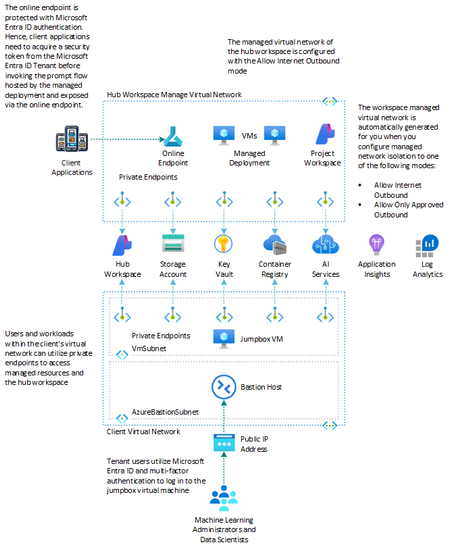
This article and the companion sample demonstrates how to set up an Azure AI Studio environment with managed identity and Azure RBAC to connected Azure AI Services and dependent resources and with the managed virtual network isolation mode set to Allow Internet Outbound. For more information, see How to configure a managed network for Azure AI Studio hubs. For more information, see: Azure AI Studio Documentation Azure Resources You can use the Bicep templates in this GitHub repository to deploy the following Azure resources: Resource Type Description Azure Application Insights Microsoft.Insights/components An Azure Application Insights instance associated with the Azure AI Studio workspace Azure Monitor Log Analytics Microsoft.OperationalInsights/workspaces An Azure Log Analytics workspace used to collect diagnostics logs and metrics from Azure resources Azure Key Vault Microsoft.KeyVault/vaults An Azure Key Vault instance associated with the Azure AI Studio workspace Azure Storage Account Microsoft.Storage/storageAccounts An Azure Storage instance associated with the Azure AI Studio workspace Azure Container Registry Microsoft.ContainerRegistry/registries An Azure Container Registry instance associated with the Azure AI Studio workspace Azure AI Hub / Project Microsoft.MachineLearningServices/workspaces An Azure AI Studio Hub and Project (Azure ML Workspace of kind 'hub' and 'project') Azure AI Services Microsoft.CognitiveServices/accounts An Azure AI Services as the model-as-a-service endpoint provider including GPT-4o and ADA Text Embeddings model deployments Azure Virtual Network Microsoft.Network/virtualNetworks A bring-your-own (BYO) virtual network hosting a jumpbox virtual machine to manage Azure AI Studio Azure Bastion Host Microsoft.Network/virtualNetworks A Bastion Host defined in the BYO virtual network that provides RDP connectivity to the jumpbox virtual machine Azure NAT Gateway Microsoft.Network/natGateways An Azure NAT Gateway that provides outbound connectivity to the jumpbox virtual machine Azure Private Endpoints Microsoft.Network/privateEndpoints Azure Private Endpoints defined in the BYO virtual network for Azure Container Registry, Azure Key Vault, Azure Storage Account, and Azure AI Hub Workspace Azure Private DNS Zones Microsoft.Network/privateDnsZones Azure Private DNS Zones are used for the DNS resolution of the Azure Private Endpoints You can select a different version of the GPT model by specifying the openAiDeployments parameter in the main.bicepparam parameters file. For details on the models available in various Azure regions, please refer to the Azure OpenAI Service models documentation. The default deployment includes an Azure Container Registry resource. However, if you wish not to deploy an Azure Container Registry, you can simply set the acrEnabled parameter to false . Network isolation architecture and isolation modes When you enable managed virtual network isolation, a managed virtual network is created for the hub workspace. Any managed compute resources you create for the hub, for example the virtual machines of online endpoint managed deployment, will automatically use this managed virtual network. The managed virtual network can also utilize Azure Private Endpoints for Azure resources that your hub depends on, such as Azure Storage, Azure Key Vault, and Azure Container Registry. There are three different configuration modes for outbound traffic from the managed virtual network: Outbound mode Description Scenarios Allow internet outbound Allow all internet outbound traffic from the managed virtual network. You want unrestricted access to machine learning resources on the internet, such as python packages or pretrained models. Allow only approved outbound Outbound traffic is allowed by specifying service tags. You want to minimize the risk of data exfiltration, but you need to prepare all required machine learning artifacts in your private environment. * You want to configure outbound access to an approved list of services, service tags, or FQDNs. Disabled Inbound and outbound traffic isn't restricted. You want public inbound and outbound from the hub. The Bicep templates in the companion sample demonstrate how to deploy an Azure AI Studio environment with the hub workspace's managed network isolation mode configured to Allow Internet Outbound . The Azure Private Endpoints and Private DNS Zones in the hub workspace managed virtual network are automatically created for you, while the Bicep templates create the Azure Private Endpoints and relative Private DNS Zones in the client virtual network. Managed Virtual Network When you provision the hub workspace of your Azure AI Studio with an isolation mode equal to the Allow Internet Outbound isolation mode, the managed virtual network and the Azure Private Endpoints to the dependent resources will not be created if public network access of Azure Key Vault, Azure Container Registry, and Azure Storage Account dependent resources is enabled. The creation of the managed virtual network is deferred until a compute resource is created or provisioning is manually started. When allowing automatic creation, it can take around 30 minutes to create the first compute resource as it is also provisioning the network. For more information, see Manually provision workspace managed VNet. If you initially create Azure Key Vault, Azure Container Registry, and Azure Storage Account dependent resources with public network enabled and then decide to disable it later, the managed virtual network will not be automatically provisioned if it is not already provisioned, and the private endpoints to the dependent resources will not be created. In this case, if you want o create the private endpoints to the dependent resources, you need to reprovision the hub manage virtual network in one of the following ways: Redeploy the hub workspace using Bicep or Terraform templates. If the isolation mode is set to Allow Internet Outbound and the dependent resources referenced by the hub workspace have public network access disabled, this operation will trigger the creation of the managed virtual network, if it does not already exist, and the private endpoints to the dependent resources. Execute the following Azure CLI command az ml workspace provision-network to reprovision the managed virtual network. The private endpoints will be created with the managed virtual network if the public network access of the dependent resources is disabled. az ml workspace provision-network --name my_hub_workspace_name --resource-group At this time, it's not possible to directly access the managed virtual network via the Azure CLI or the Azure Portal. You can see the managed virtual network indirectly by looking at the private endpoints, if any, under the hub workspace. You can proceed as follows: Go to the Azure Portal and select your Azure AI hub. Click on Settings and then Networking . Open the Workspace managed outbound access tab. Expand the section titled Required outbound rules . Here, you will find the private endpoints that are connected to the resources within the hub managed virtual network. Ensure that these private endpoints are active. You can also see the private endpoints hosted by the manage virtual network of your hub workspace inside the Networking settings of individual dependent resources, for example Key Vault: Go to the Azure Portal and select your Azure Key Vault. Click on Settings and then Networking . Open the Private endpoint connections tab. Here, you will find the private endpoint created by the Bicep templates in the client virtual network along with the private endpoint created in the hub managed virtual network of the hub. Also note that when you create a hub workspace with the Allow Internet Outbound isolation mode, the creation of the managed network is not immediate to save costs. The managed virtual network needs to be manually triggered via the az ml workspace provision-network command, or it will be triggered when you create a compute resource or private endpoints to dependent resources. At this time, the creation of an online endpoint does not automatically trigger the creation of a managed virtual network. An error occurs if you try to create an online deployment under the workspace which enabled workspace managed VNet but the managed VNet is not provisioned yet. Workspace managed VNet should be provisioned before you create an online deployment. Follow instructions to manually provision the workspace managed VNet. Once completed, you may start creating online deployments. For more information, see Network isolation with managed online endpoint and Secure your managed online endpoints with network isolation. Limitations The current limitations of managed virtual network are: Azure AI Studio currently doesn't support bringing your own virtual network, it only supports managed virtual network isolation. Once you enable managed virtual network isolation of your Azure AI, you can't disable it. Managed virtual network uses private endpoint connections to access your private resources. You can't have a private endpoint and a service endpoint at the same time for your Azure resources, such as a storage account. We recommend using private endpoints in all scenarios. The managed virtual network is deleted when the Azure AI is deleted. Data exfiltration protection is automatically enabled for the only approved outbound mode. If you add other outbound rules, such as to FQDNs, Microsoft can't guarantee that you're protected from data exfiltration to those outbound destinations. Using FQDN outbound rules increases the cost of the managed virtual network because FQDN rules use Azure Firewall. For more information, see Pricing. FQDN outbound rules only support ports 80 and 443. When using a compute instance with a managed network, use the az ml compute connect-ssh command to connect to the compute using SSH. Pricing According to the documentation, the hub managed virtual network feature is free. However, you will be charged for the following resources used by the managed virtual network: Azure Private Link - Private endpoints used to secure communications between the managed virtual network and Azure resources rely on Azure Private Link. For more information on pricing, see Azure Private Link pricing. FQDN outbound rules - FQDN outbound rules are implemented using Azure Firewall. If you use outbound FQDN rules, charges for Azure Firewall are included in your billing. Azure Firewall SKU is standard. Azure Firewall is provisioned per hub. NOTE The firewall isn't created until you add an outbound FQDN rule. If you don't use FQDN rules, you will not be charged for Azure Firewall. For more information on pricing, see Azure Firewall pricing. Secure Access to the Jumpbox Virtual Machine The jumpbox virtual machine is deployed with Windows 11 operating system and the Microsoft.Azure.ActiveDirectory VM extension, a specialized extension for integrating Azure virtual machines (VMs) with Microsoft Entra ID. This integration provides several key benefits, particularly in enhancing security and simplifying access management. Here's an overview of what the Microsoft.Azure.ActiveDirectory VM extension offers: Microsoft.Azure.ActiveDirectory VM extension is specialized for integrating Azure virtual machines (VMs) with Microsoft Entra ID. This integration provides several key benefits, particularly in enhancing security and simplifying access management. Here's an overview of the features and benefits of this VM extension: Enables users to sign in to a Windows or Linux virtual machine using their Microsoft Entra ID credentials. Facilitates single sign-on (SSO) experiences, reducing the need for managing separate local VM accounts. Supports multi-factor authentication, increasing security by requiring additional verification steps during login. Integrates with Azure RBAC, allowing administrators to assign specific roles to users, thereby controlling the level of access and permissions on the virtual machine. Allows administrators to apply conditional access policies to the VM, enhancing security by enforcing controls such as trusted device requirements, location-based access, and more. Eliminates the need to manage local administrator accounts, simplifying VM management and reducing overhead. For more information, see Sign in to a Windows virtual machine in Azure by using Microsoft Entra ID including passwordless. Make sure to enforce multi-factor authentication on your user account in your Microsoft Entra ID Tenant, as shown in the following screenshot: Then, specify at least an authentication method in addition to the password for the user account, for example the phone number, as shown in the following screenshot: To log in to the jumpbox virtual machine using a Microsoft Entra ID tenant user, you need to assign one of the following Azure roles to determine who can access the VM. To assign these roles, you must have the Virtual Machine Data Access Administrator role, or any role that includes the Microsoft.Authorization/roleAssignments/write action, such as the Role Based Access Control Administrator role. If you choose a role other than the Virtual Machine Data Access Administrator, it is recommended to add a condition to limit the permission to create role assignments. Virtual Machine Administrator Login: Users who have this role assigned can sign in to an Azure virtual machine with administrator privileges. Virtual Machine User Login: Users who have this role assigned can sign in to an Azure virtual machine with regular user privileges. To allow a user to sign in to the jumpbox virtual machine over RDP, you must assign the Virtual Machine Administrator Login or Virtual Machine User Login role to the user at the subscription, resource group, or virtual machine level. The virtualMachine.bicep module assigns the Virtual Machine Administrator Login to the user identified by the userObjectId parameter. To log in to the jumpbox virtual machine via Azure Bastion Host using a Microsoft Entra ID tenant user with multi-factor authentication, you can use the az network bastion rdp command as follows: az network bastion rdp \ --name <bastion-host-name> \ --resource-group <resource-group-name> \ --target-resource-id <virtual-machine-resource-id> \ --auth-type AAD After logging in to the virtual machine, if you open the Edge browser and navigate to the Azure Portal or Azure AI Studio, the browser profile will automatically be configured to the tenant user account used for the VM login. Bicep Parameters Specify a value for the required parameters in the main.bicepparam parameters file before deploying the Bicep modules. Here is the markdown table extrapolating the name, type, and description of the parameters from the provided Bicep code: Name Type Description prefix string Specifies the name prefix for all the Azure resources. suffix string Specifies the name suffix for all the Azure resources. location string Specifies the location for all the Azure resources. hubName string Specifies the name Azure AI Hub workspace. hubFriendlyName string Specifies the friendly name of the Azure AI Hub workspace. hubDescription string Specifies the description for the Azure AI Hub workspace displayed in Azure AI Studio. hubIsolationMode string Specifies the isolation mode for the managed network of the Azure AI Hub workspace. hubPublicNetworkAccess string Specifies the public network access for the Azure AI Hub workspace. connectionAuthType string Specifies the authentication method for the OpenAI Service connection. systemDatastoresAuthMode string Determines whether to use credentials for the system datastores of the workspace workspaceblobstore and workspacefilestore. projectName string Specifies the name for the Azure AI Studio Hub Project workspace. projectFriendlyName string Specifies the friendly name for the Azure AI Studio Hub Project workspace. projectPublicNetworkAccess string Specifies the public network access for the Azure AI Project workspace. logAnalyticsName string Specifies the name of the Azure Log Analytics resource. logAnalyticsSku string Specifies the service tier of the workspace: Free, Standalone, PerNode, Per-GB. logAnalyticsRetentionInDays int Specifies the workspace data retention in days. applicationInsightsName string Specifies the name of the Azure Application Insights resource. aiServicesName string Specifies the name of the Azure AI Services resource. aiServicesSku object Specifies the resource model definition representing SKU. aiServicesIdentity object Specifies the identity of the Azure AI Services resource. aiServicesCustomSubDomainName string Specifies an optional subdomain name used for token-based authentication. aiServicesDisableLocalAuth bool Specifies whether to disable the local authentication via API key. aiServicesPublicNetworkAccess string Specifies whether or not public endpoint access is allowed for this account. openAiDeployments array Specifies the OpenAI deployments to create. keyVaultName string Specifies the name of the Azure Key Vault resource. keyVaultNetworkAclsDefaultAction string Specifies the default action of allow or deny when no other rules match for the Azure Key Vault resource. keyVaultEnabledForDeployment bool Specifies whether the Azure Key Vault resource is enabled for deployments. keyVaultEnabledForDiskEncryption bool Specifies whether the Azure Key Vault resource is enabled for disk encryption. keyVaultEnabledForTemplateDeployment bool Specifies whether the Azure Key Vault resource is enabled for template deployment. keyVaultEnableSoftDelete bool Specifies whether soft delete is enabled for this Azure Key Vault resource. keyVaultEnablePurgeProtection bool Specifies whether purge protection is enabled for this Azure Key Vault resource. keyVaultEnableRbacAuthorization bool Specifies whether to enable the RBAC authorization for the Azure Key Vault resource. keyVaultSoftDeleteRetentionInDays int Specifies the soft delete retention in days. acrEnabled bool Specifies whether to create the Azure Container Registry. acrName string Specifies the name of the Azure Container Registry resource. acrAdminUserEnabled bool Enable admin user that have push/pull permission to the registry. acrPublicNetworkAccess string Specifies whether to allow public network access. Defaults to Enabled. acrSku string Specifies the tier of your Azure Container Registry. acrAnonymousPullEnabled bool Specifies whether or not registry-wide pull is enabled from unauthenticated clients. acrDataEndpointEnabled bool Specifies whether or not a single data endpoint is enabled per region for serving data. acrNetworkRuleSet object Specifies the network rule set for the container registry. acrNetworkRuleBypassOptions string Specifies whether to allow trusted Azure services to access a network-restricted registry. acrZoneRedundancy string Specifies whether or not zone redundancy is enabled for this container registry. storageAccountName string Specifies the name of the Azure Storage Account resource. storageAccountAccessTier string Specifies the access tier of the Azure Storage Account resource. The default value is Hot. storageAccountAllowBlobPublicAccess bool Specifies whether the Azure Storage Account resource allows public access to blobs. The default value is false. storageAccountAllowSharedKeyAccess bool Specifies whether the Azure Storage Account resource allows shared key access. The default value is true. storageAccountAllowCrossTenantReplication bool Specifies whether the Azure Storage Account resource allows cross-tenant replication. The default value is false. storageAccountMinimumTlsVersion string Specifies the minimum TLS version to be permitted on requests to the Azure Storage account. The default value is TLS1_2. storageAccountANetworkAclsDefaultAction string The default action of allow or deny when no other rules match. storageAccountSupportsHttpsTrafficOnly bool Specifies whether the Azure Storage Account resource should only support HTTPS traffic. virtualNetworkResourceGroupName string Specifies the name of the resource group hosting the virtual network and private endpoints. virtualNetworkName string Specifies the name of the virtual network. virtualNetworkAddressPrefixes string Specifies the address prefixes of the virtual network. vmSubnetName string Specifies the name of the subnet which contains the virtual machine. vmSubnetAddressPrefix string Specifies the address prefix of the subnet which contains the virtual machine. vmSubnetNsgName string Specifies the name of the network security group associated with the subnet hosting the virtual machine. bastionSubnetAddressPrefix string Specifies the Bastion subnet IP prefix. This prefix must be within the virtual network IP prefix address space. bastionSubnetNsgName string Specifies the name of the network security group associated with the subnet hosting Azure Bastion. bastionHostEnabled bool Specifies whether Azure Bastion should be created. bastionHostName string Specifies the name of the Azure Bastion resource. bastionHostDisableCopyPaste bool Enable/Disable Copy/Paste feature of the Bastion Host resource. bastionHostEnableFileCopy bool Enable/Disable File Copy feature of the Bastion Host resource. bastionHostEnableIpConnect bool Enable/Disable IP Connect feature of the Bastion Host resource. bastionHostEnableShareableLink bool Enable/Disable Shareable Link of the Bastion Host resource. bastionHostEnableTunneling bool Enable/Disable Tunneling feature of the Bastion Host resource. bastionPublicIpAddressName string Specifies the name of the Azure Public IP Address used by the Azure Bastion Host. bastionHostSkuName string Specifies the name of the Azure Bastion Host SKU. natGatewayName string Specifies the name of the Azure NAT Gateway. natGatewayZones array Specifies a list of availability zones denoting the zone in which the NAT Gateway should be deployed. natGatewayPublicIps int Specifies the number of Public IPs to create for the Azure NAT Gateway. natGatewayIdleTimeoutMins int Specifies the idle timeout in minutes for the Azure NAT Gateway. blobStorageAccountPrivateEndpointName string Specifies the name of the private link to the blob storage account. fileStorageAccountPrivateEndpointName string Specifies the name of the private link to the file storage account. keyVaultPrivateEndpointName string Specifies the name of the private link to the Key Vault. acrPrivateEndpointName string Specifies the name of the private link to the Azure Container Registry. hubWorkspacePrivateEndpointName string Specifies the name of the private link to the Azure Hub Workspace. vmName string Specifies the name of the virtual machine. vmSize string Specifies the size of the virtual machine. imagePublisher string Specifies the image publisher of the disk image used to create the virtual machine. imageOffer string Specifies the offer of the platform image or marketplace image used to create the virtual machine. imageSku string Specifies the image version for the virtual machine. authenticationType string Specifies the type of authentication when accessing the virtual machine. SSH key is recommended. vmAdminUsername string Specifies the name of the administrator account of the virtual machine. vmAdminPasswordOrKey string Specifies the SSH Key or password for the virtual machine. SSH key is recommended. diskStorageAccountType string Specifies the storage account type for OS and data disk. numDataDisks int Specifies the number of data disks of the virtual machine. osDiskSize int Specifies the size in GB of the OS disk of the VM. dataDiskSize int Specifies the size in GB of the data disk of the virtual machine. dataDiskCaching string Specifies the caching requirements for the data disks. enableMicrosoftEntraIdAuth bool Specifies whether to enable Microsoft Entra ID authentication on the virtual machine. enableAcceleratedNetworking bool Specifies whether to enable accelerated networking on the virtual machine. tags object Specifies the resource tags for all the resources. userObjectId string Specifies the object ID of a Microsoft Entra ID user. We suggest reading sensitive configuration data such as passwords or SSH keys from a pre-existing Azure Key Vault resource. For more information, see Create parameters files for Bicep deployment Getting Started To set up the infrastructure for the secure Azure AI Studio, you will need to install the necessary prerequisites and follow the steps below. Prerequisites Before you begin, ensure you have the following: An active Azure subscription Azure CLI installed on your local machine. Follow the installation guide if needed. Appropriate permissions to create resources in your Azure account Basic knowledge of using the command line interface Step 1: Clone the Repository Start by cloning the repository to your local machine: git clone <repository_url> cd bicep Step 2: Configure Parameters Edit the main.bicepparam parameters file to configure values for the parameters required by the Bicep templates. Make sure you set appropriate values for resource group name, location, and other necessary parameters in the deploy.sh Bash script. Step 3: Deploy Resources Use the deploy.sh Bash script to deploy the Azure resources via Bicep. This script will provision all the necessary resources as defined in the Bicep templates. Run the following command to deploy the resources: ./deploy.sh --resourceGroupName <resource-group-name> --location <location> --virtualNetworkResourceGroupName <client-virtual-network-resource-group-name> How to Test By following these steps, you will have Azure AI Studio set up and ready for your projects using Bicep. If you encounter any issues, refer to the additional resources or seek help from the Azure support team. After deploying the resources, you can verify the deployment by checking the Azure Portal or Azure AI Studio. Ensure all the resources are created and configured correctly. You can also follow these instructions to deploy, expose, and call the Basic Chat prompt flow using Bash scripts and Azure CLI.3.5KViews3likes2CommentsDeploy Kaito on AKS using Terraform
The Kubernetes AI toolchain operator (Kaito) is a Kubernetes operator that simplifies the experience of running OSS AI models like Falcon and Llama2 on your AKS cluster. You can deploy Kaito on your AKS cluster as a managed add-on for Azure Kubernetes Service (AKS). The Kubernetes AI toolchain operator (Kaito) uses Karpenter to automatically provision the necessary GPU nodes based on a specification provided in the Workspace custom resource definition (CRD) and sets up the inference server as an endpoint for your AI models. This add-on reduces onboarding time and allows you to focus on AI model usage and development rather than infrastructure setup. In this project, I will show you how to: Deploy the Kubernetes AI Toolchain Operator (Kaito) and a Workspace on Azure Kubernetes Service (AKS) using Terraform. Utilize Kaito to create an AKS-hosted inference environment for the Falcon 7B Instruct model. Develop a chat application using Python and Chainlit that interacts with the inference endpoint exposed by the AKS-hosted model. By following this guide, you will be able to easily set up and use the powerful capabilities of Kaito, Python, and Chainlit to enhance your AI model deployment and create dynamic chat applications. For more information on Kaito, see the following resources: Kubernetes AI Toolchain Operator (Kaito) Deploy an AI model on Azure Kubernetes Service (AKS) with the AI toolchain operator Intelligent Apps on AKS Ep02: Bring Your Own AI Models to Intelligent Apps on AKS with Kaito Open Source Models on AKS with Kaito The companion code for this article can be found in this GitHub repository. NOTE This article provides information on the Kubernetes AI Toolchain (Kaito) operator, which is currently in the early stages of development and undergoing frequent updates. Please note that the content of this article is applicable to Kaito version 0.2.0. It is advised to regularly check for the latest updates and changes in subsequent versions of Kaito. NOTE You can find the architecture.vsdx file used for the diagram under the visio folder. Prerequisites An active Azure subscription. If you don't have one, create a free Azure account before you begin. Visual Studio Code installed on one of the supported platforms along with the HashiCorp Terraform. Azure CLI version 2.59.0 or later installed. To install or upgrade, see Install Azure CLI. aks-preview Azure CLI extension of version 2.0.0b8 or later installed Terraform v1.7.5 or later. The deployment must be started by a user who has sufficient permissions to assign roles, such as a User Access Administrator or Owner . Your Azure account also needs Microsoft.Resources/deployments/write permissions at the subscription level. Architecture The following diagram shows the architecture and network topology deployed by the sample: This project provides a set of Terraform modules to deploy the following resources: Azure Kubernetes Service: A public or private Azure Kubernetes Service(AKS) cluster composed of a: A system node pool in a dedicated subnet. The default node pool hosts only critical system pods and services. The worker nodes have node taint which prevents application pods from beings scheduled on this node pool. A user node pool hosting user workloads and artifacts in a dedicated subnet. User-defined Managed Identity: a user-defined managed identity used by the AKS cluster to create additional resources like load balancers and managed disks in Azure. Azure Virtual Machine: Terraform modules can optionally create a jump-box virtual machine to manage the private AKS cluster. Azure Bastion Host: a separate Azure Bastion is deployed in the AKS cluster virtual network to provide SSH connectivity to both agent nodes and virtual machines. Azure NAT Gateway: a bring-your-own (BYO) Azure NAT Gateway to manage outbound connections initiated by AKS-hosted workloads. The NAT Gateway is associated to the SystemSubnet , UserSubnet , and PodSubnet subnets. The outboundType property of the cluster is set to userAssignedNatGateway to specify that a BYO NAT Gateway is used for outbound connections. NOTE: you can update the outboundType after cluster creation and this will deploy or remove resources as required to put the cluster into the new egress configuration. For more information, see Updating outboundType after cluster creation. Azure Storage Account: this storage account is used to store the boot diagnostics logs of both the service provider and service consumer virtual machines. Boot Diagnostics is a debugging feature that allows you to view console output and screenshots to diagnose virtual machine status. Azure Container Registry: an Azure Container Registry (ACR) to build, store, and manage container images and artifacts in a private registry for all container deployments. Azure Key Vault: an Azure Key Vault used to store secrets, certificates, and keys that can be mounted as files by pods using Azure Key Vault Provider for Secrets Store CSI Driver. For more information, see Use the Azure Key Vault Provider for Secrets Store CSI Driver in an AKS cluster and Provide an identity to access the Azure Key Vault Provider for Secrets Store CSI Driver. Azure Private Endpoints: an Azure Private Endpoint is created for each of the following resources: Azure Container Registry Azure Key Vault Azure Storage Account API Server when deploying a private AKS cluster. Azure Private DNDS Zones: an Azure Private DNS Zone is created for each of the following resources: Azure Container Registry Azure Key Vault Azure Storage Account API Server when deploying a private AKS cluster. Azure Network Security Group: subnets hosting virtual machines and Azure Bastion Hosts are protected by Azure Network Security Groups that are used to filter inbound and outbound traffic. Azure Log Analytics Workspace: a centralized Azure Log Analytics workspace is used to collect the diagnostics logs and metrics from all the Azure resources: Azure Kubernetes Service cluster Azure Key Vault Azure Network Security Group Azure Container Registry Azure Storage Account Azure jump-box virtual machine Azure Monitor workspace: An Azure Monitor workspace is a unique environment for data collected by Azure Monitor. Each workspace has its own data repository, configuration, and permissions. Log Analytics workspaces contain logs and metrics data from multiple Azure resources, whereas Azure Monitor workspaces currently contain only metrics related to Prometheus. Azure Monitor managed service for Prometheus allows you to collect and analyze metrics at scale using a Prometheus-compatible monitoring solution, based on the Prometheus. This fully managed service allows you to use the Prometheus query language (PromQL) to analyze and alert on the performance of monitored infrastructure and workloads without having to operate the underlying infrastructure. The primary method for visualizing Prometheus metrics is Azure Managed Grafana. You can connect your Azure Monitor workspace to an Azure Managed Grafana to visualize Prometheus metrics using a set of built-in and custom Grafana dashboards. Azure Managed Grafana: an Azure Managed Grafana instance used to visualize the Prometheus metrics generated by the Azure Kubernetes Service(AKS) cluster deployed by the Bicep modules. Azure Managed Grafana is a fully managed service for analytics and monitoring solutions. It's supported by Grafana Enterprise, which provides extensible data visualizations. This managed service allows to quickly and easily deploy Grafana dashboards with built-in high availability and control access with Azure security. NGINX Ingress Controller: this sample compares the managed and unmanaged NGINX Ingress Controller. While the managed version is installed using the Application routing add-on, the unmanaged version is deployed using the Helm Terraform Provider. You can use the Helm provider to deploy software packages in Kubernetes. The provider needs to be configured with the proper credentials before it can be used. Cert-Manager: the cert-manager package and Let's Encrypt certificate authority are used to issue a TLS/SSL certificate to the chat applications. Prometheus: the AKS cluster is configured to collect metrics to the Azure Monitor workspace and Azure Managed Grafana. Nonetheless, the kube-prometheus-stack Helm chart is used to install Prometheus and Grafana on the AKS cluster. Kaito Workspace: a Kaito workspace is used to create a GPU node and the Falcon 7B Instruct model. Workload namespace and service account: the Kubectl Terraform Provider and Kubernetes Terraform Provider are used to create the namespace and service account used by the chat applications. Azure Monitor ConfigMaps for Azure Monitor managed service for Prometheus and cert-manager Cluster Issuer are deployed using the Kubectl Terraform Provider and Kubernetes Terraform Provider.` The architecture of the kaito-chat application can be seen in the image below. The application calls the inference endpoint created by the Kaito workspace for the Falcon-7B-Instruct model. Kaito The Kubernetes AI toolchain operator (Kaito) is a managed add-on for AKS that simplifies the experience of running OSS AI models on your AKS clusters. The AI toolchain operator automatically provisions the necessary GPU nodes and sets up the associated inference server as an endpoint server to your AI models. Using this add-on reduces your onboarding time and enables you to focus on AI model usage and development rather than infrastructure setup. Key Features Container Image Management: Kaito allows you to manage large language models using container images. It provides an HTTP server to perform inference calls using the model library. GPU Hardware Configuration: Kaito eliminates the need for manual tuning of deployment parameters to fit GPU hardware. It provides preset configurations that are automatically applied based on the model requirements. Auto-provisioning of GPU Nodes: Kaito automatically provisions GPU nodes based on the requirements of your models. This ensures that your AI inference workloads have the necessary resources to run efficiently. Integration with Microsoft Container Registry: If the license allows, Kaito can host large language model images in the public Microsoft Container Registry (MCR). This simplifies the process of accessing and deploying the models. Architecture Overview Kaito follows the classic Kubernetes Custom Resource Definition (CRD)/controller design pattern. The user manages a workspace custom resource that describes the GPU requirements and the inference specification. Kaito controllers automate the deployment by reconciling the workspace custom resource. The major components of Kaito include: Workspace Controller: This controller reconciles the workspace custom resource, creates machine custom resources to trigger node auto-provisioning, and creates the inference workload (deployment or statefulset) based on the model preset configurations. Node Provisioner Controller: This controller, named gpu-provisioner in the Kaito Helm chart, interacts with the workspace controller using the machine CRD from Karpenter. It integrates with Azure Kubernetes Service (AKS) APIs to add new GPU nodes to the AKS cluster. Note that the gpu-provisioner is an open-source component maintained in the Kaito repository and can be replaced by other controllers supporting Karpenter-core APIs. Using Kaito greatly simplifies the workflow of onboarding large AI inference models into Kubernetes, allowing you to focus on AI model usage and development without the hassle of infrastructure setup. Benefits There are some significant benefits of running open source LLMs with Kaito. Some advantages include: Automated GPU node provisioning and configuration: Kaito will automatically provision and configure GPU nodes for you. This can help reduce the operational burden of managing GPU nodes, configuring them for Kubernetes, and tuning model deployment parameters to fit GPU profiles. Reduced cost: Kaito can help you save money by splitting inferencing across lower end GPU nodes which may also be more readily available and cost less than high-end GPU nodes. Support for popular open-source LLMs: Kaito offers preset configurations for popular open-source LLMs. This can help you deploy and manage open-source LLMs on AKS and integrate them with your intelligent applications. Fine-grained control: You can have full control over data security and privacy, model development and configuration transparency, and the ability to fine-tune the model to fit your specific use case. Network and data security: You can ensure these models are ring-fenced within your organization's network and/or ensure the data never leaves the Kubernetes cluster. Models At the time of this writing, Kaito supports the following models. Llama 2 Meta released Llama 2, a set of pretrained and refined LLMs, along with Llama 2-Chat, a version of Llama 2. These models are scalable up to 70 billion parameters. It was discovered after extensive testing on safety and helpfulness-focused benchmarks that Llama 2-Chat models perform better than current open-source models in most cases. Human evaluations have shown that they align well with several closed-source models. The researchers have even taken a few steps to guarantee the security of these models. This includes annotating data, especially for safety, conducting red-teaming exercises, fine-tuning models with an emphasis on safety issues, and iteratively and continuously reviewing the models. Variants of Llama 2 with 7 billion, 13 billion, and 70 billion parameters have also been released. Llama 2-Chat, optimized for dialogue scenarios, has also been released in variants with the same parameter scales. For more information, see the following resources: Llama 2: Open Foundation and Fine-Tuned Chat Models Llama 2 Project Falcon Researchers from Technology Innovation Institute, Abu Dhabi introduced the Falcon series, which includes models with 7 billion, 40 billion, and 180 billion parameters. These models, which are intended to be causal decoder-only models, were trained on a high-quality, varied corpus that was mostly obtained from online data. Falcon-180B, the largest model in the series, is the only publicly available pretraining run ever, having been trained on a dataset of more than 3.5 trillion text tokens. The researchers discovered that Falcon-180B shows great advancements over other models, including PaLM or Chinchilla. It outperforms models that are being developed concurrently, such as LLaMA 2 or Inflection-1. Falcon-180B achieves performance close to PaLM-2-Large, which is noteworthy given its lower pretraining and inference costs. With this ranking, Falcon-180B joins GPT-4 and PaLM-2-Large as the leading language models in the world. For more information, see the following resources: The Falcon Series of Open Language Models Falcon-40B-Instruct Falcon-180B Falcon-7B Falcon-7B-Instruct Mistral Mistral 7B v0.1 is a cutting-edge 7-billion-parameter language model that has been developed for remarkable effectiveness and performance. Mistral 7B breaks all previous records, outperforming Llama 2 13B in every benchmark and even Llama 1 34B in crucial domains like logic, math, and coding. State-of-the-art methods like grouped-query attention (GQA) have been used to accelerate inference and sliding window attention (SWA) to efficiently handle sequences with different lengths while reducing computing overhead. A customized version, Mistral 7B — Instruct, has also been provided and optimized to perform exceptionally well in activities requiring following instructions. For more information, see the following resources: Mistral-7B-Instruct Mistral-7B Phi-2 Microsoft introduced Phi-2, which is a Transformer model with 2.7 billion parameters. It was trained using a combination of data sources similar to Phi-1.5. It also integrates a new data source, which consists of NLP synthetic texts and filtered websites that are considered instructional and safe. Examining Phi-2 against benchmarks measuring logical thinking, language comprehension, and common sense showed that it performed almost at the state-of-the-art level among models with less than 13 billion parameters. For more information, see the following resources: Phi-2 Chainlit Chainlit is an open-source Python package that is specifically designed to create user interfaces (UIs) for AI applications. It simplifies the process of building interactive chats and interfaces, making developing AI-powered applications faster and more efficient. While Streamlit is a general-purpose UI library, Chainlit is purpose-built for AI applications and seamlessly integrates with other AI technologies such as LangChain, LlamaIndex, and LangFlow. With Chainlit, developers can easily create intuitive UIs for their AI models, including ChatGPT-like applications. It provides a user-friendly interface for users to interact with AI models, enabling conversational experiences and information retrieval. Chainlit also offers unique features, such as the ability to display the Chain of Thought, which allows users to explore the reasoning process directly within the UI. This feature enhances transparency and enables users to understand how the AI arrives at its responses or recommendations. For more information, see the following resources: Documentation Examples API Reference Cookbook Deploy Kaito using Azure CLI As stated in the documentation, enabling the Kubernetes AI toolchain operator add-on in AKS creates a managed identity named ai-toolchain-operator-<aks-cluster-name> . This managed identity is utilized by the GPU provisioner controller to provision GPU node pools within the managed AKS cluster via Karpenter. To ensure proper functionality, manual configuration of the necessary permissions is required. Follow the steps outlined in the following sections to successfully install Kaito through the AKS add-on. Register the AIToolchainOperatorPreview feature flag using the az feature register command. It takes a few minutes for the registration to complete. az feature register --namespace "Microsoft.ContainerService" --name "AIToolchainOperatorPreview" Verify the registration using the az feature show command. az feature show --namespace "Microsoft.ContainerService" --name "AIToolchainOperatorPreview" Create an Azure resource group using the az group create command. az group create --name ${AZURE_RESOURCE_GROUP} --location $AZURE_LOCATION Create an AKS cluster with the AI toolchain operator add-on enabled using the az aks create command with the --enable-ai-toolchain-operator and --enable-oidc-issuer flags. az aks create --location $AZURE_LOCATION \ --resource-group $AZURE_RESOURCE_GROUP \ --name ${CLUSTER_NAME} \ --enable-oidc-issuer \ --enable-ai-toolchain-operator AI toolchain operator enablement requires the enablement of OIDC issuer. On an existing AKS cluster, you can enable the AI toolchain operator add-on using the az aks update command as follows: az aks update --name ${CLUSTER_NAME} \ --resource-group ${AZURE_RESOURCE_GROUP} \ --enable-oidc-issuer \ --enable-ai-toolchain-operator Configure kubectl to connect to your cluster using the az aks get-credentials command. az aks get-credentials --resource-group $AZURE_RESOURCE_GROUP --name $CLUSTER_NAME Export environment variables for the MC resource group, principal ID identity, and Kaito identity using the following commands: export MC_RESOURCE_GROUP=$(az aks show --resource-group $AZURE_RESOURCE_GROUP \ --name $CLUSTER_NAME \ --query nodeResourceGroup \ -o tsv) export PRINCIPAL_ID=$(az identity show --name "ai-toolchain-operator-$CLUSTER_NAME" \ --resource-group $MC_RESOURCE_GROUP \ --query 'principalId' \ -o tsv) export KAITO_IDENTITY_NAME="ai-toolchain-operator-${CLUSTER_NAME,,}" Get the AKS OIDC Issuer URL and export it as an environment variable: export AKS_OIDC_ISSUER=$(az aks show --resource-group "${AZURE_RESOURCE_GROUP}" \ --name "${CLUSTER_NAME}" \ --query "oidcIssuerProfile.issuerUrl" \ -o tsv) Create a new role assignment for the service principal using the az role assignment create command. The Kaito user-assigned managed identity needs the Contributor role on the resource group containing the AKS cluster. az role assignment create --role "Contributor" \ --assignee $PRINCIPAL_ID \ --scope "/subscriptions/$AZURE_SUBSCRIPTION_ID/resourcegroups/$AZURE_RESOURCE_GROUP" Create a federated identity credential between the KAITO managed identity and the service account used by KAITO controllers using the az identity federated-credential create command. az identity federated-credential create --name "Kaito-federated-identity" \ --identity-name "${KAITO_IDENTITY_NAME}" \ -g "${MC_RESOURCE_GROUP}" \ --issuer "${AKS_OIDC_ISSUER}" \ --subject system:serviceaccount:"kube-system:Kaito-gpu-provisioner" \ --audience api://AzureADTokenExchange Verify that the deployment is running using the kubectl get command: kubectl get deployment -n kube-system | grep Kaito Deploy the Falcon 7B-instruct model from the Kaito model repository using the kubectl apply command. kubectl apply -f https://raw.githubusercontent.com/Azure/Kaito/main/examples/Kaito_workspace_falcon_7b-instruct.yaml Track the live resource changes in your workspace using the kubectl get command. kubectl get workspace workspace-falcon-7b-instruct -w Check your service and get the service IP address of the inference endpoint using the kubectl get svc command. export SERVICE_IP=$(kubectl get svc workspace-falcon-7b-instruct -o jsonpath='{.spec.clusterIP}') Run the Falcon 7B-instruct model with a sample input of your choice using the following curl command: kubectl run -it --rm -n $namespace --restart=Never curl --image=curlimages/curl -- curl -X POST http://$serviceIp/chat -H "accept: application/json" -H "Content-Type: application/json" -d "{\"prompt\":\"Tell me about Tuscany and its cities.\", \"return_full_text\": false, \"generate_kwargs\": {\"max_length\":4096}}" NOTE As you track the live resource changes in your workspace, the machine readiness can take up to 10 minutes, and workspace readiness up to 20 minutes. Deploy Kaito using Terraform At the time of this writing, the azurerm_kubernetes_cluster resource in the AzureRM Terraform provider for Azure does not have a property to enable the add-on and install the Kubernetes AI toolchain operator (Kaito) on your AKS cluster. However, you can use the AzAPI Provider to deploy Kaito on your AKS cluster. The AzAPI provider is a thin layer on top of the Azure ARM REST APIs. It complements the AzureRM provider by enabling the management of Azure resources that are not yet or may never be supported in the AzureRM provider, such as private/public preview services and features. The following resources replicate the actions performed by the Azure CLI commands mentioned in the previous section. data "azurerm_resource_group" "node_resource_group" { count = var.Kaito_enabled ? 1 : 0 name = module.aks_cluster.node_resource_group depends_on = [module.node_pool] } resource "azapi_update_resource" "enable_Kaito" { count = var.Kaito_enabled ? 1 : 0 type = "Microsoft.ContainerService/managedClusters@2024-02-02-preview" resource_id = module.aks_cluster.id body = jsonencode({ properties = { aiToolchainOperatorProfile = { enabled = var.Kaito_enabled } } }) depends_on = [module.node_pool] } data "azurerm_user_assigned_identity" "Kaito_identity" { count = var.Kaito_enabled ? 1 : 0 name = local.KAITO_IDENTITY_NAME resource_group_name = data.azurerm_resource_group.node_resource_group.0.name depends_on = [azapi_update_resource.enable_Kaito] } resource "azurerm_federated_identity_credential" "Kaito_federated_identity_credential" { count = var.Kaito_enabled ? 1 : 0 name = "Kaito-federated-identity" resource_group_name = data.azurerm_resource_group.node_resource_group.0.name audience = ["api://AzureADTokenExchange"] issuer = module.aks_cluster.oidc_issuer_url parent_id = data.azurerm_user_assigned_identity.Kaito_identity.0.id subject = "system:serviceaccount:kube-system:Kaito-gpu-provisioner" depends_on = [azapi_update_resource.enable_Kaito, module.aks_cluster, data.azurerm_user_assigned_identity.Kaito_identity] } resource "azurerm_role_assignment" "Kaito_identity_contributor_assignment" { count = var.Kaito_enabled ? 1 : 0 scope = azurerm_resource_group.rg.id role_definition_name = "Contributor" principal_id = data.azurerm_user_assigned_identity.Kaito_identity.0.principal_id skip_service_principal_aad_check = true depends_on = [azurerm_federated_identity_credential.Kaito_federated_identity_credential] } Here is a description of the code above: azurerm_resource_group.node_resource_group : Retrieves the properties of the node resource group in the current AKS cluster. azapi_update_resource.enable_Kaito : Enables the Kaito add-on. This operation installs the Kaito operator on the AKS cluster and creates the related user-assigned managed identity in the node resource group. azurerm_user_assigned_identity.Kaito_identity : Retrieves the properties of the Kaito user-assigned managed identity located in the node resource group. azurerm_federated_identity_credential.Kaito_federated_identity_credential : Creates the federated identity credential between the Kaito managed identity and the service account used by the Kaito controllers in the kube-system namespace, particularly the Kaito-gpu-provisioner controller. azurerm_role_assignment.Kaito_identity_contributor_assignment : Assigns the Contributor role to the Kaito managed identity with the AKS resource group as the scope. Create the Kaito Workspace using Terraform To create the Kaito workspace, you can utilize the kubectl_manifest resource from the Kubectl Provider in the following manner. resource "kubectl_manifest" "Kaito_workspace" { count = var.Kaito_enabled ? 1 : 0 yaml_body = <<-EOF apiVersion: Kaito.sh/v1alpha1 kind: Workspace metadata: name: workspace-falcon-7b-instruct namespace: ${var.namespace} annotations: Kaito.sh/enablelb: "False" resource: count: 1 instanceType: "${var.instance_type}" labelSelector: matchLabels: apps: falcon-7b-instruct inference: preset: name: "falcon-7b-instruct" EOF depends_on = [kubectl_manifest.service_account] } To access the OpenAPI schema of the Workspace custom resource definition, execute the following command: kubectl get crd workspaces.Kaito.sh -o jsonpath="{.spec.versions[0].schema}" | jq -r Kaito Workspace Inference Endpoint Kaito creates a Kubernetes service with the same name and inside the same namespace of the workspace. This service exposes an inference endpoint that AI applications can use to call the API exposed by the AKS-hosted model. Here is an example of an inference endpoint for a Falcon model from the Kaito documentation: curl -X POST \ -H "accept: application/json" \ -H "Content-Type: application/json" \ -d '{ "prompt":"YOUR_PROMPT_HERE", "return_full_text": false, "clean_up_tokenization_spaces": false, "prefix": null, "handle_long_generation": null, "generate_kwargs": { "max_length":200, "min_length":0, "do_sample":true, "early_stopping":false, "num_beams":1, "num_beam_groups":1, "diversity_penalty":0.0, "temperature":1.0, "top_k":10, "top_p":1, "typical_p":1, "repetition_penalty":1, "length_penalty":1, "no_repeat_ngram_size":0, "encoder_no_repeat_ngram_size":0, "bad_words_ids":null, "num_return_sequences":1, "output_scores":false, "return_dict_in_generate":false, "forced_bos_token_id":null, "forced_eos_token_id":null, "remove_invalid_values":null } }' \ "http://<SERVICE>:80/chat" Here are the parameters you can use in a call: prompt : The initial text provided by the user, from which the model will continue generating text. return_full_text : If False only generated text is returned, else full text is returned. clean_up_tokenization_spaces : True/False, determines whether to remove potential extra spaces in the text output. prefix : Prefix added to the prompt. handle_long_generation : Provides strategies to address generations beyond the model's maximum length capacity. max_length : The maximum total number of tokens in the generated text. min_length : The minimum total number of tokens that should be generated. do_sample : If True, sampling methods will be used for text generation, which can introduce randomness and variation. early_stopping : If True, the generation will stop early if certain conditions are met, for example, when a satisfactory number of candidates have been found in beam search. num_beams : The number of beams to be used in beam search. More beams can lead to better results but are more computationally expensive. num_beam_groups : Divides the number of beams into groups to promote diversity in the generated results. diversity_penalty : Penalizes the score of tokens that make the current generation too similar to other groups, encouraging diverse outputs. temperature : Controls the randomness of the output by scaling the logits before sampling. top_k : Restricts sampling to the k most likely next tokens. top_p : Uses nucleus sampling to restrict the sampling pool to tokens comprising the top p probability mass. typical_p : Adjusts the probability distribution to favor tokens that are "typically" likely, given the context. repetition_penalty : Penalizes tokens that have been generated previously, aiming to reduce repetition. length_penalty : Modifies scores based on sequence length to encourage shorter or longer outputs. no_repeat_ngram_size : Prevents the generation of any n-gram more than once. encoder_no_repeat_ngram_size : Similar to no_repeat_ngram_size but applies to the encoder part of encoder-decoder models. bad_words_ids : A list of token ids that should not be generated. num_return_sequences : The number of different sequences to generate. output_scores : Whether to output the prediction scores. return_dict_in_generate : If True, the method will return a dictionary containing additional information. pad_token_id : The token ID used for padding sequences to the same length. eos_token_id : The token ID that signifies the end of a sequence. forced_bos_token_id : The token ID that is forcibly used as the beginning of a sequence token. forced_eos_token_id : The token ID that is forcibly used as the end of a sequence when max_length is reached. remove_invalid_values : If True, filters out invalid values like NaNs or infs from model outputs to prevent crashes. Deploy the Terraform modules Before deploying the Terraform modules in the project, specify a value for the following variables in the terraform.tfvars variable definitions file. name_prefix = "Anubi" location = "westeurope" domain = "babosbird.com" kubernetes_version = "1.29.2" network_plugin = "azure" network_plugin_mode = "overlay" network_policy = "azure" system_node_pool_vm_size = "Standard_D4ads_v5" user_node_pool_vm_size = "Standard_D4ads_v5" ssh_public_key = "ssh-rsa XXXXXXXXXXXXXXXXXXXXXXXXXXXXX" vm_enabled = true admin_group_object_ids = ["XXXXXXXX-XXXX-XXXX-XXXX-XXXXXXXXXXXX"] web_app_routing_enabled = true dns_zone_name = "babosbird.com" dns_zone_resource_group_name = "DnsResourceGroup" namespace = "Kaito-demo" service_account_name = "Kaito-sa" grafana_admin_user_object_id = "XXXXXXXX-XXXX-XXXX-XXXX-XXXXXXXXXXXX" vnet_integration_enabled = true openai_enabled = false Kaito_enabled = true instance_type = "Standard_NC12s_v3" This is the description of the parameters: name_prefix : Specifies a prefix for all the Azure resources. location : Specifies the region (e.g., westeurope) where deploying the Azure resources. domain : Specifies the domain part (e.g., subdomain.domain) of the hostname of the ingress object used to expose the chatbot via the NGINX Ingress Controller. kubernetes_version : Specifies the Kubernetes version installed on the AKS cluster. network_plugin : Specifies the network plugin of the AKS cluster. network_plugin_mode : Specifies the network plugin mode used for building the Kubernetes network. Possible value is overlay. network_policy : Specifies the network policy of the AKS cluster. Currently supported values are calico, azure and cilium. system_node_pool_vm_size : Specifies the virtual machine size of the system-mode node pool. user_node_pool_vm_size : Specifies the virtual machine size of the user-mode node pool. ssh_public_key : Specifies the SSH public key used for the AKS nodes and jumpbox virtual machine. vm_enabled : a boleean value that specifies whether deploying or not a jumpbox virtual machine in the same virtual network of the AKS cluster. admin_group_object_ids : when deploying an AKS cluster with Microsoft Entra ID and Azure RBAC integration, this array parameter contains the list of Microsoft Entra ID group object IDs that will have the admin role of the cluster. web_app_routing_enabled : Specifies whether the application routing add-on is enabled. When enabled, this add-on installs a managed instance of the NGINX Ingress Controller on the AKS cluster. dns_zone_name : Specifies the name of the Azure Public DNS zone used by the application routing add-on. dns_zone_resource_group_name : Specifies the resource group name of the Azure Public DNS zone used by the application routing add-on. namespace : Specifies the namespace of the workload application. service_account_name : Specifies the name of the service account of the workload application. grafana_admin_user_object_id : Specifies the object id of the Azure Managed Grafana administrator user account. vnet_integration_enabled : Specifies whether API Server VNet Integration is enabled. openai_enabled : Specifies whether to deploy Azure OpenAI Service or not. This sample does not require the deployment of Azure OpenAI Service. Kaito_enabled : Specifies whether to deploy the Kubernetes AI Toolchain Operator (Kaito). instance_type : Specifies the GPU node SKU (e.g. Standard_NC12s_v3 ) to use in the Kaito workspace. NOTE We suggest reading sensitive configuration data such as passwords or SSH keys from a pre-existing Azure Key Vault resource. For more information, see Referencing Azure Key Vault secrets in Terraform. Before proceeding, also make sure to run the register-preview-features.sh Bash script in the terraform folder to register any preview feature used by the AKS cluster. GPU VM-family vCPU quotas Before installing the Terraform module, make sure to have enough vCPU quotas in the selected region for the GPU VM family specified in the instance_type parameter. In case you don't have enough quota, follow the instructions described in Increase VM-family vCPU quotas. The steps for requesting a quota increase vary based on whether the quota is adjustable or non-adjustable. Adjustable quotas: Quotas for which you can request a quota increase fall into this category. Each subscription has a default quota value for each VM family and region. You can request an increase for an adjustable quota from the Azure Portal My quotas page, providing an amount or usage percentage for a given VM family in a specified region and submitting it directly. This is the quickest way to increase quotas. Non-adjustable quotas: These are quotas which have a hard limit, usually determined by the scope of the subscription. To make changes, you must submit a support request, and the Azure support team will help provide solutions. If you don't have enough vCPU quota for the selected instance type, the Kaito workspace creation will fail. You can check the error description using the Azure Monitor Activity Log, as shown in the following figure: To read the logs of the Kaito GPU provisioner pod in the kube-system namespace, you can use the following command. kubectl logs -n kube-system $(kubectl get pods -n kube-system | grep Kaito-gpu-provisioner | awk '{print $1; exit}') In case you exceeded the quota for the selected instance type, you could see an error message as follows: {"level":"INFO","time":"2024-04-04T08:42:40.398Z","logger":"controller","message":"Create","machine":{"name":"ws560b34aa2"}} {"level":"INFO","time":"2024-04-04T08:42:40.398Z","logger":"controller","message":"Instance.Create","machine":{"name":"ws560b34aa2"}} {"level":"INFO","time":"2024-04-04T08:42:40.398Z","logger":"controller","message":"createAgentPool","agentpool":"ws560b34aa2"} {"level":"ERROR","time":"2024-04-04T08:42:48.010Z","logger":"controller","message":"Reconciler error","controller":"machine.lifecycle","controllerGroup":"karpenter.sh","controllerKind":"Machine","Machine":{"name":"ws560b34aa2"},"namespace":"","name":"ws560b34aa2","reconcileID":"b6f56170-ae31-4b05-80a6-019d3f716acc","error":"creating machine, creating instance, agentPool.BeginCreateOrUpdate for \"ws560b34aa2\" failed: PUT https://management.azure.com/subscriptions/1a45a694-af23-4650-9774-89a981c462f6/resourceGroups/AtumRG/providers/Microsoft.ContainerService/managedClusters/AtumAks/agentPools/ws560b34aa2\n--------------------------------------------------------------------------------\nRESPONSE 400: 400 Bad Request\nERROR CODE: PreconditionFailed\n--------------------------------------------------------------------------------\n{\n \"code\": \"PreconditionFailed\",\n \"details\": null,\n \"message\": \"Provisioning of resource(s) for Agent Pool ws560b34aa2 failed. Error: {\\n \\\"code\\\": \\\"InvalidTemplateDeployment\\\",\\n \\\"message\\\": \\\"The template deployment '490396b4-1191-4768-a421-3b6eda930287' is not valid according to the validation procedure. The tracking id is '1634a570-53d2-4a7f-af13-5ac157edbb9d'. See inner errors for details.\\\",\\n \\\"details\\\": [\\n {\\n \\\"code\\\": \\\"QuotaExceeded\\\",\\n \\\"message\\\": \\\"Operation could not be completed as it results in exceeding approved standardNVSv3Family Cores quota. Additional details - Deployment Model: Resource Manager, Location: eastus, Current Limit: 0, Current Usage: 0, Additional Required: 24, (Minimum) New Limit Required: 24. Submit a request for Quota increase at https://aka.ms/ProdportalCRP/#blade/Microsoft_Azure_Capacity/UsageAndQuota.ReactView/Parameters/%7B%22subscriptionId%22:%221a45a694-af23-4650-9774-89a981c462f6%22,%22command%22:%22openQuotaApprovalBlade%22,%22quotas%22:[%7B%22location%22:%22eastus%22,%22providerId%22:%22Microsoft.Compute%22,%22resourceName%22:%22standardNVSv3Family%22,%22quotaRequest%22:%7B%22properties%22:%7B%22limit%22:24,%22unit%22:%22Count%22,%22name%22:%7B%22value%22:%22standardNVSv3Family%22%7D%7D%7D%7D]%7D by specifying parameters listed in the ‘Details’ section for deployment to succeed. Please read more about quota limits at https://docs.microsoft.com/en-us/azure/azure-supportability/per-vm-quota-requests\\\"\\n }\\n ]\\n }\",\n \"subcode\": \"\"\n}\n--------------------------------------------------------------------------------\n"} Kaito Chat Application The project provides the code of a chat application using Python and Chainlit that interacts with the inference endpoint exposed by the AKS-hosted model. As an alternative, the chat application can be configured to call the REST API of an Azure OpenAI Service. For more information about how to configure the chat application with Azure OpenAI Service, see the following articles: Create an Azure OpenAI, LangChain, ChromaDB, and Chainlit chat app in AKS using Terraform (Azure Samples)(My GitHub)(Tech Community) Deploy an OpenAI, LangChain, ChromaDB, and Chainlit chat app in Azure Container Apps using Terraform (Azure Samples)(My GitHub)(Tech Community) This is the code of the sample application. # Import packages import os import sys import requests import json from openai import AsyncAzureOpenAI import logging import chainlit as cl from azure.identity import DefaultAzureCredential, get_bearer_token_provider from dotenv import load_dotenv from dotenv import dotenv_values # Load environment variables from .env file if os.path.exists(".env"): load_dotenv(override=True) config = dotenv_values(".env") # Read environment variables temperature = float(os.environ.get("TEMPERATURE", 0.9)) top_p = float(os.environ.get("TOP_P", 1)) top_k = float(os.environ.get("TOP_K", 10)) max_length = int(os.environ.get("MAX_LENGTH", 4096)) api_base = os.getenv("AZURE_OPENAI_BASE") api_key = os.getenv("AZURE_OPENAI_KEY") api_type = os.environ.get("AZURE_OPENAI_TYPE", "azure") api_version = os.environ.get("AZURE_OPENAI_VERSION", "2023-12-01-preview") engine = os.getenv("AZURE_OPENAI_DEPLOYMENT") model = os.getenv("AZURE_OPENAI_MODEL") system_content = os.getenv("AZURE_OPENAI_SYSTEM_MESSAGE", "You are a helpful assistant.") max_retries = int(os.getenv("MAX_RETRIES", 5)) timeout = int(os.getenv("TIMEOUT", 30)) debug = os.getenv("DEBUG", "False").lower() in ("true", "1", "t") useLocalLLM = os.getenv("USE_LOCAL_LLM", "False").lower() in ("true", "1", "t") aiEndpoint = os.getenv("AI_ENDPOINT", "") if not useLocalLLM: # Create Token Provider token_provider = get_bearer_token_provider( DefaultAzureCredential(), "https://cognitiveservices.azure.com/.default", ) # Configure OpenAI if api_type == "azure": openai = AsyncAzureOpenAI( api_version=api_version, api_key=api_key, azure_endpoint=api_base, max_retries=max_retries, timeout=timeout, ) else: openai = AsyncAzureOpenAI( api_version=api_version, azure_endpoint=api_base, azure_ad_token_provider=token_provider, max_retries=max_retries, timeout=timeout, ) # Configure a logger logging.basicConfig( stream=sys.stdout, format="[%(asctime)s] {%(filename)s:%(lineno)d} %(levelname)s - %(message)s", level=logging.INFO, ) logger = logging.getLogger(__name__) @cl.on_chat_start async def start_chat(): await cl.Avatar( name="Chatbot", url="https://cdn-icons-png.flaticon.com/512/8649/8649595.png", ).send() await cl.Avatar( name="Error", url="https://cdn-icons-png.flaticon.com/512/8649/8649595.png", ).send() await cl.Avatar( name="You", url="https://media.architecturaldigest.com/photos/5f241de2c850b2a36b415024/master/w_1600%2Cc_limit/Luke-logo.png", ).send() if not useLocalLLM: cl.user_session.set( "message_history", [{"role": "system", "content": system_content}], ) @cl.on_message async def on_message(message: cl.Message): # Create the Chainlit response message msg = cl.Message(content="") if useLocalLLM: payload = { "prompt": f"{message.content} answer:", "return_full_text": False, "clean_up_tokenization_spaces": False, "prefix": None, "handle_long_generation": None, "generate_kwargs": { "max_length": max_length, "min_length": 0, "do_sample": True, "early_stopping": False, "num_beams":1, "num_beam_groups":1, "diversity_penalty":0.0, "temperature": temperature, "top_k": top_k, "top_p": top_p, "typical_p": 1, "repetition_penalty": 1, "length_penalty": 1, "no_repeat_ngram_size":0, "encoder_no_repeat_ngram_size":0, "bad_words_ids": None, "num_return_sequences":1, "output_scores": False, "return_dict_in_generate": False, "forced_bos_token_id": None, "forced_eos_token_id": None, "remove_invalid_values": True } } headers = {"Content-Type": "application/json", "accept": "application/json"} response = requests.request( method="POST", url=aiEndpoint, headers=headers, json=payload ) # convert response.text to json result = json.loads(response.text) result = result["Result"] # remove all double quotes if '"' in result: result = result.replace('"', "") msg.content = result else: message_history = cl.user_session.get("message_history") message_history.append({"role": "user", "content": message.content}) logger.info("Question: [%s]", message.content) async for stream_resp in await openai.chat.completions.create( model=model, messages=message_history, temperature=temperature, stream=True, ): if stream_resp and len(stream_resp.choices) > 0: token = stream_resp.choices[0].delta.content or "" await msg.stream_token(token) if debug: logger.info("Answer: [%s]", msg.content) message_history.append({"role": "assistant", "content": msg.content}) await msg.send() Here's a brief explanation of each variable and related environment variable: temperature : A float value representing the temperature for Create chat completion method of the OpenAI API. It is fetched from the environment variables with a default value of 0.9. top_p : A float value representing the top_p parameter that uses nucleus sampling to restrict the sampling pool to tokens comprising the top p probability mass. top_k : A float value representing the top_k parameter that restricts sampling to the k most likely next tokens. api_base : The base URL for the OpenAI API. api_key : The API key for the OpenAI API. The value of this variable can be null when using a user-assigned managed identity to acquire a security token to access Azure OpenAI. api_type : A string representing the type of the OpenAI API. api_version : A string representing the version of the OpenAI API. engine : The engine used for OpenAI API calls. model : The model used for OpenAI API calls. system_content : The content of the system message used for OpenAI API calls. max_retries : The maximum number of retries for OpenAI API calls. timeout : The timeout in seconds. debug : When debug is equal to true , t , or 1 , the logger writes the chat completion answers. useLocalLLM : the chat application calls the inference endpoint of the local model when the parameter value is set to true. aiEndpoint : the URL of the inference endpoint. The application calls the inference endpoint using the requests.request method when the useLocalLLM environment variable is set to true . You can run the application locally using the following command. The -w flag` indicates auto-reload whenever we make changes live in our application code. chainlit run app.py -w NOTE To locally debug your application, you have two options to expose the AKS-hosted inference endpoint service. You can either use the kubectl port-forward command or utilize an ingress controller to expose the endpoint publicly. Deployment Scripts and YAML manifests You can locate the Dockerfile, Bash scripts, and YAML manifests for deploying the chat application to your AKS cluster in the companion sample under the scripts folder. Conclusions In conclusion, while it is possible to manually create a GPU-enabled agent nodes, deploy, and tune open-source large language models (LLMs) like Falcon, Mistral, or Llama 2 on Azure Kubernetes Service (AKS), using the Kubernetes AI toolchain operator (Kaito) automates these steps for you. Kaito simplifies the experience of running OSS AI models on your AKS clusters by automatically provisioning the necessary GPU nodes and setting up the inference server as an endpoint for your models. By utilizing Kaito, you can reduce the time spent on infrastructure setup and focus more on AI model usage and development. Additionally, Kaito has just been released, and new features are expected to follow, providing even more capabilities for managing and deploying AI models on AKS.5.1KViews4likes0Comments