project online
44 TopicsMicrosoft Project Online is retiring: What you need to know
After more than a decade of supporting project managers and teams around the world, Project Online will officially retire on September 30, 2026. We know this is a significant change, and we want to acknowledge the impact it may have on your organization, your workflows, and your planning processes. This update is exclusive to Project Online and does not affect Project desktop, Project Server, or Planner. Why this change is happening Project Online has served organizations well, but its legacy architecture limits innovation and integration that enhance today’s collaborative work environments, as we announced in 2018. With certain SharePoint Online workflow design tools deprecating in 2026, Microsoft is prioritizing innovation within Planner, Microsoft 365 Copilot, and the Project Manager agent, which represents a new generation of work management tools designed to be more intuitive, scalable, and powered by AI. These tools are built to support both simple task tracking and complex project planning, while integrating deeply across Microsoft 365. What this means for you No immediate disruption: Your current Project Online environment will continue to function as expected until the retirement date. Key dates: October 1, 2025: End of sale for new customers for Project Online-only SKUs. September 30, 2026: Official retirement date – Project Online will no longer be available. Project desktop remains available and is not impacted by this change. Planner remains available, bringing together the simplicity of To Do, the collaboration of Planner, the power of Project for the web, and the intelligence of Microsoft 365 Copilot into a simple, familiar experience. Transition options There are several transition options available, depending on your organization’s needs: Planner: A unified solution for modern work and project management. Premium features in Planner (included in Planner and Project Plan 3 and Planner and Project Plan 5) deliver portfolios, baselines, dependencies, and Gantt charts. Premium license holders (including Project Online customers) already have access to Planner and Project desktop. Now in public preview, Planner introduces Project Manager agent—an AI assistant that automates task creation, status reporting, and execution, adapting to your project’s context and generating professional reports across Planner views—for Microsoft 365 Copilot users. Project Server Subscription Edition: Designed for organizations needing advanced project and portfolio management (PPM) or a close match to the feature set of Project Online. Project Server Subscription Edition provides comprehensive planning, scheduling, and resource management tools, built on the latest SharePoint Server technology. Dynamics 365 Project Operations: Tailored for customers who require robust timesheet management and resource scheduling, Dynamics 365 Project Operations offers integrated tools for project delivery and financials. How to prepare This retirement will happen automatically on the specified dates with no admin action required. You may want to notify your users and update any internal documentation to reflect the above changes. Evaluate the alternatives proposed above and plan the transition immediately. Back up your data, if needed, before the retirement date. To learn more, see Prepare for Project Online retirement. Looking ahead We fully understand the challenge associated with this or any product retirement. We remain excited about the future of our Work Management solutions with enhancements coming to Planner, including advancements in AI-powered project management. With Planner and our AI-powered roadmap, we’re building a future where project management is intuitive, collaborative, and deeply integrated into the flow of work across Microsoft 365. Planner and the Project Manager agent are just the beginning of a more intelligent, integrated, and collaborative project management experience. For more information, visit the Planner Blog or reach out to your Microsoft account team. Frequently asked questions What exactly is being retired? Only Project Online is being retired. This does not affect: Project desktop Project Server Subscription Edition Planner – basic and premium capabilities When is Project Online retiring? October 1, 2025: End of sale for Project Online-only SKUs for new customers. September 30, 2026: Official retirement date. Will my current projects in Project Online stop working before the official retirement date? No. Existing customers can continue to use Project Online with full support until September 30, 2026. Your current projects, integrations, and team member access will remain functional during this period. Why is Microsoft retiring Project Online? The legacy architecture of Project Online limits our ability to deliver modern, AI-powered experiences. Microsoft is investing in Planner and the Project Manager agent to provide more intuitive, scalable, and collaborative project management tools. What are my options after Project Online retires? Depending on your needs, you can transition to: Planner – Planner with premium licenses already included if you have a Planner and Project Plan 3 or Planner and Project Plan 5 license Project Server Subscription Edition Dynamics 365 Project Operations Project desktop – available with Project Standard 2024 or Project Professional 2024 Is Planner included in my Microsoft 365 subscription? Planner with premium features is available through Planner Plan 1, Planner and Project Plan 3, or Planner and Project Plan 5 licenses. Planner Basic is included in Microsoft 365 E3 and E5 subscriptions. Users with E3, E5, and equivalent licenses can also participate as team members on Planner premium plans. What is the Project Manager agent? An AI-powered assistant that helps automate task creation, status reporting, and execution. It works across Planner views and helps teams stay on track with minimal manual effort. It also provides Copilot chat capabilities inside Planner. Can I continue using Project desktop? Yes. Project desktop is not impacted by this change and will continue to be available. What happens to my Project Online projects at the end of September 2026? After Project Online is retired in September 2026, you will no longer be able to access your projects or any associated data within the service. To avoid disruption and potential data loss, it is essential that you back up your data/projects and complete your transition to either Planner or Project Server Subscription Edition before the retirement date. I’m an existing customer of Project Online, when will I stop being able to create new tenants? Starting April 1, 2026, current customers will no longer be able to create new tenants in Project Online. What is happening to Project Server 2016 and Project Server 2019? Both products will come to extended support on July 14, 2026. We recommend upgrading to Project Server Subscription Edition. Where can I find more information and updates? Visit the Planner Adoption page. Visit the Microsoft 365 Roadmap for feature descriptions and estimated release dates. Stay up to date on the latest announcements from the Planner and Project team by visiting the Planner Blog and Project Blog. Visit the Planner help & learning page to learn more about existing capabilities in Planner. Watch Planner demos for inspiration on how to get the most out of Planner in Microsoft Teams.334KViews14likes218CommentsA new Project Online Content Pack for Power BI
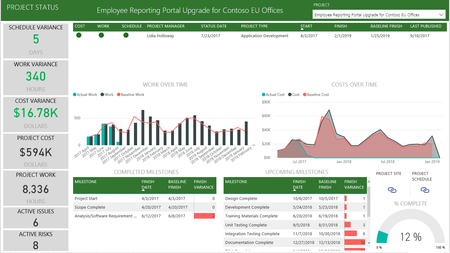
We are pleased to announce the release of a new Project Online Content Pack for Power BI. Starting October 26 2017, Project Online users will be able to download the new content pack directly from AppSource: https://app.powerbi.com/groups/me/getdata/services/project-online Comprising of 13 visually rich report pages, the new content pack is designed to support the management needs of project managers, portfolio managers and resource managers, by retrieving planning and execution data from Project Online and arranging the data to support timely decision making. The new content pack report includes reports in three key perspectives: Individual Projects, Portfolio of projects and the organization’s resources. Each perspective encompasses the following detailed report pages.42KViews8likes22Comments
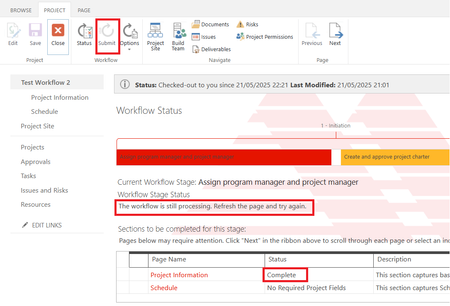
Project Online 'Submit' button is greyed out and the workflow is stuck at processing stage.
I created Project Online workflow using SharePoint Designer 2013 and published it. The workflow contains no errors as validated on SP Designer 2013. I create a project using the EPT that is linked to the published workflow, and updated all the mandatory fields. However the workflow submit button is greyed out even after I saved, published and checked in the project. the workflow is stuck at processing stage and it still the same even after I restarted it few times. Please advise how to make Submit button to active.535Views0likes9CommentsCopying projects in Project for the web
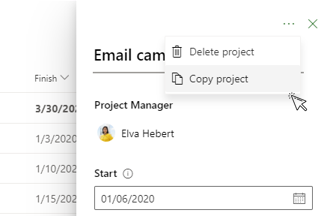
We are pleased to share that we've added the ability to copy projects in Microsoft Project for the web. We built this feature to address your feedback to allow you to reuse projects and repeat workflows. With Copy Project, you can now easily duplicate projects to get started even faster.22KViews7likes25Comments
Timesheet or time tracking functionalities in Project for the Web/Planner Premium
Hi, I've been looking for information about whether timesheet or time tracking capabilities will be made available in a not so distant future in PFTW of Planner Premium. I work at a company where we already have an instance of Project Online running in which timesheets are managed. We would like to have some sort of time tracking in PFTW/Planner premium as well since we're launching a project on that platform soon. Does anyone have a view on what's coming or any experience on how to do time tracking in PFTW/Planner Premium? Thanks! N.1KViews0likes4Comments
Project Web App can't delete PDP despite custom scripting being enabled
Hi everyone, Currently trying to set up a Project Web App system and I've encountered this problem. When trying to delete/remove a project detail page from a project nothing happens. My organisation has custom scripting enabled and I can remove fields and other stuff from projects but when I try to remove a page it doesn't work. I've removed all fields from the page I'm trying to delete so I don't think its anything to do with a required field or existing workflow, and I get no error message when I try to delete the page. I simply click "Delete Page", stop editing and the page is still there with no change. Anyone have any ideas on what could be causing the issue?186Views0likes0Comments
How to Submit a Timesheet on Behalf of Another User in Project Online using API?
I develop a flow that once a week submit timesheets for all users. Is there a way to submit a timesheet on behalf of another user? I have tried the endpoint: _api/ProjectServer/TimeSheetPeriods('periodid')/TimeSheet However, it works only in the current user's context. When I run a Power Automate flow as an Admin, the flow can only see the Admin's timesheets. Could you please advise how I can submit a timesheet for another user?174Views0likes0Comments
Project Online (CSOM): Encountering 'User Not Found in Active Directory or Project DB'
Issue We are attempting to access Project Online data in Project Permission mode using app-only authentication, specifically to bypass MFA for programmatic access, as we aim for continuous, automated access without any user-interaction. We are using CSOM, using Microsoft.ProjectServer.Client.ProjectContext in .NET 4.8 to connect to Project Online. Despite following several documented approaches with client certificates, client secrets, and OAuth configurations, we keep encountering errors like 401 Unauthorized and User not found in Active Directory or in project db. Below is a summary of our steps. Despite multiple attempts, we consistently receive errors blocking access. We have followed recommended documentation for client credentials, certificates, and permissions but still face access issues. Technology Project Online CSOM in .NET 4.8 Microsoft.ProjectServer.Client.ProjectContext Azure AD (Entra ID) Solutions Attempted Client Certificate Authentication: Configuration: Registered an app in Azure AD (Entra) with a client certificate and set permissions including Sites.FullControl.All. NOTE: we could not select Project permissions (Project.Read, etc.) in the Application Permissions screen, only within the delegated permissions screen. Token Acquisition: We acquired an access token using az account get-access-token --resource=https://.sharepoint.com. Request Attempted: URL: https://%3Ctenant%3E.sharepoint.com/sites/%3cproject-site%3e/_api/ProjectData/Projects Outcome: {"error":"invalid_request","error_description":"App is not allowed to call SPO with user_impersonation scope"} Client Secret with Client Credentials: App Registration: Configured client ID and client secret in Azure AD with permissions for Project.ReadWrite.All and Sites.Selected. Token Acquisition: Called the token endpoint: Endpoint: https://login.microsoftonline.com/%7bTENANT_ID%7d/oauth2/v2.0/token Parameters: client_id, scope= https://%3Ctenant%3E.sharepoint.com/.default, client_secret, grant_type=client_credentials Access Attempt: URL: https://%3Ctenant%3E.sharepoint.com/sites/%3cproject-site%3e/_api/ProjectData/Projects Response: HTTP/1.1 401 Unauthorized Response Body: " " Outcome: Despite obtaining a valid token, the request returns a “Please sign in” page, rather than an access token. SharePoint AppPermissionRequest Configuration using /sites/pwa/layouts/15/appinv.aspx: Configuration: Set up AppPermissionRequest XML in SharePoint for permissions like: Outcome: This configuration did not make any differences, and did not grant the required permissions in Project Permission mode, as SharePoint app permissions do not seem to cover Project-specific access, it seems. Project Online access remains blocked. <AppPermissionRequest Scope="[http://sharepoint/content/sitecollection]" Right="FullControl"/> Microsoft Graph API Exploration: Goal: Investigated Graph API as an alternative. Outcome: Microsoft Graph lacks Project Online-specific permissions, limiting access to SharePoint and directory data, which does not meet our need for project-specific data access. Microsoft.Identity.Client and client certificate Configuration: CSOM using the following code to login: Outcome: Access fails with User:<customercontent></customercontent> not found in Active Directory or in project db public static void Login(this ProjectContext context) { var clientId = "xxx"; var clientSecret = "xxx"; var authority = "https://login.microsoftonline.com/xxx"; var scope = "https://xxx.sharepoint.com/.default"; var certificate = new X509Certificate2("c:\\temp\\cert.pfx", "xx"); var app = ConfidentialClientApplicationBuilder.Create(clientId) .WithCertificate(certificate) .WithAuthority(new Uri(authority)) .Build(); AuthenticationResult result = TaskHelper.BlockingAwait(() => app.AcquireTokenForClient(new[] { scope }).ExecuteAsync()); string accessToken = result.AccessToken; context.ExecutingWebRequest += (sender, e) => { e.WebRequestExecutor.RequestHeaders["Authorization"] = "Bearer " + accessToken; }; } Key Questions: Is there a method for app-only authentication in Project Online in Project Permission mode__ that bypasses MFA for automated access? Has anyone succeeded in applying app-only credentials for Project Online access__, specifically in Project Permission mode? Are there any alternative permission configurations__ (like Azure AD settings, conditional access policies, or app permissions) that could facilitate this access? Thank you in advance! Edit: Sorry for the bad formatting.237Views0likes0Comments