private endpoint
15 TopicsFinOps Hub Privado: Implementação Manual em Ambientes Corporativos
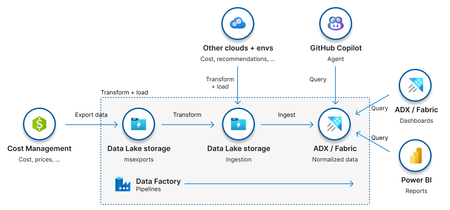
O que é o FinOps Hub? O FinOps Hub é uma solução open source da Microsoft, parte do FinOps Toolkit, que fornece uma base escalável e extensível para análise, governança e otimização de custos em nuvem. A solução centraliza dados de custos por meio de recursos de armazenamento e pipelines de dados, permitindo que as organizações padronizem a forma como analisam seus gastos na nuvem, adotando o modelo de dados FOCUS definido pela FinOps Foundation. Além de disponibilizar relatórios e dashboards prontos, o FinOps Hub expõe os dados de custos de forma estruturada por meio do Azure Data Explorer ou do Microsoft Fabric, possibilitando a criação de relatórios customizados no Power BI e o desenvolvimento de soluções internas sob medida, de acordo com as necessidades do negócio. Objetivo Esse artigo visa orientar a implementação manual do acesso privado ao FinOps Hub após uma implementação pública, sem usar diretamente a opção de implementação privada oferecida pelo template. Por que implementar o FinOps Hub com acesso privado de forma manual? O template disponibilizado para a implementação do FinOps Hub permite que selecionemos duas formas de implementação: Pública: forma de implementação mais simples e comum. Os recursos são provisionados com acesso público habilitado, sendo acessados por meio de seus endpoints públicos padrões do Azure. O controle de acesso é feito exclusivamente via permissões RBAC. Privada: forma de implementação mais segura. Os recursos são provisionados com acesso público desabilitado e expostos apenas por meio de private endpoints, ficando acessíveis somente através de redes privadas que possuem conectividade com a rede onde esses endpoints estão implementados. Embora a comunicação privada traga ganhos significativos de segurança, sua habilitação através do template do FinOps Hub introduz algumas implicações importantes no processo de implantação. O template, de forma automática, tenta: Criar uma rede virtual (/26); Provisionar Private DNS Zones; Criar os registros DNS associados aos private endpoints; Configurar os links entre as VNets e as zonas DNS. Em muitas organizações, esse tipo de configuração é restrito por políticas internas. A criação de redes, zonas DNS e seus respectivos vínculos costuma ser responsabilidade de times especializados, que garantem a padronização e a aderência às diretrizes arquiteturais definidas pela empresa. Em cenários onde a organização adota, por exemplo, uma topologia Hub & Spoke, com landing zones bem definidas para workloads e conectividade, é fundamental considerar alguns pontos adicionais: Garantir que a rede criada para os private endpoints não tenha sobreposição (overlap) com outras redes existentes; Assegurar que exista peering com a VNet de hub; Integrar os registros DNS dos novos private endpoints às Private DNS Zones centralizadas; Configurar corretamente os VNet links; Garantir que a resolução de nomes esteja funcional no ambiente on-premises, permitindo o acesso ao FinOps Hub por meio de VPN, ExpressRoute ou outras formas de conectividade híbrida. Esses fatores explicam por que, em muitos casos, o uso do template com configuração privada se torna inviável quando utilizado de forma isolada. Isso ocorre porque, frequentemente, o time de FinOps não é o mesmo time responsável por redes e DNS, possuindo permissão para implantar apenas parte dos recursos necessários. Nesses cenários, a implementação privada exige a orquestração entre diferentes times, cada um atuando dentro de suas responsabilidades. Como resultado, algumas etapas que o template tenta executar automaticamente precisam ser realizadas manualmente, conforme descrito nas próximas seções. Passo a Passo para Implementação Faça a implementação do template seguindo o tutorial documentado, com “Networking” em modo público. Assim que o template é implementado, alguns scripts de configuração são executados. Aguarde até que esses scripts sejam executados, ou seja, desapareçam do grupo de recursos onde o FinOps Hub foi implementado para seguir com os próximos passos. Exemplos dos “Deployment Scripts” que desaparecerão: Crie uma rede de tamanho mínimo /26 – valide com o time de infraestrutura o espaçamento que pode ser utilizado. Dentro dessa rede implemente uma subrede: private-endpoint-subnet (/28) – subrede para os private endpoints. Garanta a existência das Private DNS Zones: se seu ambiente possui zonas de DNS privadas centralizadas pré-configuradas. Garanta que as seguintes zonas já existam na subscription padrão para os seus recursos de rede: privatelink.blob.core.windows.net– para o Data Explorer e storage privatelink.dfs.core.windows.net– para o Data Explorer and o data lake hospedando os dados de FinOps data e configuração das pipelines privatelink.table.core.windows.net– para Data Explorer privatelink.queue.core.windows.net– para o Data Explorer privatelink.{location}.kusto.windows.net– para Data Explorer Configurando a Storage Account com Acesso Privado O primeiro recurso que a ser configurado será a Storage Account. A configuração a seguir deve ser realizada duas vezes uma para o target sub-resource “blob” e outra para o target sub-resource “dfs”. Acesse “Networking” e a aba “Private Endpoints” Na aba “Basics” defina: Subscription: mesma que o FinOps Hub foi implementado Resource Group: mesmo que o FinOps Hub foi implementado Name: use um nome que remeta ao recurso criado (private endpoint) e o sub recurso que ele fará exposição (blob/dfs). Exemplo: pe-storageaccount-blob/ pe-storageaccount-dfs Na aba “Resource” defina o target sub-resource para o qual a configuração está sendo feita. No caso, primeiro foi feito para “blob” e depois “dfs”. Na aba “Virtual Network”, deve-se selecionar a rede criada para os private endpoints bem como a subrede (private-endpoint-subnet). Na aba “DNS” selecione a private DNS zone na qual são realizados os registros do seus private endpoints. Quando estiver configurando o private endpoint para blob será privatelink.blob.core.windows.net e para dfs privatelink.dfs.core.windows.net. Adicione Tags caso seja necessário. Clique em “Review + create”. Ao final, dois private endpoints devem estar criados para a storage account: Agora será necessário configurar o private endpoint usado pelo Data Factory para acessar a Storage Account. Acesse o Data Factory e clique em "Launch Studio". No menu lateral, selecione a opção "Manage" -> "Linked services": Selecione o serviço correspondente ao Azure Data Lake Storage Gen2. Em “Connect via integration runtime” substitua “AutoResolveIntegrationRuntime” por New+: Em “Integration runtime setup” selecione “Azure” -> Botão “Continue”: Na aba “Settings”, apenas altere o campo “Name”. Use algo como “ManagedIntegrationRuntime”. Os demais campos, mantenha como estão: Na aba “Virtual Network”, configure conforme a imagem abaixo: Por fim, na aba “Data flow runtime”, use as configurações abaixo: Clique em “Create”. Agora, voltando a página “Edit linked Service”, adicione o “Managed Private Endpoint”. Ele ficará em estado “Pending”. Clique em “Save”. Além disso, use a managed identity fornecida na página “Edit linked Service”, e lhe dê os seguintes acessos na storage account: Reader Storage Account Contributor Storage Blob Data Contributor Por fim, acesse a seção “Networking” da Storage Account novamente, selecione o private endpoint criado pelo Data Factory e clique no botão “Approve”. Configurando o Linked Service ftkRepo no Data Factory Voltando na seção “Manage” do Azure Data Factory, será necessário editar o serviço “ftkRepo”. Nele, o único campo a ser alterado é o “Connect via integration runtime” usando o “ManagedIntegrationRuntime” criado na etapa de configuração da storage account. Clique em “Save”. Configurando o Azure Data Explorer com Acesso Privado Acesse a seção “Networking” cluster do Data Explorer criado pelo script do FinOps Hub e acesse a aba “Private Endpoint Connections” Clique em “+ Private Endpoint”. Em “Basics” inclua um nome para o private endpoint e garanta que a região selecionada é a de implementação do seu FinOps Hub e da vnet criada para ele. Na aba “Virtual Network” selecione a rede e subrede criadas para os private endpoints. Na aba “DNS”, associar cada configuração a sua private DNS zone correspondente. Se essas zonas já existirem no ambiente e forem utilizadas de forma centralizada, usar as existentes. Caso contrário, a configuração poderá criar private DNS zones novas: Novamente será preciso configurar o private endpoint gerenciado pelo Data Factory. Para isso, acesse “Managed” -> “Linked Services” e selecione o serviço referente ao Azure Data Explorer. Nessa seção, o único campo a ser editado é o “Connect via integration runtime” usando o “ManagedIntegrationRuntime” criado na etapa de configuração da storage account. Agora ainda em “Manage” no Data Factory, selecione a opção “Managed Private Endpoints”. Clique em “+New” -> “Azure Data Explorer (Kusto)” Forneça um nome para o private endpoint, marque a subscription na qual o Data Explorer foi implementado e em "Cluster" selecione o recurso implementado via template do FinOps Hub: Ao final, deve-se ter dois private endpoints configurados no Azure Data Explorer: Ajustes Finais e Validações de Conectividade Tanto para a Storage Account quanto para o Data Explorer, acesse as configurações de rede e altere o Public network access para “Disabled”. Por fim, no seu servidor local de DNS, crie o registro para o Data Explorer apontando para o forwarder correto no Azure seja ele uma máquina virtual ou o inbound endpoint do Azure Private Resolver. Não use o domínio com privatelink, mas sim o padrão, no caso do Data Explorer a forma geral é <localização>.kusto.windows.net conforme o exemplo abaixo: Ao configurar os apontamentos corretamente, será possível configurar os dashboards em máquinas locais/on-premises que tenham acesso privado ao ambiente Azure. Os dashboards precisam ser capazes de resolver a URL do cluster Data Explorer que é apontado como parâmetro do Dashboard em PowerBI. Se desejar validar a comunicação antes de configurar o dashboard de Power BI, teste da sua máquina local a resolução da URI do Data Explorer implementado para o FinOps Hub, usando nslookup conforme o exemplo abaixo.446Views5likes0CommentsAzure SQL DB Private Link / Private Endpoint - Connectivity Troubleshooting
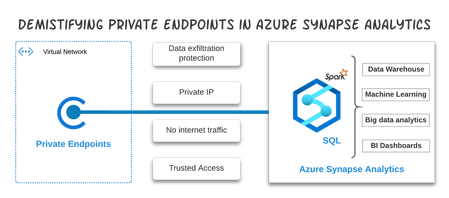
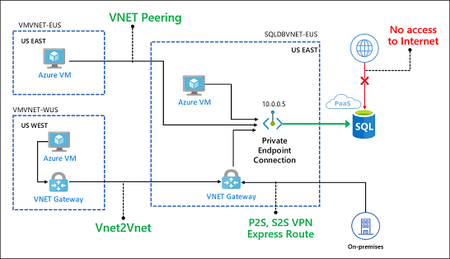
In the article Azure SQL DB Connectivity Troubleshooting we have explored regular connectivity troubleshooting to Azure SQL DB, on this one we will explore connectivity troubleshooting using Private Link In this article we are going to explore What is the Private Endpoint for Azure DB? Creation of Private Endpoint Azure VM > Private Link OnPrem VM > VPN (P2S) > Private Link (Hosts File) OnPrem VM > VPN (P2S) > Private Link (Custom DNS) Azure Function > VNET integration > Private Endpoint Failover Groups with Private Link 1 - What is the Private Endpoint for Azure DB? Azure Private Link enables you to access Azure PaaS Services (for example, Azure Storage and SQL Database) and Azure hosted customer-owned/partner services over a private endpoint in your virtual network. Traffic between your virtual network and the service travels the Microsoft backbone network. Exposing your service to the public internet is no longer necessary Some important information Private Link service can be accessed from approved private endpoints in the same region. The private endpoint can be reached from the same virtual network, regionally peered VNets, globally peered VNets and on premises using private VPN or ExpressRoute connections. When creating a Private Link Service, a network interface is created for the lifecycle of the resource. This interface is not manageable by the customer. The Private Link Service must be deployed in the same region as the virtual network. A single Private Link Service can be accessed from multiple Private Endpoints belonging to different VNets, subscriptions and/or Active Directory tenants. The connection is established through a connection workflow. In the image, below we can see how the connection using private endpoint works. And as mentioned on the other article Azure SQL DB Connectivity Troubleshooting the Azure SQL DB clients by default will all go to the Shared public IP of the regional gateway. With the private endpoint you can close this public path and users can only connect from private endpoint. If you have multiple Azure VNETs you will need to use VNET peering or VNET VPN between two Azure VNETs, or P2S,S2S or Express Route to connect your onprem to Azure Network 2 - Creation of Private Endpoint To create a Private endpoint just follow up the procedure documented at https://docs.microsoft.com/en-us/azure/private-link/create-private-endpoint-portal You may also want to close all public network access to make sure all connection must flow from Private Endpoint. Just need to go to Azure SQL DB instance and "Firewall and Virtual Networks" and Deny public network access. Find below the procedure I've used to create a Private Endpoint Just need to go to "Private Endpoint Connections" and then add a Private endpoint Select the region that should be the same as the VNET region as mentioned above. Select the resource type "Microsoft.Sql/servers" for Azure SQL DB instance Select the Azure SQL DB instance you want to connect Select the VNET / Subnet. Notice also that during the creation you can already create a private DNS zone, that will work for Azure resources that uses the Azure DNS. We will talk more about that when doing the tests 3 - Azure VM > Private Endpoint From an Azure VM deployed to same VNET, if we test command below on command prompt before you create the Private Endpoint. nslookup fonsecanet-westeu.database.windows.net You will get result like below that shows that this server is using public gateway IP: 40.68.37.158. So NOT using any private IP Server: UnKnown Address: 168.63.129.16 Non-authoritative answer: Name: westeurope1-a.control.database.windows.net Address: 40.68.37.158 Aliases: fonsecanet-westeu.database.windows.net After you create the Private Endpoint using the same command above you are expected to see the results below Server: UnKnown Address: 168.63.129.16 Non-authoritative answer: Name: fonsecanet-westeu.privatelink.database.windows.net Address: 10.0.1.4 Aliases: fonsecanet-westeu.database.windows.net Be sure also to open outbound communication from Azure VM VNET to Private Endpoint on Local Firewall, Corporate Firewall, or Azure NSGs. For this test I've opened to allow all communication inside VNET. *Currently (Status on 2020-04-06) redirect is not supported, so only needed 1433 port You must use the FQDN to connect to Azure SQL DB as documented at https://docs.microsoft.com/en-us/azure/sql-database/sql-database-private-endpoint-overview#check-connectivity-using-sql-server-management-studio-ssms Use the Fully Qualified Domain Name (FQDN) of the server in connection strings for your clients. Any login attempts made directly to the IP address shall fail. This behavior is by design, since private endpoint routes traffic to the SQL Gateway in the region and the FQDN needs to be specified for logins to succeed. You can also check if connection is correct using TSQL below. And we will see the client IP is the private IP assigned to Azure VM. SELECT client_net_address FROM sys.dm_exec_connections where session_id = @@SPID You must use the FQDN to connect to Azure SQL DB. Azure SQL DB gateway use the name to route correctly your connection to the SQL host, when information is not provided it will fail If you try to connect using private endpoint IP you are going to get error like below =================================== Cannot connect to 10.0.1.4. =================================== A connection was successfully established with the server, but then an error occurred during the login process. (provider: SSL Provider, error: 0 - The target principal name is incorrect.) (.Net SqlClient Data Provider) ------------------------------ Server Name: 10.0.1.4 Error Number: -2146893022 Severity: 20 State: 0 You should also NOT use DB.privatelink.database.windows.net =================================== Cannot connect to fonsecanet-westeu.privatelink.database.windows.net. =================================== A connection was successfully established with the server, but then an error occurred during the login process. (provider: SSL Provider, error: 0 - The target principal name is incorrect.) (.Net SqlClient Data Provider) ------------------------------ Server Name: fonsecanet-westeu.privatelink.database.windows.net Error Number: -2146893022 Severity: 20 State: 0 4 - OnPrem VM > VPN (P2S) > Private Link (Hosts File) You can use some template like below to create the VPN Point to Site https://docs.microsoft.com/en-us/azure/sql-database/sql-database-managed-instance-configure-p2s https://docs.microsoft.com/en-us/azure/vpn-gateway/vpn-gateway-howto-point-to-site-resource-manager-portal After creating the VPN, downloading and installing the VPN client and connecting to it If I check name resolution nslookup fonsecanet-westeu.database.windows.net We can see that it is still using Microsoft internal Corporate DNS where this VM is located Server: XXXXXXXXXXX.corp.microsoft.com Address: 10.221.xx.xx Non-authoritative answer: Name: westeurope1-a.control.database.windows.net Address: 40.68.37.158 Aliases: fonsecanet-westeu.database.windows.net fonsecanet-westeu.privatelink.database.windows.net For this scenario you will need to use your corporate DNS to have the name resolution https://docs.microsoft.com/en-us/azure/private-link/private-endpoint-overview#dns-configuration When connecting to a private link resource using a fully qualified domain name (FQDN) as part of the connection string, it's important to correctly configure your DNS settings to resolve to the allocated private IP address. Existing Azure services might already have a DNS configuration to use when connecting over a public endpoint. This needs to be overridden to connect using your private endpoint. The network interface associated with the private endpoint contains the complete set of information required to configure your DNS, including FQDN and private IP addresses allocated for a given private link resource. You can use the following options to configure your DNS settings for private endpoints: Use the Host file (only recommended for testing). You can use the host file on a virtual machine to override the DNS. Use a private DNS zone. You can use private DNS zones to override the DNS resolution for a given private endpoint. A private DNS zone can be linked to your virtual network to resolve specific domains. Use your custom DNS server. You can use your own DNS server to override the DNS resolution for a given private link resource. If your DNS server is hosted on a virtual network, you can create a DNS forwarding rule to use a private DNS zone to simplify the configuration for all private link resources. Important It's not recommended to override a zone that is actively in use to resolve public endpoints. Connections to resources won't be able to resolve correctly without DNS forwarding to the public DNS. To avoid issues, create a different domain name or follow the suggested name for each service below. Private Link resource type Subresource Zone name SQL DB (Microsoft.Sql/servers) Sql Server (sqlServer) privatelink.database.windows.net Azure will create a canonical name DNS record (CNAME) on the public DNS to redirect the resolution to the suggested domain names. You'll be able to override the resolution with the private IP address of your private endpoints. Your applications don't need to change the connection URL. When attempting to resolve using a public DNS, the DNS server will now resolve to your private endpoints. The process does not impact your applications. For this test will use HOST file solution And we are able to connect fine. And as before you will be able to check you get the VPN ip range using TSQL below SELECT client_net_address FROM sys.dm_exec_connections where session_id = @@SPID 5 - OnPrem VM > VPN (P2S) > Private Link (Custom DNS) If you do not want to use local hosts file as mentioned above you can add Azure DNS (168.63.129.16) as a forwarder on your custom DNS For more information about more complex DNS relationships follow up the official documentation https://docs.microsoft.com/en-us/azure/private-link/private-endpoint-dns On Azure Virtual Network settings I've replaced default Azure DNS with your custom DNS (On my tests 10.0.0.5). You can also add 168.63.129.16 (Azure DNS) as secondary DNS just in case 1st is off If your client lives in Azure, the DNS on VM can be a forwarder to Azure DNS - Go to DNS > Domain > Properties > Forwarders - Add Azure DNS (168.63.129.16) Do not forget to add virtual network link from Private Zone to the VNET where your Azure VM with DNS lives. If you are have onprem DNS you may need a Conditional forwarder Go to DNS > Domain > Conditional Forwarders > New DNS Domain should be database.windows.net. DO NOT USE privatelink.database.windows.net And you can check if name resolution works fine nslookup fonsecanet-westeu.database.windows.net Server: fonsecanetad.internal.cloudapp.net Address: 10.0.0.5 Non-authoritative answer: Name: fonsecanet-westeu.privatelink.database.windows.net Address: 10.0.1.4 Aliases: fonsecanet-westeu.database.windows.net If do not want to use forwarder you can also create a forward lookup zone and added manually the host to match the FQDN 6 - Azure Function > VNET integration > Private Endpoint To make Azure Function to connect to private endpoint you will need to use VNET integration https://docs.microsoft.com/en-us/azure/azure-functions/functions-create-vnet https://docs.microsoft.com/en-us/azure/app-service/web-sites-integrate-with-vnet *Status on (2020-04-27) There was some limitation on webapp + private DBS that are now gone and just need to set some configurations as documented at https://docs.microsoft.com/en-us/azure/app-service/web-sites-integrate-with-vnet#azure-dns-private-zones After your app integrates with your VNet, it uses the same DNS server that your VNet is configured with. By default, your app won't work with Azure DNS Private Zones. To work with Azure DNS Private Zones you need to add the following app settings: WEBSITE_DNS_SERVER with value 168.63.129.16 WEBSITE_VNET_ROUTE_ALL with value 1 These settings will send all of your outbound calls from your app into your VNet in addition to enabling your app to use Azure DNS private zones. And I've also created a sample Azure Function app that accept the connection string as parameter and was able to connect fine You can check the source code at https://github.com/FonsecaSergio/AzureFunctionAppTestConnectivity 7 - Failover Groups with Private Link For this scenario I will just reference link from Product Group article https://techcommunity.microsoft.com/t5/azure-sql-database/using-failover-groups-with-private-link-for-azure-sql-database/ba-p/1272902 Be sure to config private zone network link to both networks https://docs.microsoft.com/en-us/azure/private-link/private-endpoint-dns#virtual-network-workloads-without-custom-dns-server This model can be extended to multiple peered virtual networks that are associated to the same private endpoint. This can be done by adding new virtual network links to the private DNS zone for all peered virtual networks. Result for my tests C:\Users\FonsecaSergio>nslookup SERVER1.database.windows.net Server: UnKnown Address: 168.63.129.16 Non-authoritative answer: Name: SERVER1.privatelink.database.windows.net Address: 12.1.1.6 Aliases: SERVER1.database.windows.net C:\Users\FonsecaSergio>nslookup SERVER2-westus.database.windows.net Server: UnKnown Address: 168.63.129.16 Non-authoritative answer: Name: SERVER2-westus.privatelink.database.windows.net Address: 11.0.1.4 Aliases: SERVER2-westus.database.windows.net C:\Users\FonsecaSergio>nslookup FAILOVERGROUP.database.windows.net Server: UnKnown Address: 168.63.129.16 Non-authoritative answer: Name: SERVER1.privatelink.database.windows.net Address: 12.1.1.6 Aliases: FAILOVERGROUP.database.windows.net SERVER1.database.windows.net For DNS on more complex environments, please follow up other scenarios as mentioned at https://docs.microsoft.com/en-us/azure/private-link/private-endpoint-dns REF and LINKS https://docs.microsoft.com/en-us/azure/private-link/private-link-service-overview https://docs.microsoft.com/en-us/azure/private-link/private-endpoint-overview https://docs.microsoft.com/en-us/azure/sql-database/sql-database-private-endpoint-overview https://docs.microsoft.com/en-us/azure/private-link/ https://docs.microsoft.com/en-us/azure/app-service/web-sites-integrate-with-vnet#enable-vnet-integration https://channel9.msdn.com/Shows/Data-Exposed/Private-Link-for-Azure-SQL-Database-Part-1?term=Private%20Link%20for%20Azure%20SQL%20Database&lang-en=true https://channel9.msdn.com/Shows/Data-Exposed/Private-Link-for-Azure-SQL-Database-Part-2?term=Private%20Link%20for%20Azure%20SQL%20Database&lang-en=true88KViews4likes8CommentsTransition from VNET integration to public access or Private Link using the Azure CLI
This post provides two bash scripts that use the Azure CLI to transition an Azure Database for MySQL flexible server from VNET Integrated to Public Access or a Private Link. You can run these bash scripts either locally or by using the Azure Cloud Shell.1.7KViews2likes2CommentsHow to automate the deployment of an Elastic Job Agent with a Private Endpoint via Bicep
Environment Overview Recently, I worked on a case where our customer encountered an issue during the deployment of an Elastic Job Agent (EJA) and a Private Endpoint (PEP) using a Bicep deployment script. The process resulted in an endless deployment loop. In this article, I will guide you step by step through creating an EJA with a PEP and demonstrate how to automatically approve the connection using a Bicep deployment script. Technical Issue The main challenge is that the EJA PEP is fully managed by Microsoft, which means you cannot specify a name during the script authorization process—the system assigns one randomly. To address this, we will use deploymentScripts in combination with PowerShell to monitor and authorize the process automatically. For more details, please refer to the following resources: References Use deployment scripts in Bicep https://learn.microsoft.com/en-us/azure/azure-resource-manager/bicep/deployment-script-bicep?tabs=azure-cli Elastic jobs in Azure SQL Database https://learn.microsoft.com/en-us/azure/azure-sql/database/elastic-jobs-overview?view=azuresql Elastic job private endpoints https://learn.microsoft.com/en-us/azure/azure-sql/database/elastic-jobs-overview?view=azuresql#elastic-job-private-endpoints The Idea Since it's not possible to specify the EJA PEP name as a variable for direct approval—unlike standard PEPs—the approach was to intercept the auto-generated PEP by its ID or name and then authorize it automatically. (Remember to always follow the Principle of Least Privilege (PoLP)); in my example, I used Contributor permissions for simplicity. ****************************************************************************************************************************************************************************************************** /*Disclaimer: ****************************************************************************************************************************************************************************************************** This script is not supported under any Microsoft standard support program or service. This script is provided AS IS without warranty of any kind. Microsoft further disclaims all implied warranties including, without limitation, any implied warranties of merchantability or of fitness for a particular purpose. The entire risk arising out of the use or performance of the script and documentation remains with you. In no event shall Microsoft, its authors, or anyone else involved in the creation, production, or delivery of the script be liable for any damages whatsoever (including, without limitation, damages for loss of business profits, business interruption, loss of business information, or other pecuniary loss) arising out of the use of or inability to use the current script or documentation, even if Microsoft has been advised of the possibility of such damages. I’m not a programmer or a Bicep expert. I simply put together what I was able to reason through in order to meet our client’s request. Any suggestions or modifications are welcome. ****************************************************************************************************************************************************************************************************** This article was written in August 2025; code and modules may change over time. ****************************************************************************************************************************************************************************************************** */ param prefix string = 'bicep' param environment string = 'test' param sqlServerName string = 'bicep-test-sqleja-sqlsrv' param location string = 'westeurope' param forceUpdateTag string = utcNow() //let's check that the previously manually created server is present resource sqlServer 'Microsoft.Sql/servers@2021-11-01' existing = { name: sqlServerName } //create the database resource sqlDb 'Microsoft.Sql/servers/databases@2021-11-01' = { parent: sqlServer name: '${prefix}-${environment}-sqleja-sqldb' location: location properties: { requestedBackupStorageRedundancy: 'Local' maxSizeBytes: 5368709120 } sku: { name: 'S3' } } //create the Job Agent resource sqlJob 'Microsoft.Sql/servers/jobAgents@2024-05-01-preview' = { parent: sqlServer location: location name: '${prefix}-${environment}-sqleja-sqljobagent' properties: { databaseId: sqlDb.id } sku: { name: 'JA100' } } //defines a Target Group within a Job Agent resource targetGroup 'Microsoft.Sql/servers/jobAgents/targetGroups@2024-05-01-preview' = { parent: sqlJob name: '${prefix}-${environment}-sqleja-targetgroup' properties: { members: [ { membershipType: 'Include' serverName: sqlServer.name type: 'SqlServer' } ] } } //generate an UMI to auth and deploy the PS script resource scriptIdentity 'Microsoft.ManagedIdentity/userAssignedIdentities@2023-01-31' = { name: '${prefix}-${environment}-deployscript-umi' location: location } //assign the role to the script UMI //https://learn.microsoft.com/en-us/azure/role-based-access-control/built-in-roles resource scriptRoleAssignment 'Microsoft.Authorization/roleAssignments@2022-04-01' = { name: guid(scriptIdentity.id, 'script-role-assignment') properties: { roleDefinitionId: subscriptionResourceId('Microsoft.Authorization/roleDefinitions', 'b24988ac-6180-42a0-ab88-20f7382dd24c') // Contributor principalId: scriptIdentity.properties.principalId } dependsOn: [ delayScript ] } //let's generate a delay to allow Azure AD permissions propagation resource delayScript 'Microsoft.Resources/deploymentScripts@2023-08-01' = { name: 'sleep-60s-bash' location: location kind: 'AzureCLI' identity: { type: 'UserAssigned' userAssignedIdentities: { '${scriptIdentity.id}': {} } } properties: { azCliVersion: '2.76.0' scriptContent: ''' echo "Sleeping for 60 seconds..." sleep 60 echo "Done sleeping." ''' retentionInterval: 'P1D' cleanupPreference: 'Always' timeout: 'PT5M' forceUpdateTag: forceUpdateTag } dependsOn: [ scriptIdentity ] } //create the eja pep resource privateEndpoint 'Microsoft.Sql/servers/jobAgents/privateEndpoints@2024-05-01-preview' = { parent: sqlJob name: '${prefix}-${environment}-sqleja-pep' properties: { targetServerAzureResourceId: sqlServer.id } } //PS script to approve the MS fully managed PEP resource approvePrivateEndpointConnection 'Microsoft.Resources/deploymentScripts@2023-08-01' = { name: 'ps-to-approve-eja-pep-by-script' location: location kind: 'AzurePowerShell' identity: { type: 'UserAssigned' userAssignedIdentities: { '${scriptIdentity.id}': {} } } properties: { azPowerShellVersion: '11.0' scriptContent: ''' Connect-AzAccount -Identity $SqlServerResourceIdForPrivateLink = '/subscriptions/<yourSubID>/resourceGroups/bicep-rg/providers/Microsoft.Sql/servers/bicep-test-sqleja-sqlsrv' $SQLprivateEndpoints = Get-AzPrivateEndpointConnection -PrivateLinkResourceId $SqlServerResourceIdForPrivateLink foreach ($privateEndpoint in $SQLprivateEndpoints) { if ($privateEndpoint.PrivateLinkServiceConnectionState.Status -eq "Pending") { $id = $privateEndpoint.id Write-Output "Approving Private Endpoint Connection: $id" Approve-AzPrivateEndpointConnection -ResourceId "${id}" -Description "Approved by Bicep Deployment Script" } } ''' retentionInterval: 'P1D' cleanupPreference: 'Always' timeout: 'PT30M' forceUpdateTag: forceUpdateTag } dependsOn: [ sqlJob scriptRoleAssignment ] } Deployment Details Below is an overview of the resources created by the automation Conclusion With this article, I’ve wanted to share how to automate the creation of an Elastic Job Agent Private Endpoint without requiring manual approval. Kindly note that the products and options presented in this article are subject to change, this article reflects for Azure SQL Database in September 2025. Please also make sure to review the code carefully. It is provided as-is, with no guarantees, warranties, or support. Any suggestions or improvements are welcome. I hope you find this guide useful and that it inspires you to experiment freely with your deployments. Thank you. Best Regards, VittorioSecurely Manage my On-prem Server Using Cloud services.
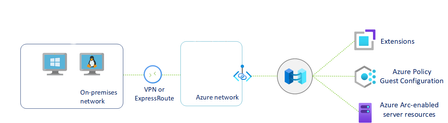
Hello Folks, I want to configure the underlying service that will allow me to securely manage all my servers using some cloud services. Namely Azure Arc. I’ve said before that Azure Arc is a great way of enabling a multitude of cloud services. And since I already have the site-to-site VPN up and running, I want to ensure that all traffic from my on-prem server ONLY connects to my azure services using that secured connection. I decided to leverage Azure Private links, It’s a service that enables you to access Azure PaaS Services (for example, Azure Storage and SQL Database) and Azure hosted services over a private endpoint in your own virtual network. And eliminating the need to route traffic over the internet11KViews1like2Comments