preview
133 Topics
Screen Sharing not working in latest version
Hi all, Anyone else, that has problem with screen sharing in the current preview version? My Teams Version: 25007.606.3361.4724 My Clientversion: 49/25010620407 If i share my screen (regardless if full monitor or single app), the other users only see, that I am trying to share something, but never get the content visible. The only users that can see my content shared, are using the preview version as well. I tested it with one normal user and one with preview in the same call. The latter one was able to see the screen, the other one not. I have found a workaround right now: If I am in a call with a normal user, I can share the screen, if we start recording for a few seconds and stop it then. As long as recording has run at least for a few seconds, everyone can see my shared screen. I faced that issue for the first time last week.Now in Public preview & Targeted release: A new experience to search within chat and channels
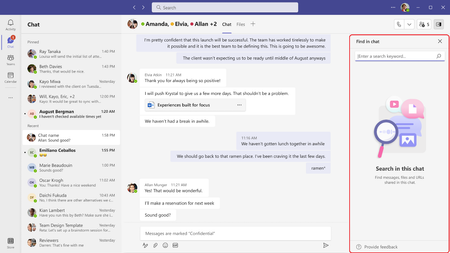
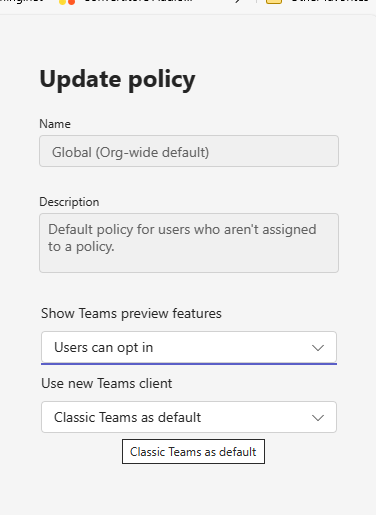
We are excited to announce the launch of a new and improved experience to search within Chats and New Channels experience. Key improvements include enhanced captioning and keyword hit-highlighting for ease of consumption of results; embedded result set in the right rail for contextual consumption and introduction of search on pop-out chats. Flighting status Started flighting. Rollout to public preview estimated to be complete by end of this week. How to enable This new feature would be auto-enabled as we start rolling it out. Note 1: If you need information about enabling the Public preview or Targeted release itself, see “Enable your Teams client for Public preview or Targeted release” section below. Note 2: Users who want to use this feature needs to be in Public Preview or Targeted release. Supported clients and platforms Windows macOS iOS Android Linux Chrome Firefox Safari Edge Yes Yes - - - Yes Yes Yes Yes How does this feature impact the existing experience? A few key enhancements include: 1) The new in-chat and in-channel Search experience will now be available in the right handrail, making it possible to see your chat/channel list and your new search results in one single view. The initiation can be done using the keyboard shortcut Ctrl+F (Win) or Cmd+F (Mac). Chat: Channel: Note: Search capability on the new Channels experience is currently available on the main view, and we will extend it to the conversation view soon. 2) In addition to the keyboard shortcut, a dedicated button ‘Find in Channel,’ placed on the channel infopane can be used to initiate contextual search: Note: we are working on bring the search entry point to the chat surface soon. 3) We now have introduced enhanced captioning and keyword highlighting to aid the discernment of results in chat and channel: 4) In-chat search will now also be available in pop-out chats. Known issues NA Known limitations Search capability on the new Channels experience is currently available on the main view, and we will extend it to the conversation view soon Enable your Teams client for the Public Preview or Targeted release To enable your Teams client for the Public Preview, IT administrators need to set an update policy that turns on Show preview features. Learn how at Public preview in Microsoft Teams. For Targeted Release, global admins can go to the Microsoft 365 admin center and choose to give a selected set of individuals access to Targeted Release, or they can enroll the entire organization in Targeted Release. Learn more about setting up the release option in the admin center here. Summary of Public preview/Targeted release features For a history of features in the Teams Public preview & Targeted release, see Microsoft Teams Public Preview & Targeted Release - Microsoft Community Hub Send us your feedback Got feedback on features in the Public preview/Targeted release or other areas of Teams? Let us know straight from Teams via Help > Give feedback. This is on the bottom left of your client. Thank you, Preview Team Microsoft TeamsNow in Public preview & Targeted release: Live translated transcript for Teams Premium users
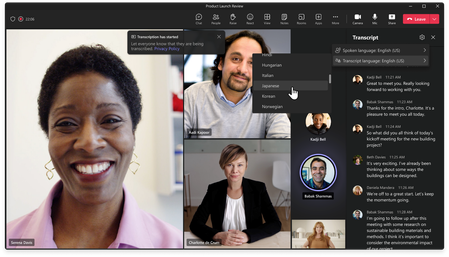
Microsoft Teams Public Preview and Microsoft 365 Targeted Release users with a Teams Premium license can now use live translated transcript in Teams meetings. As a Teams Premium user, you now have the option to translate the meeting transcript into another language than what was originally spoken in the meeting. You can select from more than 30 languages currently supported. The transcript is displayed on the side panel of the meeting, which can help make your meeting more productive and inclusive. Flighting status Available to everyone in Public Preview channel. How to enable To turn on transcription during the meeting: Go to the meeting toolbar, select More, select Record and transcribe, choose Start transcription. By default, live transcriptions are displayed in the language that’s chosen as the “spoken language“ in the transcript option. Live translated transcription allows users to see transcriptions translated into the language they’ve chosen in the option “transcript language“ that can be accessed from the Settings icon ⚙️ in the Transcript pane. Please make sure you have a Teams Premium license to experience the feature. In the Teams admin center, admins can turn ON or turn OFF the Transcription setting within a meeting policy located under Meetings > Meeting policies. This setting is OFF by default. For additional information on configuring transcription and captions for Teams meetings, please visit this documentation. How to get started with Microsoft Teams Premium: https://aka.ms/SetupTeamsPremium Note 1: If you need information about enabling the public preview itself, see “Enable the public preview for Teams” below. Note 2: To be able to use this feature, user needs to be in Public Preview and have Teams Premium licence. Other meeting participants are not required to be in Public Preview. Supported clients and platforms Windows macOS iOS Android Linux Google Chrome Firefox Safari Microsoft Edge Yes Yes Yes Yes Known issues None Known limitations None Enable your Teams client for the public preview To enable your Teams client for the Public Preview, IT administrators need to set an update policy that turns on Show preview features. Learn how at Public preview in Microsoft Teams. For Targeted Release, global admins can go to the Microsoft 365 admin center and choose to give a selected set of individuals access to Targeted Release, or they can enroll the entire organization in Targeted Release. Learn more about setting up the release option in the admin center here. Send us your feedback Got feedback on features in the public preview or other areas of Teams? Let us know straight from Teams via Help > Give feedback. This is on the bottom left of your client. Thank you, Preview Team Quality & Customer Obsession, Microsoft TeamsProblem, the indicator “EA” on avatar for Microsoft Teams Public Preview in missing
I have set everything fine, i think at organization level, and also selected the , but the EA badge is missing...Preview option on my client missing... what could i do? Clearing Teams cache did not solve the issue.SolvedNow in public preview: Scoped Search for Viva Connections in Teams
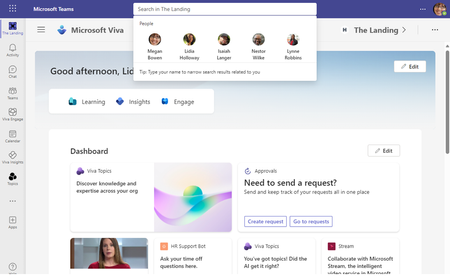
We are making some changes to the search experience in Viva Connections app to make it easier to search in Viva Connections. With the changes, when you are using Viva Connections and click into the search box in Teams, you will start to see text change to say “Search in Viva Connections” (or the name you chose for your Viva Connections app). You will continue to get the same suggestions as before with chats, people, etc. and clicking these will continue to take you to the corresponding Teams experience. As you type in, you will notice that the search suggestions will show two new lines in the list that appears under the search box: first one (the default option) to search in Viva Connections, and the second one to search in the rest of Teams. If you hit enter (or choose the first suggestion), you will be taken to a workplace search experience similar to the one you might already experience on your intranet corporate portal. If you’d rather go to the search results page of Teams, choose the second suggestion. Flighting status This is available to all Teams Public Preview and M365 Targeted Release users who are using the classic version of Teams. How to enable There isn’t any action required for you. Simply go to Viva Connections and use the search box as you previously would. Note: If you need information about enabling the public preview itself, see “Enable the public preview for Teams” below. Supported clients and platforms This change applies to the current version of Teams Desktop or Teams on the web. It is expected to come to the “New Teams App” over the coming months. We also have plans to bring a similar functionality to Teams mobile experiences later. How does this feature impact the existing experience? Users will by default start to search within Viva Connections search experience rather than the Teams search experience.. They can still search by using the option presented in the list of suggestions under the search box while typing. Enable your Teams client for Public preview or Targeted release To enable your Teams client for the Public Preview, IT administrators need to set an update policy that turns on Show preview features. Learn how at Public preview in Microsoft Teams. For Targeted Release, global admins can go to the Microsoft 365 admin center and choose to give a selected set of individuals access to Targeted Release, or they can enroll the entire organization in Targeted Release. Learn more about setting up the release option in the admin center here. Summary of public preview features For a history of features in the Public previews & Targeted release, see Microsoft Teams Public Preview & Targeted Release - Microsoft Community Hub Send us your feedback Got feedback on features in the public preview or other areas of Teams? Let us know straight from Teams via Help > Give feedback. This is on the bottom left of your client. Thank you, Preview Team Quality & Customer Obsession, Microsoft TeamsNow in Public preview & Targeted release: Enhancements for Delegation in Teams Phone
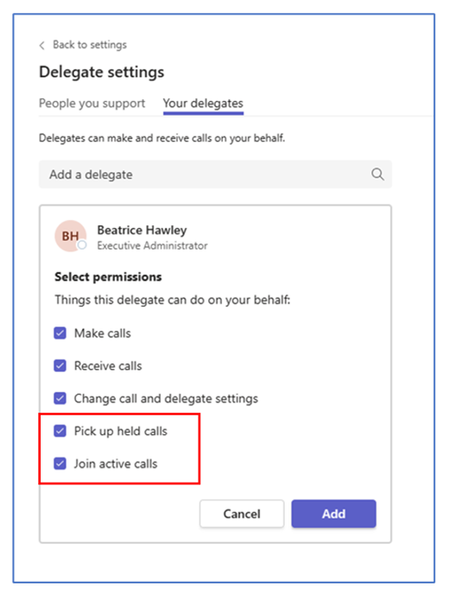
We’re excited to share that Microsoft Teams Public Preview users can now customize call options for delegators and delegates for Teams calls. Enhancements for Delegation in Teams Phone You can choose a delegate to answer your calls in Microsoft Teams. This is particularly helpful if you have an administrative assistant who regularly handles your Teams calls or you will be away on vacation and want to have one of your colleagues answer calls on your behalf. We have added the following enhancements for delegates: Easily switch between different phone lines Join active calls (barge) for delegators and delegates Control permissions of call resume and join active call View call History for delegators and delegates for calls made or received How it works Set up delegation In the upper right, go to the … menu (Settings and more), and then Settings > General. In the Delegation section, select the Manage delegates button. On the Your delegates tab, select an existing delegate or add one. Select the Join active calls check box and select the Add button. NOTE: The Join active call check box is cleared by default for delegates. Set up call answering rules Select the Back to settings link, and then select the Calls tab. Under the Call answering rules, select one of the following options: Set Calls ring me to Also ring, and then select My delegates in the Also ring dropdown menu. Select Forward my calls to set Forward my calls, and then select My delegates in the Forward to dropdown menu. Scenarios to try As a delegator View and join active calls handled by a delegate. As a delegate See all managers’ lines on the top bar and switch easily between lines. Delegates can view their fellow delegates, if any, for that delegate. If permitted, join active calls on the manager’s line. View call history per manager line for calls made or received by you, as a delegate, on behalf of your manager. To learn more about delegation in Microsoft Teams, visit Shared line appearance in Microsoft Teams – Microsoft Teams | Microsoft Learn and Share a phone line with a delegate – Microsoft Support. Known Limitations Both managers and delegates must have a Phone System license with PSTN connectivity (Calling Plan, Operator Connect, or Direct Routing). For details on license requirements and limitations, see https://learn.microsoft.com/en-us/microsoftteams/shared-line-appearance Availability To use this feature, users need to be members of the Teams Public Preview and use the Windows or macOS Teams client. Other users aren’t required to be members of the Teams Public Preview. To enable your Teams client for the Public Preview, IT admins need to set an update policy that turns on Show preview features. Learn how at Public preview in Microsoft Teams. If the Follow Office Preview option is selected, it automatically enables Teams Public Preview features for any user enrolled in Office Current Channel (Preview). There aren’t any more actions required by the end user. If the Enabled option is selected, the end user must also opt in to Teams public preview in their Teams app to get access to Teams Public Preview features. If the Forced option is selected, it automatically enables Teams Public Preview for the end user. There aren’t any more actions required by the end user. Feedback We want to hear from you! Click Help > Give feedback to send us your thoughts about this feature. This feedback menu is located in the bottom-left corner of your Teams client.Now in Public preview & Targeted release: Animated backgrounds in Teams meetings
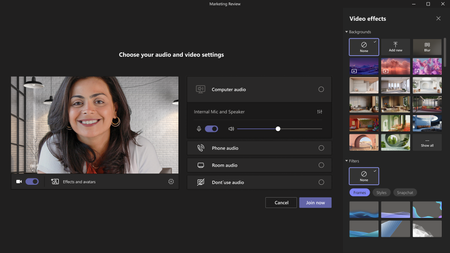
The animated backgrounds feature in Teams meetings allows you to replace an existing background with a dynamic animation for a more immersive virtual environment. It offers various options to enhance meeting experiences with creativity and personalization based on what you want. Currently, only pre-defined backgrounds from Microsoft are supported. Flighting status Available to everyone in Public Preview channel. How to enable Before a meeting starts, on the pre-join screen, select Effects and Avatars > Video effects and select a new animated background, identified by the small video icon in the bottom-left corner of the preview picture. During a meeting, you can select an animated background by clicking More > Effects and Avatars > Select an background. Note 1: If you need information about enabling the public preview itself, see “Enable the public preview for Teams” below. Note 2: To be able to use this feature, user needs to be in Public Preview. Other meeting participants are not required to be in Public Preview. Supported clients and platforms Windows macOS iOS Android Linux Google Chrome Firefox Safari Microsoft Edge Yes Yes Known issues None Known limitations Animated backgrounds are not available on low-end devices and require at least 8 GB RAM, CPU with 4 logical processors. Only pre-defined backgrounds from Microsoft are currently supported. Using video filters may slow down background animation, if your machine has a high workload. Enable your Teams client for the public preview First, IT admins need to set an update policy that turns on Allow public preview. Learn how at Public preview in Microsoft Teams - Microsoft Teams | Microsoft Docs. Users then choose to join the public preview individually. Learn how at Get early access to new Teams features - Office Support (microsoft.com) Send us your feedback Got feedback on features in the public preview or other areas of Teams? Let us know straight from Teams via Help > Give feedback. This is on the bottom left of your client. Thank you, Preview Team Quality & Customer Obsession, Microsoft Teams
Can't make calls from CE CRM on Teams Preview
It asks you 'Would you like to call this number?' nothing happens when 'Call' is selected. We use Customer Engagement and Teams to make our calls, the team has reverted back to the previous version of Teams, the only work around is to copy the number off the CRM and paste it into Teams. Is anyone else having this issue?