powershell
3 Topics
How to Manage Preferred Languages in Microsoft Edge via Registry or Preferences File?
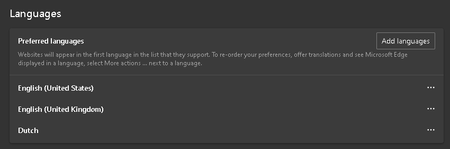
I'm https://superuser.com/q/1842491/588662 to manage the preferred languages in Microsoft Edge on Windows. Specifically, I want to remove certain languages that appear in the "edge://settings/languages" settings (e.g., Dutch). I have a few questions regarding this: Registry Settings: Is there a registry key that controls the preferred languages in Edge? I've checked the `HKEY_CURRENT_USER\Software\Microsoft\Edge` path but found no clear indicators related to language preferences. If the preferred languages are stored in the registry, could you please provide the exact path or any subkeys where these settings are managed? Preferences JSON File: If the preferred languages are not controlled via the registry, could they be stored in the `Preferences` JSON file located at "C:\Users\$Env:UserName\AppData\Local\Microsoft\Edge\User Data\Default\Preferences" ? If so, can anyone guide me on how to modify this file safely to update or remove language preferences? Best Practices: Are there any best practices or recommended methods for programmatically managing language settings in Edge? Whether through PowerShell, registry modifications, or editing the JSON preferences file, I would appreciate any advice or scripts that have worked for others. Thank you in advance for your assistance!1.6KViews0likes1Comment
Having issues getting Chromium Edge to accept policy changes
I'm running onto some issues trying to change a few settings on a new Chromium Edge install using policy edits through the registry. These computers are not domain managed, so the only method available for me to do this is by using a powershell script to edit the registry files to get these settings changed. I'm trying to set the browser to restore 2 pages each time it starts up, everything I have found indicates that the settings should be set in the HKCU:\Software\Policies\Microsoft\Edge I have the registry files set so they write the settings that I believe should be correct, but after setting them and opening edge the policies don't seem to apply. The script I'm using for the registry edits is attached below. #Disable Edge "First Run" #Create registry key "HideFirstRunExperience" new-item –Path "HKCU:\SOFTWARE\Policies\Microsoft\" –Name "Edge" New-ItemProperty -Path "HKCU:\SOFTWARE\Policies\Microsoft\Edge" -Name "HideFirstRunExperience" -Value ”1” -PropertyType "DWORD" #Set multiple pages to open on startup #Set restore on startup New-ItemProperty -Path "HKCU:\SOFTWARE\Policies\Microsoft\Edge" -Name "RestoreOnStartup" -Value ”0x00000004” -PropertyType "DWORD" -Force #Create "Recommended" and "Mandatory" new-item –Path "HKCU:\SOFTWARE\Policies\Microsoft\Edge" –Name "Recommended" new-item –Path "HKCU:\SOFTWARE\Policies\Microsoft\Edge" –Name "Mandatory" new-item –Path "HKCU:\SOFTWARE\Policies\Microsoft\Edge\Mandatory" –Name "RestoreOnStartupURLs" #G2A FastSupport New-ItemProperty -Path "HKCU:\SOFTWARE\Policies\Microsoft\Edge\Mandatory\RestoreOnStartupURLs" -Name "1" -Value ”www.fastsupport.com” -PropertyType "String" #Password Self Serve New-ItemProperty -Path "HKCU:\SOFTWARE\Policies\Microsoft\Edge\Mandatory\RestoreOnStartupURLs" -Name "2" -Value ”https://https://passwordreset.microsoftonline.com/” -PropertyType "String" I'm extremely new to this sort of thing, and especially using powershell, so It very well may be something I'm overlooking, but If anybody can provide assistance I'd appreciate it.1.2KViews0likes0Comments
Max number of bulk user change per script
Hi, I want to ask. If I want to bulk change user attributes with powershell azureAD by importing a Csv file, what is the max number of user attributes that can be changed with a single script from a single csv file? Is there a limit to the max users in a single csv file that can be processed?Solved1.2KViews0likes3Comments