powershell
18 TopicsWhat Really Happens When You Scale Azure SQL Database? How to Monitor Long-Running Scale Operations
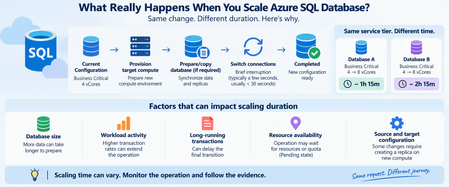
One of the advantages of Azure SQL Database is the ability to scale compute resources without managing the underlying infrastructure. Changing from 4 vCores to 8 vCores can be only a few clicks or a single command. But there is a question I frequently see when troubleshooting scaling operations: "Why is my Azure SQL Database scaling operation taking so long?" An even more interesting question appears when two databases undergo what looks like the same change: Database A Business Critical → Business Critical Scaling duration: ~1 hour 15 minutes Database B Business Critical → Business Critical Scaling duration: ~2 hours 15 minutes Same service tier. Similar scaling request. Very different completion time. At first glance, that might look unusual. However, a scale operation isn't simply Azure changing a configuration value from one number of vCores to another. Depending on the source and target configuration, Azure SQL Database can need to provision target compute, prepare or copy database data, transition connections to the target compute, and clean up the original environment. Microsoft specifically notes that creating a database replica on the new compute instance for some scaling combinations can strongly influence the overall latency. Let's look at what happens and, more importantly, how to monitor it. Scaling Is More Than Changing vCores When you submit a scaling request such as: Business Critical 4 vCores ↓ Business Critical 8 vCores it's tempting to imagine something like: CPU allocation: 4 → 8 Done. That isn't necessarily what happens. At a high level, Microsoft documents a scaling workflow involving two important stages: Create a new compute instance with the requested service tier and compute size Switch routing from the original compute instance to the new one For some combinations of service-tier and compute-size changes, Azure SQL Database must also create a replica on the new compute instance, involving data copying. A simplified view is: Scaling request ↓ Prepare target compute ↓ Prepare/copy database if required ↓ Bring target environment ready ↓ Switch connections ↓ Scaling complete The important takeaway is: A scale operation can involve moving database execution to a new compute environment, not simply increasing CPU on the existing environment. Why Can Two Similar Databases Take Different Amounts of Time? This is where troubleshooting becomes interesting. Imagine two databases: Database A 4 vCores → 8 vCores Completed in 75 minutes Database B 4 vCores → 8 vCores Completed in 135 minutes The natural question is: "If the source and destination configurations are the same, shouldn't the duration also be the same?" Not necessarily. The requested configuration tells us where the database needs to end up. It does not mean the work required to reach that state is identical. Several factors can affect the operation. 1. Database Size and Data Movement One of the most important factors can be the amount of data that must be prepared on the target compute. Microsoft's scaling documentation explicitly states that for some source/target combinations, a replica must be created on the new compute instance. That involves copying data and can significantly affect the overall scaling latency. Conceptually: Small database Provision ████ Data preparation ██████ Switch █ versus: Large database Provision ████ Data preparation ████████████████████████ Switch █ Database size alone doesn't provide a precise prediction of completion time, but it can influence the amount of work required during applicable scaling paths. 2. Workload Activity Matters A database also doesn't necessarily stop processing application traffic while Azure prepares the target environment. Microsoft states that during target compute creation, the database remains online and connections continue to the original compute instance. That creates an interesting challenge: Target environment preparing + Application still generating workload A highly active transactional database and a relatively idle database can therefore present different operational conditions during scaling. The practical lesson is: Two databases with the same service objective aren't necessarily in the same workload state when scaling begins. When investigating a slow scale operation, look at the activity around the scaling window, including: transaction volume; write activity; long-running transactions; workload peaks; batch operations; maintenance activity. 3. Long-Running Transactions Can Affect Switchover Toward the end of scaling, connections need to transition to the target compute instance. Microsoft documents that existing connections to the original compute are dropped and new connections are established to the target compute. The switch generally results in a short interruption, often only a few seconds and generally less than 30 seconds. However, there's an important exception. Microsoft notes that: If long-running transactions are active when connections are dropped, the switch can take longer because aborted transactions need to recover. Conceptually: Normal transition Target ready ↓ Switch ↓ Reconnect ↓ Done With a long-running transaction: Target ready ↓ Connection transition ↓ Transaction interruption ↓ Recovery work ↓ Reconnect ↓ Done This is one reason application workload should be considered when evaluating scaling duration. 4. Resource Availability Can Matter Another clue comes from Azure SQL's operation-status metadata. The sys.dm_operation_status DMV exposes several states for database operations, including: PENDING IN_PROGRESS COMPLETED FAILED CANCEL_IN_PROGRESS CANCELLED Importantly, Microsoft defines PENDING as an operation waiting for resource or quota availability. That means some of the elapsed time around an operation may occur before active processing progresses as expected. This is why comparing scale operations purely by database size or vCore count can be misleading. How Can I Monitor a Scaling Operation? Rather than repeatedly refreshing the Azure portal, there are several useful methods for inspecting progress. Method 1: Azure PowerShell with Get-AzSqlDatabaseActivity Azure PowerShell provides: Get-AzSqlDatabaseActivity Microsoft documents this cmdlet specifically for retrieving the status of operations against Azure SQL databases. For example: Get-AzSqlDatabaseActivity ` -ResourceGroupName "MyResourceGroup" ` -ServerName "myserver" ` -DatabaseName "mydatabase" This can help identify database operations associated with the selected database. For clearer output: Get-AzSqlDatabaseActivity ` -ResourceGroupName "MyResourceGroup" ` -ServerName "myserver" ` -DatabaseName "mydatabase" | Select-Object ` Operation, OperationId, DatabaseName, State, PercentComplete, StartTime, ErrorCode, ErrorMessage The specific fields returned can vary with module/API behavior, so always interpret them in the context of the operation being monitored. The important point is that you're no longer asking only: "Is scaling still happening?" You can inspect the operation itself. Method 2: Check Current and Requested Service Objectives Another useful PowerShell command is: Get-AzSqlDatabase Microsoft documents this cmdlet for retrieving Azure SQL Database properties. Its output includes service-objective information such as CurrentServiceObjectiveName and RequestedServiceObjectiveName. For example: Get-AzSqlDatabase ` -ResourceGroupName "MyResourceGroup" ` -ServerName "myserver" ` -DatabaseName "mydatabase" | Select-Object ` DatabaseName, Status, Edition, CurrentServiceObjectiveName, RequestedServiceObjectiveName During a change, comparing these fields can help establish the current and requested configuration. Think of it as: CurrentServiceObjectiveName ↓ Where am I now? RequestedServiceObjectiveName ↓ Where am I trying to go? Once the operation completes successfully, the current configuration should reflect the requested target. Method 3: Use sys.dm_operation_status For SQL-side monitoring, sys.dm_operation_status provides information about database operations such as CREATE and ALTER. For example: SELECT major_resource_id, operation, state_desc, percent_complete, start_time, last_modify_time, error_code, error_desc FROM sys.dm_operation_status ORDER BY start_time DESC; Useful columns include: operation state_desc percent_complete start_time last_modify_time error_code error_desc Microsoft defines the operation states as including PENDING, IN_PROGRESS, COMPLETED, and FAILED. Be Careful With PercentComplete This is an important detail. It is tempting to interpret: PercentComplete = 50 as: "Half of the work is finished, so half of the remaining time is left." That isn't necessarily correct. For sys.dm_operation_status, Microsoft documents percent_complete for most operations as: 0 = Operation not started 50 = Operation in progress 100 = Operation complete Restore operations are an important exception, where values between 1 and 99 can indicate more granular progress. So for a normal ALTER/scale operation: 50% should generally be interpreted as: The operation is in progress rather than: Exactly half the work remains. This distinction is very useful when communicating with application teams during long-running operations. A Practical Monitoring Script For PowerShell users, I like combining the configuration and operation views. First check the database: $db = Get-AzSqlDatabase ` -ResourceGroupName "MyResourceGroup" ` -ServerName "myserver" ` -DatabaseName "mydatabase" $db | Select-Object ` DatabaseName, Status, Edition, CurrentServiceObjectiveName, RequestedServiceObjectiveName Then check database operations: Get-AzSqlDatabaseActivity ` -ResourceGroupName "MyResourceGroup" ` -ServerName "myserver" ` -DatabaseName "mydatabase" This gives you two complementary perspectives: DATABASE STATE + OPERATION STATE ↓ Better understanding of scaling progress What About Application Availability During Scaling? One of the biggest concerns is: "Does the database remain available while scaling?" For Azure SQL Database, Microsoft states that the database remains online while the new compute environment is being prepared. Connections continue to the original compute during that stage. The important availability event occurs during the transition. At switchover: Existing connections ↓ Dropped ↓ Routing switches ↓ New connections ↓ Target compute Microsoft says the switch generally causes an interruption of less than 30 seconds and often only a few seconds. Applications should therefore implement appropriate transient-error handling and retry logic. Microsoft explicitly recommends retry logic for applications and components using the database while the service tier is being changed. Don't Immediately Cancel a "Slow" Scaling Operation A scale operation taking longer than expected does not automatically mean: Scaling is stuck. It could still be legitimately working through: Resource availability ↓ Target compute preparation ↓ Data/replica preparation ↓ Synchronization / workload handling ↓ Switchover Before assuming failure, gather evidence. Check: Operation state Current service objective Requested service objective Start time Last modification time Error details Workload activity Long-running transactions Then determine whether the operation is: Pending Actively progressing Completed or: Failed Troubleshooting Two Databases With Different Scaling Durations Suppose you're investigating: Database A Scale duration: 1h15 Database B Scale duration: 2h15 Here is the approach I recommend. 1. Verify that the changes truly match Compare: Source service tier Target service tier Source vCores Target vCores Compute tier Storage configuration Do not assume both operations were identical simply because both ended at, for example, Business Critical 8 vCores. 2. Compare database characteristics Look at: Database size Workload level Write activity Transaction volume Long-running transactions 3. Compare operation timing Retrieve: Start time State Last modification time Completion time sys.dm_operation_status exposes this operation metadata for Azure SQL database operations. 4. Determine whether either operation spent time pending Remember: PENDING can mean the operation is waiting for resource or quota availability. That represents a very different explanation from: "The database took longer to copy." 5. Check workload around the transition Look for: Large transactions Bulk writes ETL operations Maintenance High transaction rates Long-running transactions particularly around the switchover period. Scaling Duration Is Not an SLA Stopwatch This leads to perhaps the most important takeaway. If: Database A took 75 minutes you should not assume: Database B must take approximately 75 minutes. Even apparently similar scale operations can encounter different database and platform conditions. A better operational expectation is: Treat each scaling operation as an asynchronous platform operation whose duration depends on the work required to safely reach the requested configuration. Monitor the operation rather than predicting its completion from a previous database. Recommended Checklist Before scaling a production Azure SQL Database: Before Review workload activity. Identify long-running transactions or batch processes. Confirm the requested service objective. Ensure application retry logic is implemented. Record the UTC start time. Understand dependent application connection behavior. During Monitor: Get-AzSqlDatabaseActivity Get-AzSqlDatabase sys.dm_operation_status and watch: State CurrentServiceObjectiveName RequestedServiceObjectiveName StartTime LastModifyTime Error information After Confirm: Current service objective = requested target Database status = Online Application connectivity = Healthy Workload performance = Expected Also validate that applications successfully reconnected after the transition. Final Thoughts When Azure SQL Database scaling takes longer than expected, it's easy to think: "Something must be wrong." And when two similar databases take very different amounts of time, it's equally tempting to expect the durations to match. But a scale operation can involve substantially more than changing a vCore number. At a high level: Request scaling ↓ Provision target compute ↓ Prepare/copy database when required ↓ Transition connections ↓ Complete Microsoft's documentation confirms that data copying for applicable scale paths can strongly influence latency, that the switchover can take longer in the presence of long-running transactions, and that a pending operation might be waiting for resource or quota availability. So when someone asks: "Why is Azure SQL scaling taking so long?" my recommendation is not to start by guessing how many minutes it should take. Instead ask: "What state is the operation currently in, and what evidence do we have about its progress?" With Get-AzSqlDatabaseActivity, Get-AzSqlDatabase, and sys.dm_operation_status, you can turn an opaque waiting period into a much more structured investigation. References Scale single database resources in Azure SQL Database Scale resources in Azure SQL Database sys.dm_operation_status Get-AzSqlDatabaseActivity Get-AzSqlDatabase176Views0likes0CommentsLessons Learned #546: Maintaining a Local Azure Resource Inventory
I worked on a service request that our customer has an application works repeatedly with the same Azure resources. I guess that it may be useful to maintain our own persistent inventory instead of retrieving and validating every resource individually during each execution. In this example, a PowerShell script maintains an inventory of Azure SQL logical servers in a local JSON file. The idea is: Load the local JSON inventory -> Query Azure Resource Graph -> Compare both inventories -> Validate only detected changes -> Update the JSON file. Azure Resource Graph provides the current list of Microsoft.Sql/servers resources. The result is compared with the inventory stored by the application. If a server exists in both inventories, it is marked as: Observed: No additional request is required. NewValidatedByPointGet:If a new server is detected, it is validated individually with Get-AzSqlServer before being added If a previously known server is missing from the current result, the script also validates it individually. The possible results are: RecoveredByPointGet: the server still exists and remains in the inventory. Deleted: the individual request returns ResourceNotFound, so the server is removed. UnknownRetainedFromCache: the validation is inconclusive, so the previous inventory entry is preserved. The JSON file therefore represents the application’s active resource inventory and remains available between executions. I think this approach reduces repeated API requests because individual validation is performed only when a resource is new, missing, or has changed. I would like to share the PowerShell Script. Set-StrictMode -Version Latest $ErrorActionPreference = "Stop" # ------------------------------------------------------------ # Configuration # ------------------------------------------------------------ $tenantId = "<tenant-id>" $subscriptionId = "<subscription-id>" $resourceGroup = "<resource-group>" $cacheFile = ".\sql-server-inventory.json" # Required modules: # Install-Module Az.ResourceGraph -Scope CurrentUser # Install-Module Az.Sql -Scope CurrentUser # Connect-AzAccount -Tenant $tenantId Set-AzContext ` -Tenant $tenantId ` -Subscription $subscriptionId ` -ErrorAction Stop | Out-Null # ------------------------------------------------------------ # Helper functions # ------------------------------------------------------------ function ConvertTo-NormalizedResourceId { param( [Parameter(Mandatory)] [string]$ResourceId ) return $ResourceId.Trim().TrimEnd("/").ToLowerInvariant() } function Test-IsResourceNotFound { param( [Parameter(Mandatory)] [System.Management.Automation.ErrorRecord]$ErrorRecord ) $errorText = @( $ErrorRecord.Exception.Message $ErrorRecord.ErrorDetails.Message $ErrorRecord.FullyQualifiedErrorId $ErrorRecord.ToString() ) -join " " return ( $errorText -match "(?i)(\b404\b|ResourceNotFound|ServerNotInSubscriptionResourceGroup)" ) } function New-InventoryItem { param( [Parameter(Mandatory)] [string]$ResourceId, [Parameter(Mandatory)] [string]$Name, [string]$Location, [Parameter(Mandatory)] [string]$ValidationStatus ) return [pscustomobject]@{ id = $ResourceId name = $Name location = $Location validationStatus = $ValidationStatus } } # ------------------------------------------------------------ # 1. Load the persistent inventory # ------------------------------------------------------------ if (Test-Path -LiteralPath $cacheFile) { $jsonContent = Get-Content ` -LiteralPath $cacheFile ` -Raw ` -ErrorAction Stop if ([string]::IsNullOrWhiteSpace($jsonContent)) { $cachedServers = @() } else { $cachedServers = @( $jsonContent | ConvertFrom-Json ` -ErrorAction Stop ) } } else { $cachedServers = @() } $cachedServersById = @{} foreach ($cachedServer in $cachedServers) { $resourceId = [string]$cachedServer.id if ([string]::IsNullOrWhiteSpace($resourceId)) { continue } $normalizedId = ConvertTo-NormalizedResourceId ` -ResourceId $resourceId $cachedServersById[$normalizedId] = $cachedServer } Write-Host "Stored inventory: $($cachedServersById.Count) server(s)" # ------------------------------------------------------------ # 2. Discover the current resources # ------------------------------------------------------------ $query = @" Resources | where subscriptionId =~ '$subscriptionId' | where resourceGroup =~ '$resourceGroup' | where type =~ 'microsoft.sql/servers' | project id = tostring(id), name = tostring(name), location = tostring(location) "@ try { $argResponse = Search-AzGraph ` -Query $query ` -Subscription $subscriptionId ` -First 1000 ` -ErrorAction Stop } catch { throw ( "Azure Resource Graph query failed. " + "The existing inventory has not been modified. " + "Error: $($_.Exception.Message)" ) } if ( $null -ne $argResponse -and $argResponse.PSObject.Properties.Name -contains "Data" ) { $currentServers = @($argResponse.Data) } else { $currentServers = @($argResponse) } $currentServersById = @{} foreach ($currentServer in $currentServers) { $resourceId = [string]$currentServer.id $serverName = [string]$currentServer.name if ( [string]::IsNullOrWhiteSpace($resourceId) -or [string]::IsNullOrWhiteSpace($serverName) ) { continue } $normalizedId = ConvertTo-NormalizedResourceId ` -ResourceId $resourceId $currentServersById[$normalizedId] = $currentServer } Write-Host "Current observation: $($currentServersById.Count) server(s)" # ------------------------------------------------------------ # 3. Build the synchronized active inventory # ------------------------------------------------------------ $activeInventoryById = @() $activeInventoryIndex = @{} $deletedServers = @() foreach ($normalizedId in $currentServersById.Keys) { $currentServer = $currentServersById[$normalizedId] $resourceId = [string]$currentServer.id $serverName = [string]$currentServer.name $location = [string]$currentServer.location if ($cachedServersById.ContainsKey($normalizedId)) { # The resource is present in both inventories. $item = New-InventoryItem ` -ResourceId $resourceId ` -Name $serverName ` -Location $location ` -ValidationStatus "Observed" $activeInventoryIndex[$normalizedId] = $item continue } # The resource is new. Validate it individually. Write-Host "Validating new server '$serverName'..." try { $validatedServer = Get-AzSqlServer ` -ResourceGroupName $resourceGroup ` -ServerName $serverName ` -ErrorAction Stop $item = New-InventoryItem ` -ResourceId $resourceId ` -Name ([string]$validatedServer.ServerName) ` -Location ([string]$validatedServer.Location) ` -ValidationStatus "NewValidatedByPointGet" $activeInventoryIndex[$normalizedId] = $item } catch { Write-Warning ( "New server '$serverName' could not be validated " + "and was not added to the inventory. " + "Error: $($_.Exception.Message)" ) } } # ------------------------------------------------------------ # 4. Validate previously known resources missing from discovery # ------------------------------------------------------------ foreach ($normalizedId in $cachedServersById.Keys) { if ($currentServersById.ContainsKey($normalizedId)) { continue } $cachedServer = $cachedServersById[$normalizedId] $resourceId = [string]$cachedServer.id $serverName = [string]$cachedServer.name $location = [string]$cachedServer.location Write-Host ( "Server '$serverName' is missing from the current " + "observation. Running individual validation..." ) try { $validatedServer = Get-AzSqlServer ` -ResourceGroupName $resourceGroup ` -ServerName $serverName ` -ErrorAction Stop $item = New-InventoryItem ` -ResourceId $resourceId ` -Name ([string]$validatedServer.ServerName) ` -Location ([string]$validatedServer.Location) ` -ValidationStatus "RecoveredByPointGet" $activeInventoryIndex[$normalizedId] = $item Write-Warning ( "Server '$serverName' was not returned by discovery, " + "but individual validation confirmed that it still exists." ) } catch { if (Test-IsResourceNotFound -ErrorRecord $_) { $deletedServers += [pscustomobject]@{ id = $resourceId name = $serverName location = $location validationStatus = "Deleted" } Write-Warning ( "Deleted server detected: '$serverName'. " + "It will be removed from the active inventory." ) } else { # The result is inconclusive. Preserve the previous entry. $item = New-InventoryItem ` -ResourceId $resourceId ` -Name $serverName ` -Location $location ` -ValidationStatus "UnknownRetainedFromCache" $activeInventoryIndex[$normalizedId] = $item Write-Warning ( "The status of server '$serverName' could not be " + "confirmed. The previous inventory entry was retained. " + "Error: $($_.Exception.Message)" ) } } } # ------------------------------------------------------------ # 5. Save the updated active inventory # ------------------------------------------------------------ $activeInventory = @( $activeInventoryIndex.Values | Sort-Object name ) $jsonOutput = ConvertTo-Json ` -InputObject $activeInventory ` -Depth 10 $temporaryFile = "$cacheFile.tmp" Set-Content ` -LiteralPath $temporaryFile ` -Value $jsonOutput ` -Encoding utf8 ` -Force Move-Item ` -LiteralPath $temporaryFile ` -Destination $cacheFile ` -Force # ------------------------------------------------------------ # 6. Report the synchronization result # ------------------------------------------------------------ Write-Host "" Write-Host "Active inventory: $($activeInventory.Count) server(s)" $activeInventory | Format-Table ` name, location, validationStatus ` -AutoSize if ($deletedServers.Count -gt 0) { Write-Host "" Write-Warning "Confirmed deleted servers:" $deletedServers | Format-Table ` name, location, validationStatus ` -AutoSize } Disclaimer This PowerShell script is provided as a simplified proof of concept to illustrate a persistent resource inventory pattern. It should be reviewed, tested, and adapted before being used in a production environment. Authentication, permissions, error handling, retry policies, concurrency, logging, inventory storage, and operational requirements may differ between environments. The local JSON file is suitable for demonstration purposes and small automation scenarios.262Views0likes0Comments
Understanding action_id discrepancies in Azure SQL Database Audit Logs (BCM vs AL / CR / DR)
Overview While working with Azure SQL Database auditing in enterprise environments, you may encounter an inconsistency in how the action_id field is captured across different PaaS SQL servers. In one such scenario, a customer observed: PaaS Server action_id observed for similar DDL statements Server A AL, CR, DR Server B BCM only This inconsistency impacted downstream compliance pipelines, as the audit data was expected to be captured and interpreted uniformly across all servers. This article explains: How Azure SQL Auditing works by default What causes BCM to appear instead of AL/CR/DR How to standardize audit logs across PaaS servers How Azure SQL Database Auditing Works? Azure SQL Database auditing uses a managed and fixed audit policy at the service level. When auditing is enabled at the server level, the default auditing policy includes the following action groups: BATCH_COMPLETED_GROUP SUCCESSFUL_DATABASE_AUTHENTICATION_GROUP FAILED_DATABASE_AUTHENTICATION_GROUP These groups audit: All query execution activity Successful authentication attempts Failed authentication attempts As a result, SQL batches — including DDL statements like CREATE, ALTER, or DROP on database objects — are captured under the BATCH_COMPLETED_GROUP and appear with action_id = BCM Why AL, CR, and DR are not captured by default? Audit action IDs such as AL, CR and DR are considered Security / DDL-level audit events. These events are not included in the default Azure SQL auditing policy. Instead, they are generated only when the corresponding Security-related AuditActionGroups are explicitly enabled. For example: AuditActionGroup Captures DATABASE_OBJECT_CHANGE_GROUP CREATE / ALTER / DROP on database objects DATABASE_PRINCIPAL_CHANGE_GROUP User / role changes DATABASE_ROLE_MEMBER_CHANGE_GROUP Role membership updates DDL operations such as CREATE / ALTER / DROP on database objects are captured under action groups like DATABASE_OBJECT_CHANGE_GROUP. Observed Behavior in a Newly Created Test Server Running the following PowerShell command on a newly provisioned logical server showed only the default audit action groups enabled. (Get-AzSqlServerAudit -ResourceGroupName "RGName" -ServerName "ServerName").AuditActionGroup Therefore, DDL statements were audited but recorded as action_id = BCM Enabling AL / CR / DR Action IDs To capture DDL operations under their respective audit action IDs, configure the required security audit action groups at the SQL Server level. For example: In this customer scenario, we executed the following command: Set-AzSqlServerAudit -ResourceGroupName "RGName" -ServerName "ServerName" -AuditActionGroup "DATABASE_PRINCIPAL_CHANGE_GROUP", "DATABASE_ROLE_MEMBER_CHANGE_GROUP", "DATABASE_OBJECT_CHANGE_GROUP" After applying this configuration: DDL operations were captured in the audit logs as action_id = CR, AL and DR instead of BCM. Ensuring Consistent Compliance Across PaaS Servers To standardize audit logging behavior across environments: Step 1: Compare AuditActionGroups Run the following command on all servers: (Get-AzSqlServerAudit -ResourceGroupName "<RG>" -ServerName "<ServerName>").AuditActionGroup Step 2: Align AuditActionGroups Configure all server with same AuditActionGroup values. In this case, value used was below: Set-AzSqlServerAudit -ResourceGroupName "<RG>" -ServerName "<ServerName>" -AuditActionGroup ` "DATABASE_PRINCIPAL_CHANGE_GROUP", "DATABASE_ROLE_MEMBER_CHANGE_GROUP", "DATABASE_OBJECT_CHANGE_GROUP" Step 3: Validate Once aligned, similar SQL statements across all PaaS servers should now generate consistent action_id values in audit logs. Accepted values for AuditActionGroups. Ensure appropriate groups are enabled based on your organization’s compliance needs. Accepted values: BATCH_STARTED_GROUP, BATCH_COMPLETED_GROUP, APPLICATION_ROLE_CHANGE_PASSWORD_GROUP, BACKUP_RESTORE_GROUP, DATABASE_LOGOUT_GROUP, DATABASE_OBJECT_CHANGE_GROUP, DATABASE_OBJECT_OWNERSHIP_CHANGE_GROUP, DATABASE_OBJECT_PERMISSION_CHANGE_GROUP, DATABASE_OPERATION_GROUP, DATABASE_PERMISSION_CHANGE_GROUP, DATABASE_PRINCIPAL_CHANGE_GROUP, DATABASE_PRINCIPAL_IMPERSONATION_GROUP, DATABASE_ROLE_MEMBER_CHANGE_GROUP, FAILED_DATABASE_AUTHENTICATION_GROUP, SCHEMA_OBJECT_ACCESS_GROUP, SCHEMA_OBJECT_CHANGE_GROUP, SCHEMA_OBJECT_OWNERSHIP_CHANGE_GROUP, SCHEMA_OBJECT_PERMISSION_CHANGE_GROUP, SUCCESSFUL_DATABASE_AUTHENTICATION_GROUP, USER_CHANGE_PASSWORD_GROUP, LEDGER_OPERATION_GROUP, DBCC_GROUP, DATABASE_OWNERSHIP_CHANGE_GROUP, DATABASE_CHANGE_GROUP Links: Get-AzSqlServerAudit (Az.Sql) | Microsoft Learn Set-AzSqlServerAudit (Az.Sql) | Microsoft Learn231Views0likes0CommentsHow to automate the deployment of an Elastic Job Agent with a Private Endpoint via Bicep
Environment Overview Recently, I worked on a case where our customer encountered an issue during the deployment of an Elastic Job Agent (EJA) and a Private Endpoint (PEP) using a Bicep deployment script. The process resulted in an endless deployment loop. In this article, I will guide you step by step through creating an EJA with a PEP and demonstrate how to automatically approve the connection using a Bicep deployment script. Technical Issue The main challenge is that the EJA PEP is fully managed by Microsoft, which means you cannot specify a name during the script authorization process—the system assigns one randomly. To address this, we will use deploymentScripts in combination with PowerShell to monitor and authorize the process automatically. For more details, please refer to the following resources: References Use deployment scripts in Bicep https://learn.microsoft.com/en-us/azure/azure-resource-manager/bicep/deployment-script-bicep?tabs=azure-cli Elastic jobs in Azure SQL Database https://learn.microsoft.com/en-us/azure/azure-sql/database/elastic-jobs-overview?view=azuresql Elastic job private endpoints https://learn.microsoft.com/en-us/azure/azure-sql/database/elastic-jobs-overview?view=azuresql#elastic-job-private-endpoints The Idea Since it's not possible to specify the EJA PEP name as a variable for direct approval—unlike standard PEPs—the approach was to intercept the auto-generated PEP by its ID or name and then authorize it automatically. (Remember to always follow the Principle of Least Privilege (PoLP)); in my example, I used Contributor permissions for simplicity. ****************************************************************************************************************************************************************************************************** /*Disclaimer: ****************************************************************************************************************************************************************************************************** This script is not supported under any Microsoft standard support program or service. This script is provided AS IS without warranty of any kind. Microsoft further disclaims all implied warranties including, without limitation, any implied warranties of merchantability or of fitness for a particular purpose. The entire risk arising out of the use or performance of the script and documentation remains with you. In no event shall Microsoft, its authors, or anyone else involved in the creation, production, or delivery of the script be liable for any damages whatsoever (including, without limitation, damages for loss of business profits, business interruption, loss of business information, or other pecuniary loss) arising out of the use of or inability to use the current script or documentation, even if Microsoft has been advised of the possibility of such damages. I’m not a programmer or a Bicep expert. I simply put together what I was able to reason through in order to meet our client’s request. Any suggestions or modifications are welcome. ****************************************************************************************************************************************************************************************************** This article was written in August 2025; code and modules may change over time. ****************************************************************************************************************************************************************************************************** */ param prefix string = 'bicep' param environment string = 'test' param sqlServerName string = 'bicep-test-sqleja-sqlsrv' param location string = 'westeurope' param forceUpdateTag string = utcNow() //let's check that the previously manually created server is present resource sqlServer 'Microsoft.Sql/servers@2021-11-01' existing = { name: sqlServerName } //create the database resource sqlDb 'Microsoft.Sql/servers/databases@2021-11-01' = { parent: sqlServer name: '${prefix}-${environment}-sqleja-sqldb' location: location properties: { requestedBackupStorageRedundancy: 'Local' maxSizeBytes: 5368709120 } sku: { name: 'S3' } } //create the Job Agent resource sqlJob 'Microsoft.Sql/servers/jobAgents@2024-05-01-preview' = { parent: sqlServer location: location name: '${prefix}-${environment}-sqleja-sqljobagent' properties: { databaseId: sqlDb.id } sku: { name: 'JA100' } } //defines a Target Group within a Job Agent resource targetGroup 'Microsoft.Sql/servers/jobAgents/targetGroups@2024-05-01-preview' = { parent: sqlJob name: '${prefix}-${environment}-sqleja-targetgroup' properties: { members: [ { membershipType: 'Include' serverName: sqlServer.name type: 'SqlServer' } ] } } //generate an UMI to auth and deploy the PS script resource scriptIdentity 'Microsoft.ManagedIdentity/userAssignedIdentities@2023-01-31' = { name: '${prefix}-${environment}-deployscript-umi' location: location } //assign the role to the script UMI //https://learn.microsoft.com/en-us/azure/role-based-access-control/built-in-roles resource scriptRoleAssignment 'Microsoft.Authorization/roleAssignments@2022-04-01' = { name: guid(scriptIdentity.id, 'script-role-assignment') properties: { roleDefinitionId: subscriptionResourceId('Microsoft.Authorization/roleDefinitions', 'b24988ac-6180-42a0-ab88-20f7382dd24c') // Contributor principalId: scriptIdentity.properties.principalId } dependsOn: [ delayScript ] } //let's generate a delay to allow Azure AD permissions propagation resource delayScript 'Microsoft.Resources/deploymentScripts@2023-08-01' = { name: 'sleep-60s-bash' location: location kind: 'AzureCLI' identity: { type: 'UserAssigned' userAssignedIdentities: { '${scriptIdentity.id}': {} } } properties: { azCliVersion: '2.76.0' scriptContent: ''' echo "Sleeping for 60 seconds..." sleep 60 echo "Done sleeping." ''' retentionInterval: 'P1D' cleanupPreference: 'Always' timeout: 'PT5M' forceUpdateTag: forceUpdateTag } dependsOn: [ scriptIdentity ] } //create the eja pep resource privateEndpoint 'Microsoft.Sql/servers/jobAgents/privateEndpoints@2024-05-01-preview' = { parent: sqlJob name: '${prefix}-${environment}-sqleja-pep' properties: { targetServerAzureResourceId: sqlServer.id } } //PS script to approve the MS fully managed PEP resource approvePrivateEndpointConnection 'Microsoft.Resources/deploymentScripts@2023-08-01' = { name: 'ps-to-approve-eja-pep-by-script' location: location kind: 'AzurePowerShell' identity: { type: 'UserAssigned' userAssignedIdentities: { '${scriptIdentity.id}': {} } } properties: { azPowerShellVersion: '11.0' scriptContent: ''' Connect-AzAccount -Identity $SqlServerResourceIdForPrivateLink = '/subscriptions/<yourSubID>/resourceGroups/bicep-rg/providers/Microsoft.Sql/servers/bicep-test-sqleja-sqlsrv' $SQLprivateEndpoints = Get-AzPrivateEndpointConnection -PrivateLinkResourceId $SqlServerResourceIdForPrivateLink foreach ($privateEndpoint in $SQLprivateEndpoints) { if ($privateEndpoint.PrivateLinkServiceConnectionState.Status -eq "Pending") { $id = $privateEndpoint.id Write-Output "Approving Private Endpoint Connection: $id" Approve-AzPrivateEndpointConnection -ResourceId "${id}" -Description "Approved by Bicep Deployment Script" } } ''' retentionInterval: 'P1D' cleanupPreference: 'Always' timeout: 'PT30M' forceUpdateTag: forceUpdateTag } dependsOn: [ sqlJob scriptRoleAssignment ] } Deployment Details Below is an overview of the resources created by the automation Conclusion With this article, I’ve wanted to share how to automate the creation of an Elastic Job Agent Private Endpoint without requiring manual approval. Kindly note that the products and options presented in this article are subject to change, this article reflects for Azure SQL Database in September 2025. Please also make sure to review the code carefully. It is provided as-is, with no guarantees, warranties, or support. Any suggestions or improvements are welcome. I hope you find this guide useful and that it inspires you to experiment freely with your deployments. Thank you. Best Regards, VittorioLesson Learned #8: Monitoring the geo-replicated databases.
First published on MSDN on Oct 31, 2016 We received multiple requests in order to have answered the following questions: Is there needed a maintenance plan for geo-replicated databases? How to monitor the geo-replicated databasesAnswering the question: "Is it needed a maintenance plan for geo-replicated databases?",No, there is not needed because is you have a maintenance plan for rebuilding indexes and update statistics for the primary database, these command will be executed in all geo-replicated databases that you have.1.9KViews0likes1CommentLesson Learned #402:Automated Monitoring of Table Growth in SQL Databases Using PowerShell
Uncontrolled table growth in a SQL database can have a significant impact on system performance and efficiency. It is crucial for database administrators to monitor and detect significant changes in table size and row count to take timely corrective actions. In this article, we will introduce a PowerShell script that automates the process of monitoring table growth and provides alert notifications when predefined thresholds are exceeded.3.2KViews0likes0CommentsInvoke-Sqlcmd with Azure Automation for Azure SQL database
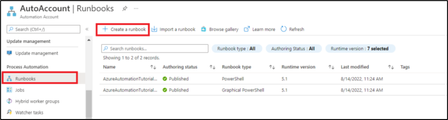
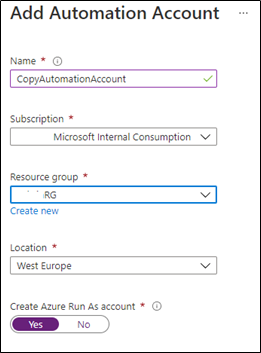
In this blog article, we will be illustrating the required steps to use Invoke-Sqlcmd against an Azure SQL database from Azure Automation. We have received a few cases where customers would like to automate a specific script to be executed on their Azure SQL database like select, update, insert or delete.21KViews3likes2CommentsRestore database across servers(Azure SQL Database and Azure SQL managed instance)- Azure Automation
In this article, we consider the scenario where customers would like to restore their Azure SQL database and managed database from one Azure SQL server to another Azure SQL server, for example for development reasons. The article will provide you with the steps to achieve this by automating the job using Azure Automation14KViews5likes5CommentsAzure SQL Database Token-based authentication with PowerShell
First published on MSDN on Oct 26, 2018 How to connect to Azure SQL Database using token-based authentication in PowerShell native appsThis guide assumes you already have a deployment of an Azure SQL Database, your PowerShell environment configured and you have an app registration for a native app in Azure Active Directory.16KViews0likes1Comment