powershell
5 Topics
Updating Purview DLP Sensitive Service Domain Groups with PowerShell
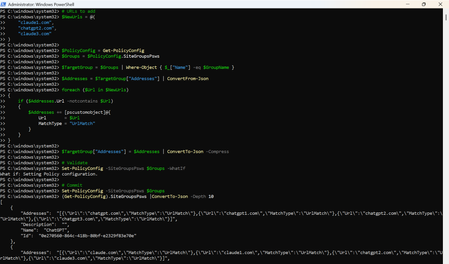
Introduction Microsoft Purview Data Loss Prevention (DLP) can use Sensitive Service Domain Groups to organize websites and other network destinations that are referenced by endpoint DLP rules. Administrators can manage these settings in the Purview portal, while PowerShell is useful when changes must be repeatable, reviewed, and validated before they are committed. This article demonstrates how to retrieve the tenant policy configuration, identify an existing group, add new URL entries only when they are not already present, validate the change, commit it, and verify the final configuration. Important The SiteGroupsPsws object contains tenant-wide endpoint restriction settings. Test the script in a non-production tenant first, export the original configuration, and use change control. Microsoft documents Get-PolicyConfig and Set-PolicyConfig for viewing and modifying endpoint restrictions, but the internal shape of individual hashtable entries can evolve. Prerequisites Requirement Guidance Permissions Use an account assigned the required Microsoft Purview permissions for the configuration being changed. Microsoft states that Get-PolicyConfig and Set-PolicyConfig require permissions in Security & Compliance PowerShell. PowerShell module Install or update the ExchangeOnlineManagement module. Security & Compliance PowerShell uses this module for connectivity. Connection Connect to Security & Compliance PowerShell by using Connect-IPPSSession before running the policy configuration cmdlets. Existing group The target Sensitive Service Domain Group must already exist. This script updates a group named Claude; it does not create the group. Change controls Run the discovery and backup commands first, use -WhatIf before commit, and retain the exported JSON for rollback analysis. Step 1: Install the module and connect Install-Module -Name ExchangeOnlineManagement -Scope CurrentUser Import-Module ExchangeOnlineManagement Connect-IPPSSession Confirm that the policy configuration can be retrieved: Get-PolicyConfig | Format-List Step 2: Discover available group names List the names exposed in SiteGroupsPsws and confirm that the target group exists before making any change. (Get-PolicyConfig).SiteGroupsPsws | Where-Object { $_.ContainsKey("Name") } | ForEach-Object { $_.Name } Step 3: Back up the current configuration Export the current SiteGroupsPsws representation before modifying the in-memory object. $BackupPath = ".\SiteGroupsPsws-backup-{0}.json" -f (Get-Date -Format "yyyyMMdd-HHmmss") (Get-PolicyConfig).SiteGroupsPsws | ConvertTo-Json -Depth 20 | Set-Content -Path $BackupPath -Encoding UTF8 Write-Host "Backup written to $BackupPath" -ForegroundColor Cyan Step 4: Define the target group and URLs $GroupName = "Claude" $NewUrls = @( "claude1.com", "chatgpt2.com", "claude3.com" ) Replace the sample values with the approved production URLs. Use only the domain or wildcard format supported by your DLP design. Step 5: Retrieve and validate the target group $PolicyConfig = Get-PolicyConfig $Groups = $PolicyConfig.SiteGroupsPsws $TargetGroup = $Groups | Where-Object { $_["Name"] -eq $GroupName } if (-not $TargetGroup) { $AvailableGroups = $Groups | Where-Object { $_.ContainsKey("Name") } | ForEach-Object { $_.Name } throw "Sensitive Service Domain Group '$GroupName' was not found. Available groups: $($AvailableGroups -join ', ')" } Complete script # Target Sensitive Service Domain Group $GroupName = "Claude" # URLs to add $NewUrls = @( "claude1.com", "chatgpt2.com", "claude3.com" ) $PolicyConfig = Get-PolicyConfig $Groups = $PolicyConfig.SiteGroupsPsws $TargetGroup = $Groups | Where-Object { $_["Name"] -eq $GroupName } $Addresses = $TargetGroup["Addresses"] | ConvertFrom-Json foreach ($Url in $NewUrls) { if ($Addresses.Url -notcontains $Url) { $Addresses += [pscustomobject]@{ Url = $Url MatchType = "UrlMatch" } } } $TargetGroup["Addresses"] = $Addresses | ConvertTo-Json -Compress # Validate Set-PolicyConfig -SiteGroupsPsws $Groups -WhatIf # Commit Set-PolicyConfig -SiteGroupsPsws $Groups Step 6: Verify the change Retrieve a fresh copy from the service rather than validating only the modified local object. $VerifiedGroups = (Get-PolicyConfig).SiteGroupsPsws $VerifiedTarget = $VerifiedGroups | Where-Object { $_["Name"] -eq $GroupName } $VerifiedAddresses = @($VerifiedTarget["Addresses"] | ConvertFrom-Json) $Verification = foreach ($Url in $NormalizedNewUrls) { [pscustomobject]@{ Group = $GroupName Url = $Url Present = ($VerifiedAddresses.Url -contains $Url) } } $Verification | Format-Table -AutoSize if ($Verification.Present -contains $false) { throw "Verification failed: one or more URLs were not found after the update." } Write-Host "Verification passed for all requested URLs." -ForegroundColor Green Step 7: Optional full configuration views # Writable PowerShell representation (Get-PolicyConfig).SiteGroupsPsws | ConvertTo-Json -Depth 20 # Service view (Get-PolicyConfig).SiteGroups Sample output The sample is illustrative. Actual service output and formatting can vary by module version and tenant configuration. Troubleshooting Symptom Recommended check Get-PolicyConfig or Set-PolicyConfig is not recognized Confirm that the ExchangeOnlineManagement module is installed and that the session was connected with Connect-IPPSSession. Access denied or authorization error Verify the administrator account has the required Purview role-group permissions, then reconnect after role propagation. Target group not found Run the discovery command and use the exact group name returned by SiteGroupsPsws. Addresses cannot be parsed Inspect the raw Addresses property before changing anything. Restore from the exported JSON if the object shape is unexpected. -WhatIf succeeds but verification fails Retrieve Get-PolicyConfig again, check for service-side errors, and confirm no competing administrator update overwrote the configuration. Summary PowerShell provides a controlled way to update Microsoft Purview DLP Sensitive Service Domain Groups at scale. The safest pattern is to discover the exact group name, export the current configuration, validate the target object, normalize and de-duplicate input, run Set-PolicyConfig with -WhatIf, commit the change, and then verify it through a fresh Get-PolicyConfig call. This validation-first workflow improves repeatability and reduces the risk of unintended tenant-wide configuration changes. References Get-PolicyConfig cmdlet reference https://learn.microsoft.com/en-us/powershell/module/exchangepowershell/get-policyconfig?view=exchange-ps Set-PolicyConfig cmdlet reference https://learn.microsoft.com/en-us/powershell/module/exchangepowershell/set-policyconfig?view=exchange-ps Security & Compliance PowerShell overview https://learn.microsoft.com/en-us/powershell/exchange/scc-powershell?view=exchange-ps Configure Endpoint DLP settings https://learn.microsoft.com/en-us/purview/dlp-configure-endpoint-settingsExtracting and Auditing Azure DevOps Permissions at Scale with PowerShell
Managing access in Azure DevOps is easy at small scale — and increasingly opaque as organizations grow. This post introduces ADO Permissions Output, an open-source PowerShell toolset that queries Azure DevOps REST APIs across 30+ security namespaces, decodes bitmask permissions, resolves cryptic GUIDs and tokens into readable names, and produces structured JSON/CSV output ready for Power BI. It also surfaces "ghost" members — users who appear in ADO through nested Entra groups but hold no active entitlement — which the standard Graph API alone cannot detect. Whether you're preparing for a compliance review or just want to know who actually has access to what, this tool closes the gap between the ADO portal and a complete audit picture.Identify Device state in EntraID/Defender with PowerShell
In certain occasions you may want to confirm what is the state of your devices or a subset of your devices in EntraID and cross reference this with the device status you see in Defender for Endpoint. Sometimes a device can appear as onboarded in Defender for Endpoint but given that an inactive device remains visible in the Defender portal for 180 days before it gets removed automatically, it can be challenging to understand what devices that show as inactive in the console are actually disabled in EntraID and no longer part of the device fleet you manage. The challenge today is that the EntraID API doesn’t expose the parameter “AccountState” to the Defender API, hence it is not possible to run an API call from the API explorer view from Defender portal to query this parameter, or view this information through Defender portal.Gpresult Like Tool For Intune
Hi, Jonas here! Or as we say in the north of Germany: "Moin Moin!" I had to troubleshoot a lot of Intune policies lately and I used a variety of tools for that. At the end, I built my own script to have a result which looks similar to what “GPresult /h” creates for on-premises group polices. The script is inspired by the following article: https://doitpshway.com/get-a-better-intune-policy-report-part-2 by Ondrej Sebela. It follows a similar approach, but without any module dependencies and fewer output options, as my script only generates an HTML page. What started as a script is now a module which might have more functions in the future. Feel free to read any of my other articles here: https://aka.ms/JonasOhmsenBlogs How to get the module The PowerShell module is called: "IntuneDebug" and can be installed or downloaded from the PowerShell Gallery. Install the module by running the following command: Install-Module -Name IntuneDebug The module repository can be found here https://aka.ms/IntuneDebug in case you want to download the module manually or want to contribute to it. The command to get the report is called: “Get-MDMPolicyReport” How to use Get-MDMPolicyReport The function can run without administrative permissions and without any parameters on a windows machine. But you can also start the function with administrative permissions to get more data about Intune Win32Apps and their install status. Use parameter “-MDMDiagReportPath” to load MDM report data captured on a remote machine. But more on that in section “How to use parameter -MDMDiagReportPath“ So, in summary, the function can run locally to output information specific to that device, or it can parse already captured data via the “-MDMDiagReportPath” parameter. It cannot gather data remotely, though. The function output As mentioned earlier, the only output of the function is an HTML file which will automatically open in Edge. The output is grouped into sections to make the report easier to read. The page looks like this when all sections are collapsed: Section: "DeviceInfo <Devicename>" DeviceInfo shows general information about the device and the Intune sync status: Section: "PolicyScope: Device" This section shows all the settings applied to the device grouped by area/product. Note: If you’re coming from ConfigMgr you might expect a policy ID in the report. While an Intune policy has an ID, the ID is not stored on the device. That’s by-design and that’s the reason why we just see the settings that apply to a device in this report. The following example shows some basic Defender and Delivery Optimization settings grouped together. You can also see the system's default value if there is one and the winning settings provider. This should typically be the MDM provider like Intune, but it could also be a different provider for some settings depending on the setup. Section: "PolicyScope: <SID> <UPN>" This section shows all the policies applied to a user. The user’s SID and UPN (UPN only when run locally) are visible in the policy-scope header. If there are multiple users working on a machine, each user will have their own section in the report. Section: "PolicyScope: EnterpriseDesktopAppManagement" This section shows all MSI installation policies from Intune. NOTE: Win32 and store apps are visible in the “Win32Apps” section. The application name is not available, instead I show the MSI filename to give an indication of what type of app that is. Section: "PolicyScope: Resources" Under resources we will see policies which typically contain some sort of payload. Like a certificate or Defender firewall rule. I tried to make each section as readable as possible. So, the output varies by type. Certificates for example, are shown in a different format as Defender firewall rules. NOTE: If the function runs without the parameter “-MDMDiagReportPath” it will try to enrich the policy info with as much data as possible. This is not possible when working with captured MDM-reports from a remote machine. The output might be limited in that case. Section: "PolicyScope: Local Admin Password Solution (LAPS)" This section shows all the settings applied to the device coming from a LAPS policy as well as some local settings. Section: "PolicyScope: Win32Apps" This section shows all available Win32App policies. Those apps can be installed already or just assigned as available. If you need more information about the installation status, you need to run the function with administrative permission. This only works locally and cannot be used with parameter “-MDMDiagReportPath” since the extra data is coming from the local registry. If a script is used for the detection or requirement, the script will be parsed and shown as it is. Use the copy button to copy the script and test it locally if needed. When the script is run as administrator locally, it will try to get more information about the actual installation status of an application: Section: "PolicyScope: Intune Scripts" Intune Scripts will show script policies and their current state. The example below shows a remediation script with the detection output string "Found". It does not have an remediation action and therefore no data for the related properties. Unfortunately, the script name is not part of the policy and cannot be shown here. But you can use Graph Explorer https://aka.ms/ge and use the following endpoint to get the script name by entering the script ID of your script: "https://graph.microsoft.com/beta/deviceManagement/deviceHealthScripts/<ScriptID>?$select=id,displayName" Where the data comes from The function will use the following command to generate an MDM report: MdmDiagnosticsTool.exe -out “C:\Users\PUBLIC\Documents\MDMDiagnostics\<DateTime>” NOTE: The tool MdmDiagnosticsTool.exe is part of the Windows operating system. More about it can be found HERE The tool will export the data to C:\Users\PUBLIC\Documents\MDMDiagnostics to a folder in the following format: "yyyy-MM-dd_HH-mm-ss" The function will then parse the following two files to extract the required data without administrative privileges: MDMDiagReport.html MDMDiagReport.xml Some data is directly read from the registry to enrich the output and in some cases administrator permissions are required. The Win32Apps and Intune script policy data is coming from the Intune Management Extension logfiles: C:\ProgramData\Microsoft\IntuneManagementExtension\Logs\AppWorkload*.log C:\ProgramData\Microsoft\IntuneManagementExtension\Logs\HealthScripts*.log NOTE: The folders under “C:\Users\PUBLIC\Documents\MDMDiagnostics” will be deleted when the creation time is older than one day. This can be changed with parameter “-CleanUpDays” set to a higher value than one day. How to use parameter “-MDMDiagReportPath” Simply generate MDM report data, either with the MdmDiagnosticsTool.exe, via the settings app or via Intune. Then copy the files to a system with the IntuneDebug module on it and unpack the report data. You can now run the function with the parameter “-MDMDiagReportPath” and point it to the unpacked report data. NOTE: The report header will contain the following when the parameter was used: “Generated from captured MDM Diagnostics Report” MdmDiagnosticsTool.exe example: mdmdiagnosticstool.exe -area "DeviceEnrollment;DeviceProvisioning;Autopilot" -zip C:\temp\MDMDiagnosticsData.zip Settings app example: Intune Example: I hope you find this tool helpful. In case of any issues or suggestions, head over to GitHub via https://aka.ms/IntuneDebug and create an issue or pull request. Stay safe! Jonas Ohmsen Code disclaimer This sample script is not supported under any Microsoft standard support program or service. This sample script is provided AS IS without warranty of any kind. Microsoft further disclaims all implied warranties including, without limitation, any implied warranties of merchantability or of fitness for a particular purpose. The entire risk arising out of the use or performance of this sample script and documentation remains with you. In no event shall Microsoft, its authors, or anyone else involved in the creation, production, or delivery of this script be liable for any damages whatsoever (including, without limitation, damages for loss of business profits, business interruption, loss of business information, or other pecuniary loss) arising out of the use of or inability to use this sample script or documentation, even if Microsoft has been advised of the possibility of such damages.