power automate
20 TopicsCreate an Internal Support Ticket Hub with Microsoft Lists, Forms & Power Automate
Setting Up the Support Ticket Portal First, we will set up the support ticket portal. This is where ticket requests will populate, be triaged, assigned and managed. It's a central location where the support team members can keep track of their tasks as well as keep the client informed through automated notifications upon status changes. Let's get started! 1. Create the Microsoft List: Navigate to Microsoft Lists from the Microsoft365.com App launcher in the upper left. Select the “+ New list” and choose the “Issue Tracker" template. Fill out the list information (name, description*, color*, icon*, and associate it with a team or save to your lists) and select create to make your form (*optional). In this case, associating the list with a team is required as it is needed for notification purposes later on in the tutorial. Review the list items from the template and customize the list to what your organization needs. Include columns that capture essential details such as issue description, priority level, assigned to, and status. Ensure the list is set up to store all necessary information for managing support tickets. There will be items you need captured from the person submitting the form as well as items to triage, assign, and track the status of the case. 2. Creating the Support Ticket Form In the list menu, select the "Forms" tab to create a new form. Customize the form by removing or unchecking questions that are designed for the support team, leaving only the questions needed from the person submitting the ticket. For example, you’d remove the Priority, Status and Assigned To fields from the form because those items are not determined by the submitter, but by the internal staff triaging the case. Ensure the form captures essential details such as the issue description, associated files, and contact information. 3. Enabling Notifications and Assigning Tickets In the form settings, select the toggle next to "Notify me" so that whenever a new item (support ticket) is submitted, you are immediately notified. This ensures that you don't miss an urgent request. Preview your form Check for changes or adjustments you’d like to make. If everything is good, congratulations! You’ve made your support ticket form! 4. The Workflow Process: Now that your form and list are created you can test out your new form and ticket portal. Grab the link to your new form by selecting the forms button again in the menu. Select the link sign to copy the link. Let's test things out. Fill out the form with information as if you are an employee submitting a ticket about an issue. Refresh and check your Microsoft List to make sure the form responses were automatically added. Triage the case. In the Microsoft List, double click on the form submission list item. Here, the support admin will triage the case by assigning it to a member of the support team, updating the status of the ticket to "In Progress" and assigning it a priority status. When a ticket is assigned, the assigned staff member receives a notification, ensuring they are aware of their new task. If they need to get in contact with the employee that submitted the case, they are able to come to the list item, and check for contact/email details in the email column. Team members can update the status of the ticket to "In Progress" when they start working on it and then to "Completed" once the issue is resolved. These status updates help track the progress of each ticket and ensure timely resolution. Congratulations! You have an internal support ticket portal and form. To further enhance the transparency and efficiency of your internal support ticket system, you can implement additional notifications to keep the requester informed about the status of their ticket. By setting up automated notifications in Power Automate for when a ticket is marked as "In Progress" and "Completed," you ensure that the requester is always aware of the current status of their issue. This not only improves communication but also boosts confidence in the support process, as employees feel assured that their concerns are being actively addressed and resolved. 5. Automating Notifications with Power Automate Create a Flow: From the Microsoft365.com app launcher, open Power Automate. Click "+ Create" and select "Automated Cloud Flow". Choose a flow name and set the trigger to "When an item or file is modified". Configure the Flow: On the canvas, select the trigger to enter the required data. The site address your Microsoft List is attached to and the list or library name. Next, we must add a trigger condition in order for the flow to only trigger when the status column has been changed. In the settings tab add the following trigger condition NOt(equals(triggerOutputs()?['body/Status'], triggerOutputs()?['body/PreviousStatus'])) Return to the canvas to create a new action. Select the + sign under your trigger. In the search menu, search for the condition action. For the value of the condition, we want to choose the Status Value from the dynamic field (the lightning bolt). We want to make sure the condition states “Status Value is equal to In progress”. (Capitalization matters here so make sure the capitalization of “In progress” matches the way it is spelled on your Microsoft List”. In the "True" column of your condition we will add a new action. Select “Send an email (V2) Inside of your action select, “Switch to Advanced Mode” to be able to enter dynamic fields or fields directly associated with your form submission. In the "To" field, select the lightning bolt for a dynamic entry. And select the “Issue logged by Email”. This will add the email address of the form sender to the “To” field and who the notifications will be sent to. In the Subject field type and appropriate title such as “Support Ticket Status Update”. In the Body field type a message to the requester. For example, "Hello, you are receiving this message to notify you that your support ticket for" (dynamically insert the name of the issue) “has been changed to “In Progress”. At this point, the flow now sends notifications for when the status column has been modified to “In Progress. Now, let's do the same and send a notification for when the status has been changed to “Completed”. In the False column, we are going to add another condition. The values for the condition will be the same except where it once said, “In Progress” it will say “Completed”. You want the statement to read “Status value is equal to Completed”. In the true column add the same action for sending an email and fill out the details accordingly. Save and test your flow. Test and Deploy: Test the flow to ensure it works as expected. Select Test and choose Manually. This specific flow is triggered when the status column has been modified to “In Progress” or “Completed”. Test both separately to make sure both works. You will see green check marks and receive a notification to the email you provided earlier when filling out the form with sample data. In this example, I tested the flow by updating the status to “In Progress” so in this case I have green check marks along the left side because that follows the first conditions. The green check marks will follow the right-side path if I choose to test the “Completed” status. Here is a copy of the email that was sent to the inbox. Once satisfied, deploy the flow to automate the notification process, enhancing communication and satisfaction. Conclusion By leveraging Microsoft Lists and Forms, you can create a robust internal support ticket system that streamlines the process of submitting, triaging, and resolving support requests. The integration with Power Automate further enhances this system by automating notifications, ensuring that all parties are kept informed throughout the process. This setup not only improves efficiency but also boosts employee satisfaction by providing a transparent and responsive support system.13KViews1like3CommentsMicrosoft Planner & Automate: The Perfect Duo
Power Automate & Planner In a world of ever-increasing deadlines, content management, or a campaign for outreach. Sending emails tracking Todo's and keeping track of deliverables can be a daunting task. In a previous blog we talked about Microsoft Loop, a great tool for real-time collaboration and project management. Planner’s ease of use and intuitive design gives you many ways to view your project called a plan. You can build it from scratch or use many of the templates for the most relevant scenario. Power Automate is a cloud-based platform that allows you to run, schedule and create your own automated workflows. This can be very helpful if you need to see reminders, emails, notifications, and much more. Power Automate works seamlessly with Microsoft and third-party applications. Some flows are very easy to use. We will follow a scenario to learn how we can use a scheduled flow. Scenario An editor at Contoso. is responsible for managing the publication of blog posts. To streamline the process, they use Microsoft Planner to track the progress of each blog post and Power Automate to send scheduled summary emails. Creating The Planner Board Navigate to Microsoft 365 login at https://m365.cloud.microsoft.com. Sign in with your user credentials and authenticate with the Microsoft Authentication App. While you are signed in, navigate to the top-left corner of the App launcher (Grid icon), then select the planner app or use the search bar by typing “Planner.” Navigate to the bottom-left corner of the screen and click “New plan” then select “Basic.” The editor creates a new plan in Microsoft Planner called "Marketing Blog" or whatever you would like. Select the desired group from the dropdown menu, then click "Save" button. In the top left-hand menu, select "board" for the kanban view. Create buckets for different stages of the publication process by typing in the "Add a new bucket" area. Create the following buckets. "Backlog," "Final Draft," "Review," and "Published." Each blog post is added as a task in the relevant bucket. For example, a new blog post idea is added to the "Final Draft" bucket. Tasks to Accomplish Now that we have created the planner, let's assume the role of the editor. The editor must closely monitor the blog editorial calendar, which is represented by our Planner board. To streamline the process of tracking outstanding items and blockers, the editor should receive a scheduled summary of each bucket we have created. The editor will need to perform the following tasks The editor assigns tasks to team members responsible for drafting, editing, and reviewing the blog posts. The editor regularly updates the status of each task, moving them to the appropriate bucket as they progress through the stages. Lastly, the editor will receive a summary every Monday at 9:00 AM before the teams Morning standup meeting. You can tailor the time to your needs. Using Power Automate for Scheduled Summary Emails You can access Power Automate from the Microsoft 365 App Launcher, or directly by going to https://make.powerautomate.com/enviroments. Once you’re logged in: Click “Templates” on the left-hand panel. In the search bar above, type “Create a daily summary of Planner tasks by bucket.” Click on the corresponding card. The editor sets up a Power Automate flow to send a weekly summary email to the team. They create a scheduled cloud flow in Power Automate, specifying the start date, time, and frequency (e.g., every Monday at 9:00 AM). Scroll to the bottom of the page and sign into your “Planner” and “Office 365 Outlook” account then press the “continue” button. In the top tab click on the “Reoccurrence” card. Add the following information “Interval,” “Frequency,” “Time zone,” and “Start time.” For the time portion please use military time and the (Year-Month- 24T- 00:00) change the relevant time. Next add the “List buckets” by clicking on the corresponding card and entering the plan you created under “Parameters,” PlanId “Marketing Blog.” Next add the “List Tasks” add the PlanId again under the parameters. Then add your username or email address to the last card “Send an email.” Lastly save your flow. Testing the Flow It is recommended that you first test your flow. This is beneficial to flag any issues and the process and see how best to troubleshoot the flow. Note: Trigger: The event that starts automation. Actions: What happens after the trigger (e.g., creating or updating a Planner task). Next, click on the top-right ribbon and select the test button. You will see two options. However, the automatically test will be greyed out because there is no initial test. Click “Manually.” The flow is now listening for a trigger to perform an action. Just like the one we set up. Go to your Outlook email and see if you received the email. It may take some time to run. However, if an issue has occurred see if there is an issue with the flow. If the flow was successful, you should see an email like the one below. The Reviewing and Collaborating The editor reviews the summary email to ensure all tasks are on track and deadlines are met. They use the summary to identify any bottlenecks or tasks that require additional resources. The editor collaborates with the team to address any issues and ensure a smooth publication process. In Conclusion Automating tasks in Microsoft Planner with Power Automate can significantly reduce manual overhead and enhance team productivity. By leveraging triggers, conditions, and planned actions, you ensure tasks are created, tracked, and completed more efficiently. Whether it’s converting emails into tasks, updating task statuses, or sending reminders for approaching deadlines, harnessing the power of automation in Planner can transform the way you manage work. Hyperlinks Microsoft Planner for admins - Microsoft Planner | Microsoft Learn Templates | Microsoft Power Platform Power Automate Documentation Planner Templates on Power Automate13KViews0likes2CommentsTransforming Nonprofit Operations with Microsoft AI Builder
With AI Builder, you can automate repetitive tasks, analyze data to get valuable insights, and even make predictions. The best part is that you don't need to be an expert in AI or programming to use it. AI Builder provides pre-built templates that you can customize to fit your specific needs. By utilizing AI Builder, nonprofits can enhance their efficiency, make data-driven decisions, and drive social impact with innovative AI solutions.6.3KViews1like1CommentMicrosoft Lists Integration with Power Automate
Discover Microsoft Lists Microsoft Lists, part of Microsoft 365, is ideal for nonprofits. This intuitive app helps organize information and streamline work processes effortlessly. With templates for event planning and asset management, it meets various team needs perfectly. Enter Power Automate Power Automate enables workflow automation, previously known as Microsoft Flow. It helps create automated workflows between applications and services, reducing repetitive tasks and focusing on strategic activities. Benefits of This Integration for My Nonprofit Nonprofits often grapple with limited resources and high demands. The integration of Microsoft Lists with Power Automate offers transformative benefits: Automate Routine Tasks Free up your team's valuable time by automating routine tasks like data entry, notifications, and approvals. For example, a new donor is added to a list, and Power Automate sends an instant thank-you email while updating your donor database—all automatically! Boost Collaboration Keep your team in sync with automated notifications and reminders. Everyone stays informed about project updates, deadlines, and responsibilities, ensuring flawless collaboration and minimizing the risk of missed tasks. Elevate Project Management Streamline your project management by creating workflows to track milestones, budgets, and deliverables. For instance, when a project milestone is reached, the workflow can notify the team and generate a status report, keeping everyone on the same page. Let’s Get Started! Ready to integrate Microsoft Lists with Power Automate? Here's a step-by-step guide to get you started, complete with real-world examples to showcase the benefits. Step 1: Create a List in Microsoft Lists Navigate to the Microsoft Lists app. Choose a template that suits your needs, like the "Issue Tracker" template. Customize the columns and fields according to your requirements. Step 2: Access Power Automate Go to the Power Automate application within your Microsoft 365 suite. Select "Create" from the navigation bar to start a new flow. Step 3: Choose a Trigger Select "When an item is created" as the trigger from Microsoft Lists. Connect to your Microsoft Lists account and select the list you created in Step 1. Step 4: Define Actions Add an action, such as "Send an email" from Outlook or "Create a task" in Microsoft Planner. Customize the action with relevant details, such as recipient email addresses and task descriptions. Step 5: Test and Activate the Flow Save your flow and test it by adding a new item to your Microsoft List. Check if the defined actions are executed correctly. Once satisfied, activate the flow to automate your process. Create a Flow for a List Microsoft Lists Overview Getting Started with Power Automate5.5KViews1like0CommentsMastering Approvals: Simplifying Your Team’s Workflow and Request Management
Approvals is a powerful tool designed to streamline your team’s requests and processes, ensuring that nothing falls through the cracks. It simplifies workflows such as getting documents signed, approving invoices, or finalizing marketing materials, making collaboration more efficient. Now that we know what Approvals is, let’s take a look at how to access it: How to Access Approvals: 1. Navigate to the application bar on the left side of your Teams app. 2. Click the ellipses (three dots) to reveal additional applications. 3. Select "Approvals" from the list or use the search box to find and select it. Approvals’ Interface: Once you've accessed Approvals, you'll find the interface is simple and intuitive to navigate. At the top left, you’ll see the "Received" tab, where you can view requests from your staff, and the "Sent" tab, which shows the approvals you've sent out for review On the left-hand side, you'll find options for Approvals, Adobe Sign, and DocuSign. If you have an account with either service, you can select the option, sign in with your credentials, or start a free trial. The left-hand tab offers the following options: Approvals – View and manage your current approval requests. Adobe Sign – Adobe Sign for Microsoft Teams allows you to create, send, sign, and manage agreements directly within Teams. DocuSign – The DocuSign integration with Microsoft Teams streamlines approval processes, enabling you to create, manage, and share approvals that require signatures Now that you know how to navigate Approvals, let's go ahead and create our first approval request! How to Create a New Approval Request: 1. Click on "New approval request" located at the top right of the screen. 2. Select your request type: Basic Request – A simple, straightforward request. Adobe Sign – Use Adobe Sign to send and sign documents for eSignature. Note: You must sign in to your existing Adobe account or start a free trial if you don’t have one. DocuSign – Send and sign documents using DocuSign. You’ll need to sign in to your existing DocuSign account or start a free account if you don’t have one. Templates in Approvals – Create and use templates for recurring requests, saving time and tailoring them to fit the needs of your team and organization For demonstration purposes, we’ll be creating a basic request. 3. Give your request a clear and descriptive name for easy identification. 4. Enter the names of the approver(s) and select them. If sending to multiple approvers, you can toggle on "Require responses in the assigned order." This ensures that while you can add multiple recipients at each level, only one response is needed for the request to proceed. 5. Choose the priority 6. Add additional details if needed 7. Add an attachment to the file you want approved. 8. You can create custom response options for the approvers, such as "Yes" or "No," by enabling the "Custom response" toggle. Additionally, you have the option to send the request to an environment other than the default one. 9. Click Send. Additionally, you can create an internal approval request directly through a chat or channel by following the steps below: 1. Navigate to Chat or Channel in Teams. 2. Select the chat or channel you’d like to send an approval request in. 3. At the bottom of the conversation bar, click the “+” sign to search for and add approvals. 4. From there you will have the options to create your request accordingly. Receiving Approvals: Once you receive an approval in your "Received" tab, you’ll be able to view the following details for each request: Priority – An exclamation mark indicates high priority, while medium priority requests have no symbol. Request Title – The name of the request. Status – Shows the current status: Requested, Approved, Canceled, or Rejected. Source – The origin of the request. Created – The date and time the request was created. Sent By – The person who sent the request. Sent To – The recipient of the request. You’ll also find the same information for approvals you’ve sent in the "Sent" tab. How to Approve Requests Sent to You: To approve or reject a request sent to you, follow these steps: 1. Select the request you wish to approve (or reject) by clicking on it. 2. The approval request details will appear. 3. Add any comments (optional). 4. Select Approve or Reject or choose More Actions if you need to Cancel the request. 5. Once you have submitted your response, you should see that its status has changed to approved under your “Received” tab. With Approvals, streamlining your team’s requests and processes has never been easier. Now that you know how to access, create, and manage approvals, you're all set to enhance collaboration and ensure nothing slips through the cracks. Ready to take control of your workflows? Let’s start using Approvals today and make the approval process more efficient than ever! For additional tips and resources, be sure to follow our Nonprofit Community | Microsoft Community Hub for blogs, updates, and expert advice on maximizing your nonprofit tools3.1KViews0likes0CommentsExample Workflows You Can Create in Microsoft Teams
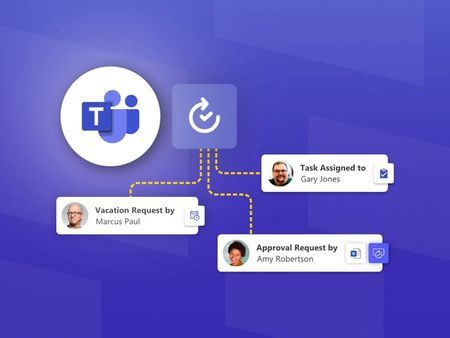
Microsoft Teams is a versatile platform that allows you to automate various tasks and processes through workflows. By leveraging workflows, you can streamline your workday, improve productivity, and ensure that important tasks are completed efficiently. Here are some example workflows you can create in Microsoft Teams to enhance your team's collaboration and productivity. Create a Planner Task from a Message Workflow Description: Automatically create a Planner task when a message contains a specific keyword, such as "TODO". Steps: Select a Message: On any message in Teams, select the ellipses (...) in the menu. Create New Action: Select "More actions" > "Create new action". Choose a Template: Select a template that uses the "Create a Planner task from a message" under All Templates as the manual trigger. Set Up the Workflow: Follow the prompts to set up the connections and parameters required by the template. Benefits: This workflow helps you stay on top of tasks mentioned in messages, ensuring that nothing falls through the cracks. Forward Emails to a Channel Workflow Description: Automatically forward emails sent to a specified address to a Teams channel. Steps: Open Teams: Sign in to Microsoft Teams. Access the Workflows App: On the left pane, select "Apps" and then choose "Workflows". Browse Templates: Select a template that forwards emails to a channel. Please note: You can all click on “See all Teams Templates” to see more available templates. Set Up the Workflow: Follow the prompts to set up the connections and parameters required by the template. Benefits: This workflow ensures that important emails are visible to your team, regardless of where they are received. Schedule a Message Workflow Description: Schedule a message to be sent to a Teams channel at a specific time. Steps: Open Teams: Sign in to Microsoft Teams. Access the Workflows App: On the left pane, select "Apps" and then choose "Workflows". Browse Templates: Select a template that schedules messages. Set Up the Workflow: Follow the prompts to set up the connections and parameters required by the template. Benefits: This workflow allows you to plan and schedule messages in advance, ensuring timely communication with your team. Notify a Channel When a SharePoint List is Modified Workflow Description: Automatically post a notification to a Teams channel when a SharePoint list is modified. Steps: Open Teams: Sign in to Microsoft Teams. Access the Workflows App: On the left pane, select "Apps" and then choose "Workflows". Browse Templates: Select a template that triggers notifications based on SharePoint list modifications. Set Up the Workflow: Follow the prompts to set up the connections and parameters required by the template. Benefits: This workflow keeps your team informed about changes to important documents and lists, ensuring everyone is up to date. Start an Approval Process When a Document is Uploaded Workflow Description: Automatically start an approval process when a document is uploaded to a specific folder in OneDrive or SharePoint. Steps: Open Teams: Sign in to Microsoft Teams. Access the Workflows App: On the left pane, select "Apps" and then choose "Workflows". Browse Templates: Select a template that initiates approval processes based on document uploads. Set Up the Workflow: Follow the prompts to set up the connections and parameters required by the template. Benefits: This workflow streamlines the approval process, ensuring that documents are reviewed and approved promptly. Conclusion Workflows in Microsoft Teams are a powerful way to automate repetitive tasks and streamline your workday. By setting up workflows like creating Planner tasks from messages, forwarding emails to channels, scheduling messages, notifying channels of SharePoint list modifications, and starting approval processes for document uploads, you can enhance productivity and collaboration within your team. Start exploring these example workflows in Microsoft Teams today and take your productivity to the next level!3KViews0likes0CommentsWhat’s Included with Microsoft’s Granted Offerings for Nonprofits?
Are you a nonprofit looking to boost your impact with cutting-edge technology? Microsoft is here to help! From free software licenses to guided technical documentation and support, this program offers a range of resources designed to empower your organization. In this blog, we’ll dive into the incredible tools and grants available to nonprofits through Microsoft, showing you how to make the most of these generous offerings. Whether you’re managing projects or just trying to simplify your day-to-day tasks, there’s something here for everyone. Let’s explore what’s possible!2.7KViews0likes1Comment- 2.7KViews4likes0Comments
Automate Your External Data Collection: Power Automate and Microsoft Forms
In the fast-paced world of nonprofits, efficiency is key. With limited resources and time, automating routine tasks can free up valuable hours for more impactful work. One area ripe for automation is data collection. By leveraging tools like Power Automate and Microsoft Forms, nonprofits can streamline their data collection processes, ensuring accuracy and saving time. (Please note that this process is applicable to both internal and external members using Microsoft Forms. For a simplified process that works exclusively for internal members, please refer to this blog: Simplify Internal Data Collection with Microsoft Lists Forms | Microsoft Community Hub) Why Automate Data Collection? Nonprofits often rely on data to make informed decisions, track progress, and report to stakeholders. However, manual data collection can be time-consuming and prone to errors. Automation offers several benefits: Efficiency: Automating data collection reduces the time spent on manual entry, allowing staff to focus on mission-critical tasks. Accuracy: Automated processes minimize human error, ensuring that data is consistent and reliable. Real-time Insights: With automated data collection, information is available in real-time, enabling quicker decision-making. Today, we will develop a Power Automate flow to capture form responses and automatically send a thank-you email. Let's begin by creating the form. Getting Started with Microsoft Forms Microsoft Forms is a powerful tool for creating surveys, quizzes, and polls. It's user-friendly and integrates seamlessly with other Microsoft 365 applications. Here's how to get started: Log in to your Microsoft 365 account by going to https://www.office.com/ , select apps, then select all Apps and navigate to Microsoft Forms. Choose the appropriate form type for your needs. Select a template to begin your form creation. Tailor your questions and style to fit your specific requirements. Once your form is ready, Click on Collect Responses share it with your audience via a link, email, or embed it on your website. Automating with Power Automate Power Automate allows you to create automated workflows between your favorite apps and services. Here's how you can use it to automate data collection from Microsoft Forms: Log in to https://make.powerautomate.com/ and click on "Create" to start a new flow. Choose between "Automated flow" to trigger actions based on specific events or "Scheduled flows" to run at predefined times or intervals. In this example we will work with Automated flows. Set Up Triggers: Write a flow and Select "When a new response is submitted" in Microsoft Forms as your trigger. This will initiate the flow whenever someone submits a form response. Pick a Form: Click on the trigger and search for the form. If the form does not appear, save the flow and refresh the page. Define what happens next: For example, you can add an action to save the form responses to an Excel file, send an email notification, or update a SharePoint list. For this example, we will send an email. To Send an email, we have to first get the email address from the responses. Add Action: Click on the plus sign and select "Add an action." Get Response Details: Select get response details. Select Form: Choose the form, click on "fx" to access the Dynamic content, select "Response Id," and click "Add." Send Email Action: Add an action and select "Send an email (V2)." Switch to Advanced Mode. Use Dynamic Content: Use Dynamic content to add the email address and the name of the user in the email body. Click on "fx" to add dynamic content. Save and test: Save and Test your flow to ensure it works as expected. A green checkmark shows that there are no issues with your flow. Real-World Applications Here are a few examples of how nonprofits can use Power Automate and Microsoft Forms: Volunteer Sign-Ups: Automate the collection and organization of volunteer information, making it easier to manage and communicate with your volunteers. Expense Approvals: Simplify the form submission process for expenses and reimbursements by implementing an approval workflow, ensuring that all expenditures are reviewed and authorized by the appropriate personnel. Project Proposals: Implement a form and approval workflow for new project proposals to ensure they align with the organization's mission and strategic goals. Once approved, a workflow can be initiated to create the project in a Planner board. Conclusion By automating data collection with Power Automate and Microsoft Forms, nonprofits can enhance their efficiency, accuracy, and decision-making capabilities. These tools not only save time but also empower organizations to focus on what truly matters – making a difference in their communities. Additional resources Microsoft Power Automate – Process Automation Platform | Microsoft Get started with Power Automate - Power Automate | Microsoft Learn Microsoft Forms help & learning1.4KViews0likes0Comments