power apps
196 Topics
Power Apps - development vs production
“It works fine in development.” Probably one of the most dangerous sentences in application development. 😄 I've seen Power Apps behave perfectly when we test with a small amount of data. Then the application goes to UAT or production and suddenly users start reporting: “It's taking too long to load.” “The gallery is empty.” “The search isn't returning everything.” “Why is this screen so slow?” Many times, the formula itself isn't the only issue. The data is. For example, an app might work perfectly with a few hundred SharePoint records. But as the list grows, the same approach can become a problem because of delegation and the amount of data being processed. That's why I've started asking these questions before finalizing an app: Is this query delegable? How much data will this list have after one year? Are we loading records into collections unnecessarily? Are we doing multiple LookUps inside a gallery? Can the filtering happen closer to the data source? Would Dataverse be a better option for this requirement? These questions don't always come up when we're building the first version of the application. But they become very important later. One thing I'm learning with Power Platform is that a solution that works today is not necessarily a solution that will scale tomorrow. Sometimes spending a little more time on the data and architecture in the beginning saves a lot of time later. Curious to know what others have experienced: What was the biggest Power Apps performance issue you faced after moving an application to production?147Views0likes0Comments
Building Low‑Code Apps for Nonprofits with Power Apps: A Practical Technical Guide
Nonprofits often rely on spreadsheets, paper forms, or disconnected systems to manage programs. These approaches can limit visibility, create inefficiencies, and increase administrative overhead. Microsoft Power Apps provides a low‑code platform that enables organizations to build custom applications—such as intake systems, volunteer check‑ins, case management tools, and inventory tracking—without requiring traditional software development. This guide explores the core architecture of Power Apps and how nonprofits can build scalable, secure, and maintainable solutions that align with their programs and workflows. Power Apps Architecture for Nonprofits Power Apps is part of the broader Microsoft Power Platform, which includes Dataverse, Power Automate, and connectors working together to create complete business applications. 1. Canvas Apps Canvas apps are highly customizable, user-interface–first applications that allow you to design the experience using a drag‑and‑drop approach while defining logic with Power Fx formulas. These apps give you full control over layout and behavior, making them ideal for mobile and task-specific workflows. Best suited for: Client intake Volunteer check‑in Surveys Mobile field work Learn more: Complete guide to building canvas applications - Power Apps | Microsoft Learn 2. Model‑Driven Apps Model-driven apps are data-first, structured applications built on Microsoft Dataverse, where the interface is automatically generated based on your data model, relationships, and business rules. These apps prioritize consistency, scalability, and governance over custom design. Best suited for: Case management Donor pipelines Program tracking Learn more: Overview of building a model-driven app with Power Apps - Power Apps | Microsoft Learn 3. Dataverse Dataverse is the secure, cloud-based relational data platform for Power Apps, providing structured data storage, governance, and enterprise scalability. It serves as the foundation for model-driven apps and a robust backend for canvas apps, enabling organizations to manage data, enforce business rules, and integrate across systems. Key capabilities: Relational tables and data relationships Role-based and field-level security Business rules and validation logic Audit logging and compliance support API access for integrations Learn more: Dataverse documentation - Power Apps | Microsoft Learn 4. Connectors Connectors act as the integration layer of Power Apps, enabling secure communication between your application and external systems. They allow apps to read, write, and automate data across a wide range of services without requiring custom code. Connectors nonprofit integrations: SharePoint (documents and simple lists) Excel (lightweight tracking and prototypes) SQL Server (high-volume structured data) Dynamics 365 (CRM and fundraising) Azure services (cloud storage, AI, functions) Salesforce (stakeholder management) Custom APIs for specialized systems Learn more: List of all Power Apps connectors | Microsoft Learn Technical Best Practices Data Layer Use Dataverse for sensitive data or relational data Use SharePoint for lightweight applications Use SQL for high‑volume or transactional systems Security Apply role‑based access controls Use environment variables for configuration Enable audit logs for compliance and tracking Performance Limit controls per screen Use delegable queries for large datasets Cache reference data when appropriate How to Build a Nonprofit Intake App (Technical How‑To) Building an intake app involves combining data, a form interface, and simple logic. Step 1: Create Your Data (Where Information Lives) Before building the app, you need a place to store your intake information. In Power Apps, this is done using Dataverse, which acts like a secure, structured database behind the scenes. You’ll create a table (similar to a spreadsheet) with fields such as: Client Name Date of Birth Program Notes Intake Date 👉 Learn more about how data works in Power Apps: Dataverse documentation - Power Apps | Microsoft Learn Step 2. Build the Intake Form (What Users See) Once your data is set up, you create a Canvas App, which is the form your staff or volunteers will use. Power Apps automatically turns your data fields into: Text boxes Dropdowns Date pickers This gives you a mobile-friendly intake form that works on phones, tablets, or desktops. 👉 Learn more about building apps: Official Microsoft Power Apps documentation - Power Apps | Microsoft Learn Step 3: Make the Form Work (Submitting Data) To make the intake form functional, you add simple logic so that when someone clicks Submit, their information is saved automatically. This is done using Power Fx, a formula language similar to Excel. 👉 Learn more about formulas: Microsoft Power Fx overview - Power Platform | Microsoft Learn With just a few formulas, your app can: Save data Show confirmation messages Reset the form for the next client Step 4: (Optional) Add Automation After a form is submitted, you can automatically trigger actions like: Sending confirmation emails Notifying staff Creating follow-up tasks 👉 Learn more about automation: Official Microsoft Power Automate documentation - Power Automate | Microsoft Learn 5. Share the App with Your Team Once your intake app is ready, you can share it with staff and volunteers so they can start using it right away. You can access it: On mobile devices Inside Microsoft Teams In a web browser Final Thought Power Apps enables nonprofits to move beyond fragmented tools and build custom, integrated solutions that match their workflows—without the cost and complexity of traditional development. With the right approach to architecture, data, and governance, organizations can create systems that are secure, scalable, and built for long-term impact.434Views0likes1CommentMicrosoft 365 & Power Platform product updates call
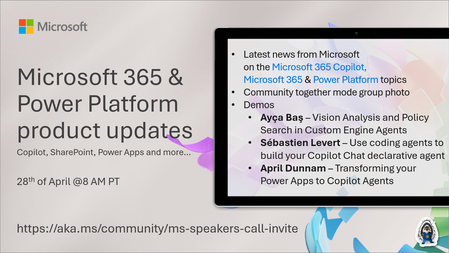
💡Microsoft 365 & Power Platform product updates call concentrates on the different use cases and features within the Microsoft 365 and in Power Platform. Call includes topics like Microsoft 365 Copilot, Copilot Studio, Microsoft Teams, Power Platform, Microsoft Graph, Microsoft Viva, Microsoft Search, Microsoft Lists, SharePoint, Power Automate, Power Apps and more. 👏 Weekly Tuesday call is for all community members to see Microsoft PMs, engineering and Cloud Advocates showcasing the art of possible with Microsoft 365 and Power Platform. 📅 On the 28th of April we'll have following agenda: News and updates from Microsoft Together mode group photo Ayça Baş – Vision Analysis and Policy Search in Custom Engine Agents Sébastien Levert – Use coding agents to build your Copilot Chat declarative agent April Dunnam – Transforming your Power Apps to Copilot Agents 📞 & 📺 Join the Microsoft Teams meeting live at https://aka.ms/community/ms-speakers-call-join 🗓️ Download recurrent invite for this weekly call from https://aka.ms/community/ms-speakers-call-invite 👋 See you in the call! 💡 Building something cool for Microsoft 365 or Power Platform (Copilot, SharePoint, Power Apps, etc)? We are always looking for presenters - Volunteer for a community call demo at https://aka.ms/community/request/demo 📖 Resources: Previous community call recordings and demos from the Microsoft Community Learning YouTube channel at https://aka.ms/community/youtube Microsoft 365 & Power Platform samples from Microsoft and community - https://aka.ms/community/samples Microsoft 365 & Power Platform community details - https://aka.ms/community/home 🧡 Sharing is caring!138Views0likes0CommentsMicrosoft Power Platform community call - March 2026
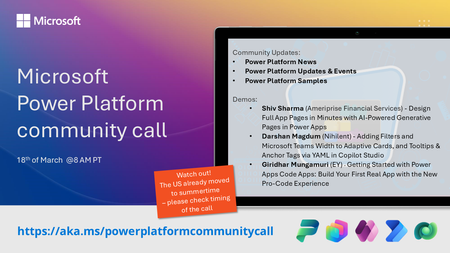
💡 Power Platform monthly community call focuses on different extensibility options for builders, makers and developers within the Power Platform. Typically demos are from our awesome community members who showcase the art of possible within the Power Platform capabilities. 👏 Looking to catch up on the latest news and updates, including cool community demos, this call is for you! 📅 On 18th of March we'll have following agenda: Power Platform Updates & Events Latest on Power Platform samples Shiv Sharma (Ameriprise Financial Services) - Design Full App Pages in Minutes with AI‑Powered Generative Pages in Power Apps Darshan Magdum (Nihilent) - Adding Filters and Microsoft Teams Width to Adaptive Cards, and Tooltips & Anchor Tags via YAML in Copilot Studio Giridhar Mungamuri (EY) - Getting Started with Power Apps Code Apps: Build Your First Real App with the New Pro‑Code Experience 📅 Download recurrent invite from https://aka.ms/powerplatformcommunitycall 📞 & 📺 Join the Microsoft Teams meeting live at https://aka.ms/PowerPlatformMonthlyCall 💡 Building something cool for Microsoft 365 or Power Platform (Copilot, SharePoint, Power Apps, etc)? We are always looking for presenters - Volunteer for a community call demo at https://aka.ms/community/request/demo 👋 See you in the call! 📖 Resources: Previous community call recordings and demos from the Microsoft 365 & Power Platform community YouTube channel at https://aka.ms/community/videos Microsoft 365 & Power Platform samples from Microsoft and community - https://aka.ms/community/samples Microsoft 365 & Power Platform community details - https://aka.ms/community/home196Views0likes0CommentsMicrosoft 365 & Power Platform Community call - Community demos
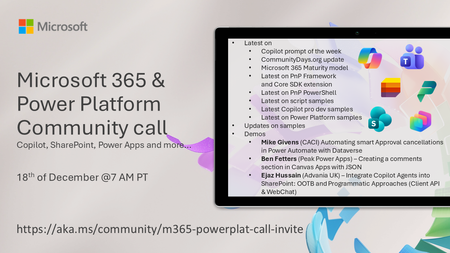
💡 Microsoft 365 & Power Platform Development bi-weekly community call focuses on different use cases and features within the Microsoft 365 and Power Platform - across Microsoft 365 Copilot, Copilot Studio, SharePoint, Power Apps and more. 👏 Looking to catch up on the latest news and updates, including cool community demos, this call is for you! 📅 On 18th of December we'll have following agenda: Copilot prompt of the week CommunityDays.org update Microsoft 365 Maturity Model update Latest on PnP Framework and Core SDK extension Latest on PnP PowerShell Latest on Copilot pro dev samples Latest on Power Platform samples Picture time with the Together Mode! Mike Givens (CACI) Automating smart Approval cancellations in Power Automate with Dataverse Ben Fetters (Peak Power Apps) – Creating a comments section in Canvas Apps with JSON Ejaz Hussain (Advania UK) – Integrate Copilot Agents into SharePoint: OOTB and Programmatic Approaches (Client API & WebChat) 📅 Download recurrent invite from https://aka.ms/community/m365-powerplat-dev-call-invite 📞 & 📺 Join the Microsoft Teams meeting live at https://aka.ms/community/m365-powerplat-dev-call-join 👋 See you in the call! 📖 Resources: Previous community call recordings and demos from the Microsoft Community Learning YouTube channel at https://aka.ms/community/youtube Microsoft 365 & Power Platform samples from Microsoft and community - https://aka.ms/community/samples Microsoft 365 & Power Platform community details - https://aka.ms/community/home 🧡 Sharing is caring!171Views0likes0CommentsMicrosoft Power Platform community call - December 2025
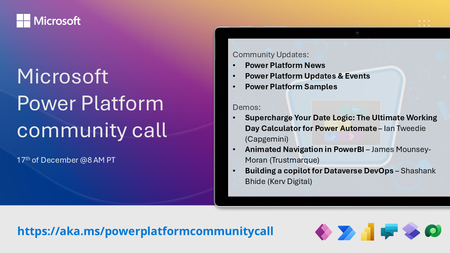
💡 Power Platform monthly community call focuses on different extensibility options for builders, makers and developers within the Power Platform. Typically demos are from our awesome community members who showcase the art of possible within the Power Platform capabilities. 👏 Looking to catch up on the latest news and updates, including cool community demos, this call is for you! 📅 On 17th of December we'll have following agenda: Power Platform Updates & Events Latest on Power Platform samples Supercharge Your Date Logic: The Ultimate Working Day Calculator for Power Automate – Ian Tweedie (Capgemini) Animated Navigation in PowerBI – James Mounsey-Moran (Trustmarque) Building a copilot for Dataverse DevOps – Shashank Bhide (Kerv Digital) 📅 Download recurrent invite from https://aka.ms/powerplatformcommunitycall 📞 & 📺 Join the Microsoft Teams meeting live at https://aka.ms/PowerPlatformMonthlyCall 👋 See you in the call! 📖 Resources: Previous community call recordings and demos from the Microsoft 365 & Power Platform community YouTube channel at https://aka.ms/community/videos Microsoft 365 & Power Platform samples from Microsoft and community - https://aka.ms/community/samples Microsoft 365 & Power Platform community details - https://aka.ms/community/home 💡 You want to do a demo in this call? - Please fill in the following form and we'll get you scheduled - https://aka.ms/community/request/demo201Views0likes0CommentsFrom Chalkboards to Cloud: How the Greater Austin YMCA Is Transforming Child Care Through Technology
How do you launch a first-of-its-kind childcare model in a rapidly growing city? For the Greater Austin YMCA, the answer was bold: a sweeping digital transformation powered by Microsoft tools like Teams, OneNote, and PowerApps. The result? Seamless collaboration across departments and the successful launch of two YMCA Tomorrow Academy TM early education centers—innovative, tech-enabled learning environments designed to meet one of the community’s greatest needs. A New Vision for Early Childhood Education The YMCA Tomorrow Academy is more than just childcare. It’s a nurturing, purpose-built space where children from six weeks to five years old can thrive. The curriculum emphasizes early literacy, STEM, creative arts, and nature play—supported by the YMCA’s holistic Constellation of Care TM model, which includes family wellness, nutrition, hygiene, and parent-teacher engagement. But building these centers require more than vision—it demanded real-time contributions and detailed collaboration from every department across the Greater Austin YMCA. The Digital Pivot That Made It Possible Before 2021, the YMCA’s operations still included many cumbersome analog components. Staff drove to meetings, shared paper documents, and relied on walkie-talkies that often failed. That changed when Kathy Kuras became President and CEO in February 2021 and brought her experience from the YMCA of Greater Boston, where she had helped modernize operations with Microsoft’s support. Kuras and her leadership team partnered with Microsoft to overhaul the Y’s technology footprint, introducing tools like Teams, OneNote, and BizApps to connect staff across locations and streamline workflows. “These tools are central to the hub of the work that gets done,” says Kuras. “They make work more efficient, respectful of people’s time, and intuitive.” From facilities to marketing to classroom staff, everyone became part of a unified digital ecosystem. “Our staff would say, ‘Our CEO uses this, our CMO uses this, and I’m a teacher and I’m using it now,’” says COO Shaq Brown. “That togetherness was a big culture shift.” A Child’s Words That Say It All When 4-year-old Lennon Pool told his mom, “I love it here,” after his first day at the Dove Springs YMCA Tomorrow Academy, it was music to her ears. His mom, Andie Connors-Pool, is also the Director of People at the Greater Austin YMCA—and deeply involved in the Academy’s development. “There have been times my kids don’t want to leave at the end of the day,” Connors-Pool says. “They’re just hugging on their teachers. You don’t get that everywhere.” Thanks to Microsoft tools, teachers can now update curriculum, track enrollment, and communicate instantly. “Gone are the days of broken walkie-talkies,” Connors-Pool adds. “Now, if someone needs a break, they just send a quick Teams message.” A Model for the Nation The success of the YMCA Tomorrow Academy has already sparked interest from other YMCAs across the country. “They’re knocking on our door,” says Brown. “We’re still iterating, but the interest is real.” With plans to launch four to five more academies by 2030, the Greater Austin YMCA is focused on placing them in communities with the greatest need. The challenge now is securing funding and building partnerships to scale the model. “It’s a first-of-its-kind for us in Greater Austin,” says CMO Sarah Inbau, “with the potential to scale across Texas—and nationally.” Technology That Feels Like Home At the heart of this transformation is a simple goal: to make families feel supported, safe, and connected. The YMCA Tomorrow Academy is proof that when technology, teamwork, and heart come together, extraordinary things can happen. From chalkboards to cloud-based collaboration, the Greater Austin YMCA is building a future where every child has a place to thrive—and where a child’s joyful “I love it here” is the ultimate measure of success. To learn more about the YMCA Tomorrow Academy and its impact, visit: How a technology overhaul helped the Greater Austin YMCA fill a childcare gap - Source162Views0likes0CommentsBuild a Custom CRM in a Weekend Using Microsoft Power Platform
Introduction You don’t need a massive budget or a team of developers to build a Customer Relationship Management (CRM) system. With Microsoft Power Platform, you can create a tailored CRM solution for your organization in just a weekend—no code required. Whether you’re tracking donors, clients, volunteers, or stakeholders, this guide walks you through the process using Power Apps, Dataverse, and Power Automate. Tools You’ll Use Power Apps (Canvas App) Dataverse (or SharePoint Lists if you’re on a tight budget) Power Automate (for workflows) Optional: Power BI for reporting Step-by-Step Guide 1. Define Your Core Entities Think about what you need to track: Contacts, Organizations, Interactions, Opportunities? Create a quick list of fields (e.g., Name, Email, Status, Last Contacted) 2. Set Up Your Dataverse Tables Go to Power Apps > Tables > New Table Create your entities and fields (e.g., Contact table with columns for name, email, and relationship status) 3. Build a Canvas App Use the Power Apps Canvas App from blank Connect it to your Dataverse tables Add screens for: Home/Dashboard Contact list (Gallery) Contact details/edit form Add new contact 4. Automate with Power Automate Example flow: “When a new contact is added, send a welcome email” Add flows for reminders to follow up, or flag inactive contacts Check out this blog for an example power automate flow creation Streamlining Non-Profit Operations with Power Automate Templates (Video Tutorial Included) | Microsoft Community Hub 5. Test and Share Share the app with your team 6. Use Security Roles in Dataverse to Manage Access Once your CRM is ready, you’ll want to control who can view, edit, or manage different parts of the system. That’s where Dataverse security roles come in. Here’s how to set them up: 1. Go to the Power Platform Admin Center Visit https://admin.powerplatform.microsoft.com Select the environment where your CRM lives 2. Open Security Roles Navigate to Environments > [Your Environment] > Settings Under Users + Permissions, click Security roles 3. Create a New Role Click + New role Name it something like CRM_ReadOnly, CRM_Admin, or CRM_Contributor Click Create 4. Set Table Permissions In the role editor, go to the Core Records or Custom Entities tab For each table (e.g., Contacts, Interactions), set permissions: Read = Organization (for full visibility) Create/Edit/Delete = User or None, depending on the role Example: A read-only user would have Read = Organization, and all other permissions set to None 5. Assign the Role to Users Go to Users + Permissions > Users Select the user(s) you want to assign the role to Click Manage roles, check your new role, and click Save 6. Test It Out Have the user log in and confirm they can only access what they’re supposed to Pro Tips: You can assign multiple roles to a user—permissions are cumulative Use Teams in Dataverse to manage access for groups For sensitive fields (like donation amounts), use Field-level security Use Business Rules in Dataverse to add logic without code (e.g., auto-fill fields) Theme the app to match your org’s branding Version it: Save iterations as you go, especially before big changes Final Thoughts This type of solution is ideal for teams that have outgrown spreadsheets but don’t want the cost or complexity of traditional CRM tools. With the Power Platform, you’re in control of the features, experience, and data—and you can iterate fast.3.7KViews0likes0CommentsSharePoint and Power Apps: Managing Roles and Permissions
One of the key aspects of SharePoint security is managing permissions at the list or item level, which allows you to control who can view or edit the data. This granular control is essential for maintaining the integrity and confidentiality of sensitive information within your organization. By effectively managing permissions, you can ensure that only authorized personnel have access to specific data, thereby reducing the risk of unauthorized access. Whether you choose to restrict access to the entire list for simplicity or use item-level permissions for more advanced scenarios, SharePoint provides the tools you need to keep your data secure. Restrict Access to the Entire SharePoint List This happens in SharePoint itself, not Power Apps. You need to manage permissions at the list or item level: Go to your SharePoint site > Open the List. Click on the gear ⚙️ > List settings. Under Permissions and Management, click Permissions for this list. Stop inheriting permissions (click the ribbon command: Stop Inheriting Permissions). Remove default access groups (like "Members" or "Visitors"). Add a specific SharePoint group or individuals who should have full access —an admin or manager, not end users. End users will only interact with the list through Power Apps — they don’t need direct list access. Please keep in mind that if users need to edit entries, they must have access to the list. Without proper permissions, they won't be able to see or edit the list. The next user permissions option is ideal for users who need to edit their own entries. Use Item-Level Permissions in SharePoint This is only advisable if you can enforce it consistently: Go to List settings > Under Advanced settings. Scroll to Item-level Permissions. Choose: ✅ Read access: Only their own ✅ Create and Edit access: Only their own This works well only if users are submitting forms (e.g., time-off requests) that shouldn’t be visible to others. Prevent Users from Viewing or Editing Power App Code This is configured through Power Apps and Microsoft Admin Center. Limit Who Has Access to Edit the App In Power Apps Studio: Go to File > Share. Remove or do not add users as Co-owners. Instead, share as Users only — give them “Can use” permission. Use Environment Roles (Dataverse or Environment Scope) In the Power Platform Admin Center (https://admin.powerplatform.microsoft.com): Go to Environments > Click your environment > Security roles. Set roles so users: Are not Environment Admins or Makers. Only have User roles in production environments. Summary of What to Check: Task Where Goal Limit list access SharePoint List Settings Prevent users from directly viewing data Use item-level permissions SharePoint Advanced Settings Let users only see/edit their own submissions Limit app editing Power Apps Share Panel Ensure only owners can edit Secure environment roles Power Platform Admin Center Block access to Maker/Admin capabilities1.9KViews0likes0CommentsEnhancing Nonprofit Collaboration with SharePoint (Part 2)
Welcome back to our series on SharePoint for nonprofits! In Part 1, we explored how hub sites and nested pages help nonprofits build a centralized, structured intranet that supports internal communication and content organization. In this post, we’ll look at more SharePoint tools that help your team stay informed, manage data efficiently, and automate internal processes—ultimately improving collaboration across your entire nonprofit. Communication Sites: Keeping Your Organization Informed Communication sites in SharePoint serve as internal news hubs, ensuring that employees, volunteers, and board members stay informed. Key Features of Communication Sites: Company Announcements: Share news, updates, and newsletters with the entire organization. Event Calendars: Provide visibility into upcoming meetings, fundraising events, and training sessions. Resource Libraries: Store essential documents such as grant templates, donor reports, and legal policies in an easily accessible format. Mobile Accessibility: Team members can stay connected from anywhere with SharePoint’s mobile-friendly experience SharePoint Lists and Libraries: More Than Just Storage Beyond document management, SharePoint Lists and Libraries function as powerful databases that help nonprofits track critical information such as donor records, volunteer registrations, and grant applications. Key Benefits: Customizable Views: Sort and filter data based on specific needs. Integration with Power Automate: Automate workflows such as volunteer onboarding or approval processes. Version Control: Keep track of document changes and prevent data loss. 💡 Example: Use a SharePoint list to track grant applications with custom columns for deadline, status, and reviewer. Combine it with Power Automate to notify reviewers when new applications are submitted. Customizing SharePoint with Power Platform For nonprofits looking to further enhance SharePoint’s capabilities, integrating with Microsoft Power Platform provides automation and customization options. Power Automate: Automate processes like approval workflows and email notifications. Power Apps: Create custom apps to manage program applications or volunteer registrations. Power BI: Generate reports from SharePoint data to gain insights into fundraising or program impact. Real-World Example: Hampton HR Ticketing System One nonprofit, Hampton University Proton Therapy Institute, implemented a SharePoint-based HR ticketing system to streamline employee requests such as benefits inquiries, payroll issues, and policy clarifications. Using a custom-built Power App connected to a SharePoint list, employees could submit tickets through a user-friendly interface. HR staff managed these tickets via the SharePoint List - utilizing custom views, drop downs, and shareable links per case entry for collaboration across the HR team. The Power App-SharePoint Customization has the ability to run automated workflows powered by Power Automate for notifications and escalations. The system was also designed to integrate with Power BI, enabling the HR team to generate real-time reports on ticket trends, resolution times, and team performance—all without leaving the Microsoft ecosystem Explore the Blog Series for a Step-by-Step Guide to Building a Power App from a SharePoint List Conclusion: Bringing It All Together With the right tools in place, SharePoint can be a nonprofit’s digital backbone—supporting everything from document sharing to cross-team collaboration and real-time reporting. By implementing: Hub sites for unified structure Communication sites for internal news Lists & libraries for managing operations Power Platform tools for automation and insight ...your nonprofit can drive transparency, save time, and stay mission-focused. 🔗 Check Out These Links to Learn More Introduction to SharePoint Communication Sites Lists in Microsoft 365 Power Automate for SharePoint Build Power Apps with SharePoint Data Visualize SharePoint Data with Power BI482Views0likes0Comments