playbooks
123 Topics
Problems with Playbooks - Request Header Fields Too Large
Hi all, Since this afternoon my Playbooks are not working anymore. I have a few Playbooks that are being triggered by Automations Rules. The first step in the Playbook is the Sentinel Incident Trigger. Second step is the "Get Incident" which gets the incident details with the Incident ARM ID from step 1. The second step is not working anymore and I get with every Playbook "Status Code: 431" and as output: { "StatusCode": 431, "ReasonPhrase": "Request Header Fields Too Large", "Content": "", "Headers": { "Pragma": [ "no-cache" ], The same error happens with a Playbook where I add a comment to the Incident. Status code is also 431 and stops the Playbook. Anybody any solution/help to fix this? Thanks in advance!2.2KViews3likes8Comments
Ingest Microsoft XDR Advanced Hunting Data into Microsoft Sentinel
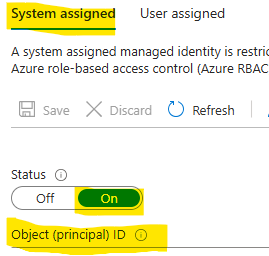
I had difficulty finding a guide that can query Microsoft Defender vulnerability management Advanced Hunting tables in Microsoft Sentinel for alerting and automation. As a result, I put together this guide to demonstrate how to ingest Microsoft XDR Advanced Hunting query results into Microsoft Sentinel using Azure Logic Apps and System‑Assigned Managed Identity. The solution allows you to: Run Advanced Hunting queries on a schedule Collect high‑risk vulnerability data (or other hunting results) Send the results to a Sentinel workspace as custom logs Create alerts and automation rules based on this data This approach avoids credential storage and follows least privilege and managed identity best practices. Prerequisites Before you begin, ensure you have: Microsoft Defender XDR access Microsoft Sentinel deployed Azure Logic Apps permission Application Administrator or higher in Microsoft Entra ID PowerShell with Az modules installed Contributor access to the Sentinel workspace Architecture at a Glance Logic App (Managed Identity) ↓ Microsoft XDR Advanced Hunting API ↓ Logic App ↓ Log Analytics Data Collector API ↓ Microsoft Sentinel (Custom Log) Step 1: Create a Logic App In the Azure Portal, go to Logic Apps Create a new Consumption Logic App Choose the appropriate: Subscription Resource Group Region Step 2: Enable System‑Assigned Managed Identity Open the Logic App Navigate to Settings → Identity Enable System‑assigned managed identity Click Save Note the Object ID This identity will later be granted permission to run Advanced Hunting queries. Step 3: Locate the Logic App in Entra ID Go to Microsoft Entra ID → Enterprise Applications Change filter to All Applications Search for your Logic App name Select the app to confirm it exists Step 4: Grant Advanced Hunting Permissions (PowerShell) Advanced Hunting permissions cannot be assigned via the portal and must be done using PowerShell. Required Permission AdvancedQuery.Read.All PowerShell Script # Your tenant ID (in the Azure portal, under Azure Active Directory > Overview). $TenantID=”Your TenantID” Connect-AzAccount -TenantId $TenantID # Get the ID of the managed identity for the app. $spID = “Your Managed Identity” # Get the service principal for Microsoft Graph by providing the AppID of WindowsDefender ATP $GraphServicePrincipal = Get-AzADServicePrincipal -Filter "AppId eq 'fc780465-2017-40d4-a0c5-307022471b92'" | Select-Object Id # Extract the Advanced query ID. $AppRole = $GraphServicePrincipal.AppRole | ` Where-Object {$_.Value -contains "AdvancedQuery.Read.All"} # If AppRoleID comes up with blank value, it can be replaced with 93489bf5-0fbc-4f2d-b901-33f2fe08ff05 # Now add the permission to the app to read the advanced queries New-AzADServicePrincipalAppRoleAssignment -ServicePrincipalId $spID -ResourceId $GraphServicePrincipal.Id -AppRoleId $AppRole.Id # Or New-AzADServicePrincipalAppRoleAssignment -ServicePrincipalId $spID -ResourceId $GraphServicePrincipal.Id -AppRoleId 93489bf5-0fbc-4f2d-b901-33f2fe08ff05 After successful execution, verify the permission under Enterprise Applications → Permissions. Step 5: Build the Logic App Workflow Open Logic App Designer and create the following flow: Trigger Recurrence (e.g., every 24 hours Run Advanced Hunting Query Connector: Microsoft Defender ATP Authentication: System‑Assigned Managed Identity Action: Run Advanced Hunting Query Sample KQL Query (High‑Risk Vulnerabilities) Send Data to Log Analytics (Sentinel) On Send Data, create a new connection and provide the workspace information where the Sentinel log exists. Obtaining the Workspace Key is not straightforward, we need to retrieve using the PowerShell command. Get-AzOperationalInsightsWorkspaceSharedKey ` -ResourceGroupName "<ResourceGroupName>" ` -Name "<WorkspaceName>" Configuration Details Workspace ID Primary key Log Type (example): XDRVulnerability_CL Request body: Results array from Advanced Hunting Step 6: Run the Logic app to return results In the logic app designer select run, If the run is successful data will be sent to sentinel workspace. Step 7: Validate Data in Microsoft Sentinel In Sentinel, run the query: XDRVulnerability_CL | where TimeGenerated > ago(24h) If data appears, ingestion is successful. Step 8: Create Alerts & Automation Rules Use Sentinel to: Create analytics rules for: CVSS > 9 Exploit available New vulnerabilities in last 24 hours Trigger: Email notifications Incident creation SOAR playbooks Conclusion By combining Logic Apps, Managed Identities, Microsoft XDR, and Microsoft Sentinel, you can create a powerful, secure, and scalable pipeline for ingesting hunting intelligence and triggering proactive detections.338Views2likes1Comment
Create playbook to release requested quarantined emails?
I can't find any information on possibility of releasing quarantined emails of the alert created by Microsoft Defender XDR. Such as "User requested to release a quarantined message" and "User requested to release a quarantined message involving one user". I see there are playbooks created with Microsoft Defender Connector. Have conditions in such as non-high confidence only and not reported by more than one user. Would Azure logic app be able to do this, if so, some guide is appreciated?2.3KViews2likes3Comments
Sentinel Data Connector: Google Workspace (G Suite) (using Azure Functions)
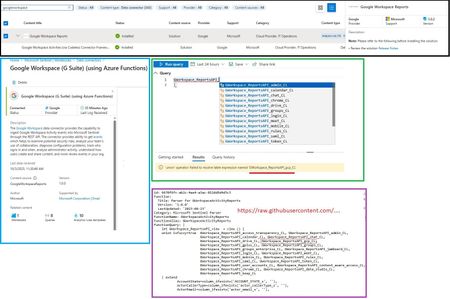
I'm encountering a problem when attempting to run the GWorkspace_Report workbook in Azure Sentinel. The query is throwing this error related to the union operator: 'union' operator: Failed to resolve table expression named 'GWorkspace_ReportsAPI_gcp_CL' I've double-checked, and the GoogleWorkspaceReports connector is installed and updated to version 3.0.2. Has anyone seen this or know what might be causing the table GWorkspace_ReportsAPI_gcp_CL to be unresolved? Thanks!409Views1like2CommentsSentinel incident playbook - get alert entities
Hi! My main task is to get all alerts (alerts, not incidents) from sentinel (analytics rules and Defender XDR) to external case management. For different reasons we need to do this on alert level. Alert trigger by design works perfectly, but this does not trigger on Defender alerts on Sentinel, only analytic rules. When using Sentinel incident trigger, then i'm not able to extract entities related to alerts, only incident releated entities. Final output is sent with HTTP post to our external system using logic app. Any ideas how to get in logic app all alerts with their entities?829Views1like5Comments
Send-Teams-adaptive-card-on-incident add Entities
Hello everyone, I’m looking for a way to insert Entities into the adaptive card. The method I use for Outlook, namely HTML, I can’t use it because it’s not supported. Do you have any ideas? My goal is, in addition to the incident, to show the involved entities, for example, account, host, IP, file etc.435Views1like0CommentsAITM Attack - Canary URL
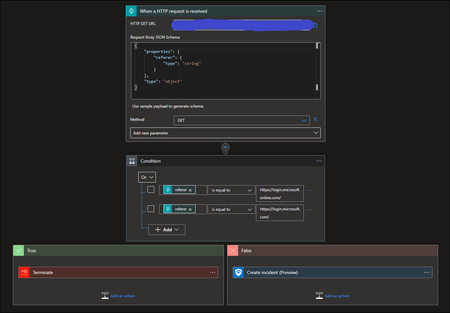
Hello. I am trying to work through the configuration in this article; https://ironpeak.be/blog/azure-detecting-aitm-attacks/ I created the following logic app; The generated URL has been added to a CSS file and uploaded as outlined in that article, and the branding changes are active. When someone logs in to something like the Azure portal the logic app is triggered, but the condition is always "false". If I look at the output the "Referer" is exactly as it should be for the condition to be true; Any help where I am going wrong would be greatly appreciated.Solved1.5KViews1like4CommentsRE: How you extract 'Incident ARM ID' from a KQL query to be used in a Logic App
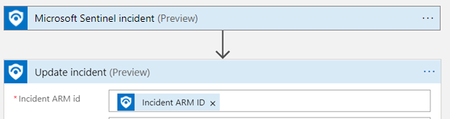
Hello, Can the Security Incident ID be extracted from the SecurityIncident table and used as a property or Entity value in a workflow action of a Logic App, such as 'Update Incident'? See the below image... What is the actual structure of the Incident ARM ID? Is it the 'IncidentNumber' from the table, OR do you have to parse it from the property 'IncidentUrl'?Solved3.5KViews1like6Comments