pki
92 Topics
Lost access to your Root CA in your 2-Tier PKI? Don’t worry, Use Cross Signing to Recover!
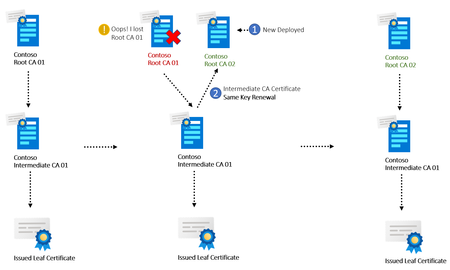
Hello, this is Byron from the Microsoft Directory Services Support team. Today, I’d like to share information about an alternative recovery approach for Public Key Infrastructure (PKI) environments. Consider a scenario where the Root Certification Authority (CA) is permanently lost—for example, due to accidental deletion of the Root CA virtual machine, or the system entering an unrecoverable no-boot state without a valid backup. In some cases, there may be no backup of the Root CA’s private key or database, leaving no traditional path to restoration. In such cases, the supported and recommended recovery method is to rebuild the PKI hierarchy from scratch. However, for extremely rare and critical situations where this is not feasible, there is an alternate recovery method that may allow partial restoration and continuity. This approach is intended only as a last resort, and should only be considered when no supported recovery options remain. While not a replacement for proper backup and disaster recovery practices, this fallback method may help reduce downtime and effort in extreme cases. How If it is a two-tier PKI, and the Intermediate CA Server is the one issuing certificates to the environment, and we still have access to the Intermediate CA Certificate with private key, we can build another Root CA, and “link” the Intermediate CA Server to the new Root CA. The steps are simple, just renew the Intermediate CA server with “Same Key pair” with this new Root CA. A high-level diagram below: In fact, this is like the Concept of “Cross Signing”; the newly issued Intermediate CA Certificate could be considered as a “Cross Certificate” as well. Cross Signing is typically used to make one PKI hierarchy chains up through another hierarchy, even when originally it was not configured that way. This technique is designed for a leaf certificate to build a different certificate verification chain, in case one of the chains fails, allowing certification verification to succeed. Cross signing is also used by public CA companies to start their business which we will discuss more in a later section. Here are detailed steps on how to do this: On the Intermediate CA Server. Open the Certification Authority Management Console. Right click on the CA Name node -> All Tasks -> Renew CA Certificate. Renew Intermediate CA server with “Same Key pair” to create the Certificate renewal request file: Submit the certificate request file (.req) on the newly Deployed Root CA Server, issue it, and go to: Issued Certificates node-> Right click on issued Certificate -> All Taks -> Export Binary Data… -> Save as .cer file. Copy this .cer file to the Intermediate CA. On the Intermediate CA Server. Install the newly issued Intermediate CA certificate issued by the new Root CA. The existing issued Leaf Certificates verification should continue to work and chain up to the new Root CA. We can use command Certutil -urlfetch -verify c:\certificate.cer > certificate.txt to export the certificate verification and chain build information. Previous Chain: Leaf certificate: 5700000006d907d38be599e05a000000000006 Issuer: CN=ContosoRootCA01,DC=contoso,DC=com (Previous corrupted Root CA) Current Chain: Leaf certificate: 5700000006d907d38be599e05a000000000006 Issuer: CN=ContosoRootCA02,DC=contoso,DC=com (New built Root CA) How and Why So exactly what is “Cross Signing”? Let’s see the following story (I found this story online): A long time ago (maybe not that long 😊), there was a Certification Authority company called LetsEncrypt. When they started their business, they generated their own 'ISRG' Root CA Certificate (ISRG Root X1). However, it takes time for the industry to accept new Root Certification Authorities. They could not wait that long to start their business, as this might have taken years. They deployed an Intermediate CAs first (LetsEncrypt X3 and LetsEncrypt X4) and used a popular public Certification Authority (DST Root X3) to sign those Intermediate CA Certificates. This allowed them to start their business immediately and issue Leaf Certificates to customers without waiting for the world to accept their own Root CA. So, the Certificate Chain back then was DST Root X3 --> LetsEncrypt X3 / LetsEncrypt X4 --> Leaf Certificate. After 5 years of hard work, the market accepted their Root CA (DST Root X3) and added it to all kinds of products’ Trusted Root. They signed their Intermediate CA certificates with their own Root CA. Now, another chain is available: ISRG Root X1 --> LetsEncrypt X3 / LetsEncrypt X4 --> Leaf Certificate. How come the same Intermediate CA can be chained up to different Root CAs? The magic trick is the Intermediate CA Certificate kept the “Same Asymmetric Key Pair” when it got signed by both DST Root X3 and ISRG Root X1. As you can see from the above screenshots, the issuer is different, and they are two different intermediate CA certificates, but the trick here is the Same Key Pair, even though they were signed by different Root CA’s, aka “Cross Signing”. Another key point here is not all Certificate Chains rely on the AIA path. Another common Certificate chain build method is Key match using AKI/SKI and PKCS#7 which means the server side sends both Leaf Certificate along with Intermediate CA to the client for verification, Client does not need to build chain to Intermediate using AIA. You can refer to this document for more information about this story: https://scotthelme.co.uk/cross-signing-alternate-trust-paths-how-they-work/ There is another “Cross Sign” method targeting the Root CA Certificate itself. The concept is a little bit different: Using one Root CA Certificate to sign another Root CA Certificate. What is the usage scenario? Why do we need this? Scenario 1 Here is a story: In a large corporation, deploying Root CA certificate to all devices might be challenging. It could be time-consuming and might take a lot of administrative effort. Therefore, during the time periods when large corporations renew their Root CAs, they must find a way for newly issued Certificates under the renewed Root CA start to work as soon as possible. The idea is to sign the new Root CA certificate using the old Root CA Certificate, so the chain could be: leaf Certificate --> Intermediate CA -> New Root CA (Signed by Old Root CA)--> Old Root CA. Because devices should trust Old Root CA already, the new Leaf Certificate works immediately after renewal without waiting for new Root CA Deployed to all devices. Scenario 2 Another scenario is once the New Root CA is deployed to the environment, the company wants to remove the old Root CA certificate from the Devices’ trusted Store for company policy reasons. How can the existing Certificate continue to work if they are not yet expired and issued by old Root CA Certificate? The solution is also Cross Certificate: Create a CA Certificate with old CA key pair but signed by the new Root CA Certificate. The chain build would be below: Existing Issued Leaf Certificate --> Intermediate CA --> Old CA Certificate (cross signed by new Root CA) --> New Root CA. In fact, Active Directory Certificate Service supports this and will generate Cross Certificates by default when renewing a Root CA with a new key. Remember that when we renew the Root CA, there will be two additional CRT files called XXXXX (0-1).crt and XXXXX(1-0).crt. These certificates(.crt) are Cross CA Certificate’s. (0-1) is the New Root CA Certificate signed by Old Root CA Certificate. (1-0) is the old Root CA Certificate signed by new Root CA Certificate. They are used for the above Scenario 1 and Scenario 2 As you can see, the Root CA Certificate has an AKI (Authority Key Identifier), which means it was signed by a CA and an SKI (Subject Key Identifier) that matches it. Of course, in Active Directory, we rarely see the deployment of the Cross Certificate, because for Windows devices, the Active Directory is sufficient to quickly deploy new Root CA Certificate to Windows domain members. Summary The common method to perform PKI disaster recovery when the CA private key and database cannot be restored involves rebuilding the entire PKI Hierarchy PKI from scratch, and replacing every single certificate used by applications and servers. While the common method mentioned above is still valid, the “Cross Signing” method illustrated in this blog offers an alternative quick method to recover our PKI Hierarchy. This could potentially save us from spending a lot of disaster recovery time & administrative effort 😊.5.3KViews8likes1CommentCRL & AIA Publishing Guidance (Practical PKI Part 2)
My name is Ron Arestia, and I am a Security Researcher with Microsoft’s Detection and Response Team (DART). We respond to customer cybersecurity incidents to assist with containment and recovery from threat actors. In this blog post, we will be covering CRL and AIA publishing guidance with a focus on the Active Directory Certificate Services (ADCS) offline root Certificate Authority (CA). This is part 2 of a series on practical PKI implementation based around my experience with customer interactions working as a Microsoft engineer. Feel free to catch up on previous blog posts or jump right into this one: Secure Configuration and Hardening of Active Directory Certificate Services Implementing and Managing an ADCS Offline Root Certificate Authority (Part 1) In Part 2 of our series, we will focus on the certificate revocation list (CRL) and authority information access (AIA) extensions with an example of manual maintenance on an offline root certificate authority (CA). The Certificate Revocation List Delta Certificate Revocation Lists The Authority Information Access Extension Publishing Considerations The Certificate Revocation List The IETF RFC 5280 defines a Certificate Revocation List (CRL) as “a time-stamped list identifying revoked certificates that is signed by a CA or CRL issuer and made freely available in a public repository.” Since there are a number of nuances for both scope and application, this section will cover a standard two-tier public key infrastructure (PKI) where the root CA manages revocation for subordinate certificates, and the issuing CA manages revocation for issued endpoint certificates. It is important to note that CRLs and their repositories can be scoped for specific purposes, but we are focused on PKI basics in this blog and will cover custom implementations at a later time. In this section we will not address the Online Certificate Status Protocol (OCSP). This concept will be covered later. Everything about your PKI relies on proper maintenance of and access to the CRL. If the CRL is not available due to expiration or an outage of the endpoint hosting it, certificate revocation checking fails which means end users will receive a programmatic error from a web browser or the operating system itself. For instance, Figure 1 below shows that the CA in my lab is offline. Figure 1 When I try to start the issuing CA, I receive the error shown in Figure 2. Figure 2 The CRYPT_E_REVOCATION_OFFLINE error indicates that a revocation lookup failed somewhere in the process of starting the issuing CA. If we open PKIView.msc (Figure 3), we can check the overall health of our PKI to determine what, if anything, is not functioning. Figure 3 Here you see that the CRL for my root CA expired back in August 2025 (Figure 4). This would cause the issuing CA to not start up properly, supporting the idea that the CRL is important for the functionality of your PKI. Figure 4 To resolve this issue, we need to go to our offline root CA, generate a new CRL, and publish it to the location specified in the CA extension for proper lookup. My lab root CA is hosted on a Hyper-V server without connectivity to any network (Figure 5). Figure 5 Notice that there are no network adapters for this Hyper-V VM. I can only access it from the host itself using the local console. Once logged in, note that I can see the root CA did, in fact, issue a CRL (Figure 6) the last time it was online (5 November 2025), but since the root CA is offline, and I did not manually copy the CRL from the machine, it did not update for the PKI globally, which is expected behavior. Figure 6 To remedy this, I am going to manually publish an updated CRL from the root CA (Figures 7 & 8) and copy it to the issuing CA for publishing. Figure 7 Figure 8 Once complete, we can view the CRL in the OS to verify the new timestamp (Figure 9) Figure 9 Finally, we change the local administrator password on the offline root CA and shut it down. Since this is a virtual machine, we can browse on the Hyper-V host to the VM hard drive, mount it, and pull the CRL off of the disk (Figure 10). Figure 10 Note: as per our last blog post, this is not considered secure since anyone with access to the file system of the Hyper-V host, including a threat actor, could perform the exact same action but with the root CA private key, effectively compromising your entire PKI. For the purposes of this blog series and in a non-production lab environment, this practice is overriding security in lieu of convenience. If, however, you have a proper Tier 0 virtualization host and are using an HSM, this could be functional for a production environment with adherence to cybersecurity best practices. Now we can drop the CRL on the issuing CA and copy it over to the web publishing endpoint (Figure 11). Figure 11 This resolves the broken revocation check during startup of the issuing CA and brings the PKI back into the green in PKIView.msc (Figure 12). Figure 12 In this section, we showed one of the common issues arising from an expired CRL and illustrated the importance of maintaining a healthy CRL publishing environment. We also walked through how to resolve this issue by issuing and publishing a new CRL from the root CA. Delta Certificate Revocation Lists IETF RFC 5280 defines a delta certificate revocation list as a CRL that “only lists those certificates, within its scope, whose revocation status has changed since the issuance of a referenced complete [base] CRL.” Delta CRLs are supplemental to the base CRL and allow for a “fresher” certificate revocation list without having to re-publish the base CRL every time a certificate is revoked. Delta CRLs can also help to reduce revocation lookup delays in an environment with particularly large base CRLs, but delta CRLs are functionally rolled up into the base CRL at the next base CRL publishing interval, so they do not provide any advantage over base CRLs with regards to overall size long term. Delta CRLs are especially useful in high-revocation environments where revocation needs to be respected quickly, as they are published at a more rapid interval than the base CRL. It is important to note, however, that delta CRL publishing intervals are not instantaneous, so a priority revocation such as for a compromised certificate would still require manually re-publishing either the base or delta CRL. It is critical to understand that delta CRLs are accepted and functional for Windows, but delta CRLs may not be respected by non-Windows systems. Some enterprise distributions of Linux do accept delta CRLs, but you may need to work with your distribution vendor to allow them otherwise. In the case of a CRL lookup by a system without delta CRL support, any certificates in the delta CRL would be overlooked during a CRL lookup in lieu of using the base CRL. By default, delta CRLs are configured for use in ADCS. When guiding customers, I make the case that unless they anticipate a high revocation load, using delta CRLs is unnecessary. Additionally, if the customer is leveraging non-Windows systems in their environment, I urge caution around delta CRLs to prevent a false sense of security around revocation. There is nothing inherently wrong with using delta CRLs out of the box but understanding their main purpose (faster revocation publishing out-of-band from the base CRL publishing) is important to drive outcomes. Delta CRLs have a place and are an accepted extension in PKI discussions, but deciding in advance if you will truly leverage their utility goes a long way to reduce administrative overhead of the PKI long term. If you do not anticipate doing regular revocation, they are an additional administrative touchpoint that will not serve your immediate or long-term needs. If, however, you are concerned about rapid response for revocation or having to manually issue out-of-band CRLs, then delta CRLs can help. The Authority Information Access Extension IETF RFC 3280 defines the Authority Information Access (AIA) extension as “how to access CA information and services for the issuer of the certificate in which the extension appears.” This is an extension, similar to the CRL, that is not critical but recommended for the functionality of your PKI. This location, stamped on every certificate issued by a CA, is used to help end entities construct a valid certificate chain in the event there are any missing or outdated certificates. Without this extension, all certificates in an end entity chain would need to be trusted in advance by the system using the certificate. The publishing of the AIA location is separate from the CRL, but most PKI implementations use the same publishing endpoint for both. However, it is not necessary to publish to the same location. The AIA location will contain a copy of the public certificate for the root, policy, and issuing CAs in a PKI. You should never publish private keys to this location. The certificates are necessarily accessible by any system. The private key is exactly that: private. It should only exist on the CA itself or, preferably, on an HSM. The AIA publishing location is part of the CA extension configuration on every ADCS CA (Figure 13) and can also be added to the Online Certificate Status Protocol (OCSP) extension, if desired. Figure 13 Note the limited options for this configuration. This is by design. You are simply providing a web-based (or LDAP) endpoint to which an endpoint can refer to download additional certificates to build a trust chain. Publishing certificates to this endpoint is usually a manual process since CA certificate updates are a less frequent operation. It is possible to automate this using something like DFS-R or a scripted process, but that also increases your risk footprint. It is also important to note that the certificate file name in the publishing location must match exactly the name input into the extension. Any characters, including spaces, beyond what it explicitly declared in the extension will cause the AIA lookup to fail. A lack of a proper certificate in the AIA location will not generally cause a problem unless an endpoint needs a certificate from the chain. Unlike the CRL, missing AIA information will not cause a CA to not start, and end users will not be warned about missing the CA certificate unless it is necessary to build a chain which might otherwise present as a trust issue vs. a critical error. If the certificate chain is present in the local system or application trust store, the AIA location is not parsed. In summary, the AIA location is used to build certificate trust chains. They are often published to the same location as the CRLs and are simply copies of the public certificate for the root, policy, and/or issuing CA servers. This is a non-critical extension, but best practice is to make these available to consumers of your certificates. Publishing Considerations The most common question I have heard around CRL and AIA publishing is “what’s the best publishing interval?” The answer depends on your organization’s use of certificates and how aggressive you are with revocation. Our standard guidance provided to customers with low revocation and light usage is approximately one (1) year for a base CRL from the root CA. In the event you have to revoke a subordinate CA or policy CA certificate, you will be manually publishing a new CRL along with a new certificate for their replacements, so one (1) year provides a decent window for operation without completely forgetting the root CA exists. This helps to keep processes around root CA maintenance fresh for your administrative teams. Since issuing CAs are online and can be configured to write the CRL directly to publishing endpoints, a more rapid publishing cadence can be used. I normally recommend anywhere from one (1) week to one (1) month, depending on your anticipated revocation needs. For AIA publishing, we haven’t discussed CA certificate lifetimes yet, but given a standard two-tier PKI validity period of ten (10) years for the root CA and five (5) years for the issuing CA(s), the certificates published to the AIA location will usually be approximately five (5) years and two-and-a-half (2.5) years old, at most, respectively. (More on CA certificate lifetimes in a future blog post.) As a result, AIA publishing will be a manual process (but can be automated, if desired). Another common question is what protocols to use for publishing. Technically IETF RFC 5280 Section 3.4 defines LDAP, HTTP, FTP, and X.500 for distribution. Out of the box, ADCS, when configured as an enterprise deployment, will define an HTTP and LDAP endpoint for CRL and AIA publishing. For the purposes of modern security best practice, I advise customers to stick to HTTP for a few reasons: HTTP is platform agnostic and acceptable for any network-based platform (Windows, Linux, Mac, mobile devices, network devices, etc.) HTTP presents little network overhead compared to LDAP Port 80 connectivity is much more palatable to a network security team than allowing communications broadly to port 389 In 15 years of working with ADCS, I have never come across an implementation using FTP. While it is supported as per the specifications, FTP presents a big target for threat actors and should be avoided. I have never seen a pure X.500 distribution configuration. If you are working in a majority Windows enterprise where everything is domain joined, it could be argued that LDAP is sufficient. LDAP is fault tolerant across all of your AD domain controllers, easily configured from PKIView.msc, endpoints easily managed by group policy, and when configured properly, secure. However, I do not advise relying solely on LDAP for CRL/AIA distribution, as non-Windows systems in your organization (i.e., network, storage, and virtualization platforms) will likely rely on your PKI and may or may not support LDAP calls for lookups. Additionally, as stated previously, LDAP calls are “expensive” compared to simple HTTP. When you have a conversation with your network security team about accessibility, you are likely to run into opposition to blanket TCP 389 access for your entire organization. Most enterprises with whom I have worked try to lock down port 389 as much as possible, and if you have a proper tier 0 or network segmentation, opening 389 globally introduces a level of risk I would not advise any organization to endeavor. If you or your team are insistent on relying on LDAP, I recommend using HTTP as your second option for fault tolerance and platform accessibility. HTTP is the best route for CRL and AIA publishing. It is fast, reliable, easily extensible using load balancers, and, in an IIS/Windows implementation, it is possible to configure ADCS to write the CRL directly to the file system of a web server(s) for publishing. It is also natively more secure to just open port 80 to serve up what amount to basic text files vs. opening port 389 to your entire AD infrastructure, allowing access to more than just the published files. Finally, it is critical to understand that your HTTP publishing endpoint must use port 80. We get the question from time to time about whether or not you can put a certificate in front of the HTTP endpoint to “make it secure.” The problem with that is how are endpoints going to check for revocation of the certificate protecting that web endpoint if the web endpoint uses a certificate with a CRL published to the same location? You will create a loop condition, and the CRL lookup will fail. Can you put a certificate in front of it? Technically you could, but it would have to be a certificate with a CRL serviced from a different endpoint, likely publicly accessible, which means you are spending money and administrative cycles to maintain a certificate outside of your own PKI which, in my opinion, defeats the purpose of standing up the PKI in the first place. There is nothing inherently risky about having port 80 open to the specific endpoint, and you can implement security measures on the web server to ensure that a threat actor cannot abuse the web server. All you are serving from that endpoint are some plain text files with information that is necessarily public. There is not anything inherently sensitive in the CRL or AIA that would necessitate protecting the connection with SSL/TLS. As with many points discussed in this blog, your outcomes may vary. You may have different revocation needs or perhaps you just do not want to deal with booting your root CA annually to do CRL maintenance. For a basic enterprise PKI, the numbers called out in this blog post for publishing intervals should be sufficient to keep things functional without casting aside the need to keep your root CA top-of-mind for your administrative team. Take the time to discuss your needs with your larger organization and set expectations for regular maintenance of your PKI to ensure it remains functional and secure. That is all for part 2 of our ADCS blog. In part 3, we are going to start shifting away from the root CA as the primary focus to discuss PKI purpose and common hierarchies.Secure Configuration and Hardening of Active Directory Certificate Services
This blog provides a detailed guide on securing and hardening Active Directory Certificate Services (ADCS), emphasizing best practices based on extensive Microsoft customer engagements. It covers four critical focus areas: maintaining an offline root certificate authority (CA), auditing certificate services correctly, applying role separation, and cleaning up certificate templates and their permissions
First Issuance manual, with automated renewals
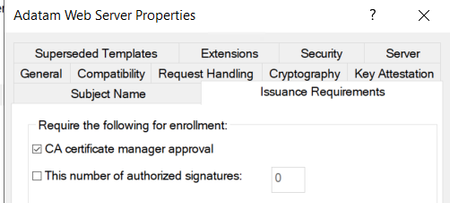
Hey all Rob Greene again. Seems like I have been on this PKI kick lately, and today is not going to be any different. Occasionally, I will get a customer who must get certificates issued for things like Web sites, and they must have custom Subject Alternative Name (SAN) DNS values on the issued certificate. They hate that their web server admins must submit the request, and then as Certificate Authority Managers, they must look in the Certification Authorities database and review the Pending Requests table. Some background The first question that they ask is if there is a way to not require them (the CA Manager) to approve the request as this slows down the process of getting the certificate issued. From a technical perspective most of you would know that the answer is YES, you can configure the certificate template to automatically issue. However, this is NOT a good thing to do, and is seen as a Microsoft CA vulnerability; if you have a CA audit happen you might fail the audit because you allowed this. This specific vulnerability is considered the ESC1 vulnerability. ESC1 wants either an Enrollment Agent to cross sign the certificate request, a CA Manager to review the request, or both to validate the information in the Subject Alternative Name (SAN), when the certificate template’s Subject Name tab is set to “Supply in the request”, before allowing the certificate to be issued. This is recommended since the submitter is allowed to enter unvalidated information in the SAN, unlike when the certificate templates Subject Name tab is configured for “Build from this Active Directory information”. How to protect the template against ESC1? Given this background information, you should already be thinking to yourself, “Rob is not going to tell me to break anything security wise.”, and you would be correct. Rather, I am going to tell you that any certificate template that you have configured for “Supply in the request”, should at a minimum be configured to require CA Manager approval. Then for something like the certificate template that Network Device Enrollment Services (NDES) uses for its certificate, I would advise you to use the Enrollment Agent configuration. The Exchange Enrollment Agent (Offline request) template has the Enhanced Key Usage (EKU) of “Certificate Request Agent”, and this is the certificate NDES uses to sign the Certificate Service Request (CSR) that the SCEP client sends to the NDES Server. Of course, I am just giving some good examples of real-world certificate templates that you are going to be using within the environment. The last part is that the security permissions SHOULD be locked down as to who can enroll for each of these certificate templates. Specifically, enrollment for the two Certificate templates needed by the NDES services, it should be the CA Manager NDES Admin and the NDES Server. The Exchange Enrollment Agent (Offline request) and CEP Encryption certificate templates should be locked down as to who can request enrollments. Just like the custom Adatam Web Server certificate template, only IIS (Internet Information Services) Admins, and IIS Web Servers should have access to this template to be able to enroll with it. So what can you do for me here? Let’s first discuss the scenario that I am going to cover in the blog. Although I would love to cover all the possible uses that all you lovely internetz users might have for certificate enrollment, this blog will have to end at some point. The Scenario IIS Admins are tired of remembering to go to all their web servers and request new certificates for them before they expire. The CA Manager is also tired of the IIS Admins always sending emails nagging that they need their certificate enrollment requests issued. Then always having to go to the Certification Authority snap-in to approve/issue the same certificates over and over each year because of rules that web server certificates can only be valid for 398 days. See (https://thehackernews.com/2020/09/ssl-tls-certificate-validity-398.html) What is the solution? Side bar: If you want to modify the settings of any default certificate template, it is best to duplicate the original certificate template and then make changes to it. This is recommended so that you always have the default templates available in case you must create a new template in the future that is based off the original template. If the original template is modified two to three years down the line, you may not remember what was changed so that it could be changed back to the original template configuration. As far as naming goes, we would recommend that you put your company name or initials in the template name and keep the original template name after that. In this blog you will see the template used is called Adatam Web Server. This is a customized template based off the Web Server template. Keep in mind that this can be done for any certificate template that has the Subject Name tab configured for “Supply in the request”, this not limited to just web server certificates. I am in, so what’s next As you can imagine, there are several things that need to be configured to get this working: A Security group needs to be created for Users who are going to request the certificate via the Local Computer Certificate enrollment wizard based on the certificate template. A security group needs to be created for the computer accounts that need the certificate issued based on the security template. Certificate template needs to be created. Certificate template changes need to be made to support this enrollment method. Certificate template Permissions need to be configured. Group Policy setting for Computer Certificate Autoenrollment Security groups need to be created. The first two steps should be self-explanatory as to how to create groups and set up the group scopes. We are not going to cover group creation in this blog. I do want to point out one thing that happens often: Most Administrators seem to remember that if you add a user to a group, the user needs to log off and back on before the group can be added to their tokens. When adding a computer account to a new group it also needs to log off and back on before the group membership can be added to its token. Typically, the log off and back on for a computer will be a computer reboot; that needs to happen after the new group membership is added to its token. Certificate Template creation and changes The base template that you use to duplicate can of course be anything you would like, but in our example, we are just going to duplicate the good’ol faithful Web Server certificate template. Launch the Certificate Template snapin: CertTmpl.msc Find the certificate template named: Web Server Right click on the Web Server template and select Duplicate Template. The Compatibility tab, set the values as you wish. NOTE: Stay away from using anything higher than Windows Server 2012 R2/Windows 8.1 for your templates if you are using CEP and CES as these two web services have problems seeing templates with compatibility higher than this. The General tab, type in a descriptive name for the new certificate name you are configuring. The Request Handling tab, set the values that make sense for your template. NOTE: It might make sense to set the checkbox “Renew with the same key”. The Cryptography tab, you may want to modify the Minimum key size value and select the Provider Category and Providers that makes sense for the certificate templates use. NOTE: I would strongly suggest NOT setting Use alternate signature format on the template either. This is a proprietary format that many applications will not understand. This check box will only be available when you are using a Key Storage Provider (KSP) provider type. The Issuance Requirements tab is where the heavy lifting is happening. Check the box “CA certificate manager approval”. Select the radio option “Valid existing certificate” under the Require the following for reenrollment section toward the bottom of the dialog box. The Security tab is where the security groups that were created for the server admins and the servers themselves need to be configured on the template. You would add both security groups, and they only need the Allow Enroll permissions. Neither group should have the Autoenroll permission defined on it. When done setting the other options for the template, click the OK button. Setup the computer certificate autoenrollment group policy Next, we are not going to cover how to create a Group Policy Object, and things like GPO ordering, etc. We are going to discuss just the policy settings that are important for the discussion of this blog. Launch Group Policy Management Console: GPMC.msc Either create a new Group Policy or modify an existing one. Navigate to: Computer Configuration\Policies\Windows Settings\Security Settings\Local Policies\Public Key Policies. Double click on the policy setting “Certificate Services Client - Auto-Enrollment”. Enable the policy, and check the two boxes: Renew expired certificates, update pending certificates, and remove revoked certificates. Update certificates that use certificate templates. NOTE: To learn more about these two settings I would recommend going over to Vadims blog. He does a great job of explaining what each of these do: https://www.sysadmins.lv/blog-en/certificate-autoenrollment-in-windows-server-2016-part-3.aspx Click the OK button on the dialog box. Close the Group Policy Management Editor. Link the Group Policy object to what seems appropriate within your Active Directory structure. Trying to test this feature, but it seems like the renewal does not work. Of course, with any of these things, you should always test things before relying on the solution in a production environment. I do want to caution you about setting up a test environment and then setting up the certificate for a short issuance period as this tends not to work out well for most customers, and they eventually end up calling stating that autoenrollment is not working. There are few things to keep in mind about certificate automatic enrollment / automatic renewal process. The first thing to remember is that certificate auto enrollment / renewal only happens on the following triggers: At User logon, or computer boot, for the corresponding security context. Every 8 hours after user logon, or computer boot. This means that after the user or computer has been logged in or turned on for 8 hours then the auto enrollment code will happen again for the security context in question. To trigger auto-enrollment to run manually you have two options. Run GPUpdate /Force. Part of the function that this does is it causes an autoenrollment cycle to happen. This can be a bit much especially if you are applying a lot of user and computer group policy. This will trigger both computer and user autoenrollment to run. Use one of the two CertUtil command lines based on which security context you want enrollment to run against. For computer: CertUtil -Pulse For User: CertUtil -User -Pulse Certificate renewal WILL NOT happen until 90% of the Certificate lifetime has expired. Trying to use the template setting “Renewal period” does not change this fact. Auto enrollment / renewal attempt MUST happen while the certificate is still valid, and after the start of the 10% certificate lifetime left and the expiration time of the certificate. (MUST NOT BE EXPIRED). Like being unable to re-animate something that is already dead, you cannot renew a certificate that has already expired. The math that needs to be done is: (CertLifeTimeInDays * 24) * .10 The value from the above MUST be larger than 8 hours. Let's do some math Here is an example: Set up a certificate that is valid for two days for testing and we will run through the exercise here: Find out how many hours the certificate is valid for: 2*24 = 48 Hrs. Figure out what 10% of certificate lifetime in hours is: 48 *.10 = 4.8 Hrs. This shows us that for one of these certificates to be renewed, the process that runs only every 8 hours would have to run within this 4.8 Hrs. window. This is going to tell us that sometimes you would get lucky with a certificate renewal attempt being done, but more than likely MOST of the time you would fail to renew the certificate because it would expire before the auto enrollment cycle happens. Another example is a certificate that is valid for 4 days. Let us run through the exercise here. Find out how many hours the certificate is valid for: 4*24 = 96 Hrs. Figure out what 90% of certificate lifetime in hours is: 96 *.10 = 9.6 Hrs. This shows us that for at a 10% lifetime left it is still valid for over 8 hours. This certificate would always get at least one auto enrollment cycle to be run to renew the certificate. Assuming you don’t have anything else wrong, the renewal would happen successfully. This is the minimum lifetime that any certificate testing should be set to. Test, test, and more testing! Well, now you got your test lab, issuing short lived certificates and getting them automatically renewed, but… Now you are noticing that your application is not using the new certificate. Unfortunately, there are going to be some applications for which the automatic renewal might not work out well in your organization. However, the certificate could still be renewed manually by your IIS admins, and it would still not require the CA manager to be involved in the renewal process. The key thing is your IIS Admins would need to go through the manual certificate renewal process BEFORE the current certificate expires, as it is used to cross sign the renewal request. UPDATE 5/30/2024: After release of the blog it was brought to my attention of two different things to consider. First unknown to me (as I am not an IIS support engineer) apparently there is a setting within the IIS Management console to help with updating the site binding configuration so that this automatic renewal behavior would work. This feature is called Certificate Rebind and was new in IIS 8.5. https://learn.microsoft.com/en-us/iis/get-started/whats-new-in-iis-85/certificate-rebind-in-iis85 Second, we recently has a case were the customer had several websites running on an IIS Web Server. These websites all used unique certificates and were all generated manually using the same certificate template. When one of the certificates were ready to be renewed, they found that all website certificates were archived, and only one of the website certificates were automatically renewed. This would be by design behavior. The only thing that we could really recommend in this situation is to use one certificate for all websites and make sure that all the websites DNS names were added to the certificates Subject Alternative Name (SAN) field. Failure to do this will result in going through the entire manual issuance of the certificate all over again. And, going through the CA Manager approval process as well, since this would be a new certificate request. Hopefully, you found some good nuggets of information about how to lockdown certificate templates to protect against ESC1 vulnerabilities and what some of those less often used tabs do. And of course, how the certificate renewal process works, especially around shot lived certificates. Rob “I coulda been a Welder” Greene Extra credit for those who can figure out where the saying came from.14KViews6likes14CommentsDesigning and Implementing a PKI: Part I Design and Planning
First published on TechNet on Sep 01, 2009 The series: Designing and Implementing a PKI: Part I Design and Planning Designing and Implementing a PKI: Part II Implementation Phases and Certificate Authority Installation Designing and Implementing a PKI: Part III Certificate Templates Designing and Implementing a PKI: Part IV Configuring SSL for Web Enrollment and Enabling Key Archival Designing and Implementing a PKI: Part V Disaster Recovery Chris here again.155KViews4likes2CommentsPurpose For Your PKI (Practical PKI Part 3)
Discussing the importance of understanding the purpose behind implementing and managing a Public Key Infrastructure (PKI), emphasizing the need for clear technical outcomes, experienced personnel, and realistic organizational capabilities to ensure security and efficiency, illustrated by a case study of an overextended PKI deployment.Renew Certificate Authority Certificates on Windows Server Core. No Problem!
Hi there! Rob and Jim are here from the Directory Services team. Today’s blog strives to clearly elucidate an administrative procedure that comes along more frequently with PKI Hierarchies being deployed to Windows Server Core operating systems. Installing the Certificate Services Role on Windows Server Core will not be covered in this blog, but this is good reference for this endeavor - https://learn.microsoft.com/en-us/powershell/module/adcsdeployment/install-adcscertificationauthority?view=windowsserver2022-ps In our scenario we already have an OFFLINE ROOT and an Enterprise Subordinate CA certificate that needs to be renewed. Both of these PKI roles are installed on the Windows Server Core operating system. To start the renewal process, validate if the customer has the following registry value in place so we know if / where the Certificate Signing Request (CSR) file is going to be written to. HKLM\System\CurrentControlSet\Services\CertSvc\Configuration\CA Name Value Name: RequestFileName Value Name: ParentCAMachine Value Name: ParentCAName These registry settings control where the CSR file and name will be located if they are specified. Make sure that the folder path already exists before moving forward. GENERATING A CSR WILL NOT create a missing folder. If the Root CA is an Enterprise Root CA (domain joined) the CSR creation will use the two Parent registry values to submit the certificate request to this Root CA. However, these values will not work and will probably not be present when utilizing an Offline (Standalone) Root CA. 2. In an elevated command prompt on the subordinate Issuing CA run the following command after deciding if reuse of the CA’s existing private key is in order or if a new private key should be generated: CertUtil -RenewCert [ReuseKeys] If you want to generate a new private key for the Subordinate CA, then type: If you want to generate a new private key for the Subordinate CA, then type: CertUtil -RenewCert If you want to use the existing private key for the Subordinate CA, then type: CertUtil -RenewCert ReuseKeys Additional information on CA certificate renewal options can be found here - Certification Authority Renewal - Win32 apps | Microsoft Learn Copy the resultant CSR .req File over to the Root CA. Now we can submit the request that we just copied to The Root CA which is also running on Windows Core OS. We are going to use the Certreq.exe command to submit this request to the Standalone Root CA. CertReq -Submit -Config "RootCAComputerDNSName\RootCAName" SubCACSRFIleName.req Example of the command line. Root CA Computer name: FourthCoffeeCA01.FourthCoffee.com Root CA Name: FourthCoffee Root CA 01 Sub CA CSR File Name: FourthCoffeeSubCARenewal01.req CertReq -Submit -Config "FourthCoffeeCA01.FourthCoffee.com\FourthCoffee Root CA 01" FourthCoffeeSubCARenewal01.req IMPORTANT: You should get a Request ID as part of the output. You will need to make a note of this for forthcoming steps. 5. If the CA Manager needs to approve the CSR, this can be accomplished via the certificate services management UI (cetsrv.msc) if possible as it is easier. However, since the Root is also running the Windows Core OS, we must run the following command: CertUtil -Resubmit RequestIDNumber Example of the command line: Request ID from step 4: Request ID = 3 CertUtil -Config "FourthCoffeeCA01.FourthCoffee.com\FourthCoffee Root CA 01" -resubmit 3 6. We next need to retrieve the CER/CRT file from the Root CA so that we can install the certificate on the Subordinate CA to complete the renewal. CertUtil -View -Restrict "RequestID=RequestIDNumber" -out RawCertificate > C:\FourthCoffeeSubCACert.cer 7. Assuming the Root CA's certificate has not been renewed, we just need to copy the resultant FourthCoffeeSubCACert.cer file back to the subordinate CA that is being renewed. 8. Back on the subordinate CA in an elevated command prompt we then need to install the subordinate CA's certificate. Using the following command: CertUtil -InstallCert CACertFileName Example: Certutil -InstallCert FourthCoffeeSubCACert.cer When this command is run the Certificate Service Service on the subordinate CA will start. We hope this blog will take some of the mystery and challenge out of interacting with Microsoft PKI running on Windows Server Core. Robert “what were you thinking” Greene and Jim “that’s for the birds” Tierney.29KViews3likes3CommentsMoving Your Organization from a Single Microsoft CA to a Microsoft Recommended PKI
First published on TechNet on Aug 23, 2010 Hi, folks! Jonathan here again, and today I want to talk about what appears to be an increasingly common topic: migrating from a single Windows Certification Authority (CA) to a multi-tier hierarchy.11KViews3likes0CommentsImplementing an OCSP responder: Part I - Introducing OCSP
First published on TechNet on Jun 24, 2009 The series:Designing and Implementing a PKI: Part I Design and PlanningDesigning and Implementing a PKI: Part IIDesigning and Implementing a PKI: Part III Certificate TemplatesChris here again.94KViews3likes3Comments