performance tuning
9 TopicsThe Pipeline Is Slow, or Is SQL Waiting? Diagnosing Synapse-to-Azure SQL Regressions
A query can consume very little CPU and still keep a pipeline waiting for hours. A pipeline activity that normally finishes in minutes suddenly starts taking hours. Nothing obvious has changed: The pipeline definition looks the same. The stored procedure looks the same. Azure SQL Database isn't showing sustained high CPU. Pipeline monitoring still points toward the SQL activity. At this point, saying "SQL is slow" isn't enough. The request may actually be: Executing expensive work. Waiting for memory. Blocked by another transaction. Reading more data than before. Running with a different execution plan. Competing with concurrent pipeline activities. Experiencing different cardinality because of different parameter values. The key is to connect the pipeline invocation to the database execution and determine where elapsed time is really going. 1. Define the Regression Precisely Before troubleshooting SQL, establish what actually changed. Capture: Expected pipeline duration. Observed pipeline duration. Pipeline activity involved. Stored procedure or statement invoked. Exact parameter values. Affected and unaffected executions. Pipeline concurrency. Retry behavior. Connection and command timeout. Deployment or configuration changes. For example: Evidence Baseline Regression Pipeline duration Minutes Much longer Stored procedure Same Same Parameter range A B Concurrent activities Low Higher Azure SQL CPU Normal Normal/moderate SQL wait behavior Unknown To investigate The most important rule is: Don't assume the SQL workload is identical simply because the stored procedure is identical. Different parameters can result in dramatically different: Row counts. Join choices. Memory grants. Sort requirements. Execution plans. Total duration. 2. Preserve the Exact Invocation One of the easiest ways to lose a performance regression is to reproduce it with different parameters. Capture the invocation before testing: Procedure name. Parameter values. Date range. Entity or partition identifier. Batch size. Pipeline run ID. Retry number. Number of parallel activities. Relevant timeout configuration. Then sanitize any business-sensitive values before sharing them outside your organization. The diagnostic principle is simple: Reproduce the same workload before trying to improve the workload. 3. Reproduce Safely Whenever possible, reproduce the issue using: A nonproduction database containing representative data. A controlled production troubleshooting window. The same stored procedure. The same parameter pattern. Comparable concurrency. For a controlled test, SQL execution statistics can help: SET STATISTICS IO ON; SET STATISTICS TIME ON; EXEC dbo.SampleProcedure @StartDate = '2026-01-01', @EndDate = '2026-01-31', @EntityID = 100; SET STATISTICS TIME OFF; SET STATISTICS IO OFF; Replace these synthetic names and values with the sanitized equivalent of the invocation you're investigating. Capture: Elapsed time. CPU time. Logical reads. Physical reads when relevant. Execution plan. Returned row count. The goal isn't simply to reproduce "slow." The goal is to understand why it is slow. 4. First Question: Is SQL Running or Waiting? This distinction changes the entire investigation. During the slow execution, examine the active request. SELECT r.session_id, r.request_id, r.status, r.command, r.start_time, r.cpu_time, r.total_elapsed_time, r.wait_type, r.wait_time, r.last_wait_type, r.wait_resource, r.blocking_session_id, r.reads, r.writes, r.logical_reads, r.row_count FROM sys.dm_exec_requests AS r WHERE r.database_id = DB_ID() ORDER BY r.total_elapsed_time DESC; sys.dm_exec_requests is supported for Azure SQL Database and exposes information about currently executing requests. Pay particular attention to the relationship between: cpu_time and: total_elapsed_time Suppose a request has: Very high elapsed time. Relatively little accumulated CPU time. A significant current wait. That's a strong reason to investigate waiting, rather than immediately treating the problem as insufficient CPU. Conversely: High elapsed time. High accumulated CPU. High logical reads. points more strongly toward expensive execution. 5. Identify Blocking Another request may be preventing the pipeline's SQL request from progressing. Start with: SELECT session_id, status, wait_type, wait_time, wait_resource, blocking_session_id, cpu_time, total_elapsed_time FROM sys.dm_exec_requests WHERE blocking_session_id <> 0 ORDER BY wait_time DESC; Blocking can explain a scenario where: Pipeline duration increases dramatically. Database CPU remains moderate. The SQL activity appears "active" for a long time. Microsoft documents sys.dm_exec_requests as one of the tools for identifying requests suspended on lock-related waits and tracing blocking behavior in Azure SQL Database. Don't confuse: "The SQL call took two hours." with: "SQL executed for two hours." Those statements aren't necessarily equivalent. 6. Look at the SQL That's Actually Running During an active incident, retrieve the request and its current SQL text: SELECT r.session_id, r.status, r.command, r.cpu_time, r.total_elapsed_time, r.wait_type, r.blocking_session_id, r.logical_reads, txt.text AS batch_text FROM sys.dm_exec_requests AS r CROSS APPLY sys.dm_exec_sql_text(r.sql_handle) AS txt WHERE r.database_id = DB_ID() ORDER BY r.total_elapsed_time DESC; sys.dm_exec_sql_text accepts the sql_handle exposed by sys.dm_exec_requests and returns the associated SQL batch text. This helps validate an important cross-service question: Is the database executing the statement we think the pipeline invoked? 7. Investigate Memory Grants Some operations need execution memory before they can proceed efficiently. Common examples include: Sorts. Hash joins. Hash aggregates. Some index operations. sys.dm_exec_query_memory_grants exposes queries that: Requested a memory grant and received one. Requested a memory grant and are still waiting. It is supported for Azure SQL Database. SELECT mg.session_id, mg.request_id, mg.dop, mg.request_time, mg.grant_time, mg.requested_memory_kb, mg.granted_memory_kb, mg.required_memory_kb, mg.used_memory_kb, mg.max_used_memory_kb, mg.query_cost, mg.timeout_sec, mg.resource_semaphore_id FROM sys.dm_exec_query_memory_grants AS mg ORDER BY mg.requested_memory_kb DESC; Interpret the important columns carefully: requested_memory_kb Memory requested by the query. granted_memory_kb Memory actually granted. required_memory_kb Minimum memory required for execution. used_memory_kb Memory currently being used. max_used_memory_kb Maximum used so far. grant_time NULL when the requested grant hasn't yet been granted. Microsoft specifically documents that queries waiting for memory grants appear in this DMV, and that grant_time remains NULL until the grant is provided. 8. Find Waiting Memory Grants During the active regression, focus specifically on requests that haven't received their grants: SELECT mg.session_id, mg.request_id, mg.request_time, mg.grant_time, mg.requested_memory_kb, mg.required_memory_kb, mg.granted_memory_kb, mg.timeout_sec, mg.dop, mg.query_cost FROM sys.dm_exec_query_memory_grants AS mg WHERE mg.grant_time IS NULL ORDER BY mg.request_time; If the affected session repeatedly appears here, you now have meaningful evidence supporting a memory-grant contention hypothesis. But that's still not enough to state: "Memory grants caused the pipeline regression." You should also establish: Whether the waiting session is actually the pipeline request. How long it remained waiting. Whether other statements were consuming large grants. Whether concurrency changed. Whether the execution plan requested unusually large memory. Why the query requested that amount of memory. That last question is particularly important. Memory-grant problems can be downstream symptoms of: Poor cardinality estimates. Large sorts. Large hash joins. Plan changes. Data growth. Parameter sensitivity. Microsoft's memory-grant troubleshooting guidance emphasizes that operations such as sorts and hash operations can require execution-memory reservations and that these grants exist for the lifetime of the query. Memory-grant contention is a diagnostic hypothesis until the evidence supports causality. 9. Pipeline Concurrency Is Database Concurrency This connection is easy to overlook. Suppose one stored-procedure invocation performs acceptably. Now imagine the orchestration layer starts: 2 copies concurrently. 5 copies concurrently. 10 copies concurrently. 20 copies concurrently. Each execution may individually be reasonable. Together, they can compete for: CPU. Workers. Memory grants. Buffer pool resources. I/O. Locks. This means: A pipeline concurrency change is also a database workload change. Even when: SQL code hasn't changed. Database configuration hasn't changed. Stored procedure code hasn't changed. As part of troubleshooting, compare: Single-execution performance. Typical production concurrency. Regression-period concurrency. Temporarily reducing pipeline concurrency can also be a valuable diagnostic experiment, provided the change is safe for the workload. 10. Capture the Live Execution Plan For a request that's still executing, Azure SQL Database supports sys.dm_exec_query_statistics_xml(), which returns Showplan XML containing transient execution statistics for an in-flight request. First identify the target session: SELECT session_id, request_id, status, command, cpu_time, total_elapsed_time, wait_type, logical_reads FROM sys.dm_exec_requests WHERE database_id = DB_ID() ORDER BY total_elapsed_time DESC; Then, for a known session: DECLARE @SessionID smallint = 123; SELECT qsx.session_id, qsx.request_id, qsx.query_plan FROM sys.dm_exec_query_statistics_xml(@SessionID) AS qsx; Replace 123 with the session being investigated. The live plan can help answer: Which operator is consuming time? How many rows are flowing through operators? Are estimates diverging significantly from runtime behavior? Are large joins or sorts involved? Where does execution appear to be spending time? Microsoft describes access to execution-plan runtime information as particularly useful when investigating long-running queries, because the information can be inspected without waiting for the query to finish. Use live-plan collection purposefully, especially on heavily loaded production systems. 11. Compare Historical Behavior in Query Store A live snapshot explains what's happening now. Query Store helps answer: What was happening when the query used to be fast? For example, find queries with multiple retained Query Store plans: SELECT TOP (50) q.query_id, COUNT(DISTINCT p.plan_id) AS plan_count, COUNT(DISTINCT p.query_plan_hash) AS distinct_plan_shapes, MIN(p.first_execution_time) AS first_plan_execution, MAX(p.last_execution_time) AS last_plan_execution FROM sys.query_store_query AS q JOIN sys.query_store_plan AS p ON q.query_id = p.query_id GROUP BY q.query_id HAVING COUNT(DISTINCT p.plan_id) > 1 ORDER BY plan_count DESC; Multiple plans aren't automatically evidence of a problem. Instead, investigate whether plan changes correlate with: Pipeline regressions. Duration changes. CPU changes. Logical-read changes. Memory behavior. Different parameter populations. 12. Compare Runtime Distributions, Not Just Averages Averages can hide regression patterns. Consider: Most executions take 10 seconds. A few take 45 minutes. The average won't fully describe the operational impact. For a known Query Store query_id, compare plans and runtime intervals: DECLARE @QueryID bigint = 123; SELECT p.plan_id, rsi.start_time, rsi.end_time, SUM(rs.count_executions) AS execution_count, CAST(AVG(rs.avg_duration) / 1000.0 AS decimal(18,2)) AS avg_duration_ms, CAST(MAX(rs.max_duration) / 1000.0 AS decimal(18,2)) AS max_duration_ms, CAST(AVG(rs.avg_cpu_time) / 1000.0 AS decimal(18,2)) AS avg_cpu_ms, CAST(AVG(rs.avg_logical_io_reads) AS decimal(18,2)) AS avg_logical_reads FROM sys.query_store_query AS q JOIN sys.query_store_plan AS p ON q.query_id = p.query_id JOIN sys.query_store_runtime_stats AS rs ON p.plan_id = rs.plan_id JOIN sys.query_store_runtime_stats_interval AS rsi ON rs.runtime_stats_interval_id = rsi.runtime_stats_interval_id WHERE q.query_id = @QueryID GROUP BY p.plan_id, rsi.start_time, rsi.end_time ORDER BY rsi.start_time DESC, p.plan_id; Replace 123 with the Query Store ID being investigated. Compare: Fast periods. Slow periods. Plans. Execution counts. CPU. Duration. Logical reads. This often produces a better picture than looking at lifetime averages. 13. Don't Force the Fastest Historical Plan Yet Suppose Query Store shows: Plan A took 30 seconds. Plan B takes 20 minutes. It might be tempting to immediately force Plan A. But first ask: How many times did Plan A execute? Which parameters used Plan A? Was the data distribution comparable? Was workload concurrency comparable? Did Plan A perform well repeatedly? Is the query parameter sensitive? A plan that was excellent for one parameter combination might be disastrous for another. The goal isn't to find the lowest historical duration. The goal is to find the plan behavior that's safe for the intended workload. If plan forcing is tested, define rollback criteria before deployment. 14. Test One Hypothesis at a Time Avoid simultaneously changing: Statistics. Indexes. Query code. Pipeline concurrency. Plan forcing. Compute tier. Doing everything together may improve performance, but you'll learn very little about why. Instead: Hypothesis: stale or inaccurate statistics Test: Appropriate statistics maintenance. Same parameters. Same concurrency. Then measure again. Hypothesis: memory-grant contention Test safely with: Reduced concurrency. Same parameter set. Same procedure. Same database configuration. Then compare: Grant wait behavior. Elapsed time. CPU time. Query plan. Hypothesis: plan regression Compare: Historical plans. Representative parameters. Runtime distributions. Only then evaluate targeted plan intervention. Hypothesis: poor cardinality Look for: Estimate-to-actual row differences. Parameter sensitivity. Implicit conversions. Sort/hash behavior. Excessive memory requests. This approach turns troubleshooting from guesswork into experimentation. 15. Correlation Is Not Root Cause This is perhaps the most important principle in cross-service troubleshooting. Suppose you see: A slow pipeline. A SQL memory-grant wait. Several concurrent activities. Those facts are correlated. They don't yet prove: "Memory contention caused the pipeline regression." A stronger conclusion requires a causal chain such as: The pipeline invokes the identified SQL request. That request repeatedly waits for execution memory during the regression. Competing queries hold substantial memory grants during the same period. Reducing the competing concurrency removes or materially reduces the grant wait. The same SQL invocation then returns toward its normal runtime. Repeating the workload reproduces the relationship. Now the evidence for causality is much stronger. This distinction matters because Azure SQL memory pressure can arise from several sources, including the chosen service objective, aggregate workload demand, and individual query memory demand. 16. Build a Cross-Service Evidence Package For difficult Synapse or Data Factory to Azure SQL regressions, both teams should be able to work from the same timeline. Capture: Pipeline evidence Pipeline run ID. Activity name. Activity start and end times. Sanitized parameters. Retry count. Timeout. Concurrent activities. Azure SQL evidence Session/request identification when captured live. Query Store query_id. Query Store plan_id. Runtime intervals. CPU time. Elapsed time. Logical reads. Wait type. Blocking session. Memory grant information. Execution plan. Investigation evidence Separate everything into: Facts Pipeline execution took longer than baseline. SQL request was identified. Request waited for memory. Multiple pipeline activities overlapped. A different plan appeared during the regression. Hypotheses Pipeline concurrency created memory-grant contention. Cardinality changes increased the requested memory grant. Parameter sensitivity caused a plan regression. Blocking contributed to runtime. Resource contention amplified an otherwise acceptable query. Experiments Document: What changed. Why it changed. Test duration. Result. Whether the hypothesis was strengthened or weakened. This prevents the pipeline and database teams from investigating two different incidents that simply happened at the same time. A Practical Decision Tree When a Synapse or Data Factory pipeline's Azure SQL activity suddenly becomes slow: 1. Can you identify the exact invocation? No Capture it before continuing. Yes Reproduce with equivalent parameters and concurrency. 2. Is SQL consuming significant CPU? Yes Investigate: Execution plan. Logical reads. Cardinality. Indexing. Parameter sensitivity. No Look at waits. 3. Is the request blocked? Yes Investigate: Blocking session. Transaction duration. Locking pattern. No Continue. 4. Is the request waiting for a memory grant? Yes Investigate: Requested versus granted memory. Other active grants. Sorts and hash operations. Cardinality estimates. Pipeline concurrency. No Investigate the actual current wait. 5. Did the execution plan change? Yes Compare: Runtime distributions. Parameter sets. CPU. Reads. Memory requirements. No Continue correlating waits, workload volume, and concurrency. 6. Does reducing concurrency improve the same invocation? Yes Resource competition becomes a stronger hypothesis. No Continue investigating query-specific behavior. Final Takeaway When a pipeline goes from minutes to hours, the fact that the Azure SQL activity is taking a long time doesn't automatically mean Azure SQL is spending all that time executing. The request might be spending much of its lifetime: Waiting for memory. Waiting behind another transaction. Waiting for another resource. Executing with a different plan. Processing a different parameter population. Competing with concurrent pipeline activities. A reliable investigation connects two perspectives: Pipeline context What exactly was invoked? With which parameters? At what time? At what concurrency? Database context Was the SQL request executing or waiting? How much CPU did it actually consume? What was it waiting for? Which plan did it use? How much memory did it request? What else was happening concurrently? sys.dm_exec_requests can identify active requests and their current execution state, while sys.dm_exec_query_memory_grants exposes statements that have requested or received execution memory. Azure SQL Database also supports obtaining transient plan information for in-flight requests through sys.dm_exec_query_statistics_xml(). Most importantly: Treat waits, memory grants, plan changes, and concurrency as evidence to test, not automatic root causes. That is how "the pipeline is slow" becomes a reproducible, evidence-backed performance diagnosis.When More vCores Aren’t the Fix: Diagnosing Azure SQL CPU and Compilation Storms
Before changing MAXDOP or adding compute, answer one question: Is the database executing work, compiling work, or waiting for work? When an Azure SQL Database approaches its CPU or worker limits, the natural reaction is often straightforward: Add more vCores. Move to a higher service objective. Change MAXDOP. Find the most expensive query. Add an index. Sometimes one of those actions is exactly what the workload needs. But not always. A database experiencing very high CPU does not necessarily have an execution CPU problem. It might instead be spending substantial resources: Repeatedly compiling queries. Generating plans that aren't efficiently reused. Processing excessive application concurrency. Holding workers while requests wait. Handling large numbers of inexpensive but extremely frequent queries. Recompiling statements because workload characteristics keep changing. Adding compute can make these symptoms less visible without making the workload healthier. The more useful question is: Where is the resource pressure actually coming from? In this article, we'll build a practical troubleshooting workflow to distinguish: Execution CPU. Compilation and recompilation pressure. Worker saturation. Blocking and concurrency. Plan instability. Parameterization problems. I/O and transaction-log pressure. Genuine capacity constraints. The goal isn't to avoid scaling. The goal is to understand the workload before deciding that scaling is the solution. 1. Start With the Symptom, Not the Conclusion Imagine an incident where you observe: CPU approaching the database's resource limit. Worker utilization rising rapidly. Application latency increasing. More active sessions than usual. Intermittent application timeouts. No obvious increase in legitimate business volume. It's tempting to conclude: "We don't have enough CPU or workers." That conclusion is premature. High worker utilization tells us that many workers are being consumed. It doesn't explain why. The underlying cause might include: Expensive queries actively consuming CPU. Large numbers of concurrent requests. Parallel query execution. Blocking. Long-running requests. Query compilation or recompilation. Excessive application calls. Several of these conditions happening simultaneously. The first step is therefore to correlate Azure SQL's primary database resource measurements. 2. Establish the Resource Timeline For recent diagnosis, sys.dm_db_resource_stats provides resource utilization samples for the current database. Run this inside the Azure SQL Database you're investigating: SELECT TOP (240) end_time, avg_cpu_percent, avg_data_io_percent, avg_log_write_percent, avg_memory_usage_percent, max_worker_percent, max_session_percent FROM sys.dm_db_resource_stats ORDER BY end_time DESC; This gives us several important signals: avg_cpu_percent CPU utilization relative to the database resource limit. avg_data_io_percent Data I/O utilization. avg_log_write_percent Transaction log write utilization. avg_memory_usage_percent Memory usage. max_worker_percent Worker utilization. max_session_percent Session utilization. sys.dm_db_resource_stats returns approximately one hour of resource data at roughly 15-second intervals for Azure SQL Database. A useful summary is: SELECT MIN(end_time) AS sample_start_utc, MAX(end_time) AS sample_end_utc, CAST(AVG(avg_cpu_percent) AS decimal(10,2)) AS avg_cpu_percent, CAST(MAX(avg_cpu_percent) AS decimal(10,2)) AS max_cpu_percent, CAST(MAX(max_worker_percent) AS decimal(10,2)) AS max_worker_percent, CAST(MAX(max_session_percent) AS decimal(10,2)) AS max_session_percent, CAST(MAX(avg_data_io_percent) AS decimal(10,2)) AS max_data_io_percent, CAST(MAX(avg_log_write_percent) AS decimal(10,2)) AS max_log_write_percent, CAST(MAX(avg_memory_usage_percent) AS decimal(10,2)) AS max_memory_usage_percent FROM sys.dm_db_resource_stats; Look for relationships between: CPU and workers. Workers and sessions. CPU and data I/O. CPU and log writes. Memory and concurrency. When the spike begins. How long it persists. How quickly the database returns to normal. Important: sys.dm_db_resource_stats provides recent, high-resolution resource statistics. For longer historical analysis, Azure SQL also exposes sys.resource_stats from the logical server's master database, with five-minute aggregation and longer retention. 3. First Classification: Executing, Compiling, or Waiting? Before tuning anything, classify the workload. Scenario A: The database is executing expensive work Typical evidence includes: High CPU. A small set of queries dominates total CPU. High logical reads. Large joins or aggregations. Expensive scans. Parallel query execution. Execution plans that explain the consumption. In this case, compilation may be perfectly normal. The database is simply performing expensive execution work. Scenario B: The workload may have excessive compilation Typical evidence might include: Many similar query shapes. Large numbers of distinct query texts. High compile counts. Frequent recompilation. Poor parameterization. Very frequent short-running queries. Temporary-object-heavy procedures. CPU usage not fully explained by the top executing queries. None of these signals alone proves that a compilation storm exists. The key is correlation. Scenario C: Workers are waiting rather than computing Typical evidence includes: High worker utilization. CPU that isn't proportionally high. Significant blocking. Lock waits. Long-running transactions. Many concurrent requests. Requests holding workers while waiting for resources. The remedy here can be completely different from an execution CPU problem. 4. Build a Minimum Evidence Packet Before making configuration changes, capture enough evidence to explain the incident. At minimum, collect: Exact incident window in UTC. CPU utilization. Worker utilization. Session utilization. Data I/O. Log-write utilization. Memory utilization. Top queries by CPU. Top queries by duration. Execution counts. Query Store wait categories. Number of relevant Query Store plans. Compile counts. Application deployment timestamps. Scheduled workload timestamps. Blocking information, if the incident is currently happening. Query Store is particularly useful because it provides historical information about: Query text. Execution plans. Runtime statistics. Execution counts. Query performance over time. Query Store wait categories. 5. Find the Queries Consuming the Most CPU Don't rely only on whatever happens to be executing at the moment you connect. Query Store can help determine which queries consumed CPU during the period under investigation. The following example examines approximately the last hour. DECLARE @StartTime datetimeoffset = DATEADD(HOUR, -1, SYSUTCDATETIME()); WITH RuntimeStats AS ( SELECT rs.plan_id, rs.runtime_stats_interval_id, rs.execution_type, SUM(rs.count_executions) AS execution_count, SUM ( CONVERT(decimal(38,4), rs.avg_cpu_time) * rs.count_executions ) AS total_cpu_us FROM sys.query_store_runtime_stats AS rs GROUP BY rs.plan_id, rs.runtime_stats_interval_id, rs.execution_type ) SELECT TOP (20) q.query_id, qt.query_sql_text, SUM(r.execution_count) AS executions, CAST ( SUM(r.total_cpu_us) / NULLIF(SUM(r.execution_count), 0) AS decimal(20,2) ) AS weighted_avg_cpu_us, CAST ( SUM(r.total_cpu_us) AS decimal(38,2) ) AS total_cpu_us FROM RuntimeStats AS r JOIN sys.query_store_runtime_stats_interval AS rsi ON r.runtime_stats_interval_id = rsi.runtime_stats_interval_id JOIN sys.query_store_plan AS p ON r.plan_id = p.plan_id JOIN sys.query_store_query AS q ON p.query_id = q.query_id JOIN sys.query_store_query_text AS qt ON q.query_text_id = qt.query_text_id WHERE r.execution_type = 0 AND rsi.end_time > @StartTime GROUP BY q.query_id, qt.query_sql_text ORDER BY total_cpu_us DESC; A few important details: Query Store CPU statistics are reported in microseconds. The query pre-aggregates Query Store runtime rows. execution_type = 0 restricts the analysis to normally completed executions. The average CPU calculation is weighted by execution count. Now ask the critical question: Do the highest-CPU queries explain the database-level CPU spike? If they do, investigate: Execution plans. Logical reads. Indexing. Cardinality estimates. Join strategies. Parallelism. Parameter sensitivity. If they don't, widen the investigation. Compilation, concurrency, waits, application request volume, or another engine activity may deserve more attention. 6. Don't Ignore Execution Frequency A query doesn't need to be individually expensive to create substantial pressure. Imagine: Query A consumes 500 ms of CPU and runs 20 times. Query B consumes 2 ms of CPU but runs 200,000 times. Query B may represent far more total work. Use Query Store to identify high-frequency queries: DECLARE @StartTime datetimeoffset = DATEADD(HOUR, -1, SYSUTCDATETIME()); WITH RuntimeStats AS ( SELECT rs.plan_id, rs.runtime_stats_interval_id, rs.execution_type, SUM(rs.count_executions) AS execution_count, SUM ( CONVERT(decimal(38,4), rs.avg_cpu_time) * rs.count_executions ) AS total_cpu_us FROM sys.query_store_runtime_stats AS rs GROUP BY rs.plan_id, rs.runtime_stats_interval_id, rs.execution_type ) SELECT TOP (20) q.query_id, qt.query_sql_text, SUM(r.execution_count) AS executions, CAST ( SUM(r.total_cpu_us) AS decimal(38,2) ) AS total_cpu_us FROM RuntimeStats AS r JOIN sys.query_store_runtime_stats_interval AS rsi ON r.runtime_stats_interval_id = rsi.runtime_stats_interval_id JOIN sys.query_store_plan AS p ON r.plan_id = p.plan_id JOIN sys.query_store_query AS q ON p.query_id = q.query_id JOIN sys.query_store_query_text AS qt ON q.query_text_id = qt.query_text_id WHERE r.execution_type = 0 AND rsi.end_time > @StartTime GROUP BY q.query_id, qt.query_sql_text ORDER BY executions DESC; This becomes particularly important when diagnosing compilation problems because a high-frequency workload can amplify a relatively small inefficiency thousands of times per second. 7. What Does a Compilation Storm Look Like? A compilation storm usually isn't one expensive compilation. It's a workload pattern. Signals worth investigating include: Large numbers of nearly identical queries. Literal values embedded into otherwise identical SQL statements. Poor plan reuse. Elevated compile counts. Rapid plan generation. Temporary-object-heavy execution. Dynamically generated SQL where query text changes unnecessarily. Application parameter types that don't align with SQL types. For example, an application might continuously submit: SELECT OrderID, OrderDate FROM dbo.Orders WHERE CustomerID = 1001; Then: SELECT OrderID, OrderDate FROM dbo.Orders WHERE CustomerID = 1002; Then: SELECT OrderID, OrderDate FROM dbo.Orders WHERE CustomerID = 1003; Compare that with an appropriately parameterized application call: DECLARE @CustomerID int = 1001; EXEC sys.sp_executesql N' SELECT OrderID, OrderDate FROM dbo.Orders WHERE CustomerID = @CustomerID; ', N'@CustomerID int', @CustomerID = @CustomerID; Parameterized SQL can make plan reuse possible when the workload characteristics make reuse appropriate. But there's an important caveat: Parameterization itself is not universally better. Highly skewed data distributions can produce different optimal plans for different parameter values. The target isn't: "Reuse every plan." It's: Avoid unnecessary compilation while preserving appropriate plan choices. 8. Look for Plan Churn and Compilation Activity Query Store can help identify queries associated with multiple retained plans and elevated compile activity. SELECT TOP (50) q.query_id, COUNT(DISTINCT p.plan_id) AS plan_count, COUNT(DISTINCT p.query_plan_hash) AS distinct_plan_shapes, q.count_compiles, q.initial_compile_start_time, q.last_compile_start_time, CAST ( q.avg_compile_duration AS decimal(20,2) ) AS avg_compile_duration_us, q.last_compile_duration AS last_compile_duration_us, CAST ( q.avg_optimize_cpu_time AS decimal(20,2) ) AS avg_optimize_cpu_time_us FROM sys.query_store_query AS q JOIN sys.query_store_plan AS p ON q.query_id = p.query_id GROUP BY q.query_id, q.count_compiles, q.initial_compile_start_time, q.last_compile_start_time, q.avg_compile_duration, q.last_compile_duration, q.avg_optimize_cpu_time HAVING COUNT(DISTINCT p.plan_id) > 1 ORDER BY plan_count DESC, q.count_compiles DESC; This distinction is important: Multiple Query Store plans do not automatically mean harmful plan churn. Query Store intentionally maintains query and plan history. Multiple plans may be perfectly legitimate because of: Plan changes over time. Statistics changes. Index changes. Parameter-sensitive behavior. Database changes. Query Store history. Intentional plan management. The signal becomes more interesting when multiple plans correlate with: High compile counts. Compilation during the incident. Rising CPU. Large latency variation. Performance regression. Also compare: COUNT(DISTINCT p.plan_id) with: COUNT(DISTINCT p.query_plan_hash) Several retained plan records don't necessarily mean several materially different plan shapes. 9. Look for Queries With Large Duration Variation Average latency can hide an important problem. A query averaging 30 ms might look harmless until some executions take several seconds. Use Query Store to identify significant variation: DECLARE @StartTime datetimeoffset = DATEADD(HOUR, -1, SYSUTCDATETIME()); WITH RuntimeStats AS ( SELECT rs.plan_id, rs.runtime_stats_interval_id, rs.execution_type, SUM(rs.count_executions) AS execution_count, SUM ( CONVERT(decimal(38,4), rs.avg_duration) * rs.count_executions ) AS total_duration_us, MAX(rs.max_duration) AS max_duration_us FROM sys.query_store_runtime_stats AS rs GROUP BY rs.plan_id, rs.runtime_stats_interval_id, rs.execution_type ) SELECT TOP (30) q.query_id, COUNT(DISTINCT p.plan_id) AS plan_count, SUM(r.execution_count) AS execution_count, CAST ( SUM(r.total_duration_us) / NULLIF(SUM(r.execution_count), 0) AS decimal(20,2) ) AS weighted_avg_duration_us, MAX(r.max_duration_us) AS max_duration_us, CAST ( MAX(r.max_duration_us) / NULLIF ( SUM(r.total_duration_us) / NULLIF(SUM(r.execution_count), 0), 0 ) AS decimal(20,2) ) AS max_to_average_ratio FROM RuntimeStats AS r JOIN sys.query_store_runtime_stats_interval AS rsi ON r.runtime_stats_interval_id = rsi.runtime_stats_interval_id JOIN sys.query_store_plan AS p ON r.plan_id = p.plan_id JOIN sys.query_store_query AS q ON p.query_id = q.query_id WHERE r.execution_type = 0 AND rsi.end_time > @StartTime GROUP BY q.query_id ORDER BY max_to_average_ratio DESC; Large variation can justify investigating: Parameter-sensitive behavior. Blocking. Different execution plans. Data skew. Changing memory requirements. Concurrent workload effects. It doesn't, by itself, tell us which one is responsible. 10. Use Query Store Wait Categories Correctly Wait information provides another dimension. Query Store can associate wait categories with query plans and runtime intervals. That's an important distinction. Query Store isn't intended to provide a historical record of every individual SQL Server wait type. The following query summarizes Query Store waits for approximately the last hour: DECLARE @StartTime datetimeoffset = DATEADD(HOUR, -1, SYSUTCDATETIME()); WITH WaitStats AS ( SELECT ws.plan_id, ws.runtime_stats_interval_id, ws.execution_type, ws.wait_category, ws.wait_category_desc, SUM(ws.total_query_wait_time_ms) AS total_wait_ms FROM sys.query_store_wait_stats AS ws GROUP BY ws.plan_id, ws.runtime_stats_interval_id, ws.execution_type, ws.wait_category, ws.wait_category_desc ) SELECT TOP (30) w.wait_category_desc, SUM(w.total_wait_ms) AS total_wait_ms FROM WaitStats AS w JOIN sys.query_store_runtime_stats_interval AS rsi ON w.runtime_stats_interval_id = rsi.runtime_stats_interval_id WHERE w.execution_type = 0 AND rsi.end_time > @StartTime GROUP BY w.wait_category_desc ORDER BY total_wait_ms DESC; Look for categories associated with: Locking. CPU. Parallelism. Buffer I/O. Transaction log activity. Memory. Other resource pressure. Use these categories to determine where the next investigation should go, not as standalone proof of root cause. 11. Capture Exact Wait Types During an Active Incident When the issue is occurring now, live DMVs can provide more specific evidence. For example: SELECT wt.session_id, wt.exec_context_id, wt.wait_type, wt.wait_duration_ms, wt.blocking_session_id, r.status, r.command, r.cpu_time, r.total_elapsed_time, r.logical_reads, r.reads, r.writes, wt.resource_description FROM sys.dm_os_waiting_tasks AS wt LEFT JOIN sys.dm_exec_requests AS r ON wt.session_id = r.session_id WHERE wt.session_id <> @@SPID ORDER BY wt.wait_duration_ms DESC; This creates an important analytical distinction. Query Store Use it for: Historical query behavior. Historical plan behavior. Runtime statistics. Historical wait categories. Live DMVs Use them for: Specific waits occurring now. Current requests. Current blocking. Current resource use. For example, individual waits such as: RESOURCE_SEMAPHORE_QUERY_COMPILE or: SOS_SCHEDULER_YIELD need to be interpreted alongside the rest of the evidence. A compile-related wait doesn't automatically prove that compilation CPU caused the incident. Likewise, a scheduler-related wait doesn't automatically prove that MAXDOP is wrong. 12. Don't Ignore Data-Type Mismatches Another frequently overlooked issue is inconsistent data types between the application and database. Imagine a column defined as: CustomerCode varchar(30) while the application sends: @CustomerCode nvarchar(30) Or perhaps the column is: CustomerID int while the application uses: bigint Depending on the particular expression and conversion direction, an implicit conversion may affect: Index access methods. Cardinality estimation. Plan selection. Reads. CPU consumption. As a general principle: Application parameter definitions should align with the corresponding database column types wherever practical. Compare: Data type. Length. Precision. Scale. Unicode versus non-Unicode. Collation when relevant. Don't reach for a hint when the underlying problem is an application/database contract mismatch. 13. Temporary Tables Require Evidence, Not Assumptions Temporary tables are useful and common SQL Server constructs. They're not inherently a performance problem. However, some workloads repeatedly: Create temporary tables. Populate them. Modify them. Create or drop temporary indexes. Execute queries heavily dependent on temporary-table cardinality. Those patterns can affect optimization and recompilation behavior. The important troubleshooting principle is: Don't rewrite temporary-table logic just because compilation appears high. First demonstrate the relationship. Correlate: Compilation timing. Procedure executions. Query Store history. CPU peaks. Plan variation. Application workload cycles. Then decide whether temporary-table behavior actually requires modification. 14. OPTION (RECOMPILE) Is Not a Universal Compilation Fix This hint deserves particular care: SELECT ... FROM ... WHERE ... OPTION (RECOMPILE); OPTION (RECOMPILE) instructs SQL Server to compile a new temporary plan for that execution rather than reuse the normal cached plan for the statement. That can be very useful for certain parameter-sensitive workloads. For example: A query behaves very differently for different parameter populations. Reusing one cached plan consistently produces poor performance. Compilation cost is small compared with savings in execution cost. But consider the problem we're investigating. If the workload already suffers from excessive compilation, broadly introducing OPTION (RECOMPILE) may increase compilation work. Treat it as: A targeted tool. A workload-specific optimization. A controlled experiment. A change requiring before-and-after measurement. Not as: A universal response to high CPU. A default fix for plan instability. A general cure for compilation storms. 15. MAXDOP Is Not a Universal CPU Fix Either Suppose CPU and worker utilization are both elevated. Should we immediately lower MAXDOP? Not necessarily. MAXDOP controls the maximum degree of parallelism available to a parallel query plan. It doesn't directly fix: Excessive compilation. Poor parameterization. Blocking. Inefficient serial queries. Excessive application concurrency. Data-type mismatches. Poor indexes. Check the database-scoped setting: SELECT name, value, value_for_secondary FROM sys.database_scoped_configurations WHERE name = N'MAXDOP'; Then determine whether parallelism is genuinely implicated. Ask: Are the CPU-dominant queries running parallel plans? Are parallel requests consuming a meaningful share of workers? Does the workload benefit from parallelism? Would reducing parallelism decrease worker pressure but increase latency? Is concurrency the real problem instead? The correct reasoning is not: High workers = reduce MAXDOP. It is: Determine whether intra-query parallelism is materially contributing to the observed resource pressure. Also remember that database-scoped configuration changes can result in plan invalidation and subsequent recompilation. Configuration experiments should therefore be controlled and monitored. 16. Be Careful With Forced Plans Query Store allows you to force a selected plan. That's an extremely useful capability. It's also easy to misuse. A plan that was historically fast isn't automatically safe for: Every parameter value. Every data distribution. Every concurrency level. Every future workload. Before forcing a plan, evaluate: Parameter sensitivity. Data distribution. Query execution frequency. CPU. Duration. Logical reads. Memory use. Concurrency. Performance across representative parameter values. If the evidence supports a controlled test: EXEC sys.sp_query_store_force_plan @query_id = 123, plan_id = 456; Monitor forcing status: SELECT plan_id, query_id, is_forced_plan, force_failure_count, last_force_failure_reason, last_force_failure_reason_desc FROM sys.query_store_plan WHERE query_id = 123; And have a rollback path: EXEC sys.sp_query_store_unforce_plan @query_id = 123, plan_id = 456; Replace the sample IDs with the Query Store identifiers from your own database. Most importantly: Plan forcing attempts to reproduce the selected plan. It shouldn't be treated as a guarantee that future execution will always behave exactly like the historical execution you're trying to reproduce. Treat plan forcing as a controlled intervention rather than an automatic response to plan variation. 17. A Practical Remediation Ladder Once you've identified the likely source of resource consumption, move from structural corrections toward infrastructure scaling. Step 1: Correct data-type mismatches Align: Application parameters. Database columns. Stored procedure parameters. Dynamic SQL parameter definitions. Step 2: Reduce unnecessary query-shape variation Use appropriate parameterization where the workload benefits from plan reuse. Avoid generating thousands of logically identical query strings simply because literal values change. Step 3: Investigate high-frequency workload patterns Determine whether the problem is a single expensive query or thousands of inexpensive queries executed continuously. Step 4: Investigate temporary-table behavior Only redesign temporary-table logic when evidence links it to: Recompilation. Poor cardinality estimates. Plan instability. Excessive CPU. Step 5: Control burst concurrency If large numbers of requests arrive simultaneously, consider: Application-side throttling. Batching. Queuing. Staggering jobs. Reducing redundant requests. Controlling parallel application calls. Step 6: Optimize genuinely expensive execution Investigate: Index design. Logical reads. Access methods. Cardinality estimates. Join strategies. Memory grants. Parameter-sensitive behavior. Parallel execution. Step 7: Use targeted plan interventions Where supported by evidence, consider: Query Store plan forcing. Query Store hints. Carefully tested query hints. Always define: What behavior you're trying to change. What success looks like. How long you'll observe it. What triggers rollback. Step 8: Scale when the workload genuinely requires it Scaling is completely reasonable when: Workload optimization has been assessed. Business growth has increased concurrency. CPU demand represents useful execution work. Latency requirements justify additional compute. Scaling is the lowest-risk mitigation for an active business impact. The optimized workload legitimately requires more capacity. The important distinction is: Scaling should solve a capacity problem, not simply hide an unexplained workload problem. 18. Scale or Fix? Use the following matrix as a starting point. Observation Likely investigation First response High CPU + a few queries dominate CPU Execution pressure Investigate plans, reads, indexes, and query design High CPU + many similar query texts Parameterization/compilation Investigate query generation and plan reuse High workers + moderate CPU + blocking Waiting/concurrency Investigate blockers and transaction duration High CPU + high Data I/O Data-access pressure Investigate scans, logical/physical reads, and indexes High CPU + large plan variation Plan instability Correlate Query Store plans with performance periods Sudden spike after application release Workload change Compare deployment timing with query behavior Predictable scheduled spike Burst workload Tune, stagger, batch, or provide appropriate capacity Optimized workload + sustained legitimate CPU demand Capacity Consider scaling Scaling helps temporarily but the pattern repeatedly returns Workload or capacity issue still unexplained Revisit root-cause evidence This matrix is diagnostic, not an Azure SQL service guarantee. There is no universal CPU percentage or worker percentage at which every workload should automatically scale. 19. Validate the Fix A performance investigation isn't complete when CPU drops once. Validate the change against an equivalent workload cycle. Compare: CPU utilization. Worker utilization. Session utilization. Execution counts. Query CPU. Query duration. Query Store wait categories. Relevant plan counts. Application latency. Application timeouts. Start again with: SELECT end_time, avg_cpu_percent, max_worker_percent, max_session_percent, avg_data_io_percent, avg_log_write_percent, avg_memory_usage_percent FROM sys.dm_db_resource_stats ORDER BY end_time DESC; Whenever possible, compare equivalent periods: Same business workload. Same scheduled job. Similar request volume. Similar concurrency. Similar parameter distribution. Don't declare success simply because the workload disappeared. 20. Define Regression Criteria Before Deployment Before applying a tuning change, decide what constitutes failure. Possible rollback signals include: CPU becomes materially worse. P95 or P99 application latency regresses. Worker utilization rises. Timeouts increase. Logical reads rise materially. Another parameter population becomes slower. Query Store reveals a plan regression. These aren't universal thresholds. Define them according to: Your workload baseline. Application requirements. Business SLAs or SLOs. Normal workload variation. 21. Build an Escalation-Ready Evidence Package If further investigation or escalation is required, a clear evidence package dramatically reduces troubleshooting time. Include: Incident start and end in UTC. CPU timeline. Worker timeline. Session timeline. Memory timeline. Data I/O timeline. Log-write timeline. Sanitized Query Store identifiers. Relevant execution plans. Query Store wait categories. Live wait types captured during the incident. Compile counts. Query execution counts. Application deployment timeline. Scheduled workload information. Reproduction steps, when available. Separate your conclusions into two categories. Facts Examples: CPU increased during the incident window. Worker utilization increased at the same time. Query Store contained multiple plans. Compile counts were elevated. Execution count rose. Blocking was observed. Latency increased following a deployment. Hypotheses Examples: Compilation contributed materially to CPU utilization. Application-generated query variation reduced plan reuse. Temporary-table behavior contributed to recompilation. Parameter sensitivity contributed to latency variation. Increased concurrency amplified an existing query-performance problem. This distinction matters. Correlation is evidence. It isn't automatically root cause. 22. The Complete Diagnostic Decision Tree When Azure SQL CPU or worker utilization suddenly climbs, use this sequence. Question 1: Is CPU high? No Investigate: Workers. Blocking. Waits. Sessions. Long-running transactions. Concurrency. Yes Continue. Question 2: Do a small number of queries explain most execution CPU? Yes Investigate: Execution plans. Logical reads. Indexing. Cardinality estimates. Parallelism. Parameter sensitivity. No Broaden the investigation toward: Compilation. Query frequency. Concurrency. Workload shape. Question 3: Is there significant query-text or plan variation? Yes Investigate: Application parameterization. Dynamic SQL generation. Compile counts. Plan history. Parameter sensitivity. No Continue. Question 4: Are workers primarily waiting? Yes Investigate: Blocking. Locks. Long-running transactions. Current waits. Application concurrency. No Continue. Question 5: Are data I/O or log-write resources saturated? Yes Investigate those as potential independent bottlenecks. No Continue CPU-focused analysis. Question 6: Does compilation activity correlate with the CPU window? Yes Investigate: Query-shape variation. Parameterization. Recompilation. Application request patterns. Temporary-object behavior. No Return to: Execution CPU. Concurrency. Parallelism. Other engine work. Question 7: Does the workload still need additional compute after optimizations are assessed? Yes Scaling is appropriate. No Fix the workload behavior first. Final Takeaway The most important lesson is simple: High CPU describes a symptom. It doesn't identify the cause. The same applies to workers. High worker utilization doesn't necessarily mean Azure SQL Database needs more workers or more vCores. Before scaling or changing MAXDOP, determine whether the database is primarily: Executing expensive work. Executing inexpensive work far too frequently. Compiling excessive work. Waiting on other work. Handling excessive concurrency. Moving too much data. Generating unnecessary query variations or plans. The strongest diagnosis comes from correlating multiple sources of evidence: sys.dm_db_resource_stats. Query Store execution statistics. Query Store plan history. Query Store compilation information. Query Store wait categories. Live wait information. Execution plans. Application and deployment timelines. Sometimes the correct answer really is more compute. But if the underlying problem is unnecessary compilation, poor parameterization, blocking, uncontrolled concurrency, or inefficient queries, additional compute might simply give the problem more room to grow. Diagnose first. Optimize where the evidence points. Scale when the workload actually needs it. Further Reading For more information on the concepts and diagnostic techniques discussed in this article, refer to the following official Microsoft documentation: https://learn.microsoft.com/en-us/sql/relational-databases/system-dynamic-management-views/sys-dm-db-resource-stats-azure-sql-database sys.resource_stats (Azure SQL Database) Monitor performance by using the Query Store Best practices for monitoring workloads with Query Store sys.query_store_query (Transact-SQL) sys.query_store_plan (Transact-SQL) sys.query_store_runtime_stats (Transact-SQL) sys.query_store_wait_stats (Transact-SQL) https://learn.microsoft.com/en-us/sql/relational-databases/system-dynamic-management-views/sys-dm-os-waiting-tasks-transact-sql sp_query_store_force_plan (Transact-SQL) Configure the maximum degree of parallelism (MAXDOP) in Azure SQL Database https://learn.microsoft.com/en-us/sql/relational-databases/performance/query-store-hints Query Store hints best practicesAzure SQL Performance Troubleshooting: When High Latency Is Not High CPU
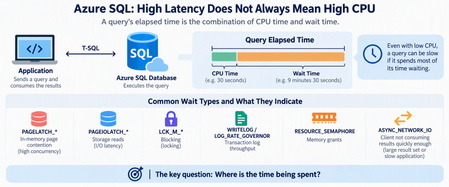
When an application connected to Azure SQL Database becomes slow or starts timing out, one of the first questions is usually: Is the database running out of CPU? It's a reasonable starting point, but CPU is only one part of the performance story. Some Azure SQL performance problems occur while CPU, Data IO, and worker utilization appear healthy. The database may have plenty of compute capacity while queries spend most of their time waiting rather than executing. The key troubleshooting question is therefore not simply: "How much CPU is Azure SQL using?" Instead, ask: "Where is the elapsed time being spent?" Start With Resources, But Don't Stop There Resource utilization should still be the first checkpoint. A simple query using sys.dm_db_resource_stats can help identify whether Azure SQL is approaching CPU, Data IO, Log IO, memory, or worker limits: SELECT DB_NAME() AS database_name, AVG(avg_cpu_percent) AS avg_cpu_percent, MAX(avg_cpu_percent) AS max_cpu_percent, MAX(avg_data_io_percent) AS max_data_io_percent, MAX(avg_log_write_percent) AS max_log_write_percent, MAX(avg_memory_usage_percent) AS max_memory_percent, MAX(max_worker_percent) AS max_worker_percent FROM sys.dm_db_resource_stats; If CPU is consistently near 100%, investigate CPU consumption. If Log IO reaches its limit, investigate transaction-log generation. If workers are exhausted, investigate concurrency. But if none of these resources is saturated, don't conclude that Azure SQL is healthy. Move to wait analysis. Follow the Waits A useful simplified model is: Query elapsed time = CPU execution If a query runs for 10 minutes but uses only 30 seconds of CPU, most of its elapsed time occurred somewhere else. Common wait patterns can point the investigation in different directions: Wait Area to investigate PAGELATCH_* In-memory page contention PAGEIOLATCH_* Storage reads LCK_M_* Blocking WRITELOG Transaction log LOG_RATE_GOVERNOR Log throughput RESOURCE_SEMAPHORE Memory grants ASYNC_NETWORK_IO Client/result consumption The wait type is not automatically the root cause. Think of it as a sign telling you: Look in this direction next. PAGELATCH Does Not Mean Slow Storage One important distinction is: PAGELATCH versus: PAGEIOLATCH Despite their similar names, they represent different problems. PAGEIOLATCH is associated with waiting for data pages involved in physical I/O. PAGELATCH, however, is synchronization around pages that are already in memory. Consider a highly concurrent workload: Hundreds of sessions ↓ Same memory page ↓ Latch contention ↓ Sessions wait ↓ Application CPU may still have available capacity. This is why increasing vCores doesn't necessarily eliminate latch contention. Additional compute provides more workload headroom, but it doesn't automatically remove a serialization point around a hot page. Microsoft's I/O troubleshooting guidance also distinguishes PAGEIOLATCH and other I/O-related waits when diagnosing storage-performance problems. Microsoft Learn: Troubleshoot SQL Server I/O performance Query Frequency Matters Too Another common mistake is focusing only on individually expensive queries. Imagine a query that takes only 20 milliseconds but executes hundreds of thousands of times, often concurrently. Its impact is better thought of as: Workload Impact = Cost per execution × Execution frequency × A small metadata lookup or initialization query can become significant when hundreds of application instances execute it simultaneously. This is where Query Store becomes particularly useful. Query Store preserves query, execution-plan, and runtime history, allowing you to compare executions, duration, CPU, plans, and other performance characteristics over time. Microsoft Learn: Monitor performance using Query Store Instead of asking only: "What's my most expensive query?" also ask: "What changed in the workload?" When Nine Hours of Duration Is Only One Minute of CPU Now consider the opposite problem. Suppose Query Store shows something like: Elapsed time 9 hours SQL CPU time 1 minute Returned rows 750,000+ Dominant wait ASYNC_NETWORK_IO Would adding CPU solve this? Probably not. CPU represents only a tiny fraction of the elapsed time. ASYNC_NETWORK_IO commonly occurs when SQL Server has results available but the client application is not consuming them quickly enough. Microsoft documents several possible causes, including: large result sets; slow application processing; applications fetching rows slowly; network-related delays. Microsoft Learn: Troubleshoot ASYNC_NETWORK_IO Importantly: ASYNC_NETWORK_IO does not automatically mean the network is slow. The bottleneck might actually be the application. Measure Time to First Row A useful troubleshooting technique is to separate database response time from result-consumption time. Instead of measuring only: Query start → Application finished measure: T0 = Query submitted T1 = First row received T2 = Last row received T3 = Application processing completed You can then separate: Database response = T1 - T0 Result consumption = T2 - T1 Application For example: First row received: 2 seconds Last row received: 2 hours Processing completed: 2.5 hours Calling this a "2.5-hour SQL query" would be misleading. SQL started returning results after two seconds. Most of the time was spent transferring or processing them. Don't Forget Blocking Low CPU can also be caused by blocking. If many sessions are waiting behind a transaction, increasing CPU isn't going to solve the problem. During an active incident, check requests and their waits: SELECT r.session_id, r.blocking_session_id, r.status, r.wait_type, r.wait_time, r.wait_resource, r.cpu_time, r.total_elapsed_time, st.text FROM sys.dm_exec_requests AS r CROSS APPLY sys.dm_exec_sql_text(r.sql_handle) AS st WHERE r.blocking_session_id <> 0 ORDER BY r.wait_time DESC; This helps determine whether the application is experiencing a resource problem or simply waiting behind another transaction. Why Scaling Can Be Misleading Imagine this sequence: Application slow ↓ Scale database ↓ Performance improves It's tempting to conclude: "We needed more CPU." But scaling can change more than CPU availability. Depending on the operation and environment, it can alter resource availability or execution conditions. Therefore: A successful mitigation does not automatically prove the root cause. Always distinguish between: What made the symptoms disappear? and: What originally caused the symptoms? A Practical Troubleshooting Workflow When investigating Azure SQL performance, I use the following approach: 1. Define the exact incident window Preferably using UTC timestamps. 2. Check core resources Look at: CPU Data IO Log IO memory workers 3. Compare CPU time with elapsed time If: Elapsed ≈ CPU investigate computational workload. If: Elapsed >>> CPU investigate waits. 4. Identify dominant waits Ask what prevented SQL from continuing execution. 5. Check blocking Determine whether requests are waiting behind other transactions. 6. Use Query Store Compare healthy and problematic periods for: execution count; CPU; duration; logical reads; plans; wait behavior. Microsoft provides Query Store examples specifically for workload and performance investigation. Microsoft Learn: Tune performance with Query Store 7. Inspect the execution plan Look for inefficient access patterns, cardinality problems, excessive reads, repeated lookups, spills, scans, or plan changes. 8. Investigate the application Especially when SQL CPU is low but result-transfer waits are high. Look at: rows returned; fetch size; batch size; application processing; concurrency; downstream dependencies. 9. Compare healthy vs unhealthy periods Don't analyze an incident in isolation. Ask: What changed? Common Misdiagnoses "CPU isn't 100%, so SQL is healthy." Not necessarily. Queries might simply be waiting. "ASYNC_NETWORK_IO means we have a network problem." Not necessarily. The client may be consuming results slowly. "PAGELATCH means storage is slow." No. Don't confuse PAGELATCH with PAGEIOLATCH. "Scaling fixed the problem, so CPU was the root cause." Not necessarily. Mitigation and root cause are different concepts. "The slowest query must be the problem." Not always. A small query executed extremely frequently can generate larger cumulative impact. Final Thought: Follow the Time When Azure SQL becomes slow, avoid jumping directly from: Slow database → Add more vCores Instead, work through: High latency ↓ Resource utilization ↓ CPU vs elapsed time ↓ Wait statistics ↓ Query Store ↓ Execution plan ↓ Application behavior ↓ Root cause ↓ Targeted optimization Performance troubleshooting becomes much easier once you stop asking only: "How busy is Azure SQL?" and start asking: "Where did the time go?" Because sometimes the database isn't busy at all. It's waiting. References Monitor Performance by Using the Query Store Tune performance with the Query Store Troubleshoot slow queries resulting from ASYNC_NETWORK_IO Troubleshoot slow SQL Server performance caused by I/O issues253Views0likes0CommentsIntroducing new troubleshooting guides features
We are excited to announce the release of new features aimed at enhancing the troubleshooting experience in Azure PostgreSQL Flexible Server. These features provide detailed insights and metrics, enabling you to optimize your database performance effectively. Here are the use cases where these features can be used: Enhancements to autovacuum monitoring: One of the significant enhancements is the addition of table-level autovacuum details. This feature allows you to: Monitor the number of times autovacuum ran. Check the number of dead tuples cleaned or not removed. Track the time taken to run the autovacuum. Furthermore, we now display the configuration of some important parameters which control autovacuum. We validate some of those parameters and warn you if we consider that the existing configuration might cause issues with the correct functioning of autovacuum. We have also added a new Enhanced metrics tab which displays the Maximum number of Transaction IDs in use and the Oldest backend XMin metrics to provide a comprehensive view of autovacuum health. Enhancements to the CPU troubleshooting guide: To help you manage high CPU usage, we have introduced several new features: Parameter check for excessive logging that might impact the CPU usage and overall server performance. New "Top queries by total duration" tab which displays Query Store queries with total time. New insight card showing sessions whose state is idle and have an open transaction. New tab to showcase PgBouncer metrics and best practices: A new tab to display the locking information: In this section, you can get the overview of locks in your server. You can get the count of sessions involved in Locks. You can monitor the acquired locks duration during the specified time. You can also get insights on blocking session where sessions are still waiting for lock acquisition. Enhancements to the memory troubleshooting guide: For troubleshooting high memory usage, we have added validation for memory parameters where it can show you an insight when you change these parameters higher than defaults. We have also introduced an insight for long (>24hrs) idle sessions that might consume server resources. We believe these new features will significantly enhance your ability to troubleshoot and optimize your Azure PostgreSQL Flexible Server. We look forward to your feedback! Getting started: To learn more about the troubleshooting guides, visit our documentation below: What are the troubleshooting guides in Azure Database for PostgreSQL Flexible Server How to use the troubleshooting guides for Azure Database for PostgreSQL Flexible Server