openai models
4 TopicsHow to Set Up Claude Code with Microsoft Foundry Models on macOS
Introduction Building with AI isn't just about picking a smart model. It is about where that model lives. I chose to route my Claude Code setup through Microsoft Foundry because I needed more than just a raw API. I wanted the reliability, compliance, and structured management that comes with Microsoft's ecosystem. When you are moving from a prototype to something real, having that level of infrastructure backing your calls makes a significant difference. The challenge is that Foundry is designed for enterprise cloud environments, while my daily development work happens locally on a MacBook. Getting the two to communicate seamlessly involved navigating a maze of shell configurations and environment variables that weren't immediately obvious. I wrote this guide to document the exact steps for bridging that gap. Here is how you can set up Claude Code to run locally on macOS while leveraging the stability of models deployed on Microsoft Foundry. Requirements Before we open the terminal, let's make sure you have the necessary accounts and environments ready. Since we are bridging a local CLI with an enterprise cloud setup, having these credentials handy now will save you time later. Azure Subscription with Microsoft Foundry Setup - This is the most critical piece. You need an active Azure subscription where the Microsoft Foundry environment is initialized. Ensure that you have deployed the Claude model you intend to use and that the deployment status is active. You will need the specific endpoint URL and the associated API keys from this deployment to configure the connection. An Anthropic User Account - Even though the compute is happening on Azure, the interface requires an Anthropic account. You will need this to authenticate your session and manage your user profile settings within the Claude Code ecosystem. Claude Code Client on macOS - We will be running the commands locally, so you need the Claude Code CLI installed on your MacBook. Step 1: Install Claude Code on macOS The recommended installation method is via Homebrew or Curl, which sets it up for terminal access ("OS level"). Option A: Homebrew (Recommended) brew install --cask claude-code Option B: Curl curl -fsSL https://claude.ai/install.sh | bash Verify Installation: Run claude --version. Step 2: Set Up Microsoft Foundry to deploy Claude model Navigate to your Microsoft Foundry portal, and find the Claude model catalog, and deploy the selected Claude model. [Microsoft Foundry > My Assets > Models + endpoints > + Deploy Model > Deploy Base model > Search for "Claude"] In your Model Deployment dashboard, go to the deployed Claude Models and get the "Endpoints and keys". Store it somewhere safe, because we will need them to configure Claude Code later on. Configure Environment Variables in MacOS terminal: Now we need to tell your local Claude Code client to route requests through Microsoft Foundry instead of the default Anthropic endpoints. This is handled by setting specific environment variables that act as a bridge between your local machine and your Azure resources. You could run these commands manually every time you open a terminal, but it is much more efficient to save them permanently in your shell profile. For most modern macOS users, this file is .zshrc. Open your terminal and add the following lines to your profile, making sure to replace the placeholder text with your actual Azure credentials: export CLAUDE_CODE_USE_FOUNDRY=1 export ANTHROPIC_FOUNDRY_API_KEY="your-azure-api-key" export ANTHROPIC_FOUNDRY_RESOURCE="your-resource-name" # Specify the deployment name for Opus export CLAUDE_CODE_MODEL="your-opus-deployment-name" Once you have added these variables, you need to reload your shell configuration for the changes to take effect. Run the source command below to update your current session, and then verify the setup by launching Claude: source ~/.zshrc claude If everything is configured correctly, the Claude CLI will initialize using your Microsoft Foundry deployment as the backend. Once you execute the claude command, the CLI will prompt you to choose an authentication method. Select Option 2 (Antrophic Console account) to proceed. This action triggers your default web browser and redirects you to the Claude Console. Simply sign in using your standard Anthropic account credentials. After you have successfully signed in, you will be presented with a permissions screen. Click the Authorize button to link your web session back to your local terminal. Return to your terminal window, and you should see a notification confirming that the login process is complete. Press Enter to finalize the setup. You are now fully connected. You can start using Claude Code locally, powered entirely by the model deployment running in your Microsoft Foundry environment. Conclusion Setting up this environment might seem like a heavy lift just to run a CLI tool, but the payoff is significant. You now have a workflow that combines the immediate feedback of local development with the security and infrastructure benefits of Microsoft Foundry. One of the most practical upgrades is the removal of standard usage caps. You are no longer limited to the 5-hour API call limits, which gives you the freedom to iterate, test, and debug for as long as your project requires without hitting a wall. By bridging your local macOS terminal to Azure, you are no longer just hitting an API endpoint. You are leveraging a managed, compliance-ready environment that scales with your needs. The best part is that now the configuration is locked in, you don't need to think about the plumbing again. You can focus entirely on coding, knowing that the reliability of an enterprise platform is running quietly in the background supporting every command.1KViews1like0Comments
GPT Model Availability Update for West Europe Region
According to Microsoft documentation, GPT-4o versions is getting retired by June 6, 2025. Currently, GPT-4.1 versions are not available in the West Europe region. Do we have an estimated timeline for when GPT-4.1 will be available there?708Views0likes4CommentsUnderstanding Azure OpenAI Service Quotas and Limits: A Beginner-Friendly Guide
Azure OpenAI Service allows developers, researchers, and students to integrate powerful AI models like GPT-4, GPT-3.5, and DALL·E into their applications. But with great power comes great responsibility and limits. Before you dive into building your next AI-powered solution, it's crucial to understand how quotas and limits work in the Azure OpenAI ecosystem. This guide is designed to help students and beginners easily understand the concept of quotas, limits, and how to manage them effectively. What Are Quotas and Limits? Think of Azure's quotas as your "AI data pack." It defines how much you can use the service. Meanwhile, limits are hard boundaries set by Azure to ensure fair use and system stability. Quota The maximum number of resources (e.g., tokens, requests) allocated to your Azure subscription. Limit The technical cap imposed by Azure on specific resources (e.g., number of files, deployments). Key Metrics: TPM & RPM Tokens Per Minute (TPM) TPM refers to how many tokens you can use per minute across all your requests in each region. A token is a chunk of text. For example, the word "Hello" is 1 token, but "Understanding" might be 2 tokens. Each model has its own default TPM. Example: GPT-4 might allow 240,000 tokens per minute. You can split this quota across multiple deployments. Requests Per Minute (RPM) RPM defines how many API requests you can make every minute. For instance, GPT-3.5-turbo might allow 350 RPM. DALL·E image generation models might allow 6 RPM. Deployment, File, and Training Limits Here are some standard limits imposed on your OpenAI resource: Resource Type Limit Standard model deployments 32 Fine-tuned model deployments 5 Training jobs 100 total per resource (1 active at a time) Fine-tuning files 50 files (total size: 1 GB) Max prompt tokens per request Varies by model (e.g., 4096 tokens for GPT-3.5) How to View and Manage Your Quota Step-by-Step: Go to the Azure Portal. Navigate to your Azure OpenAI resource. Click on "Usage + quotas" in the left-hand menu. You will see TPM, RPM, and current usage status. To Request More Quota: In the same "Usage + quotas" panel, click on "Request quota increase". Fill in the form: Select the region. Choose the model family (e.g., GPT-4, GPT-3.5). Enter the desired TPM and RPM values. Submit and wait for Azure to review and approve. What is Dynamic Quota? Sometimes, Azure gives you extra quota based on demand and availability. “Dynamic quota” is not guaranteed and may increase or decrease. Useful for short-term spikes but should not be relied on for production apps. Example: During weekends, your GPT-3.5 TPM may temporarily increase if there's less traffic in your region. Best Practices for Students Monitor Regularly: Use the Azure Portal to keep an eye on your usage. Batch Requests: Combine multiple tasks in one API call to save tokens. Start Small: Begin with GPT-3.5 before requesting GPT-4 access. Plan Ahead: If you're preparing a demo or a project, request quota in advance. Handle Limits Gracefully: Code should manage 429 Too Many Requests errors. Quick Resources Azure OpenAI Quotas and Limits How to Request Quota in Azure Join the Conversation on Azure AI Foundry Discussions! Have ideas, questions, or insights about AI? Don't keep them to yourself! Share your thoughts, engage with experts, and connect with a community that’s shaping the future of artificial intelligence. 🧠✨ 👉 Click here to join the discussion!2.7KViews0likes0CommentsFine-Tuning Language Models with Azure AI Foundry: A Detailed Guide
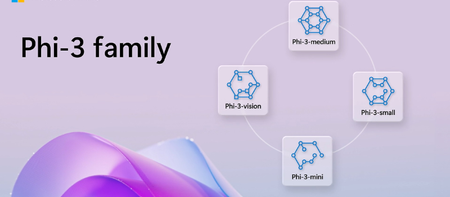
What is Azure AI Foundry? Azure AI Foundry is a comprehensive platform designed to simplify the development, deployment, and management of AI models. It provides a user-friendly interface and powerful tools that enable developers to create custom AI solutions without needing extensive machine learning expertise. Key Features of Azure AI Foundry One-Button Fine-Tuning: A streamlined process that allows users to fine-tune models with minimal configuration. Integration with Development Tools: Seamless integration with popular development environments, particularly Visual Studio Code. Support for Multiple Models: Access to a variety of pre-trained models, including the Phi family of models. Understanding Fine-Tuning Fine-tuning is the process of taking a pre-trained model and adapting it to a specific dataset or task. This is particularly useful when the base model has been trained on a large corpus of general data but needs to perform well on a narrower domain. Why Fine-Tune? Improved Performance: Fine-tuning can significantly enhance the model's accuracy and relevance for specific tasks. Reduced Training Time: Starting with a pre-trained model reduces the amount of data and time required for training. Customization: Tailor the model to meet the unique needs of your application or business. One-Button Fine-Tuning in Azure AI Foundry Step-by-Step Process Select the Model: Log in to Azure AI Foundry and navigate to the model selection interface. Choose Phi-3 or another small language model from the available options. Prepare Your Data: Ensure your dataset is formatted correctly. Typically, this involves having a set of input-output pairs that the model can learn from. Upload your dataset to Azure AI Foundry. The platform supports various data formats, making it easy to integrate your existing data. Initiate Fine-Tuning: Locate the one-button fine-tuning feature within the Azure AI Foundry interface. Click the button to start the fine-tuning process. The platform will handle the configuration and setup automatically. Monitor Progress: After initiating fine-tuning, you can monitor the process through the Azure portal. The portal provides real-time updates on training metrics, allowing you to track the model's performance as it learns. Evaluate the Model: Once fine-tuning is complete, evaluate the model's performance using a validation dataset. Azure AI Foundry provides tools for assessing accuracy, precision, recall, and other relevant metrics. Deploy the Model: After successful evaluation, you can deploy the fine-tuned model directly from Azure AI Foundry. The platform supports various deployment options, including REST APIs and integration with other Azure services. Using the AI Toolkit in Visual Studio Code Overview of the AI Toolkit The AI Toolkit for Visual Studio Code enhances the development experience by providing tools specifically designed for AI model management and fine-tuning. This integration allows developers to work within a familiar environment while leveraging powerful AI capabilities. Key Features of the AI Toolkit 1) Model Management: Easily manage and switch between different models, including Phi-3 and Ollama models. 2) Data Handling: Simplified data upload and preprocessing tools to prepare datasets for training. 3) Real-Time Collaboration: Collaborate with team members in real-time, sharing insights and progress on AI projects. How to Use the AI Toolkit 1) Install the AI Toolkit: Open Visual Studio Code and navigate to the Extensions Marketplace. Search for "AI Toolkit" and install the extension. 2) Connect to Azure AI Foundry: Once installed, configure the toolkit to connect to your Azure AI Foundry account. This will allow you to access your models and datasets directly from Visual Studio Code. 3) Fine-Tune Models: Use the toolkit to initiate fine-tuning processes directly from your development environment. Monitor training progress and view logs without leaving Visual Studio Code. 4) Consume Ollama Models: The AI Toolkit supports the consumption of Ollama models, providing additional flexibility in your AI projects. This feature allows you to integrate various models seamlessly, enhancing your application's capabilities. Microsoft ONNX Live for Fine-Tuning What is Microsoft ONNX Live? Microsoft ONNX Live is a platform that allows developers to deploy and optimize AI models using the Open Neural Network Exchange (ONNX) format. ONNX is an open-source format that enables interoperability between different AI frameworks, making it easier to deploy models across various environments. Key Features of Microsoft ONNX Live Model Optimization: ONNX Live provides tools to optimize models for performance, ensuring they run efficiently in production environments. Cross-Framework Compatibility: Models trained in different frameworks (like PyTorch or TensorFlow) can be converted to ONNX format, allowing for greater flexibility in deployment. Real-Time Inference: ONNX Live supports real-time inference, enabling applications to utilize AI models for immediate predictions. Fine-Tuning with ONNX Live Model Conversion: If you have a model trained in a different framework, you can convert it to ONNX format using tools provided by Microsoft. This conversion allows you to leverage the benefits of ONNX Live for deployment and optimization. Integration with Azure AI Foundry: Once your model is in ONNX format, you can integrate it with Azure AI Foundry for fine-tuning. The one-button fine-tuning feature can be used to adapt the ONNX model to your specific dataset. Optimization Techniques: After fine-tuning, you can apply various optimization techniques available in ONNX Live to enhance the model's performance. Techniques such as quantization and pruning can significantly reduce the model size and improve inference speed. Deployment: Once optimized, the model can be deployed directly from Azure AI Foundry or ONNX Live. This deployment can be done as a REST API, allowing easy integration with web applications and services. Additional Resources To further enhance your understanding and capabilities in fine-tuning language models, consider exploring the following resources: Phi-3 Cookbook: This comprehensive guide provides insights into getting started with Phi models, including best practices for fine-tuning and deployment. Explore the Phi-3 Cookbook. Ignite Fine-Tuning Workshop: This workshop offers a hands-on approach to learning about fine-tuning techniques and tools. It includes real-world scenarios to help you understand the practical applications of fine-tuning. Visit the GitHub Repository. Conclusion Fine-tuning language models like Phi-3 using Azure AI Foundry, combined with the AI Toolkit in Visual Studio Code and Microsoft ONNX Live, provides a powerful and efficient workflow for developers. The one-button fine-tuning feature simplifies the process, while the integration with ONNX Live allows for optimization and deployment flexibility. By leveraging these tools, you can enhance your AI applications, ensuring they are tailored to meet specific needs and perform optimally in production environments. Whether you are a seasoned AI developer or just starting, Azure AI Foundry and its associated tools offer a robust ecosystem for building and deploying advanced AI solutions. References Microsoft Docs Links Fine-Tuning Models in Azure OpenAI Azure AI Services Documentation Azure Machine Learning Documentation Microsoft Learn Links Develop Generative AI Apps in Azure Fine-Tune a Language Model Azure AI Foundry Overview Get started with AI Toolkit for Visual Studio Code2KViews0likes0Comments