open
9 TopicsMicrosoft Foundry Guardrails Getting in Your Way? Here’s How to Dial Them Down
How This All Started So here’s the story. I just got back from a trip and had a pile of footage sitting on my laptop. Being the lazy (sorry, efficient) person I am, I fired up OpenCode and asked GPT-6 Astra, running on Microsoft Foundry, to cut me a travelogue. Nothing fancy: under two minutes, nice lighting, clean transitions, no cringy effects, a quick QA before showing me, and the output in its own folder. Easy, right? Nope. This is what I got instead: “Image processing blocked due to content policy violation.” Seriously? It’s holiday footage! Nothing even remotely dodgy in there. This is a classic false positive from the default guardrails, and the good news is it’s totally fixable. Let me show you how. My Setup Quick context before we dive in: I’ve got two models deployed on Microsoft Foundry, gpt-6-astra and gpt-6-sol. Both were running on Microsoft’s out-of-the-box guardrail. Step 1: Find the Guardrails Page Head over to the Microsoft Foundry portal, click Build, then hit Guardrails in the left menu. You’ll see three guardrails that Microsoft gives you by default: Microsoft.Default, Microsoft.DefaultV2 and Microsoft.MAIDefault. Microsoft.DefaultV2 is the one every new deployment gets, which is why it’s sitting on both of my models. Here’s the catch: you can’t edit or delete these Microsoft-managed defaults. So instead of tweaking them, we’re going to build our own guardrail and swap it in. Step 2: Create Your Own Guardrail Smash that "Create" button and you’ll land on the Create guardrail page. This is where all the knobs and switches live: Every control has three bits: the risk type, the intervention point (does it check what you send in, what the model spits out, or both?) and the action. The magic trick for loosening things up is flipping the action from Block to Annotate. With Annotate, Foundry still scans the content and tags it in the API response, but it stops slamming the door on your request. So What Does Each Setting Actually Do? Before you go on a switching-off spree, it’s worth knowing what each of these does and what you’re giving up when you loosen it. Here’s the quick tour: Jailbreak: This one catches prompts trying to trick the model into ignoring its rules. On Block, those prompts get rejected outright. On Annotate, they go through with a flag. Turn it off completely and you’re trusting the model’s own training to keep it in line. Network (egress rules): Controls which outbound calls a hosted agent is allowed to make. As the portal points out, it only applies to hosted agents, so for plain model deployments like mine it doesn’t change a thing. Indirect prompt injections: Watches user input and tool responses (files, docs, web pages the model reads) for sneaky instructions someone has planted. Leave it on and your agents are protected when they read outside content; switch it off and a dodgy file could quietly hijack your model. For an agentic tool like OpenCode, which reads files and runs shell commands, I’d honestly keep this one on, even if it’s just on Annotate. Spotlighting (Preview): Tags external content inside the prompt so the model can tell your real instructions apart from random untrusted data. Think of it as an extra seatbelt against indirect attacks. Content harms (Hate, Sexual, Self-harm, Violence): Each of these has a severity slider that starts at Medium blocking, meaning anything rated medium or higher gets blocked. Slide it down to Lowest blocking and only the really nasty stuff gets stopped, which kills off most false positives like mine. The asterisk means these four are mandatory: you can turn the dial down, but you can’t switch them off. Blocklists: Want to ban specific words or phrases, like profanity or your competitor’s name? This is where you do it. It’s off by default. Protected material for code and text: Checks whether the model is about to spit out known copyrighted text (song lyrics, articles and so on) or code lifted from public repos. Block stops it; Annotate lets it through with a flag. Switch it off and you’re rolling the dice on your app reproducing someone else’s copyrighted work. Step 3: Pick Your Models Hit Next and Foundry asks which agents and models you want this guardrail on. Any model you’ve already deployed in your project shows up here. For me that’s gpt-6-astra and gpt-6-sol, so I ticked both. Step 4: Name It and Pick a Streaming Mode One more Next and you’re on the Review page. Give your guardrail a name (I went with NoGuardrails, because subtlety isn’t my thing) and pick a streaming mode. You’ve got two choices: Default: Foundry buffers the response and runs it through the guardrail before each chunk goes out. Nothing reaches the user until it’s been checked. Safest option, but you’ll feel a bit of lag when streaming. Asynchronous: Content streams back the moment it’s generated, with the filters running in the background. Much snappier, but flagged content might flash up briefly before the filter catches it, so your app has to clean up after the fact. Microsoft pitches this for low-latency stuff like internal dev tools, which is exactly my use case. Give the summary a quick once-over, then click Create. Done! Did It Work? Yep! With my shiny new guardrail in place, I fired off the exact same request, this time to GPT-6 Sol. And boom: no more content policy error. The model went straight to work scanning my footage and putting the video together. Wrapping Up Look, Microsoft’s default guardrails are a solid starting point, but they can be a bit trigger-happy when you’re doing perfectly legit stuff like video editing, creative work or internal tooling. Since you can’t touch the defaults, the trick is to roll your own: flip Block to Annotate where it makes sense, drag those content harm sliders down, pick the streaming mode that fits your app, and assign it to your deployments. That’s it! One friendly word of warning though: with great power comes great responsibility. Only loosen what you actually need, keep things like indirect prompt injection detection switched on for any agent that reads files or browses the web, and think twice before doing this on anything customer-facing. And if you want to go further than the portal lets you, like switching content filters off completely, you’ll need to apply to Microsoft for approval first. Happy building!260Views1like2CommentsNew behavior for Vertical Tabs button on Edge canary
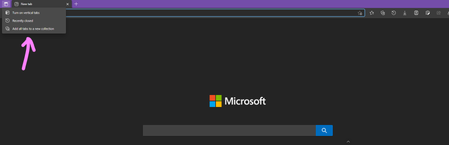
previously clicking on vertical tabs button would immediately switch between horizontal/vertical tab strips. now when you click on it, not right-click, but regular left-click, you get 3 options: Turn on Vertical tabs Recently closed (which opens history flyout and shows you recently closed tabs) Add all tabs to a new Collection Microsoft Edge Version 91.0.862.0 (Official build) canary (64-bit) CFR Also, it's no longer called vertical tabs button in Edge settings, now called tab actions menu1.7KViews1like2Comments
Error message
I purchased Microsoft Access last week; however, when I try to open Access application I get the following message: You must start Microsoft Access by double clicking file or by running Microsoft Access from a command prompt with a database specified If I click on a file that's saved on my computer, it'll open but I'm not able to create new files or see the "ribbon" of options. Any assistance will be GREATLY appreciated1.7KViews0likes1CommentSS27: smart switch setting and smart + button (for open new tab)
Suggestion (SS): 27 Classification: TAB - SETTING PRIORITY IN MY OPINION: 7 on a scale from 1 (low) to 10 (high) First add a quick way to switch between download / extension / bookmarks / history in the style of brave but maybe more compact Maybe add custom option too, so that i can add edge://settings/searchEngines?search=google to this list too, or edge://settings/downloads or ... or easy access to flags <<<<<<<<<<<< Second you should improve this mean if i click cmd, alt or ctrl you do specific things: example: open in incognito with ctrl and + open home page with alt show a list of top pages if i click cmd + (example pubmed, google images and ebay.ch). then i can choose which of these three. this is like having 4 different home webpages. or you can even add the way "if i click alt you open a new tab with the edge profile xxx" (even if i'm using yyy now). Or the same, but you show us the list of accounts (like i wrote in 3), so we can choose and we don't configure "open new tab in edge account xx with alt and +" here an example of what i mean, from czech devs. now i haven't checked all other browser. i just tried some random browser on my mac to see if someone integrate it, and the first random browser that i launched has this feature available (just a bit limited) <<<<< another option is to open a tab to the left if we click shift and + other example for smart +: open in new group open next to the current tab (but is better to integrate a whole option for this) open in new window duplicate all tabs from the current group you use to another group open a group of tabs at the same time (same like 3. but by using specific groups that we can configure). maybe without need to add a specific setting where we define the links, but just an option in bookmarks. so an option "add this folder in new tab smart group". then we can add 5-10 folders. reopen last closed tab <<<<< just another thing i noticed now seznam home button is cool, is not the classical home button like all other browser have.... PS: not important for me (at the end there is no improvement in my workflow), but maybe for someone else such smart features with cmd etc. can be applied to too, where you show us different websites (like i wrote in 3. ) <<<<<< NEW SUGGESTION: you can even add this smart button to so with ctrl (or other keys) and < we go back to the first page we opened (not only the previous). or you can use cmd < to go to the tab to the left and cmd > to go to the tab to the right.2.8KViews0likes6Commentssmart selection manager (even with collections support) - right menu
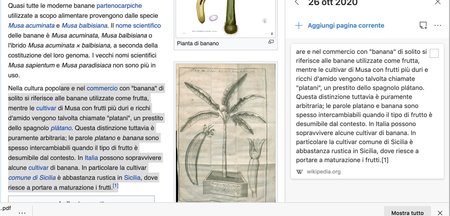
here an example, if i select this i should see option like: 1) add to collection (available) but option to drag drop to google to paste the text is not available (once the text is in collections). 2) add links to collection (not available) 3) copy all urls (not available) 4) open all urls (not available) 5) add links to bookmark (not available) same if i select different images with an url, etc. You can find this suggestion on Chromium too: https://bugs.chromium.org/p/chromium/issues/detail?id=1143531 --------------- All my other suggestions are here: https://link.ws/edgesuggestions Suggestions I liked from other user here: https://link.ws/othersuggestions Chromium suggestions list 1: https://link.ws/chrome1 and 2: https://link.ws/chrome2 From end 2020-10 all suggestions are written on both Edge and Chrome at the same time, suggestions before 2020-10 are available only on Chrome.1.2KViews0likes1CommentSS7: smart bookmark / history and smart search - new shortcut - launch page, open tab, random pages
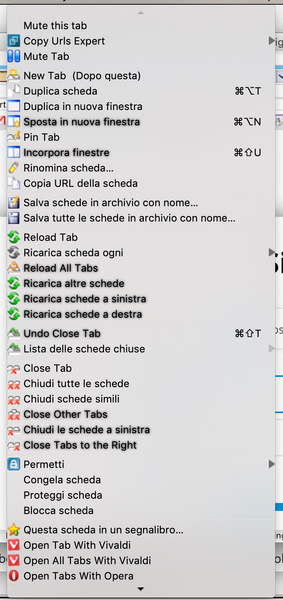
Suggestion (SS): 7 Classification: SEARCH PRIORITY IN MY OPINION: 6-7 in a scala 1 (low) - 10 (high) PS: i use $ as shortcut, because i never use such symbol. obviously american need to find another way xD To launch website much faster you could add a new option when we add it to bookmark (and obviously for previous links on bookmarks too). last time i told you to add description, now it's time for shortcut. for example if i want to visit missy profile https://techcommunity.microsoft.com/t5/user/viewprofilepage/user-id/470968 i don't type missy microsoft or microsoft missy or missy. i would simply write <eimis this features should be available for history too. so i don't need to add a link to bookmark if i want to create such shortcut. next about open random pages on a website. if i want to open page 1,2,3,4...10 i could type $1-10 http://www.xxxx.xxx/page=1 (you can choose what you prefer) and you open page 1-10. if i type $$1-40.5www.xxxx.xxx/page=1 you open random page like 4, 8, 20, 6, 2 this mean .5 is the amount of tabs and 1-40 the intervall. similar shortcuts should work even when a current link is opened, in such case i would write for example $-10 and you are smart enough to open next 10 tabs based on current url now we merge this with the option of %s to search inside a website. before i start to talk, i want to remember that 1) you need to avoid to create random %s. i want to see only my created %s 2) you need to add option to delete all %s 3) since the problem of 1) you need to add a way to multi select all auto generated %s, by keeping my %s 4) you need add groups, this mean i can create social, science, ... groups and i put %s inside this 5) import export !!!! the most important feature you need to add ok, back to suggestion. for each %s we have a shortcut. this mean if i have edge.com/s=%s i can create a shortcut <ed now we can merge this to what i told you before i could write "banana AND bere <ed" and you open edge website with banana and bere if i write "banana AND bere $1-10 <ed" you open edge website with banana and bere, and both have page 1-10 active (= you open 20 tabs). if i write "banana, bere, cola, drink, ciao, bellaitalia $$0.3" you open edge with random search (for example cola, ciao, bere). 3 tabs because i wrote .3 $$0. means random mode, but i don't set an interval 1-40, so i use 0 banana,bere, ... are the terms that need to be used for search i could even write "banana <edge <ama <fb" and you open banana in edge, amazon, fb. if i use the group suggestion that i sent you before, i could set a shortcut for the group like g1 and i would replace "banana <edge <ama <fb" to "banana <g1" to make it more interesting you could even add multiple %s, this mean a website with search=xtext+yword+zdate1+wdate2 would be converted in =%s1+%s2+%s3+%s4 and during a search i would write for example " apple + mac + 03 + 05 <pubmed" to search apple title AND mac word AND 03-05 pubblication date. the shortcut i used are just an example, you need to understand why we need such smart search option in edge. ---- other type of shortcuts are for example <bk to return back to original page (example i visit a, b c, then z--> you show us page a) <sl5 = select 5 tabs to the left <sr5 = select 5 tabs to the right <rr5 = reload the next 5 tabs to the right <br5 = add to bookmark next 5 tabs to the right <cr5 = add to collections next 5 tabs to the right <wr5 = move next 5 tabs to the right in a new window <pr5 = save pdf next 5 tabs to the right i think now you understand the concept. a quick way to add, save, open, go next, go back, random tab, etc. and thanks to the bookmark shortcut that i wrote at the beginning with <<s i could access setting <<e extension <<% my %s .... This would be a jump in productivity. no one is offering this. LAST POINT i already wrote you that a lot of feature are missing like reload to left right and similar, move tab to left to bookmark or to a new windows, close tabs to left, mute tabs to the right, mute other, merge windows, etc (check other post).. if you don't want to add it to right click (which is normal, because having 1000 options is not the best way too, this is why i suggested a manager for right click), add it at least as optional option in menu bar, because in such case we can use such menu bar options with keyboard maestro and bbt. then we can enable touch gesture to use such shortcut too. if you don't add it to menu bar, we cannot do it. here some example of shortcut (skip the duplications...) You can find this suggestion on Chromium too: CHECKLATER* --------------- All my other suggestions are here: https://link.ws/edgesuggestions Suggestions I liked from other user here: https://link.ws/othersuggestions Chromium suggestions list 1: https://link.ws/chrome1 and 2: https://link.ws/chrome2 From end 2020-10 all suggestions are written on both Edge and Chrome at the same time, suggestions before 2020-10 are available only on Chrome. *to avoid a ban from Google, I submit only limited post pro week.1.8KViews0likes1Commenttrackpad gestures in edge: next tab, next page, random, save pdf, etc.
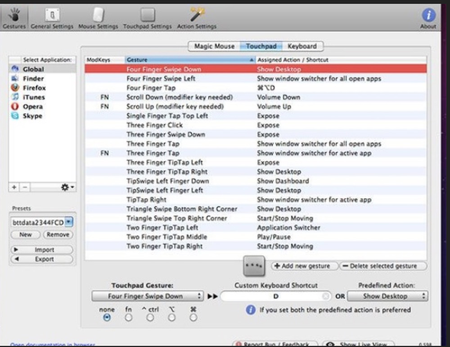
We have discussed the 2x to close tabs last time. i think that using browsers without the need to use the keyboard is the best browsing experience we can get. this means to use only trackpad and the mac display. At the moment on ghostbrowser i use gestures like 3 tap go to next tab; extensions to go back, next tab, merge windows, etc. i think you should implement something like better touch tool (there are different gestures example) in edge. examples: -drag a tab with 2 finder down = reopen the main page (this mean if i visit a then b ... to z, you open again a)* - 4 finder tap: save pdf - spread fingers to open a random page or to open multiple random pages* (example if the website has a link like xxx.com/xxx/page=1 you open page 35, 46, 87). we configure such things (like how many tabs, the exact interval for each website) inside setting. - circle with 1 finger to search selected text in pubmed, with 2 finders in edge store .... other example (that i don't use at all, because i don't like it) are for what would we use gesture? save/download go next/previous page (from page 3 to 4) previous/next tab merge windows search open tabs (random, or open page 1,2,3,4,5,6,7,8,9,10 at the same time, then other 10, so 11,12,...,20)* go to the first page you opened* copy/share urls etc. * this can be added inside edge without gestures too, because at the moment is not possible (except via extensions). PRIORITY IN MY OPINION: 5 in a scala 1 (low) - 10 (high) You can find this suggestion on Chromium too: CHECKLATER* --------------- All my other suggestions are here: https://link.ws/edgesuggestions Suggestions I liked from other user here: https://link.ws/othersuggestions Chromium suggestions list 1: https://link.ws/chrome1 and 2: https://link.ws/chrome2 From end 2020-10 all suggestions are written on both Edge and Chrome at the same time, suggestions before 2020-10 are available only on Chrome. *to avoid a ban from Google, I submit only limited post pro week.6.8KViews0likes0CommentsFile Explorer should be able to open multiple files of the same type at once
This is a feature that I wish I had almost every day, and the main reason why I end up using my MacBook Pro. I often need to open 30+ PDF files at once, multiple Photoshop, Illustrator, InDesign files, even word documents or images at once. As soon as you have more than one file selected in File Explorer, all the 'Open' or 'Open With' options disappear. If this isn't the right forum to make this suggestion, where can I post it? It seems like a fairly obvious feature for a file explorer to have.1.9KViews1like1Comment