mw365
17 TopicsEnterprise Security Assessment: A Strategic Lens for Mission Critical Environments
Understanding Enterprise Security at Scale Understanding security posture at scale requires more than isolated control reviews or point‑in‑time assessments. The Enterprise Security Assessment (ESA) helps organizations understand their security posture across Azure, Microsoft 365, and hybrid environments from a true enterprise perspective. Instead of assessing individual services or workloads in isolation, ESA provides a single, enterprise‑wide view of security. By examining identity, data security, endpoints, threat protection, and cloud infrastructure together, ESA helps uncover gaps that often span multiple teams and platforms. This broader perspective enables clearer prioritization, stronger alignment across security teams, and a more resilient foundation for long‑term security improvement. ESA complements other Microsoft assessments, such as workload‑specific reviews, by connecting the bigger picture - to align security priorities across teams and platforms, fostering a more cohesive and resilient security approach. From Standard Engagement to Strategic Partnership An Enterprise Security Assessment is typically delivered as a focused engagement designed to establish an enterprise‑wide view of security posture. At Microsoft, we begin by reviewing Secure Score insights, analyzing a defined set of core security datasets, and correlating those signals across Azure and Microsoft 365. For many organizations, this approach works well. Collecting and evaluating these datasets provides a high‑level understanding of security posture, highlights common gaps, and identifies priority improvement areas. In standard enterprise environments, ESA delivers actionable insights with minimal disruption and sets a solid foundation for security improvements. How ESA Evolves in Mission‑Critical Environments In large or mission‑critical environments, security is often distributed across multiple teams and tools. Operational constraints, regulatory requirements, and business dependencies introduce complexity that standard assessments cannot fully capture. For mission‑critical customers, ESA goes beyond a baseline review and becomes more consultative. This typically includes: 📝 Structured discovery sessions across multiple security domains 🤝 Deep‑dive workshops with specialized teams 🎯 Validation of findings against real‑world operating models 🔄 Iterative analysis to validate findings against real operational conditions This ensures recommendations reflect how security is actually managed, not just how it is documented. Why Going Deeper Matters to Customers For organizations operating at scale, this consultative ESA approach delivers significantly more than a standard readout: A realistic, enterprise‑wide understanding of security posture, grounded in actual configurations and operating models Clear visibility into cross‑team dependencies and systemic risks Prioritized recommendations aligned to existing licenses, third‑party tools, and regulatory requirements A realistic, phased security roadmap focused on adoption, not theory The result is a clear starting point for security improvements that teams can execute with confidence. A Continuous Improvement Model ESA is not a one‑time exercise. For most customers, it becomes the foundation for ongoing security maturity. Once a baseline is established, future ESAs are faster and more efficient, allowing organizations to track progress, validate improvements, and maintain alignment as environments evolve. Over time, ESA functions as an annual enterprise security health check, supported by follow‑up reviews and continuous improvement. In mission‑critical environments, this means: The first ESA requires deeper engagement investment Building cross-team alignment takes time Future assessments become smoother and more efficient once a baseline is established Over time, ESA functions as an enterprise security health check that supports continuous improvement. It works best when treated as a starting point for continuous improvement, and Enterprise Security Alignment. What Customers Gain from an Enterprise Security Assessment A true enterprise view Visibility across identity, data, devices, cloud workloads, and threat signals - without losing sight of critical details. A customized security roadmap Recommendations aligned to existing licenses, third‑party tools, hybrid footprints, and regulatory requirements - making adoption realistic, not aspirational. Momentum and measurability Many organizations track progress using dashboards or scorecards to measure improvement and sustain focus over time. Repeatability Once a baseline is established, future ESAs become easier and more efficient - serving as a regular health check rather than a brand‑new effort. A consultative model ESA delivers far more value than a one‑time assessment by fostering collaboration, shared understanding, and long‑term alignment. A Foundation for Continuous Improvement Enterprise security is complex, especially at scale. In mission‑critical environments, security success depends on embracing complexity, aligning teams, and moving beyond a standard assessment playbook. An Enterprise Security Assessment is more than a snapshot. It’s an opportunity to build alignment, inform strategy, and create a resilient security foundation that evolves with the organization.1.7KViews3likes0CommentsLegacy SharePoint Authentication (IDCRL) Is Retiring — What to Do Before May 1, 2026
Audience: SharePoint admins, M365 admins, and anyone running automations that access SharePoint Online/OneDrive. This post explains what’s changing, how to detect legacy sign-ins, and the practical steps to move to modern authentication (OAuth) before the cutoff dates. Microsoft is turning off a legacy SharePoint sign-in method called IDCRL (Identity Client Run Time Library). If you only access SharePoint and OneDrive through the browser or Microsoft 365 apps, you’re probably fine—but if you run scripts, Power BI refreshes, Power Automate flows, or third-party tools that store a username/password, you’ll want to update those connections to Modern Authentication (OAuth/OpenID Connect) now to avoid outages. TL:DR (What you need to know) Who’s most affected: Any non-interactive connection that stores a SharePoint username/password (scripts, scheduled jobs, Power BI refreshes, Power Automate flows, and third-party tools). What’s changing: Microsoft is retiring legacy SharePoint authentication (IDCRL) for SharePoint Online and OneDrive for Business. What to do: Move those connections to modern authentication (OAuth/OpenID Connect) using supported connectors, modules, or app registrations. Key dates: Mid-February 2026 (legacy logins blocked by default), April 30, 2026 (last day an admin extension can keep legacy auth temporarily allowed), and May 1, 2026 (IDCRL fully retired and cannot be re-enabled). Quick checklist Inventory: list SharePoint connections you own (scripts, Power BI, Power Automate, third-party tools). Spot legacy auth: saved passwords, “Basic” auth, or PowerShell -Credential/SharePointOnlineCredentials. Migrate: switch to Modern Authentication (OAuth) using supported connectors/modules. Test: run the script/refresh/flow end-to-end and confirm it still works. Finish early: complete updates ahead of mid-February 2026, and no later than May 1, 2026. What Is IDCRL and Why Is It Going Away? IDCRL (Identity Client Run Time Library) is an older SharePoint sign-in approach used by some legacy apps and scripts. In plain terms, it’s the “just pass a username and password” style of authentication. While most interactive sign-ins moved to modern authentication years ago, some behind-the-scenes tools still use IDCRL—often without the person who set them up realizing it. Why is Microsoft retiring it? Because password-based legacy flows are harder to protect and don’t align well with today’s security controls. Modern Authentication uses OpenID Connect and OAuth 2.0 with short-lived tokens (not stored passwords) and works cleanly with protections like MFA and Conditional Access. This is part of Microsoft’s broader “secure by default” direction—and it reduces risk for both individual accounts and the organization. From Microsoft’s guidance, the main shift is stop sending passwords to SharePoint and start acquiring OAuth access tokens via the Microsoft identity platform. For custom solutions, that typically means using MSAL (Microsoft Authentication Library) and either an interactive sign-in (delegated permissions) or an app-only approach (application permissions) depending on your scenario. Key Dates and Impact on Users Here’s the timeline Microsoft shared for SharePoint Online and OneDrive for Business: mid-February 2026 is when remaining legacy (IDCRL) logins will be blocked by default. If customers need additional time to complete migration, tenant admins can temporarily allow legacy authentication again (extension) until April 30, 2026. Then, on May 1, 2026, IDCRL is fully retired and cannot be re-enabled. In other words, anything still connected with an embedded username/password is likely to break. The risk is concentrated in custom integrations and automations (scripts, refreshes, flows, vendor tools) that still rely on legacy auth. How Do I Know If I’m Using Legacy Authentication? If you only access SharePoint/OneDrive through the browser, Microsoft 365 apps, or standard Microsoft connectors, you’re typically already using modern authentication. A simple rule of thumb: if a script, dataset, flow, or tool stores a SharePoint username/password, plan to modernize it. For the most common patterns and what to switch to, see How to Transition to Modern Authentication (Action Plan) below. Check Microsoft Purview audit logs (recommended) If you want a definitive answer (beyond “does this script store a password?”), review your tenant’s activity in Microsoft Purview audit and search for IDCRLSuccessSignIn events. Open the Microsoft Purview portal and go to Audit. Run an Audit search for an appropriate time range (start with the last 30–60 days). Under Activities (operations name), select IDCRLSuccessSignIn. Submit the search, review results, then export (download) the results for deeper filtering in Excel. What to look for in the export For IDCRLSuccessSignIn results, focus on the user/account, time pattern, and any available client/app details (for example, user agent, application name, or client IP) to pinpoint what’s generating the legacy sign-ins. Look for patterns that match automation: recurring events (hourly/daily), service accounts, or sign-ins that line up with scheduled refreshes/flows. Then map those timestamps back to likely owners: Power BI datasets, Power Automate flows, scripts, or vendor tools. If your export includes client/app identifiers, note any unexpected apps accessing SharePoint; those are the best candidates to validate and migrate first. Cross-check suspicious entries with your inventory (scripts, Power BI datasets, Power Automate flows, vendor tools) and then update the matching connection to OAuth. Not sure whether something you own is using legacy auth? A good starting point is to check how the connection was set up: if it relies on a stored password, plan to update it. If you’re still unsure, reach out to IT support or the vendor/developer of the tool—many providers have already published “modern auth” upgrade steps. How to Transition to Modern Authentication (Action Plan) If you own anything that connects to SharePoint behind the scenes, the goal is simple: move every connection to Modern Authentication and test it end-to-end well before the cutoff. Below are the most common “legacy” patterns and what to switch to. Common legacy scenarios (and modern replacement) 1) PowerShell scripts or custom code that pass a username/password If you’re using older SharePoint Online PowerShell patterns like -Credential, Get-Credential or SharePointOnlineCredentials, plan to update. Use updated modules that default to OAuth or use PnP PowerShell with interactive sign-in or an Entra app (certificate/client ID) rather than stored credentials. Additionally, according to Microsoft’s announcement in the M365 admin center (MC1188595), the Microsoft.Online.SharePoint.PowerShell module (version 16.0.26712.12000 or newer) supports app-only authentication with a certificate and an Entra app registration (instead of legacy username/password patterns), using Connect-SPOService. For custom apps, adopt token-based auth via MSAL and supported SharePoint libraries. Example: $appID = "1e499dc4-1988-48ef-8f4f-9756f4f04548" # This is your Entra App ID $tenant = "9cfc52cb-53da-4154-67e9-b20b170b7ba3" # This is your Tenant ID $thumbprint = "6EAD7303b5C7E27Dc4245989AD554642940BA093" # This is certificate thumbprint $cert = Get-ChildItem Cert:\LocalMachine\My\$thumbprint Connect-SPOService -Url 'https://contoso-admin.sharepoint.com' -Certificate $cert -ClientId $appID -TenantId $tenant 2) Power BI reports that connect to SharePoint using “Basic” credentials In Power BI Desktop, open Data source settings for SharePoint connections and switch the authentication method to Microsoft (Organizational) Account / OAuth2. After updating, re-publish and confirm scheduled refresh still works. 3) Power Automate flows (or workflows) that store a username/password Prefer the official SharePoint connector (modern auth by default) over custom HTTP calls with stored credentials. For custom connectors, use an Azure AD app registration and configure OAuth 2.0 so the flow uses tokens, not passwords. 4) Third-party tools (migration/sync/reporting) that use “other user” or stored credentials Update the tool to the latest version and confirm it supports modern authentication for SharePoint Online. Run a full test (connect, read/write, scheduled jobs) well before the cutoff dates. A few best practices while you’re updating Don’t delay: Modernize your connections before mid-February 2026 (when legacy logins are blocked by default), and no later than May 1, 2026. Extension (if needed): If you need more time, tenant admins can temporarily allow legacy authentication until April 30, 2026. Treat this as short-term mitigation while your complete migration and validation—not a long-term solution. Use official solutions: Where possible, use Microsoft’s supported clients and connectors (like updated SharePoint PowerShell modules, Power BI’s OAuth login, and Power Automate SharePoint actions) instead of hard-coding credentials. These default options are already used by modern auth and will help ensure access continues. Improve security: Embrace modern authentication to benefit from better security (support for MFA, conditional access, etc.) and to eliminate reliance on outdated passwords or legacy API calls. Get help if needed: If you’re unsure how to update a specific application or script, contact your IT support team or the vendor/developer of the tool. PowerShell: temporarily allow legacy authentication (extension) If an extension is required, tenant admins can use SharePoint Online PowerShell to temporarily allow legacy authentication by setting AllowLegacyAuthProtocolsEnabledSetting and LegacyAuthProtocolsEnabled to $true. Set-SPOTenant -AllowLegacyAuthProtocolsEnabledSetting $true Set-SPOTenant -LegacyAuthProtocolsEnabled $true Recommendation: Block time now to inventory and modernize your SharePoint connections, then run a full end-to-end test. Doing this early helps you avoid last-minute troubleshooting when a refresh, script, or workflow suddenly fails. Next steps (recommended) Run a Purview audit search for IDCRLSuccessSignIn (last 30–60 days) and identify the owners of each recurring legacy sign-in. Prioritize and modernize the highest-impact items first (scheduled Power BI refreshes, production automations, service accounts, and vendor tools), then test end-to-end. If you must use the temporary extension, set a firm internal deadline to turn it back off and complete migration before May 1, 2026. Helpful Resources and Support For further reading and technical guidance, please see the following official resource: Microsoft 365 Developer Blog – Migrating from IDCRL to Modern Authentication in SharePoint – Explains the retirement decision and provides developer-oriented steps for migrating code and scripts to MSAL/OAuth. Conclusion and call to action IDCRL retirement is one of those changes that is easy to miss until something breaks—because the impact shows up in background jobs, not in day-to-day browser use. The good news is that the fix is straightforward: identify anything still using stored credentials and move it to modern authentication (OAuth) well before the deadline. Inventory: list every script, dataset, flow, and vendor tool that connects to SharePoint/OneDrive. Modernize: replace embedded usernames/passwords with OAuth via supported connectors, updated modules, or an Entra app registration. Test: run each workload end-to-end (including scheduled runs) and confirm it behaves as expected. Timeline reminder: legacy logins are blocked by default in mid-February 2026, extensions (if used) run through April 30, 2026, and IDCRL is fully retired on May 1, 2026. Q&A Q: Will this impact end users who only use SharePoint in a browser or the Microsoft 365 apps? A: Typically, no. Most interactive sign-ins already use modern authentication. The main risk is with background processes that still send stored usernames/passwords. Q: What’s most likely to break? A: Anything non-interactive that connects to SharePoint/OneDrive using embedded credentials—PowerShell scripts, scheduled jobs, Power BI refreshes configured with “Basic” credentials, Power Automate flows/custom connectors that store passwords, and some third-party tools. Q: How can I confirm whether my tenant is still using IDCRL? A: Use Microsoft Purview audit and search for IDCRLSuccessSignIn. Export the results and look for recurring patterns (service accounts, scheduled times, consistent client/app details) to identify the source. Q: What happens in mid-February 2026 vs. May 1, 2026? A: In mid-February 2026, legacy (IDCRL) logins are blocked by default—so legacy-dependent workloads may start failing unless updated (or temporarily re-enabled). On May 1, 2026, IDCRL is fully retired and cannot be re-enabled. Q: We need more time—what does the “extension” do? A: It temporarily allows legacy authentication again through April 30, 2026 while you complete migration. You can enable it with: Set-SPOTenant -AllowLegacyAuthProtocolsEnabledSetting $true Set-SPOTenant -LegacyAuthProtocolsEnabled $true Use this as a short-term mitigation and set a firm plan to turn it back off after you modernize. Q: What’s the recommended modern auth approach for PowerShell? A: Use modern modules and token-based sign-in (OAuth). For automation, use an Entra app registration with a certificate (app-only) where appropriate. The updated Microsoft.Online.SharePoint.PowerShell module (v16.0.26712.12000+) also supports Connect-SPOService with certificate-based app-only authentication. Q: What should I do for Power BI datasets that connect to SharePoint? A: In Power BI Desktop, update the SharePoint data source authentication to Microsoft (Organizational) Account / OAuth2, then republish and validate that scheduled refresh succeeds. Q: What about Power Automate flows or custom connectors? A: Prefer the built-in SharePoint connector (modern auth by default). If you’re using custom HTTP actions or custom connectors, update them to use OAuth 2.0 with an Entra app registration rather than stored credentials. Admin email template (notify owners identified in Purview) Use the template below to contact the user/account you found in your IDCRLSuccessSignIn audit export. Copy/paste it into Outlook, then fill in the placeholders (timestamps, site, and any client details) so the recipient can quickly identify the workload. Subject: Action required: Update a SharePoint/OneDrive connection using legacy authentication (IDCRL) Hi <Name>, We’re reaching out because Microsoft is retiring legacy SharePoint authentication (IDCRL). Our audit review indicates a legacy sign-in associated with your account. If the underlying workload isn’t updated, it may fail when legacy authentication is blocked/retired. What we observed (from Microsoft Purview audit) User/account: <UPN or service account> Activity: IDCRLSuccessSignIn Timestamp(s): <YYYY-MM-DD HH:MM TZ> (add 2–3 examples if recurring) SharePoint site (if known): <site URL> Client details (if available): <client/app, user agent, IP> What we need from you Please confirm what workload is generating this sign-in (for example: Power BI dataset refresh, Power Automate flow, PowerShell script, scheduled job, or a third-party tool). If you’re not the owner, please reply with the correct owner/contact (a team name or distribution list is fine). Timeline Mid-February 2026: legacy logins blocked by default May 1, 2026: IDCRL fully retired (cannot be re-enabled) Note: if an extension is used, it is temporary and runs through April 30, 2026. How we can help We can help update the connection to modern authentication (OAuth). In many cases this is as simple as re-authenticating with “Microsoft (Organizational) Account”/OAuth (Power BI), using the SharePoint connector (Power Automate), or updating scripts to use an Entra app registration with certificate-based authentication. Please reply by: <target response date> Thanks, <Your name> <Team/Role> <Contact info> Tip: Consider including 2–3 sample timestamps from the export (especially recurring ones) and, if you have it, the dataset/flow name or server/job name that matches the schedule. If you don’t get a response, follow up with the user’s manager or the owning team for the workload, and consider using the temporary extension only as a short-term mitigation while ownership is confirmed.34KViews3likes7Comments
SharePoint and OneDrive Site User ID Mismatch Explored
In this post, we walk through why users who look ‘healthy’ on the surface can still experience issues, and we cover practical ways to prevent and fix them across identity lifecycle management, rehire scenarios, tenant changes, and operational hygiene. Who this is for Microsoft 365 / SharePoint admins troubleshooting unexpected Access denied issues in SharePoint or OneDrive. Identity admins managing offboarding, rehiring, account restores, or account recreation in Microsoft Entra ID. Migration teams performing tenant-to-tenant migrations, domain changes, or identity consolidation. Background Design Explained When a user is created in Microsoft Entra ID, there is no guarantee that the User Principal Name (UPN) is unique so there is a unique id (historically known as PUID) that is created and passed to SharePoint. When a user is granted permission to a SharePoint or OneDrive Site or file explicitly the user information is added to a hidden list User Information List (UIL) that stores basic details about the users. Note: For users that are given permission via Office 365 Group, Security group, sharing link, the user profile information is not added until the first time the user interacts with the site or file. The users unique id, UPN, and other user information will be added to the UIL. Note: The User Information List (UIL) is maintained per site collection and is separate from Microsoft Entra ID and SharePoint User Profile Service. As part of authorization, the unique id that is found in the UIL is evaluated to the unique id that is passed via the authentication token and if they do not match then the authorization fails and the user receives “Access Denied”. Scenario: Taylor Smith (UPN taylor.smith@contoso.com) has confidential SharePoint/OneDrive access. Sometime after Taylor leaves the company, a new user joins the company with the same name and is assigned the same UPN. The new Taylor should not inherit the former Taylor’s access or content. SharePoint prevents this by checking a unique identifier via the User Information List (UIL), ensuring only matching IDs can access content. Considerations for users removed from Entra ID It’s common to notice users removed from Entra ID still showing up in SharePoint or OneDrive. SharePoint intentionally retains these accounts in the site’s User Information List to preserve: Document meta data such as “Created By” or “Modified By” information Audit and compliance records Legacy permission references Sharing and version history integrity As a result, terminated or mail-disabled users may still appear in: Site People lists (e.g., _layouts/15/people.aspx) Group‑connected site membership views SharePoint user pickers This visibility is expected and not a security risk because: A disabled or deleted Entra ID account cannot authenticate SharePoint permissions are not re‑granted The presence of the user record does not re‑enable access Preventive Measures to Avoid Site User ID Mismatches Preventing Site ID mismatches is largely about identity management. The goal is to avoid situations where a SharePoint site has one ID for a user and Entra ID has another. Here are strategies to minimize the chances of a mismatch occurring: Identity lifecycle best practices Avoid reusing a former employee’s UPN: If possible, do not create a new account with the same username. If you must reuse, ensure you’ve cleaned up the old account’s SharePoint presence (see next points) before the new user starts using SharePoint. Rehire scenarios Leverage account restores when rehiring: If an employee returns within Entra ID’s 30-day soft-delete window, restore the original account in Entra ID instead of creating a new one. This way, the user’s PUID is the same, and no mismatch will occur because as far as SharePoint is concerned it’s the same account. If outside the 30 days, restoration isn’t possible then extra cleanup will be needed. Educate and coordinate with HR/IT for re-hires: Often, IT might not realize that creating a returning employee’s account from scratch can cause access issues. Train staff on Site ID mismatches so they know to restore the old account when possible or run diagnostics/cleanup quickly after creating a new account. A standard operating procedure for rehired employee account setup that includes checking for SharePoint conflicts is valuable. Change UPNs by renaming, not recreating: If you need to change a user’s UPN (for example, after a name change or domain change), rename the existing account (Plan and troubleshoot User Principal Name changes in Microsoft Entra ID) rather than delete and create new. Entra ID allows updating the UPN of a user. SharePoint will typically update the user info entry’s UPN on next sync. This way, the user’s PUID stays consistent. Documentation: How UPN changes affect OneDrive - SharePoint in Microsoft 365 | Microsoft Learn Change your SharePoint domain name - SharePoint in Microsoft 365 | Microsoft Learn Tenant/domain changes Gracefully handle corporate domain transitions: In tenant-to-tenant migrations or domain swaps (such as consolidating two Entra ID tenants), be aware of PUIDs. Use migration tools that map old IDs to new ones or plan to run the fixes post-migration if users receive new IDs. If user/profile mapping isn’t available, treat it like bulk rehiring. Operational hygiene Implement a UPN reuse delay or alteration: Some organizations choose to alter the UPN of departing users for a period to prevent accidental reuse (for example, rename jdoe@company.com to jdoe_deactivated@company.com) before deletion. If your policies allow, avoiding UPN reuse entirely is the simplest way to prevent identity confusion. Maintain documentation of user’s site access: Knowing which sites a user previously accessed makes it easier to clean up conflicts and restore access for legitimate rehires. Centralized, group-based permission management can also simplify re-permissioning once the mismatch is fixed. We have seen this accomplished in the following ways: Microsoft Graph Data Connect for SharePoint Custom scripts and Tools Third Party Tools Clear SharePoint user info on departure (if feasible): For users who are permanently gone, you can remove them from SharePoint site collections, so old UIL entries don’t linger and later conflict with a reused UPN. This cleanup can be part of an offboarding checklist when appropriate. The cleanup will be 2 steps: Locate which sites a user previously had access to: If the user has been deleted from Entra then the use of custom scripts will be needed to identify sites that the user previously had access to. Example Script SPO-Sharing-Scripts/Readme-FindAccess-SPO.md at main · mikelee1313/SPO-Sharing-Scripts · GitHub If the user still exists in Entra, use the SharePoint Data Access Governance reports to locate sites accessible for a given user. Data access governance reports - get site permission report for given users Once you have a list of sites that the user has accessed, you will need to remove them from that site. Create a script utilizing remove-spouser (Remove users from SharePoint) for all sites that the user had access to previously. Process for guest users: If you remove guest users, consider also cleaning them from site permissions if they might be re-invited later. Cleanup Site User ID Mismatches Once there is a user encountering a Site User ID Mismatch then you will have to do a cleanup reactively. Review the article and use the tools outlined to address the OneDrive site as well as critical sites. If you do not need an inventory of sites, the user had access to previously to facilitate restoring access to those files/sites then you could do a cleanup of the user through script. The following is an example of such a script: If a user encounters a Site User ID Mismatch, follow these steps to resolve the issue: Review the article "Fix site user ID mismatch in SharePoint or OneDrive" for guidance on addressing mismatches. Use the tools outlined in the article to fix issues with the OneDrive site and any other critical sites. If you do not need an inventory of sites the user previously accessed, proceed with cleaning up the user using a script. Refer to SPO-Sharing-Scripts/Readme-SPOUserRemover.md at main · mikelee1313/SPO-Sharing-Scripts · GitHub for details that could be used. Use this option if restoring access to those files or sites is not required. If you need an inventory of sites that the user previously had access to provide access later, then you will need a script or report of the permission inventory for the site prior to removing the user from the site. Users can then move forward with sharing or resharing content/sites to the new user instance, which will write a new entry to the user information list, with the correct unique ID, allowing access. Summary User Site ID mismatches occur when a user is recreated with the same UPN but a different underlying identity, leading to SharePoint or OneDrive access issues. SharePoint authorizes access using a unique ID (PUID) stored per site in the User Information List (UIL), not just the users' UPN. Disabled or deleted users may still appear in SharePoint by design to preserve audit history and document ownership—this is not a security issue. Prevention focuses on avoiding UPN reuse through process changes. Resolution options depend on the scenario: admins can either remove the old user entry directly if access history is not needed, or inventory and clean up affected sites before resharing content to the new account, so the correct ID is written. Further Reading Fix site user ID mismatch in SharePoint or OneDrive - SharePoint Remove users from SharePoint This script will create a report containing OD4B sites and the value of the AadObjectId stored in SharePoint and Azure Active Directory. This data can be used to help detect Site ID mismatches of OD4B site owners. · GitHub SPO-Sharing-Scripts/Readme-SPOUserRemover.md at main · mikelee1313/SPO-Sharing-Scripts · GitHub4.9KViews3likes2CommentsCreate an Organizational Assets Library (including Multi-Geo & Information Barriers guidance)
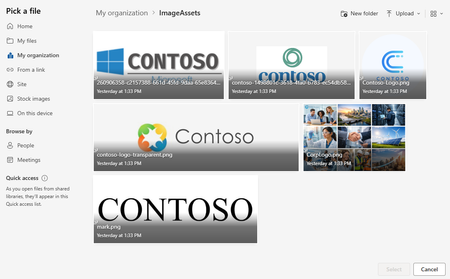
Overview This guide walks through a practical approach to setting up SharePoint Online (SPO) Organizational Assets Libraries (OAL). It includes optional guidance for more complex tenants—such as Multi-Geo and Information Barriers (IB) - because those scenarios are often under-documented. What you’ll accomplish: Create and register Organizational Assets Libraries so templates, fonts, and brand images are available in Office apps, with notes for Multi-Geo, Information Barriers, Brand Center, and Copilot integration where applicable. Applies to: Standard (single-geo) tenants, Multi-Geo tenants, tenants with Information Barriers, and environments using Brand Center and/or Copilot features for organizational assets. Quick start (standard single-geo tenant) Create a SharePoint site to host Organizational Assets Libraries (often the Brand Center site). Create three document libraries (typical): ImageAssets, DocumentAssets (templates), FontAssets. Grant your intended audience Read access (commonly Everyone except external users via the site’s Visitors group). Enable the SharePoint Online Public CDN (tenant setting). Add a Public CDN origin for each library path (one origin per library). Upload approved assets (images, templates, fonts) into their respective libraries. Register each library with Add-SPOOrgAssetsLibrary (repeat per library). Validate registration and end-user experience, then allow up to 24 hours for Office apps to reflect changes. If you’re Multi-Geo or using Information Barriers: follow the same flow, but repeat per geo and complete registration while the site is in Open IB mode (details below). Key constraints and gotchas Multi-Geo: plan a repeatable per-geo pattern (typically one Org Assets site + matching libraries per geo) and keep naming consistent. Information Barriers (IB): Add-SPOOrgAssetsLibrary cannot be run when the target site is segmented—create and register libraries first (site in Open mode), then segment if needed. The “Everyone except external users” principal may be hidden by default, but it’s still commonly used for broad read access. Brand Center: many orgs host Org Assets Libraries in the Brand Center site; if Brand Center is created after libraries exist, it typically detects and uses them automatically. A public CDN must be enabled to support Organizational Assets Libraries. The “Everyone except external users” principal may be hidden by default, but it’s still commonly used for broad read access. Brand Center: many orgs host Org Assets Libraries in the Brand Center site; if Brand Center is created after libraries exist, it typically detects and uses them automatically. A public CDN must be enabled to support Organizational Assets Libraries. Implementation steps Prerequisites: SharePoint Online Management Shell access (or equivalent), permission to manage tenant settings, and the ability to create sites and libraries in each geo. Create a site to host your Organizational Assets Libraries (many orgs use a communication site). For ease of support, keep the site name, library names, and structure consistent over time. Note: A Communication site is recommended, but a Team site can also work. Example site URLs: In a standard tenant you’ll have one site; in Multi-Geo you’ll typically use one per geo. Primary geo: https://contoso.sharepoint.com/sites/BrandCenter EUR geo: https://contosoEUR.sharepoint.com/sites/BrandCenter APC geo: https://contosoAPC.sharepoint.com/sites/BrandCenter If your tenant uses Information Barriers, keep each site in Open IB mode while creating the Org Assets Libraries. You can segment the site later (if required) after libraries are created. Configure a public CDN (required) To use Brand Center and Organizational Assets Libraries, configure SharePoint Online to use a Public CDN. Set-SPOTenantCdnEnabled -CdnType Public -Enable $true Example output: Public CDN enabled locations: SITES/BRANDCENTER/FONTS */MASTERPAGE (configuration pending) */STYLE LIBRARY (configuration pending) */CLIENTSIDEASSETS (configuration pending) Note: You will see the new CDN is in a pending state until complete. This will take some time. Wait for the CDN to finish provisioning. Re-run the status/list commands until “pending” entries clear. Get-SPOTenantCdnEnabled -CdnType Public Get-SPOTenantCdnOrigins -CdnType Public Add CDN origins for each library Add allowed CDN origins for each asset library path (typically one origin per library). Example: Add-SPOTenantCdnOrigin -OriginUrl sites/BrandCenter/ImageAssets -CdnType Public Add-SPOTenantCdnOrigin -OriginUrl sites/BrandCenter/TemplateAssets -CdnType Public Add-SPOTenantCdnOrigin -OriginUrl sites/BrandCenter/FontAssets -CdnType Public Set permissions (required for broad consumption) To ensure most users can consume the assets, grant Everyone except external users (often abbreviated as EEEU) Read access (commonly via the site’s Visitors group). Example: add Everyone except external users to the Visitors group of the Organizational Assets site. Connect-SPOService -Url 'https://contoso-admin.sharepoint.com' $tenant = "9cfc42cb-51da-4055-87e9-b20a170b6ba3" $site = Get-SPOSite -Identity "https://contoso.sharepoint.com/sites/BrandCenter" $group = Get-SPOSiteGroup $site -Group "BrandCenter Visitors" Add-SPOUser -LoginName ("c:0-.f|rolemanager|spo-grid-all-users/" + $tenant) -Site $site -Group $group.Title Note: Organizational Assets Libraries respect SharePoint security trimming. If you need a narrower audience, grant Read to the appropriate groups instead of tenant-wide access. In many environments, Everyone except external users is required during registration (Add-SPOOrgAssetsLibrary) so Office can enumerate the library—test and confirm in your tenant before removing broad access. Create libraries and upload assets Create a document library for each asset type you plan to publish (for example: images, Office templates, fonts). For example: Upload your assets into the appropriate libraries. Example: Register each library using Add-SPOOrgAssetsLibrary. For this to work, Everyone except external users must already have access to the site (for example, via the Visitors group). Office Template Library Example: Add-SPOOrgAssetsLibrary -LibraryUrl 'https://contoso.sharepoint.com/sites/BrandCenter/DocumentAssets' -OrgAssetType OfficeTemplateLibrary Image Document Library Example: Add-SPOOrgAssetsLibrary -LibraryUrl 'https://contoso.sharepoint.com/sites/BrandCenter/ImageAssets' -OrgAssetType ImageDocumentLibrary Font Document Library Example: Add-SPOOrgAssetsLibrary -LibraryUrl 'https://contoso.sharepoint.com/sites/BrandCenter/FontAssets' -OrgAssetType OfficeFontLibrary -CdnType Public Optional: Enable Copilot support for an image library (only applicable to ImageDocumentLibrary). Set-SPOOrgAssetsLibrary -LibraryUrl 'https://contoso.sharepoint.com/sites/BrandCenter/ImageAssets' -OrgAssetType ImageDocumentLibrary -CopilotSearchable $true Multi-Geo mini runbook (recommended pattern) Use this as a simple tracking sheet so each geo ends up with a complete, consistent setup. Geo Site URL Libraries CDN origins added Libraries registered Primary https://<tenant>.sharepoint.com/sites/<BrandCenterOrAssetsSite> ImageAssets / DocumentAssets / FontAssets Yes/No Yes/No EUR https://<tenant>EUR.sharepoint.com/sites/<BrandCenterOrAssetsSite> ImageAssets / DocumentAssets / FontAssets Yes/No Yes/No APC https://<tenant>APC.sharepoint.com/sites/<BrandCenterOrAssetsSite> ImageAssets / DocumentAssets / FontAssets Yes/No Yes/No Naming standard (strongly recommended): keep the same site path and the same library names in every geo (for example, always ImageAssets, DocumentAssets, FontAssets). This minimizes per-geo scripting differences and reduces support effort. Wrap-up At this point, each geo should have its own site, libraries, CDN origins, and registered Organizational Assets Libraries. From here, focus on governance (who can publish/approve assets), naming standards, and ongoing lifecycle management (retire old templates/fonts and keep branding current). Validate configuration Admin checks (PowerShell) Confirm the Public CDN is enabled. Confirm CDN origins include one entry per assets library path. List registered Org Assets Libraries and verify each URL + type is present. Get-SPOTenantCdnEnabled -CdnType Public Get-SPOTenantCdnOrigins -CdnType Public Get-SPOOrgAssetsLibrary End-user checks (Office apps) In PowerPoint/Word, confirm organizational templates appear in the template picker (if you registered an OfficeTemplateLibrary). In Office font lists, confirm your org fonts appear (if you registered an OfficeFontLibrary). For image libraries, confirm approved brand images appear in supported pickers; if you enabled -CopilotSearchable, confirm images are discoverable as expected. Timing: New registrations and updates can take up to 24 hours to appear in Office apps. If you updated content, run Set-SPOOrgAssetsLibrary for each changed library, then wait for propagation. Updating content in existing Org Assets Libraries If you already have Organizational Assets Libraries registered and you need to publish updated templates, fonts, or images, use the process below. The high-level flow is: update content → run Set-SPOOrgAssetsLibrary (per library) → wait for propagation. Replace or update content in each library. Upload the new versions of templates/fonts/images into the appropriate library (and remove/retire older versions if needed). If Multi-Geo applies, repeat per geo. Update the matching libraries in each geo’s site so users in each geo get the same (or intentionally regional) set of assets. Run Set-SPOOrgAssetsLibrary for each updated library. Execute the cmdlet against the library URL to refresh the configuration after content changes (run it once per library you updated). Wait for Office app propagation. Allow up to 24 hours for updates to begin showing in Office apps. Example: Set-SPOOrgAssetsLibrary -LibraryUrl 'https://contoso.sharepoint.com/sites/BrandCenter/DocumentAssets' -OrgAssetType OfficeTemplateLibrary Notes: If your site is segmented by Information Barriers, confirm the cmdlet behavior in your environment before making changes, and prefer performing registration/updates while the site is in Open mode when possible. For image libraries, if you are using Copilot integration settings (for example -CopilotSearchable), keep the setting consistent when you run Set-SPOOrgAssetsLibrary. Make sure the intended audience still has Read access to the site/library; otherwise users may not see updates due to security trimming. Please note: After registering (or updating) your assets libraries, it can take up to 24 hours before changes become available in Office apps. Once fully enabled, Office apps will surface your templates and fonts. Below is an example. Example of interacting with Org Assets from M365 Apps Org Fonts from PowerPoint: From SharePoint: From Office Apps: Troubleshooting tips If Add-SPOOrgAssetsLibrary fails, confirm the site is not segmented by Information Barriers (Open mode during setup). If assets don’t appear in Office apps, wait for propagation (up to 24 hours) and re-check that the library was registered successfully. If CDN commands show “pending”, allow time for provisioning and re-run the status command. If users can’t see assets, verify the site/library permissions include Everyone except external users (or the intended audience group). Guidance: Using the SharePoint Online Public CDN Enabling the SharePoint Online Public CDN is a required and supported configuration for Organizational Assets Libraries, Brand Center, and related Office experiences. While the word “public” can sound concerning, it’s important to understand what is (and is not) exposed. We take great care to protect the data that runs your business. Data stored in the Microsoft 365 CDN is encrypted both in transit and at rest, and access to data in the Microsoft 365 SharePoint CDN is secured by Microsoft 365 user permissions and token authorization. Requests for data in the Microsoft 365 SharePoint CDN must be referred (redirected) from your Microsoft 365 tenant or an authorization token won't be generated. See: Content delivery networks - Microsoft 365 Enterprise | Microsoft Learn What “Public CDN” actually means Only explicitly approved library paths are cached The CDN does not expose your entire tenant. Administrators must explicitly register CDN origins (specific library paths). If a library is not registered as a CDN origin, it is not served via the CDN. No new content types are exposed The CDN is intended for static, non-sensitive assets such as: Brand images Office templates Fonts It is not designed for documents containing confidential or regulated data. Why Microsoft requires a Public CDN for Org Assets? Performance and reliability Office clients worldwide retrieve assets faster using geographically distributed edge caching. This avoids repeated downloads from SharePoint origin sites. Consistent Office app experiences PowerPoint, Word, Excel, and Copilot rely on CDN-backed delivery to surface: Templates Fonts Brand images Without a public CDN, these features may not function correctly or at all. Best practices Use the practices below to keep Organizational Assets Libraries reliable, secure, and easy for end users to adopt. Where relevant, notes call out additional considerations for Multi-Geo, Information Barriers, Brand Center, and Copilot. Governance and ownership checklist Owners/publishers: named group who can add/change assets (limited membership). Approvals: defined review/approval step before publishing new templates/fonts/images. Versioning/retention: how you retire old assets and prevent outdated branding from appearing in pickers. Rollback plan: how to revert a bad template/font/image quickly. Change communication: how you notify users about new/updated assets and expected timing (up to 24 hours). Assign clear owners (typically Brand/Comms) and a small admin group (typically IT) for each geo’s library and site. Decide what is “approved” vs “draft” content, and enforce it with a simple publishing process (for example, a review checklist or an approvals flow). Version and retire assets deliberately: keep one “current” template set and archive old assets to prevent users from picking outdated branding. Information architecture and naming Keep library names and structures consistent across geos (same library names, same folder conventions) to simplify support and documentation. Use descriptive filenames users can recognize in pickers (for example, “Contoso_Proposal_Template_v3”). Prefer a small number of clearly defined libraries by asset type (images, templates, fonts) rather than many small libraries. Permissions and access Ensure your intended audience has at least Read access to the site and libraries; Organizational Assets still follow SharePoint security trimming. If you use broad access (for example, Everyone except external users), document it and pair it with tight contributor permissions so only approved publishers can change assets. Avoid breaking inheritance in ways that make troubleshooting difficult—keep permissions simple and predictable whenever possible. CDN configuration Plan CDN changes ahead of time: enabling and provisioning can take time, and changes may not be immediate. Register only the origins you need (one per assets library path) and keep them consistent across environments. After changes, allow for propagation time before validating in Office apps. Multi-Geo and Brand Center Use a repeatable pattern: one site + matching libraries per geo, with the same structure and operational runbook. Be aware Brand Center is created in the primary geo; confirm how your org wants to manage global vs regional assets. Document which assets are global (shared everywhere) vs regional (geo-specific) to avoid confusion for publishers and users. Information Barriers (IB) sequencing Create and register Org Assets Libraries before segmenting the site when IB is enabled (create while the site is in Open mode, then segment later if required). After segmentation, re-validate that the right audience can still read the libraries (and that publishers can still manage content). Copilot readiness (image libraries) Use consistent, high-quality metadata for images (titles, descriptions, and tags). Copilot search quality depends heavily on this. If enabling image tagging integration, standardize on a tagging vocabulary (for example, brand terms, campaigns, departments, regions) so results are predictable. Only enable Copilot searchable settings on libraries where content is approved and intended for broad reuse. Q&A Q: What is an Organizational Assets Library (OAL)? A: It’s a SharePoint document library (or set of libraries) that you register so Office apps can surface approved templates, fonts, and images to users directly within the app experience. Q: Do I need SharePoint Brand Center to use OAL? A: No. You can use Organizational Assets Libraries without Brand Center. Brand Center can make asset management more accessible, for example, allowing SharePoint sites to use organizational branding, but OAL can be configured on its own. Q: Why is a “Public CDN” required, and is it safe? A: Office experiences rely on CDN-backed delivery for performance and reliability. “Public CDN” does not mean your whole tenant is exposed—only the specific library paths you register as CDN origins are cached. Access is still governed by Microsoft 365 authentication, token authorization, and SharePoint permissions. Q: Can I use this guide in a standard (single-geo) tenant? A: Yes. In a standard tenant you usually create one site and one set of libraries. The Multi-Geo guidance is only needed if your tenant is Multi-Geo (in which case you’ll typically repeat the pattern per geo). Q: How do Information Barriers (IB) affect setup? A: If a site is segmented, Add-SPOOrgAssetsLibrary cannot register the library. Create the site and register the libraries while the site is in Open mode, then segment afterward if required. Q: Why does “Everyone except external users” (EEEU) matter? A: In many environments, EEEU is required during library registration so Office can enumerate the library. However, OAL still respects SharePoint security trimming. If broad internal availability is the goal, a common pattern is to grant EEEU Read (often via the Visitors group) so Office apps can surface the assets to most internal users. If you need a narrower audience, use a group instead. Q: How long until assets show up (or update) in Office apps? A: It can take up to 24 hours for new registrations or updates to propagate. If you replaced content in an existing library, run Set-SPOOrgAssetsLibrary for each updated library, then allow time for Office apps to refresh. Q: How do I update content in an existing Org Assets Library? A: Replace the files in the library (and repeat across geos if applicable), then run Set-SPOOrgAssetsLibrary against each library you updated. After that, allow up to 24 hours for the updated assets to start showing in Office apps. Q: Do I need to run Set-SPOOrgAssetsLibrary every time I replace files? A: If you want Office apps to reliably pick up changes, run Set-SPOOrgAssetsLibrary after you update content (especially when publishing new/updated templates, fonts, or images). Treat it as the “refresh” step, then wait for propagation. Q: When should I enable Copilot support (CopilotSearchable) for an image library? A: Enable it only for libraries that contain approved, broadly reusable images and have strong metadata (title/description/tags). This helps ensure search results are on-brand and reduces the chance of surfacing unreviewed content. Q: Can I undo this later? A: Yes. You can unregister an Organizational Assets Library using SharePoint Online PowerShell (for example, Remove-SPOOrgAssetsLibrary) and remove CDN origins if you no longer need them. Plan governance so you can retire assets cleanly without disrupting users. Q: Users can’t see the assets (or updates)—what should I check first? A: Start with (1) permissions to the site/library (security trimming), (2) successful registration via Add-SPOOrgAssetsLibrary, (3) if you’re expecting an update, confirm you ran Set-SPOOrgAssetsLibrary for that library, (4) CDN provisioning status and configured origins, and (5) propagation time (up to 24 hours). Additional Reading Create an organization assets library - SharePoint in Microsoft 365 | Microsoft Learn Connect organizational asset libraries to Copilot for an on-brand experience - SharePoint in Microsoft 365 | Microsoft Learn Connect organizational asset libraries to PowerPoint for an on-brand experience - SharePoint in Microsoft 365 | Microsoft Learn Set up and connect organizational asset library (OAL) with image tagging to Copilot search | Microsoft Learn Add-SPOOrgAssetsLibrary (Microsoft.Online.SharePoint.PowerShell) | Microsoft Learn SharePoint Brand Center - SharePoint in Microsoft 365 | Microsoft Learn How to Enable Enterprise Brand Images with PowerPoint Copilot - SharePoint in Microsoft 365 | Microsoft Learn Office 365 Content Delivery Network (CDN) Quickstart - Microsoft 365 Enterprise | Microsoft Learn Use Office 365 Content Delivery Network (CDN) with SharePoint Online - Microsoft 365 Enterprise | Microsoft Learn Content delivery networks - Microsoft 365 Enterprise | Microsoft Learn Multi-Geo Capabilities in OneDrive and SharePoint - Microsoft 365 Enterprise | Microsoft Learn Use Information Barriers with SharePoint | Microsoft Learn2.9KViews3likes0CommentsMicrosoft 365 Copilot Brand Kits: Making On-Brand Content Easier to Create
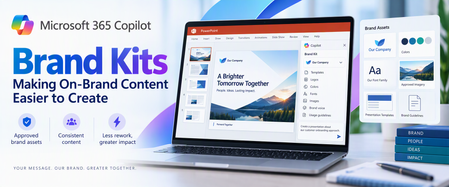
Creating a presentation should begin with the message, not with searching for the latest logo, confirming the correct font, or finding a slide deck that looks close enough to the corporate standard. AI can accelerate content creation, but speed alone does not solve brand consistency. Without the right assets and guidance, the result can still require significant cleanup before it is ready to share. Microsoft 365 Copilot Brand Kits bring approved brand assets and guidance into the content creation experience. Employees gain a clearer starting point, while brand managers and IT can control which organizational branding is available and who can manage it. The opportunity is straightforward: make approved branding easier to use, reduce avoidable rework, and help people focus on what they want to communicate. This article explains what Brand Kits include, how personal, shared, and official kits differ, how templates and organizational asset libraries affect PowerPoint results, and what administrators should configure before a pilot. Readers who are evaluating the experience can begin with the PowerPoint and template sections; administrators can start with setup, governance, and storage. What is a Copilot Brand Kit? A Brand Kit is a managed collection of approved brand assets and guidance—such as logos, colors, fonts, imagery, templates, and tone—that helps people create content aligned with an organization’s identity. In Microsoft 365 Copilot, Brand Kits provide a consistent starting point for branded content while allowing organizations to control how those assets are created, shared, and published. A Brand Kit brings together the elements that define an organization’s visual and verbal identity. Depending on how it is configured, that can include: Logos: Primary, secondary, and approved variations. Colors and fonts: Brand palettes and typography. Images and icons: Approved photography, illustrations, and visual assets. Templates and layouts: Reusable structures for creating content. Brand voice: Guidance on tone, terminology, and communication style. Usage guidelines: Rules for how brand elements should—and should not—be used. These elements help connect content creation to the organization’s standards rather than leaving each employee to assemble their own interpretation. For organizations with multiple brands, business units, or product identities, separate kits can help keep the right assets associated with the right content. Think of a Brand Kit as a managed starting point, not a guarantee that every generated result will be publication-ready. Personal, shared, and official: Understanding the three kit types Brand Kits support three different scopes of use. Personal Brand Kits: Personal kits are available only to their creator. They support individual work without exposing those assets across the organization. Creation rights still depend on organizational policy. “Personal” describes the kit’s audience—not an exemption from administrative controls. Shared Brand Kits: Shared kits make assets available to selected people based on the permissions assigned by the creator. They can support a department, project, or other defined group. Giving someone edit permission on a shared kit does not bypass the organization’s restrictions on who may create or edit kits. Official Brand Kits: Official kits are managed by designated brand managers and made available across the tenant. They provide an organization-wide option for approved corporate branding. This distinction matters: a kit shared with a team is not automatically an official organizational kit. How Brand Kits help in PowerPoint For PowerPoint, a Brand Kit provides access to approved assets and presentation templates that help guide generated content. Users can select an available Brand Kit when creating content and ask Copilot to incorporate relevant brand imagery. They can also start from an approved presentation or template. A practical approach is to: Choose the appropriate published Brand Kit. Use an approved template suited to the presentation. Describe the audience, purpose, and desired structure. Generate the content. Review the result for accuracy, readability, accessibility, and brand alignment. Selecting a Brand Kit does not automatically restyle existing slides. If the goal is to update an existing presentation, explicitly request or apply the branding changes. Copilot supports PowerPoint on Windows, Mac, and the web; availability also depends on licensing and organizational settings. Your template is as important as your assets A complete logo library cannot compensate for a weak PowerPoint template. Templates must show how the organization presents information, not merely define a color palette. Representative slides demonstrate how titles, text, images, charts, and other objects work together in realistic layouts. Include representative sample slides You do not need one sample slide for every possible layout. Instead, provide examples that reflect common and specialized presentation needs. A practical collection might include: A title slide and section divider. A straightforward content slide. An image-led slide. A chart or table. A process or timeline. A summary and next-steps slide. Choose examples that reflect how people actually communicate in your organization. A sales presentation and a technical briefing may need different patterns. Make placeholders intentional Copilot uses placeholder type, position, and size to understand the layout. Placeholder text is not a hidden instruction channel. Writing “Insert an executive summary here” inside a placeholder does not make that wording a semantic instruction to Copilot. Use the prompt to explain the communication goal. Use the template to demonstrate the presentation structure. Prepare for varying amounts of content Copilot does not resize the font or placeholder when generated text needs more space. Instead, it may add design elements to accommodate the content. That makes review important. Check for overcrowded slides, awkward text flow, and content that would be clearer if split across multiple slides. Keep instructions separate where possible Instructional slides can remain when they use reusable layouts, but mixing template guidance with normal presentation content can produce unintended results. A better practice is to keep reusable sample slides focused on the desired output and maintain detailed authoring instructions separately. Both .pptx and .potx files are supported as Brand Kit templates. Administrative setup Microsoft’s setup guidance directs administrators to configure the brand manager policy in the Microsoft 365 Apps admin center (config.office.com) using a tenant-wide policy and the designated security group. The setting appears as Elevated role for Brand Managers. Allow up to 24 hours for policy changes to take effect before treating a missing capability as a configuration failure. Restricting kit creation does not prevent users from accessing and using published official kits. Group membership matters Official editing and publishing rights are granted to members of the configured mail-enabled security group. Being a group owner is not enough. If an owner also needs to manage official Brand Kits, ensure that person is a member as well. Governance: Two permission checks, not one One of the most important administrative details is the relationship between two controls: Restrict brand kit creation governs who can create and edit kits. Enterprise Brand Manager governs publishing and management of official kits. When creation restrictions are enabled, a user needs the appropriate permissions under both controls to create and publish an official kit. For example, a person with Enterprise Brand Manager rights who is not in the permitted creation group cannot create or edit kits under that restriction. Conversely, someone allowed to create kits does not automatically have permission to publish an official kit. Storage and organizational asset libraries The implementation guidance supplied with this article describes Brand Kit data as stored in SharePoint Embedded containers: Personal and shared kits use user-based containers. Official kits use the official Brand Kit container. Organizations should verify which governance, labeling, retention, and access controls apply to their SharePoint Embedded containers and configuration. SharePoint Embedded storage does not by itself establish that every policy used for a conventional SharePoint site applies in the same way. An organizational asset library, or OAL, has a related but different role. An OAL can hold approved assets that a Brand Kit references. This lets organizations reuse an established asset collection rather than treating every kit as a separate collection of uploaded files. For PowerPoint, the important distinction is: In PowerPoint, users select the published Brand Kit, while the organizational asset library can supply assets referenced by that kit. Referencing assets also makes source accessibility important. If an asset cannot be found, check that the referenced OAL content remains accessible. Uploading the asset into the kit may be an alternative where appropriate. A practical way to get started Start with a focused pilot rather than loading every brand asset your organization owns into the first kit. Choose one presentation scenario Select a common use case, such as customer updates, internal briefings, or project reviews. This gives the team a concrete way to assess whether generated content meets real needs. Agree on ownership Identify who approves the assets, who maintains the template, who publishes the kit, and who manages the supporting permissions. A clear owner makes it easier to keep the kit current after launch. Prepare the template Review sample slides, placeholders, theme colors, fonts, and reusable layouts. Remove outdated examples and separate instructional material from production-ready samples where possible. Assemble the assets and guidance Include the approved logos, imagery, colors, fonts, and brand guidance needed for the pilot. Use compatible asset formats and sensibly sized images. Avoid unnecessarily large files—particularly images over 10 MB—as a performance precaution, not as a stated product upload limit. Configure permissions and publish Confirm both creation/editing permissions and official publishing rights. Check actual group membership rather than assuming that ownership or another administrative role provides access. Test with realistic prompts Evaluate more than whether the logo appears. Check layout selection, content density, imagery, readability, tone, and factual accuracy. Use the results to improve the kit and template before expanding adoption. An example prompt After selecting the appropriate Brand Kit, try a prompt such as: Create a presentation introducing our proposed customer onboarding approach to business stakeholders. Use the selected Brand Kit and its approved presentation template. Include the business problem, proposed approach, implementation stages, responsibilities, and next steps. Keep each slide focused on one main idea, use approved brand imagery where relevant, and add speaker notes. Do not invent metrics or customer examples; identify any missing information. The prompt explains the audience, purpose, and structure. The selected kit supplies the approved brand context. Four reliable ways to apply branding Choose the method that matches the task: use the organization theme for standard defaults, begin with a seed file when the presentation needs established structure, apply a named theme when that theme is available, or select a brand directly in PowerPoint. Frequently asked questions Do we need a sample slide for every layout? No. Prioritize representative examples across the slide types and specialized scenarios your organization actually uses. Can placeholder text tell Copilot what to generate? Not as semantic guidance. Placeholder type, position, and size inform layout; placeholder wording can influence styling but is not treated as an instruction. What happens when text does not fit? Copilot does not change the font size or placeholder size. It may add design elements. Review the result and simplify or split content where needed. Which template formats are supported? Both .pptx and .potx. Can instructional slides stay in the template? They can, when they use reusable layouts. However, keeping instructions separate reduces the risk of guidance appearing as presentation content. Can existing OAL assets be used? Yes. A Brand Kit can reference approved OAL assets. For PowerPoint Brand Kit selection, publish the kit rather than relying on the OAL alone. Why can a brand manager not create or publish an official kit? Check both permission controls. When creation restrictions are enabled, Enterprise Brand Manager rights alone are insufficient if the person is outside the permitted creation group. Also confirm that the person is a member, not only an owner, of the relevant group. Does selecting a kit update an existing presentation? No. Explicitly request or apply branding to existing slides. What should we check when assets are missing? Confirm that the kit is published, the expected assets are included, and referenced OAL content is accessible. Where appropriate, upload the assets directly into the kit. What most affects the quality of the output? The completeness of the kit and the quality of its template—especially representative sample slides, usable placeholders, and consistent theme settings. The bottom Line Microsoft 365 Copilot Brand Kits can make approved branding easier to use in everyday content creation. The strongest approach combines three things: a well-prepared kit, a well-designed template, and clear ownership. Start with a focused scenario, test realistic output, and refine the underlying assets and guidance. Human review remains essential, but a stronger starting point lets people spend less time correcting formatting and more time communicating clearly. References Create and manage official Brand kits in the Microsoft Copilot app | Microsoft Support Edit with Copilot in PowerPoint | Microsoft Support Use branded templates in the Microsoft Copilot app | Microsoft Support Enterprise brand manager policy setup | Microsoft Learn Set Up the Restrict Brand Kit Creation Policy in Microsoft Copilot | Microsoft Learn Keep your presentation on-brand with Copilot | Microsoft Support
From Teams Admin Center to Pro Management Portal: The Readiness Checks That Actually Matter
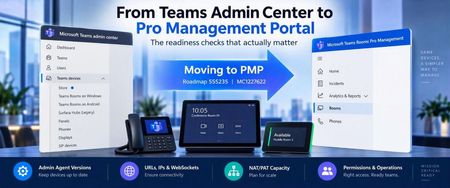
If you've managed Teams Rooms, Teams Phones, or Teams Panels for any length of time, you've probably noticed the steady shift towards the Teams Rooms Pro Management Portal (PMP). The deadline for this move from Teams Admin Center (TAC) to PMP is currently this month. October 2026. We're just waiting on the Android background for feature parity between the two portals. What started as a roadmap item earlier this year is now becoming reality. Android device management is moving out of Teams Admin Center (TAC) and into PMP, making PMP the primary management experience for Teams Rooms on Android, Teams Phones, Teams Panels, and SIP devices. At first glance, this looks like a portal migration, but I think that's the wrong way to think about it. The biggest risk isn't learning where Microsoft moved a button. The biggest risk is assuming a device is manageable because it can still join a meeting. Over the last few months I've spoken with customers managing hundreds, and sometimes thousands, of Teams devices. Very few were worried about the portal itself. Most were asking much more practical questions: Are all our devices actually ready? What happens to devices that have been offline for months? Do we need firewall changes? How do we know PMP is really working? What breaks if we miss something? Those are the questions worth focusing on. What Is Actually Changing? Microsoft is consolidating Teams Android device management into a single administration experience. For organisations today, that means inventory, health monitoring, update management, configuration management, and remote actions are increasingly moving into PMP. The affected devices include: Teams Rooms on Android Teams Phones Teams Panels SIP Phones For end users, very little changes (a recurring theme!). For the teams supporting hundreds or thousands of devices, quite a lot changes. Three things to check now 1. Check Admin Agent Versions Microsoft has introduced Admin Agent requirements as part of the PMP transition and unsupported versions may prevent devices from onboarding or communicating correctly with PMP. My recommendation is simple: don't plan around the minimum supported version. Plan around the latest supported version available for your platform. Also remember to check: Spare devices Devices in storage Rooms under refurbishment Recently factory-reset devices Those are usually the ones that cause surprises later. 2. Validate Network Connectivity The migration succeeds or fails based on connectivity. Review: Teams device networking requirements PMP connectivity requirements Microsoft 365 endpoints Firewall policies Proxy configuration TLS inspection policies One lesson I've learned repeatedly is that "reachable" doesn't necessarily mean "manageable". A device can happily join meetings while management traffic is being blocked somewhere else in the network path. Oh, and don't cherry pick the the IPs/URLs that you allow - this can cause pain later. Follow the recommendations. 3. Validate Permissions Before making PMP your primary management portal, make sure the right people can actually manage the estate. Validate that: Operations teams can manage devices Regional teams can see their assigned rooms Escalation teams have the access they need Don't wait until TAC functionality disappears to discover a permissions issue. The Gotchas We've Seen in the Field Most of the issues I've seen aren't portal issues. They're networking and operational issues that become visible once devices start relying on PMP. WebSocket Inspection One common mistake is validating HTTPS connectivity and assuming everything is ready. PMP relies on long-lived management connectivity. Devices can still sign in and join meetings while management communications are being disrupted elsewhere. Typical symptoms include: Devices repeatedly going online and offline Delayed health reporting Failed remote actions Stale inventory information If you're using TLS inspection, secure web gateways, or deep packet inspection technologies, test actual PMP functionality, not just connectivity. Proxy Authentication This continues to catch organisations out. Teams Rooms have limited support for proxy authentication. If your environment uses authenticated proxies, make sure Teams devices are appropriately exempted. NAT and PAT Pool Exhaustion This one surprises people. Nobody worries about NAT when they have ten devices. The conversation changes when they have a thousand. Large Teams estates create lots of long-lived outbound connections. When Teams Rooms, Teams Phones, VDI environments, and user devices all share centralised internet egress, source-port exhaustion can become a genuine operational issue. Warning signs include: Random onboarding failures Different behaviour across sites Intermittent disconnects Unexplained connectivity issues during busy periods Offline Devices Every migration looks healthy until somebody opens a cupboard. The devices most likely to cause problems are often: Spare phones Unused rooms Devices awaiting deployment Recently factory-reset systems Before declaring success, actively look for devices that aren't currently reporting. These are usually the last blockers discovered. What Good Looks Like Before declaring the migration complete, I'd want confidence that: Every supported Android device appears in PMP Health telemetry updates consistently Remote actions execute successfully Devices are running supported Admin Agent releases Required Microsoft endpoints are accessible WebSocket traffic is functioning correctly Proxy and firewall policies have been validated NAT/PAT capacity has been reviewed Administrators have the right permissions Operational runbooks reference PMP rather than TAC If you're there, you're probably ready. If you're only checking whether rooms can still join meetings, you're validating the user experience, you're not validating the management plane. Remember, they're not the same thing. Final Thoughts My advice is simple: stop thinking about this as a portal migration, treat it as an entire management-plane migration. For most organisations, the experience inside the room won't noticeably change. The experience for the people supporting hundreds or thousands of devices absolutely will. The customers that have the smoothest transition won't be the ones who learned PMP first. They'll be the ones who validated Admin Agent versions, networking, WebSocket behaviour, permissions, monitoring, and operational processes long before the final TAC management capabilities disappear. That's what readiness looks like. And that's where the real fun starts! Useful links PG Blog: https://learn.microsoft.com/en-us/microsoftteams/rooms/aboutunifieddevicemanagement-pmp1 M365 Roadmap: https://www.microsoft.com/en-gb/microsoft-365/roadmap?searchterms=555235 Teams Devices Network Security Requirements: https://learn.microsoft.com/en-us/microsoftteams/rooms/security?tabs=Android Our old friend Microsoft 365 URLs and IP Address Ranges: https://learn.microsoft.com/en-us/microsoft-365/enterprise/urls-and-ip-address-ranges?view=o365-worldwide
SharePoint NoAccess Sites: Search Indexing and Copilot Misconceptions Guide
What is NoAccess Mode in SharePoint? NoAccess mode is a site-level setting in SharePoint Online that restricts user access to the site without permanently deleting it. Think of it as putting the site behind a locked door, the content still exists, but no one can open it. Why Do Organizations Use It? Temporary Lockdown: When a site is under review, being decommissioned, or needs to be secured quickly. Compliance & Security: Helps prevent accidental data exposure during audits or ownership changes. Preserve Data: Unlike deleting a site, NoAccess keeps the content intact for future reference or migration. How Does It Affect Search and Copilot? Search Indexing: By default, NoAccess mode does not remove the site from the search index. This means files may still appear in search results unless additional controls (like Restricted Content Discovery or NoCrawl) are applied. Copilot Behavior: Copilot uses the same index as Microsoft Search. If a site remains indexed, Copilot can surface summaries or references to its content even if users can’t open the files. This is why governance settings like Restricted Access Control or disabling indexing are critical when using Copilot. Why does this happen? NoAccess blocks site access, not indexing. The site remains in the search index unless indexing is explicitly disabled or Restricted Content Discovery (RCD) is enabled. Security trimming still applies. Users will only see items they have direct permissions to (e.g., via shared links). They cannot open anything they don’t have access to. Copilot respects permissions. It uses the same security model as Microsoft Search and Graph, so it never bypasses access controls. Low Priority. Marking a site as NoAccess is a bulk operation that goes into a low priority queue, specifically to avoid system bottlenecks and ensure real-time content changes are prioritized over less critical updates which means it can take much longer than expected for those sites to stop appearing in search results. What are the options to fully hide content? Turn off Allow this site to appear in search results: This setting removes the site from indexing. Note: change the search setting BEFORE setting NoAccess to a site. Enable Restricted Content Discovery (RCD): This hides the site from search and Copilot while keeping it accessible to those with permissions. There is a PowerShell cmdlet available: Set-SPOSite –identity <site-url> -RestrictContentOrgWideSearch $true Please note that for larger sites, both the RCD and no-crawl processes may require a minimum of a week to reflect updates. According to the RCD documentation, sites with more than 500,000 pages could experience update times exceeding one week. What are the options to get Site Crawl information? When setting up the site for NoCrawl, you can run REST to see if the items are returning in search from that site. You can use a simple REST call like: https://contoso.sharepoint.com/_api/search/query?querytext='path:"<siteurl>"'&sourceid='8413cd39-2156-4e00-b54d-11efd9abdb89'&trimduplicates=false. You have to login into the tenant first. An XML object will be generated, please look for <d:TotalRows m:type="Edm.Int32">1</d:TotalRows> you will see the count going down, at some point the count will be equals to 0, that means all items were removed from index. You can use PnP to check the site settings, here an example - Enable/Disable Search Crawling on Sites and Libraries | PnP Samples, remember PnP is open source and it is not supported by Microsoft. Get-PnPSite | Select NoCrawl Key Takeaways Setting a SharePoint site to NoAccess does not automatically remove it from search or Copilot. Copilot and Search always enforce permissions users never see or access unauthorized content. For complete removal, disable site indexing or enable RCD. Monitor index status to confirm content is truly hidden. Understanding and managing these settings ensures secure, seamless experiences with Copilot and Microsoft Search. Helpful Resources Lock and unlock sites - SharePoint in Microsoft 365 | Microsoft Learn Enable/Disable Search Crawling on Sites and Libraries | PnP Samples Restrict discovery of SharePoint sites and content - SharePoint in Microsoft 365 | Microsoft Learn Contributors: Tania Menice