multifactor authentication
74 Topics
From “No” to “Now”: A 7-Layer Strategy for Enterprise AI Safety
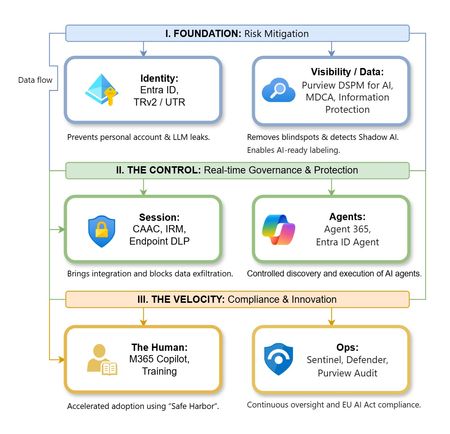
The “block” posture on Generative AI has failed. In a global enterprise, banning these tools doesn't stop usage; it simply pushes intellectual property into unmanaged channels and creates a massive visibility gap in corporate telemetry. The priority has now shifted from stopping AI to hardening the environment so that innovation can run at velocity without compromising data sovereignty. Traditional security perimeters are ineffective against the “slow bleed” of AI leakage - where data moves through prompts, clipboards, and autonomous agents rather than bulk file transfers. To secure this environment, a 7-layer defense-in-depth model is required to treat the conversation itself as the new perimeter. 1. Identity: The Only Verifiable Perimeter Identity is the primary control plane. Access to AI services must be treated with the same rigor as administrative access to core infrastructure. The strategy centers on enforcing device-bound Conditional Access, where access is strictly contingent on device health. To solve the "Account Leak" problem, the deployment of Tenant Restrictions v2 (TRv2) is essential to prevent users from signing into personal tenants using corporate-managed devices. For enhanced coverage, Universal Tenant Restrictions (UTR) via Global Secure Access (GSA) allows for consistent enforcement at the cloud edge. While TRv2 authentication-plane is GA, data-plane protection is GA for the Microsoft 365 admin center and remains in preview for other workloads such as SharePoint and Teams. 2. Eliminating the Visibility Gap (Shadow AI) You can’t secure what you can't see. Microsoft Defender for Cloud Apps (MDCA) serves to discover and govern the enterprise AI footprint, while Purview DSPM for AI (formerly AI Hub) monitors Copilot and third-party interactions. By categorizing tools using MDCA risk scores and compliance attributes, organizations can apply automated sanctioning decisions and enforce session controls for high-risk endpoints. 3. Data Hygiene: Hardening the “Work IQ” AI acts as a mirror of internal permissions. In a "flat" environment, AI acts like a search engine for your over-shared data. Hardening the foundation requires automated sensitivity labeling in Purview Information Protection. Identifying PII and proprietary code before assigning AI licenses ensures that labels travel with the data, preventing labeled content from being exfiltrated via prompts or unauthorized sharing. 4. Session Governance: Solving the “Clipboard Leak” The most common leak in 2025 is not a file upload; it’s a simple copy-paste action or a USB transfer. Deploying Conditional Access App Control (CAAC) via MDCA session policies allows sanctioned apps to function while specifically blocking cut/copy/paste. This is complemented by Endpoint DLP, which extends governance to the physical device level, preventing sensitive data from being moved to unmanaged USB storage or printers during an AI-assisted workflow. Purview Information Protection with IRM rounds this out by enforcing encryption and usage rights on the files themselves. When a user tries to print a "Do Not Print" document, Purview triggers an alert that flows into Microsoft Sentinel. This gives the SOC visibility into actual policy violations instead of them having to hunt through generic activity logs. 5. The “Agentic” Era: Agent 365 & Sharing Controls Now that we're moving from "Chat" to "Agents", Agent 365 and Entra Agent ID provide the necessary identity and control plane for autonomous entities. A quick tip: in large-scale tenants, default settings often present a governance risk. A critical first step is navigating to the Microsoft 365 admin center (Copilot > Agents) to disable the default “Anyone in organization” sharing option. Restricting agent creation and sharing to a validated security group is essential to prevent unvetted agent sprawl and ensure that only compliant agents are discoverable. 6. The Human Layer: “Safe Harbors” over Bans Security fails when it creates more friction than the risk it seeks to mitigate. Instead of an outright ban, investment in AI skilling-teaching users context minimization (redacting specifics before interacting with a model) - is the better path. Providing a sanctioned, enterprise-grade "Safe Harbor" like M365 Copilot offers a superior tool that naturally cuts down the use of Shadow AI. 7. Continuous Ops: Monitoring & Regulatory Audit Security is not a “set and forget” project, particularly with the EU AI Act on the horizon. Correlating AI interactions and DLP alerts in Microsoft Sentinel using Purview Audit (specifically the CopilotInteraction logs) data allows for real-time responses. Automated SOAR playbooks can then trigger protective actions - such as revoking an Agent ID - if an entity attempts to access sensitive HR or financial data. Final Thoughts Securing AI at scale is an architectural shift. By layering Identity, Session Governance, and Agentic Identity, AI moves from being a fragmented risk to a governed tool that actually works for the modern workplace.Authentication Context (Entra ID) Use case
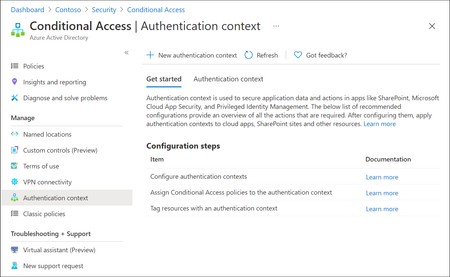
Microsoft Entra ID has evolved rapidly over the last few years, with Microsoft continuously introducing new identity, access, and security capabilities as part of the broader Zero Trust strategy. While many organizations hold the necessary Entra ID and Microsoft 365 licenses (often through E3 or E5 bundles), a number of these advanced features remain under‑utilised or entirely unused. This is frequently due to limited awareness, overlapping capabilities or uncertainty about where and how these features provide real architectural value. One such capability which is not frequently used is Authentication Context. Although this feature is available for quite some time, it is often misunderstood or overlooked because it does not behave like traditional Conditional Access controls. Consider Authentication Context as a mobile “assurance tag” that connects a resource (or a particular access route to that resource) to one or several Conditional Access (CA) policies, allowing security measures to be enforced with resource-specific accuracy instead of broad, application-wide controls. Put simply, it permits step-up authentication only when users access sensitive information or perform critical actions, while maintaining a smooth experience for the “regular path.” When used intentionally, it enables resource‑level and scenario‑driven access control, allowing organizations to apply stronger authentication only where it is actually needed without increasing friction across the entire user experience. Not expensive Most importantly to use Authentication Context the minimum licensing requirement is Microsoft Entra ID Premium P1 which most customers already have this license. so you not need to convenience for higher license to utilize this feature. But do note Entra Premium 2 is needed if your Conditional Access policy uses advanced signals, such as: User or sign‑in risk (Identity Protection) Privileged Identity Management (PIM) protected roles Risk‑based Conditional Access policies The Workflow Architecturally, Authentication Context works when a claims request is made as part of token issuance commonly expressed via the acrs claim. When the request includes a specific context (for example c1), Entra evaluates CA policies that target that context and forces the required controls (MFA, device compliance, trusted location, etc.). The important constraint: the context must be requested/triggered by a supported workload (e.g., SharePoint) or by an application designed to request the claim; it is not an automatic “detect any action inside any app” feature. Lets look at few high level architecture reference 1. Define “assurance tiers” as contexts Create a small set of contexts (e.g., c1: Confidential Access, c2: Privileged Operations) and publish them for use by supported apps/services. 2. Bind contexts to resources Assign the context to the resource boundary you want to protect—most commonly SharePoint sites (directly or via sensitivity labels), so only those sites trigger the context. (e.g - Specific SharePoint sites like financials, agreements etc ) 3. Attach Conditional Access policies to the context Create CA policies that target the context and define enforcement requirements (Additional MFA strength, mandating device compliance, or location constraint through named locations etc.). The context is the “switch” that activates those policies at the right moment. 4. Validate runtime behavior and app compatibility Because authentication context can impact some client apps and flows, validate supported clients and known limitations (especially for SharePoint/OneDrive/Teams integrations). Some Practical Business Scenarios Scenario A — Confidential SharePoint Sites (M&A / Legal / HR) Problem: You want stronger controls for a subset of SharePoint sites without forcing those controls for all SharePoint access. Architect pattern: Tag the confidential site(s) with Authentication Context and apply a CA policy requiring stronger auth (e.g., compliant device + MFA) for that context. Pre-reqs: SharePoint Online support for authentication context; appropriate licensing and admin permissions; CA policies targeted to the context Scenario B — “Step-up” Inside a Custom Line-of-Business App Problem: Users can access the app normally, but certain operations (approval, export, privileged view) need elevated assurance. Architect pattern: Build the app on OpenID Connect/OAuth2 and explicitly request the authentication context (via acrs) when the user reaches the sensitive path; CA then enforces step-up. Pre-reqs: App integrated with Microsoft identity platform using OIDC/OAuth2; the app can trigger claims requests/handle claim challenges where applicable; CA policies defined for the context Scenario C — Granular “Resource-based” Zero Trust Without Blanket MFA Problem: Security wants strong controls on crown jewels, but business wants minimal prompts for routine work. Architect pattern: Use authentication context to enforce higher assurance only for protected resources (e.g., sensitive SharePoint sites). This provides least privilege at the resource boundary while reducing global friction. Pre-reqs: Clearly defined resource classification; authentication context configured and published; CA policies and monitoring. In a nutshell, Authentication Context allows organizations to move beyond broad, one‑size‑fits‑all Conditional Access policies and adopt a more precise, resource‑driven security model. By using it to link sensitive resources or protected access paths to stronger authentication requirements, organizations can improve security outcomes while minimizing unnecessary user friction. When applied deliberately and aligned to business‑critical assets, Authentication Context helps close the gap between licensing capability and real‑world value—turning underused Entra ID features into practical, scalable Zero Trust controls. If you find this useful, please do not forget to like and add your thoughts 🙂Why “Data in Switzerland” Is Not Enough
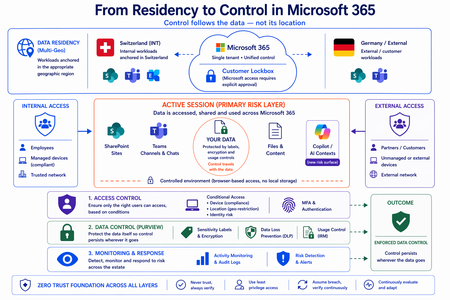
Moving from Residency to Control in Microsoft 365 Every conversation about data sovereignty in regulated industries tends to start the same way: “We use Multi-Geo. The data stays in Switzerland.” It’s the right starting point. Microsoft 365 Multi-Geo allows organizations to place selected workloads - SharePoint sites, OneDrive accounts, Teams data, or Exchange mailboxes - into specific regions, including Switzerland, while maintaining a single global tenant. This makes it possible to align sensitive data with regulatory or customer requirements without fragmenting the overall environment. But it only answers one question: Where is the data stored? It does not answer who accessed the data, from where, under which conditions, or what happened after access. That is where the real problem begins. A scenario that happens every day A Swiss engineering firm stores sensitive project documentation in Switzerland using Multi-Geo. An external contractor - working from an unmanaged device outside Switzerland - is granted access to review a file. The document opens. The data is now on a screen in an unknown location, on a device with no compliance posture, in a session with no restrictions. From the platform’s perspective, residency was enforced. From a sovereignty perspective, control was lost the moment access was granted without conditions. The file never left Switzerland. But sovereignty did. Residency is static. Control is not. The moment a document is opened, storage location stops being the relevant boundary. The file is no longer just “in Switzerland.” It moves instantly across endpoints and browsers, collaboration tools like Teams, external users and partners, and increasingly AI-driven contexts. The infrastructure remains unchanged. The data does not. From the platform’s perspective, everything is working as designed - access was granted, residency was enforced - and control was lost. Most “data in Switzerland” strategies fail at exactly this moment: when the data is used. The shift: from location to conditions If data sovereignty is the goal, the question must change. Not “Where is the data stored?” but: Under which conditions can data be accessed and used? This shift fundamentally changes the architecture. Control must be applied across three distinct layers - and all three must be connected. Layer 1: Access is conditional, not static Conditional Access extends control beyond authentication and turns it into continuous evaluation. Access decisions can depend on: Device compliance Location (geo-restriction) Identity and risk signals Multi-Geo ensures data is placed correctly. Conditional Access ensures it is reachable only under defined conditions. The two must work together - residency without access governance is an incomplete control. Layer 2: The session is the real risk surface Even with strict access controls, risk remains. A session is an exposure surface by design. During an active session, data is viewed, copied, shared, processed by applications, and connected to AI prompts. The gap does not appear at storage or authentication. It appears during active usage - inside the session. This is the layer most architectures do not explicitly address. Controls must extend into the session itself: limiting data transfer and replication, restricting interaction patterns, and enforcing policies in real time. Access is no longer a one-time event. It becomes continuously governed. This becomes even more critical as AI assistants consume content across SharePoint, Teams, Exchange, and other Microsoft 365 services. The question is no longer only where the source document resides - but whether the AI interaction itself is governed by the same access and protection controls as direct access. Layer 3: The document becomes the control point The most durable control does not sit in the network or in the session. It sits in the data itself. In regulated industries, organizations often arrive at this architecture having first evaluated sovereign or national encryption solutions. The decision to rely on native Microsoft 365 Purview encryption rather than a separate layer comes down to integration: AES-256 protection operating natively at file, user, and SharePoint level - including geo-based access restrictions - without an additional system to maintain. When protection is applied directly to the document through Microsoft Purview: Sensitivity labels define classification - automatically assigned based on content Encryption enforces access - AES-256, bound to the file itself IRM controls usage - view, copy, print, share, and presentation rights DLP governs movement across services - preventing data from leaving defined boundaries Dynamic watermarking tracks exposure - applied on open, view, or print At that point, access is enforced by the file, usage restrictions travel with it, and control persists regardless of location. The document becomes the perimeter. Platform control: limiting provider access One dimension often overlooked in sovereignty discussions is platform access itself. Even a perfectly configured tenant is only as sovereign as the controls placed on the operator. Customer Lockbox ensures that even Microsoft support cannot access customer data without explicit, logged, time-bound approval. Every access request is visible, auditable, and subject to customer veto. Data control applies not only to users - but also to the platform operating the service. Enforcement requires an integrated architecture Most organizations already have the required capabilities: Multi-Geo, Conditional Access, session control, Purview (labels, encryption, DLP, IRM), and monitoring. The issue is not capability. It is fragmentation. In practice, fragmentation looks like this: residency is configured in one project, Conditional Access policies are managed by a different team, and Purview labels were applied during a compliance initiative that never connected to the access layer. The tools exist. The signals do not flow between them. When designed as a single architecture: Data is placed intentionally - residency aligned to regulatory requirements Access is governed by context - device, location, and identity evaluated continuously Usage is controlled dynamically - session-level restrictions enforced in real time Protection is embedded in the document - encryption and IRM travel with the file Signals are connected across the platform - monitoring feeds access policy, not just audit logs “Data in Switzerland” becomes not just a statement - but an enforceable system property. Closing thought Placing data in Switzerland is the right first step. Multi-Geo makes it possible, even in global environments. But residency alone is not control. Data residency answers where information is stored. Data sovereignty requires proving who can access it, under which conditions, and what controls remain in place after access is granted. In Microsoft 365, sovereignty is no longer defined by geography alone. It is defined by the ability to enforce control wherever the data travels.
Windows Hello passkeys dialog appearing and cannot remove or suppress it.
Hi everyone, I’m dealing with a persistent Windows Hello and passkey issue in Chrome and Brave and yes this is relevant as they're the only browsers having this issue whilst Edge for example is fine, and at this point I’m trying to understand whether this is expected behavior, a bug, or a design oversight. PS. Yes, I'm in contact with related browser support teams but since they seem utterly hopeless i'm asking here, since its at least partially Windows Hello issue. Problem description Even with: Password managers disabled in browser settings, Windows Hello disabled in Chrome/Brave settings, Windows Hello PIN enabled only for device login, Passkeys still stored under chrome://settings/passkeys (which I cannot delete since its used for logging on the device), The devices are connected to Entra ID but this is not required to reproduce the issue although a buisness account configuration creates a Passkey with Windows Hello afaik. Observed behavior When I attempt to sign in on office.com, Windows Hello automatically triggers a dialog offering authentication via passkeys, even though: I don’t want passkeys used for browser logins, passkeys are turned off everywhere they can be, Windows Hello is intended only for local device authentication. The dialog cannot be suppressed, disabled, or hidden(trust me, i tried for weeks). It effectively forces the Windows Hello prompt as a primary option, which causes problems both personally and in business contexts (wrong credential signaling, misleading users that are supposed to use a dedicated password manager solution insted of browser password managers, enforcing an unwanted authentication flow, etc.). What I already verified Many, many, (too many) Windows registry workarounds that never worked. Dug through almost all flags on those browsers. Chrome/Brave → Password Manager: disabled Chrome/Brave → Windows Hello toggle: off Looked through what feels like almost every related option in Windows Settings. Tried gpedit.msc local rules System up to date Windows Hello configured to use PIN, but stores "passkeys used to log on to this device" Why this is a problem Windows Hello automatically assumes that the device-level Windows Hello credentials should always be available as a WebAuthn authenticator. This feels like a big security and UX issue due to: unexpected authentication dialogs, Inability to controll where and how passkey credential are shared to applications, inability to turn the feature off, no administrative or local option to disable Hello for WebAuthn separately from device login. Buisness users either having issues with keeping passwords in order (our buissnes uses a dedicated Password Manager but this behaviour covers its dialog option) or not having PIN to their devices (when I disable windows hello entierly, since when there is no passkeys the option doesn't appear) Questions Is there any supported way to disable Windows Hello as a WebAuthn/passkey option in browsers, while keeping Hello enabled for local device login? Is this expected behavior from the Windows Hello, or is it considered a bug? Are there registry/policy settings (documented or upcoming) that allow disabling the Windows platform authenticator specifically for browsers like Chrome and Brave? Is Microsoft aware of this issue? If so, is it tracked anywhere? Additional notes This issue replicates 100% across (as long as there are passkeys configured): Windows 11 devices i've managed to get my hands on, Chrome and Brave (latest versions), multiple Microsoft accounts and tenants, multiple clean installations. Any guidance or clarification from the Windows security or identity teams would be greatly appreciated. And honestly if there is any more info i could possibly provide PLEASE ask away.3.9KViews1like3CommentsHow to Resolve Microsoft Authenticator App Issues
The Microsoft Authenticator app is a critical tool for securing accounts through multi-factor authentication (MFA). However, users may sometimes experience issues such as login failures, missing notifications, or app crashes. This guide will walk you through troubleshooting and resolving common Microsoft Authenticator app problems. https://dellenny.com/how-to-resolve-microsoft-authenticator-app-issues/
Hunting for MFA manipulations in Entra ID tenants using KQL
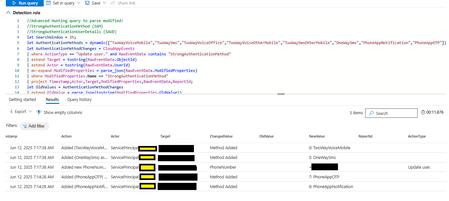
The following article, Hunting for MFA manipulations in Entra ID tenants using KQL proved to be an invaluable resource in my search for an automated way to notify users of MFA modifications. I've adapted the KQL query to function within Defender Advanced Hunting or Azure Entra, my objective is to establish an alert that directly E-Mails the affected user, informing them of the MFA change and advising them to contact security if they did not initiate it. While the query runs correctly under Defender Advanced Hunting, I'm currently unable to create a workable custom alert because no "ReportId" is being captured. Despite consulting with Copilot, Gemini, CDW Support, and Microsoft Support, no workable solution has been achieved. Any insight would be greatly appreciated - Thank You! //Advanced Hunting query to parse modified: //StrongAuthenticationUserDetails (SAUD) //StrongAuthenticationMethod (SAM) let SearchWindow = 1h; let AuthenticationMethods = dynamic(["TwoWayVoiceMobile","TwoWaySms","TwoWayVoiceOffice","TwoWayVoiceOtherMobile","TwoWaySmsOtherMobile","OneWaySms","PhoneAppNotification","PhoneAppOTP"]); let AuthenticationMethodChanges = CloudAppEvents | where ActionType == "Update user." and RawEventData contains "StrongAuthenticationMethod" | extend Target = tostring(RawEventData.ObjectId) | extend Actor = tostring(RawEventData.UserId) | mv-expand ModifiedProperties = parse_json(RawEventData.ModifiedProperties) | where ModifiedProperties.Name == "StrongAuthenticationMethod" | project Timestamp,Actor,Target,ModifiedProperties,RawEventData,ReportId; let OldValues = AuthenticationMethodChanges | extend OldValue = parse_json(tostring(ModifiedProperties.OldValue)) | mv-apply OldValue on (extend Old_MethodType=tostring(OldValue.MethodType),Old_Default=tostring(OldValue.Default) | sort by Old_MethodType); let NewValues = AuthenticationMethodChanges | extend NewValue = parse_json(tostring(ModifiedProperties.NewValue)) | mv-apply NewValue on (extend New_MethodType=tostring(NewValue.MethodType),New_Default=tostring(NewValue.Default) | sort by New_MethodType); let RemovedMethods = AuthenticationMethodChanges | join kind=inner OldValues on ReportId | join kind=leftouter NewValues on ReportId,$left.Old_MethodType==$right.New_MethodType | where Old_MethodType != New_MethodType | extend Action = strcat("Removed (" , AuthenticationMethods[toint(Old_MethodType)], ") from Authentication Methods.") | extend ChangedValue = "Method Removed"; let AddedMethods = AuthenticationMethodChanges | join kind=inner NewValues on ReportId | join kind=leftouter OldValues on ReportId,$left.New_MethodType==$right.Old_MethodType | where Old_MethodType != New_MethodType | extend Action = strcat("Added (" , AuthenticationMethods[toint(New_MethodType)], ") as Authentication Method.") | extend ChangedValue = "Method Added"; let DefaultMethodChanges = AuthenticationMethodChanges | join kind=inner OldValues on ReportId | join kind=inner NewValues on ReportId | where Old_Default != New_Default and Old_MethodType == New_MethodType and New_Default == "true" | join kind=inner OldValues on ReportId | where Old_Default1 == "true" and Old_MethodType1 != New_MethodType | extend Old_MethodType = Old_MethodType1 | extend Action = strcat("Default Authentication Method was changed to (" , AuthenticationMethods[toint(New_MethodType)], ").") | extend ChangedValue = "Default Method"; let AuthenticationMethodReport = union RemovedMethods,AddedMethods,DefaultMethodChanges | project Timestamp,Action,Actor,Target,ChangedValue,OldValue=case(isempty(Old_MethodType), "",strcat(Old_MethodType,": ", AuthenticationMethods[toint(Old_MethodType)])),NewValue=case(isempty( New_MethodType),"", strcat(New_MethodType,": ", AuthenticationMethods[toint(New_MethodType)])); let AuthenticationDetailsChanges = CloudAppEvents | where ActionType == "Update user." and RawEventData contains "StrongAuthenticationUserDetails" | extend Target = tostring(RawEventData.ObjectId) | extend Actor = tostring(RawEventData.UserId) | extend ReportId= tostring(RawEventData.ReportId) | mvexpand ModifiedProperties = parse_json(RawEventData.ModifiedProperties) | where ModifiedProperties.Name == "StrongAuthenticationUserDetails" | extend NewValue = parse_json(replace_string(replace_string(tostring(ModifiedProperties.NewValue),"[",""),"]","")) | extend OldValue = parse_json(replace_string(replace_string(tostring(ModifiedProperties.OldValue),"[",""),"]","")) | mv-expand NewValue | mv-expand OldValue | where (tostring( bag_keys(OldValue)) == tostring(bag_keys(NewValue))) or (isempty(OldValue) and tostring(NewValue) !contains ":null") or (isempty(NewValue) and tostring(OldValue) !contains ":null") | extend ChangedValue = tostring(bag_keys(NewValue)[0]) | extend OldValue = tostring(parse_json(OldValue)[ChangedValue]) | extend NewValue = tostring(parse_json(NewValue)[ChangedValue]) | extend OldValue = case(ChangedValue == "PhoneNumber" or ChangedValue == "AlternativePhoneNumber", replace_strings(OldValue,dynamic([' ','(',')']), dynamic(['','',''])), OldValue ) | extend NewValue = case(ChangedValue == "PhoneNumber" or ChangedValue == "AlternativePhoneNumber", replace_strings(NewValue,dynamic([' ','(',')']), dynamic(['','',''])), NewValue ) | where tostring(OldValue) != tostring(NewValue) | extend Action = case(isempty(OldValue), strcat("Added new ",ChangedValue, " to Strong Authentication."),isempty(NewValue),strcat("Removed existing ",ChangedValue, " from Strong Authentication."),strcat("Changed ",ChangedValue," in Strong Authentication.")); union AuthenticationMethodReport, AuthenticationDetailsChanges | extend AccountUpn = Target | where Timestamp > ago(SearchWindow) //| summarize count() by Timestamp, Action, Actor, Target, ChangedValue, OldValue, NewValue, ReportId, AccountDisplayName, AccountId, AccountUpn | summarize arg_max(Timestamp, *) by Action | project Timestamp, Action, Actor, Target, ChangedValue, OldValue, NewValue, ReportId, AccountDisplayName, AccountId, AccountUpn | sort by Timestamp desc
Authenticator not displaying numbers on MacOS
I'm have an issue with MFA on a Mac (all the latest versions). We have conditional access policies in place, so once a day I'm prompted for MFA (I work off-site) and the Office app (e.g. Outlook, Teams) will create the pop-up window that 'should' display a number that I then match on my phone. My phone see's the push notification, but the Mac never creates the numbers in the first place. The pop-up is there, just no number. The workaround is: Answer 'its not me' on the phone On the Mac, select 'I can't use Authenticator right now' Tell the Mac to send a new request This time it creates the number and I can authenticate on the phone. It only appears to happen for the installed Office applications i.e. if I'm accessing applications/admin-centre via the browser, then the pop-up is within the browser and everything works first time. Is this a known issue?1.6KViews2likes6Comments
Is it possible to allow MFA registration only in a work profile on a managed phone
Hello, I'm currently rolling out MDM via Endpoint Manager and also enforcing compliance policies using conditional access. I would like to allow MFA registration only in work profiles, so that users can only register MFA (for Passwordless sign in) on the Microsoft Authenticator app in their work profile. Does anyone have experience with this, or is this currently even possible? BrS
Global Administrator MFA recovery not possible
Since Microsoft automatically enforced MFA on administrator role in Azure you can end up in the situation where it is no longer possible to recover your tenant. If your only account on that tenant is with Global Administrator role and you accidentally loose your MFA, the only way is to call Microsoft support. Support on the phone is automated where any question regarding Azure is redirected to visit Azure portal. If your only user cannot login then Azure portal is not accessible.
passwordless together with MFA
edit: was an issue using edge under linux which has now support for FIDO2 tokens. you need to use chrome, when login into azure using a linux client. Hi, we are running a CA which enforces MFA through MS-Authenticator App for all users. We would like to set up an alternative way through FIDO2 tokens (passwordless). We still do have users without smart-devices and we also want a soft way for migration. Right now the passwordless login fails because the CA enforces MFA for all users. Is there a way to solve this problem? Or do we have to choose for one to authenticate way for all users? My first idea is to configure the CA so it excludes certain users from the policy? Make a group for passwordless users and exclude them from MFA. Is this the way to go or are there better solutions? Would it be possible to generate this group dynamically for all the users with at least one FIDO2 token in their authentication methods? Or would this idea mean that we have to set this group manually? What are the consequences if an user has MFA and FIDO2 within its authentication methods? Thanks for any answers and any solution. Cheers SebastianSolved