multicloud
79 TopicsAnsible + Azure Arc: Use Ansible modules to deploy and manage Azure Arc machine extensions at scale
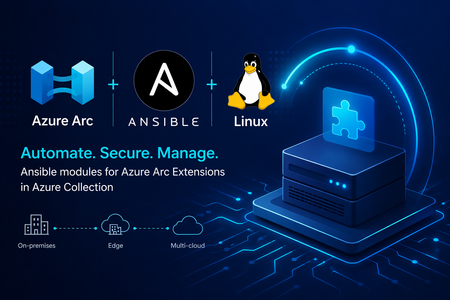
We are making Azure Arc extensible and increasing the flexibility of the tooling you can use to operate your machines using Azure’s control plane. We are excited to announce new modules in Ansible Galaxy that make it easier to manage Azure Arc machine extensions at scale. With the latest updates to the azure.azcollection on Ansible Galaxy, you no longer need to switch between existing tools. You can now deploy and manage Azure Arc extensions using familiar, declarative Ansible workflows. These new modules include: Azure Arc machine extensions module Azure Arc extensions info module Together, they enable infrastructure and platform teams to automate extension lifecycle management across their hybrid estate—bringing consistency, security, and efficiency to Azure Arc-enabled servers. Why this matters Azure Arc machine extensions power critical scenarios such as security, monitoring, update management, configuration and compliance. Until now, managing these Azure Arc extensions across hybrid estates often required Azure CLI scripts, ARM templates, or manual operations. With these new Ansible modules, you can: Integrate Azure Arc extension management into existing Ansible playbooks Enforce consistent configuration across hybrid servers Reduce operational overhead through declarative automation Align extension deployment with broader configuration management workflows What’s included azure_rm_arcmachineextensions This module allows you to manage the full lifecycle of Azure Arc machine extensions, including: Creating and deploying extensions Updating extension settings Removing extensions when no longer needed You can define extension state declaratively, ensuring consistent enforcement across your Azure Arc-enabled servers. azure_rm_arcmachineextensions_info This module provides visibility into extension state by retrieving: Installed extensions on Azure Arc-enabled machines Provisioning status and configuration details Extension metadata for reporting and validation This is useful for compliance validation, auditing, and conditional automation in playbooks. Scenario: Enforcing identity-based SSH access across a hybrid fleet Consider a regulated enterprise that must ensure all Linux servers—whether on-premises or in a multicloud environment—use Microsoft Entra ID for SSH access. The organization wants to: Eliminate local SSH credentials Enforce centralized identity and access controls Audit access consistently across all environments By combining Azure Arc with Ansible, the organization can deploy the Microsoft Entra SSH for Linux extension across all Azure Arc-enabled servers as part of a standardized playbook, ensuring compliance and reducing operational overhead. Example: Deploy Microsoft Entra SSH for Linux extension Below is an example of using Ansible to deploy the Microsoft Entra SSH extension to an Azure Arc-enabled server: - name: Deploy Entra SSH extension to Arc server hosts: localhost connection: local tasks: - name: Install Entra SSH extension for Linux azure_rm_arcmachineextensions: resource_group: myResourceGroup machine_name: myArcServer name: AADSSHLoginForLinux publisher: Microsoft.Azure.ActiveDirectory type: AADSSHLoginForLinux type_handler_version: "1.0" settings: {} state: present Example: Retrieve extension information Below is an example of using Ansible to retrieve details about your Azure Arc extensions: - name: Get Arc machine extension details hosts: localhost connection: local tasks: - name: Fetch extensions azure_rm_arcmachineextensions_info: resource_group: myResourceGroup machine_name: myArcServer Integrating with existing Ansible workflows If you’re already using Ansible for: OS configuration Patch and update management Application deployment You can now extend those workflows to include Azure Arc extension management—without introducing new tools or processes. This allows you to manage on-premises servers, Edge infrastructure and multicloud environments through a unified automation approach powered by Azure Arc and Ansible. Read more at Enable VM Extensions Using Red Hat Ansible - Azure Arc | Microsoft Learn What’s next These modules are part of our continued investment in making Azure Arc a first-class platform for managing Windows and Linux machines in hybrid and multicloud infrastructure. By bringing extension lifecycle management into Ansible, we’re enabling teams to enforce security, compliance, and operational consistency at scale—using the tools they already trust. Stay connected Join the Azure Arc Monthly Forum here: aka.ms/ArcServerForumSignup Let us know what you’d like to see next in the comments!652Views1like0CommentsUnlock On-Prem Productivity with Agentic Retrieval in Foundry Local
In today’s connected world, customers expect instant, context-rich interactions, even in environments where cloud connectivity isn’t guaranteed. That’s where Retrieval-Augmented Generation at the edge comes in. Since we launched into public preview, we’ve watched teams across regulated, disconnected, and mission-critical environments push this technology into places cloud GenAI simply couldn’t reach. What we heard back shaped everything in this release: customers don’t just want retrieval. They want reasoning, they want agency, and they want an end-user experience that feels as natural as the one they already use in the cloud. Today at Build 2026, we're excited to introduce Agentic Retrieval, the next evolution of our on-prem RAG platform, enabled by Azure Arc and powered by Foundry language models. Agentic Retrieval is part of Microsoft's Adaptive Cloud approach, which extends Azure capabilities to wherever customer data and workloads actually live, with Edge AI focused on bringing reasoning and grounding to on-prem, distributed, and disconnected environments. Together with Foundry Local, Agentic Retrieval continues to shape Microsoft's Foundry Anywhere commitment: flexibility, resilience, and intelligence wherever customers operate. What’s new at Build 2026 This release introduces three major pillars that work independently or together: Agentic Retrieval engine: a first-party orchestration runtime for planning, reasoning, conversation state, and tool calls over your local data Knowledge: a dedicated layer for organizing, curating, and governing your grounding data, exposed via MCP and connectable to any agentic retrieval layer Chat UI: a production-ready, polished conversational experience that ships as the default UX for Agentic Retrieval and can also be deployed standalone Alongside, we’re delivering the platform upgrades customers asked for: flexible deployment modes (Agentic-only, Knowledge-only, or Combined), BYOM with pluggable backends, Foundry Local model catalog integration, Entra ID support, disconnected-ready, and hybrid search combined with agentic retrieval. Agentic Retrieval: From Answering to Reasoning Classic RAG retrieves, then generates. Agentic Retrieval plans, reasons, and acts, running multi-step retrieval and tool invocation under a first-party orchestration runtime, entirely on your infrastructure. Under the hood it manages query planning, iterative multi-hop retrieval, tool calls via MCP, conversation state, and mandatory grounding with citations and audit logging built in. What customers can achieve: Compliance, policy, and permit workflows for public sector, regulators, and defense operations, with data never leaving sovereign infrastructure Multi-document synthesis across standards, technical manuals, contracts, and field procedures for industrial operators An agentic chat experience for regulated and operational teams (engineers, inspectors, analysts) that reasons like a subject-matter expert Auditable AI for sovereign and mission-critical environments, with every answer traceable to its source Knowledge: A First-Class, Governed Data Layer Great answers start with great knowledge. Knowledge is now a standalone component customers can deploy on its own or alongside Agentic Retrieval, exposed through an MCP wrapper so it can connect to any agentic retrieval layer, ours or yours. This release brings Collections (segmented groups of indexed knowledge with granular access permissions), multi-source ingestion across documents, tables, images, and SharePoint (indexed source moving to public preview), high-fidelity parsing for complex enterprise content, Bring Your Own MCP to connect customer-owned data sources directly into Agentic Retrieval and the chat experience, and governance enforced at the data layer itself. ent view - collections, sources, and permission scopes What customers can achieve: Scope knowledge access to different slices of the same corpus, by plant, site, classification, or jurisdiction Enforce data sovereignty, residency, and regulatory compliance at the knowledge layer itself Ground both first-party Agentic Retrieval and BYO orchestration through a single governed source of truth across distributed sites Keep classified, proprietary, and operational data fully on-prem while delivering premium chat experiences Chat UI: Production-Ready Conversational Experience Agentic Retrieval now ships with a polished, production-ready Chat UI as its default experience, and the same component can be deployed standalone for customers building their own stack on Foundry Local. Highlights include Entra ID authentication (MSAL login, Bearer tokens, user identity display), pluggable backends across AI Foundry, BYOM, or mock mode with zero code changes, Chain-of-Thought visibility and inline citations that make grounding transparent to end users, standalone frontend deployment via Helm chart and container image, and disconnected-ready operation for air-gapped environments. What customers can achieve: Deliver a polished end-user experience to operators, inspectors, and analysts without building UI from scratch Build trust in regulated and industrial workflows through transparent, inspectable reasoning and grounding Run the same UI across air-gapped facilities, sovereign clouds, and connected industrial sites Accelerate rollout across public sector, defense, manufacturing, and other mission-critical environments Why This Release Matters Every update to our on-prem RAG platform has moved us toward a simple conviction: GenAI should be useful wherever customers operate, whether regulated or open, connected or disconnected, centralized or distributed. With Agentic Retrieval, Knowledge, and Chat UI coming together, backed by Foundry on Arc, BYOM, and fully disconnected support, this is no longer “cloud RAG, but local.” It’s an agentic knowledge platform purpose-built for the realities of enterprise data: on-prem, governed, and increasingly autonomous. Learn More Explore Agentic retrieval documentation Read Foundry Local on Azure Local model inferencing blog post For more information reach out to the team at FoundryLocalOnAzure@microsoft.com598Views0likes0Comments
Simplified access to Hotpatching enabled by Azure Arc for Windows Server 2025
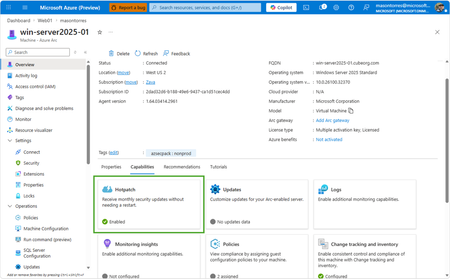
With Windows Server 2025, we introduced hotpatch enabled by Azure Arc, delivering security updates to Windows Server across hybrid and multicloud environments – minimizing downtime (no reboot), accelerating protection, and unifying patch management. We know that keeping your servers updated with the latest patches is one of the critical tasks that IT teams perform day-to-day. We want to make it simpler to install the latest operating system (OS) updates without rebooting machines after every installation. The resounding feedback we have received from you underscored the criticality of this feature in the lifecycle management and security of your infrastructure. We are now taking it one step further to reduce the friction to deploying these critical updates: hotpatch enabled by Azure Arc is now available at no additional cost for Windows Server 2025. Which machines are eligible for this offer? To use hotpatch for Windows Servers running on-premises or in multicloud environments, you must be using Windows Server 2025 Standard or Datacenter, and your server must be connected to Azure Arc. With this announcement, enabling and usage of the hotpatching service is available at no additional charge. Please take note that there are no charges for customers running on Azure IaaS, or Azure Local, wherein hotpatching is available as part of the functionality of Windows Server Datacenter: Azure Edition. This feature is already included both with Windows Server 2022 Datacenter: Azure Edition and Windows Server 2025 Datacenter: Azure Edition. How do I manage hotpatches enabled by Azure Arc for Windows Server 2025? If your Windows Server 2025 machines aren't already connected to Azure Arc, install the Azure Connected Machine agent — it takes just a few minutes per server and supports at-scale rollout via Group Policy, service principal, or Terraform. Once connected, enable Hotpatch from the Azure portal, Azure PowerShell, Azure CLI, or the REST API — just confirm Virtualization-based security (VBS is enabled) first. From there, use Azure Update Manager to schedule and monitor rollouts at scale. For instructions on how to enable hotpatch for Azure Arc-enabled machines using group policy or scripts, learn more here: https://aka.ms/ws-hotpatch For patch orchestration at scale, you can use Azure Update Manager to deliver hotpatches enabled by Azure Arc for Windows server 2025 machines. This enables greater uptime with fewer reboots and faster deployment of updates with easy patch orchestration. Alternatively, you can use APIs or other management tools to manage hotpatches. Centralized management of hotpatch updates across hybrid and multicloud environments enabled by Azure Arc Once your machines are connected to Azure Arc, you can also use the cloud-native services from Azure to manage your windows machines running on-prem. Azure Arc enables you to standardize security and governance across a wide range of resources so you can easily organize, govern and secure Windows, Linux, SQL servers, and Kubernetes clusters running across data centers, edge, and multi-cloud environments – using Azure services such as Azure Policy, Azure Monitor, Microsoft Defender and more. At no additional cost for machines attached to Azure Arc Basic inventory across on-prem and multi-cloud Tag your resources, organize them into resource groups, subscriptions, and management groups, and query at scale with Azure Resource Graph to unify your environments. Infra as Code (Bicep, Terraform) Infra as code for provisioning and management of resources. VM Self Service Perform lifecycle management such as (create, resize, update and delete) and power cycle operations such as (start, stop, and restart on VMware vCenter and System Center Virtual Machine Manager Virtual Machines. Hotpatch for Windows Server 2025 NEW Windows Server hot patching enables you to apply security updates without rebooting, keeping systems secure while maintaining continuous uptime. VM Management Administrate your servers anywhere using SSH for Azure Arc, Run Command, and Custom Script Extension. Mgmt. Services included for no additional costs with Windows Server Software Assurance or Extended Security Updates Azure Update Manager Provides a unified, centralized service to monitor, orchestrate, and automate patching across Azure, on‑prem, and multi‑cloud environments ensuring security, compliance, and minimal downtime at scale. Azure Machine Configuration (Policy) Policy‑driven auditing and enforcement of OS and application settings as code across Azure and hybrid machines—ensuring consistent, compliant state at scale. Including compliance policies like CIS Benchmark and WinRE Change Tracking & Inventory Real‑time visibility into configuration changes and system state across your fleet enabling faster troubleshooting, improved security, and continuous compliance at scale. VM insights from Azure Monitor Delivers a unified, pre‑built observability experience that provides real‑time performance, health, and dependency visibility across VMs—enabling faster troubleshooting, optimization, and capacity planning at scale. Windows Admin Center Unified, browser‑based management plane to securely manage Windows servers, VMs, and hybrid infrastructure from anywhere—simplifying operations and improving efficiency at scale. Best Practices Assessment Continuously evaluation your server configurations against Microsoft-recommended standards to proactively identify risks and provide actionable remediation guidance—improving security, performance, and operational health at scale. Frequently Asked Questions What are hotpatch updates? Hotpatch updates are monthly security updates that take effect without requiring you to restart the device. They contain a full set of security updates equivalent to the standard updates released the same day. What is the hotpatch update cycle? All eligible Windows Server 2025 machines enrolled in hotpatch are offered up to 8 monthly hotpatch updates in a calendar year in a quarterly cycle: Baseline month: In January, April, July, and October, devices install the monthly cumulative security update and must restart for the update to take effect. This update includes the latest security fixes, cumulative new features, and enhancements since the last baseline. Subsequent two months: Devices receive hotpatch updates, which only include security updates and don't require a restart for the update to take effect. These devices will catch up on features and enhancements with the next cumulative baseline month (quarterly). Will billing be stopped for existing enrolled machines? Yes, as of 15 th May 2026 all billing for hotpatch has been stopped for all existing machines enrolled in hotpatch. What action do we need to take if we have machines enrolled in hotpatch already? There is no additional action needed for machines that are currently enrolled in hotpatch. These machines will remain enrolled in hotpatch and receive hotpatch updates when available. I want all my Windows Server 2025 machines to get hotpatches. How do I do it? If you have Windows Server 2025 machines on-premises or on cloud (other than Azure) then you can enable hotpatch on them. To do so, ensure these machines have Virtualization Based Security enabled and are connected to Azure Arc and then you can use Azure Arc portal, Azure Update manager or APIs to enable hotpatch. Learn more: https://aka.ms/ws-hotpatch Is anything changing for Hotpatching on Azure? Hotpatch continues to be available on Azure for your Windows Server 2022 and Windows Server 2025 VMs when using Azure Edition. There is no fee associated with Hotpatching on Azure. Learn more here. Is there a community forum for Arc? Yes, you can join the Azure Arc Monthly Forum here: aka.ms/ArcServerForumSignup4.9KViews10likes5CommentsAzure Arc Server April 2026 Forum
Please find the recording for the monthly Azure Arc Server Forum on YouTube! During the April 2026 Azure Arc Server Forum, we discussed: Public Preview of Essential Machine Management, learn more at aka.ms/EMM-blog and sign up at aka.ms/EMM-feedback Engage with product group on exploration of AI on bring your own Kubernetes by signing up at aka.ms/arc-ai-survey Product group is investing in extending the Multi-cloud Connector provide customers the ability to connect their MECM environments to Azure for inventory, monitoring, and management To sign up for the Azure Arc Server Forum and newsletter, please register with contact details at https://aka.ms/arcserverforumsignup/. For the latest agent release notes, check out What's new with Azure Connected Machine agent - Azure Arc | Microsoft Learn. Our May 2026 forum will be held on Thursday, May 21 at 9:30 AM PST / 12:30 PM EST. We look forward to you joining us, thank you!295Views1like0CommentsSQL Server enabled by Azure Arc Overview
Table of Contents What is Azure Arc-enabled SQL Server? Connecting SQL Server to Azure Arc (4-step onboarding) Your SQL Server is Now in Azure (unified management) SQL Best Practices Assessment Monitoring and Governance Troubleshooting Guide Azure Arc Demo What You Can Learn from This Article This article walks you through the end-to-end journey of bringing external SQL Servers (on-prem, AWS, GCP, edge) under Azure management using Azure Arc. Specifically, you'll learn how to onboard SQL Server instances via the Arc agent and PowerShell script, navigate the unified Azure Portal experience for hybrid SQL estates, enable and interpret SQL Best Practices Assessments with Log Analytics, apply Azure Policy and performance monitoring across all environments, leverage Azure Hybrid Benefit for cost savings, and troubleshoot common issues like assessment upload failures, Wire Server 403 errors, and IMDS connectivity problem, with a real case study distinguishing Azure VM vs. Arc-enabled server scenarios. 1. What is Azure Arc-enabled SQL Server? Azure Arc helps you connect your SQL Server to Azure wherever it runs. Whether your SQL Server is running on-premises in your datacenter, on AWS EC2, Google Cloud, or at an edge location Azure Arc brings it under Azure management. This means you get the same governance, security, and monitoring capabilities as native Azure resources and streamline migration journey to Azure, effectively manage SQL estate at scale and strengthen security and governance posture Cloud innovation. Anywhere. SQL Server migration in Azure Arc includes an end-to-end migration journey with the following capabilities: Continuous database migration assessments with Azure SQL target recommendations and cost estimates. Seamless provisioning of Azure SQL Managed Instance as destination target, also with an option of free instance evaluation. Option to choose between two built-in migration methods: real-time database replication using Distributed Availability Groups (powered by the Managed Instance link feature), or log shipping via backup and restore (powered by Log Replay Service feature). Unified interface that eliminates the need to use multiple tools or to jump between various places in Azure portal. Microsoft Copilot is integrated to assist you at select points during the migration journey. learn more in SQL Server migration in Azure Arc – Generally Available | Microsoft Community Hub 1.1 The Problem Azure Arc Solves Organizations typically have SQL Servers scattered across multiple environments: Location Challenge Without Azure Arc On-premises datacenter Separate management tools, no unified view AWS EC2 instances Multi-cloud complexity, different monitoring Google Cloud VMs Inconsistent governance and policies Edge / Branch offices Limited visibility, manual compliance VMware / Hyper-V No cloud-native management features Azure Arc solves this by extending a single Azure control plane to ALL your SQL Servers regardless of where they physically run Azure Arc Overview Microsoft Learn: https://learn.microsoft.com/en-us/azure/azure-arc/overview Architecture Reference — Administer SQL Server with Azure Arc Microsoft Learn: https://learn.microsoft.com/en-us/azure/architecture/hybrid/azure-arc-sql-server Documentation Index — SQL Server enabled by Azure Arc Microsoft Learn: https://learn.microsoft.com/en-us/sql/sql-server/azure-arc/?view=sql-server-ver17 SQL Server migration in Azure Arc (Community Hub): https://techcommunity.microsoft.com/blog/azuresqlblog/sql-server-migration-in-azure-arc-generally-av... 2. Connecting SQL Server to Azure Arc Connecting SQL Server to Azure Arc This section shows how to onboard your SQL Server to Azure Arc. Once connected, your SQL Server appears in Azure Portal alongside your other Azure resources. 2.1 Step 1: Access Azure Arc Portal Navigation: Azure Portal → Azure Arc → Machines Figure 1: Azure Arc | Machines, Starting Point for Onboarding Description: The Azure Arc Machines blade is your entry point for connecting servers outside Azure. Click 'Onboard/Create' dropdown and select 'Onboard existing machines' to begin. The left menu shows Azure Arc capabilities: Machines, Kubernetes clusters, Data services, Licenses, etc. This is where ALL your Azure Arc-enabled servers will appear after onboarding. 2.2 Step 2: Configure Onboarding Options Select your operating system, enable SQL Server auto-discovery, and choose connectivity method: Figure 2: Onboarding Configuration, Enable SQL Server Auto-Discovery Description: Key settings: (1) Operating System select Windows or Linux, (2) SQL Server checkbox, 'Automatically connect any SQL Server instances to Azure Arc' enables auto-discovery of SQL instances on the server, (3) Connectivity method, 'Public endpoint' for direct internet access or 'Private endpoint' for VPN/ExpressRoute. The SQL Server checkbox is crucial, it installs the SQL Server extension automatically. 💡 Important: Check the 'Connect SQL Server' option! This ensures SQL Server instances are automatically discovered and connected to Azure Arc. 2.3 Step 3: Download the Onboarding Script Azure generates a customized PowerShell script containing your subscription details and configuration: Figure 3: Generated Onboarding Script, Ready to Download Description: The portal generates a PowerShell script customized for your environment. Key components: (1) Agent download from Azure CDN, (2) Installation commands, (3) Pre-configured connection parameters (subscription, resource group, location). Click 'Download' to save the script. Requirements note: Server needs HTTPS (port 443) access to Azure endpoints. 2.4 Step 4: Run the Script on Your Server Copy the script to your SQL Server and execute it in PowerShell as Administrator: Figure 4: Executing OnboardingScript.ps1 on the SQL Server Description: PowerShell console showing script execution from D:\Azure Arch directory. The script (OnboardingScript.ps1, 3214 bytes) installs the Azure Connected Machine Agent and registers the server with Azure Arc. During execution, a browser window opens for Azure authentication. After completion, the server appears in Azure Arc within minutes. What happens during onboarding: Azure Connected Machine Agent is downloaded and installed Agent establishes secure connection to Azure Server is registered as an Azure Arc resource SQL Server extension is installed (if checkbox was enabled) SQL Server instance appears in Azure Arc → SQL Server Connect Your SQL Server to Azure Arc Microsoft Learn: https://learn.microsoft.com/en-us/sql/sql-server/azure-arc/connect?view=sql-server-ver17 Prerequisites — SQL Server enabled by Azure Arc Microsoft Learn: https://learn.microsoft.com/en-us/sql/sql-server/azure-arc/prerequisites?view=sql-server-ver17 Manage Automatic Connection — SQL Server enabled by Azure Arc Microsoft Learn: https://learn.microsoft.com/en-us/sql/sql-server/azure-arc/manage-autodeploy?view=sql-server-ver17 3. Your SQL Server is Now Visible in the Azure Control Plane Once connected via Azure Arc, your SQL Server is projected as a resource in the Azure Portal,right alongside your native Azure SQL resources. This is the power of Azure Arc: your SQL Server remains where it runs (on-premises, in AWS, or anywhere else), but Azure's management plane now extends to it. You can govern, monitor, and secure it with the same tools you use for Azure-native resources, without migrating the workload. 3.1 Unified View in Azure Portal After onboarding, you can see your Azure Arc-enabled SQL Server through two paths: Navigation Path What You See Azure Arc → SQL Server All Azure Arc-enabled SQL instances Azure Arc → Machines The host server with extensions 3.2 Management Experience Similar to SQL Server on Azure VM The management capabilities for Azure Arc-enabled SQL Server are very similar to SQL Server on Azure VM. The screenshots below show the SQL Server on Azure VM experience Azure Arc-enabled SQL Server provides nearly identical functionality. Whether your SQL Server runs natively on an Azure VM or is connected from outside Azure via Azure Arc, you get access to a consistent management experience including: Figure 5: SQL Server Management Overview — Consistent Experience Description: This shows the management experience for SQL Server in Azure. Whether connected via Azure Arc or running on Azure VM, you see: SQL Server version and edition, VM details, License type configuration, Storage configuration, and feature status. Azure Arc-enabled SQL Server provides a nearly identical dashboard experience, extending this unified view to your on-premises and multi-cloud servers. 3.3 Azure Hybrid Benefit - Use Your Existing Licenses One of the key cost-saving advantages which is you can apply Azure Hybrid Benefit (AHB) to Azure SQL Database and Azure SQL Managed Instance, saving up to 30% or more on licensing costs by leveraging your existing Software Assurance-enabled SQL Server licenses. Note: Azure Hybrid Benefit applies to Azure SQL Database and SQL Managed Instance. For SQL Server running on-premises or in other clouds managed via Azure Arc, AHB does not apply directly. However, Arc-enabled SQL Server provides other benefits such as centralized management, Azure-integrated security, and access to Extended Security Updates (ESUs). Figure 6: Azure Hybrid Benefit Configuration Description: License configuration for SQL Server on Azure VM, showing three options: Pay As You Go, Azure Hybrid Benefit (selected), and HA/DR. With Azure Hybrid Benefit, organizations with existing SQL Server licenses and active Software Assurance can save up to 30% or more on SQL Server licensing costs running on Azure VMs (as reflected in the Azure portal configuration blade). Free SQL Server licenses for High Availability and Disaster Recovery are also available for Standard and Enterprise editions. Configure SQL Server enabled by Azure Arc Microsoft Learn: https://learn.microsoft.com/en-us/sql/sql-server/azure-arc/manage-configuration?view=sql-server-ver1... Manage Licensing and Billing — SQL Server enabled by Azure Arc Microsoft Learn: https://learn.microsoft.com/en-us/sql/sql-server/azure-arc/manage-license-billing?view=sql-server-ve... 4. SQL Best Practices Assessment One of the most valuable features available to Azure Arc-enabled SQL Server is the Best Practices Assessment — automatically evaluating your SQL Server configuration against Microsoft's recommendations. 4.1 Prerequisites: Log Analytics Workspace Before enabling assessment, you need a Log Analytics Workspace to store the results: Figure 7: Create Log Analytics Workspace Description: Log Analytics workspace creation form. Fill in: Subscription, Resource Group, Name (green checkmark indicates valid name), and Region (choose same region as your resources). This workspace stores assessment results, performance metrics, and logs from ALL your SQL Servers both Azure Arc-enabled and Azure VMs. Figure 8: Log Analytics Workspace Ready for Use Description: Workspace overview showing: Status (Active), Pricing tier (Pay-as-you-go), and Operational issues (OK). The 'Get Started' section guides you through: (1) Connect a data source, (2) Configure monitoring solutions, (3) Monitor workspace health. This workspace becomes the central repository for all your SQL Server insights. 4.2 Enable SQL Best Practices Assessment Navigate to your SQL Server (Azure Arc-enabled or Azure VM) and enable the assessment: Figure 9: SQL Best Practices Assessment Enable Feature Description: Assessment landing page explaining the feature: evaluates indexes, deprecated features, trace flags, statistics, etc. Results are uploaded via Azure Monitor Agent (AMA). Click 'Enable SQL best practices assessments' to begin configuration. This feature is available for BOTH Azure Arc-enabled SQL Server and Azure SQL VMs. Figure 10: Assessment Configuration Select Log Analytics Workspace Description: Configuration panel requiring: (1) Enable checkbox, (2) Log Analytics workspace selection, (3) Resource group for AMA. The warning 'No Log Analytics workspace is found' appears if you haven't created one yet, see Section 4.1. Once configured, assessments run on schedule and upload results to your workspace. 4.3 Run and Review Assessment Figure 11: Run Assessment Button Description: After configuration, click 'Run assessment' to start evaluation. Assessment duration varies: 5-10 minutes for small environments, 30-60 minutes for large ones. The 'View latest successful assessment' button (disabled until first run completes) opens the results workbook. Figure 12: Assessment Results History Description: Assessment history showing multiple runs with different statuses: 'Scheduled' (pending), 'Completed' (results available), 'Failed - result expired' (data retention exceeded). Regular assessments help catch configuration drift over time. If you see 'Failed - upload failed', see the Troubleshooting section. Figure 13: Assessment Recommendations Actionable Insights Description: Best practices workbook showing three panels: (1) Recommendation Summary with severity (High, Medium) and categories (DBConfiguration, Performance, Index, Backup), (2) Recommendation Details with target and name, (3) Details panel showing selected item — example: 'Enable instant file initialization' for performance improvement. High severity items should be addressed immediately. Severity Levels: Severity Description Action Timeline 🔴 High Critical issues affecting performance or security Address immediately 🟡 Medium Important optimizations recommended Within 30 days 🟢 Low Nice-to-have improvements As time permits ℹ️ Info Informational findings Review and acknowledge Configure Best Practices Assessment — SQL Server enabled by Azure Arc Microsoft Learn: https://learn.microsoft.com/en-us/sql/sql-server/azure-arc/assess?view=sql-server-ver17 Troubleshoot Best Practices Assessment — SQL Server enabled by Azure Arc Microsoft Learn: https://learn.microsoft.com/en-us/sql/sql-server/azure-arc/troubleshoot-assessment?view=sql-server-v... Assess Migration Readiness — SQL Server enabled by Azure Arc Microsoft Learn: https://learn.microsoft.com/en-us/sql/sql-server/azure-arc/migration-assessment?view=sql-server-ver1... Log Analytics Workspace creation: https://learn.microsoft.com/en-us/azure/azure-monitor/logs/quick-create-workspace 5. Monitoring and Governance With your SQL Servers connected to Azure (via Azure Arc or native), you gain access to Azure's full monitoring and governance capabilities. 5.1 Azure Policy Compliance Apply consistent governance policies across ALL your SQL Servers — regardless of where they run: Figure 14: Azure Policy Compliance Dashboard Description: Compliance dashboard showing: 28% overall compliance (5 of 18 resources), pie chart with Compliant (green), Exempt, and Non-compliant (red). The table lists non-compliant resources (microsoft.hybridcompute type = Azure Arc-enabled servers). Use this to ensure ALL SQL Servers, on-premises, cloud, edge meet your organization's standards. 5.2 Performance Monitoring Figure 15: Performance Monitoring Unified Dashboard Description: Performance dashboard showing: Logical Disk Performance (C: drive 30% used), CPU Utilization (1.75% average, 5.73% 95th percentile), Available Memory (3.1GB average). This same dashboard works for Azure Arc-enabled servers, giving you consistent visibility across your entire SQL Server estate. 5.3 Service Dependency Mapping Figure 16: Service Map Visualize Dependencies Description: Map view showing server FNPSVR01 with 17 processes connecting to Port 443 (7 servers) and Port 53 (1 server). Machine Summary shows FQDN, OS (Windows Server 2016), IP address. Use this to understand application dependencies before maintenance or migration available for both Azure Arc-enabled and Azure-native servers. 6. Troubleshooting Guide This section covers common issues encountered when working with Azure Arc-enabled SQL Server and Azure SQL VMs. 6.1 Common Issues Overview Issue Symptoms Azure Arc-enabled Azure VM Assessment Upload Failed Status: 'Failed - upload failed' ✅ Applies ✅ Applies Wire Server 403 Agent cannot connect ❌ N/A ✅ Applies IMDS Disabled Cannot obtain token ❌ N/A ✅ Applies Azure Arc Agent Connectivity Server not appearing ✅ Applies ❌ N/A SQL Login Failed Machine account denied ✅ Applies ✅ Applies 6.2 Real Case Study: Assessment Upload Failed on Azure VM Note: This case study is from an Azure VM (not Azure Arc-enabled). The Wire Server and IMDS issues are specific to Azure VMs. Azure Arc-enabled servers use different connectivity mechanisms. Symptoms observed: Assessment status: 'Failed - upload failed' Local data collected successfully (415 issues) Data not appearing in Log Analytics workspace Root causes identified from logs: Error 1 (ExtensionLog ): [ERROR] Customer disable the IMDS service, cannot obtain IMDS token. Error 2 (WaAppAgent.log): [WARN] GetMachineGoalState() failed: 403 (Forbidden) to 168.63.129.16 Resolution for Azure VMs Fix Wire Server (168.63.129.16) connectivity: # Test connectivity Test-NetConnection -ComputerName 168.63.129.16 -Port 80 # Add route if missing route add 168.63.129.16 mask 255.255.255.255 <gateway> -p # Add firewall rule if needed New-NetFirewallRule -DisplayName "Allow Azure Wire Server" -Direction Outbound -RemoteAddress 168.63.129.16 -Action Allow Fix IMDS (169.254.169.254) connectivity: # Test IMDS Invoke-RestMethod -Uri "http://169.254.169.254/metadata/instance?api-version=2021-02-01" -Headers @{Metadata="true"} # Add firewall rule if blocked New-NetFirewallRule -DisplayName "Allow Azure IMDS" -Direction Outbound -RemoteAddress 169.254.169.254 -Action Allow Test Azure Arc agent connectivity: # Check Arc agent status & "$env:ProgramW6432\AzureConnectedMachineAgent\azcmagent.exe" show # Test connectivity to Azure endpoints & "$env:ProgramW6432\AzureConnectedMachineAgent\azcmagent.exe" check 6.3 Azure Arc-enabled SQL Server Connectivity Issues For Azure Arc-enabled servers (not Azure VMs), connectivity issues are different: Required Azure endpoints for Azure Arc agent: Endpoint Port Purpose management.azure.com 443 Azure Resource Manager login.microsoftonline.com 443 Azure AD authentication *.his.arc.azure.com 443 Azure Arc Hybrid Identity *.guestconfiguration.azure.com 443 Guest configuration Troubleshoot Best Practices Assessment Microsoft Learn: https://learn.microsoft.com/en-us/sql/sql-server/azure-arc/troubleshoot-assessment?view=sql-server-v... What is IP Address 168.63.129.16 (Wire Server) Microsoft Learn: https://learn.microsoft.com/en-us/azure/virtual-network/what-is-ip-address-168-63-129-16 Azure Instance Metadata Service (IMDS) Microsoft Learn: https://learn.microsoft.com/en-us/azure/virtual-machines/instance-metadata-service Troubleshoot IMDS Connection Issues on Windows VMs Microsoft Learn: https://learn.microsoft.com/en-us/troubleshoot/azure/virtual-machines/windows/windows-vm-imds-connec... Troubleshoot Azure Windows VM Agent Issues Microsoft Learn: https://learn.microsoft.com/en-us/troubleshoot/azure/virtual-machines/windows/windows-azure-guest-ag... 7. Troubleshooting Guide Demo Deck: Azure Arc for Windows Server and SQL Server More Additional Resources : Learn more about the new migration capability in Azure Arc on Microsoft Learn. Onboard your SQL Server to Azure Arc today. Learn more about continuous migration assessment from SQL Server enabled by Azure Arc. Download resources on github.com/microsoft/sql-server-samples1.3KViews1like0Comments
From fragmented sites to consistent governance: Azure Arc patterns for adaptive cloud strategy.
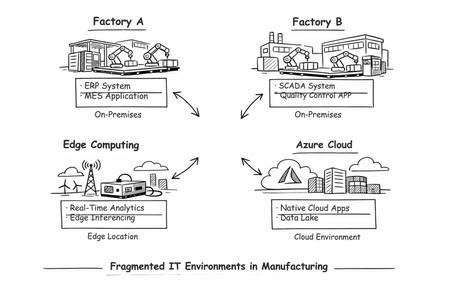
In Manufacturing companies, hybrid architectures aren’t transitional—they’re persistent. Most large manufacturers operate across remote plants, branch sites, private datacenters, and Azure. The main challenge manufacturers face isn’t adopting cloud services, it is preventing long‑term operational fragmentation: multiple teams, multiple tools, inconsistent security controls, and uneven governance as the estate grows. When manufacturing IT grows organically, systems end up scattered across factories, edge, and cloud—creating fragmentation instead of flow. Azure Arc addresses this as an architectural control‑plane pattern: it extends Azure management to infrastructure and Kubernetes outside Azure by projecting them into Azure Resource Manager (ARM) so they can be governed using Azure-native primitives such as policy, RBAC, and monitoring. This article describes three architecture patterns that consistently emerge in manufacturing and edge scenarios. Each pattern addresses a distinct set of constraints—ranging from centralized governance across hybrid estates, to plant‑adjacent platforms, to fully disconnected environments—and illustrates how Azure services can be composed to support these realities in a scalable, well‑governed way. Typical manufacturing environments must contend with some or many of the following components: Latency & determinism: plant-floor systems often require local execution Distributed footprint: dozens/hundreds of sites with varying maturity Connectivity variability: some sites are intermittently connected Regulatory & data constraints: some workloads must remain on premises Cloud: Native cloud applications including the AI based research applications, SAP systems, etc. As a result, the estate becomes a mix of Azure + non‑Azure infrastructure. The failure mode isn’t performance—it’s inconsistent operations: different patching methods, different monitoring stacks, and uneven security baselines. Azure Arc is positioned specifically to create unity across that operational model by bringing hybrid resources into the Azure control plane. A helpful way to think about Arc in manufacturing scenario is to separate the control plane and the data plane: Arc enables a centralized control plane by projecting resources, like the ones below, into ARM: Azure Resource Manager (resource inventory, tags, RBAC, Policy) Security posture & compliance (Defender for Cloud, policy initiatives) Observability and operations workflows (Azure Monitor, Update Manager, etc.) Whereas the data plane remains at distributed locations meaning: Workload execution remains at plants, private DCs, or edge sites Kubernetes API endpoints, runtime traffic, OT systems remain local This separation is an architectural lever allowing organizations to standardize governance without forcing workload relocation. A high-level design decision matrix Constraint Recommended starting pattern Why Many sites + inconsistent tooling Arc as distributed control plane Standardizes governance and inventory via ARM projection Plant workloads require local platform Azure Local + Arc Uses Azure Local baseline + Arc integration for operations Connectivity cannot be assumed Disconnected/intermittent design Forces control-plane boundary design + local autonomy Pattern 1 — Azure Arc as the distributed control plane (for VM, SQL severs+ Kubernetes) When this pattern fits Use this pattern when: You need consistent governance across plants, datacenters, and multicloud You can maintain at least periodic connectivity for control-plane sync You want Azure policy/security/monitoring to apply uniformly Architecture intent Azure Arc projects existing bare metal, VM, and Kubernetes infrastructure resources into Azure to handle operations with Azure management and security tools. Azure Arc simplifies governance and management by delivering a consistent multicloud and on-premises management platform experience for Azure services. Once projected, you can operate hybrid resources using Azure-native constructs (inventory, compliance reporting, policy scope) and apply standardized guardrails. From an architectural standpoint, Azure Arc establishes a centralized control plane in Azure (ARM, RBAC, Policy, Resource Graph) and decentralized data plane remaining at plants, datacenters, or edge sites. This separation enables organizations to apply management‑group–scoped policies, standardized tagging, and Defender for Cloud controls consistently across environments, while preserving local execution and latency characteristics required by manufacturing workloads. Why this pattern matters: It moves organizations from managing individual sites to governing the entire estate as one. It minimizes operational drift as environments expand across plants and edge locations. Centralized control simplifies enforcement of standards without slowing local operations. The pattern creates predictability at scale in highly distributed environments. It establishes a stable foundation for future modernization initiatives. Pattern 2 — Azure Local + Azure Arc (plant-adjacent platform pattern) When this pattern fits Use this pattern when: Workloads must run on premises for latency, sovereignty, or operational control You want cloud-consistent operations without creating a separate tooling island You need a standardized platform for virtualized + containerized workloads at sites You need the local AI inferencing where data needs to be processed at the source/plant site Architecture intent Azure Local Microsoft’s distributed infrastructure solution that extends Azure capabilities to customer-owned environments. It facilitates the local deployment of both modern and legacy applications across distributed or sovereign locations. Azure Local accelerates cloud and AI innovation by seamlessly delivering new applications, workloads, and services from cloud to edge, using Azure Arc as the unifying control plane. From an architectural perspective, Azure Local serves as the local data plane for applications—supporting general‑purpose virtual machines, managed Kubernetes (AKS), and selected Azure services—while Azure Arc extends the Azure control plane to that environment for inventory, policy, monitoring, and security integration. This separation allows workloads to run close to manufacturing systems without creating a parallel or disconnected operational model. Azure Local supports a broad spectrum of workload types on the same platform foundation, including: Traditional line‑of‑business applications on virtual machines Modern containerized workloads using AKS on Azure Local Azure‑consistent platform services that can be deployed locally, such as Azure Virtual Desktop and SQL Managed Instance GPU‑accelerated workloads for AI inferencing and computer vision scenarios Why this pattern matters: Without a platform like Azure Local integrated through Azure Arc, on‑premises manufacturing workloads tend to evolve into bespoke environments with inconsistent security, monitoring, and lifecycle management—making long‑term scale and governance increasingly difficult. Pattern 3 — Disconnected edge workloads (connectivity-constrained design) When this pattern fits Use this pattern when: Sites cannot assume continuous connectivity Local autonomy is required for safety or production continuity You still want centralized governance when connected Architecture intent In manufacturing and edge scenarios, some environments must operate without continuous internet connectivity due to regulatory constraints, physical isolation, or operational risk tolerance. In these cases, architectures must assume that cloud control‑plane access is intermittent or unavailable, while local execution must continue without disruption. Disconnected architectures shift the primary design concern from availability of services to autonomy of execution. This pattern applies to environments that are fully offline, intermittently connected, or explicitly restricted from sending data to public cloud endpoints. Azure supports this model through Disconnected-containers, where containerized services are deployed and operated fully offline. Once provisioned, these containers run entirely on local infrastructure with no runtime dependency on Azure endpoints, enabling uninterrupted execution even during extended disconnection periods. Disconnected containers are offered through commitment tier pricing, each offering a discounted rate compared to the Standard pricing model. Learn more about pricing here: Plan and Manage Costs - Microsoft Foundry | Microsoft Learn Before attempting to run a Docker container in an offline environment, make sure you know the steps to successfully download and use the container. For example: Host computer requirements and recommendations. The Docker pull command you use to download the container. How to validate that a container is running. How to send queries to the container's endpoint once it's running. Why this pattern matters: This pattern matters because not all environments can rely on continuous connectivity. It enables critical workloads to operate independently at the edge while remaining aligned to central governance when connectivity is available. The pattern prioritizes local autonomy without sacrificing architectural discipline. It reduces operational risk in constrained or disconnected sites. This approach ensures resilience and continuity in environments where connectivity cannot be assumed. Manufacturing IT will remain distributed by design. The risk is not hybrid complexity, but fragmented operations. By centralizing the control plane while keeping execution local, Arc enables consistent security, compliance, and operations across cloud, datacenter, and edge.800Views0likes0CommentsAnnouncing Private Preview: Deploy Ansible Playbooks using Azure Policy via Machine Configuration
Azure Arc is on a mission to unify security, compliance, and management for Windows and Linux machines—anywhere. By extending Azure’s control plane beyond the cloud, Azure Arc enables organizations to unify governance, compliance, security and management of servers across on‑premises, edge, and multicloud environments using a consistent set of Azure tools and policies. Building on this mission, we’re excited to announce the private preview of deploying Ansible playbooks through Azure Policy using Machine Configuration, bringing Ansible‑driven automation into Azure Arc’s policy‑based governance model for Azure and Arc‑enabled Linux machines. This new capability enables you to orchestrate Ansible playbook execution directly from Azure Policy (via Machine Configuration) without requiring an Ansible control node, while benefiting from built‑in compliance reporting and remediation. Why this matters As organizations manage increasingly diverse server estates, they often rely on different tools for Windows and Linux, cloud, on-premises, or at the edge—creating fragmented security, compliance, and operational workflows. Many organizations rely on Ansible for OS configuration and application setup, but struggle with: Enforcing consistent configuration across distributed environments Detecting and correcting drift over time Integrating Ansible automation with centralized governance and compliance workflows With this private preview, Azure Policy becomes the single control plane for applying and monitoring Ansible‑based configuration, bringing Linux automation into the same governance model already used for Windows. Configuration is treated as policy—declarative, auditable, and continuously enforced—with compliance results surfaced in familiar Azure dashboards. What’s included in the private preview In this preview, you can: Use Azure Policy to trigger Ansible playbook execution on Azure and Azure Arc–enabled Linux machines Execute playbooks locally on each target machine, triggered by policy. Enable drift detection and automatic remediation by default View playbook execution status and compliance results directly in the Azure Policy compliance dashboard, alongside your other policies This provides a unified security, compliance and management experience across Windows and Linux machines—whether they’re running in Azure or connected through Azure Arc—while using your existing Ansible investments. Join the private preview If you’re interested in helping shape the future of Ansible‑based configuration management in Azure Arc, we’d love to partner with you. We’re especially interested in hearing your stories around usability, compliance reporting, and real‑world operational workflows. 👉 Sign up for the private preview and we'll reach out to you. We’ll continue investing in deeper Linux parity, broader scenarios, and tighter integration across Azure Arc’s security, governance and compliance experiences. We look forward to enhancing your unified Azure Arc experience for deploying, governing, and remediating configuration with Ansible—bringing consistent security, compliance, and management to Windows and Linux machines not only in Azure, but also across on‑premises and other public clouds.755Views1like0CommentsSimplify Azure Arc Server Onboarding with Ansible and the New Onboarding Role
If you’re already using Ansible to manage your infrastructure, there’s now a simpler—and more secure—way to bring machines under Azure Arc management. We’ve introduced a new Azure Arc onboarding role designed specifically for automated scenarios like Ansible playbooks. This role follows the principle of least privilege, giving your automation exactly what it needs to onboard servers—nothing more. A better way to onboard at scale Many customers want to standardize Azure Arc onboarding across hybrid and multicloud environments, but run into common challenges: Over‑privileged service principals Manual steps that don’t scale Inconsistent onboarding across environments By combining Ansible with the Azure Arc onboarding role, you can: Automate server onboarding end‑to‑end Reduce permissions risk with a purpose‑built role Scale confidently across thousands of machines Integrate Arc onboarding into existing Ansible workflows Built for automation, designed for security The new onboarding role removes the need to assign broader Azure roles just to connect servers to Azure Arc. Instead, your Ansible automation can authenticate using a tightly scoped identity that’s purpose‑built for Arc onboarding—making security teams happier without slowing down operations. Whether you’re modernizing existing datacenters or managing servers across multiple clouds, this new approach makes Azure Arc onboarding simpler, safer, and repeatable. Get started in minutes Our Microsoft Learn documentation provides guidance to help you get started quickly: Connect machines to Azure Arc at scale with Ansible Check out the Arc onboarding role, part of the Azure collection in Ansible Galaxy: Ansible Galaxy - azure.azcollection - Arc onboarding role Anything else you’d like to see with Azure Arc + Linux? Drop us a comment!440Views0likes0CommentsRun the latest Azure Arc agent with Automatic Agent Upgrade (Public Preview)
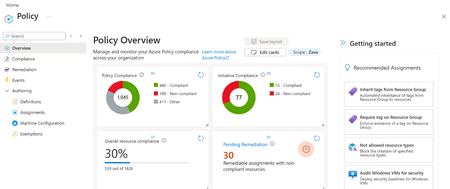
Customers managing large fleets of Azure Arc servers need a scalable way to ensure the Azure Arc agent stays up to date without manual intervention. Per server configuration does not scale, and gaps in upgrade coverage can lead to operational drift, missed features, and delayed security updates. To address this, we’re introducing two new options to help customers enable Automatic Agent Upgrade at scale: applied as a built-in Azure Policy and a new onboarding CLI flag. The built-in policy makes it easy to check whether Automatic Agent Upgrade is enabled across a given scope and automatically remediates servers that are not compliant. For servers being newly onboarded, customers can enable the feature at onboarding by adding the --enable-automatic-upgrade flag to the azcmagent connect command, ensuring the agent is configured correctly from the start. What is Automatic Agent Upgrade? Automatic Agent Upgrade is a feature, in public preview, that automatically keeps the Azure Connected Machine agent (Arc agent) up to date. Updates are managed by Microsoft, so once enabled, customers no longer need to manually manage agent upgrades. By always running the latest agent version, customers receive all the newest capabilities, security updates, and bug fixes as soon as they’re released. Learn more: What's new with Azure Connected Machine agent - Azure Arc | Microsoft Learn. Getting Started Apply automatic agent upgrade policy Navigate to the ‘Policy’ blade in the Azure Portal Navigate to the ‘Compliance’ section and click ‘Assign Policy’ Fill out the required sections Scope: Subscription and resource group (optional) that policy will apply to Policy definition: Configure Azure Arc-enabled Servers to enable automatic upgrades Navigate to the ‘Remediation’ tab and check the box next to ‘Create a remediation task’ Navigate to the ‘Review + create’ tab and press ‘Create’. The Policy has been successfully applied to the scope. For more information on this process, please visit this article Quickstart: Create policy assignment using Azure portal - Azure Policy | Microsoft Learn. Apply automatic agent upgrade CLI Flag Adding the following flag enables automatic agent upgrade during onboarding --enable-automatic-upgrade While this flag can be used on a single server, it can also be applied at scale using one of the existing Azure Arc at scale onboarding methods and adding the flag Connect hybrid machines to Azure at scale - Azure Arc | Microsoft Learn. Here is an at scale onboarding sample using a basic script. azcmagent connect --resource-group {rg} --location {location} --subscription-id {subid} --service-principal-id {service principal id} --service-principal-secret {service principal secret} --tenant-id {tenant id} --enable-automatic-upgrade To get started with this feature or learn more, please refer to this article Manage and maintain the Azure Connected Machine agent - Azure Arc | Microsoft Learn.1.8KViews1like2Comments
Building Microsoft’s Sovereign AI on Azure Local with NVIDIA RTX PRO and Next Gen NVIDIA Rubin
This blog explores how Azure Local, in partnership with NVIDIA, enables governments and regulated industries to build and operate Sovereign AI within their own trusted boundaries. From enterprise AI acceleration available today with NVIDIA RTX PRO™ Blackwell GPUs to a forward‑looking preview of next‑generation NVIDIA Rubin support, Azure Local provides a consistent platform to run advanced AI workloads—connected or fully disconnected—without sacrificing control, compliance, or governance. Together with Foundry Local, AKS on Azure Local, and Azure Arc, customers can bring AI closer to sensitive data and evolve their Sovereign Private Cloud strategies over time with confidence.1.6KViews3likes0Comments