monitors
5 TopicsAccess begins rollout of Big Forms for Modern Monitors feature
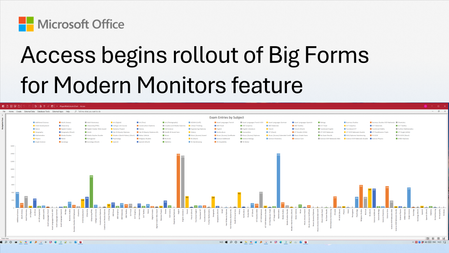
We're excited to announce that support for large-sized forms is now available in Beta for Microsoft Access. This long-requested feature removes the longstanding 22-inch form size limitation and lays the foundation for a more modern, scalable, and accessible form experience. It's one of the most highly requested enhancements from the Access community and a top-voted request on the Access feedback forum. This feature is in Beta now and expected to be in the Current Channel preview by July 21st, 2026. Why we're making this change When Access was originally designed, form dimensions were constrained by underlying technology that effectively limited forms to approximately 22 inches in width or height. As monitor resolutions increased and ultrawide displays became common, that limitation became increasingly restrictive. Developers were forced to design for the lowest common denominator screen size, even when their users had significantly more screen real estate available. The result? Complex business applications often required excessive scrolling, crowded interfaces, or compromises in design. With this Beta release, Access developers can now create forms that take full advantage of today's larger monitors and higher resolutions. What's changing The 22-inch limit is gone. The primary enhancement is simple but powerful: Forms can now exceed the previous 22-inch size limitation. Controls can be placed beyond the historical boundary. Form sections can be designed at much larger dimensions. Developers can create richer and more detailed business applications. For customers building dashboards, operational workspaces, inventory systems, CRM solutions, or other complex applications, this means more content can be displayed simultaneously without forcing users to navigate between multiple forms. Designed for modern workspaces Large monitors have transformed the way people work. Many customers now use: Dual-monitor setups Ultrawide displays High-resolution 4K monitors Vertical monitors for specialized workflows This feature allows Access applications to better leverage those environments. Developers are no longer forced to design around constraints that originated more than 20 years ago. As a result, users can: View more information at once Reduce unnecessary scrolling Create more sophisticated layouts Improve efficiency during data entry and review tasks Accessibility benefits Although the primary audience for this feature is Access developers and users working with larger displays, removing the size limitation also delivers important accessibility benefits. Larger form designs allow more flexibility in presenting information, increasing spacing between controls, displaying larger text, and reducing visual clutter. These improvements can make applications easier to use for customers with low vision and others who benefit from magnified content. We hope you enjoy this improvement and as always, look forward to your comments. (Thank you to MVP Colin Riddington for the thumbnail image.)1.3KViews6likes2Comments
When using multiple monitors with Windows Server 2025, the screen flickers
Windows Server 2025, with a graphics card of NVIDIA 5070, and three monitors with different resolutions, all at 60Hz. There is a certain chance of flickering on the screen when using Server 2025. Especially when dragging windows, is there a solution? If I use Windows 11, everything is normal166Views0likes0Comments
Windows 11 Taskbar Seems Downgraded
There are some key functionalities of the Windows 10 taskbar that got everything right, and I don't know why they got removed in Windows 11. I would like to see them added back in. Three main features that were instrumental as a video game player using Windows 10 taskbar and a multi-monitor setup: 1. Click+Drag (or alternate setting) after unlocking the taskbar to move the taskbar to whatever portion of the screen you wanted it on. 2. Vertical space is a premium in horizontal monitor orientations, side oriented task bars are excellent for these scenarios. 3. Clocks on alternate monitor taskbar. Windows 11 is missing it from alternate monitor task bars. My primary monitor is the one the games always start on, why can't I have a visible clock on my alternate monitor's taskbar as a default feature of Windows 11?1.3KViews1like1Comment
Multiple monitor screen does not align with client machine
Starting the WVD client [1] on my Lenovo laptop running Windows 10 I didn't have to do anything for my second monitor to be recognized. This was my first test of the WVD client, and it looks fantastic. After just a short time I had a problem with the alignment of the WVD window desktops and my client machine's desktop. My primary is on Lenovo laptop (2880 x 1620) and secondary is Lenovo ThinkVision 17" (1280 x 1024). When on the second monitor, if my mouse scrolls off the edge, a blank area is revealed, and both monitors are misaligned with the display. I've experienced similar effects using third-party [2] remote login software. Once I enabled two separate windows, the scrolling problem was resolved. WVD is behaving in a similar manner--if I click on the WVD Desktop title bar and move it down, both monitor windows pull away in one large window (see image). What is the solution for resolving multi-monitor alignment with WVD? [1]: https://docs.microsoft.com/en-us/windows-server/remote/remote-desktop-services/clients/remote-desktop-clients [2]: https://youtu.be/ToGoGpP6K5E4.8KViews0likes2Comments