modern apps
129 TopicsIntroducing a Guided Copilot Experience for Building Azure Apps in VS Code
Today we're previewing a new way to build cloud apps with GitHub Copilot in VS Code: a guided Copilot experience that takes you from idea to a deployed Azure app through a structured, predictable workflow instead of a free-form chat session that may or may not land where you need it to. The problem: Copilot is powerful, but unpredictable Ask Copilot to "build me a Node.js API on Azure Functions with a Postgres database" today, and you might get a working project, or you might not. Sometimes Copilot scaffolds the app but skips infrastructure. Sometimes it generates a deployment script that fails halfway through. Sometimes it forgets what you were building three prompts later. The underlying model is capable. The problem is the shape of the experience: an open-ended chat with no checkpoints, no guardrails, and no consistent path from "I have an idea" to "it's running in Azure." How it works The guided Copilot experience adds to that open-ended flow with three clear, explicit stages: 1. Project scaffolding: Describe your app in plain language. Copilot proposes an architecture and asks for anything that is missing (e.g., language, app type, Azure services) through simple forms and pickers, not more back-and-forth chat. You review and approve the plan before any code is written. 2. Local development: Your project is scaffolded then Copilot checks for the runtimes, emulators, and tools you'll need and helps you install what's missing, so the project runs locally from the very first launch. Debug configurations are wired up automatically, so you can test and iterate on your app before it ever touches Azure. 3. Deployment: Copilot shows the tools that will be used for deployment along with a summary of all resources that will be created and a cost estimate so you can be confident in what you're getting. Infrastructure files are created for your app to ensure a consistent and reproducible deployment environment for testing and staging before going to production. Deployment runs through the same reliable tooling used across Azure (az and azd), so if something goes wrong, you get a clear explanation and a concrete next step instead of a wall of CLI output. Once your app is live, the guided experience doesn't disappear, Copilot retains context about your project's architecture, so coming back later to add a service or make a change picks up right where you left off. 🎉 What this means for how you work Determinism over guesswork. The same input reliably produces the same kind of outcome, so no more wondering which "mode" Copilot is going to be in. First try success. Projects are built to run and deploy on the first attempt, not after several rounds of manual repair. Structure over chat walls. Decisions that matter such as architecture choices, missing configuration, and deployment targets are surfaced through real UI, so you're not parsing paragraphs of text to figure out what Copilot needs from you. Stay in VS Code. The entire journey, from planning through deployment, happens without leaving your editor. What's in the initial preview The first version focuses on JavaScript and TypeScript projects, including web apps, Azure Functions, Container Apps, and Static Web Apps, with support for PostgreSQL, Azure Storage, Azure Key Vault, and Azure OpenAI. .NET and Python support are on the roadmap for a future release. Nothing about your existing Copilot workflows changes, the guided experience is an additional, opinionated path alongside the free form chat you already know, for when you want a reliable, structured way to go from zero to deployed. What's next This is an early look at a broader shift in how we think about AI-assisted development on Azure: less "ask and hope," more structured collaboration with clear checkpoints and real UI where it counts. We're continuing to expand language support, refine the deployment experience, and incorporate feedback from developers using it in the wild. Install othe Azure Tools extension pack and open an empty folder to try the guided Copilot experience and let us know what you think. File issues or share feedback on the GitHub repo.54Views0likes0CommentsAzure App Service is now a trigger destination for Azure Managed Connectors
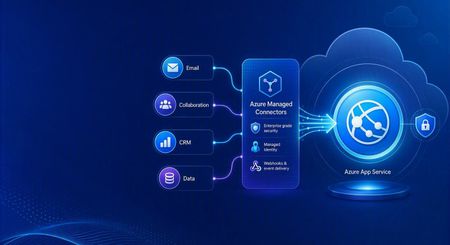
Azure Managed Connectors, currently in public preview, now lets you choose Azure App Service as a trigger destination. Connector events can be delivered directly to applications running on App Service, including ASP.NET Core, Java, Node.js, and Python applications. This is a new capability in the Managed Connectors public preview. It is not the announcement of a separate App Service preview. What's new When you create a trigger in the Managed Connectors portal, App Service now appears as a first-class destination alongside Azure Functions and the generic HTTP endpoint option. After selecting an existing App Service app, you configure: The application route that receives the event. New triggers default to POST /api/webhook , and the route can be edited. The Connector Namespace managed identity used to authenticate the callback. The Microsoft Entra audience expected by the receiving application. Managed Connectors then records the selected App Service resource, route, managed identity, and audience as part of the trigger configuration. You no longer need to select the generic HTTP destination and manually assemble the App Service callback URL. What are managed connectors? Managed connectors provide a consistent way for applications to integrate with services such as Office 365, SharePoint, Teams, Dataverse, and Salesforce. A Connector Namespace manages connections and connector operations so developers do not need to build a separate OAuth flow and service-specific client for every integration. Managed connectors support both directions: Triggers deliver events to your application, such as a new Outlook email or a file added to SharePoint. Actions let your application call operations such as posting a Teams message, flagging an email, or creating a list item. The App Service destination makes the trigger side a first-class option for existing web applications and APIs. How it works In the Managed Connectors portal, create a trigger and select App Service as its destination. Select the web app, callback route, Connector Namespace managed identity, and Microsoft Entra audience. When the source event occurs, Managed Connectors requests a token using the selected managed identity and sends the event to the App Service route. App Service built-in authentication validates the token before the request reaches application code. The application processes the event and can use Managed Connectors actions to continue the workflow. The callback is an ordinary authenticated HTTP request, so the application can use its normal framework, routing, dependency injection, logging, monitoring, and deployment practices. Configure receiving-app authentication The App Service destination configures the Managed Connectors side of the callback. The receiving application must still be configured to trust it. The reference sample uses App Service built-in authentication, also known as Easy Auth, with: A Microsoft Entra application that identifies the receiving application and its audience. A secretless federated credential configuration. The Connector Namespace managed identity pinned as an allowed principal. Authentication required for requests reaching the application. This configuration rejects unauthenticated requests and allows callbacks carrying the expected managed-identity token. The Managed Connectors trigger wizard does not currently create or update the App Service authentication configuration automatically. Try the end-to-end sample The Managed Connectors on Azure App Service email-triage sample demonstrates a complete workflow: An Office 365 Outlook trigger delivers a new email to an ASP.NET Core application on App Service. App Service built-in authentication validates the managed-identity callback. The application classifies the message and enriches the sender through the Office 365 Users connector. Important mail produces a Microsoft Teams triage card. The application flags the source email in Outlook. The repository includes the application, Bicep infrastructure, App Service authentication configuration, Connector Namespace connections, and an Azure Developer CLI deployment flow. We validated the complete workflow end to end: the authenticated callback reached POST /api/webhook , the application processed the event, a Teams card was posted, and the source Outlook message was flagged. Current limitations The capability is configured through the Managed Connectors portal, not the App Service portal. The wizard configures the Managed Connectors trigger but does not configure App Service built-in authentication on the selected web app. The current sample authentication setup requires a Microsoft Entra application, audience configuration, federated credential, and allowed-principal configuration. Depending on the application's Easy Auth configuration, authentication can apply to the whole application rather than only the connector callback route. The reference sample validates one push-trigger scenario; it is not a compatibility statement for every connector and operation. What's next The first-class App Service destination removes the generic callback URL step and provides an App Service-aware trigger experience in Azure Managed Connectors. We are also exploring ways to simplify receiving-side authentication so applications can establish connector-scoped trust without manually assembling the App Service authentication configuration. Try the reference sample and share feedback on the connectors and App Service scenarios you want to use.300Views0likes0CommentsAnnouncing public preview: Markdown for Agents in Azure App Service
Why Markdown for Agents? Web pages often contain scripts, styles, and HTML markup that are useful to browsers but add noise when the content is sent to an AI model. Markdown for Agents removes that extra markup and returns a smaller, text-focused response that is easier for agents to process and can reduce token usage. In internal testing across more than 637,000 pages, converted Markdown responses were 97 percent smaller at the median than the source HTML, with a median conversion time of 2 milliseconds. Results vary based on the page and its content. Public preview availability Markdown for Agents is available in public preview for Windows apps on Azure App Service in all public regions. The app must use an App Service plan in the Basic tier or higher. No additional authentication setup is required for Markdown conversion. Your app's existing authentication, authorization, and network access controls continue to apply. This feature is only supported on Windows App Service at this time. Support for Linux apps will come later this year. Enable Markdown for Agents During the public preview, you can enable the feature through the REST API, ARM/Bicep template, or the Azure CLI using az rest . Dedicated Azure CLI commands and portal support are planned for a future update. Azure CLI with az rest Replace the placeholders with your subscription ID, resource group, and app name: az rest --method patch --url "https://management.azure.com/subscriptions/<SUBSCRIPTION_ID>/resourceGroups/<RESOURCE_GROUP>/providers/Microsoft.Web/sites/<APP_NAME>?api-version=2026-03-15" --headers "Content-Type=application/json" --body '{"properties":{"aiIntegration":{"markdown":{"enabled":true}}}}' Verify the setting: az rest --method get --url "https://management.azure.com/subscriptions/<SUBSCRIPTION_ID>/resourceGroups/<RESOURCE_GROUP>/providers/Microsoft.Web/sites/<APP_NAME>?api-version=2026-03-15" --query "properties.aiIntegration.markdown" To disable the feature, send the same PATCH request with enabled set to false . ARM template Add the following property to your Microsoft.Web/sites resource using API version 2026-03-15 : "properties": { "aiIntegration": { "markdown": { "enabled": true } } } Bicep resource webApp 'Microsoft.Web/sites@2026-03-15' = { name: appName location: location properties: { serverFarmId: appServicePlanResourceId aiIntegration: { markdown: { enabled: true } } } } Request a Markdown response After enabling the feature, request an HTML page from your app with the Accept: text/markdown header: curl -i -H "Accept: text/markdown" "https://<APP_NAME>.azurewebsites.net/" A successfully converted response includes these headers: Content-Type: text/markdown; charset=utf-8 x-markdown-source: easy-markdown The response body contains Markdown generated from the page's HTML. Common content such as headings, paragraphs, links, lists, images, emphasis, and code is preserved, while script and style content is removed. Pages that cannot be safely converted may return their original HTML. Clients should check the Content-Type and x-markdown-source response headers before processing the response as Markdown. What's next Linux support is planned before the feature reaches general availability. We also plan to add dedicated Azure CLI commands and a portal experience in future updates. Share your feedback Try Markdown for Agents with your Windows App Service apps and let us know how it works for your agent scenarios. Share feedback, questions, and feature requests in the comments below.1.1KViews0likes0CommentsWhat the New API Management AI Gateway Tier Changes for App Service-Hosted Agents
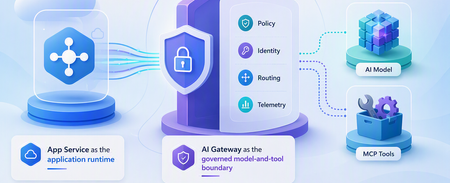
A runnable App Service agent sample that uses the dedicated API Management AI Gateway tier for governed model and MCP tool access, streaming, policy enforcement, identity separation, and telemetry.600Views0likes0CommentsMicrosoft Foundry Now Has an AI Gateway Control Plane — What Changes for App Service
Microsoft Foundry can now create or associate an APIM-based AI Gateway. Here is what changes for App Service agents, what remains in APIM, and the v2-tier requirement that affects existing gateways.2.1KViews1like1CommentOrchestrate Azure Container Apps Jobs with Apache Airflow
Azure Container Apps (ACA) Jobs are a great way to run work that starts, does something, and finishes: nightly batch, data processing, ETL, ML scoring, report generation. They scale to zero, bill per execution, and run any container you give them. But the moment your "one job" becomes "a set of jobs that depend on each other," a gap appears: How do I run twenty jobs in parallel, wait for all of them, then run one more job only if they all succeeded — and retry just the one that failed? A single ACA Job can't express that on its own. What you're describing is an orchestrator, and the most widely adopted one in the data world is Apache Airflow. This post introduces two open-source templates that connect the two, so Airflow becomes the brain and ACA Jobs become the muscle. Pick the one that matches what you already run: airflow-on-aca-jobs: you already have Airflow. Drop in an operator and point it at ACA Jobs. Host nothing new. airflow-hosted-on-aca: you don't have Airflow. Get a full one running on Azure Container Apps with one command. Both use the same operator and the same DAGs, so you can start with one and move to the other later without rewriting your workflows. See Airflow orchestrate real ACA Job executions with parallel fan-out, dependency ordering, and automatic retries. Why ACA Jobs need an orchestrator A plain ACA Job is great at one thing: run this container to completion, then stop. That covers a scheduled job or a one-off task perfectly. Real pipelines need more than that: Dependency ordering: step B runs only after step A succeeds. Parallel fan-out: launch one execution per file, per store, or per partition, all at once, then wait for the whole batch. Per-task retries: if one execution in a batch of fifty fails, retry just that one, not the other forty-nine. Backfills and scheduling: re-run yesterday's pipeline, or run every night with a full history of what happened. These are the problems an orchestrator solves. Instead of building that logic yourself, you let Airflow handle the graph, the scheduling, and the retries, while ACA Jobs run the compute. You get serverless, scale-to-zero workers, and you didn't have to stand up a scheduler to get them. The operator that ties them together Both templates ship the same small plugin: an Airflow operator called AzureContainerAppsJobOperator . In a DAG it looks like any other task: report_sales = AzureContainerAppsJobOperator( task_id="report_store_sales", subscription_id="{{ var.value.azure_subscription_id }}", resource_group="{{ var.value.aca_resource_group }}", job_name="{{ var.value.aca_job_name }}", image="python:3.12-slim", command=["python", "-c", MY_PROGRAM], env_vars={"STORE_NAME": "Seattle"}, deferrable=True, ) A few things make this operator easy to work with: Per-execution overrides. It takes the ACA Job you point it at and overrides the image , command , args , and env_vars for that run. You can drive many different workloads from a single ACA Job definition, and you don't need to build or push a custom image just to try something. The example above runs the stock python:3.12-slim image with an inline program. Deferrable by default. With deferrable=True , Airflow frees its worker slot while the ACA Job runs and resumes when it finishes. That means your fan-out width is bounded by ACA, not by how many Airflow workers you have. You can launch dozens of parallel executions cheaply. No secrets required. Authentication resolves in a sensible order: an Airflow Connection if you set one, otherwise an AZURE_ACCESS_TOKEN environment variable, otherwise DefaultAzureCredential (managed identity). In Azure, the hosted template uses a managed identity so nothing sensitive is stored in Airflow at all. Because both templates share this operator, a DAG written for one runs unchanged on the other. Option 1: Bring your own Airflow (host nothing) Choose airflow-on-aca-jobs if you already run Airflow: Azure Managed Airflow, MWAA, Astronomer, or your own deployment. You keep that Airflow exactly as it is and simply teach it to talk to ACA Jobs. +------------------------------------------+ | Your Airflow (you host it, unchanged) | | runs AzureContainerAppsJobOperator | +------------------------------------------+ | | ACA Jobs REST API v +------------------------------------------+ | ACA Job (Azure Container Apps) | | | | store 1 | store 2 | ... | store N | | parallel executions -> scale to zero | +------------------------------------------+ Your existing Airflow runs the operator; ACA Jobs run the work. You host nothing new. Adoption is three small steps: Copy the operator into your Airflow's plugins/ folder. Add a DAG that uses AzureContainerAppsJobOperator . Set three Airflow Variables so the operator knows which job to drive: Airflow Variable Value azure_subscription_id your subscription id aca_resource_group the resource group holding the ACA Job aca_job_name the ACA Job name That's the whole integration. Nothing new to host, no extra scheduler or database, no custom image. ACA Jobs just become another task type Airflow can call. If you want a job to point at first, the template includes an Azure Developer CLI ( azd ) deployment that stands up a sample ACA Job for you: git clone https://github.com/hetvip2/airflow-on-aca-jobs cd airflow-on-aca-jobs azd up # deploys a sample ACA Job, prints its resource group + name Then copy airflow/plugins/ and airflow/dags/ into your Airflow, set the three Variables, and trigger the DAG. Option 2: Airflow hosted on ACA (turnkey) Choose airflow-hosted-on-aca if you don't already have an orchestrator and want one running next to your jobs. One command provisions the whole thing on Azure Container Apps: azd up | v +------------------------------------------+ | Airflow control plane on ACA | | web | scheduler | triggerer | | Postgres (metadata) + Azure Files (dags)| | Managed Identity - no secrets stored | +------------------------------------------+ | | ACA Jobs REST API v +------------------------------------------+ | ACA Job (Azure Container Apps) | | | | store 1 | store 2 | ... | store N | | parallel executions -> scale to zero | +------------------------------------------+ One command deploys the whole Airflow control plane on ACA, right next to the jobs it drives. git clone https://github.com/hetvip2/airflow-hosted-on-aca cd airflow-hosted-on-aca azd env new my-airflow azd up # prints your Airflow URL when it finishes azd up deploys a complete, working Airflow control plane on ACA: airflow-web, airflow-scheduler, and airflow-triggerer running as Container Apps on LocalExecutor, so there's no Celery or Redis to operate. A Postgres metadata database. A user-assigned managed identity with permission to call the ACA Jobs API, so the operator authenticates with no secrets stored in Airflow. A sample ACA Job for Airflow to drive out of the box. Your DAGs and plugins live on a mounted Azure Files share, so you ship new workflows by re-uploading files rather than rebuilding an image: cp my_dag.py airflow/dags/ azd hooks run postprovision # uploads dags + plugins to the share Airflow picks up the change within a minute. You now own a real orchestrator, hosted serverlessly on the same platform as your jobs. Which one should you pick? Option 1: airflow-on-aca-jobs Option 2: airflow-hosted-on-aca Best when You already run Airflow You don't have Airflow yet Setup Copy the operator + a DAG + 3 Variables azd up (one command) Who hosts Airflow You do (unchanged) Azure Container Apps Authentication Connection or short-lived token Managed identity, nothing stored Ownership Lowest: nothing new to run Turnkey: a full orchestrator you own The important part: the workload never changes. The same DAG and the same operator drive the same ACA Job executions in both. Start wherever you are today, and switch later with zero changes to your pipelines. See it end to end Picture a retailer that wants one number every night: total sales across all stores. Each store reports its own sales as a separate ACA Job execution, all running in parallel. When every store is in, a final job adds them into the company total. That one workflow exercises exactly what a plain Job can't do alone: parallel fan-out: one ACA Job execution per store, all at once dependency ordering: the roll-up runs only after every store reports per-task retries: if a store's execution fails, Airflow retries just that store, and the nightly total still lands In Airflow's Graph view you watch the store tasks light up together, then the roll-up run last. In the Azure portal you watch real executions appear under your ACA Job and scale back to zero when they finish. Same job, same DAG, whichever template you chose. Call to action If you run batch, ETL, or any multi-step work on Azure Container Apps Jobs, give one of these templates a try: Already have Airflow? Start with airflow-on-aca-jobs. Need an orchestrator? Start with airflow-hosted-on-aca. Both are open source, deploy with azd up , and share the same operator so you can move between them freely. Try them out and let us know what you orchestrate.520Views1like3CommentsFrom AI Adoption to AI Governance - Using APIM as the Gateway for Azure AI Foundry
Co-authored by Gaurav Jain (Senior Cloud Solution Architect @ Microsoft) and Abhishek Mittal (Cloud Solution Architect @ Microsoft) Enterprises move through three phases of AI adoption: evaluating models, building apps and agents, and operationalizing them in production. The first two are easier to accelerate. The third is where governance becomes critical. Once multiple teams share an AI endpoint, leaders need clear answers to practical questions: which model consumed tokens, which team used them, and who is authorized to call it? This post shows how to place Azure API Management (APIM) in front of Azure AI Foundry as an AI Gateway, turning a shared endpoint into a governed control point for per-model token visibility, chargeback, and budget alerts — with no changes to client code. It also shows where Azure Front Door and Web Application Firewall (WAF) fit in a secure AI Landing Zone. The problem: AI adoption is outpacing AI governance A common starting point is an Azure OpenAI resource running multiple models. The team already has operational telemetry, but governance needs a different view: per-model token usage for chargeback, budget alerts, and capacity planning, captured in one place. Azure gives you rich resource-level telemetry out of the box, and that is exactly where we started: Azure Monitor — Metrics blade: shows token usage split by model and deployment in near real time. Diagnostic settings: stream the resource's metrics and request logs into Log Analytics (the AzureMetrics and AzureDiagnostics tables). Azure Monitor provides useful resource-level telemetry, including metrics and diagnostic logs. A governance view needs something different: model identity and token counts correlated in a single record, so teams can build a per-model, month-to-date ledger for chargeback and alerting. The AzureMetrics table carries the token totals, aggregated at the resource level. The AzureDiagnostics logs carry the model and deployment name at the request level. Each stream does its job well. Correlating them into one per-model, month-to-date ledger — and alerting on it — is a governance concern that sits above any single resource. Azure Monitor metric alerts, for instance, work on a rolling 24-hour window that maps cleanly onto a per-day token budget; a month-to-date, per-model chargeback ledger is simply a different shape of question — and a natural fit for a dedicated control point. This transition is the focus of this post: moving from AI adoption to AI governance by introducing a control point where model identity and token usage are captured together by design. The natural home for that control point is an AI gateway — and we build it next with Azure API Management in front of Azure AI Foundry. The pattern: APIM as the AI Gateway for Azure AI Foundry The AI gateway in Azure API Management is a set of capabilities to secure, scale, monitor, and govern the AI models, agents, and tools behind your apps. It isn't a separate product — it extends the existing API Management gateway. As Microsoft's guidance puts it, as AI adoption matures the gateway helps you authenticate and authorize access to AI services, load balance across endpoints, monitor and log AI interactions, and manage token usage and quotas across multiple applications. APIM becomes the governed front door for Azure AI Foundry. Clients continue calling an OpenAI-compatible endpoint; APIM authenticates to Foundry with a system-assigned managed identity, forwards the request, and emits per-model token telemetry to Azure Monitor and Application Insights. The result is per-model visibility without client-side changes. Models behind the gateway The gateway can front any model deployment in Azure AI Foundry — Azure OpenAI models, other Foundry models, or a mix — and the pattern is identical no matter which you run. For a concrete reference, the walkthrough in this post sits in front of two existing deployments: Deployment Model Provisioned capacity (TPM) gpt-4.1 gpt-4.1 500K gpt-5 gpt-5 50K Example deployments referenced throughout this post. Note the deliberate capacity gap — gpt-5 at 50K TPM versus 500K for gpt-4.1 — exactly the kind of asymmetry that makes per-model visibility a governance requirement, not a nice-to-have. Architecture Figure 1 — Architecture / component flow: consumers call one governed API; the inbound policy authenticates with a managed identity, resolves the model, and emits per-model token metrics to Azure Monitor and Application Insights. The starting point (“before”): a pass-through without a usage signal By default, APIM operates as a straightforward proxy. If you import a Foundry API and keep the default configuration, the policy simply selects the backend service: <policies> <inbound> <base /> <set-backend-service id="apim-generated-policy" backend-id="foundry-backend" /> </inbound> <backend><base /></backend> <outbound><base /></outbound> <on-error><base /></on-error> </policies> A plain pass-through API. It forwards traffic faithfully — it simply doesn't surface a usage signal yet. This is our “before.” Pass-through configuration works, but it does not distinguish traffic by model. All requests flow through the same stream, with no per-model chargeback signal, no capacity warning, and no clear view of which deployment is driving consumption. To govern the workload, the gateway must understand the traffic — not just relay it. The governed gateway (“after”): a policy that sees every token The custom inbound policy below is the heart of the pattern. It does four things in order: set-backend-service — select the Azure AI Foundry backend. authentication-managed-identity — obtain an Entra ID token for cognitiveservices.azure.com using the APIM system-assigned identity. No keys ever leave the gateway. set-variable deployment-id — resolve the model name from either the URL path or the request body (more on why below). azure-openai-emit-token-metric — emit prompt, completion, and total token counts to Azure Monitor, dimensioned by model. <policies> <inbound> <base /> <set-backend-service backend-id="foundry-backend" /> <authentication-managed-identity resource="https://cognitiveservices.azure.com" /> <!-- Resolve the model/deployment name. The Foundry Model Inference API (/models/chat/completions, /models/embeddings, /anthropic/v1/messages) passes it in the JSON body as "model". The Azure OpenAI-style surface (/openai/deployments/{name}/...) passes it in the URL path. Handle both. --> <set-variable name="deployment-id" value="@{ var path = context.Request.Url.Path ?? ""; var m = System.Text.RegularExpressions.Regex.Match(path, "/deployments/([^/?]+)"); if (m.Success) { return m.Groups[1].Value; } try { var body = context.Request.Body?.As<JObject>(preserveContent: true); var model = body?["model"]; if (model != null && !string.IsNullOrEmpty(model.ToString())) { return model.ToString(); } } catch (Exception) { } return "unknown"; }" /> <!-- Emit token-usage metrics dimensioned by model, so consumption can be sliced per model in Azure Monitor / Application Insights. --> <azure-openai-emit-token-metric namespace="genai-tokens"> <dimension name="ModelDeploymentName" value="@((string)context.Variables["deployment-id"])" /> <dimension name="ModelName" value="@((string)context.Variables["deployment-id"])" /> <dimension name="APIId" value="@(context.Api.Id)" /> <dimension name="Subscription" value="@(context.Subscription?.Id ?? "none")" /> <dimension name="Client IP" value="@(context.Request.IpAddress)" /> <dimension name="Product ID" value="@(context.Product?.Id ?? "none")" /> </azure-openai-emit-token-metric> </inbound> <backend> <base /> </backend> <outbound> <base /> </outbound> <on-error> <base /> </on-error> </policies> The full custom policy, applied at API scope. The highlighted value is the model-name resolution feeding a per-model token metric. Request flow, end to end Figure 2 traces a single chat request from top to bottom — from the caller, through the gateway's inbound policy, out to Azure AI Foundry, and into your telemetry. Figure 2 — Per-request flow: authentication, model resolution, forwarding, and token-metric emission. The request flow is straightforward: the client calls the APIM endpoint, the gateway selects the Foundry backend, authenticates with managed identity, resolves the model name, forwards the request, emits token metrics, and returns the response unchanged. Governance is added at the gateway without requiring client-side changes. Why dual-shape model resolution matters The azure-openai-emit-token-metric policy can emit usage, but it still needs a model dimension. Different API surfaces place the model name in different locations: Foundry Model Inference and Anthropic-style requests use the body, while Azure OpenAI-compatible calls use the URL path. The policy handles both shapes, so one gateway can govern all callers consistently. Observability: per-model token visibility and chargeback Metrics land in Azure Monitor / Application Insights under the namespace genai-tokens. The policy records Total Tokens, Prompt Tokens, and Completion Tokens, each tagged with Model Name, Model Deployment Name, API Id, APIM Product Subscription, Client IP, and Product ID. The data can then be queried directly. Per-model consumption over time: customMetrics | where name == "Total Tokens" | where timestamp >= startofmonth(now()) | extend ModelName = tostring(customDimensions["ModelName"]) | summarize TotalTokens = sum(valueSum), Calls = sum(valueCount) by ModelName Per-model token consumption (Application Insights customMetrics). And a per-model, per- API product subscription view for chargeback: customMetrics | where name == "Total Tokens" | where timestamp >= startofmonth(now()) | extend Model = tostring(customDimensions["ModelName"]), Sub = tostring(customDimensions["Subscription"]) | summarize Tokens = sum(value) by Model, Sub, name | order by Tokens desc Chargeback: tokens by model and consuming subscription. The gateway records model identity and token usage together, so the chargeback view is built in. The same signal supports dashboards, daily budget alerts, capacity planning, and cost allocation by subscription or product — without changing client code. Turning the signal into a Cost Guardrail: a 24-hour token alert Because the token totals now carry the model name, you can put a hard guardrail on spend. Wrap a query in an Azure Monitor log search alert rule that sums Total Tokens over the last 24 hours per model and returns only the deployments that breach a daily budget: // Rolling 24-hour token-budget guardrail — returns any model over its daily cap let dailyTokenBudget = 50000; // max Total Tokens per model in a rolling 24h window customMetrics | where name == "Total Tokens" | where timestamp > ago(24h) extend Model = tostring(customDimensions["ModelName"]) | summarize TokensLast24h = sum(value) by Model | where TokensLast24h > dailyTokenBudget | extend OverBudgetBy = TokensLast24h - dailyTokenBudget | project Model, TokensLast24h, DailyBudget = dailyTokenBudget, OverBudgetBy A rolling 24-hour token-budget check. The alert rule fires whenever this query returns one or more rows. Configure this as a scheduled log search alert: evaluate on a short cadence (for example, hourly over the trailing 24-hour window), set the alert logic to fire when the result count is greater than zero, and attach an action group that notifies the team through an email distribution list or Microsoft Teams channel. When any model crosses its rolling 24-hour token budget, the owning team is alerted, so overspend is detected within the day rather than at invoice time. Tune dailyTokenBudget per model, or add a single all-up cap, and translate token budgets into estimated daily cost ceilings to maintain continuous spend visibility. Completing the picture: securing the AI Landing Zone with Front Door + WAF APIM governs model usage; Azure Front Door with WAF governs public access. Placing WAF at the edge protects the AI endpoint from common web attacks, malicious bots, abusive callers, and unwanted source IP ranges before traffic reaches APIM or Foundry. What Front Door + WAF adds OWASP protection: The Azure-managed Microsoft_DefaultRuleSet_2.1 helps defend against OWASP Top 10 web attacks and known CVEs; Microsoft_BotManagerRuleSet_1.0 helps block malicious bots. Run the policy in prevention mode so offending requests are rejected with a 403, not just logged. IP restriction and rate limiting: Custom WAF rules restrict access to known IP ranges and throttle abusive callers before they reach APIM or Foundry. Global edge: Front Door terminates TLS at the edge and provides a single, DDoS-protected public entry point for the workload. Defense in depth across the landing zone Layered against the Azure AI Foundry landing zone baseline, the request path looks like this: Defense in depth: WAF at the edge, governance at the gateway, isolation on the network, Foundry reachable over a private endpoint. The baseline Azure AI Foundry landing zone reinforces every layer: private endpoints keep PaaS services (Foundry, Key Vault, Storage, AI Search) off the public internet; a system-assigned managed identity helps remove API keys; a hub-and-spoke topology routes egress through Azure Firewall; Azure Key Vault holds the Front Door TLS certificate; and Azure Policy enforces guardrails across the subscription. The gateway pattern from Sections 2–6 slots directly into this architecture as the governed control point for model traffic. Outcomes and what to extend next With APIM and the security edge in place, the shared endpoint supports per-model chargeback, capacity planning, zero client changes, and a stronger security baseline. The same gateway pattern can then be extended with token quotas, semantic caching, content safety, resiliency, and a unified model API (preview). Closing thoughts Moving from AI adoption to AI governance does not require re-architecting every app; it requires a control point. APIM in front of Azure AI Foundry provides that point: one policy turns token usage into a per-model governance signal, and Front Door with WAF provides a hardened edge. Start with visibility, then add quotas, safety, and resiliency as adoption scales. References AI gateway capabilities in Azure API Management — Microsoft Learn Baseline Microsoft Foundry Chat Reference Architecture in an Azure Landing Zone - Azure Architecture Center Protect Azure OpenAI using Azure Web Application Firewall on Azure Front Door — Microsoft Learn LLM token limit policy — Microsoft Learn Emit token consumption metrics (llm-emit-token-metric) — Microsoft Learn2KViews1like0CommentsGovern AI Agents on App Service with the Microsoft Agent Governance Toolkit
Part 3 of 3 — Multi-Agent AI on Azure App Service In Blog 1, we built a multi-agent travel planner with Microsoft Agent Framework 1.0 on App Service. In Blog 2, we added observability with OpenTelemetry and the new Application Insights Agents view. Now in Part 3, we secure those agents for production with the Microsoft Agent Governance Toolkit. This post assumes you've followed the guidance in Blog 1 to deploy the multi-agent travel planner to Azure App Service. If you haven't deployed the app yet, start there first. The governance gap Our travel planner works. It's observable. But here's the question I'm hearing from customers: "How do I make sure my agents don't do something they shouldn't?" It's a fair question. Our six agents — Coordinator, Currency Converter, Weather Advisor, Local Knowledge, Itinerary Planner, and Budget Optimizer — can call external APIs, process user data, and make autonomous decisions. In a demo, that's impressive. In production, that's a risk surface. Consider what can go wrong with ungoverned agents: Unauthorized API calls — An agent calls an external API it was never intended to use, leaking data or incurring costs Sensitive data exposure — An agent passes PII to a third-party service without consent controls Runaway token spend — A recursive agent loop burns through your OpenAI budget in minutes Tool misuse — A prompt injection tricks an agent into executing a tool it shouldn't Cascading failures — One agent's error propagates through the entire multi-agent workflow These aren't theoretical. In December 2025, OWASP published the Top 10 for Agentic Applications — the first formal taxonomy of risks specific to autonomous AI agents, including goal hijacking, tool misuse, identity abuse, memory poisoning, and rogue agents. Regulators are paying attention too: the EU AI Act's high-risk AI obligations take effect in August 2026, and the Colorado AI Act becomes enforceable in June 2026. The bottom line: if you're running agents in production, you need governance. Not eventually — now. What the Agent Governance Toolkit does The Agent Governance Toolkit is an open-source project (MIT license) from Microsoft that brings runtime security governance to autonomous AI agents. It's the first toolkit to address all 10 OWASP agentic AI risks with deterministic, sub-millisecond policy enforcement. The toolkit is organized into 7 packages: Package What it does Think of it as... Agent OS Stateless policy engine, intercepts every action before execution (<0.1ms p99) The kernel for AI agents Agent Mesh Cryptographic identity (DIDs), inter-agent trust protocol, dynamic trust scoring mTLS for agents Agent Runtime Execution rings (like CPU privilege levels), saga orchestration, kill switch Process isolation for agents Agent SRE SLOs, error budgets, circuit breakers, chaos engineering SRE practices for agents Agent Compliance Automated governance verification, regulatory mapping (EU AI Act, HIPAA, SOC2) Compliance-as-code Agent Marketplace Plugin lifecycle management, Ed25519 signing, supply-chain security Package manager security Agent Lightning RL training governance with policy-enforced runners Safe training guardrails The toolkit is available in Python, TypeScript, Rust, Go, and .NET. It's framework-agnostic — it works with MAF, LangChain, CrewAI, Google ADK, and more. For our ASP.NET Core travel planner, we'll use the .NET SDK via NuGet ( Microsoft.AgentGovernance ). For this blog, we're focusing on three packages: Agent OS — the policy engine that intercepts and evaluates every agent action Agent Compliance — regulatory mapping and audit trail generation Agent SRE — SLOs and circuit breakers for agent reliability How easy it was to add governance Here's the part that surprised me. I expected adding governance to a production agent system to be a multi-hour effort — new infrastructure, complex configuration, extensive refactoring. Instead, it took about 30 minutes. Here's exactly what we changed: Step 1: Add NuGet packages Three packages added to TravelPlanner.Shared.csproj : <itemgroup> <!-- Existing packages --> <packagereference include="Azure.Monitor.OpenTelemetry.AspNetCore" version="1.3.0"> <packagereference include="Microsoft.Agents.AI" version="1.0.0"> <!-- NEW: Agent Governance Toolkit (single package, all features included) --> <packagereference include="Microsoft.AgentGovernance" version="3.0.2"> </packagereference></packagereference></packagereference></itemgroup> Step 2: Create the policy file One new file: governance-policies.yaml in the project root. This is where all your governance rules live: apiVersion: governance.toolkit/v1 name: travel-planner-governance description: Policy enforcement for the multi-agent travel planner on App Service scope: global defaultAction: deny rules: - name: allow-currency-conversion condition: "tool == 'ConvertCurrency'" action: allow priority: 10 description: Allow Currency Converter agent to call Frankfurter exchange rate API - name: allow-weather-forecast condition: "tool == 'GetWeatherForecast'" action: allow priority: 10 description: Allow Weather Advisor agent to call NWS forecast API - name: allow-weather-alerts condition: "tool == 'GetWeatherAlerts'" action: allow priority: 10 description: Allow Weather Advisor agent to check NWS weather alerts Step 3: One line in BaseAgent.cs This is the moment. Here's our BaseAgent.cs before: Agent = new ChatClientAgent( chatClient, instructions: Instructions, name: AgentName, description: Description) .AsBuilder() .UseOpenTelemetry(sourceName: AgentName) .Build(); And after: var kernel = serviceProvider.GetService<GovernanceKernel>(); if (kernel is not null) builder.UseGovernance(kernel, AgentName); Agent = builder.Build(); One line of intent, two lines of null-safety. The .UseGovernance(kernel, AgentName) call intercepts every tool/function invocation in the agent's pipeline, evaluating it against the loaded policies before execution. If the GovernanceKernel isn't registered (governance disabled), agents work exactly as before — no crash, no code change needed. Here's the full updated constructor using IServiceProvider to optionally resolve governance: using AgentGovernance; using Microsoft.Extensions.DependencyInjection; public abstract class BaseAgent : IAgent { protected readonly ILogger Logger; protected readonly AgentOptions Options; protected readonly AIAgent Agent; // Constructor for simple agents without tools protected BaseAgent( ILogger logger, IOptions<AgentOptions> options, IChatClient chatClient, IServiceProvider serviceProvider) { Logger = logger; Options = options.Value; var builder = new ChatClientAgent( chatClient, instructions: Instructions, name: AgentName, description: Description) .AsBuilder() .UseOpenTelemetry(sourceName: AgentName); var kernel = serviceProvider.GetService<GovernanceKernel>(); if (kernel is not null) builder.UseGovernance(kernel, AgentName); Agent = builder.Build(); } // Constructor for agents with tools protected BaseAgent( ILogger logger, IOptions<AgentOptions> options, IChatClient chatClient, ChatOptions chatOptions, IServiceProvider serviceProvider) { Logger = logger; Options = options.Value; var builder = new ChatClientAgent( chatClient, instructions: Instructions, name: AgentName, description: Description, tools: chatOptions.Tools?.ToList()) .AsBuilder() .UseOpenTelemetry(sourceName: AgentName); var kernel = serviceProvider.GetService<GovernanceKernel>(); if (kernel is not null) builder.UseGovernance(kernel, AgentName); Agent = builder.Build(); } // ... rest unchanged } Step 4: DI registrations in Program.cs A few lines to wire up governance in the dependency injection container: using AgentGovernance; // ... existing builder setup ... // Configure OpenTelemetry with Azure Monitor (existing — from Blog 2) builder.Services.AddOpenTelemetry().UseAzureMonitor(); // NEW: Configure Agent Governance Toolkit // Load policy from YAML, register as singleton. Agents resolve via IServiceProvider. var policyPath = Path.Combine(builder.Environment.ContentRootPath, "governance-policies.yaml"); if (File.Exists(policyPath)) { try { var yaml = File.ReadAllText(policyPath); var kernel = new GovernanceKernel(new GovernanceOptions { EnableAudit = true, EnableMetrics = true }); kernel.LoadPolicyFromYaml(yaml); builder.Services.AddSingleton(kernel); Console.WriteLine($"[Governance] Loaded policies from {policyPath}"); } catch (Exception ex) { Console.WriteLine($"[Governance] Failed to load: {ex.Message}. Running without governance."); } } That's it. Your agents are now governed. Let me repeat that because it's the core message of this blog: we added production governance to a six-agent system by adding one NuGet package, creating one YAML policy file, adding a few lines to our base agent class, and registering the governance kernel in DI. No new infrastructure. No complex rewiring. No multi-sprint project. If you followed Blog 1 and Blog 2, you can do this in 30 minutes. Policy flexibility deep-dive The YAML policy language is intentionally simple to start with, but it supports real complexity when you need it. Let's walk through what each policy in our file does. API allowlists and blocklists Our travel planner calls two external APIs: Frankfurter (currency exchange) and the National Weather Service. The defaultAction: deny combined with explicit allow rules ensures agents can only call these approved tools. If an agent attempts to call any other function — whether through a prompt injection or a bug — the call is blocked before it executes: defaultAction: deny rules: - name: allow-currency-conversion condition: "tool == 'ConvertCurrency'" action: allow priority: 10 - name: allow-weather-forecast condition: "tool == 'GetWeatherForecast'" action: allow priority: 10 When a blocked call happens, you'll see output like this in your logs: [Governance] Tool call 'DeleteDatabase' blocked for agent 'LocalKnowledgeAgent': No matching rules; default action is deny. Condition language The condition field supports equality checks, pattern matching, and boolean logic. You can match on tool name, agent ID, or any key in the evaluation context: # Match a specific tool condition: "tool == 'ConvertCurrency'" # Match multiple tools with OR condition: "tool == 'GetWeatherForecast' or tool == 'GetWeatherAlerts'" # Match by agent condition: "agent == 'CurrencyConverterAgent' and tool == 'ConvertCurrency'" Priority and conflict resolution When multiple rules match, the toolkit evaluates by priority (higher number = higher priority). A deny rule at priority 100 will override an allow rule at priority 10. This lets you layer broad allows with specific denies: rules: - name: allow-all-weather-tools condition: "tool == 'GetWeatherForecast' or tool == 'GetWeatherAlerts'" action: allow priority: 10 - name: block-during-maintenance condition: "tool == 'GetWeatherForecast'" action: deny priority: 100 description: Temporarily block NWS calls during API maintenance Advanced: OPA Rego and Cedar The YAML policy language handles most scenarios, but for teams with advanced needs, the toolkit also supports OPA Rego and Cedar policy languages. You can mix them — use YAML for simple rules and Rego for complex conditional logic: # policies/advanced.rego — Example: time-based access control package travel_planner.governance default allow_tool_call = false allow_tool_call { input.agent == "CurrencyConverterAgent" input.tool == "get_exchange_rate" time.weekday(time.now_ns()) != "Sunday" # Markets closed } Start simple with YAML. Add complexity only when you need it. Why App Service for governed agent workloads You might be wondering: why does hosting platform matter for governance? It matters a lot. The governance toolkit handles the application-level policies, but a production agent system also needs platform-level security, networking, identity, and deployment controls. App Service gives you these out of the box. Managed Identity Governance policies enforce what agents can access. Managed Identity handles how they authenticate — without secrets to manage, rotate, or leak. Our travel planner already uses DefaultAzureCredential for Azure OpenAI, Cosmos DB, and Service Bus. Governance layers on top of this identity foundation. VNet Integration + Private Endpoints The governance toolkit enforces API allowlists at the application level. App Service's VNet integration and private endpoints enforce network boundaries at the infrastructure level. This is defense in depth: even if a governance policy is misconfigured, the network layer prevents unauthorized egress. Your agents can only reach the networks you've explicitly allowed. Easy Auth App Service's built-in authentication (Easy Auth) protects your agent APIs without custom code. Before a request even reaches your governance engine, App Service has already validated the caller's identity. No custom auth middleware. No JWT parsing. Just toggle it on. Deployment Slots This is underrated for governance. With deployment slots, you can test new governance policies in a staging slot before swapping to production. Deploy updated governance-policies.yaml to staging, run your test suite, verify the policies work as expected, and then swap. Zero-downtime policy updates with full rollback capability. App Insights integration Governance audit events flow into the same Application Insights instance we configured in Blog 2. This means your governance decisions appear alongside your OTel traces in the Agents view. One pane of glass for agent behavior and governance enforcement. Always-on + WebJobs Our travel planner uses WebJobs for long-running agent workflows. With App Service's Always-on feature, those workflows stay warm, and governance is continuous — no cold-start gaps where agents run unmonitored. azd deployment One command deploys the full governed stack — application code, governance policies, infrastructure, and monitoring: azd up App Service gives you the enterprise production features governance needs — identity, networking, observability, safe deployment — out of the box. The governance toolkit handles agent-level policy enforcement; App Service handles platform-level security. Together, they're a complete governed agent platform. Governance audit events in App Insights In Blog 2, we set up OpenTelemetry and the Application Insights Agents view to monitor agent behavior. With the governance toolkit, those same traces now include governance audit events — every policy decision is recorded as a span attribute on the agent's trace. When you open a trace in the Agents view, you'll see governance events inline: Policy: api-allowlist → ALLOWED — CurrencyConverterAgent called Frankfurter API, permitted Policy: token-budget → ALLOWED — Request used 3,200 tokens, within per-request limit of 8,000 Policy: rate-limit → THROTTLED — WeatherAdvisorAgent exceeded 60 calls/min, request delayed For deeper analysis, use KQL to query governance events directly. Here's a query that finds all policy violations in the last 24 hours: // Find all governance policy violations in the last 24 hours traces | where timestamp > ago(24h) | where customDimensions["governance.decision"] != "ALLOWED" | extend agentName = tostring(customDimensions["agent.name"]), policyName = tostring(customDimensions["governance.policy"]), decision = tostring(customDimensions["governance.decision"]), violationReason = tostring(customDimensions["governance.reason"]), targetUrl = tostring(customDimensions["tool.target_url"]) | project timestamp, agentName, policyName, decision, violationReason, targetUrl | order by timestamp desc And here's one for tracking token budget consumption across agents: // Token budget consumption by agent over the last hour customMetrics | where timestamp > ago(1h) | where name == "governance.tokens.consumed" | extend agentName = tostring(customDimensions["agent.name"]) | summarize totalTokens = sum(value), avgTokensPerRequest = avg(value), maxTokensPerRequest = max(value) by agentName, bin(timestamp, 5m) | order by totalTokens desc This is the power of integrating governance with your existing observability stack. You don't need a separate governance dashboard — everything lives in the same App Insights workspace you already know. SRE for agents The Agent SRE package brings Site Reliability Engineering practices to agent systems. This was the part that got me most excited, because it addresses a question I hear constantly: "How do I know my agents are actually reliable?" Service Level Objectives (SLOs) We defined SLOs in our policy file: slos: - name: weather-agent-latency agent: "WeatherAdvisorAgent" metric: latency-p99 target: 5000ms window: 5m This says: "The Weather Advisor Agent must respond within 5 seconds at the 99th percentile, measured over a 5-minute rolling window." When the SLO is breached, the toolkit emits an alert event and can trigger automated responses. Circuit breakers Circuit breakers prevent cascading failures. If an agent fails 5 times in a row, the circuit opens, and subsequent requests get a fast failure response instead of waiting for another timeout: circuit-breakers: - agent: "*" failure-threshold: 5 recovery-timeout: 30s half-open-max-calls: 2 After 30 seconds, the circuit enters a half-open state, allowing 2 test calls through. If those succeed, the circuit closes and normal operation resumes. If they fail, the circuit opens again. This pattern is battle-tested in microservices — now it protects your agents too. Error budgets Error budgets tie SLOs to business decisions. If your Coordinator Agent's success rate target is 99.5% over a 15-minute window, that means you have an error budget of 0.5%. When the budget is consumed, the toolkit can automatically reduce agent autonomy — for example, requiring human approval for high-risk actions until the error budget recovers. SRE practices turn agent reliability from a hope into a measurable, enforceable contract. Architecture Here's how everything fits together after adding governance: ┌─────────────────────────────────────────────────────────────────┐ │ Azure App Service │ │ ┌──────────────┐ ┌─────────────────────────────────────┐ │ │ │ Frontend │───▶│ ASP.NET Core API │ │ │ │ (Static) │ │ │ │ │ └──────────────┘ │ ┌─────────────────────────────┐ │ │ │ │ │ Coordinator Agent │ │ │ │ │ │ ┌───────┐ ┌────────────┐ │ │ │ │ │ │ │ OTel │─▶│ Governance │ │ │ │ │ │ │ └───────┘ │ Engine │ │ │ │ │ │ │ │ ┌────────┐ │ │ │ │ │ │ │ │ │Policies│ │ │ │ │ │ │ │ │ └────────┘ │ │ │ │ │ │ │ └─────┬──────┘ │ │ │ │ │ └───────────────────┼─────────┘ │ │ │ │ ┌───────────────────┼──────────┐ │ │ │ │ │ Specialist Agents │ │ │ │ │ │ │ (Currency, Weather, etc.) │ │ │ │ │ │ Each with OTel + Governance │ │ │ │ │ └───────────────────┼──────────┘ │ │ │ └──────────────────────┼──────────────┘ │ │ │ │ │ ┌────────────┐ ┌───────────┐ ┌───────────┼─────────┐ │ │ │ Managed │ │ VNet │ │ App Insights │ │ │ │ Identity │ │Integration│ │ (Traces + │ │ │ │ (no keys) │ │(network │ │ Governance Audit) │ │ │ │ │ │ boundary) │ │ │ │ │ └────────────┘ └───────────┘ └─────────────────────┘ │ └──────────────────────────────┬──────────────────────────────────┘ │ Only allowed APIs ▼ ┌──────────────────────┐ │ External APIs │ │ ✅ Frankfurter API │ │ ✅ NWS Weather API │ │ ❌ Everything else │ └──────────────────────┘ The key insight: governance is a transparent layer in the agent pipeline. It sits between the agent's decision and the action's execution. The agent code doesn't know or care about governance — it just builds the agent with .UseGovernance() and the policy engine handles the rest. Bring it to your own agents We've shown governance with Microsoft Agent Framework on .NET, but the toolkit is framework-agnostic. Here's how to add it to other popular frameworks: LangChain (Python) from agent_governance import PolicyEngine, GovernanceCallbackHandler policy_engine = PolicyEngine.from_yaml("governance-policies.yaml") # Add governance as a LangChain callback handler agent = create_react_agent( llm=llm, tools=tools, callbacks=[GovernanceCallbackHandler(policy_engine)] ) CrewAI (Python) from agent_governance import PolicyEngine from agent_governance.integrations.crewai import GovernanceTaskDecorator policy_engine = PolicyEngine.from_yaml("governance-policies.yaml") # Add governance as a CrewAI task decorator @GovernanceTaskDecorator(policy_engine) def research_task(agent, context): return agent.execute(context) Google ADK (Python) from agent_governance import PolicyEngine from agent_governance.integrations.google_adk import GovernancePlugin policy_engine = PolicyEngine.from_yaml("governance-policies.yaml") # Add governance as a Google ADK plugin agent = Agent( model="gemini-2.0-flash", tools=[...], plugins=[GovernancePlugin(policy_engine)] ) TypeScript / Node.js import { PolicyEngine } from '@microsoft/agentmesh-sdk'; const policyEngine = PolicyEngine.fromYaml('governance-policies.yaml'); // Use as middleware in your agent pipeline agent.use(policyEngine.middleware()); Every integration hooks into the framework's native extension points — callbacks, decorators, plugins, middleware — so adding governance doesn't require rewriting your agent code. Install the package, point it at your policy file, and you're governed. What's next This wraps up our three-part series on building production-ready multi-agent AI applications on Azure App Service: Blog 1: Build — Deploy a multi-agent travel planner with Microsoft Agent Framework 1.0 Blog 2: Monitor — Add observability with OpenTelemetry and the Application Insights Agents view Blog 3: Govern — Secure agents for production with the Agent Governance Toolkit (you are here) The progression is intentional: first make it work, then make it visible, then make it safe. And the consistent theme across all three parts is that App Service makes each step easier — managed hosting for Blog 1, integrated monitoring for Blog 2, and platform-level security features for Blog 3. Next steps for your agents Explore the Agent Governance Toolkit — star the repo, browse the 20 tutorials, try the demo Customize policies for your compliance needs — start with our YAML template and adapt it to your domain. Healthcare teams: enable HIPAA mappings. Finance teams: add SOC2 controls. Explore Agent Mesh for multi-agent trust — if you have agents communicating across services or trust boundaries, Agent Mesh's cryptographic identity and trust scoring add another layer of defense Deploy the sample — clone our travel planner repo, run azd up , and see governed agents in action AI agents are becoming autonomous decision-makers in high-stakes domains. The question isn't whether we need governance — it's whether we build it proactively, before incidents force our hand. With the Agent Governance Toolkit and Azure App Service, you can add production governance to your agents today. In about 30 minutes.1.2KViews0likes0CommentsAzure Container Apps Express for Shipping Container Apps Fast
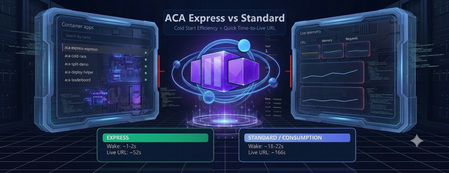
ACA Express Apps are a strong fit for teams that need to ship quickly and can't afford long platform setup cycles. This includes startups, internal platform teams, and product groups deploying APIs, web apps, or agent endpoints that scale with uneven demand. If the priority is fast path-to-production, predictable wake-up behavior, and minimal infrastructure overhead, this model is likely the right choice. To put real numbers behind that, I built a live demo that races Express against a Consumption environment on the same app. The measurements below come from that demo, not from a spec sheet. MicroVMs make cold starts practical Cold start delays usually come from rebuilding runtime state whenever an app wakes up. ACA Express Apps reduce that overhead with MicroVM-based startup paths built for fast boot and isolation. The result is faster instance readiness without trading off security. The gap shows up clearly when both apps have scaled all the way to zero. Waking from a genuine cold start, Express comes back in about 1.5 seconds. The same app in a Consumption environment takes about 20 seconds to answer the first request. Both were measured live in the browser, from request to first response. Disk and memory state restore is the speed multiplier State restoration skips the app's internal boot sequence entirely. Instead of replaying the same initialization work on every start, ACA Express Apps can restore disk and memory state so the app starts closer to ready. That reduces time-to-first-request and smooths scale events, especially for framework-heavy workloads. It's also what lets scale-to-zero stay practical: the app costs nothing while idle, but the wake-up penalty stays in the low single-digit seconds instead of the tens of seconds you'd otherwise pay. Environmentless changes the deployment experience Skipping the environment setup completely changes the deployment workflow. Teams can ship the container app without first managing environment sprawl, while still getting the runtime foundations they need. For fast-moving teams, that means less setup overhead and a shorter path to production. You can see how little there is to fill in. Creating an Express app is a single short form. There is no environment to stand up first. And once it's created, the manage view gives you the live URL, status, and the basics you need to operate it. The numbers, side by side Everything below was measured on the same container image, in the West Central US region. What's measured Express Consumption Cold start from zero (request to first response) ~1.5 s ~20 s Environment provisioning ~14 s ~120 s First-time deploy (environment + app, zero to live URL) ~52 s ~166 s App deploy only (environment already exists) ~30 s ~30 s Express is much faster on the two steps that build infrastructure from scratch: cold start and environment provisioning. Once an environment already exists, the two are about the same. Express isn't a different app runtime, it's the same platform with the first-time setup cost stripped down. Get started Express is in public preview. You can have a container on a live URL in the time it takes to read this post. 📖 Azure Container Apps Express overview — concepts, capabilities, and the current feature support matrix. 🚀 Create your first Express app — the CLI commands and portal steps to get an app running. 🛠️ New Container Apps portal — create and manage Express apps in the streamlined UI. 🧪 Test Express apps locally — validate your container before you deploy. ❓ Express FAQ — preview status, limits, regions, and how Express relates to standard Container Apps. 👉 Deploy an Express app · Read the docs · Browse the FAQ When speed matters, ACA Express is the best tool for deploying containers. It skips the platform setup delays without sacrificing reliability under load.645Views2likes1Comment