migration
13 TopicsMigrate to Azure SQL Database, including Hyperscale, straight from Azure Arc (public preview)
The challenge Most organisations do not run in one place. Estates stretch across on-premises datacentres, hybrid deployments and the cloud, and every migration decision must balance application dependencies, operational requirements and a modernization roadmap that is already in motion. Mixed environments and legacy dependencies make that harder, and needing a different tool for assessment, migration, monitoring and management harder still. The result is more operational effort, inconsistency between teams, and modernization that moves slower than anyone wants. Azure Arc already solves the first half of that problem. It discovers and assesses SQL Server estates at scale, so you know which databases are ready to move. The second half has been the gap: once a database is identified as migration-ready, the path to Azure SQL Database runs outside Arc. You leave the experience you were working in, learn Azure Database Migration Service, configure a Self-hosted Integration Runtime, and juggle several tools to get one database across. That fragmentation costs time, and it is one of the reasons why assessments do not turn into migrations. What's new Azure Arc Database Migration now adds Azure SQL Database; including Hyperscale as a supported migration target, in public preview. You can migrate Arc enabled SQL Server databases to Azure SQL Database through a single, guided experience in the Azure portal. Behind that experience, the workflow integrates Azure Database Migration Service and streamlines Self-hosted Integration Runtime setup directly into the migration journey. You assess, configure, migrate, monitor and complete the migration without leaving Arc. This is a logical migration performed by DMS through the Self-hosted Integration Runtime, so there is no separate staging step for you to plan or maintain but it requires a planned downtime. Why Hyperscale For many teams, the database that most requires modernizing is also the largest one they run. Hyperscale is the Azure SQL Database service tier built for exactly that case: a fully managed platform designed to scale storage and compute independently as a workload grows, so a large SQL Server database can move to a managed service without being re-architected first. Making Hyperscale reachable from Arc matters because it removes a decision point from the middle of the journey. The databases Arc flags as migration-ready are often the ones whose size is used to rule out a managed destination; and now the assessment and the target sit in the same place. One portal, one operational model The principle has not changed: one portal for discovery, assessment and migration. The entire migration lifecycle is managed from a single tool in the Azure portal; assess readiness, select a target, configure settings, choose databases and tables to migrate, monitor progress and validate the results. Migrating to Azure SQL Database follows the same operational model already available for existing migration scenarios in Arc. The same migration dashboard, the same monitoring experience and the same guided workflow apply regardless of destination. That reduces the learning curve, keeps operational processes consistent, and lets your team choose the most appropriate Azure SQL platform for each database without changing migration methodology. How it works The flow starts where you already are, in the Database migration pane of your Arc-enabled SQL Server instance. Assess in Arc. Readiness assessments are generated automatically every weekend, and you can run one manually in a few minutes if you would rather not wait. SQL Server migration in Azure Arc is available by default for Arc-enabled SQL Server instances starting with SQL Server 2014 (12.x). Choose your target. Select Azure SQL Database, including the Hyperscale service tier, for the databases the assessment identified as ready. Set up DMS and SHIR, guided. The portal walks you through creating the Azure Database Migration Service resource and registering a Self-hosted Integration Runtime, inside the same workflow rather than as separate homework. Migrate. DMS performs a logical migration of your schema and data to the Azure SQL Database target through the integration runtime. Monitor and Completion. Track progress on the migration dashboard you already use, validate the results when the migration is completed. Microsoft Copilot is built into the Database migration pane to help you along the way. Why SHIR, and what it means for you The Self-hosted Integration Runtime secures bridge that it acts as the connectivity layer that enables Azure Database Migration Service to securely connect to the source SQL Server and the target Azure SQL Database for data movement. Azure DMS is a fully managed service for migrations to Azure data platforms and can be driven from the Azure portal, PowerShell or the Azure CLI — the runtime is simply how it gets to your source. In practice, setup is guided and one-time. You register the runtime once during the migration workflow, and subsequent migrations from the same environment reuse it. Nothing about how you operate your Arc-enabled instances changes. Learn more details in the technical documentation. Get started Trying the preview takes three things: an Arc-enabled SQL Server instance, a recent readiness assessment, and a target Azure SQL Database. In the Azure portal, open your Arc-enabled SQL Server instance, go to the Database migration pane, review the assessment results, and choose Azure SQL Database as your target. The portal takes it from there. Learn more: SQL Server migration in Azure Arc What is Azure Database Migration Service Create a Self-hosted Integration Runtime Step-by-step guidance for the new target We want your feedback For product feedback, feature requests, or migration pain points you'd like the team to track and act on, please share them through aka.ms/sqlfeedback under the Migration & Modernization category.478Views0likes0Comments
Alternatives After the Deprecation of the Azure SQL Migration Extension in Azure Data Studio
The Azure SQL Migration extension for Azure Data Studio is being deprecated and will be retired by February 28, 2026. As part of our unified and streamlined migration strategy for Azure SQL, we are consolidating all migration experiences into a consistent, scalable platform. If you are currently using the Azure SQL Migration extension, this blog will guide you through recommended replacement options for every phase of migration, whether you are moving to Azure SQL Managed Instance, SQL Server on Azure Virtual Machines, or Azure SQL Database. What is happening to the Azure SQL Migration extension in ADS? As you already know, Azure data studio will officially retire on February 28, 2026. The Azure SQL Migration extension in Azure Data Studio will also retire along with Azure Data Studio on February 28, 2026. The Azure SQL Migration extension will no longer be available in the marketplace of Azure Data Studio. What should you use instead? Below is the updated guidance for the migration tool categorized by migration phase and target. 1) Pre‑Migration: Discovery & Assessments Prior to migration, it is advisable to evaluate the SQL Server environment for readiness and to determine the right-sized Azure SQL SKU. Below are the recommended options: A) SQL Server enabled by Azure Arc Use the SQL Server migration experience in the Azure Arc portal for: Instance discovery at scale Migration assessments at scale, including: Readiness assessment for all Azure SQL targets. Performance-based, right-sized target recommendations. Projected Azure costs with the recommended target configuration. Reference: Steps to get started with the Azure Arc assessments- Deploy Azure Arc on your servers. SQL Server instances on Arc-enabled servers are automatically connected to Azure Arc. See options to optimize this. B) Automated assessments at scale using Azure DMS PowerShell and Azure CLI The Azure DataMigration modules in Azure PowerShell and Azure CLI can be used to automate assessments at scale. Learn more about how to do this. Here are the sample templates to automate the assessment workflow: Azure PowerShell DataMigration cmdlets DMS Azure CLI commands C) Azure Migrate For scenarios where assessments are required at data center level including different types of workloads like Applications, VM Servers and databases, use Azure Migrate to perform discovery and assessments at scale. Learn more about Azure Migrate. References: Review inventory Create SQL Assessment Review SQL Assessment 2) Migrations Based on the migration targets, here are the recommended tools you can use to carry out the migration: A. To Azure SQL Managed Instance The following options are available for migrating data to Azure SQL Managed Instance: 1. SQL Migration experience in Azure Arc For migrations to Azure SQL MI, leverage the streamlined SQL Migration experience in Azure Arc which lets you complete the end-to-end migration journey in a single experience. This experience provides: Evergreen assessments and right-fit Azure SQL target recommendation. Inline Azure SQL Target creation. Free Azure SQL MI Next generation General Purpose service that lets you experience the power of Azure SQL MI for free for 12 months. Near zero downtime migration using Managed Instance link powered by Distributed Availability Group technology. Secure connectivity. Reference blog: SQL Server migration in Azure Arc 2. Automated migration at scale using Azure DMS PowerShell and Azure CLI To Orchestrate migrations to Azure SQL MI at scale programmatically, use: DMS PowerShell cmdlets DMS Azure CLI commands Learn more about how to do this. B. To SQL Server on Azure Virtual Machines To migrate to SQL Server on Azure Virtual Machines, use: 1. Azure Database Migration Service (DMS) DMS supports migrating to SQL Server on Azure Virtual Machines using both online and offline methods. Your SQL Server backups can be in Azure Blob Storage or on a network SMB file share. For details on each option, see: Backups stored in Azure Blob Storage Backups maintained on network SMB file shares Note: The migration experience from SQL Server on-premises to SQL Server on Azure VM will soon be available in SQL Server enabled by Azure Arc. 2. Automated migration at scale using Azure DMS PowerShell and Azure CLI For programmatic migrations to Azure SQL Virtual Machines: DMS PowerShell cmdlets DMS Azure CLI commands Learn more about how to do this. 3. SSMS option: SQL Server Management Studio (SSMS) migration component If you can connect to both SQL Server on-premises and SQL Server running on Azure VM using SQL Server Management Studio, the migration component in SSMS can help you to migrate to SQL Server on Azure VM. For details, see SSMS Migration component. C. To Azure SQL Database Migrating a SQL Server database to Azure SQL Database typically involves migrating schema and data separately. Here are the options to perform offline and online migration to Azure SQL Database: 1. Offline migration to Azure SQL Database a. Azure Database Migration Service (DMS) portal experience Use Azure DMS portal to migrate both schema and data. Azure DMS uses Azure Data Factory and leverages the Self-hosted Integration Runtime (SHIR). Installation steps are here. b. Automated migration at scale using Azure DMS PowerShell and Azure CLI Use Azure DMS PowerShell and Azure CLI command line to orchestrate the schema and data migration to Azure SQL Database at scale: DMS PowerShell cmdlets DMS Azure CLI commands Learn more about how to do this. 2. Online migration to Azure SQL Database Using Striim To enable online migration of your mission critical databases to Azure SQL Database leverage Striim. Microsoft and Striim have entered a strategic partnership to enable continuous data replication from off-Azure SQL Servers to Azure SQL Database with near-zero downtime. For more details, refer to: Zero downtime migration from SQL Server to Azure SQL Database | Microsoft Community Hub Removing barriers to migrating databases to Azure with Striim’s Unlimited Database Migration program... To leverage the Striim program for migrations, please reach out to your Microsoft contact or submit the below feedback to get started. Summary The table below provides a summary of the available alternatives for each migration scenario. Migration Scenario Guided experience Automation experience Pre-Migration (Discovery + Assessment) SQL Migration experience in Azure Arc / Azure Migrate DMS PowerShell / Azure CLI To Azure SQL Managed Instance SQL Migration experience in Azure Arc DMS PowerShell / Azure CLI To SQL Server on Azure Virtual Machine DMS Azure Portal / SSMS migration component DMS PowerShell / Azure CLI To Azure SQL Database DMS Azure portal (offline & schema migration) / Striim (online migration) DMS PowerShell / Azure CLI (offline & schema migration) Final Thoughts Simplify your SQL migration journey and improve migration velocity to all Azure SQL targets, leverage the connected migration experiences in SQL Server enabled by Azure Arc, DMS, and SSMS. For SSMS, as a first step we brought the capabilities to perform assessment and migration to higher versions of SQL Server including to SQL Server on Azure Virtual Machines. As a next step, we are bringing cloud migration capabilities as well into SSMS. Feedback We love hearing from our customers. If you have feedback or suggestions for the product group, please use the following form: Feedback form As you begin your migration to Azure, we welcome your feedback. If you do not see suitable alternatives for any migration phases, use the feedback form to let us know so we can update the options accordingly.2.8KViews1like0CommentsDeep dive into the SSMA Code Conversion Copilot Architecture
The Problem We Set Out to Solve Migrating from Oracle PL/SQL to SQL Server T‑SQL is notoriously complex. While SSMA’s rule engine covers hundreds of conversion rules, edge cases, custom logic, and nuanced syntax but it often slips through. Developers end up spending hours manually fixing scripts, validating correctness, and worrying about regressions. The Copilot was built to tackle this pain point: augment SSMA’s rule engine with large language models (LLMs) that can reason about tricky conversions, explain their logic, and accelerate the migration process. But building trust in AI‑generated code meant we had to design an architecture that was controllable, reliable, and secure. SSMA Code Conversion Copilot was released back in the month of May and some of the use cases are elaborated here. This blog talks about the inner working of Copilot. ⚙️ Semantic Kernel for Skill / Plugin Management At the heart of SSMA Copilot lies Semantic Kernel, Microsoft’s open‑source framework for integrating LLMs. It offers two big capabilities: Prompt management — defining prompts as reusable “skills” with parameters like model, temperature, and token count. Agentic orchestration — automating workflows by chaining tools and prompts together. For Copilot, we deliberately chose only prompt management at this point. We have also added native skills such as checking the correctness of syntax and semantics but have not used agentic orchestration for the current implementation. ❌ Why Not Agentic Features? Agentic orchestration can be powerful, but in practice it wasn’t reliable enough for production migrations. Tool selection logic sometimes failed, leading to incorrect validations or spurious edits. Moreover, we saw an issue with latency. Instead, we implemented a deterministic workflow that gave us full control. ✅ Manual Orchestration Workflow Our workflow looks like this (please refer to the diagram): Partial Migration: SSMA generates a baseline conversion. Copilot Authentication: The Copilot is authenticated using the inputs provided by the user. This is where the model is also decided. Alternately, the user can use the managed endpoint that is controlled by Microsoft. LLM Completion: Copilot fills in gaps. Moreover, it explains the solution, points out the error that it is trying to resolve in simple language. Parsing & Compilation: A target‑dialect parser checks syntax. This catches unsupported constructs or binding issues far more reliably than prompt tuning. Spurious Edit Detection: LLMs are instructed to only enhance flagged portions of code. Any edits to “correct” blocks incur penalties, with a strict threshold of zero spurious edits allowed. Query Execution & Data Generation: Where possible, we generate minimal synthetic data (two rows per table) to validate equivalence between source and target queries. Semantic Equivalence Checks: For cases where execution isn’t feasible, we use LLM‑based scoring to judge logical fidelity. This loop repeats until syntactic and semantic correctness is achieved. By using this workflow, we avoided regression spirals and ensured predictable outcomes across dialects. This workflow was tested using our built-in evaluation framework which has leveraged the rich test cases of SSMA. 🔑 Feature Comparison Managed Endpoint Authentication was released with SSMA 10.4 in November 2025. Managed Endpoint BYOK Provisioning OpenAI Endpoint No Yes LLM Model Selection Automatic Manual Authentication Mandatory Entra ID OpenAI Endpoint and Key Private Endpoint Support No Yes Cross Tenant Dependency* Yes No Pricing Free Consumption in actuals *Cross Tenant Dependency: The endpoint is hosted in Microsoft tenant while the authentication happens in the user tenant. 🔒 Privacy and Data Handling A critical point: we don’t store your data. The scripts you provide are used only for generating the migration output. Once the process completes, the data is flushed. No proprietary code or schema information is retained. This design ensures: Security: We run OpenAI in Microsoft tenant following all security protocols. Trust: Copilot is a tool, not a repository. Compliance: Aligns with enterprise privacy expectations. 🌟 Why This Matters By combining Semantic Kernel framework, SSMA Copilot delivers reliable migrations without sacrificing flexibility. And with the managed endpoint, it’s now easier and safer than ever to adopt — no keys, no storage, no friction. This isn’t just about faster migrations. It’s about building trust in AI‑assisted workflows, ensuring correctness, and giving enterprises confidence that their data is secure. Get started with your Copilot based migration journey using SSMA for Oracle
Removing barriers to migrating databases to Azure with Striim’s Unlimited Database Migration program
Alok Pareek, co-founder and Executive Vice President of Product and Engineering at Striim Shireesh Thota, Corporate Vice President of Databases at Microsoft Every modernization strategy starts with data. It’s what enables advanced analytics and AI agents today, and prepares enterprises for what’s to come in the future. But before services like Microsoft Fabric, Azure AI Foundry, or Copilot can create that value, the underlying data needs to move into Microsoft’s cloud platforms. It’s within that first step, database migration, where the real complexity often lies. To simplify the process, Microsoft has expanded its investment in the Striim partnership. Striim continuously replicates data from existing databases into Azure in real time, enabling online migrations with zero downtime. Through this partnership, we have collaborated to enable modernization and migration into Azure at no additional cost to our customers. We’ve designed this Unlimited Database Migration program to accelerate adoption by making migrations easier to start, easier to scale, and easier to complete, all without disrupting business operations. Since launch, this joint program has already driven significant growth in customer adoption, indicating the demand for faster, more seamless modernization. And with Microsoft’s continued investment in this partnership, enterprises now have a proven, repeatable path to modernize their databases and prepare their data for the AI era. Watch or listen to our recent podcast episode (Apple Podcasts, Spotify, YouTube) to learn more. Striim’s Unlimited Migration Program Striim’s Unlimited Database Migration Program was designed to make modernization as straightforward as possible for Microsoft customers. Through this initiative, enterprises gain unlimited Striim licenses to migrate as many databases as they need at no additional cost. Highlights and benefits of the program include: Zero-downtime, zero-data-loss migrations. Supported sources include SQL Server, MongoDB, Oracle, MySQL, PostgreSQL, and Sybase. Supported targets include Azure Database for MySQL, Azure Database for PostgreSQL, Azure Cosmos DB, and Azure SQL. Mission-critical, heterogeneous workloads supported. Applies for SQL, Oracle, NoSQL, OSS. Drives faster AI adoption. Once migrated, data is ready for analytics & AI. Access is streamlined through Microsoft’s Cloud Factory Accelerator team, which manages program enrollment and coordinates the distribution of licenses. Once onboarded, customers receive installation walkthroughs, an enablement kit, and direct support from Striim architects. Cutover support, hands-on labs, and escalation paths are all built in to help migrations run smoothly from start to finish. Enterprises can start migrations quickly, scale across business units, and keep projects moving without slowing down for procurement hurdles. Now, migrations can begin when the business is ready, not when budgets or contracts catch up. How Striim Powers Online Migrations Within Striim’s database migrations, schema changes and metadata evolution are automatically detected and applied, preserving data accuracy and referential integrity. As the migration progresses, Striim automatically coordinates both the initial bulk load of historical data and the ongoing synchronization of live transactions. This ongoing synchronization keeps source and target systems in sync for as long as needed to actively test the target applications with real data before doing the cutoff, thereby minimizing risk. However, the foundation of Striim’s approach is log-based Change Data Capture (CDC), which streams database changes in real time from source to target with sub-second latency. This helps migrations avoid just moving the static snapshot of a database. Rather, they continuously replicate every update as it happens, so both environments remain aligned with minimal impact on operational systems throughout the process. While the snapshot (initial load) is being applied to the target system, Striim captures all the changes that occur. Once the initial load process is complete, Striim applies the changes using CDC, and from this point on, the source and target systems are in sync. This eliminates the need for shutting down the source system during the initial load process and enables customers to complete their migrations without any downtime of the source database. Striim is also designed to work across hybrid and multi-cloud architectures. It can seamlessly move workloads from on-premises databases, SaaS applications, or other clouds into Microsoft databases. By maintaining exactly-once delivery and ensuring downstream systems stay in sync, Striim can reduce risk and accelerates the path to modernization. Striim is available in the Azure Marketplace, giving customers a native, supported way to integrate it directly into their Azure environment. This means migrations can be deployed quickly, governed centrally, and scaled as business needs evolve, all while still aligning with Azure’s security and compliance standards. From Migration to Value With workloads fully landed in Azure, enterprises can immediately take advantage of the broader Microsoft data ecosystem. Fabric, Azure AI Foundry, and Copilot become available as extensions of the database foundation, allowing teams to analyze, visualize, and enrich data without delay. Enterprises can begin adopting Microsoft AI services with data that is current, trusted, and governed. Instead of treating migration as an isolated project, customers gain an integrated pathway to analytics and AI, creating value as soon as databases go live in Azure. How Enterprises Are Using the Program Today Across industries, we’re already seeing how this program changes the way enterprises approach modernization. Financial Services Moving from Oracle to Azure SQL, one global bank used Striim to keep systems in sync throughout the migration. With transactions flowing in real time, they stood up a modern fraud detection pipeline on Azure that identifies risks as they happen. Logistics For a logistics provider, shifting package-tracking data from MongoDB to Azure Cosmos DB meant customers could monitor shipments in real time. Striim’s continuous replication kept data consistent throughout the cutover, so the company didn’t have to trade accuracy for speed. Healthcare A provider modernizing electronic medical records from Sybase to Azure SQL relied on Striim to ensure clinicians never lost access. With data now in Azure, they can meet compliance requirements while building analytics that improve patient care. Technology InfoCert, a leading provider of digital trust services specializing in secure digital identity solutions, opted to migrate its critical Legalmail Enterprise application from Oracle to Azure Database for PostgreSQL. Using Striim and Microsoft, they successfully migrated 2 TB of data across 12 databases and completed the project within a six-month timeframe, lowering licensing costs, enhancing scalability, and improving security. What unites these stories is a common thread: once data is in Azure, it becomes part of a foundation that’s ready for analytics and AI. Accelerate Your Path to Azure Now, instead of database migration being the bottleneck for modernization, it’s the starting point for what comes next. With the Unlimited Database Migration Program, Microsoft and Striim have created a path that removes friction and clears the way for innovation. Most customers can simply reach out to their Microsoft account team or seller to begin the process. Your Microsoft representative will validate that your migration scenario is supported by Striim, and Striim will allocate the licenses, provide installation guidance, and deliver ongoing support. If you’re unsure who your Microsoft contact is, you can connect directly with Striim, and we’ll coordinate with Microsoft on your behalf. There’s no lengthy procurement cycle or complex setup to navigate. With Microsoft and Striim jointly coordinating the program, enterprises can begin migrations as soon as they’re ready, with confidence that support is in place from start to finish. Simplify your migration and move forward with confidence. Talk to your Microsoft representative or book a call with Striim team today to take advantage of the Unlimited Database Migration Program and start realizing the value of Azure sooner. Or if you’re attending Microsoft Ignite, visit Striim at booth 6244 to learn more, ask questions, and see how Striim and Microsoft can help accelerate your modernization journey together. 1.3KViews2likes0Comments
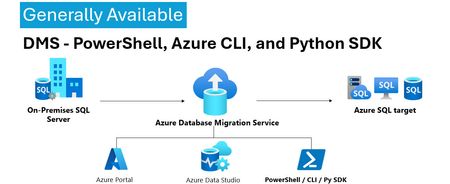
General Availability - DMS's PowerShell, Azure CLI, and Python SDK
We’re excited to announce the General Availability (GA) of DMS client tools - PowerShell, Azure CLI, Python SDK and more. This milestone unlocks efficient, stable, and scalable automation options for database migration workflows—making it easier than ever to integrate DMS into your DevOps pipelines and enterprise migration strategies. 💡Introduction: With the general availability of DMS client tools - PowerShell, Azure CLI, Python SDK, users can now use stable release of: PowerShell module 1.0.0 (https://www.powershellgallery.com/packages/Az.DataMigration/1.0.0) Azure CLI extension 1.0.0 (https://learn.microsoft.com/en-us/cli/azure/datamigration?view=azure-cli-latest) DMS V2 APIs (version 2025-06-30) SDKs for multiple languages (listed below) SDKs Releases: Language GA Package / Link .Net https://www.nuget.org/packages/Azure.ResourceManager.DataMigration/1.0.0 Java https://central.sonatype.com/artifact/com.azure.resourcemanager/azure-resourcemanager-datamigration/1.1.0 Go https://pkg.go.dev/github.com/Azure/azure-sdk-for-go/sdk/resourcemanager/datamigration/armdatamigration/v2 Python azure-mgmt-datamigration · PyPI JavaScript https://www.npmjs.com/package/@azure/arm-datamigration/v/3.0.0 🔧 What’s New? Three new commands have been introduced in the latest releases of the SDK, PowerShell module, and CLI extension, as outlined below: New CLI Commands: az datamigration sql-db retry - Retry the failed SQL DB migrations. az datamigration sql-managed-instance delete - Delete Azure SQL MI’s Database Migration resource. az datamigration sql-vm delete - Delete Azure SQL VM’s Database Migration resource. New PowerShell Commands: Invoke-AzDataMigrationRetryToSqlDb - Retry the failed SQL DB migrations. Remove-AzDataMigrationToSqlManagedInstance - Delete Azure SQL MI’s Database Migration resource. Remove-AzDataMigrationToSqlVM - Delete Azure SQL VM’s Database Migration resource. 🚀Conclusion: With this GA / stable release, users can now: Use them to configure and execute migrations with full control. Automate migrations: DevOps teams can embed migration steps into CI/CD pipelines. Integrate into custom applications and orchestration tools. These support all the DMS migration scenarios—from simple lift-and-shift operations to complex logical migrations—while ensuring stability, and repeatability. For more details, refer: Documentation: Migrate databases at scale using Azure PowerShell / CLI PowerShell: Az.DataMigration Module Azure CLI: az datamigration Python SDK: azure-mgmt-datamigration · PyPI482Views2likes0CommentsMaking Azure DMS More Secure: Azure Portal Permission Enhancements
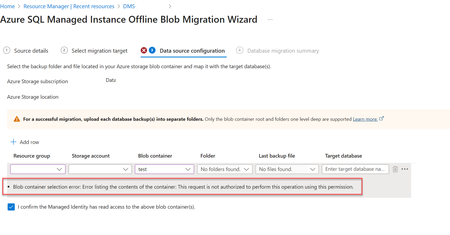
Migrating databases to Azure SQL Managed Instance or Azure SQL Virtual Machine is a critical step in modernizing enterprise infrastructure. With security and compliance top of mind, Azure Database Migration Service (DMS) has introduced key changes to its Azure portal experience—especially around permission for blob container access. Why the Change? Previously, in case of Azure Portal, DMS relied on account key-based access to Azure Blob Storage for listing and accessing backup files on the migration configuration page. While functional, this approach is not best in terms of security, especially for industries which prohibit the use of shared keys. Now, DMS's Azure portal uses security context of the current signed in user on the Azure portal to list and access backup files in the blob container, making it better security approach. Impact of the Change When migrating to Azure SQL Managed Instance or Azure SQL Virtual Machine via Azure portal make sure the current signed in user has Storage Blob Data Reader role on the Blob container that contains the backup files. This permission is needed to list folders and files in the blob container during migration setup via Azure portal only. If the current signed in user lacks the Storage Blob Data Reader role on the Blob container, users will encounter the following error: Error: "Blob container selection error: Error listing the contents of the container: This request is not authorized to perform this operation using this permission." Solution: Make sure the current signed in user has "Storage Blob Data Reader" role on the Blob container that contains the backup files. For more information, refer : Tutorial: Migrate SQL Server to Azure SQL Managed Instance - Azure Database Migration Service | Microsoft Learn Tutorial: Migrate SQL Server to SQL Server on Azure Virtual Machine Using Azure Data Studio - Azure Database Migration Service | Microsoft Learn398Views0likes0CommentsEnhanced SQL Migration Tracking & Bringing SQL Server Arc Assessments to Azure Data Studio
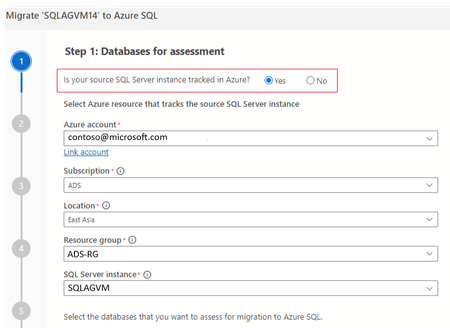
In the ever-evolving landscape of data management, ensuring seamless and efficient migrations is crucial for businesses. Migration is a multi-step process and typically requires multiple tools to complete the migration. To enhance the migration experience, we are bringing a new feature that enhances the migration tracking experience across tools. In this blog post we delve into the benefits this feature offers to streamline the migration tracking process. This feature is available for Azure Data studio users via the latest Azure SQL Migration extension v1.5.8 The Azure SQL migration extension now offers 2 new features in ADS to help users in their migration journey. Ability to view Arc assessments, SKU recommendation in Azure Data Studio Ability to track the migration via SQL Server instance (At no additional cost!) Viewing Arc assessments in Azure Data Studio for SQL Server enabled by Azure Arc If you are planning to migrate SQL Server instances that are Arc-enabled, The Azure Data studio now helps you jump start the migration by providing the ability to view the pre-computed Arc assessments. ADS now provides a link to the pre-computed assessments in the Arc experience Azure portal, which provides migration readiness assessment, SKU recommendation and pricing information (coming soon). Users can continue with rest of their migration journey in the Arc experience. To view the pre-computed assessments computed by Arc, users have to select Yes to the ‘Is your SQL Server instance tracked in Azure? ‘and fill in the Azure resource details of the SQL Server Instance enabled by Azure Arc. The pre-computed assessments and SKU recommendations will be generated as a navigation link to users like below: Ability to streamline the migration tracking process For SQL Server instances which are not Arc-enabled, this feature provides an ability to track the migration by creating an Azure resource with no additional cost associated. Once this resource has been created, users can select this migration resource which is created for their successive migrations that take place for the same source & avail the assessment and readiness benefits. This migration tracking ability is available for both Azure Data Studio and Database migration service portal. Below images show the experience for this ability in Azure DMS portal:Release Announcement of SQL Server Migration Assistant (SSMA) v 10.1
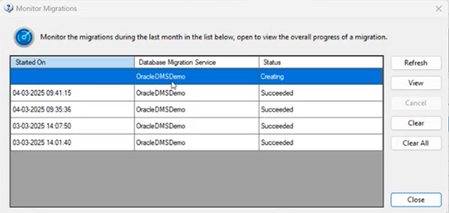
Overview SQL Server Migration Assistant (SSMA) Access, DB2, MySQL, Oracle, and SAP ASE (formerly SAP Sybase ASE) allow users to convert a database schema to a Microsoft SQL Server schema, deploy the schema, and then migrate data to the target SQL Server (see below for supported versions). What’s new? Enhanced monitoring experience for migrations using DMS [ SSMA-Oracle] Migrating Oracle workloads using Azure Database Migration service is in preview, please refer for more details. For Oracle workloads migrating using DMS in SSMA, we are bringing an enhanced monitoring experience through tabular user interface where the users can now view live list of migrations that are in progress or completed phase. Each entry represents a migration activity along with the start time of migration, DMS used for migration and status. Users can view quick brief migration information of individual tables to know more information like Table name, Schema name, copy duration, No. of Rows copied & status real-time. For the sake of users requiring more granular monitoring information about their migration activity, SSMA provides a link to the Azure Database Migration service portal webpage (View Comprehensive Report) where they can view details like Data read, writes, Rows copies, Throughput along with copy duration, etc. Code Conversion Improvements [DB2, Oracle] Conversion enhancements for identity column from Db2 z/OS to SQL Server 2019 Improve conversion of Db2 stored procedure WITH RETURN clause to Azure SQL Database Improve database objects load for Db2 Appropriate error handling for conversion of identifier REPLACE(STRING, CHAR,CHAR) in Db2 Detection of CHAR length in Oracle VARCHAR2 datatype Downloads SSMA for Access SSMA for DB2 SSMA for MySQL SSMA for Oracle SSMA for SAP ASE Supported sources and target versions Source: For the list of supported sources, please review the information on the Download Center for each of the above SQL Server Migration Assistant downloads. Target: SQL Server 2016, SQL Server 2017, SQL Server 2019, Azure SQL Database, an Azure SQL Database managed instance Resources SQL Server Migration Assistant documentation683Views1like0Comments