microsoft surface
23 TopicsReimagining Surface Tools for Business
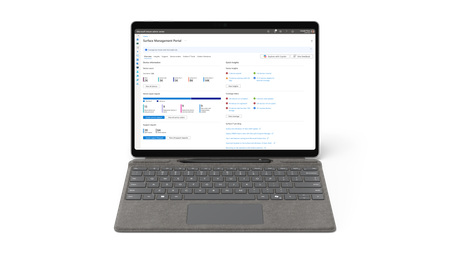
We recently announced new Surface Pro for Business and Surface Laptop for Business devices powered by Intel ® Core™ Ultra Series 3 processors and Snapdragon ® X2 processors. Across the lineup, these devices include Secured-core PC protections and on-device AI processing, with an optional integrated privacy screen on 13.8-inch models, and an advanced haptic experience. With 13-inch, 13.8-inch, and 15-inch options available, organizations can choose devices that align with different roles, performance needs, and workstyles. Hardware is only part of the story. Once devices enter an environment, IT teams need to identify, manage, protect, and recover them. That is where Surface Tools for Business come into focus. Recent updates to Surface Management Portal, Surface Support Portal, Surface IT Toolkit, and Surface Repair Tool add support for the latest Surface for Business devices powered by Intel and Snapdragon and enhance key management and support workflows. Scorecard and Protection Plans in Surface Management Portal Managing devices goes beyond deployment. IT teams also need visibility into fleet health and access to support resources that help keep devices protected throughout their lifecycle. In the United States, Surface Management Portal now includes Scorecard and Protection Plan capabilities designed to help admins monitor key fleet health indicators and review available protection plan options for eligible devices. Note: The Scorecard experience and Protection Plan purchasing capabilities in Surface Management Portal are currently available to customers in the United States only. The Scorecard: Fleet Health, Not Just Fleet Data Current insight dashboards present a wide range of metrics, including device counts, compliance percentages, and warranty status. While useful, those data points on their own don’t always make it easy to determine what needs attention or what the next steps are. The new Scorecard in Surface Management Portal is designed to organize fleet health information across four dimensions: security, coverage, reliability, and performance. Together, these categories provide another way to view fleet status within the portal. Rather than presenting only a static set of numbers, the Scorecard is intended to provide additional context alongside those metrics. From Insight to Action: Protection Plans in Surface Management Portal Knowing that a device may need attention is one step. Taking action is another. The Surface Scorecard can display devices that may be eligible for a protection plan purchase. IT admins can review the device, select an available plan, and submit a request within the portal. Resume and Pause BMR Downloads in Surface IT Toolkit Bare Metal Recovery images are large, and network interruptions can happen during download. Surface IT Toolkit now includes pause and resume functionality for BMR downloads. Admins can pause a download before disconnecting from the network and resume it later, so the download can continue from the previous point in supported scenarios. For IT teams working with large recovery files, pause and resume functionalities can make interrupted downloads easier to manage. Support repair workflows with Surface Repair Tool When hardware issues arise, IT teams and technicians need a clear path to diagnose, repair, and validate supported devices. Surface Repair Tool runs subsystem diagnostic tests and guides repair or replacement for supported components, including battery, motherboard, TDM, and touchpad. After a repair or replacement is completed, the same subsystem tests can be run again as a post-repair validation step to help confirm that the affected subsystem is operating as expected before the device returns to service. These capabilities support diagnostics, repair guidance, and post-repair checks within the Surface IT ecosystem. Everything Connected Surface Management Portal and Surface IT Toolkit include links to Surface Repair Tool, device support resources, and the Microsoft policy for integrated privacy screen settings on supported devices. These updates reflect ongoing work to make relevant tools, resources, and policies easier to access across the Surface management experience. What's next? If you're a Surface customer using Intune, check out the latest updates in Surface Management Portal and see how these new capabilities can help simplify device management. You can learn more in the resources below: Surface Management Portal overview Surface Scorecard in Surface Management Portal Surface IT Toolkit overview Purchase a Microsoft Protection Plan in Surface Management Portal951Views0likes0CommentsBringing Hybrid, Agent-based AI to Higher Education
Higher education institutions are actively exploring ways to expand access to student services while operating within practical constraints related to staffing, budgets, and infrastructure. Historically, student services have been delivered through a mix of websites and portals, printed reference materials, and appointment‑based advising or help desks. As student expectations increasingly reflect preferences for more immediate, conversational and self-service interactions, colleges and universities are evaluating alternative delivery methods to extend access at scale. As interest grows in agent‑based AI, institutions are increasingly exploring conversational interfaces as an entry point to digital services. These systems are designed to handle requests, surface information, and guide users through processes using natural language. Evaluating this approach at scale raises broader architectural considerations for IT teams, including how AI‑enabled services are delivered and where different classes of workloads should execute. The evolution of the delivery of student services in higher education. Considering Hybrid AI Architectures A growing pattern in agent‑based AI delivery is the use of hybrid architectures that blend local execution on modern AI-enabled PCs powered by small language models (SLMs), with cloud‑based AI services built on large language models. The ibl.ai agentic platform is one example, combining agent‑based design with the flexibility to run selected AI tasks locally on Windows Copilot+ PCs—such as Microsoft Surface devices with NPUs—while relying on cloud‑hosted services when broader institutional context is required. This design enables institutions to dynamically determine where inference occurs, shaping how performance, data locality, and operational cost exposure are managed. As discussed in Microsoft’s evaluation of small language models for retrieval‑augmented generation, SLMs can be appropriate for selected, well‑scoped tasks, particularly when model behavior and deployment context are tightly controlled. Examples include: Offline or local environments, including on‑device scenarios, where local inference may be required due to connectivity, policy, or architectural considerations. Latency‑sensitive interactions, where model placement and execution location are key design factors. Scenarios with constrained AI budgets or usage thresholds, where organizations choose to manage cloud‑based inference consumption by selectively running tasks locally. Resource‑constrained environments, where model size and deployment footprint are important considerations. Task‑specific workflows, where smaller models may be fine‑tuned to support narrowly defined use cases rather than relying on general‑purpose, out‑of‑the‑box models. Importantly, decisions about where and how AI workloads execute are shaped by institutional design choices, governance requirements, and technical constraints—not by the AI models alone. An Example of Hybrid Agent‑Based Design in Higher Education The ibl.ai agentic platform provides one example of how hybrid agent‑based AI can be applied in higher education. In collaboration with the Surface engineering team, ibl.ai enabled support for on‑device inference and developed the student experience pack—a collection of preconfigured, task‑specific AI agents, designed to run on Surface Copilot+ PCs with NPU. These agents support common student‑facing scenarios, including Study Hub, Campus Connect, Career Launchpad, and Surface device‑related services such as onboarding, support, and care. This collaboration exemplifies how services can be configured to operate either locally or in the cloud, based on how institutions dynamically determine where inference should occur. Under typical conditions, the agents may connect to cloud‑based services to access institutional systems, broader context, or cross‑service coordination. In other scenarios—such as offline use or institution‑defined usage thresholds—the same agents can be configured to run entirely on the device without requiring cloud connectivity. Designing for Flexibility and Choice As AI becomes more visible in student‑facing experiences, colleges and universities are balancing competing demands. Students increasingly expect conversational, always‑available support. Institutions want to meet those expectations responsibly, without sacrificing governance or sustainability. And IT teams need architectures that can flex across devices, networks, and deployment models. Students want conversational access to services; institutions need a smarter way to deliver it—one that scales by design, preserves control, and uses hybrid AI execution to create value without unnecessary tradeoffs.645Views4likes0Comments
Designed for Surface Accessories for Frontline Work
Frontline scenarios often involve Surface devices that are shared across shifts, used in physically demanding settings, or deployed across multiple locations. In these situations, accessories play a critical role in shaping how devices are configured for day‑to‑day use and how well they perform within the environments in which they are used. Designed for Surface (DfS) accessories are built to support these frontline needs, providing purpose‑built solutions for shared use, mobile workstyles, and access-controlled environments. Below are a few frontline deployment patterns that help illustrate how accessories can be used to adapt Surface devices for healthcare, manufacturing, and government use cases. Healthcare | Shared Devices and Fixed-Station Use In many healthcare scenarios, Surface devices are deployed both in fixed locations and on-the-go, often by multiple users throughout the day. Fixed stations typically benefit from a consistent physical setup that supports reliability and frequent interaction in busy environments, while shared mobile devices require added protection to withstand regular handling. Common in areas such as check-in desks or shared workspaces, enclosures such as The Joy Factory’s Elevate II kiosks allow Surface devices to stay protected in fixed locations across departments or facilities and come in a variety of mounting options. Shared devices in this environment are also frequently handled, so protective options such as the UAG Plasma Healthcare cases for Surface Pro, 13-inch and Surface Pro, 12-inch can be sanitized with disinfectants repeatedly without altering case integrity and are tested by an independent third-party to MIL‑STD‑810G standards 1 . The Surface Pro, 12-inch variant also features swappable rear camera rings for colorful differentiation and visually identifying devices across business departments. Manufacturing | Rugged Mobile Use Pictured, left to right: MobileDemand xCase with Scanner for Surface Pro, The Joy Factory aXtion Go MP for Surface Pro, 12-inch. In manufacturing settings, Surface devices are often on the move—being carried across a site, handled during active workflows, or used alongside task specific equipment and peripherals. Surface devices in demanding environments are benefited by accessories designed for mobile and rugged use. For example, The Joy Factory’s aXtion Go MP for Surface Pro, 12‑inch is IP68-rated for protection against dust and water ingress 1 , supporting usage in environments where devices can be handled in various contexts. Other protective solutions like the MobileDemand xCase with Scanner for Surface Pro can also be used for inventory tracking. These accessories illustrate how Surface devices can be paired with additional, industry-specific capabilities for task focused workflows. Government | Access‑Controlled and Physically Secured Use Pictured, left to right: UAG Scout Series Smart Card Reader Case, Kensington BlackBelt Rugged Case with Integrated Smart Card Reader & HDMI, Kensington Keyed Cable Lock. Some environments call for additional considerations around how Surface devices are accessed and secured during use. This pattern is often seen in government, where devices may be shared, deployed in the field, or used in sensitive environments that require additional security needs. In environments where security matters, these deployments are supported by accessories that integrate security features into their design. Surface devices can integrate with smart card-based authentication workflows when paired with cases like the UAG Scout Series Smart Card Reader Case, or the Kensington BlackBelt Rugged Case with Integrated Smart Card Reader (CAC) & HDMI, which have built-in, TAA-compliant card readers for access‑controlled use in shared or secured environments. These solutions can also be combined with physical security options such as locks, to physically secure devices both in and out of use. Non-invasive solutions, such as the Kensington Combination Lock and Keyed Cable Lock, provide an added layer of deterrence against unauthorized removal without requiring device modification. Applying These Patterns Frontline deployments need to scale across roles, sites, and environments, while still supporting the different ways people actually work. Looking at these deployments through common patterns offers a framework for choosing the right combinations of Surface devices and accessories to help meet a broad range of frontline needs. The Designed for Surface program offers an ecosystem of certified accessories from trusted manufacturers that support these patterns across industries, helping organizations leverage Surface across frontline use cases. Explore the full catalog of 200+ Designed for Surface accessories and see how they can support frontline work 2 by visiting DesignedforSurface.com. Footnotes 1 MIL‑STD‑810G and IP68-rating testing conducted by the accessory manufacturer. Testing is not a guarantee of future performance under all conditions. 2 Surface devices and Designed for Surface accessories are intended for general business use. Third‑party accessories may require additional validation to meet industry specific regulatory, safety, or procurement requirements.518Views2likes0Comments
Microsoft Protection Plans now deliver more coverage
Modern organizations rely on their Surface devices every day, across offices, job sites, classrooms, and hybrid work environments. Microsoft Protection Plans help reduce unexpected repair-related costs in accordance with the plan terms. While every Microsoft Surface device comes with a minimum of 1-year Microsoft's Limited Hardware Warranty 1 , you can protect your investment further with a Microsoft Protection Plan. Microsoft has recently updated its Protection Plans to provide broader coverage and reduce uncertainties in claim boundaries for customers. These enhancements are designed to better reflect how devices are used over time and to reduce uncertainty around repairs and long‑term ownership. 2026 Protection Plan Enhancements Unlimited Mechanical Breakdown Coverage Microsoft Protection Plans now include unlimited mechanical breakdown coverage 2 for the full duration of the plan. Previously, mechanical breakdowns and accidental damage claims were combined under a two‑claim limit. With this change, hardware failures caused by defects in materials or workmanship are no longer subject to a fixed claim count limit. Devices may be repaired or replaced as needed for mechanical issues throughout the coverage term. 3 Accidental Damage Claims Are Now Separate The existing two‑claim limit now applies only to Accidental Damage from Handling (ADH) 4 , such as drops, spills, or cracked screens. By separating accidental damage from mechanical breakdown coverage, customers can more clearly understand how claims are applied and avoid using accidental damage claims for issues related to normal hardware failure. New Battery Degradation Coverage Microsoft Protection Plans 5 now include battery degradation coverage. Customers can file one dedicated battery claim 6 if a device’s battery capacity drops below 70% of its original capacity during the plan term. This marks the first time Protection Plans address battery wear over time, not just battery failures caused by manufacturing defects. Battery eligibility can be validated using tools such as the Surface Diagnostic Toolkit. Battery degradation claims are separate from accidental damage claims, so ADH limits remain unaffected. Together, these updates help organizations extend device life, reduce unexpected repair costs, and plan more confidently for device ownership. Customers can add a Microsoft Protection Plan when purchasing a new device, or within the eligible post-purchase window. 7 To purchase, contact your authorized partner or reseller, or engage the Microsoft Store virtual assistant. [Consumer customers can purchase through the Surface app or your Microsoft account.] These updates apply only to Microsoft Complete and Extended Hardware Service plans purchased on or after the applicable effective date (April 01, 2026) and are not retroactively modified. Coverage, whether for new or existing customers, is determined solely by the relevant Terms & Conditions for the specific plan purchased. To learn more about Microsoft Protection Plans, visit Microsoft Surface Warranty & Protection Plans. To see Warranty and Protection Plan Terms & Conditions, visit Support.microsoft.com. Disclaimers Without prejudice to any legal (statutory) rights to which you may be entitled under your local law, Microsoft Limited Hardware Warranty covers your device for one year from the date of original purchase from Microsoft or an authorized reseller. Restrictions apply. Please refer to Microsoft Limited Hardware Warranty & Agreement. Additional extended coverage for mechanical breakdown and accidental damage from handling is available through the purchase of Microsoft protection plans. If the plan provides additional Mechanical Breakdown coverage, that coverage begins upon expiration of the manufacturer’s original warranty and continues for the remainder of the term shown on the Holder’s Proof of Purchase. Accidental damage from handling begins immediately upon purchase. Restrictions apply, for all Protection Plans, please reference the Terms and Conditions for the limit of liability and the applicable exclusions of the Protection Plan. Subject to plan terms, conditions, and limit of liability. Accidental damage from handling is included in the following plans: Commercial: Complete for Business, Complete for Business Plus, Accidental Damage Protection (EU), Accidental Damage Protection Plus (EU), and Consumer: Microsoft Complete. Extended Hardware Service (EHS) plans provide coverage for mechanical breakdown only and do not include Accidental Damage from Handling or battery degradation coverage. Battery degradation is included in the following plans: Commercial: Complete for Business, Complete for Business Plus, Accidental Damage Protection (EU), Accidental Damage Protection Plus (EU), and Consumer: Microsoft Complete. Extended Hardware Service (EHS) plans provide coverage for mechanical breakdown only and do not include Accidental Damage from Handling or battery degradation coverage. Customers with eligible plans are limited to one (1) battery degradation/replacement claim as set out in plan Terms and Conditions. Availability and timing vary by market and plan type.813Views3likes0CommentsElevate teaching and learning with AI-powered experiences on Surface Copilot+ PCs
Surface is a premium endpoint, designed and built by Microsoft to run Microsoft technology. When it comes to the classroom, Surface Copilot+ PCs bring the best of Microsoft—hardware, Windows, Microsoft 365 1 , and Microsoft 365 Copilot 1 —into one teaching device, delivering intelligent experiences more securely on‑device and in the cloud. For educators, this means every lesson and interaction is powered by a device purpose-built for teaching and learning in the digital era. Why Surface for Education? Surface Copilot+ PCs, combined with Windows 11, give teachers a powerful platform designed to simplify teaching and elevate learning. With lightning-fast performance, educators can create engaging lessons, generate content, and personalize instruction. Windows 11 features like Snap Layouts, Click to Do 2 , and Copilot Voice streamline multitasking and lesson prep, while intuitive touch, pen 3 , and voice input make teaching feel natural. Together, Surface and Windows 11 help deliver a more secure, AI-supported solution that can save time, support creativity, and help teachers focus on what matters most—students. Engage students with AI-enhanced learning Picture a classroom where every student is actively engaged, their curiosity sparked by lesson plans and quizzes thoughtfully designed by teachers with the help of AI. Microsoft Learning Zone, included with all Microsoft Education licenses at no extra cost 4 , is an AI-powered learning app for Windows 11 designed to help educators create engaging lessons. The app’s AI powered lesson creation feature is designed specifically for Copilot+ PCs. Thanks to the Copilot+ PC’s built-in Neural Processing Unit (NPU), these devices offer fast, reliable performance by running AI models directly on the device and combining them with cloud-based capabilities when needed. This hybrid approach helps Microsoft Learning Zone generate lessons quickly and keeps the experience smooth, secure, and ready for classroom use. It also helps educators streamline lesson planning with interactive activities, instant feedback, and personalized learning pathways. For example, teachers can use Microsoft Learning Zone to develop Kahoot! quizzes for a whole class or to prepare individualized learning experiences like personalized practice questions based on recent student performance, while keeping student data more secure and private. Surface Copilot+ PCs can also help teachers use AI in context to streamline lesson prep and administrative tasks, so they can spend less time on administration and more time inspiring students. For example, teachers can engage with Copilot in a single click using the Copilot key 5 on a Surface keyboard or by saying “Hey Copilot” out loud. And using pen, touch, and voice commands in conjunction with Teach in Microsoft 365 Copilot 6 running on Surface, teachers have a central hub for generating lesson plans, quizzes, rubrics, flashcards, feedback, and more. They can transform ideas and research into engaging lectures in moments, tailor instruction to meet the needs of every learner, and connect with colleagues to share best practices. Recently, we also announced the Microsoft Elevate for Educators skilling program along with more AI-powered experiences purpose-built for education, including the Study and Learn agents in Microsoft 365 Copilot, and Study Guide. Microsoft Elevate helps equip educators with the AI skills they need for the classroom of the future. Delivered through platforms like Microsoft Learn and Minecraft Education, these flexible learning paths ensure that educators can build AI fluency at their own pace, whether they're just beginning their journey or advancing to specialized applications. Read more about Microsoft Elevate and other AI tools for education here. In classrooms where both teachers and students are using Surface Copilot+ PCs, Live Captions 7 with on-device automatic translation can help make spoken content accessible to all students, including students with hearing impairments. The NPU transcribes and translates audio in real time, supporting 40+ languages into English, all processed on-device versus the cloud. Ideally with Surface Copilot+ PCs and Microsoft’s AI-powered tools, technology fades into the background in the classroom, helping teacher creativity and connection take center stage and enabling student learning to be more dynamic, inclusive, and impactful. Empower the classroom of the future, today Surface Copilot+ PCs, purpose-built by Microsoft, are designed to be the foundation for today’s classrooms and the launchpad for tomorrow’s AI innovations. With Windows evolving as the canvas for intelligent AI and agents, Surface devices and Windows together form an essential, AI-assisted platform for educators. Now, every teacher can activate Copilot agents 8 directly on their Surface device to act as a digital teaching partner. These agents can adapt to each teacher’s unique style, streamline daily routines, and unlock new possibilities for student learning. Building agents is simple: teachers or IT can use ready-made templates or create custom agents using natural language, all within the familiar Surface and Windows environment. Surface’s intuitive hardware—touchscreen, pen, voice, and the dedicated Copilot key—makes accessing AI support effortless. Teachers can get immediate answers to classroom questions, troubleshoot tech issues, or navigate school resources using natural input methods. By combining Copilot’s intelligent capabilities with Surface’s secure hardware, educators can gain a more personalized, efficient, and protected teaching experience ready for the future of learning. In addition, Surface Copilot+ PCs help support the full range of learning needs by delivering the performance and experience required for the education tools students and educators depend on every day. Surface devices are designed to work with common education apps like TestNav for assessments, Minecraft Education for STEM, Adobe Express for creativity, and assistive technologies such as JAWS. And, going forward, the built-in NPU on Copilot+ PCs like Surface enables Microsoft and other educational software providers to develop innovative new AI experiences that can run on the device, in the cloud, or both. Boost productivity and collaboration In the classroom, Surface Copilot+ PCs can become the teaching command center: always ready, always responsive. With a simple voice command, Copilot Voice and improved Windows Search 9 instantly pull up lesson plans, student materials, or answers to unexpected questions, freeing instructors from frantic searches and giving back precious prep time. Collaborating on Surface is intuitive and efficient. Teachers can quickly save lesson materials in Teams or OneDrive 1 and share them with students for interactive feedback. Whether teachers are leading a lively discussion in person, connecting with students remotely, or conferencing with colleagues via video, Windows Studio Effects on Copilot+ PCs ensure they’re always seen and heard clearly. Subtle features like background blur, eye contact, and automatic framing help maintain a professional presence, so the focus stays on interacting with students or other teachers—not on the tech. And Surface Copilot+ PCs are designed to empower mobility in and outside the classroom. With extended battery life and lightweight devices, teachers are no longer tethered to a desk or a charger. They can move about freely, interact with students, project and present seamlessly, and focus on teaching. For example, on a Surface Pro with Surface Pen inking, Dual Studio Mics, and natural language prompts in Copilot, teachers can annotate readings, capture ideas by voice, and generate lesson materials on the fly—without breaking the flow of instruction. Throughout the day, Surface Copilot+ PCs can also help teachers anticipate what’s next. Context-aware Windows Search doesn’t just find files—it suggests smart next steps, like opening a document in Word or sharing it with a colleague, streamlining workflows. When inspiration for a lesson strikes, Click to Do lets teachers quickly summarize, explain, or create new content on the fly, helping them build engaging lectures and materials in real time. Surface’s vibrant touchscreen and Snap Layouts can help keep resources organized and visible, supporting a productive work experience. And, most importantly, Surface devices help safeguard faculty, staff, students, and sensitive school data with advanced security and remote management features 1 . As innovations advance in AI, Microsoft and Surface provide built-in protection at every layer—hardware, firmware, operating system, cloud, software applications, and identity. Surface Copilot+ PCs are more than just devices—they’re partners in teaching, learning, and innovation. By combining Microsoft’s advanced hardware, intuitive software, and powerful AI, Surface empowers educators to engage students, boost productivity, and modernize their classrooms, all while keeping data more secure and private. Visit Surface.com/Business to learn more. Students, parents and educators can save up to 10% on select Surface devices and more at the Microsoft Store. 10 Disclaimers: Sold separately. Software license required for some features. Click to Do. Copilot+ PC feature. Image actions now available across devices; other actions vary by device, region, language, and character sets. Subscription required for some actions. Learn more. Surface Pen sold separately. Surface Slim Pen (2nd Edition) experiences and compatibility vary by which Surface device you are using it with. Visit Surface Slim Pen Compatibility to learn more. Microsoft Learning Zone requires a Microsoft 365 Education Essentials, Core (A3), or Advanced (A5) license. Microsoft Education licenses. Copilot key feature availability varies by market, see aka.ms/keysupport. This feature is only available to Faculty/Staff with a Microsoft 365 for Education license. Teach in the Microsoft 365 Copilot App. Copilot+ PC feature. Live Captions translates video and audio subtitles into English from 40+ languages and from 25+ languages into Chinese (Simplified). See Copilot+ PC FAQs. Copilot with commercial data protection is available at no additional cost for users with an Entra ID with an enabled, eligible Microsoft 365 license. Copilot for Microsoft 365 sold separately and requires a qualifying volume license or subscription - Microsoft Copilot for Microsoft 365 | Microsoft 365. Minimum age limits apply to use of Copilot and certain AI features. Details. Copilot+ PC feature. Improved Windows search works with specific text, image, and document formats only; optimized for select languages (English, Chinese (Simplified), French, German, Japanese, and Spanish). See Copilot+ PC FAQs. Microsoft Store Education discount is available to K-12 and higher education students, faculty and parents. Education discount only valid on select products, and may not be combinable with other offers. See terms and conditions at Education & Student Discounts on Laptops, Microsoft 365, Windows, Surface | Microsoft Store932Views0likes0CommentsMeeting Control, Now Within Reach: Surface Hub 3 + MAXHUB Universal Console
Modern meeting spaces require flexibility, simplicity, and consistency for IT teams managing collaboration environments. Announced at Microsoft Ignite 2024, center-of-table console support for Surface Hub 3 extends Microsoft Teams Rooms on Windows by enabling certified third-party touch consoles for in-room meeting control. Center-of-Table Console Support Surface Hub 3 now supports Teams Rooms Certified Universal Consoles, introducing an additional option to control meetings beyond the interactive display. This includes the MAXHUB TCP33T Universal Console, a certified hardware solution in this ecosystem. By connecting a touch console directly to Surface Hub 3, users can join meetings, manage controls, and share wired content from their PCs while seated at the table. Benefits of Certified Universal Consoles Teams Rooms Certified Universal Consoles can help provide IT admins with: Microsoft Teams Rooms integration through certified accessories Flexible room design options including front-of-room deployments Consistent user experience across meeting spaces Simplified meeting controls for table-based interaction MAXHUB TCP33T Universal Console Overview The MAXHUB TCP33T is a Teams Rooms Certified Universal Console designed to work with Windows-based touch board devices such as Surface Hub 3. It delivers touchscreen control for Microsoft Teams Rooms meetings and serves as a dedicated entry point for wired content sharing. Common Deployment Scenarios Large conference rooms requiring table-based control Standardized Teams Rooms deployments across buildings Collaborative meetings requiring easy content sharing Requirements Deployments require Surface Hub 3 running Microsoft Teams Rooms on Windows and a Teams Rooms Certified Universal Console such as the MAXHUB TCP33T. Looking Ahead This new Universal Console ecosystem reflects Microsoft's commitment to flexible, scalable collaboration experiences. By pairing Surface Hub 3 with certified accessories like the MAXHUB TCP33T, organizations can design meeting spaces that meet modern collaboration needs. Live Webinar Wednesday the 14th of January... Sign up now! Join us for an exclusive webinar with Microsoft and MAXHUB as we explore how the MAXHUB Universal Console enhances the Microsoft Surface Hub experience. Hear from industry experts and learn how to: ✔ Reduce friction in the room ✔ Streamline collaboration workflows ✔ Centralize meeting controls — without leaving your seat! Featured Speakers: • Frank Buchholz, Director, Product Marketing — Microsoft • Jean Barrett, Technology Solutions Professional — Microsoft • Alan Nicholls, Microsoft Teams Professional — MAXHUB Register for a session and secure your spot👇 January 14 @9AM PST session: Register here January 14 @5PM PST session: Register here Resources Center-of-table console support Teams Rooms app version needed Center-of-table console support announcement during Microsoft Ignite 2024868Views1like0CommentsImproved address management in service orders on Surface Portals
We’ve introduced an important usability improvement to the address selection experience in the service order workflow on both Surface Management Portal and Surface Support Portal. When raising a service order, users can add both the billing and shipping addresses and save them for future use. Previously, all saved addresses were stored together and appeared in both dropdown menus. This caused confusion and made it difficult for users to select the correct one. To improve this experience, we’ve separated saved addresses by type. Shipping addresses now appear only in the Shipping Address dropdown, and billing addresses appear only in the Billing Address dropdown. As part of this update, all previously saved addresses have been moved to the Shipping Address section. Users can now save billing addresses separately as they create new orders. This change makes the selection process simpler, clearer, and more intuitive, allowing users to easily select the right address. To learn more about the Surface Management Portal and Surface Support Portal, see the following Microsoft Learn articles: Surface portals overview Surface Support Portal overview Surface Management Portal overview Assign admin roles for Surface Portals486Views0likes2CommentsEndpoints and AI strategy: Lessons of the Microsoft Work Trend Index 2025
AI adoption is accelerating, and PCs are now key to delivering fast, secure, and seamless AI experiences. Surface Copilot+ PCs combine local AI processing, cloud connectivity, and enterprise-grade security—making endpoints central to every AI strategy.1.3KViews1like0CommentsPartner showcase: Developing for on-device AI with Surface Copilot+ PCs with Teknikos
Explore how Teknikos built a Windows-native AI document assistant using Phi Silica and the Windows App SDK. This blog highlights the architecture behind the Teknikos PDF Explorer, which runs entirely on-device using NPUs—delivering fast, private, and cost-stable AI experiences without cloud dependencies. Ideal for developers and BDMs exploring hybrid AI and Copilot+ PC capabilities.1.1KViews2likes0CommentsNew Surface Laptop 5G for Business, Copilot+ PC
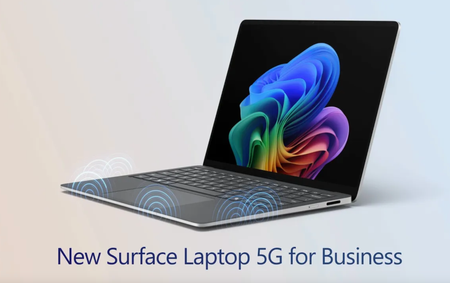
Stay securely connected with rearchitected 5G design — including six smart-switching antennas, eSIM and Wi-Fi 7 — without relying on hotspots. As the first Surface Laptop to feature 5G, it enables enterprise-ready AI features for deeper insights, productivity boosts, and powerful local inferencing wherever work happens. Stay connected anywhere. The first Surface laptop with built-in 5G — supporting NanoSIM, eSIM, smart signal switching, and international roaming. See it here. High-performance AI experiences. Surface Laptop 5G is powered by Intel Core Ultra processors with AI Boost. Watch here. No IT setup required. Surface Laptop 5G can arrive business-ready with zero-touch deployment and managed 5G policies. Check it out. QUICK LINKS: 00:00 — Surface Laptop 5G for Business 00:28 — Built-in 5G 01:30 — Hardware 02:06 — Intel® Core™ Ultra 02:41 — Built-in open-source AI models 03:20 — Management controls for IT 03:52 — Enterprise-Grade Security 04:16 — Wrap up Link References Check out https://surface.com/business Unfamiliar with Microsoft Mechanics? As Microsoft’s official video series for IT, you can watch and share valuable content and demos of current and upcoming tech from the people who build it at Microsoft. Subscribe to our YouTube: https://www.youtube.com/c/MicrosoftMechanicsSeries Talk with other IT Pros, join us on the Microsoft Tech Community: https://techcommunity.microsoft.com/t5/microsoft-mechanics-blog/bg-p/MicrosoftMechanicsBlog Watch or listen from anywhere, subscribe to our podcast: https://microsoftmechanics.libsyn.com/podcast Keep getting this insider knowledge, join us on social: Follow us on Twitter: https://twitter.com/MSFTMechanics Share knowledge on LinkedIn: https://www.linkedin.com/company/microsoft-mechanics/ Enjoy us on Instagram: https://www.instagram.com/msftmechanics/ Loosen up with us on TikTok: https://www.tiktok.com/@msftmechanics Video Transcript: -Surface Laptop 5G for Business with Intel Core Ultra Series 2 processors brings together intelligent connectivity, ultra-fast performance, and premium design. It’s built for AI as a Copilot+ PC to deliver new, connected, on-device, and hybrid experiences, all while keeping your business data protected with enterprise-grade security. -Now, not all 5G laptops are created equal. Surface Laptop 5G supports both physical Nano and eSIM for flexibility to connect from anywhere. In fact, we’ve rearchitected Surface Laptop to optimize connectivity, while still maintaining the sleek and lightweight design. It’s been engineered from the ground up for optimal signal strength with a strategically-placed six-antenna array, along with a newly developed custom composite palm rest. This material and antenna placement helps ensure superior signal transparency so it’s not blocked by your desk or your legs. The signal dynamically switches between antennas based on how you interact with the device to ensure the strongest possible connection. -For example, whether you’re typing or using the touch pad, the 5G signal is routed to the least obstructed antennas. And as you move between spaces or locations during your day, you don’t need to worry about staying connected. There’s no need to connect to hotspots or untrusted networks because it’s designed to seamlessly transition between 5G and known Wi-Fi networks, and includes support for Wi-Fi 7. -Now, continuing our hardware tour, on the right side, you’ll see a Surface Connect port. This is positioned next to the removable NanoSIM tray. Then on the left side of the device, there are two USB-C Thunderbolt ports, a USB-A and a 3.5mm headphone port. Moving up the device, Surface Laptop 5G comes with a signature 3:2 aspect ratio, 13.8" PixelSense touch display. The screen is anti-reflective, and not only does it come with Dolby Vision IQ support, but it has an impressive dynamic refresh rate of up to 120Hz. -Next, let’s move on to what powers the Surface Laptop 5G for Business. This is the first Surface Copilot+ PC to support Intel with 5G and it comes with a choice of Intel Core Ultra 5 and 7 processors. It supports up to 32GB of memory on package and has integrated Intel Arc Graphics. The Intel AI Boost Neural Processing Unit, or NPU, is capable of running up to 48 TOPS without compromising battery life. And the device comes with up to one terabyte of M.2 Gen 4 SSD storage. All of this makes it optimized to run connected Copilot experiences, like powerful reasoning agents capable of generating deep insights with your work data, as well as the on-device foundational models from Windows AI Foundry. This includes 40 plus local and ready-to-use open source models like Phi Silica for text generation, built-in OCR for text recognition in images, super resolution to upscale images and video, image segmentation for background removal, and more. Your productivity experiences and factor-enhanced with AI, including improved Windows search, which combines keyword and vector-based search for more relevant results. -Next, let’s look at the enterprise-grade management controls for IT. Here, Microsoft Intune can be used to provision 5G connectivity with your network policies from the first time Surface Laptop connects to the internet, which helps ensure that only known and trusted networks can be connected to. Together with Windows Autopilot deployment, Surface Laptop 5G can be shipped directly to your workforce with your defined security policies and apps so that they’re business-ready before connecting to your managed resources. Surface Laptop 5G meets the Secured-core PC standard with a Microsoft Pluton security processor. Additionally, authentication with Windows Hello facial recognition benefits from enhanced sign-in security using virtualization. This is all part of Microsoft’s end-to-end, chip-to-cloud security that helps keep your information, devices, and users safe wherever they work from. -So that was a quick tour of how the new Surface Laptop 5G for Business was thoughtfully engineered to bring together intelligent connectivity, ultra-fast performance, and premium design. Check out surface.com/business for availability and more information. Thanks for watching.1.4KViews3likes0Comments