microsoft sentinel
10 TopicsHow Azure network security can help you meet NIS2 compliance
With the adoption of the NIS2 Directive EU 2022 2555, cybersecurity obligations for both public and private sector organizations have become more strict and far reaching. NIS2 aims to establish a higher common level of cybersecurity across the European Union by enforcing stronger requirements on risk management, incident reporting, supply chain protection, and governance. If your organization runs on Microsoft Azure, you already have powerful services to support your NIS2 journey. In particular Azure network security products such as Azure Firewall, Azure Web Application Firewall WAF, and Azure DDoS Protection provide foundational controls. The key is to configure and operate them in a way that aligns with the directive’s expectations. Important note This article is a technical guide based on the NIS2 Directive EU 2022 2555 and Microsoft product documentation. It is not legal advice. For formal interpretations, consult your legal or regulatory experts. What is NIS2? NIS2 replaces the original NIS Directive 2016 and entered into force on 16 January 2023. Member states must transpose it into national law by 17 October 2024. Its goals are to: Expand the scope of covered entities essential and important entities Harmonize cybersecurity standards across member states Introduce stricter supervisory and enforcement measures Strengthen supply chain security and reporting obligations Key provisions include: Article 20 management responsibility and governance Article 21 cybersecurity risk management measures Article 23 incident notification obligations These articles require organizations to implement technical, operational, and organizational measures to manage risks, respond to incidents, and ensure leadership accountability. Where Azure network security fits The table below maps common NIS2 focus areas to Azure network security capabilities and how they support compliance outcomes. NIS2 focus area Azure services and capabilities How this supports compliance Incident handling and detection Azure Firewall Premium IDPS and TLS inspection, Threat Intelligence mode, Azure WAF managed rule sets and custom rules, Azure DDoS Protection, Azure Bastion diagnostic logs Detect, block, and log threats across layers three to seven. Provide telemetry for triage and enable response workflows that are auditable. Business continuity and resilience Azure Firewall availability zones and autoscale, Azure Front Door or Application Gateway WAF with zone redundant deployments, Azure Monitor with Log Analytics, Traffic Manager or Front Door for failover Improve service availability and provide data for resilience reviews and disaster recovery scenarios. Access control and segmentation Azure Firewall policy with DNAT, network, and application rules, NSGs and ASGs, Azure Bastion for browser based RDP SSH without public IPs, Private Link Enforce segmentation and isolation of critical assets. Support Zero Trust and least privilege for inbound and egress. Vulnerability and misconfiguration defense Azure WAF Microsoft managed rule set based on OWASP CRS. Azure Firewall Premium IDPS signatures Reduce exposure to common web exploits and misconfigurations for public facing apps and APIs. Encryption and secure communications TLS policy: Application Gateway SSL policy; Front Door TLS policy; App Service/PaaS minimum TLS. Inspection: Azure Firewall Premium TLS inspection Inspect and enforce encrypted communication policies and block traffic that violates TLS requirements. Inspect decrypted traffic for threats. Incident reporting and evidence Azure Network Security diagnostics, Log Analytics, Microsoft Sentinel incidents, workbooks, and playbooks Capture and retain telemetry. Correlate events, create incident timelines, and export reports to meet regulator timelines. NIS2 articles in practice Article 21 cybersecurity risk management measures Azure network controls contribute to several required measures: Prevention and detection. Azure Firewall blocks unauthorized access and inspects traffic with IDPS. Azure DDoS Protection mitigates volumetric and protocol attacks. Azure WAF prevents common web exploits based on OWASP guidance. Logging and monitoring. Azure Firewall, WAF, DDoS, and Bastion resources produce detailed resource logs and metrics in Azure Monitor. Ingest these into Microsoft Sentinel for correlation, analytics rules, and automation. Control of encrypted communications. Azure Firewall Premium provides TLS inspection to reveal malicious payloads inside encrypted sessions. Supply chain and service provider management. Use Azure Policy and Defender for Cloud to continuously assess configuration and require approved network security baselines across subscriptions and landing zones. Article 23 incident notification Build an evidence friendly workflow with Sentinel: Early warning within twenty four hours. Use Sentinel analytics rules on Firewall, WAF, DDoS, and Bastion logs to generate incidents and trigger playbooks that assemble an initial advisory. Incident notification within seventy two hours. Enrich the incident with additional context such as mitigation actions from DDoS, Firewall and WAF. Final report within one month. Produce a summary that includes root cause, impact, and corrective actions. Use Workbooks to export charts and tables that back up your narrative. Article 20 governance and accountability Management accountability. Track policy compliance with Azure Policy initiatives for Firewall, DDoS and WAF. Use exemptions rarely and record justification. Centralized visibility. Defender for Cloud’s network security posture views and recommendations give executives and owners a quick view of exposure and misconfigurations. Change control and drift prevention. Manage Firewall, WAF, and DDoS through Network Security Hub and Infrastructure as Code with Bicep or Terraform. Require pull requests and approvals to enforce four eyes on changes. Network security baseline Use this blueprint as a starting point. Adapt to your landing zone architecture and regulator guidance. Topology and control plane Hub and spoke architecture with a centralized Azure Firewall Premium in the hub. Enable availability zones. Deploy Azure Bastion Premium in the hub or a dedicated management VNet; peer to spokes. Remove public IPs from management NICs and disable public RDP SSH on VMs. Use Network Security Hub for at-scale management. Require Infrastructure as Code for all network security resources. Web application protection Protect public apps with Azure Front Door Premium WAF where edge inspection is required. Use Application Gateway WAF v2 for regional scenarios. Enable the Microsoft managed rule set and the latest version. Add custom rules for geo based allow or deny and bot management. enable rate limiting when appropriate. DDoS strategy Enable DDoS Network Protection on virtual networks that contain internet facing resources. Use IP Protection for single public IP scenarios. Configure DDoS diagnostics and alerts. Stream to Sentinel. Define runbooks for escalation and service team engagement. Firewall policy Enable IDPS in alert and then in alert and deny for high confidence signatures. Enable TLS inspection for outbound and inbound where supported. Enforce FQDN and URL filtering for egress. Require explicit allow lists for critical segments. Deny inbound RDP SSH from the internet. Allow management traffic only from Bastion subnets or approved management jump segments. Logging, retention, and access Turn on diagnostic settings for Firewall, WAF, DDoS, and Application Gateway or Front Door. Send to Log Analytics and an archive storage account for long term retention. Set retention per national law and internal policy. Azure Monitor Log Analytics supports table-level retention and archive for up to 12 years, many teams keep a shorter interactive window and multi-year archive for audits. Restrict access with Azure RBAC and Customer Managed Keys where applicable. Automation and playbooks Build Sentinel playbooks for regulator notifications, ticket creation, and evidence collection. Maintain dry run versions for exercises. Add analytics for Bastion session starts to sensitive VMs, excessive failed connection attempts, and out of hours access. Conclusion Azure network security services provide the technical controls most organizations need in order to align with NIS2. When combined with policy enforcement, centralized logging, and automated detection and response, they create a defensible and auditable posture. Focus on layered protection, secure connectivity, and real time response so that you can reduce exposure to evolving threats, accelerate incident response, and meet NIS2 obligations with confidence. References NIS2 primary source Directive (EU) 2022/2555 (NIS2). https://eur-lex.europa.eu/eli/dir/2022/2555/oj/eng Azure Firewall Premium features (TLS inspection, IDPS, URL filtering). https://learn.microsoft.com/en-us/azure/firewall/premium-features Deploy & configure Azure Firewall Premium. https://learn.microsoft.com/en-us/azure/firewall/premium-deploy IDPS signature categories reference. https://learn.microsoft.com/en-us/azure/firewall/idps-signature-categories Monitoring & diagnostic logs reference. https://learn.microsoft.com/en-us/azure/firewall/monitor-firewall-reference Web Application Firewall WAF on Azure Front Door overview & features. https://learn.microsoft.com/en-us/azure/frontdoor/web-application-firewall WAF on Application Gateway overview. https://learn.microsoft.com/en-us/azure/web-application-firewall/overview Examine WAF logs with Log Analytics. https://learn.microsoft.com/en-us/azure/application-gateway/log-analytics Rate limiting with Front Door WAF. https://learn.microsoft.com/en-us/azure/web-application-firewall/afds/waf-front-door-rate-limit Azure DDoS Protection Service overview & SKUs (Network Protection, IP Protection). https://learn.microsoft.com/en-us/azure/ddos-protection/ddos-protection-overview Quickstart: Enable DDoS IP Protection. https://learn.microsoft.com/en-us/azure/ddos-protection/manage-ddos-ip-protection-portal View DDoS diagnostic logs (Notifications, Mitigation Reports/Flows). https://learn.microsoft.com/en-us/azure/ddos-protection/ddos-view-diagnostic-logs Azure Bastion Azure Bastion overview and SKUs. https://learn.microsoft.com/en-us/azure/bastion/bastion-overview Deploy and configure Azure Bastion. https://learn.microsoft.com/en-us/azure/bastion/tutorial-create-host-portal Disable public RDP and SSH on Azure VMs. https://learn.microsoft.com/en-us/azure/virtual-machines/security-baseline Azure Bastion diagnostic logs and metrics. https://learn.microsoft.com/en-us/azure/bastion/bastion-diagnostic-logs Microsoft Sentinel Sentinel documentation (onboard, analytics, automation). https://learn.microsoft.com/en-us/azure/sentinel/ Azure Firewall solution for Microsoft Sentinel. https://learn.microsoft.com/en-us/azure/firewall/firewall-sentinel-overview Use Microsoft Sentinel with Azure WAF. https://learn.microsoft.com/en-us/azure/web-application-firewall/waf-sentinel Architecture & routing Hub‑spoke network topology (reference). https://learn.microsoft.com/en-us/azure/architecture/networking/architecture/hub-spoke Azure Firewall Manager & secured virtual hub. https://learn.microsoft.com/en-us/azure/firewall-manager/secured-virtual-hub1.6KViews0likes4Comments
Detect, correlate, contain: New Azure Firewall IDPS detections in Microsoft Sentinel and XDR
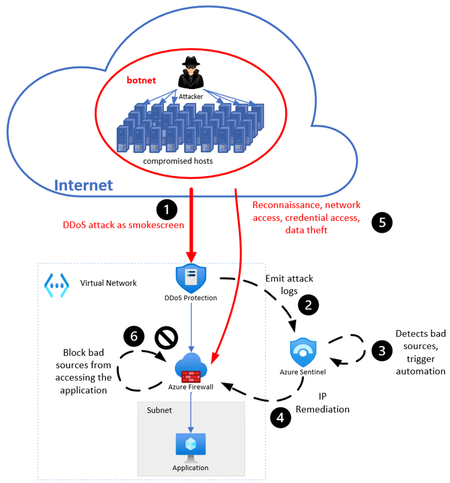
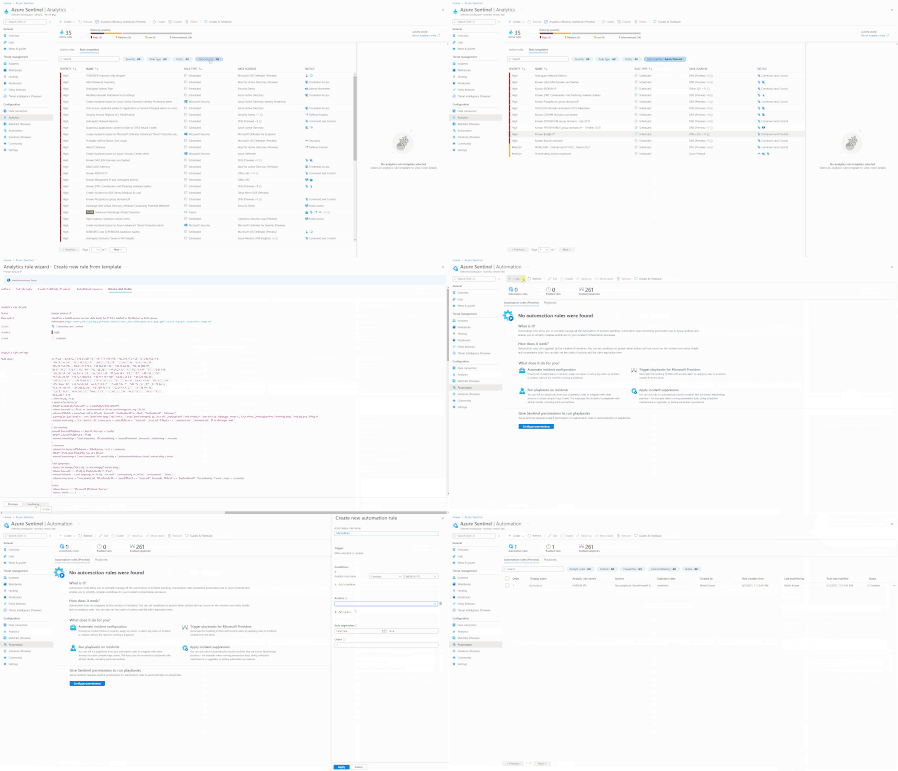
As threat actors continue to blend reconnaissance, exploitation, and post-compromise activity, network-level signals remain critical for early detection and correlated response. To strengthen this layer, we're introducing five new Azure Firewall IDPS detections, now available out of the box in the Azure Firewall solution for Microsoft Sentinel and Microsoft Defender XDR. See It in Action This short demo walks through Azure Firewall's IDPS capabilities, the new Sentinel detections, and the automated response playbook — from malicious traffic hitting the firewall to the threat being contained without manual intervention. Watch the demo → Azure Firewall integration with Microsoft Sentinel and Defender XDR Read on for the full details on each detection, customization options, and a step-by-step walkthrough of the automated response workflow. What’s new The Azure Firewall solution now includes five new analytic detections built on Azure Firewall. Detection name What it detects (network signal) MITRE ATT&CK tactic(s) Example ATT&CK techniques (representative) SOC impact High severity malicious activity Repeated high confidence IDPS hits such as exploit kits, malware C2, credential theft, trojans, shellcode delivery Initial access (TA0001) execution (TA0002) Command and Control (TA0011) Exploit public facing application (T1190) command and control over web protocols (T1071.001) Ingress Tool Transfer (T1105) Highlights active exploitation or post compromise behavior at the network layer; strong pivot point into XDR investigations Elevation of privilege attempt Repeated attempts or success gaining user or administrator privileges Privilege escalation (TA0004) Exploitation for privilege escalation (T1068) Flags critical inflection points where attackers move from foothold to higher impact control Web application attack Probing or exploitation attempts against web applications Initial access (TA0001) Exploit public facing application (T1190) Surfaces external attack pressure against internet facing apps protected by Azure Firewall Medium severity malicious activity Potentially unwanted programs, crypto mining, social engineering indicators, suspicious filenames/system calls Initial access (TA0001) execution (TA0002) impact (TA0040) User Execution (T1204) Resource Hijacking (T1496) Early stage or lower confidence signals that help teams hunt, monitor, and tune response before escalation Denial of Service (DoS) attack Attempted or sustained denial of service traffic patterns Impact (TA0040) Network Denial of Service (T1498) Enables faster DoS identification and escalation, reducing time to mitigation Where these detections apply These detections are available through the Azure Firewall solution in: Microsoft Sentinel, enabling SOC centric investigation, hunting, and automation Microsoft Defender XDR, allowing network level signals to participate in end-to-end attack correlation across identity, endpoint, cloud, and email They are powered by the AZFWIdpsSignature log table and require Azure Firewall with IDPS enabled (preferably with TLS inspection). Customizing the detections to fit your environment The Azure Firewall IDPS detections included in the Microsoft Sentinel solution are designed to be fully adaptable to customer environments, allowing SOC teams to tune sensitivity, scope, and signal fidelity based on their risk tolerance and operational maturity. Each detection is built on the AZFWIdpsSignature log table and exposes several clearly defined parameters that customers can modify without rewriting the analytic logic. 1. Tune alert sensitivity and time horizon Customers can adjust the lookback period (TimeWindow) and minimum hit count (HitThreshold) to control how aggressively the detection triggers. Shorter windows and lower thresholds surface faster alerts for high-risk environments, while longer windows and higher thresholds help reduce noise in high volume networks. 2. Align severity with internal risk models Each analytic rule includes a configurable minimum severity (MinSeverity) aligned to Azure Firewall IDPS severity scoring. Organizations can raise or lower this value to match internal incident classification standards and escalation policies. 3. Focus on relevant threat categories and behaviors Optional filters allow detections to be scoped to specific threat categories, descriptions, or enforcement actions. Customers can enable or disable: Category filtering to focus on specific attack classes (for example, command and control, exploit kits, denial of service, or privilege escalation). Description filtering to target specific behavioral patterns. Action filtering to alert only on denied or alerted traffic versus purely observed activity. This flexibility makes it easy to tailor detections for different deployment scenarios such as internet facing workloads, internal east-west traffic monitoring, or regulated environments with stricter alerting requirements. 4. Preserve structure while customizing output Even with customization, the detections retain consistent enrichment fields including source IP, threat category, hit count, severity, actions taken, and signature IDs ensuring alerts remain actionable and easy to correlate across Microsoft Sentinel and Microsoft Defender XDR workflows. By allowing customers to tune thresholds, scope, and focus areas while preserving analytic intent, these Azure Firewall IDPS detections provide a strong out of the box baseline that can evolve alongside an organization’s threat landscape and SOC maturity. Automated detection and response for Azure Firewall using Microsoft Sentinel In this walkthrough, we’ll follow a real-world attack simulation and see how Azure Firewall, Microsoft Sentinel, and an automated playbook work together to detect, respond to, and contain malicious activity, without manual intervention. Step 1: Malicious traffic originates from a compromised source A source IP address 10.0.100.20, hosted within a virtual network, attempts to reach a web application protected by Azure Firewall. To validate the scenario, we intentionally generate malicious outbound traffic from this source, such as payloads that match known attack patterns. This is an outbound flow, meaning the traffic is leaving the internal network and attempting to reach an external destination through Azure Firewall. At this stage: Azure Firewall is acting as the central enforcement point Traffic is still allowed, but deep packet inspection is in effect Step 2: Azure Firewall IDPS detects malicious behavior Azure Firewall's intrusion detection and prevention system (IDPS) is enabled and inspects traffic as it passes through the firewall. When IDPS detects patterns that match known malicious signatures, the action taken depends on the signature's configured mode: Alert mode: IDPS generates a detailed security log for the matched signature but allows the traffic to continue. This is useful for monitoring and tuning before enforcing blocks. Alert and Deny mode: IDPS blocks the matching traffic and generates a detailed security log. The threat is stopped at the network layer while full telemetry is preserved for investigation. In both cases, IDPS records rich metadata including source IP, destination, protocol, signature name, severity, and threat category. These logs are what power the downstream detections in Microsoft Sentinel. In this walkthrough, the signature is configured in Alert and Deny mode, meaning the malicious traffic from 10.0.100.20 is blocked immediately at the firewall while the corresponding log is forwarded for analysis. Step 3: Firewall logs are sent to Log Analytics All Azure Firewall logs, including IDPS logs, are sent to a Log Analytics workspace named law-cxeinstance. At this point: Firewall logs are centralized Logs are normalized and can be queried No alerting has happened yet, only data collection This workspace becomes the single source of truth for downstream analytics and detections. Step 4: Microsoft Sentinel ingests and analyzes the Firewall logs The Log Analytics workspace is connected to Microsoft Sentinel, which continuously analyzes incoming data. Using the Azure Firewall solution from the Sentinel Content Hub, we previously deployed a set of built-in analytic rule templates designed specifically for Firewall telemetry. One of these rules is: “High severity malicious activity detected”. This rule evaluates IDPS logs and looks for: High-confidence signatures, known exploit techniques and malicious categories identified by Firewall IDPS. Step 5: Sentinel creates an incident When the analytic rules are met, Microsoft Sentinel automatically: Raises an alert Groups related alerts into an incident Extracts entities such as IP addresses, severity, and evidence In this case, the source IP 10.0.100.20 is clearly identified as the malicious actor and attached as an IP entity to the incident. This marks the transition from detection to response. Step 6: An automation rule triggers the playbook To avoid manual response, we configured a Sentinel automation rule that triggers whenever: An incident is created The analytic rule name matches any of the analytic rules we configured The automation rule immediately triggers a Logic App playbook named AzureFirewallBlockIPaddToIPGroup. This playbook is available as part of the Azure Firewall solution and can be deployed directly from the solution package. In addition, a simplified version of the playbook is published in our GitHub repository, allowing you to deploy it directly to your resource group using the provided ARM template. This is where automated containment begins. Step 7: The playbook aggregates and updates the IP Group The playbook performs several critical actions in sequence: Extracts IP entities from the Sentinel incident Retrieves the existing Azure Firewall IP Group named MaliciousIPs Checks for duplicates to avoid unnecessary updates Aggregates new IPs into a single array/list Updates the IP Group in a single operation. It is important to note that the playbook managed identity should have contributor access on the IP Group or its resource group to perform this action. In our scenario, the IP 10.0.100.20 is added to the MaliciousIPs IP Group. Step 8: Firewall policy enforces the block immediately Azure Firewall already has a network rule named BlockMaliciousTraffic configured with: Source: MaliciousIPs IP Group Destination: Any Protocol: Any Action: Deny Because the rule references the IP Group dynamically, the moment the playbook updates MaliciousIPs, the firewall enforcement takes effect instantly — without modifying the rule itself. Traffic originating from 10.0.100.20 is now fully blocked, preventing any further probing or communication with the destination. The threat has been effectively contained. When a SOC analyst opens the Sentinel incident, they see that containment has already occurred: the malicious IP was identified, the IP Group was updated, and the firewall block is in effect — all with a full audit trail of every automated action taken, from detection through response. No manual intervention was required. Conclusion With these five new IDPS detections, Azure Firewall closes the gap between network-level signal and SOC-level action. Raw signature telemetry is automatically transformed into severity-aware, MITRE ATT&CK-mapped alerts inside Microsoft Sentinel and Microsoft Defender XDR — giving security teams correlated, investigation-ready incidents instead of isolated log entries. Combined with automation playbooks, the result is a fully integrated detect-and-respond workflow: Azure Firewall identifies malicious behavior, Sentinel raises and enriches the incident, and a Logic App playbook contains the threat by updating firewall policy in real time — all without manual intervention. These detections are included at no additional cost. Simply install the Azure Firewall solution from the Microsoft Sentinel Content Hub, and the analytic rules automatically appear in your Sentinel workspace — ready to enable, customize, and operationalize. Get started today: Azure Firewall with Microsoft Sentinel overview Automate Threat Response with Playbooks in Microsoft Sentinel Azure Firewall Premium features implementation guide Recent real‑world breaches underscore why these detections matter. Over the past year, attackers have repeatedly gained initial access by exploiting public‑facing applications, followed by command‑and‑control activity, web shell deployment, cryptomining, and denial‑of‑service attacks. Incidents such as the GoAnywhere MFT exploitation, widespread web‑application intrusions observed by Cisco Talos, and large‑scale cryptomining campaigns against exposed cloud services demonstrate the value of correlating repeated network‑level malicious signals. The new Azure Firewall IDPS detections are designed to surface these patterns early, reduce alert noise, and feed high‑confidence network signals directly into Microsoft Sentinel and Microsoft Defender XDR for faster investigation and response. Your network telemetry is a first-class security signal - let it work for you! Visit us at RSA 2026 to see the full detection-to-containment workflow live.1.3KViews0likes0CommentsMalware Detection in Sentinel for Azure Firewall
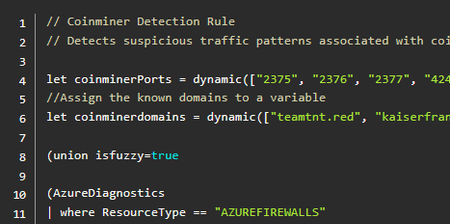
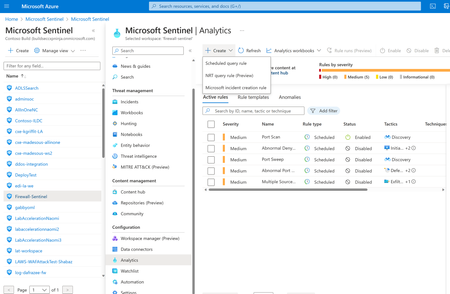
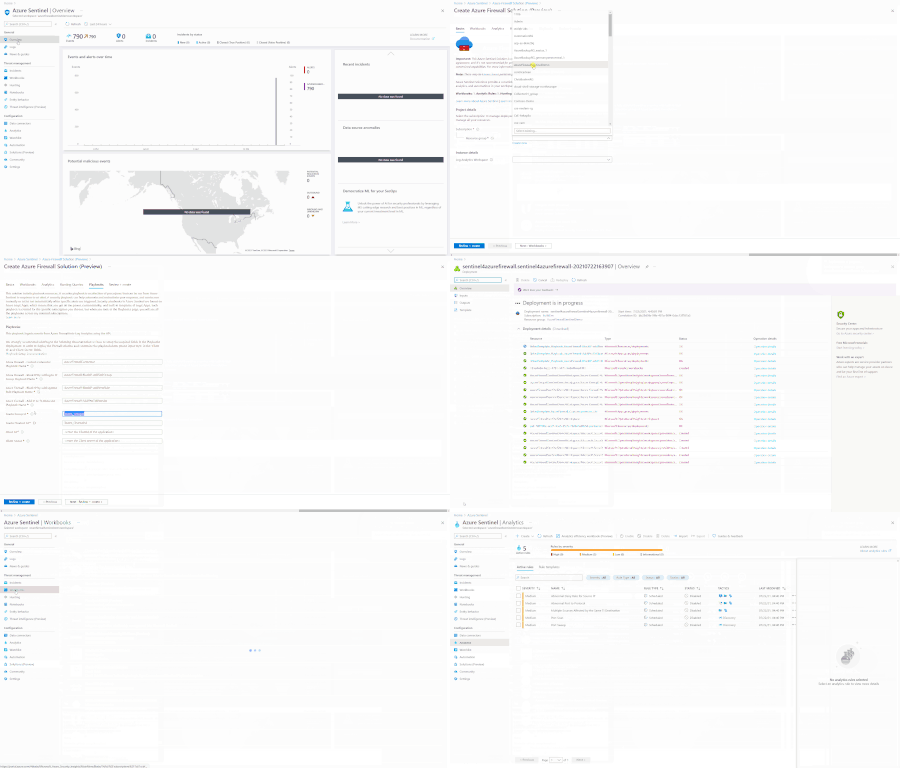
Malware can have various negative impacts, such as stealing sensitive data, encrypting, or deleting files, displaying unwanted ads, slowing down performance, or even taking control of the device. Azure Firewall IDPS feature automatically detects and denies Malware by default and can prevent the cloud workloads from being infected. We can further enhance this capability by employing automated detection and response using prebuilt detection queries and Sentinel. In this blog, we will explore how to detect some common malware found in Azure Firewall logs like Coin-miner, Cl0p and Sunburst using predefined KQL detection queries for Azure Firewall.6KViews2likes0CommentsAzure WAF Notebook for Microsoft Sentinel
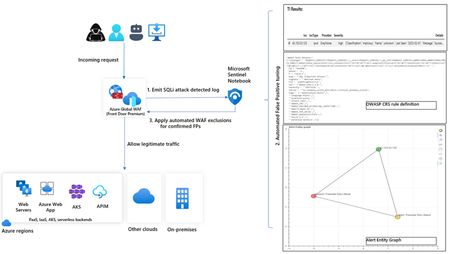
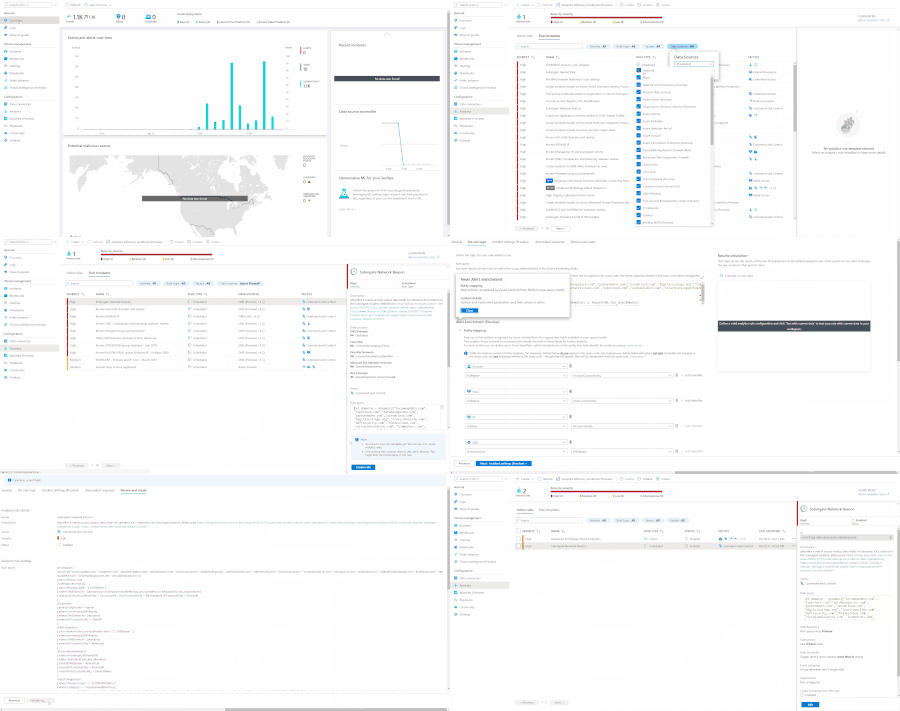
In this blog, we introduce you to the Azure WAF guided investigation Notebook using Microsoft Sentinel, which lets you investigate Sentinel incidents triggered due SQL injection attack detections by Azure WAF. It allows you to investigate if the incident is a true positive, false positive or benign positive. Upon confirmation of a false positive, the Azure WAF exclusions are automatically applied.3.8KViews0likes0Comments