microsoft intune
8 TopicsWindows App Management in Microsoft Intune
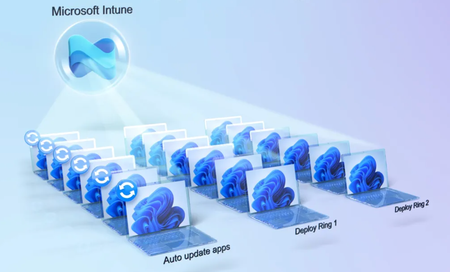
Audit every managed and unmanaged app per device with more metadata, including publisher, architecture, estimated size on disk, install location, uninstall commands, to help troubleshoot PCs and expose shadow IT before it spreads. Pull curated Win32 apps straight from the Enterprise App Catalog or upload PowerShell scripts to control exactly how each app installs. Stage rollouts in rings with Intune deployments, to gradually deploy, pause or cancel any deployment in flight; and auto-trust every app you push using App Control for Business with Managed Installer, which also works with Autopilot as you provision new devices, now with up to 25 apps. Keep your fleet of apps up-to-date automatically as vendors publish new versions through the Enterprise App Catalog, or trigger updates on demand from the Guided Upgrade Supersedence report. Nicole Zhao, Microsoft Intune Product Manager, shares how to put these built-in enhancements to work across every managed device. *Intune Deployments is currently in private preview. Capabilities shown are subject to change and not yet generally available. Identify shadow apps across your managed devices. Microsoft Intune’s app inventory now surfaces publisher, architecture, size on disk, install location, & uninstall command per device. See how it works. Auto-trust every app you deploy through Intune. App Control for Business with Managed Installer tags your deployments as safe and scopes trust to specific user groups. Check it out. One toggle, continuous app updates. The Enterprise App Catalog in Intune pushes vendor releases to managed devices automatically, or surfaces them in a Guided Supersedence report for manual review. Try it now. QUICK LINKS: 00:00 — Built-in app management 00:51 — App Inventory Visibility 01:42 — Enterprise Application Management (EAM) 02:28 — PowerShell Script Installer GA 03:09 — Ring-Based Deployment Plans 04:44 — Managed Installer Auto-Trust 05:39 — Enterprise App Catalog Auto-Update 06:12 — Guided supersedence 06:50 — Wrap up Link References Go to https://aka.ms/IntuneAppManagement Check out https://aka.ms/RSAC26-Intune-Blog from the RSA Conference for additional security context and guidance when managing apps with Microsoft Intune. Unfamiliar with Microsoft Mechanics? As Microsoft’s official video series for IT, you can watch and share valuable content and demos of current and upcoming tech from the people who build it at Microsoft. Subscribe to our YouTube: https://www.youtube.com/c/MicrosoftMechanicsSeries Talk with other IT Pros, join us on the Microsoft Tech Community: https://techcommunity.microsoft.com/t5/microsoft-mechanics-blog/bg-p/MicrosoftMechanicsBlog Watch or listen from anywhere, subscribe to our podcast: https://microsoftmechanics.libsyn.com/podcast Keep getting this insider knowledge, join us on social: Follow us on Twitter: https://twitter.com/MSFTMechanics Share knowledge on LinkedIn: https://www.linkedin.com/company/microsoft-mechanics/ Enjoy us on Instagram: https://www.instagram.com/msftmechanics/ Loosen up with us on TikTok: https://www.tiktok.com/@msftmechanics Video Transcript: -Controlling the application layer on devices, delivering the right apps, keeping them secure, up to date, and protected has always been one of the toughest challenges as you manage IT environments. This is nothing new, but what is new is how much easier Microsoft Intune now makes it. With the latest built‑in app management enhancements, you can more easily discover apps across your environment with clearer visibility into your full app inventory per device, simplify app preparation and deployment through pre-packaged apps or with scripted installs, as well as safer, gradual app roll-outs using ring-based deployments. -Ensure only trusted apps run by automatically trusting deployed apps through App Control for Business with Managed Installer, and keep devices automatically on the latest versions as vendors release updates, using the new auto-update capability with your Enterprise App Catalog. It all starts with knowing what apps people have running on their managed devices. And that’s where the latest improvements to app inventory in Intune give you the full up-to-date picture with minimal latency. -Here, for each device, you can see a comprehensive list of inventoried applications, including both managed and unmanaged apps. Importantly, we’ve added more app metadata to help you make better decisions about your apps or start troubleshooting. For each app, you can see the publisher name, architecture, and now even estimated size on disk, as well as installed location, uninstall command, and languages, as long as that information was registered in Windows. For shared devices, we’ve also improved the per user app information to include all users on the device. This gives you clear visibility into which applications exist in your environment, to help you identify unknown or shadow applications that may be running against your policy and governance controls. Next, for getting the right apps deployed, let me show you how we’ve made it easier to bring apps into your managed catalog. -Here, Enterprise App Management, or EAM, is designed to simplify app lifecycle management. I’m going to start by creating an app. Unlike the consumer-focused Microsoft Store, which uses community-driven WinGet app types for app discovery, EAM provides a curated list of enterprise-ready Win32 apps. You can find these apps by choosing the Enterprise App Catalog app type and Confirm. From there, you just need to search for the apps you want. In this case, I’ll look for Blender, and then under Configuration, you’ll find available architectures and versions. You’ll see that it pre-populates the app information. And in the Program tab, the install and uninstall command lines are pre-populated, as well as the exit codes. -Now, this used a command line installer type, but something new to give you even more control is the script installer, which is now generally available. This lets you use PowerShell script to control the installation of your Win32 apps. So, I’ll change the installer type to be a PowerShell script, and that will expose a control to upload a custom script as a PS1 file. Next, I’ll choose the Blenderinstaller script from File Explorer. It conveniently enters the name field for me and then mounts the script to give a preview of the pre-installation commands it runs. This gives you precise control over the install behavior of your apps using script-based installation. And as we progress, the rest of the steps for getting this app deployed to your managed devices should be pretty familiar. -Next, for app roll-outs, Intune’s policy-driven deployment lets you introduce application changes gradually using Deployment Plans. This helps avoid issues from misconfigured, compromised, or unintended app updates, giving you more control over the roll-out process. Let me show you how to create a deployment. You’ll start in Deployments, which you’ll find under Managed Devices. At the top, you’ll see two tabs: Deployments, which lists the app payloads targeted for existing roll-outs; and Deployment Plans, which are reusable deployment schedules that you create with ring timing, as well as assigned groups. I’ll move to the Deployments tab and select Create. Then I’ll give it a name, Global Secure Access Client, and description, East Coast rollout, Next, I’ll select a payload. I’ll choose Win32 and Add Payload, and select Global Secure Access Client. -Now I’ll configure the deployment schedule, which is the key step when setting up this deployment. Here I can either build rings manually, where you’ll add time offsets per ring, or I can load an existing deployment plan. In this case, I’ll load a plan. From here, I can choose the plan I want. I’ll pick the East Coast retail store rollout plan. I’ll choose a start date and add a time. Once the plan loads, all the rings are added with their timelines and associated groups or exclusions. For example, this one has a one-week offset between each ring. When I move to the last Review step, this dialog on top tells me that, once created, I can pause, resume, or cancel the deployment at any time. -From there, I can review my deployment and confirm by hitting Create. Now my app will roll out based on this defined schedule. Let’s look at the latest capabilities for keeping your apps trusted. First, App Control for Business with Managed Installer in Intune means that apps you deploy using this method are automatically tagged as safe apps, without manual allow-listing. It lets you upload your app control policies as XML files or leverage built-in controls to automatically trust apps from the managed installer. -There’s also a new option to target the Managed Installer to specific groups where you enable Intune Managed Extension as Managed Installer and scope the managed installer to specific users with inclusion and exclusion policies. Additionally, with Managed Installer enabled during Autopilot device preparation, you can ensure apps are trusted right from the start as you provision new devices. And using device preparation policies, Autopilot also supports an increased app limit of up to 25 apps. Of course, you can combine these capabilities with Windows Defender Application Control together with Intune to allow only trusted and approved apps to run on your managed devices. Now let’s look at new ways to keep apps on the latest version. -First, with the new auto-update capability using the Enterprise App Catalog, you can have Intune automatically keep apps up-to-date on your managed devices. When you add a new app using the Enterprise App Catalog, as part of the initial configuration in the Updates tab, you can choose between Automatically Update and Update with Supersedence. This is a one-time setting that allows Intune to automatically install updates as they are published. From there, once you confirm, you’ll see that, by design, many of the subsequent settings have been streamlined to just Scope tags, Assignments and Review + Create. -And if you want more control over app updates, our second option, Guided Upgrade Supersedence, automatically surfaces available updates of your deployed apps without you having to go look for new versions of each app manually. You’ll see that, under Apps in the Monitor blade, you’ll find a new report called Enterprise App Catalog apps with updates. By clicking into one of these apps, you’ll see that there is an update button in the upper left corner. This lets you supersede existing app versions for that app on managed devices in just a few clicks. You’ll see that all of the necessary information is pre-populated. And this is the same with the program tab and subsequent tabs in the app deployment workflow, including the supersedence relationship. -Everything you’ve seen today is about simplifying control of your application layer, making apps easier to discover, deploy, trust from day one, and keep automatically up to date, so you can deliver the right apps securely and consistently across your environment. To find out more, check out aka.ms/IntuneAppManagement Keep watching Microsoft Mechanics for the latest tech updates, and thanks for watching!8.6KViews0likes1CommentAgents in Microsoft Intune | Automate Policy Creation, Troubleshooting & Fix Guidance
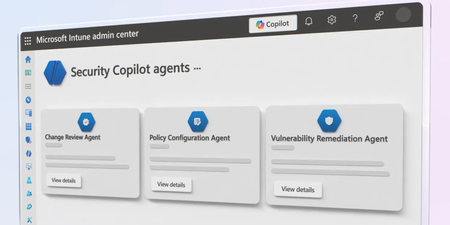
Automate device and security policy management by turning written compliance requirements into Intune policies. Use natural language to draft, refine, and deploy configuration profiles, review AI-generated recommendations with confidence scores, and stay in full control before publishing to your environment. Reduce risk and manual effort by automatically evaluating admin change requests and blocking harmful scripts before deployment. Prioritize vulnerabilities from Defender, translate them into actionable Intune remediation steps, and schedule ongoing fixes. Jason Githens, Microsoft Intune Principal GPM, shares how to move from reactive security work to continuous, proactive protection. Note: At the time of publishing this video, the Change Review Agent and Policy Configuration Agent are in public preview and the Vulnerability Remediation Agent is in limited public preview. Use natural language to generate ready-to-review policies. Check out the Policy Configuration Agent in Microsoft Intune. Reduce security risk. Detect destructive or compromised change requests in real time. and get AI-driven approve/reject recommendations. Start using the Change Review Agent in Microsoft Intune. Shift from reactive patching to proactive security. See how to schedule automated vulnerability remediation inside Intune. QUICK LINKS: 00:00 — Automate work with Intune Agents 01:08 — Policy Configuration Agent 01:36 — Policy drafts 02:27 — Create a new knowledge source 03:25 — Create a new policy 04:49 — Change Review Agent 06:19 — Vulnerability Remediation Agent 07:46 — Wrap up Link References To get started, go to https://aka.ms/IntuneAgents Unfamiliar with Microsoft Mechanics? As Microsoft’s official video series for IT, you can watch and share valuable content and demos of current and upcoming tech from the people who build it at Microsoft. Subscribe to our YouTube: https://www.youtube.com/c/MicrosoftMechanicsSeries Talk with other IT Pros, join us on the Microsoft Tech Community: https://techcommunity.microsoft.com/t5/microsoft-mechanics-blog/bg-p/MicrosoftMechanicsBlog Watch or listen from anywhere, subscribe to our podcast: https://microsoftmechanics.libsyn.com/podcast Keep getting this insider knowledge, join us on social: Follow us on Twitter: https://twitter.com/MSFTMechanics Share knowledge on LinkedIn: https://www.linkedin.com/company/microsoft-mechanics/ Enjoy us on Instagram: https://www.instagram.com/msftmechanics/ Loosen up with us on TikTok: https://www.tiktok.com/@msftmechanics Video Transcript: -You can now manage your device and security policies without manual work and automate tasks that previously were not automatable. How? Well, today I’ll demonstrate new agents in Microsoft Intune. As part of Security Copilot, they’re now included and rolling out with Microsoft 365 E5. These are designed to automate the busy work for you while continuously improving the security of your digital estate. This includes the new Policy Configuration Agent, which can reason over your compliance documents, for example, security technical implementation guides, STIGs, and create matching Intune policies automatically. The Change Review Agent, which evaluates admin requests, like scripts, using signals from Microsoft Intune, Entra, and Defender, to recommend change request actions, such as approve or reject, before they’re deployed. -Along with the Vulnerability Remediation Agent that analyzes the signals across Defender and Intune and proactively creates recommendations for medium to high-risk device vulnerabilities so they don’t get missed. They use natural language reasoning to interpret your instructions together with your policy control plane to generate informed and actionable configuration guidance. In fact, let’s take a look at what these agents can do, starting with the Policy Configuration Agent, which converts written requirements into actionable settings. From the Agents page in Intune, you can see all of your available agents. I’ll choose the Policy Configuration Agent, and here you’ll see Agent suggestions and Activity. There are tabs for Knowledge, Suggestions, and Settings. When you use this agent, it will create configuration profiles in Intune that will appear alongside your existing device policies. So these aren’t agent-only policies. -These are policies that you or other admins on your team would have typically set and are based on the instructions you’ve laid out. Let me show you. I’m going to create a new policy. You can create policy drafts by describing the configurations you want in natural language as written instructions and optionally, you can use a knowledge source by uploading a text file, which I’ll demonstrate here. But before I do that, let me show you what I’ll be basing it on. For that I’ll move into a text editor, Notepad in my case. You’ll typically start by having or creating this type of knowledge source. You can see it’s a written text document that gives the agent a natural language description of all the different device configurations that need to be set according to specific internal or regulatory compliance requirements. As you saw, it used descriptive, but not precise, terms to help instruct the agent on the breadth of settings available to them. -Back in Intune in the Knowledge tab, you can see all of our uploaded txt files. I’ll Create New this time a knowledge source. I’ll give it a name, then input a description to explain what it’s for. Below that, I can upload a document, so I’ll navigate to my file to upload, then hit Review to confirm. Depending on your file, this could take a minute or so to process, but in my case, I’m processing around 50 settings that could have taken hours to match manually. You can watch this progress from the Overview tab. Once it’s finished, in this case it actually took around three minutes, it will appear under Agent suggestions on the Overview tab. And if I click into the file I just uploaded, you can see the agent has successfully mapped several different settings from the baseline directly to an enforceable Intune policy. -Additionally, the agent has provided a percentage confidence rating for each setting. These scores help you understand how accurately it was able to translate your regulatory or configuration document into actual Intune policy settings. Now that the knowledge source has been mapped with the settings, we’re ready to build a new policy from it. This time, I’ll Create a New policy draft. I’ll give the policy a name and then I’ll add a short description. Now from the optional Knowledge source dropdown, I’ll select the baseline that we just uploaded and processed. You can also create policy drafts without using a defined knowledge source. I need to instruct it to create a policy, or optionally, I can prompt it to remove or refine a setting described in the file. This makes sense, for example, in cases where we know it’s already part of another all devices policy. -Here, you can also add a document that will be appended as text to your instructions. From there, I just need to hit Create. That process will take a few minutes to run, so we’ll skip ahead in time to show the results. In Agent suggestions, I can see my policy draft on top. When I click in, I can see all of the policy details and settings. Everything looks good to me. In my case, it was able to match all the settings. So I’ll create the configuration policy from this draft using the standard policy deployment flow. Importantly, you can review all its configurations and make changes here if you want, just like you normally would before enabling it. Add scope tags and you can assign it to groups or devices. I’ll assign devices later. Then I can review and deploy it using the normal process. Once it’s published, if I move over to my configuration policies, I can see the new one right here with the rest of our policies. -Next, let’s move on to the Change Review Agent. Think of this like an expert script author and troubleshooter to help you evaluate admin change requests. I’m in the Change Review Agent, and to show you what’s behind this, I’ll move right into the Settings tab, and the first thing you might notice is that the agent is operating with a lot of rich information as context from Intune, Entra, Defender, including Threat Intelligence. It pulls signals from all of these sources to fully understand the impact of any proposed change. Moving back to the Overview tab, you can see that the agent has reviewed multiple admin approval requests with a recommendation to approve or reject appended as a prefix to each script name. -Let’s look at this script submission as an example. As soon as the script is loaded, the agent analyzes it, providing deeper context and a summary of what the script does. It has identified that this is a highly destructive script designed to wipe managed devices using Graph API calls. The change requester had no previous risk identified, and the business justification was determined to be vague, so it’s likely this person’s account was compromised. You can view the request to look at what the script is doing exactly, and there’s our device wipe. All of these signals are processed in real time to help determine whether the change should be approved or rejected. In this case, the agent concludes that the script is clearly harmful if executed with its current all managed devices scope, so it recommends rejecting the request. The agent is able to rapidly decipher between legitimate and adversarial intent or policy conflicts from change requests that would introduce risk into your environment. -Finally, the Vulnerability Remediation Agent assesses critical vulnerabilities from Microsoft Defender. It does this in a prioritized manner and maps them to at-risk devices managed in Intune to help you automate fixes. I’ll start in the Microsoft Defender portal under vulnerability management to first set some context. -Here, you’ll see a clear view of the top risk in your environment, including impact scores, exposed devices, severity, owners, and the associated CVEs. Here’s an example where the dashboard flags an application vulnerability that requires updating Relecloud Sync app. You can drill into the details, understand the exposure, and prioritize remediation, but typically this is where the workflow stops. Defender identifies the issue, and remediation has to be coordinated manually. -That’s where the Vulnerability Remediation Agent comes in. It takes prioritized vulnerability data from Defender and brings it into Intune. The result is that you can automate remediation in place from where you manage your device endpoints without switching context or accessing Defender. In our example, Defender indicates Relecloud needs to be updated to version 14.0.7. The agent translates that guidance into actionable steps. On the other hand, if I open the suggestion to update Microsoft Windows 11, OS and built-in applications, you’ll see that not only is the update recommended, but also, best-practice security configuration changes are all listed right here. -And if I move into the agent settings, you’ll see that this agent also lets you automate runs based on a schedule. So that’s how Intune agents help you move from manual effort to intelligent automated guidance while keeping you in control of implementing agent recommendations. And in the future, we’ll start to integrate AI actions into common Intune workflows that you perform every day. -To get started, log into Intune and try out the new agent capabilities. In fact, if you’re already logged in, just go to aka.ms/IntuneAgents and keep watching Microsoft Mechanics for the latest updates. Thanks for watching.851Views0likes0CommentsmacOS management with Microsoft Intune | Deployment, single sign-on, settings, apps & DDM
Microsoft Intune now has built-in native controls so you can manage your Macs similar to how you manage Windows PCs across the device lifecycle, without third party integrations or extensions. 12KViews0likes0Comments
New Microsoft Intune Suite with Privilege Management, Advanced Analytics, Remote Help & App VPN
Reduce cost and complexity of multiple solutions. Use advanced cross-platform capabilities that go beyond UEM for one unified endpoint management solution with the Microsoft Intune Suite.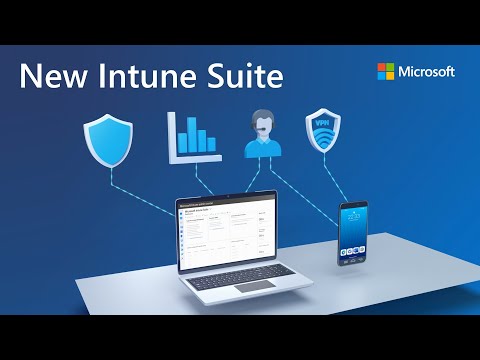 18KViews2likes5Comments