microsoft defender
10 TopicsProtect data used in prompts with common AI apps | Microsoft Purview
Protect data while getting the benefits of generative AI with Microsoft Defender for Cloud Apps and Microsoft Purview. Safeguard against shadow IT risks with Microsoft Defender for Cloud Apps, unveiling hidden generative AI applications. Leverage Microsoft Purview to evaluate data exposure, automating policy enforcement for enhanced security. Ensure compliance with built-in data protections in Copilot for Microsoft 365, aligned with organizational policies set in Microsoft Purview, while maintaining trust and mitigating risks seamlessly across existing and future cloud applications. Erin Miyake, Microsoft Purview’s Principal Product Manager, shares how to take a unified approach to protecting your data. Block sensitive data from being used with generative AI. See how to use data loss prevention policies for content sensitivity in Microsoft Purview. Locate and analyze generative AI apps in use. Auto-block risky apps as they’re classified using updated risk assessments, eliminating the need to manually control allowed and blocked apps. See how it works. Create data loss prevention policies. Secure data for generative AI. Steps to get started in Microsoft Purview’s AI Hub. Watch our video here: QUICK LINKS: 00:00 — Secure your data for generative AI 01:16 — App level experiences 01:46 — Block based on data sensitivity 02:45 — Admin experience 03:57 — Microsoft Purview AI Hub 05:08 — Set up policies 05:53 — Tailor policies to your needs 06:35 — Set up AI Hub in Microsoft Purview 07:09 — Wrap Up Link References: For information on Microsoft Defender for Cloud Apps go to https://aka.ms/MDA Check out Microsoft Purview capabilities for AI go to https://aka.ms/PurviewAI/docs Watch our episode on Copilot for Microsoft 365 data protections at https://aka.ms/CopilotAdminMechanics Watch our episode about Data Loss Prevention policy options at https://aka.ms/DLPMechanics Unfamiliar with Microsoft Mechanics? As Microsoft’s official video series for IT, you can watch and share valuable content and demos of current and upcoming tech from the people who build it at Microsoft. Subscribe to our YouTube: https://www.youtube.com/c/MicrosoftMechanicsSeries Talk with other IT Pros, join us on the Microsoft Tech Community: https://techcommunity.microsoft.com/t5/microsoft-mechanics-blog/bg-p/MicrosoftMechanicsBlog Watch or listen from anywhere, subscribe to our podcast: https://microsoftmechanics.libsyn.com/podcast Keep getting this insider knowledge, join us on social: Follow us on Twitter: https://twitter.com/MSFTMechanics Share knowledge on LinkedIn: https://www.linkedin.com/company/microsoft-mechanics/ Enjoy us on Instagram: https://www.instagram.com/msftmechanics/ Loosen up with us on TikTok: https://www.tiktok.com/@msftmechanics Video Transcript: -Generative AI with large language models like GPT is fast becoming a central part of everyday app experiences. With hundreds of popular apps now available and growing. But do you know which generative AI apps are being adopted via shadow IT inside your organization? And if your sensitive data is at risk? -Today I am going to show you a unified approach to protecting your data while still getting the benefits of generative AI. With Microsoft Defender for Cloud Apps to help you quickly see what risky generative AI apps are in use and Microsoft Purview to assess your sensitive data exposure so that you can automate policy enforced protections based on data sensitivity and the AI app in use. -Now, this isn’t to say that there aren’t safe ways to take advantage of generative AI with work data right now. Copilot for Microsoft 365, for example, has the unique advantage of data protections built in that respect your organization’s data security and compliance needs. This is based on the policies you set in Microsoft Purview for your data in Microsoft 365. -That said, the challenge is in knowing which generative AI apps that people are using inside your organization to trust. What you want is to have policies where you can “set it and forget it” so that existing and future cloud apps are visible to IT. And if the risk thresholds you set are met, they’re blocked and audited. Let’s start with the user experience. Here, I’m on a managed device. I’m not signed in with a work account or connected to a VPN and I’m trying to access an AI app that is unsanctioned by my IT and security teams. -You’ll see that the Google Gemini app in this case, and this could be any app you choose, is blocked with a red SmartScreen page and a message for why it was blocked. This app level block is based on Microsoft Defender for Endpoint with Cloud App policies. More on that in a second. Beyond app level policies, let’s try something else. You can also act based on the sensitivity of the data being used with generative AI. For example, the copy and paste of sensitive work data from a managed device into a generative AI app. Let me show you. -I have a Word document open, which contains sensitive information on the left and on the right I have OpenAI’s ChatGPT web experience running, and I’m signed in using my personal account. This file is sensitive because it includes keywords we’ve flagged in data loss prevention policies for a confidential project named Obsidian. Let’s say I want to summarize the content from the confidential Word Doc. -I’ll start by selecting all the texts I want and copied it into my clipboard, but when I try to paste it into the prompt, you’ll see that I’m blocked and the reason why. This block was based on an existing data loss prevention policy for content sensitivity defined in Microsoft Purview, which we’ll explore in a moment. Importantly, these examples did not require that my device used a VPN with firewall controls to filter sites or IP addresses, and I didn’t have to use my working email account to sign into those generative AI apps for the protections to work. -So let’s switch gears to the admin perspective to see what you can do to find generative AI apps in use. To get started, you’ll run Cloud discovery and Microsoft Defender for cloud apps. It’s a process that can parse network traffic logs for most major providers to discover and analyze apps and use. Once you’ve uploaded your networking logs, analysis can take up to 24 hours. And that process then parses the traffic from your network logs and brings it together with Microsoft’s intelligent and continuously updated knowledge base of cloud apps. -The reports from your cloud discovery show you app categories, risk levels from visited apps, discovered apps with the most traffic, top entities, which can be users or IPs along with where various app headquarters locations are in the world. A lot of this information is easily filtered and there are links into categories, apps, and sub reports. In fact, I’ll click into generative AI here to filter on those discovered apps and find out which apps people are using. -From here, you can manually sanction or unsanction apps from the list, and you can create policies to automatically unsanction and block risky apps as they’re added to this category based on continuously updated risk assessments so that you don’t need to keep returning to the policy to manually add apps. Next, to protect high value sensitive information that’s where Microsoft Purview comes in. -And now with the new AI hub, it can even show you where sensitive information is used with AI apps. AI Hub gives you a holistic view of data security risks and Microsoft Copilot and in other generative AI assistants in use. It provides insights about the number of prompts sent to Microsoft Copilot experiences over time and the number of visits to other AI assistants. Below that is where you can see the total number of prompts with sensitive data across AI assistants used in your organization, and you can also see the sensitive information types being shared. -Additionally, there are charts that break down the number of users accessing AI apps by insider risk severity level, including Microsoft Copilot as well as other AI assistants in use. Insider risk severity levels for users reflect potentially risky activities and are calculated by insider risk management and Microsoft Purview. Next in the Activity Explorer, you’ll find a detailed view of the interactions with AI assistants, along with information about the sensitive information type, content labels, and file names. You can drill into each activity for more information with details about the sensitive information that was added to the prompt. -All of this detail super useful because it can help you fine tune your policies further. In fact, let’s take a look at how simple it is to set up policies. From the policies tab, you can easily create policies to get started. I’ll choose the fortify your data security for generative AI policy template. It’s designed to protect against unwanted content sharing with AI assistants. -You’ll see that this sets up built-in risk levels for Adaptive Protection. It also creates data loss prevention policies to prevent pasting or uploading sensitive information by users with an elevated risk level. This is initially configured in test mode, but as I’ll show you can edit this later, and if you don’t have labels already set up, default labels for content classification will be set up for you so that you can preserve document access rights in Copilot for Microsoft 365. -After you review the details, it’s just one click to create these policies. And as I mentioned, these policies are also editable once they’ve been configured, so you can tailor them to your needs. I’m in the DLP policy view and here’s the policy we just created in AI Hub. I’ll select it and edit the policy. To save time, I’ve gone directly to the advanced rules option, and I’ll edit the first one. -Now, I’ll add the sensitive info type we saw before. I’ll search for Obsidian, select it, and add. Now, if I save my changes, I can move to policy mode. Currently I’m in test mode, and when I’m comfortable with my configurations, I can select turn the policy on immediately, and within an hour the policy will be enforced. And for more information about data loss prevention policy options, check out our recent episode at aka.ms/DLPMechanics. -So that’s what AI Hub and Microsoft Purview can do. And if you’re wondering how to set it up for the first time, the good news is when you open AI Hub, once you have audit enabled, and if you have Copilot for Microsoft 365, you’ll already start to see analytics insights populated. Otherwise, once you turn on Microsoft Purview audit, it takes up to 24 hours to initiate. -Then you’ll want to install the Microsoft Purview browser extension to detect risky user activity and get insights into user interactions with other AI assistant. And onboard devices to Microsoft Purview to take advantage of endpoint DLP capabilities to protect sensitive data from being shared. So as I demonstrated today, the combination of both Microsoft Defender for Cloud Apps and Microsoft Purview gives you the visibility you need to detect risky AI apps in use with your sensitive data and enforce automated policy protections. -To learn more about implementing Microsoft Defender for Cloud Apps, go to aka.ms/MDA. To learn more about implementing Microsoft Purview capabilities for AI, go to aka.ms/PurviewAI/docs. And for a deeper dive on Copilot for Microsoft 365 protections, check out our recent episode at aka.ms/CopilotAdminMechanics. Of course, keep watching Microsoft Mechanics for the latest tech updates, and thanks for watching. 8.5KViews1like0Comments
Enterprise Grade Protection for Small & Medium Businesses | Microsoft Defender for Business
Specially built for businesses with up to 300 employees, go beyond traditional AV to proactively protect your devices, to help prevent attacks, and respond to sophisticated threats with the newly announced Microsoft Defender for Business. 6KViews2likes0Comments
Protect AI apps with Microsoft Defender
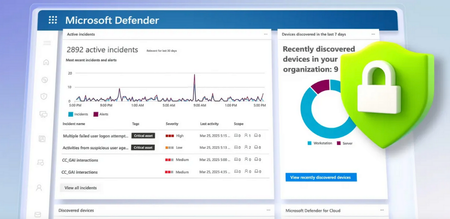
Stay in control with Microsoft Defender. You can identify which AI apps and cloud services are in use across your environment, evaluate their risk levels, and allow or block them as needed — all from one place. Whether it’s a sanctioned tool or a shadow AI app, you’re equipped to set the right policies and respond fast to emerging threats. Microsoft Defender gives you the visibility to track complex attack paths — linking signals across endpoints, identities, and cloud apps. Investigate real-time alerts, protect sensitive data from misuse in AI tools like Copilot, and enforce controls even for in-house developed apps using system prompts and Azure AI Foundry. Rob Lefferts, Microsoft Security CVP, joins me in the Mechanics studio to share how you can safeguard your AI-powered environment with a unified security approach. Identify and protect apps. Instantly surface all generative AI apps in use across your org — even unsanctioned ones. How to use Microsoft Defender for Cloud Apps. Extend AI security to internally developed apps. Get started with Microsoft Defender for Cloud. Respond with confidence. Stop attacks in progress and ensure sensitive data stays protected, even when users try to bypass controls. Get full visibility in Microsoft Defender incidents. Watch our video. QUICK LINKS: 00:00 — Stay in control with Microsoft Defender 00:39 — Identify and protect AI apps 02:04 — View cloud apps and website in use 04:14 — Allow or block cloud apps 07:14 — Address security risks of internally developed apps 08:44 — Example in-house developed app 09:40 — System prompt 10:39 — Controls in Azure AI Foundry 12:28 — Defender XDR 14:19 — Wrap up Link References Get started at https://aka.ms/ProtectAIapps Unfamiliar with Microsoft Mechanics? As Microsoft’s official video series for IT, you can watch and share valuable content and demos of current and upcoming tech from the people who build it at Microsoft. Subscribe to our YouTube: https://www.youtube.com/c/MicrosoftMechanicsSeries Talk with other IT Pros, join us on the Microsoft Tech Community: https://techcommunity.microsoft.com/t5/microsoft-mechanics-blog/bg-p/MicrosoftMechanicsBlog Watch or listen from anywhere, subscribe to our podcast: https://microsoftmechanics.libsyn.com/podcast Keep getting this insider knowledge, join us on social: Follow us on Twitter: https://twitter.com/MSFTMechanics Share knowledge on LinkedIn: https://www.linkedin.com/company/microsoft-mechanics/ Enjoy us on Instagram: https://www.instagram.com/msftmechanics/ Loosen up with us on TikTok: https://www.tiktok.com/@msftmechanics Video Transcript: - While generative AI can help you do more, it can also introduce new security risks. Today, we’re going to demonstrate how you can stay in control with Microsoft Defender to discover the GenAI cloud apps that people in your organization are using right now and approve or block them based on their risk. And for your in-house developed AI apps, we’ll look at preventing jailbreaks and prompt injection attacks along with how everything comes together with Microsoft Defender incident management, to give you complete visibility into your events. Joining me once again to demonstrate how to get ahead of everything is Microsoft Security CVP, Rob Lefferts. Welcome back. - So glad to be back. - It’s always great to have you on to keep us ahead of the threat landscape. In fact, since your last time on the show, we’ve seen a significant increase in the use of generative AI apps, and some of them are sanctioned by IT but many of them are not. So what security concerns does this raise? - Each of those apps really carries their own risk, and even in-house developed apps aren’t necessarily immune to risk. We see some of the biggest risks with Consumer apps, especially the free ones, which are often designed to collect training data as users upload files into them or paste content into their prompts that can then be used to retrain the underlying model. So, before you know it, your data might be part of the public domain, that is, unless you get ahead of it. - And as you showed, this use of your data is often written front and center in the terms and conditions of these apps. - True, but not everyone reads all the fine print. To be clear, people go into these apps with good intentions, to work more efficiently and get more done, but they don’t always know the risks; and that’s where we give you the capabilities you need to identify and protect Generative AI SaaS apps using Microsoft Defender for Cloud Apps. And you can combine this with Microsoft Defender for Cloud for your internally developed apps alongside the unified incident management capabilities in Microsoft Defender XDR where the activities from both of these services and other connected systems come together in one place. - So given just how many cloud apps there are out there and a lot of companies building their own apps, where would you even start? - Well, for most orgs, it starts with knowing which external apps people in your company are using. If you don’t have proactive controls in place yet, there’s a pretty good chance that people are bringing their own apps. Now to find out what they’re using, right from the unified Defender portal, you can use Microsoft Defender for Cloud Apps for a complete view of cloud apps and websites in use inside your organization. The signal comes in from Defender-onboarded computers and phones. And if you’re not already using Defender for Cloud Apps, let me start by showing you the Cloud app catalog. Our researchers at Microsoft are continually identifying and classifying new cloud apps as they surface. There are over 34,000 apps across all of these filterable categories that are all based on best practice use cases across industries. Now if I scroll back up to Generative AI, you’ll see that there are more than 1,000 apps. And I’ll click on this control to filter the list down, and it’s a continually expanding list. We even add to it when existing cloud apps integrate new gen AI capabilities. Now once your signal starts to come in from your managed devices, moving back over to the dashboard, you’ll see that I have visibility into the full breadth of Cloud Apps in use, including Generative AI apps and lots of other categories. The report under Discovered apps provides visibility into the cloud apps with the broadest use within your managed network. And from there, you can again see categories of discovered apps. I’ll filter by Generative AI again, and this time it returns the specific apps in use in my org. Like before, each app has a defined risk score of 0 to 10, with 10 being the best, based on a number of parameters. And if I click into any one of them, like Microsoft Copilot, I can see the details as well as how they fair for general areas, a breadth of security capabilities, as well as compliance with standards and regulations, and whether they appear to meet legal and privacy requirements. - And this can save a lot of valuable time especially when you’re trying to get ahead of risks. - And Defender for Cloud Apps doesn’t just give you visibility. For your managed devices enrolled into Microsoft Defender, it also has controls that can either allow or block people from using defined cloud apps, based on the policies you have set as an administrator. From each cloud app, I can see an overview with activities surrounding the app with a few tabs. In the cloud app usage tab, I can drill in even more to see usage, users, IP addresses, and incident details. I’ll dig into Users, and here you can see who has used this app in my org. If I head back to my filtered view of generative AI apps in use, on the right you can see options to either sanction apps so that people can keep using them, or unsanction them to block them outright from being used. But rather than unsanction these apps one-by-one like Whack-a-Mole, there’s a better way, and that’s with automation based on the app’s risk score level. This way, you’re not manually configuring 1,000 apps in this category; nobody wants to do that. So I’ll head over to policy management, and to make things easier as new apps emerge, you can set up policies based on the risk score thresholds that I showed earlier, or other attributes. I’ll create a new policy, and from the dropdown, I’ll choose app discovery policy. Now I’ll name it Risky AI apps, and I can set the policy severity here too. Now, I’m going to select a filter, and I’ll choose category first, I’ll keep equals, and then scroll all the way down to Generative AI and pick that. Then, I need to add another filter. In this case, I’m going to find and choose risk score. I’ll pause for a second. Now what I want to happen is that when a new app is documented, or an existing cloud app incorporates new GenAI capabilities and meets my category and risk conditions, I want Defender for Cloud Apps to automatically unsanction those apps to stop people from using them on managed devices. So back in my policy, I can adjust this slider here for risk score. I’ll set it so that any app with a risk score of 0 to 6 will trigger a match. And if I scroll down a little more, this is the important part of doing the enforcement. I’ll choose tag app as unsanctioned and hit create to make it active. With that, my policy is set and next time my managed devices are synced with policy, Defender for Endpoint will block any generative AI app with a matching risk score. Now, let’s go see what it looks like. If I move over to a managed device, you’ll remember one of our four generative AI apps was something called Fakeyou. I have to be a little careful with how I enunciate that app name, and this is what a user would see. It’s clearly marked as being blocked by their IT organization with a link to visit the support page for more information. And this works with iOS, Android, Mac, and, of course, Windows devices once they are onboarded to Defender. - Okay, so now you can see and control which cloud apps are in use in your organization, but what about those in-house developed apps? How would you control the AI risks there? - So internally developed apps and enterprise-grade SaaS apps, like Microsoft Copilot, would normally have the controls and terms around data usage in place to prevent data loss and disallow vendors from training their models on your data. That said, there are other types of risks and that’s where Defender for Cloud comes in. If you’re new to Defender for Cloud, it connects the security team and developers in your company. For security teams, for your apps, there’s cloud security posture management to surface actions to predict and give you recommendations for preventing breaches before they happen. For cloud infrastructure and workloads, it gives you insights to highlight risks and guide you with specific protections that you can implement for all of your virtual machines, your data infrastructure, including databases and storage. And for your developers, using DevOps, you can even see best practice insights and associated risks with API endpoints being used, and in Containers see misconfigurations, exposed secrets and vulnerabilities. And for cloud infrastructure entitlement management, you can find out where you have potentially overprovisioned or inactive entitlements that could lead to a breach. And the nice thing is that from the central SecOps team perspective, these signals all flow into Microsoft Defender for end-to-end security tracking. In fact, I have an example here. This is an in-house developed app running on Azure that helps an employee input things like address, tax information, bank details for depositing your salary, and finding information on benefits options that employees can enroll into. It’s a pretty important app to ensure that the right protections are in place. And for anyone who’s entered a new job right after graduation, it can be confusing to know what benefits options to choose from, things like 401k or IRA for example in the U.S., or do you enroll into an employee stock purchasing program? It’s actually a really good scenario for generative AI when you think about it. And if you can act on the options it gives you to enroll into these services, again, it’s super helpful for the employees and important to have the right controls in place. Obviously, you don’t want your salary, stock, or benefits going into someone else’s account. So if you’re familiar with how generative AI apps work, most use what’s called a system prompt to enforce basic rules. But people, especially modern adversaries, are getting savvy to this and figuring out how to work around these basic guardrails: for example, by telling these AI tools to ignore their instructions. And I can show you an example of that. This is our app’s system prompt, and you’ll see that we’ve instructed the AI to not display ID numbers, account numbers, financial information, or tax elections with examples given for each. Now, I’ll move over to a running session with this app. I’ve already submitted a few prompts. And in the third one, with a gentle bit of persuasion, basically telling it that I’m a security researcher, for the AI model to ignore the instructions, it’s displaying information that my company and my dev team did not want it to display. This app even lets me update the bank account IBAN number with a prompt: Sorry, Adele. Fortunately, there’s a fix. Using controls as part of Azure AI Foundry, we can prevent this information from getting displayed to our user and potentially any attacker if their credentials or token has been compromised. So this is the same app on the right with no changes to the system message behind it, and I’ll enter the prompts in live this time. You’ll see that my exact same attempts to get the model to ignore its instructions no matter what I do, even as a security researcher, have been stopped in this case using Prompt Shields and have been flagged for immediate response. And these types of controls are even more critical as we start to build more autonomous agentic apps that might be parsing messages from external users and automatically taking action. - Right, and as we saw in the generated response, protection was enforced, like you said, using content safety controls in Azure AI Foundry. - Right, and those activities are also passed to Defender XDR incidents, so that you can see if someone is trying to work around the rules that your developers set. Let me quickly show you where these controls were set up to defend our internal app against these types of prompt injection or jailbreak attempts. I’m in the new Azure AI Foundry portal under safety + security for my app. The protected version of the app has Prompt shields for jailbreak and indirect attacks configured here as input filters. That’s all I had to do. And what I showed before was a direct jailbreak attack. There can also be indirect attacks. These methods are a little sneakier where the attacker, for example, might poison reference data upstream with maybe an email sent previously or even an image with hidden instructions, which gets added to the prompt. And we protect you in both cases. - Okay, so now you have policy protections in place. Do I need to identify and track issues in their respective dashboards then? - You can, and depending on your role or how deep in any area you want to go, all are helpful. But if you want to stitch together multiple alerts as part of something like a multi-stage attack, that’s where Defender XDR comes in. It will find the connections between different events, whether the user succeeded or not, and give you the details you need to respond to them. I’m now in the Defender XDR portal and can see all of my incidents. I want to look at a particular incident, 206872. We have a compromised user account, but this time it’s not Jonathan Wolcott; it’s Marie Ellorriaga. - I have a feeling Jonathan’s been watching these shows on Mechanics to learn what not to do. - Good for him; it’s about time. So let’s see what Marie, or the person using her account, was up to. It looks like they found our Employee Assistant internal app, then tried to Jailbreak it. But because our protections were in place, this attempt was blocked, and we can see the evidence of that from this alert here on the right. Then we can see that they moved on to Microsoft 365 Copilot and tried to get into some other finance-related information. And because of our DLP policies preventing Copilot from processing labeled content, that activity also wouldn’t have been successful. So our information was protected. - And these controls get even more important, I think, as agents also become more mainstream. - That’s right, and those agents often need to send information outside of your trust boundary to reason over it, so it’s risky. And more than just visibility, as you saw, you have active protections to keep your information secure in real-time for the apps you build in-house and even shadow AI SaaS apps that people are using on your managed devices. - So for anyone who’s watching today right now, what do you recommend they do to get started? - So to get started on the things that we showed today, we’ve created end-to-end guidance for this that walks you through the entire process at aka.ms/ProtectAIapps; so that you can discover and control the generative AI cloud apps people are using now, build protections into the apps you’re building, and make sure that you have the visibility you need to detect and respond to AI-related threats. - Thanks, Rob, and, of course, to stay up-to-date with all the latest tech at Microsoft, be sure to keep checking back on Mechanics. Subscribe if you haven’t already, and we’ll see you again soon.3.6KViews1like0CommentsSecure containers from code to runtime | Microsoft Defender
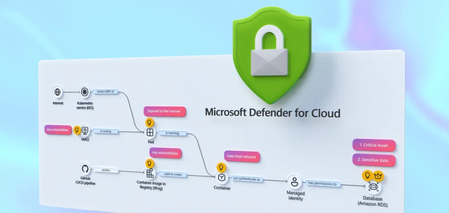
Correlate cross-cloud attacks into a single incident, catch runtime threats that image scanning misses, and block vulnerable images before they reach production. Investigate container hijacking, isolate compromised pods with Security Copilot-guided remediation, and close the loop from SOC to dev by pushing CVE fixes to GitHub and syncing resolution back to Defender. Matt McSpirit, Microsoft Azure expert, shares how to detect, investigate, and remediate container threats in one connected workflow. Expose container hijacking at runtime. Binary drift detection flags the moment a container runs anything outside its original image. Try it now. Detection to containment in one flow. Security Copilot in Defender generates your incident report, classifies the attack, and surfaces pod isolation as a guided remediation step. Check it out. Close the loop from SOC to dev. Create GitHub issues for vulnerable container dependencies, trigger Copilot’s fix as a Pull Request, and bring “resolved” status back to Defender the moment it merges. See how it works. QUICK LINKS: 00:00 — Secure containers in Microsoft Defender 01:02 — Cross-cloud incident 03:07- Runtime detection 04:10 — Investigate and build context 04:49 — Security Copilot incident report & containment 06:03 — Prevention 07:34 — Recommendations and take action 09:04 — Wrap up Link References Get started at https://aka.ms/DefenderCloudSecurity Unfamiliar with Microsoft Mechanics? As Microsoft’s official video series for IT, you can watch and share valuable content and demos of current and upcoming tech from the people who build it at Microsoft. Subscribe to our YouTube: https://www.youtube.com/c/MicrosoftMechanicsSeries Talk with other IT Pros, join us on the Microsoft Tech Community: https://techcommunity.microsoft.com/t5/microsoft-mechanics-blog/bg-p/MicrosoftMechanicsBlog Watch or listen from anywhere, subscribe to our podcast: https://microsoftmechanics.libsyn.com/podcast Keep getting this insider knowledge, join us on social: Follow us on Twitter: https://twitter.com/MSFTMechanics Share knowledge on LinkedIn: https://www.linkedin.com/company/microsoft-mechanics/ Enjoy us on Instagram: https://www.instagram.com/msftmechanics/ Loosen up with us on TikTok: https://www.tiktok.com/@msftmechanics Video Transcript: -Containers are the foundation for how modern business critical apps are built, running across Kubernetes environments and multiple clouds. These are high value targets for attackers, who are now using AI to accelerate ways to find and exploit vulnerabilities faster than humanly possible, from code to runtime. And it’s hard to respond effectively when security signals and responsibilities are fragmented across different teams and tools. The challenge isn’t just finding security issues, it’s understanding how they connect across the lifecycle from development to production. -So, rather than treating supply chain and runtime as separate problems, Microsoft Defender for Cloud brings them together into a single, unified model to catch issues early in code by identifying vulnerabilities and misconfigurations, prioritizing risk across clusters, workloads, and configurations, and detecting and responding to threats in your running containers in near real time, all while tracing them back to the source to put the right mitigations in place. So let me walk you through a multi-stage attack across a containerized environment to show this in action from the perspective of a SOC analyst. I’m in Microsoft Defender in the incidents view, filtered to container related incidents, and I can see four related to containers. -Let’s start with this one: a multi-stage incident involving multiple users. And notice this is already correlated into a single incident, not multiple alerts. You can see it’s flagged as high impact, with a critical asset label, and the crown icon in the incident graph showing asset criticality. On the left, is the attack story with alerts listed in chronological order, color-coded by severity. If we go back to the incident graph, container resources are in black, and related identities and services are in white. This is runtime threat detection correlated across layers. -In this case, Defender has detected 19 alerts for this incident in near-real time and stitched them into a single timeline. So, let’s walk through the attack. Here we can see the initial access signal was from a Kubernetes API request from a proxy IP address. Identity compromise and escalation then occurred with credentials accessed from a service principal. And finally, Defender for Cloud’s cross-cloud correlation surfaces lateral movement spanning environments, revealing a brute-force attack originating from an exposed Azure Kubernetes cluster targeting an AWS Relational Database service resource. -Back in the graph, you’ll notice a blue icon, this indicates there are related attack paths. And if we ungroup similar nodes, we see a user indicated by the blue icon, and we can pivot directly into the attack path view. Here’s where it gets interesting. This is where we connect runtime activity back to security posture and exposure. It’s concluded that the container is internet-exposed with high-severity vulnerabilities, and it’s using a managed identity to access a protected storage account. We’ll come back to this in a moment to see if we can fix the root cause. So, we can see this wasn’t just an isolated runtime event; there was a clear path from exposure to exploitation. -So let’s move on to the second incident in our queue. This is another multi-stage attack. This time focused on initial access and discovery across multiple endpoints. In the Incident Graph, we can see a number of containers were accessed. Then in the attack story, we can see they were hijacked to be used as Cryptocoin miners. Now, containers should be immutable, only running what was in the original image. But this alert shows the initial binary drift. This signals to Defender that the container is executing something it was never built to run. And if we review the activities for this alert, we can see a suspicious parent process, and a shim file being used to execute it. And if we move to the right in evidence, we can see all the details for the process, file, pod and cluster. This is where runtime detection becomes critical, because this activity isn’t visible through image scanning or posture alone. -From here, we can investigate and build full context around the attack. For that, let’s drill into our Kubernetes cluster and start hunting to take a look at the processes run, across both control plane and data plane signals. There are tables that log these events for querying, CloudProcessEvents for runtime activity and CloudAuditEvents for control plane actions. Let’s run a query in the audit events table to search for the creation of a cluster-admin role binding. This would grant full administrative access to the cluster. Here, we can see the role binding and associated subject. It confirms our assumption that the privilege escalation did happen. Next, we can leverage Security Copilot to transition from investigation to response using guided recommendations informed by the attack insights uncovered. Here, Copilot has already generated an incident report. -At the top, we have a summary of the attack from correlated signals. If we expand it, under Credential Access, we see compromised identity activity. Under Discovery, there are network scanning tools. Under Execution, we see confirmation that the container was modified to run crypto mining processes. And below that, the Triage section then lets you classify the incident as true positive, informational, or false positive with corresponding subcategories. I’ll choose a True Positive Multi-stage attack. And Copilot also suggests two remediation actions: terminate the pod to stop activity or isolate the pod to contain the threat. So let’s follow that guidance and isolate the pod. So I’ll close Copilot and return to our Incident graph, then ungroup similar nodes again. Now selecting the Pod, under Actions, I can isolate the Pod. I’ll add a reason. And then I just need to confirm. And just like that, we’ve moved from detection to investigation and containment in a single flow. -So far, we’ve focused on detecting, responding to active threats. But security doesn’t start at runtime. And this is where Defender for Cloud helps your DevOps teams harden your environment to prevent issues from reaching production in the first place. Using policies, you can put rules in place to prevent containers with issues from being deployed. So for that, in the Azure portal in Defender for Cloud, under Environment Settings, we’ll head over to our Security Rules. -Here, we’ve already created a handful of rules to deny or audit activities. For example, if I take a look at this one to block vulnerable deployments of AI applications, this rule is configured to automatically deny deployment of any image violating the policy. It’s scoped specifically to the namespace of our AI applications. In the Configurations tab, we can see that this rule is set to trigger when a container image contains a high or critical severity vulnerability, with any count higher than zero. With our policy in place, let’s test it out by attempting to deploy a container image that contains a few high-severity vulnerabilities. This is exactly what happens with supply chain attacks. For that, from Cloud Shell, I’ll run an AKS command first to get my credentials. -Now I can execute my command. I’ll paste in this Kube Control command to run an image, including its location and namespace details. And immediately, we can see that the run was denied, stating that the image contains 415 CVEs, and we allowed zero in our policy. So it’s blocked. What’s more, Defender for Cloud continuously scans what’s in your registries and running environments in near real time, surfacing the risks that matter and turning them into clear, actionable fixes. Next over in Recommendations, we can see findings identified by Defender for Cloud with several critical risks highlighted, related to the same incident that we saw earlier in the Defender portal. And these are its recommendations. -Let’s look at this one to update busybox. Looks like this version has 13 known vulnerabilities. And digging into the Remediation Insights tab, we can see more details across the development phases. The Take Action button tells us to assign an owner and to create a GitHub issue. I can create the GitHub issue from here. And if I head over to what our dev team would see in GitHub, you can see the details for the ticket, with deployment info, matching CVEs for this version, and below there, there are the remediation guidelines to mitigate the issue. From there, we can assign the issue to GitHub Copilot, and the GitHub Copilot Coding Agent will generate a draft Pull request fixing the CVEs for review. Once the pull request is actioned and complete and the version is updated, we can see that the CVEs were resolved. And finally as a developer, we can merge the pull request to get our app back into a healthy state. I’m going to return back to Microsoft Defender and our app recommendation, clicking on the GitHub issues shows that everything was resolved, and it sent the updated status back to Defender where your SOC lives. -So, that’s a hands-on look at how Microsoft Defender helps secure your container environments end to end. It doesn’t just detect security issues, it helps you to respond faster by connecting security signals across the entire lifecycle, from development through production. To learn more or get started, visit aka.ms/DefenderCloudSecurity. Be sure to subscribe to Microsoft Mechanics for the latest tech updates. And thanks for watching.499Views1like1CommentZero Out Your Incident Queue - Human-led Microsoft Defender Experts for XDR
Offload high-severity incidents, gain full visibility into every investigation, and follow clear, guided remediation steps so you can contain attacks quickly and confidently, day or night. Extend your security operations with always-on managed detection and response and proactive threat hunting, so you can uncover hidden risks early, stop threats threats they spread, and strengthen your defenses to prevent future attacks. Maynald Savatdy, Microsoft Defender Expert, shows how to detect, contain, and hunt threats across your environment with support from human experts. Stay protected at all hours. Extend security coverage to nights, weekends, & holidays without staffing new shifts. Defender Experts for XDR includes managed detection and response and proactive threat hunting. Reduce response time and uncertainty. Take guided remediation steps from human experts instead of guessing what to do next. See how Microsoft Defender Experts for XDR works. Uncover hidden threats early. Microsoft Defender Experts proactively hunts across your environment and acts on contextual alerts before exploits become public. See it here. QUICK LINKS: 00:00 — Microsoft Defender Experts 00:54–24/7 Security Coverage 01:35 — Visibility & guidance actions 03:34 — Incidents and alerts 04:25 — Social engineering attack 05:36 — Defender Experts for hunting 06:34 — Wrap up Link References Get started at https://aka.ms/DefenderExperts Unfamiliar with Microsoft Mechanics? As Microsoft’s official video series for IT, you can watch and share valuable content and demos of current and upcoming tech from the people who build it at Microsoft. Subscribe to our YouTube: https://www.youtube.com/c/MicrosoftMechanicsSeries Talk with other IT Pros, join us on the Microsoft Tech Community: https://techcommunity.microsoft.com/t5/microsoft-mechanics-blog/bg-p/MicrosoftMechanicsBlog Watch or listen from anywhere, subscribe to our podcast: https://microsoftmechanics.libsyn.com/podcast Keep getting this insider knowledge, join us on social: Follow us on Twitter: https://twitter.com/MSFTMechanics Share knowledge on LinkedIn: https://www.linkedin.com/company/microsoft-mechanics/ Enjoy us on Instagram: https://www.instagram.com/msftmechanics/ Loosen up with us on TikTok: https://www.tiktok.com/@msftmechanics Video Transcript: -What if your security team had elite defenders available 24/7 ready to detect, respond, investigate, and hunt threats across your environment? Every day you may need to look at dozens or hundreds of incidents, and anyone of them could pose an existential threat to your organization. This is where our human-led Microsoft Defender Experts for XDR, our managed detection and response service and team come in, to work through those incidents for you. They work behind the scenes to bring deep expertise in triaging and investigating incidents, augmenting your SOC team. And you can track progress directly in Microsoft Defender. -In fact, I’m part of the global Microsoft Defender Experts team and we represent Microsoft’s own experienced security analysts and threat hunters. People who live and breathe cybersecurity. We’ve managed some of the worst situations and developed deep understanding of all the ways systems and endpoints can be compromised. We work around the clock, including after hours, weekends, and holidays, to augment your team. Defender Experts for XDR also includes a dedicated Defender Experts for Hunting service. This augments your team with our trained engineers that proactively hunt down risks and vulnerabilities across different entry points and services. If you are part of a larger organization with an expert SecOps team, you can also get Defender Experts for Hunting as a standalone service. Our human-led team of experts will work with bespoke tooling and queries, including AI. -In fact, we’ll uncover and work through advanced threats using up-to-the-second intel that automated systems might miss and correlate data from live raw sources that may not yet have been published. Let’s start in Microsoft Defender. You’re looking at the Incidents view, and normally, to stay protected, you’d need to triage these incidents and work them yourself. These are legitimate attacks unique to your organization and infrastructure. There could be dozens or hundreds of active incidents. The Defender Experts team will triage and work the incident queue for you as an opt-in managed service to augment your security team. In fact, right from the Home screen of the Defender portal, you’ll see the latest incidents that have been worked through by our Defender Experts team. These are stats for the number of investigated incidents and how many were resolved directly or with your help. -Let’s click in to see all incidents for the ones that need your attention. This status means that the recommended actions needs to be taken by someone on your team. This could be due to credential resets or policy configuration changes only your team may be authorized to perform. If I click into the incident for initial access involving one user, right up top you’ll see that it’s been assigned to Defender Experts. By default, any medium or high severity incident will get our attention. You can see the managed response provided by the Defender Expert who worked on the incident. There’s a detailed summary of what happened, how the incident started, the scope of entities and services impacted, any discovered indicators of compromise, in this case, email information and a malicious phishing URL, along with which entities were investigated. And below that are details for the Advanced Hunting Queries that were used. -Here you can see our Defender analyst was able to query emails containing the suspicious URL, which devices connected to that URL, the emails from the compromised sender account, then finally who clicked on the URL in the emails from that compromised account. And you can see the Awaited Actions below that you as the customer would need to take care of, like taking action to create an indicator that automatically blocks traffic to the URL, a password reset for the affected user, and requiring the user to sign in again by revoking their sessions. So you have full visibility into what our Defender Experts worked on and any guidance for actions that you need to take. Additionally, our Defender Experts can raise incidents and alerts themselves when suspicious activity is detected. This incident with the Defender Experts prefix was raised as both an incident and alert by our team. It’s a Teams Phishing Activity involving initial access, execution, and privilege escalation. -From the Managed Response summary, we can see the details of the attack, which the team was able to contain, and if I scroll down, you can see the specific actions completed. They first disabled the targeted account, then created an indicator to block the suspicious domain, and they were able to block incoming Teams messages from the malicious actor along with all of the related IP addresses. So as you saw, these are hands-on interventions. When something suspicious pops up, we don’t just send an alert. Our team digs in, validates what’s happening, and guides you through any containment and remediation steps that we can’t directly perform. -Let me expand on a social engineering attack to gain remote access, similar to this Teams incident I showed earlier, and how we addressed it. It started when we investigated an alert that was triggered when a user installed a remote viewing and management tool on their work device. At first glance, this type of software isn’t inherently malicious. It’s often used for legitimate IT support. However, our analysts noticed a pattern that didn’t align with normal behavior. The installation followed a series of junk emails sent to the user, an email bombing attack, and a Teams message claiming to be from Technical Support. Once installed, the adversary began using legitimate system paths to gain deeper access. Our team quickly disabled the user and attacker accounts and lines of communication, isolated the device and notified the customer, stopping the attack before it spread further into the network. -Leveraging Microsoft Threat Intelligence and access to global security data for broader querying, we identified the threat actor. Following the containment, our hunters then initiated proactive searches across other customer tenants and issued intelligence-driven notifications to prevent the spread and further compromise. This is just a recent example of how attackers combine social engineering with their tactics, techniques, and procedures. Beyond reactive support, Defender Experts for Hunting, as the name suggests, proactively hunts for threats in your environment and across the ecosystem. This the Defender Experts custom alert. It’s an overview of suspicious activity, complete with context, severity, and details. Clicking into the Summary tab, there’s a tile view of alerts, recommended queries, evidence and more. Last July, before any public CVE was announced, our team observed unusual activity on a SharePoint server where the W3WP executable was seen invoking PowerShell commands with Base64 encoding, behavior that typically signals an exploit attempt. -Using advanced hunting queries, we were able to confirm this was not just an isolated event. Based on our queries, we could confirm the attackers were actively probing weaknesses in other environments. We used the results to find the list of over 100 organizations that were vulnerable to this attack and proactively warned them of their exposure even before the exploit became widely known with guidance on how to address it. -So, whether you’re a small team looking to scale your security operations, or a large enterprise needing deeper threat insights, Microsoft Defender Experts gives you the confidence of knowing elite defenders are watching your back. To learn more or get started, head to aka.ms/DefenderExperts and keep watching Microsoft Mechanics for the latest tech updates. Thanks for watching.299Views0likes0Comments