microsoft copilot
17 Topics
Tuesday Prompt Day | 6W + E Practical Experiment #3 — From AI Output to Business Decision
In our previous discussion, we explored an important idea: Prompt → Output → Evaluate → Refine → Better Output Today, let's take the next step. What happens when the goal is not simply to get a better answer from Copilot, but to get an answer that helps someone make a better decision? Let's look at a practical enterprise scenario. BASIC PROMPT "Review this project update and tell me if we are on track." It looks simple. But what does "on track" actually mean? On track against what? Who needs the answer? What decision are they trying to make? What evidence should Copilot consider? This is where 6W + E becomes useful. 6W + E PROMPT "Act as an enterprise program advisor. Review the project status information provided below and prepare an assessment for the project steering committee. WHY: The purpose is to determine whether the project is on track and whether leadership intervention is required. WHAT: Assess progress, major risks, dependencies, issues and upcoming milestones. WHO: The audience is senior business and IT leadership. WITH: Use only the information provided in the project status material. Do not invent missing facts. WAY: Present the response using these sections: Overall status Evidence supporting the status Key risks and their business impact Critical dependencies Decisions or actions required from leadership WIN: The output should allow a steering committee member to understand the situation quickly and identify where action is required. EVALUATE: Before finalizing the response, check whether each conclusion is supported by the source material. Clearly distinguish facts, observations and assumptions." Notice what changed. The prompt is not simply longer. The problem has become clearer. IMPROVED OUTPUT Instead of simply saying: "The project appears to be on track, although there are some risks." Copilot can be guided toward something more useful: Overall status: Amber - progress is continuing, but a dependency may affect the next milestone. Evidence: Current delivery remains aligned with the planned milestone. A key dependency is still unresolved. The available information does not confirm whether the dependency will be resolved before the milestone. Business impact: If the dependency remains unresolved, the next milestone may be delayed. Leadership action: Confirm ownership and resolution date for the dependency. Information gap: The source material does not provide a confirmed resolution date. That is a very different outcome. The AI is no longer just summarizing information. It is helping structure the information around a business decision. NOW EVALUATE Before accepting this output, ask: Are the conclusions supported by evidence? Did Copilot confuse an assumption with a fact? Is the business impact clear? Is the recommended action actually supported by the information? Can a decision-maker understand the situation quickly? What information is still missing? This is where EVALUATE becomes more than a final proofreading step. It becomes a quality-control mechanism. REFINE Suppose our evaluation identifies one problem: The response identifies the dependency, but the leadership action is still too generic. We can refine the instruction: "Refine the leadership action. Do not simply recommend monitoring the dependency. Identify the specific decision, owner or escalation required based only on the available information. If the source material does not provide enough information to identify an owner or decision, explicitly state what information is missing." Now we have another cycle: Prompt → Output → Evaluate → Refine → Better Output And this leads to a broader question. Are we really trying to teach people how to write better prompts? Or are we trying to teach people how to work effectively with AI? I believe there is an important difference. Prompt engineering may start with the prompt. But effective AI collaboration continues through evaluation, judgment and refinement. YOUR TURN Think about a Copilot interaction you use in your day-to-day work. Ask yourself: What decision is the output supposed to support? What evidence should Copilot use? What would make the answer genuinely useful? How would you evaluate the first response? What would you refine if the answer was only almost right? Share your experience without including confidential information. I'm especially interested in examples where Copilot produced a technically correct answer but the answer was not useful for the actual business decision. Those examples can teach us more than perfect prompts. This discussion continues the 6W + E practical experiment series. Please see the Resources section for the previous experiments and the original 6W + E framework. The goal of this series is not simply to create better prompts. It is to explore whether 6W + E can become a repeatable method for working with AI in real-world scenarios. What would you evaluate first in your next Copilot response?109Views0likes0CommentsTuesday Prompt Day 🚀 | 6W + E Practical Experiment #2
In our previous practical experiment, we took a simple Copilot request and transformed it using the Six W + E framework. Today, let's focus on the part that can make the biggest difference: E = EVALUATE A common assumption is: Prompt → Copilot → Answer But in real-world enterprise work, I believe the process should be: Prompt → Output → Evaluate → Refine → Better Output Let's continue with the same scenario. 🔹 BASIC PROMPT "Create a summary of our cloud migration project." The response may be reasonable. But before accepting it, let's evaluate it. 🔹 EVALUATE Ask yourself: Did Copilot understand the intended audience? Did it focus on the business objective? Did it distinguish facts from assumptions? Did it surface the risks that actually matter? Can the intended audience act on the result? Suppose the answer is: "Mostly good, but the risks are too generic and the executive summary contains too much technical detail." That feedback is valuable. We now know what needs to change. 🔹 REFINE Instead of starting over, we refine the instruction: "Refine the previous response for senior business and IT leadership. Reduce technical implementation details. Prioritize the most significant business risks. For each risk, provide: Risk • Business impact • Current mitigation • Decision or action required Keep the executive summary concise. Do not introduce information that is not supported by the source material. Clearly identify any information that is unavailable." Now the interaction has changed. We are no longer simply asking Copilot for an answer. We are using the first answer to improve the next instruction. 🔹 IMPROVED OUTPUT The objective is not necessarily to make the prompt longer. The objective is to make the next interaction more precise. That distinction matters. A good prompt can produce a useful first response. But a good evaluation process helps us systematically improve the result. This is why I see EVALUATE as an important part of Six W + E. It creates a feedback loop: Think → Prompt → Output → Evaluate → Refine And this raises an interesting question for enterprise AI adoption: Should we teach people only how to write better prompts? Or should we teach them how to evaluate AI output and refine their interaction with AI? I believe the second capability is just as important. 💡 YOUR TURN Take one prompt you use with Copilot. Run it once. Then evaluate the response before rewriting the prompt. Share: What you originally asked What was missing or incorrect in the response What you changed in your prompt Whether the second result was actually better Please avoid sharing confidential or sensitive information. I'm particularly interested in examples where the first Copilot response looked correct but wasn't actually useful for the business problem. Those are often the most interesting examples. 🔗 This discussion continues our Six W + E journey. Start with the original framework discussion and then explore the practical experiment series from there. I'll use the strongest examples from this series to explore how Six W + E can evolve from a prompting framework into a practical method for working with AI.129Views0likes0CommentsIs Your AI Prompt Missing the Real Problem? | Introducing the 6W + E Framework
One thing I’ve noticed while working with Generative AI and Microsoft Copilot: Sometimes the problem isn't the AI. It's the way we think before we prompt. We often write: “Create a presentation on AI.” “Summarize this document.” “Write an email to the customer.” The AI can certainly do these tasks. But will the output be what we actually need? I've been working on a simple principle to make prompting easier to remember: 6W + E WHY → WHAT → WHO → WITH → WAY → WIN → EVALUATE Here’s how I think about it: WHY — Why are we asking AI to do this? WHAT — What exactly do we want? WHO — Who is the audience or stakeholder? WITH — What context, data, documents or tools should AI work with? WAY — How should the output or task be delivered? WIN — What does a successful outcome look like? EVALUATE — Did the result actually achieve what we wanted? The last one is particularly important. Good prompting shouldn't be: Prompt → Answer → Done It should be: Think → Prompt → Evaluate → Refine I don't see 6W + E as a formula for writing longer prompts. I see it as a way to think more clearly before asking AI to work. And as we move from prompting to Copilot, AI workflows and AI agents, I believe this way of thinking becomes even more important. I'm going to explore this with practical Copilot examples in our upcoming Tuesday Prompt Day discussions. But before we get there, I'd like to start with the community: 👉 Which of these do you most often forget when prompting AI? WHY | WHAT | WHO | WITH | WAY | WIN | EVALUATE And do you normally evaluate and refine the first response—or accept it as it is? I'm curious to hear how others approach this.Solved376Views0likes5CommentsTuesday Prompt Day 🚀 | 6W + E — Practical Experiment #1
Last Tuesday, I introduced a simple principle I’ve been developing for better AI prompting: WHY → WHAT → WHO → WITH → WAY → WIN → EVALUATE 6W + E. 🔗 If you missed the original discussion: https://techcommunity.microsoft.com/discussions/6b6b9aaa-f41d-42fa-b90a-e1bb1d97a954/is-your-ai-prompt-missing-the-real-problem--introducing-the-6w--e-framework/4546006 Today, I don't want to explain the framework again. I want to test it. Let’s take a common Copilot request: “Create a summary of our cloud migration project.” Seems simple. But before asking Copilot to produce the answer, let's think about the problem. WHY are we creating the summary? WHAT exactly should it communicate? WHO will read it? WITH what information should Copilot work? WAY should the information be presented? WIN — what would make the result successful? And finally: EVALUATE — did Copilot actually give us what we needed? Now compare that with a more intentional prompt: “You are an enterprise cloud solution architect preparing an executive update. Create a concise summary of our cloud migration project for senior business and IT leadership. The objective is to communicate progress, business impact, key risks and the next priorities. Focus on the current quarter. Structure the response into: Executive summary • Business impact • Key achievements • Current risks • Next priorities • Decisions required from leadership Keep the language business-friendly and avoid unnecessary technical detail. Where information is missing, clearly identify the gap rather than inventing details.” The interesting part isn't simply that the second prompt is longer. The interesting part is that we have given Copilot a clearer way to understand the problem. And this brings us back to the final part of 6W + E: E = EVALUATE. I don't believe good prompting ends when Copilot gives us an answer. The real cycle is: Think → Prompt → Evaluate → Refine Sometimes the first response is good. Sometimes it isn't. Sometimes the problem isn't the AI's capability. Sometimes we haven't given AI enough direction to solve the right problem. So, here's today's community challenge 👇 Take ONE prompt you regularly use with Copilot. Don't share anything confidential. Share: Your original prompt What you wanted Copilot to achieve Which part of 6W + E was missing How you would improve the prompt Let's see whether we can improve real-world Copilot interactions together. I'll use the best examples from this discussion as we continue developing the 6W + E learning series. And this is only Experiment #1. Next, we'll look at what happens when we deliberately use EVALUATE to improve the first response. What has been your experience? Do you usually refine your Copilot response, or accept the first answer? #MicrosoftCopilot #GenerativeAI #PromptEngineering #MicrosoftCommunity #EnterpriseAI #AITransformation145Views0likes0CommentsGenAI Knowledge Byte | KB-002
Understanding AI Hallucinations: Why AI Sometimes Gets Things Wrong 🤖 Generative AI is incredibly powerful, but it's not always correct. One of the biggest challenges with AI is hallucination—when an AI model generates information that sounds convincing but is actually incorrect, misleading, or completely fabricated. 💡 Why do hallucinations happen? AI predicts the most likely next word based on patterns it learned during training. It doesn't "know" facts the way humans do, so when information is missing or ambiguous, it may confidently generate inaccurate answers. 🚨 Common causes ✅ Ambiguous or incomplete prompts ✅ Outdated training data ✅ Missing business context ✅ Complex reasoning across multiple topics 🛡️ How to reduce AI hallucinations ✔️ Provide clear and specific prompts ✔️ Include relevant context and reference material ✔️ Ask the model to cite sources when appropriate ✔️ Verify important information before making decisions ✔️ Use enterprise AI solutions like Microsoft 365 Copilot, which ground responses in your organization's authorized data while respecting permissions. 💼 Microsoft Perspective Microsoft's Copilot experience combines Large Language Models with enterprise data through grounding techniques, helping improve response relevance while still encouraging users to validate critical outputs. 🎯 Key Takeaway AI is an intelligent assistant—not an infallible expert. The best results come from combining AI with human judgment. 💬 Discussion: Have you ever encountered an AI hallucination? What techniques do you use to verify AI-generated content?85Views0likes0Comments🚀 Prompt Tuesday | Write Prompts Like a Pro
Prompt Tuesday | PT-002 | A small change in your prompt can dramatically improve AI responses. Instead of asking: ❌ "Summarize this document." Try this: ✅ "Summarize this document into 5 key points. Highlight risks, action items, and decisions. Keep the response under 200 words and format it as a table." 💡 Prompt Formula Role + Task + Context + Constraints + Output Format Example: Act as a Microsoft Solutions Architect. Review the following Azure migration proposal. Identify technical risks, suggest improvements, and present the findings in a table with Risk, Impact, and Recommendation. Why it works ✔ Gives AI a clear role ✔ Provides context ✔ Defines expectations ✔ Specifies the output format The more specific your prompt, the better the results. 💬 Challenge: Share one prompt that saves you time at work. Let's learn from each other!113Views0likes0Comments🧠 What is Retrieval-Augmented Generation (RAG)?
Have you ever wondered how AI tools answer questions using your company's documents instead of making things up? That's where Retrieval-Augmented Generation (RAG) comes in. Instead of relying only on what the AI learned during training, RAG first searches trusted sources—such as PDFs, SharePoint libraries, knowledge bases, or internal documentation—and then uses that information to generate a response. Why organizations use RAG ✅ Reduces hallucinations ✅ Uses the latest company knowledge ✅ Keeps responses grounded in trusted data ✅ Improves enterprise AI accuracy Common Microsoft stack Azure AI Search Azure OpenAI Microsoft Copilot SharePoint Microsoft Fabric RAG is one of the key building blocks behind modern enterprise AI assistants. 💬 Discussion: Have you implemented a RAG solution in your organization, or are you planning one?248Views0likes1CommentWhy AI Collaboration Matters More Than AI Tools in 2026
Artificial Intelligence has evolved from being a "nice-to-have" productivity tool to becoming an integral part of how we collaborate, innovate, and solve problems together. But here's something I've been reflecting on: The real competitive advantage isn't having access to AI—it's knowing how to collaborate with AI effectively. Organizations around the world are adopting solutions like Microsoft Copilot, Microsoft 365 Copilot, Copilot Studio, and Azure AI to streamline workflows and unlock productivity. Yet, the teams seeing the greatest success aren't necessarily using the most advanced tools—they're building a culture where people and AI work together. What does AI collaboration look like? It's about using AI to enhance, not replace, human expertise. For example: 💡 Brainstorming ideas with Copilot before a team meeting. 📊 Transforming raw data into meaningful insights with AI assistance. ✍️ Drafting documents faster while applying your own judgment and expertise. 🤝 Sharing prompts, best practices, and lessons learned across teams. 🚀 Automating repetitive tasks so people can focus on creativity, strategy, and innovation. The technology is powerful, but collaboration is what creates real value. Three habits of successful AI-powered teams ✅ Share what works. A great prompt or workflow can save hours for your colleagues. Building a culture of knowledge sharing helps everyone grow together. ✅ Experiment continuously. AI capabilities evolve rapidly. Small experiments often lead to significant productivity improvements. ✅ Keep humans in the loop. AI can generate content and suggestions, but people provide context, critical thinking, and ethical decision-making. A question for the community As AI becomes part of our daily work, what's the biggest change you've noticed in the way you collaborate with your team? Have you found a Microsoft Copilot feature that's transformed your workflow? Has AI changed the way your team communicates or shares knowledge? What's one lesson you've learned from working alongside AI? I'd love to hear your experiences. Your insights could inspire someone else's next productivity breakthrough. How is your team using Microsoft Copilot or other Generative AI tools to improve collaboration? What has worked well, and what challenges have you encountered? Share your experience in the comments.61Views1like0CommentsAgent Builder, Copilot Studio, or Azure AI Foundry: How We Decide for Every Client
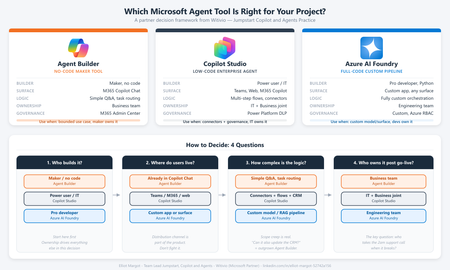
Every client conversation starts the same way. Someone has seen a demo, attended an Ignite session, or read a press release. They want to build an agent. Then comes the question that derails more projects than any technical challenge: "Which tool should we use?" After deploying agents for clients across industries - insurance, professional services, manufacturing, public sector - we have developed a repeatable framework for answering that question. It is not based on which tool is newest or which has the best marketing. It is based on where projects actually succeed or fail in production. The three tools are not competitors The first mistake most teams make is treating Agent Builder, Copilot Studio, and Azure AI Foundry as a hierarchy - basic, intermediate, advanced. That framing leads to bad decisions. They are not a ladder. They are three distinct tools built for three distinct contexts. The right question is not "which tool is most powerful?" It is "which tool fits this project's constraints?" The framework: 4 questions We evaluate every project against four dimensions before recommending a tool: Who is building it? Where do users live? How complex is the logic? Who owns it after go-live? Agent Builder Copilot Studio Azure AI Foundry Builder profile Maker, no code Developer / power user Pro developer, Python User surface M365 Copilot Chat Teams, web, M365 Copilot Custom app, any surface Logic complexity Simple Q&A, task routing Multi-step flows, connectors Fully custom orchestration Post-go-live ownership Business team IT + Business joint Engineering team Governance M365 Admin Center Power Platform DLP Custom, Azure RBAC When we recommend Agent Builder Agent Builder is the right call when the business team wants to own the agent end-to-end, the use case is bounded, and the users already live inside M365 Copilot Chat. The key advantage is distribution - an Agent Builder agent surfaces natively inside Copilot Chat with zero additional deployment work. No IT ticket, no app registration, no Teams app package. The ceiling is real. Agent Builder does not support complex branching logic, external API calls, or dynamic prompt injection. The moment a client asks "can it also update a record in our CRM?" the answer is usually no. Use it when: The maker owns it, the use case is narrow, and M365 Copilot is already the user's primary surface. When we recommend Copilot Studio Copilot Studio is our default recommendation for the majority of enterprise agent projects. It covers the wide middle ground between no-code simplicity and full-code flexibility - within the Microsoft governance perimeter most enterprise IT teams already control. Power Platform connectors - 1,000+ out-of-the-box connectors means most enterprise data sources are reachable without custom API development M365 Copilot channel - surface a Copilot Studio agent directly inside M365 Copilot Chat, Agent Builder-level distribution with enterprise-grade logic underneath Topic-level governance - fallback behaviors, confidence thresholds, escalation paths configurable without code DLP policy enforcement - the agent operates within the same data loss prevention perimeter as the rest of the Power Platform tenant The most common mistake: under-investing in the knowledge layer. The agent authoring is the easy part. Getting SharePoint content structured, metadata consistent, and documents deduplicated is where most projects hit delays. Budget for it. Use it when: The use case requires connectors, dynamic responses, or M365 Copilot integration - and you want IT to own governance without requiring a developer team. When we recommend Azure AI Foundry Foundry is the right call when you need to bring your own model, build a fully custom orchestration pipeline, or integrate into a surface that has nothing to do with Microsoft 365. In practice, this means one of three scenarios: The client has a model fine-tuned on proprietary data that must be used The agent is embedded inside a custom-built web or mobile application The logic requires Python-level control - complex reasoning chains, multi-agent coordination, custom evaluation loops Foundry projects require a professional developer, take longer, and produce something the business team cannot maintain without engineering support. That is not a reason to avoid it - it is a reason to be honest with the client upfront. Use it when: You need full control of the model, the orchestration, or the surface - and you have a developer team to own it. The question that resolves most debates When a client is torn between Copilot Studio and Foundry, we ask one question: "Who is answering the 2am support call when this breaks in production?" If the answer is a developer, Foundry is viable. If the answer is the IT admin or the business owner, Copilot Studio is the right call. Not because Foundry is unreliable, but because the operational model has to match the tool. More projects fail from ownership mismatch than from technical limitations. What we see go wrong Reaching for Foundry too early. Developers often want full control and reach for Foundry before validating the use case. We have rebuilt several Foundry POCs in Copilot Studio when the production constraints called for it - faster to ship and cheaper to run. Under-scoping Agent Builder. Business teams choose Agent Builder because it looks simple, then hit the ceiling at month two. The re-platform cost is higher than building in Copilot Studio from the start. Ignoring the M365 Copilot channel. Many Copilot Studio projects are deployed as standalone Teams apps when they could surface directly inside M365 Copilot Chat. The distribution advantage is significant and underused. The short version Agent Builder - maker-owned, bounded use case, M365 Copilot surface, fast Copilot Studio - IT + business joint ownership, connectors, production governance, M365 Copilot integration Azure AI Foundry - developer-owned, custom model or surface, full control, higher cost Start with the ownership model. Everything else follows. Elliot Margot - Team Lead Jumpstart, Copilot and Agents at Witivio (Microsoft Partner). Connect on https://www.linkedin.com/in/elliot-margot-52742a156/.Solved526Views3likes1CommentThe New Era of Copilot: From Assistant to AI Agent Platform
Microsoft 365 Copilot is shifting from a simple AI assistant into a full agent platform that can understand context, take actions, and be governed at scale. This new direction changes how enterprises design, deploy, and monitor AI in daily work. The headline: Copilot is no longer just “answering prompts”; it is orchestrating tasks across email, documents, meetings, and business systems, with controls and analytics that IT and AI leaders have been asking for. 1. GPT‑5 Chat Inside Copilot Agents One of the most important updates is the move to GPT‑5 Chat for agents created with Copilot’s Agent Builder and Copilot Studio. Key implications: Higher-quality answers: Better reasoning, fewer hallucinations, and more fluent responses in complex business scenarios. More reliable instructions: Agents follow multi-step instructions more consistently, which is critical for workflows like HR onboarding or IT helpdesk. No extra configuration: Where available, tenants automatically benefit from the new model when their agents respond to prompts. For innovators, this means your existing Copilot agents can suddenly handle richer conversations and more nuanced tasks without you rewriting them. 2. Microsoft Agent 365: A Control Plane for AI Agents Another big change is the introduction of Microsoft Agent 365, a unified control plane for enterprise AI agents. What this brings: Centralized governance: One place to manage policies, access, and behaviours for all your agents across the organization. Monitoring and analytics: Visibility into which agents are used, how they perform, and where to improve. Real actions with connectors: Agents can schedule meetings, generate documents, send emails, and update CRM records with full compliance and audit trails. This is crucial if your organization wants to go from “a few pilots” to hundreds of agents safely and consistently. 3. Stronger Governance: Agent ID, Security, and Compliance To support this growth, Microsoft has added new governance and security capabilities. Highlights include: Microsoft Entra Agent ID: A dedicated identity layer for agents so IT can see which agent did what, when, and under which policy. Real-time protection: Integration with security tools for threat detection and protection as agents access resources and perform actions. Enhanced content governance: Features that help prevent oversharing and protect sensitive data in SharePoint and other repositories. For AI and Copilot leaders, this makes it easier to say “yes” to more AI use cases without sacrificing risk management. 4. Smarter Copilot Chat and Conversation History On the user side, Copilot Chat is becoming more context-aware and persistent. Recent improvements include: Better models in Copilot Chat: Higher quality and faster performance for everyday chat across Microsoft 365. Conversation history: Copilot can now use your past chats to provide better follow-up answers and let you pick up where you left off. Scoped content sources: Users can explicitly limit Copilot responses to selected sources (like a specific site or set of files), improving precision and transparency. This makes Copilot feel less like “a new chat every time” and more like an ongoing AI partner that remembers context responsibly. 5. New Agent Experiences in Word, Excel, PowerPoint, Outlook, and Teams Across core apps, Copilot is gaining new “agent-like” behaviours that go beyond simple prompts. Examples: Agent Mode in Word and Excel: Copilot can act like a mini-assistant inside your document or workbook, guided by higher-level goals such as “clean this dataset and prepare a summary” or “improve this proposal for executives.” Meeting planning and summaries in Outlook and Teams: Copilot can help plan meetings, summarize email threads, and recap live or recorded meetings with clearer action items. PowerPoint “Explain” and speaker support: New features help explain complex slides, add speaker notes, and translate content. For innovators, these capabilities are building blocks for domain-specific solutions—like sales decks that update themselves or financial models that explain their own assumptions. 6. What This Means for Generative AI and Copilot Innovators For your Generative AI and Copilot Innovators community, this new wave of Copilot updates opens several strategic opportunities. You can: Design agent-first solutions: Move from “prompt libraries” to full AI agents that can take actions, respect policies, and be measured. Partner deeply with IT: Use new governance and identity controls to align AI innovation with security and compliance. Build reusable patterns: Create templates for HR agents, sales agents, support agents, and analytics agents that others in your org can reuse and adapt. Educate on responsible scaling: Use these updates as a framework for training colleagues on safe, effective deployment of AI at scale. A practical scenario: imagine a “Project Delivery Agent” that reads project documents, updates tasks, drafts status reports, checks risk registers, and prepares meeting agendas—governed centrally, monitored via dashboards, and powered by GPT‑5 Chat. 7. How to Start Exploring These Updates To make the most of these new capabilities: Identify one or two high-value processes (like employee onboarding or customer proposal creation) and prototype an agent around them. Work with IT to configure governance, identities, and data access correctly from day one. Capture lessons learned—prompt patterns, guardrails, and adoption tips—and share them with your community so others can accelerate. These updates transform Copilot from “a powerful assistant” into a foundation for building a whole ecosystem of governed, action-taking AI agents inside your organization.46Views3likes0Comments