microsoft ai
3 TopicsAzure Arc | On-prem + Multi-cloud Management
In this video, we explore how Azure Arc simplifies hybrid and multi-cloud operations by providing a single, consistent control plane for managing your entire infrastructure across Linux and Windows, on-prem, in Azure, or in any cloud. Once connected, you can patch Windows and Linux together with Azure Update Manager, enforce CIS benchmarks and Azure Security Baselines through Azure Policy, and pull consistent inventory, tags, and RBAC across your whole estate. Auto-recover unbootable Windows Server 2025 machines with Quick Machine Recovery, audit and configure WinRE using built-in Azure Policy. Run your virtual machines as Azure Virtual Desktop session hosts on Nutanix, VMware, Hyper-V, or using physical Windows hardware. Satya Vel, Azure Arc Principal Group PDM Manager, shares how to make Azure your operational standard for every workload, anywhere it runs. Learn more about Azure Arc at https://aka.ms/AzureArcServer, or join the community at https://aka.ms/ArcServerForumSignup Organize, filter, & manage inventory at scale. Centralize visibility into servers, VMs, and Kubernetes clusters across on‑prem, AWS, GCP, and Azure from a single control plane. Check out Azure Arc. Policy-as-code, everywhere your servers run. Azure Arc extends Azure Policy to on-prem, AWS, and GCP resources — pre-built CIS and security baselines included. Try it. AVD, off-Azure. Azure Virtual Desktop for hybrid environments turns any Azure Arc-enabled Windows VM or physical server into a session host. Get started. QUICK LINKS: 00:00 — Azure Arc in hybrid environments 00:46 — Transitioning to Azure Arc 02:35 — Unified management 03:43 — How to bring in servers and containers 04:48 — Inventory management 05:30 — Patching 06:48 — Auto-manage future updates 08:25 — One-time update 09:32 — Configuration in a hybrid environment 11:05 — Auditing Windows machines 11:34 — Microsoft Defender for Cloud 13:06 — Desktop virtualization 13:51 — Wrap up Link References For more information go to https://aka.ms/AzureArc Unfamiliar with Microsoft Mechanics? As Microsoft’s official video series for IT, you can watch and share valuable content and demos of current and upcoming tech from the people who build it at Microsoft. Subscribe to our YouTube: https://www.youtube.com/c/MicrosoftMechanicsSeries Talk with other IT Pros, join us on the Microsoft Tech Community: https://techcommunity.microsoft.com/t5/microsoft-mechanics-blog/bg-p/MicrosoftMechanicsBlog Watch or listen from anywhere, subscribe to our podcast: https://microsoftmechanics.libsyn.com/podcast Keep getting this insider knowledge, join us on social: Follow us on Twitter: https://twitter.com/MSFTMechanics Share knowledge on LinkedIn: https://www.linkedin.com/company/microsoft-mechanics/ Enjoy us on Instagram: https://www.instagram.com/msftmechanics/ Loosen up with us on TikTok: https://www.tiktok.com/@msftmechanics Video Transcript: - If you’re managing servers and containers today, you’re probably operating across on-prem multiple clouds and using different tools for each. Azure Arc changes that by providing a single way to manage servers, Kubernetes, and containers across Linux and Windows, on-prem, in any cloud, and at the edge. Since launching in 2019, Azure Arc has gained strong momentum, enabling consistent patching, configuration, compliance, and advanced resilience features like remote recovery even for machines that cannot boot and more. And to explore how Azure Arc works in real hybrid environments, I’m joined by our resident management expert, Satya Vel. Welcome. - Hi, Jeremy. It’s great to be on the show. It’s been a while. - Yeah, it has been a while. Thanks for joining us today. And why don’t we jump right into this? So if I’m coming from maybe a traditional server management background using things like Ansible, VMware vSphere, maybe System Center, what does it take then to transition to Azure Arc, and why would I do it and is it worth the effort? - That’s a fair question. Those are all proven powerful tools. That said, it’s challenging moving between multiple tools to manage what you have. What we are seeing today is more of a people and process change. Most enterprises are now hybrid by default, on-prem, multi-cloud, multiple operating systems managed by a central operations team. And what those teams want most is consistency. Azure extends its management capabilities to servers and Kubernetes clusters wherever they run using Azure Arc. That’s where the value of cloud native innovation shows up, beyond basic monitoring of servers and clusters, like the health and status of each resource. With Azure Arc, you can collect richer operational and security data and query it at a massive scale. All these are now actionable insights. You can use them to improve your security posture to close vulnerabilities faster. They’ll let you more easily fix compliance drift to realign resources with your policies and maintain day-to-day operations. This includes modern patching, all applied across your multi-cloud and hybrid estate. And finally, Azure Arc centralizes governance by bringing consistent tags for grouping along with unified identity and access management using RBAC for connected resources. That way everything is controlled the same way regardless of where it runs from a single control plane without duplication or drift. So to answer your earlier question, it is totally worth it, and Azure Arc is really the glue that brings it all together. - Okay, so why don’t we make this real for everyone watching? Can you show us the unified management experience and what that looks like with Azure Arc? - Sure thing, and that’s the best part. In fact here I’m managing my on-prem and multi-cloud environment using Azure services enabled by Azure Arc. Notice I have everything from a Windows server to Kubernetes clusters running on AWS, different Linux distros. There’s even a Windows client Desktop VM and more. All right here. And I can drill into any of these items to see its specs as well as what’s configured. I can take a look at whether it’s compliant with my configuration policies. For example, this test resource has a few non-compliant policies that I might want to take a look into. And the great thing is everything is in one spot. I don’t need to move between consoles to see everything. Once these resources are enrolled, everything is automated and rule-based. I can look for servers and workloads as they are provisioned or updated, and monitor them 24/7. Then based on the configuration status it finds, it can take actions and get items into a compliant state. - Okay, so we’re going to get to what the management experiences look like in a minute, but let’s go back a step. So what happens if I’ve got infrastructure and I want to bring that into Azure Arc? What does that experience look? - This process is super straightforward and simple. Let me show you. You can bring servers and containers running in any cloud on-premises and on any hypervisor under management with Azure Arc. To onboard resources to Azure Arc, we have a few different methods. The any environment option is the most flexible, where you can use scripts for Linux and Windows, or an installer. This is a lightweight agent that you can install on your Linux and Windows servers. You can use your preferred deployment method to run the scripts on your servers and clusters, like this one for Linux, which downloads the agent, installs it and connects it to Azure Arc. And if you have existing tools like Ansible Automation Controller, formerly known as Ansible Tower, we have published a playbook that makes it super simple to onboard your machines. And this playbook is published in the Ansible Galaxy, which is the official community hub. - Okay, so now we’ve got everything in. Now moving into the next thing that people manage a lot every day, inventory. So how does Azure Arc change that? - So I briefly showed the different locations and platforms that could run under Azure Arc. But there’s more to it. All my servers and clusters are in one view. It spans on-prem as I search for Azure Local, then I’ll filter for AWS as well as GCP services. And I can see Azure VMs plus my on-prem servers listed together with a consistent tagging and status information. I define everything based on their location and platforms in Azure, so it’s super easy to see where everything is running, and there’s less chance that any infrastructure falls through the cracks. - Beyond inventory management, something else that we do every day is patch management. So can Azure ARC handle patch management for servers and infrastructure outside of Azure? - Absolutely. This is an area where Azure Arc can help a lot. Today, patching often means different tools for different environments: WSUS or SCCM for Windows, scripts for Linux, or separate crowd portals. And with Azure Arc, this all happens consistently from one place. You can see Azure Update Manager, which I have opened here. Each server has an update status indicating if it’s got pending updates or not. Azure Update Manager continuously assesses the update compliance of your managed servers on a schedule. And you can manually trigger assessments by selecting resources and hitting check for updates. Now, you can see I have both Linux and Windows machines missing updates, and even though these are different OS types, I can update them together with just a few clicks if I want. But before I do that, notice this on-prem Windows Server 2016 machine that needs to be updated. Here, a benefit of managing your Windows and SQL Server infrastructure on Azure is that the service offers extended security updates so you can run them longer in support without disruption to business critical applications. Let’s get back to updating these machines. The nice thing is that you only have to set the right policy and logic one time to manage updates automatically in the future. To save a little time, I’ll select every machine. From here, I can schedule updates for these resources where first I’ll fill in the basics for my subscription and resource group. Then the instance details like the configuration name and the region. The maintenance scope using the guest option lets me target my resources. Then under schedule, I can select the start date as well as the time, how many hours and minutes I want the maintenance window to be, the frequency of repeats in hours, days, weeks, or months. Then in the resources tab, if I want to add more servers, I can group everything I want in the same maintenance schedule. Likewise, you’d use this grouping for staggered rollouts. Importantly, using dynamic scopes, I can also make sure that any new resources are targeted as they come online based on defined filters like the resource groups they’re in, the resource types, locations, operating systems or tags. In updates, I can target the type of updates I want, for example, only critical and security updates. Finally, I can add pre and post events to run before and after the update, like redirecting an app to an informational page saying that the resource is being serviced and when it’ll be back online. Of course, I can tag this as well. And then I just need to review and click create. - And the favorite thing I just saw there was the dynamic scoping that you can apply as a set it and forget it setting basically. So what happens though, if I’ve got an update that’s really critical that I need to push out immediately, can I do that? - Not a problem. You can do that as well. For that, you’ll select one or more resources and choose one time updates so that it gets applied immediately. I just need to confirm the machines, then choose the update type or any exclusions that I want to define. I’ll keep everything in scope here. Then in properties I can determine the reboot behavior I want and maximum maintenance window time in minutes. From there, I can review and install. That will push the update to my selected servers, whether they are in the cloud or on-premise, so it’s one place to get resources into update compliance. And in case you want to stagger updates over a longer period of time for large patch management jobs, you can orchestrate updates using groups. - So the main thing is here you control the timing, like only patching during off hours and approvals and you get to decide which updates to apply, so it’s super flexible. Now, software updates are one type of configuration management, but what other types of configurations can you manage here? - Configuration management in hybrid environments is complex. You traditionally use group policy, desired state configuration or scripts for Windows, and then separate tools like Ansible, remote scripting or manual commands of SSH for Linux. All this can be done centrally from Azure Arc. It extends Azure policy to any resource. And you can use Microsoft provided built-in policy baselines covering common security requirements. For example, the security baseline contains best practices and controls that we’ve defined for cloud services running on Linux and Windows. And above that, you can also see CIS Benchmark policy, which is an internationally recognized standard spanning OS platforms used to protect against cyber attacks. I’ll apply this baseline, then I’ll choose the Red Hat Enterprise Linux 9 Benchmark. And searching across 300 CIS Benchmark policies, I’ll look for passwords. And there are 24 policies defined. And then for Firewall, you can see four more. And these are just a few examples that are pre-configured. So once you assign these to your resources, Azure continuously monitors each machine for compliance. So you can use policy as code across your entire state with Azure policy controls that automatically stay current as standards like CIS evolve. We also recently added the ability to audit and enable WinRE through Azure Arc, improving recoverability even for machines that can’t boot. As you can see, there are a couple of new policies for auditing machines that do not have WinRE enabled and configuring WinRE on Windows machine. With quick machine recovery on Windows Server 2025, that also means for broader issues with known fixes, we’ll automatically recover machines that are not bootable. - And that’s really a great resiliency option. But what about security, compliance, and configurations and assessments? Can we do something there? - For that, you can use Microsoft Defender for Cloud. This lets you standardize security agents and settings across machines and containers wherever they run. In the Defender portal, you can see that the same way Azure Resources spanned Azure, AWS, GCP, and other environments, those same resources are visible here too. Defender continuously assesses connected resources for security posture. This includes what I showed before in the Security Baseline and CIS Benchmark. It detects threats in real time with associated security alerts and how they are trending. You get a complete breakdown by compute with your virtual machines and their associated risks. And the same is true for your connected containers running in Kubernetes. If I move over to cloud assets here you can see all the virtual machines, Kubernetes clusters that we saw in Azure Arc. And clicking into any of these, like this Ubuntu VM will show me all of its details. Scrolling down, I get a view of its risk factors. And below that, you’ll see that this one has 82 risk-based recommendations to improve its security. - And one of the big upsides of Microsoft Defender is that shared visibility, so everything logs to the same place. So if you think about assumed breach, it means that you won’t have any blind spots then as attackers are moving laterally through your environment. So that means security teams, they see what you see. So why don’t we move on though to desktop virtualization. What can Azure Arc do to help me there? - Sure, Azure Arc unlocks the ability to run Azure Virtual Desktop, or AVD, for short, outside of Azure so it can run on your own infrastructure, either via Azure Local or something new we recently announced: Azure Virtual Desktop for hybrid environments. This means any existing on-prem server can be configured as a AVD session host as long as it’s attached to Azure Arc. The management is in the VM layer using a management extension. It’s flexible, and Nutanix AHV, VMware vSphere, Hyper-V, or physical Windows Server can work. So with Azure Arc, you have full control over the entire infrastructure’s lifecycle from inventory, configuration management and policy enforcement all from one place. And the good news is that if you own Software Assurance, you can access services enabled by Azure Arc as part of your license for inventory, configuration, and update management. - That was a great tour and update of Azure Arc. So thanks for joining us today, Satya. And if you want to learn more about Azure Arc and try it out for yourself, just go to aka.ms/AzureArc for more information. Or as an admin search for Arc, A-R-C, in the Azure Portal to get started. And keep watching Microsoft Mechanics for the latest updates. We’ll see you again soon.288Views1like0CommentsAI in Windows 11
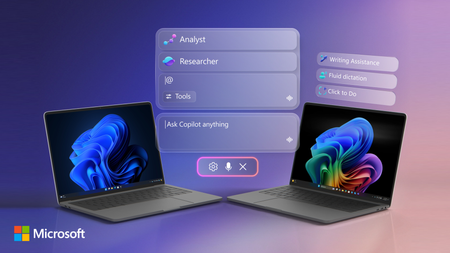
Access Copilot and agents right from the taskbar; find answers across your files, email, and meetings, and turn ideas into polished content using voice or text. AI is right there where you already work, so you can move faster, stay in your flow, and make better decisions without switching context, opening other apps or moving to the browser. And if you do have a Copilot+ PC, you can use fluid voice dictation across apps, find files with natural language search, take action on anything on your screen, and refine writing anywhere, even offline. Jeremy Chapman, Microsoft 365 Director, shows how whether you’re planning projects, collaborating with teammates, or building solutions, you can move faster, stay focused, and turn context into real outcomes. Stop searching across apps. New Copilot capabilities in Windows Search understand your work context and surfaces answers using data from your Microsoft 365 environment. Get started with Copilot experiences in Windows 11. Run AI tasks without interrupting your workflow. Agents stay visible and trackable in the Windows 11 taskbar. Watch here. Interact with content on your screen using Click to Do. Extract text, send content to Microsoft 365 Copilot, or convert a static table into a usable Excel file. Take a look. QUICK LINKS: 00:00 — Ask Copilot 00:55 — Use voice with Copilot 02:30 — Agents on Windows 11 taskbar 04:19 — Copilot in File Explorer 05:19 — Copilot+ PC capabilities 07:04 — Click to Do 07:52 — Writing Assistance with Copilot 09:15 — Wrap up Link References Check out https://aka.ms/Windows11AI Unfamiliar with Microsoft Mechanics? As Microsoft’s official video series for IT, you can watch and share valuable content and demos of current and upcoming tech from the people who build it at Microsoft. Subscribe to our YouTube: https://www.youtube.com/c/MicrosoftMechanicsSeries Talk with other IT Pros, join us on the Microsoft Tech Community: https://techcommunity.microsoft.com/t5/microsoft-mechanics-blog/bg-p/MicrosoftMechanicsBlog Watch or listen from anywhere, subscribe to our podcast: https://microsoftmechanics.libsyn.com/podcast Keep getting this insider knowledge, join us on social: Follow us on Twitter: https://twitter.com/MSFTMechanics Share knowledge on LinkedIn: https://www.linkedin.com/company/microsoft-mechanics/ Enjoy us on Instagram: https://www.instagram.com/msftmechanics/ Loosen up with us on TikTok: https://www.tiktok.com/@msftmechanics Video Transcript: -Windows does a lot more than launch and run apps. Now with built-in AI, it can do much more for you and you don’t need special skills to make that happen. There are capabilities that light up on any hardware that runs Windows 11, and some that go even further on Copilot+ PCs with on‑device AI processing. Let’s go ahead and start with what anyone running Windows 11 can use right now. So to pull up AI experiences with advanced reasoning, you’ll start with the Search box in the Taskbar, where your familiar search still remains the same, but now you can also use it with AI prompts. So here, I’ll type, “When is my performance review due?” And by drawing on information from my Microsoft Teams and Outlook calendar, Copilot identifies my performance review meeting so I can prepare for it. It’s an experience powered by Microsoft 365 Copilot, which uses Work IQ to understand my work context. -Next with AI, it’s often easier just to say what you want and you can now use voice with Microsoft 365 Copilot because of its multi-modal support. You’ll use a long press on the Copilot key or Windows key + C if your device doesn’t have that, to activate voice control. And now I can interact with Copilot to help build a presentation that I’m working on. So for this slide I’ll ask, “Robin sent me a stat about incorporating organic design. I think it was in email, maybe Teams?” And it takes my voice command, it’s using Work IQ with Microsoft 365 Copilot to run intelligent searches, figuring out which Robin I mean while pulling in relevant context and shared information about the meeting from across my Microsoft 365 apps. - [Copilot] Robin mentioned that incorporating organic design has been shown to boost employee creativity by 15%. That’s a pretty cool stat! - Not bad. Can you turn that into a catchy statement on this slide here? - [Copilot] Absolutely. How about this? Creativity matters. Create the space for it. - Love it. I’ll need Amber to sign off on this. So when’s my next meeting with Amber? - [Copilot] Your next one-on-one with Amber is on Thursday at 10:30 in the morning. That should be a great time to review it together. - [Jeremy] Thanks, Copilot. - [Copilot] You got it. Happy to help. Let me know if there’s anything else you want to fine tune before that one on one. -This uses advanced speech‑to‑text and tightly integrates on‑device input with cloud AI, so it works on any connected Windows 11 device. Now let’s try something more challenging. Some AI tasks take longer than a quick prompt‑and‑response, and some need to run in parallel while you keep working. That’s where Agents on the Windows 11 taskbar can help. So I’m going to start by tapping into the new Windows Search box. Now, this uses new Windows shell integration, so that long running agents can be viewed similar to apps. So I just need to start with the @ symbol to pull up my agents Now I can find, open, monitor and work with my agents directly from the taskbar. So in this case, I’m going to choose the Researcher agent. I’ll ask Researcher to compare public sentiment with our design principles. I like the direction it’s thinking, so I’ll go ahead and confirm. And this agent works hard, often for 10 minutes or more to research and generate its content. And you can work on other things or with other agents while each performs their work. -As agents run, there are status indicators directly on the taskbar, similar to when you download large files, where you can track progress and see once it’s complete. So, your agents stay visible and easy to check on as you work, not buried in browser tabs. Now let’s return to our completed Researcher run. The notification tells me that Researcher is finished with this turn and in the taskbar, I can even see a green checkmark on the Researcher icon. When I zoom in, there’s a short summary. And I can tap in to review it. -Now, this actually took around eight or so minutes to process in real time. Everything here was grounded using Work IQ for information that was in my company. And you’ll see its answer is very well-informed and extremely comprehensive using our study for public sentiment vs. core design principles, it’s laying out its reasoning and all of its cited sources. Of course, Windows is also where you can go to find and open your files and now, your SharePoint and OneDrive cloud files will show up right inside the File Explorer. Using File Explorer Home, you can easily get to your recent files, your favorites and files shared with you. -Then the new Copilot control lets you Ask Microsoft 365 Copilot for file insights like summaries, context, or next steps for documents. So for this Design Principles doc here, I’ll ask Copilot to review it and tell me what percentage of employees prefer workspaces that incorporate sustainable materials. And in just a few seconds, based on information deeply nested within that document, it finds that over 70% say they do and even provides supporting context. So, you don’t have to open the file or leave your flow to find the right one, whether that’s local or in the cloud. And everything I’ve shown so far works on any Windows 11 device with a Microsoft 365 work or school account and access to Copilot. -Now let’s look at what’s unique to Copilot+ PCs, where on‑device AI and small language models deliver fast, private processing. So I’ll highlight a few of the capabilities that work on a Copilot + PC even if you don’t have Microsoft 365. First, the new Fluid Dictation works across all apps and uses on-device models for quicker, more natural voice typing as well. You can enable voice access in Settings, which on first run guides you through the experience and what it can do to interact with Windows. -So I’m going to show an experience working across two common text editors, Notepad and Word. You can start it using either the microphone icon in the taskbar, or by saying, “Voice access, wake up. Open Notepad.” It uses powerful AI running on your local device to automatically correct grammar, add punctuation, and, um, even remove filler words that you, uh, speak. Select all. Copy. Open Word. Paste. And that was just scratching the surface for what Voice access with Fluid Dictation can do. And here are some of the common commands that you can use to interact with Windows and your apps. -Second, to help you quickly find your files anywhere, improved Windows search uses semantic understanding across local files and Microsoft 365. You don’t need exact names, just describe what you remember. For example, this broad search here for project updates pulls up relevant files and folders of content using hybrid semantic search, and they might contain the word project or maybe synonyms, or contain related content in context of the files or even images within the files. -Next, Click to Do lets you interact with anything on your screen. You can take actions on content or ask Microsoft 365 Copilot a question about what’s on your screen without needing to switch context. So in this case, I’ll going to pull up this PDF file and you’ll see that it opens the file in the Edge browser. Now, if I scroll down, you can see that I have a stylized table on my screen, which by the way, could be text or an image. So I’ll hit the Windows Key + left mouse click to open Click to Do. And you can also use Windows key + Q. Now you’ll see that it’s recognizing all of the text in the screenshot. I can copy it as a CSV, Save or Share it. I’ll use Convert to table with Excel. And it instantly opens Excel and becomes a usable table and you can work directly with the data. -From here, if you also use Microsoft 365 at work or school with a Copilot+ PC, even more powerful capabilities light up. Writing Assistance with Microsoft 365 Copilot helps you quickly craft content with AI-powered rewriting and proofreading, and because it runs locally, it even works offline. This enables you to use generative AI from any app with text field input. So I’m going to go ahead and use our line-of-business app here for project planning. There’s a description and business justification field, and I’ll add a bit more detail here. -And this works everywhere, kind of like your clipboard, so when I select text, the Writing Assistance button appears. Now with it, I can choose options to rewrite it in different ways. In this case, I’ll choose professional. It rewrites my text entry and then gives me three options. So I’ll go ahead and choose the third option here, I like that one, so I’ll go ahead and replace my previous text with it. And that can be used on any line-of-business or other app without any code changes because it’s just built into Windows. -And finally, if you are a developer, new native support in the Model Context Protocol in Windows gives your agents a standardized way to connect with apps, tools, and files to automate tasks. You can use built-in agent connectors for File Explorer and Windows Settings, allowing your agents to manage local file operations and to modify defined device configurations. -Windows 11’s built-in AI moves the intelligence closer to you right in the flow of your work. To learn more, check out aka.ms/Windows11AI and keep watching Microsoft Mechanics for the latest updates and thanks for watching.616Views0likes0CommentsWhat runs GPT-4o and Microsoft Copilot? | Largest AI supercomputer in the cloud | Mark Russinovich
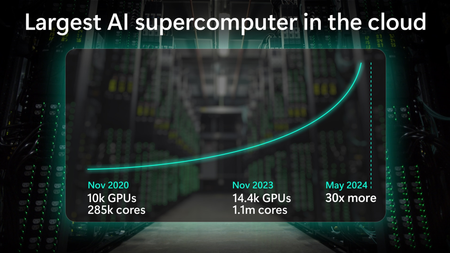
Microsoft has built the world’s largest cloud-based AI supercomputer that is already exponentially bigger than it was just 6 months ago, paving the way for a future with agentic systems.18KViews2likes0Comments