microsoft ai
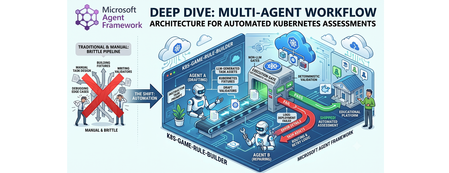
24 TopicsMicrosoft Agent Framework Multi-Agent Workflow Architecture for Automated Kubernetes Assessments
Why this system generates tests (design rationale) This project does not generate tests just to "check code." It generates tests because, in a Kubernetes learning game, the test suite is the grading contract. The design goals are: Scale content creation: instructors should not hand-author every task and checker. Keep grading objective: student success is measured against Kubernetes API state, not subjective review. Avoid fragile tasks: generated tasks must survive empty/wrong cluster states without crashing. Make failures repairable: when checks break, the system should patch and re-validate automatically. So the pipeline generates a full task package (setup, answer, check, cleanup) where tests define exactly what "correct" means. Lifecycle: from concept to production-ready grader Reader mental model: this is a content compiler with validation stages, not a single chat completion. Phase 1: Pedagogical intent -> structured concept The Idea Agent converts a topic into a constrained concept object (objective, progression, task IDs, difficulty variants). Memory rules block duplicates and previously failed concepts. Phase 2: Concept -> executable grading package The Generator Agent turns that concept into files: student instructions (instruction.md) learning material (concept.md) parameter source (session.json) setup and answer manifests (setup.template.yaml, answer.template.yaml) deterministic pytest flow (test_01 ... test_06) At this point, output is still untrusted draft content. Phase 3: Structural correctness gate Deterministic validation checks file presence, syntax, JSON/YAML shape, and template correctness. This catches basic integrity issues before cluster execution. Phase 4: Behavioral correctness gate (real cluster) Pytest executes against Kubernetes and verifies runtime behavior using real kubectl-derived state. This proves that generated checks actually evaluate cluster resources as intended. Phase 5: Anti-false-positive gate (skip-answer mode) The same suite runs with SKIP_ANSWER_TESTS=True to verify grader integrity: answer deployment is skipped test_05_check.py must fail If it still passes, the grader is invalid (it would accept wrong student submissions). Phase 6: Self-healing repair loop On any failure, deterministic error logs are fed into the Fixer Agent, which patches only broken files. The workflow then re-enters validation + test gates. Phase 7: Finalization If all gates pass -> task is kept as production-ready content. If retries are exhausted -> task is moved to unsuccessful/ with FAILURE_REPORT.txt for human triage. This lifecycle explains the core architecture decision: LLMs generate candidate graders, deterministic execution certifies them. Concrete generated sample (what the pipeline actually produces) Below is a representative generated task for topic: ConfigMap Environment Variable Injection. Generated directory layout tests/game01/050_configmap_env_injection/ ├── __init__.py ├── instruction.md ├── concept.md ├── session.json ├── setup.template.yaml ├── answer.template.yaml ├── test_01_setup.py ├── test_02_ready.py ├── test_03_answer.py ├── test_05_check.py └── test_06_cleanup.py session.json (runtime variables) { "namespace": "{{random_name()}}{{random_number(100,999)}}{{student_id()}}", "configmap_name": "{{random_name()}}", "deployment_name": "{{random_name()}}", "container_name": "app", "env_key": "APP_MODE", "env_value": "production" } Why this exists: task values are randomized per student/session, so tests verify behavior by variable contract instead of hardcoded names. setup.template.yaml (baseline state only) apiVersion: v1 kind: Namespace metadata: name: {{ namespace }} Why this exists: setup should create prerequisites only. It must not accidentally include the final answer. answer.template.yaml (expected correct solution) apiVersion: v1 kind: ConfigMap metadata: name: {{ configmap_name }} namespace: {{ namespace }} data: {{ env_key }}: "{{ env_value }}" --- apiVersion: apps/v1 kind: Deployment metadata: name: {{ deployment_name }} namespace: {{ namespace }} spec: replicas: 1 selector: matchLabels: app: env-demo template: metadata: labels: app: env-demo spec: containers: - name: {{ container_name }} image: nginx:latest env: - name: {{ env_key }} valueFrom: configMapKeyRef: name: {{ configmap_name }} key: {{ env_key }} Why this exists: defines canonical "correct cluster state" that graders must detect. test_02_ready.py (wait for setup resources) import json import time from tests.helper.kubectrl_helper import build_kube_config, run_kubectl_command class TestReady: def test_001_namespace_active(self, json_input): kube_config = build_kube_config( json_input["cert_file"], json_input["key_file"], json_input["host"] ) time.sleep(2) result = run_kubectl_command( kube_config, f"kubectl get namespace {json_input['namespace']} -o json", ) data = json.loads(result) assert data.get("status", {}).get("phase") == "Active" Why this matters: validates setup-stage readiness only. It should not check answer resources yet. test_05_check.py (student grading contract) import json from tests.helper.kubectrl_helper import build_kube_config, run_kubectl_command class TestCheck: def test_001_configmap_key_exists(self, json_input): kube_config = build_kube_config( json_input["cert_file"], json_input["key_file"], json_input["host"] ) result = run_kubectl_command( kube_config, f"kubectl get configmap {json_input['configmap_name']} -n {json_input['namespace']} -o json", ) data = json.loads(result) assert data["data"][json_input["env_key"]] == json_input["env_value"] def test_002_deployment_uses_configmap_env(self, json_input): kube_config = build_kube_config( json_input["cert_file"], json_input["key_file"], json_input["host"] ) result = run_kubectl_command( kube_config, f"kubectl get deployment {json_input['deployment_name']} -n {json_input['namespace']} -o json", ) data = json.loads(result) env = data["spec"]["template"]["spec"]["containers"][0].get("env", []) matched = [ e for e in env if e.get("name") == json_input["env_key"] and e.get("valueFrom", {}).get("configMapKeyRef", {}).get("name") == json_input["configmap_name"] and e.get("valueFrom", {}).get("configMapKeyRef", {}).get("key") == json_input["env_key"] ] assert matched, "Deployment container must consume env var from ConfigMap key" Why this matters: this is the real grading logic. If a student deploys wrong resource wiring, this test fails with explicit reason. Why skip-answer validation is essential for this sample When SKIP_ANSWER_TESTS=True, answer deployment is skipped. In this mode: test_03_answer.py should be skipped test_05_check.py must fail (ConfigMap/Deployment wiring is absent) If test_05_check.py still passes, the grader is broken (false positive), and the workflow routes to Fixer. Rule Builder Workflow Flowchart Multi-graph architecture views 1) Control-plane graph (orchestration DAG) 2) Runtime sequence (who calls what) 3) State machine (task lifecycle) 4) Prompt lifecycle graph (how prompts evolve) 5) MCP + Kubernetes execution boundary graph Core Agent Framework Primitives Used This repository is a practical example of Agent Framework as a graph orchestrator, not just an agent wrapper. WorkflowBuilder builds a typed DAG with explicit edges. @executor functions implement deterministic nodes (validation, pytest, decisions, routing prep). AgentExecutor wraps LLM agents so they behave as graph nodes. WorkflowContext shared state carries typed data and retry metadata between nodes. add_multi_selection_edge_group(...) + selector functions enforce conditional routing. MCPStdioTool connects filesystem MCP tools into agents for controlled file I/O. Production graph construction (from workflow/builder.py) looks like this: workflow = ( WorkflowBuilder(start_executor=initialize_retry) .add_edge(initialize_retry, generator_executor) .add_edge(generator_executor, parse_generated_task) .add_edge(parse_generated_task, run_validation) .add_edge(run_validation, run_pytest) .add_edge(run_pytest, make_decision) .add_multi_selection_edge_group( make_decision, [keep_task, remove_task], selection_func=select_action, ) .add_edge(keep_task, run_pytest_skip_answer) .add_multi_selection_edge_group( run_pytest_skip_answer, [check_loop, complete_workflow], selection_func=select_skip_answer_action, ) .add_multi_selection_edge_group( check_loop, [fix_task, complete_workflow], selection_func=select_loop_action, ) .add_edge(fix_task, fixer_executor) .add_edge(fixer_executor, parse_generated_task) .build() ) This is the architectural heart of the system: agents and deterministic executors are first-class nodes in the same graph. Detailed Node-by-Node Mechanics 1. Idea Agent (🧠): Concept Synthesis with Memory Constraints The Idea Agent (agents/k8s_task_idea_agent.py) generates a structured concept with three difficulty variations (BEGINNER/INTERMEDIATE/ADVANCED). It is memory-aware: task_ideas_memory.json tracks successful concepts. task_ideas_failure_memory.json tracks concepts that failed downstream. Memory constraints are injected using AgentMiddleware (system-level prompt injection) to avoid duplicate or previously failed concepts. For Responses-only models, the agent switches to a tool-call contract (save_k8s_task_concept) instead of structured response formatting. 2. Generator Agent (⚙️): MCP-Backed File Authoring The Generator Agent receives a strict prompt and writes task files through MCP filesystem tools. Key framework details: Built through chat_client.as_agent(...). MCP tool attached via tools=mcp_tool. Function-call execution observability added with LoggingFunctionMiddleware. Uses absolute-path-only policy in instructions to prevent path drift. 3. Deterministic Validation + Test (✅): Non-LLM Gates After generation, the graph moves through deterministic executors: run_validation calls pure Python checks (k8s_task_validator). run_pytest executes pytest --import-mode=importlib --rootdir=. .... Raw pytest output is persisted in workflow state for later fixing. This is critical: no LLM is asked whether code is correct. 4. Skip-Answer Test (🧪): Grader Correctness Gate Even if standard tests pass, the workflow enforces a second tier: SKIP_ANSWER_TESTS=True pytest --import-mode=importlib --rootdir=. Implementation detail: the executor writes JUnit XML, parses it, and asserts that: test_03_answer.py is skipped test_05_check.py fails as expected If test_05_check.py does not fail, the task is treated as invalid and sent back to retry/fix. 5. Fixer Agent + Retry Loop (🔧): Bounded Self-Healing On failure, fix_task builds a targeted prompt containing: failure reasons from deterministic nodes full captured pytest output explicit rule to patch only broken files in place The Fixer Agent runs through AgentExecutor, writes patches via MCP, and the graph loops back to parse_generated_task. Retries are stateful (retry_count, max_retries) and hard-bounded. On exhaustion, complete_workflow moves the task to unsuccessful/<game>/ and writes FAILURE_REPORT.txt. Agent Prompt Design (The Part That Makes It Work) If you want to understand why this pipeline works, you need to inspect prompts as operational contracts, not generic instructions. Real Idea Agent Prompt (from code) IDEA_AGENT_INSTRUCTIONS = ( "You are a Kubernetes task idea generator that creates detailed task concepts with three difficulty variations. " "Read official K8s documentation and propose comprehensive learning concepts for a Kubernetes game. " "\n\nYour task:\n" "1. Choose ONE Kubernetes concept not yet covered (check context for existing concepts)\n" "2. Generate exactly 3 variations: BEGINNER, INTERMEDIATE, and ADVANCED\n" "3. Use 3-digit task IDs (001-999) in format: XXX_concept_name_level (e.g., 041_secrets_basic)\n" "4. Each variation should build on the previous one with increasing complexity\n" "5. Include practical, hands-on scenarios covering: Workloads, Services, Storage, Configuration, Security, Scheduling, Policies\n" "\nProvide the concept, tags, description, and 3 variations with task_id, difficulty, title, objective, key_skills, and estimated_time." ) Responses-only models use a stricter tool-call version: IDEA_AGENT_INSTRUCTIONS_TOOL_CALL = ( IDEA_AGENT_INSTRUCTIONS + "\n\n" "**CRITICAL**: You MUST call the save_k8s_task_concept tool to save your generated concept.\n" "...\n" "Always call save_k8s_task_concept with your generated concept." ) Idea Agent Prompt Contract The Idea Agent prompt enforces: one concept per run exactly three difficulty variations strict task ID format (XXX_concept_name_level) practical skill progression Core pattern: You are a Kubernetes task idea generator... 1. Choose ONE Kubernetes concept not yet covered 2. Generate exactly 3 variations: BEGINNER, INTERMEDIATE, ADVANCED 3. Use 3-digit task IDs in format XXX_concept_name_level ... It is strengthened by runtime memory injection: previously generated concepts are blocked previously failed concepts are blocked For Responses-only models, the contract becomes tool-driven: CRITICAL: You MUST call the save_k8s_task_concept tool... This reduces ambiguity in output structure and makes downstream parsing deterministic. Real Generator Agent Prompt (from code) def _get_generator_instructions(): return ( "You are a Kubernetes task generator with filesystem tools.\n" f"The MCP filesystem is rooted at: {PATHS.tests_root.parent}\n" f"You MUST use ABSOLUTE paths for ALL file operations.\n" f"Task directory: {PATHS.game_root}/XXX_task_name/\n" "...\n" "CRITICAL: test_02_ready.py checks resources from setup.template.yaml, NOT answer.template.yaml.\n" "...\n" "MUST use polling loops (60s timeout, 15s interval)\n" "MUST use try/except and safe .get() JSON access\n" ) The generator prompt is long on purpose: it encodes path correctness, file schema, YAML/Jinja structure, and testing strategy in a single deterministic contract. Generator Agent Prompt Contract The Generator prompt is intentionally long and prescriptive because it defines filesystem safety and grading correctness requirements. Key constraints encoded in the prompt: Absolute path writes only (prevents writing to wrong workspace paths) No directory creation (directory is pre-created by executor) Required file set (instruction.md, concept.md, session.json, templates, tests) test-flow invariants: test_01_setup.py deploys setup test_02_ready.py checks setup resources only test_03_answer.py deploys answer test_05_check.py validates final solution robust test coding style: polling loops, try/except, .get()-based JSON parsing, explicit debug output Example contract fragment: CRITICAL PATH RULES: ✅ CORRECT: /abs/path/tests/gameXX/050_task/file.py ❌ WRONG: tests/gameXX/050_task/file.py (relative) CRITICAL: test_02_ready.py checks resources from setup.template.yaml, NOT answer.template.yaml. This is why generation quality is high before the Fixer loop even starts. Real Runtime Retry Prompt Builder (from code) def _build_retry_generation_prompt(combined: CombinedValidationResult) -> str: task_id = combined.test.task_id failure_reasons = _build_failure_reasons(combined) return ( f"Generate a complete Kubernetes learning task with ID '{task_id}' about '{combined.target_topic}'. " f"This is retry attempt {combined.retry_count + 1} of {combined.max_retries}. " f"\n\n⚠️ PREVIOUS ATTEMPT FAILED:" f"\n{chr(10).join([f' - {reason}' for reason in failure_reasons])}" f"\n\nIMPORTANT: You MUST use the exact task ID '{task_id}' - do not generate a new ID." f"\n\n✅ Directory already exists: {PATHS.game_root}/{task_id}/" f"\nWrite all files directly into this directory. Do NOT call create_directory." "..." ) This means retries are not generic retries; they are failure-conditioned retries with precise constraints. Fixer Agent Prompt Contract The Fixer prompt is a repair protocol, not a regeneration prompt. It includes: exact failure reasons from deterministic validators raw pytest output instruction to read current task files first strict directive to patch only broken files Core behavior constraints: DO NOT rewrite all files. Make TARGETED FIXES to ONLY the broken files. Use ABSOLUTE paths for all file operations. This keeps retries cheap, preserves working artifacts, and improves convergence speed. Real Runtime Fix Prompt Builder (from code) def _build_fix_prompt(combined: CombinedValidationResult, raw_test_output: str) -> str: task_id = combined.test.task_id failure_reasons = _build_failure_reasons(combined) prompt = ( f"Fix the failed Kubernetes task '{task_id}' located in '{PATHS.game_root}/{task_id}/'." f"\n\nThis is fix attempt {combined.retry_count + 1} of {combined.max_retries}." f"\n\n⚠️ TASK FAILED WITH THESE ERRORS:" f"\n{chr(10).join([f' - {reason}' for reason in failure_reasons])}" ) if raw_test_output: prompt += f"\n\n📋 FULL TEST OUTPUT:\n```\n{raw_test_output}\n```" prompt += ( f"\n\n🔍 YOUR TASK:" f"\n1. READ all files from '{PATHS.game_root}/{task_id}/'" f"\n6. Make TARGETED FIXES to ONLY the broken files" f"\n7. WRITE ONLY the fixed files back" f"\n\n⚠️ CRITICAL: DO NOT rewrite all files! Only fix the broken ones!" ) return prompt How Prompt Output Enters the Agent Framework Graph The prompt builders above are used by deterministic executors and sent to agent nodes through AgentExecutorRequest: await ctx.send_message( AgentExecutorRequest( messages=[Message(role="user", contents=[fix_prompt])], should_respond=True ) ) So prompt generation and graph routing are tightly coupled: each route transition emits a specific prompt payload into the next LLM node. Runtime-Constructed Prompts in Executors The most important prompts are built dynamically in workflow executors: _build_retry_generation_prompt(...) _build_fix_prompt(...) These functions inject live context: retry_count / max_retries concept + objective metadata validation/test failure reasons full captured test logs So each retry is context-rich and specific, not another blind generation attempt. Prompt + Middleware + Deterministic Gates = Reliability In this repository, reliability does not come from prompt text alone. It comes from three layers working together: Prompt contracts constrain agent behavior. Middleware injects memory and logs tool invocations. Deterministic executors enforce objective pass/fail gates. That combination is why the workflow remains auditable and predictable even when LLM outputs vary. Agent Framework Execution Model in This Repo Strongly-Typed Message Passing workflow/models.py defines transport models used between nodes: ValidationResult and TestResult (Pydantic) CombinedValidationResult (dataclass with should_keep and should_retry) InitialWorkflowState (seed payload for each run) This keeps node contracts explicit and simplifies selector logic. Fail-Fast Shared State Management Executors use ctx.get_state(...) with a sentinel (_MISSING) and raise explicit exceptions if required state is absent. This prevents hidden fallback behavior and catches graph/data wiring errors early. Conditional Routing with Selectors Selectors (workflow/selectors.py) encode graph decisions: select_action → keep vs remove select_skip_answer_action → complete vs loop select_loop_action → fix vs complete This separates decision policy from executor implementation. Streaming Workflow Runtime workflow.run(initial_state, stream=True) emits output events incrementally. The runner (workflow/runner.py) consumes these events to detect successful completions and update concept memory accordingly. Agent Construction and API Selection Strategy The repository uses Azure CLI auth (AzureCliCredential) and dynamically selects API mode by deployment name (agents/config.py): Chat Completions path: OpenAIChatCompletionClient Responses-only model path: OpenAIChatClient or custom ResponsesAgent Why this matters: some codex-class deployments are Responses-only, so the architecture supports both without changing workflow logic. How MCP Actually Controls Kubernetes (Important Distinction) In this repo, MCP is used for filesystem control; Kubernetes control is done through kubectl tools. 1) MCP server role: controlled file I/O The workflow starts MCP stdio servers (official filesystem server) and mounts them into agents: docs_mcp_tool = MCPStdioTool( name="filesystem_docs", command="npx", args=["-y", "@modelcontextprotocol/server-filesystem", str(PATHS.k8s_docs_root)], load_prompts=False, ) tests_mcp_tool = MCPStdioTool( name="filesystem_tests", command="npx", args=["-y", "@modelcontextprotocol/server-filesystem", str(PATHS.tests_root.parent)], load_prompts=False, ) Those MCP tools are passed into Generator/Fixer agents, which then call MCP file functions (read/write/list) inside allowed roots only. 2) Kubernetes cluster control role: kubectl execution tool Cluster actions are not performed by MCP filesystem server; they are performed by a dedicated function tool: def run_kubectl_command(command: str) -> str: kubeconfig_path = os.environ.get("KUBECONFIG", "/home/developer/.kube/config") cmd_list = ["kubectl"] + command.split() result = subprocess.run( cmd_list, capture_output=True, text=True, check=True, env={**os.environ, "KUBECONFIG": kubeconfig_path}, ) return result.stdout And the Kubernetes agent forces tool usage: agent = responses_client.as_agent( name="KubernetesAgent", instructions="...You MUST use the run_kubectl_command tool...", tools=[run_kubectl_command], default_options={"tool_choice": "required"}, ) So the control plane is: MCP filesystem → manipulate generated task files. kubectl tool → query/mutate real cluster state. deterministic pytest/validator executors → accept or reject results. 3) End-to-end command flow in practice When generated tests run, they execute real kubectl get ... -o json checks in test code, and the deterministic runner captures raw output: pytest_command = f"pytest --import-mode=importlib --rootdir=. {task_with_val.task_directory}/" result = run_pytest_command(pytest_command) ctx.set_state(f"raw_output_{task_with_val.task_id}", raw_output) This means Kubernetes state verification is always grounded in live command output, not model speculation. Should MCP run Kubernetes tests? Short answer: not in this design. Current architecture keeps test execution deterministic and local: pytest is run by run_pytest_command(...) (pure Python subprocess runner) test results are parsed and stored in workflow state retry/fix routing uses those deterministic outputs This is intentional. If test execution were delegated to an LLM-facing MCP command tool, you would lose strict control over execution semantics and error handling. Recommended pattern: Use MCP for file/document access and controlled editing. Use deterministic executors for pytest and validation. Use LLM agents only for generation and repair. If you still want MCP-driven test execution, add a separate locked-down command MCP server (only whitelisted pytest/kubectl commands), but keep pass/fail decision logic in deterministic executors. How tests are run in this workflow (with code) The workflow executes tests in deterministic executors, not inside LLM agents. 1) Workflow node calls pytest runner run_pytest executor builds the command and calls the pure Python runner: @executor(id="run_pytest") async def run_pytest(task_with_val: TaskWithValidation, ctx: WorkflowContext[TestResult]) -> None: from agents.pytest_runner import run_pytest_command pytest_command = f"pytest --import-mode=importlib --rootdir=. {task_with_val.task_directory}/" result = run_pytest_command(pytest_command) raw_output = result["details"][0] if result.get("details") else "" ctx.set_state(f"raw_output_{task_with_val.task_id}", raw_output) ... 2) Deterministic subprocess execution The runner normalizes command flags and executes pytest via subprocess: def run_pytest_command(command: str) -> dict[str, Any]: normalized_command = _normalize_pytest_command(command) # adds -s if needed cmd_list = shlex.split(normalized_command) result = subprocess.run( cmd_list, capture_output=True, text=True, check=False, cwd=str(PATHS.pytest_rootdir), ) combined_output = result.stdout + "\n" + result.stderr _save_test_output(normalized_command, combined_output, skip_answer) ... Exit codes are interpreted deterministically: 0 → pass 5 → no tests collected (fail) others → fail with exit code reason 3) Skip-answer validation tier After normal pass, the workflow runs pytest again with SKIP_ANSWER_TESTS=True and parses JUnit XML: os.environ["SKIP_ANSWER_TESTS"] = "True" pytest_command = f"pytest --import-mode=importlib --rootdir=. --junitxml={junit_path} {task_dir}/" result = run_pytest_command(pytest_command) test_05_failed, test_03_skipped = _parse_skip_answer_junit(junit_path) The parser checks per-testcase outcomes: if "test_05_check.py" in context and has_failure_or_error: test_05_failed = True if "test_03_answer.py" in context and has_skipped: test_03_skipped = True 4) How failures trigger fix loop If pytest fails (or skip-answer logic fails), failure reasons and raw output are pushed into state, then the Fixer Agent receives a generated fix prompt containing that output: ctx.set_state(f"failure_reasons_{task_id}", reasons) ctx.set_state(f"raw_output_{task_id}", raw_output) fix_prompt = _build_fix_prompt(combined, raw_test_output) await ctx.send_message( AgentExecutorRequest( messages=[Message(role="user", contents=[fix_prompt])], should_respond=True ) ) That is the key loop: deterministic test output drives LLM repair, then deterministic tests re-run. ResponsesAgent Internals (Advanced Agent Framework Pattern) The custom ResponsesAgent (agents/responses_agent.py) demonstrates a lower-level integration pattern: Connect MCP tool lazily. Call Responses API. Parse ResponseFunctionToolCall items. Execute tools (MCP + custom callables). Feed function_call_output back to model. Repeat until final text response. It also runs a middleware chain around tool invocations, preserving observability and consistency with standard agent paths. Why This Architecture Is Robust This design works because Agent Framework is used as a deterministic orchestration layer around probabilistic generation: LLM creativity is constrained by typed state and strict prompts. deterministic executors act as objective quality gates. retries are targeted, bounded, and auditable. failures produce durable forensic artifacts (FAILURE_REPORT.txt + test logs). For Kubernetes education pipelines, this yields high throughput without sacrificing grader reliability. GitHub Repo - https://github.com/wongcyrus/k8s-game-rule-builder About the Author Cyrus Wong is the senior lecturer of Hong Kong Institute of Information Technology (HKIIT) @ IVE(Lee Wai Lee).and he focuses on teaching public Cloud technologies. He is a passionate advocate for the adoption of cloud technology across various media and events. With his extensive knowledge and expertise, he has earned prestigious recognitions such as AWS AI Hero, Microsoft MVP- Microsoft Foundry, and Google Developer Expert - Cloud(AI).410Views0likes0CommentsAzure Arc | On-prem + Multi-cloud Management
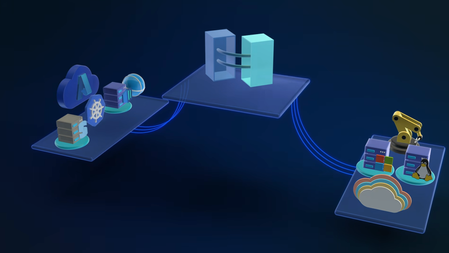
In this video, we explore how Azure Arc simplifies hybrid and multi-cloud operations by providing a single, consistent control plane for managing your entire infrastructure across Linux and Windows, on-prem, in Azure, or in any cloud. Once connected, you can patch Windows and Linux together with Azure Update Manager, enforce CIS benchmarks and Azure Security Baselines through Azure Policy, and pull consistent inventory, tags, and RBAC across your whole estate. Auto-recover unbootable Windows Server 2025 machines with Quick Machine Recovery, audit and configure WinRE using built-in Azure Policy. Run your virtual machines as Azure Virtual Desktop session hosts on Nutanix, VMware, Hyper-V, or using physical Windows hardware. Satya Vel, Azure Arc Principal Group PDM Manager, shares how to make Azure your operational standard for every workload, anywhere it runs. Learn more about Azure Arc at https://aka.ms/AzureArcServer, or join the community at https://aka.ms/ArcServerForumSignup Organize, filter, & manage inventory at scale. Centralize visibility into servers, VMs, and Kubernetes clusters across on‑prem, AWS, GCP, and Azure from a single control plane. Check out Azure Arc. Policy-as-code, everywhere your servers run. Azure Arc extends Azure Policy to on-prem, AWS, and GCP resources — pre-built CIS and security baselines included. Try it. AVD, off-Azure. Azure Virtual Desktop for hybrid environments turns any Azure Arc-enabled Windows VM or physical server into a session host. Get started. QUICK LINKS: 00:00 — Azure Arc in hybrid environments 00:46 — Transitioning to Azure Arc 02:35 — Unified management 03:43 — How to bring in servers and containers 04:48 — Inventory management 05:30 — Patching 06:48 — Auto-manage future updates 08:25 — One-time update 09:32 — Configuration in a hybrid environment 11:05 — Auditing Windows machines 11:34 — Microsoft Defender for Cloud 13:06 — Desktop virtualization 13:51 — Wrap up Link References For more information go to https://aka.ms/AzureArc Unfamiliar with Microsoft Mechanics? As Microsoft’s official video series for IT, you can watch and share valuable content and demos of current and upcoming tech from the people who build it at Microsoft. Subscribe to our YouTube: https://www.youtube.com/c/MicrosoftMechanicsSeries Talk with other IT Pros, join us on the Microsoft Tech Community: https://techcommunity.microsoft.com/t5/microsoft-mechanics-blog/bg-p/MicrosoftMechanicsBlog Watch or listen from anywhere, subscribe to our podcast: https://microsoftmechanics.libsyn.com/podcast Keep getting this insider knowledge, join us on social: Follow us on Twitter: https://twitter.com/MSFTMechanics Share knowledge on LinkedIn: https://www.linkedin.com/company/microsoft-mechanics/ Enjoy us on Instagram: https://www.instagram.com/msftmechanics/ Loosen up with us on TikTok: https://www.tiktok.com/@msftmechanics Video Transcript: - If you’re managing servers and containers today, you’re probably operating across on-prem multiple clouds and using different tools for each. Azure Arc changes that by providing a single way to manage servers, Kubernetes, and containers across Linux and Windows, on-prem, in any cloud, and at the edge. Since launching in 2019, Azure Arc has gained strong momentum, enabling consistent patching, configuration, compliance, and advanced resilience features like remote recovery even for machines that cannot boot and more. And to explore how Azure Arc works in real hybrid environments, I’m joined by our resident management expert, Satya Vel. Welcome. - Hi, Jeremy. It’s great to be on the show. It’s been a while. - Yeah, it has been a while. Thanks for joining us today. And why don’t we jump right into this? So if I’m coming from maybe a traditional server management background using things like Ansible, VMware vSphere, maybe System Center, what does it take then to transition to Azure Arc, and why would I do it and is it worth the effort? - That’s a fair question. Those are all proven powerful tools. That said, it’s challenging moving between multiple tools to manage what you have. What we are seeing today is more of a people and process change. Most enterprises are now hybrid by default, on-prem, multi-cloud, multiple operating systems managed by a central operations team. And what those teams want most is consistency. Azure extends its management capabilities to servers and Kubernetes clusters wherever they run using Azure Arc. That’s where the value of cloud native innovation shows up, beyond basic monitoring of servers and clusters, like the health and status of each resource. With Azure Arc, you can collect richer operational and security data and query it at a massive scale. All these are now actionable insights. You can use them to improve your security posture to close vulnerabilities faster. They’ll let you more easily fix compliance drift to realign resources with your policies and maintain day-to-day operations. This includes modern patching, all applied across your multi-cloud and hybrid estate. And finally, Azure Arc centralizes governance by bringing consistent tags for grouping along with unified identity and access management using RBAC for connected resources. That way everything is controlled the same way regardless of where it runs from a single control plane without duplication or drift. So to answer your earlier question, it is totally worth it, and Azure Arc is really the glue that brings it all together. - Okay, so why don’t we make this real for everyone watching? Can you show us the unified management experience and what that looks like with Azure Arc? - Sure thing, and that’s the best part. In fact here I’m managing my on-prem and multi-cloud environment using Azure services enabled by Azure Arc. Notice I have everything from a Windows server to Kubernetes clusters running on AWS, different Linux distros. There’s even a Windows client Desktop VM and more. All right here. And I can drill into any of these items to see its specs as well as what’s configured. I can take a look at whether it’s compliant with my configuration policies. For example, this test resource has a few non-compliant policies that I might want to take a look into. And the great thing is everything is in one spot. I don’t need to move between consoles to see everything. Once these resources are enrolled, everything is automated and rule-based. I can look for servers and workloads as they are provisioned or updated, and monitor them 24/7. Then based on the configuration status it finds, it can take actions and get items into a compliant state. - Okay, so we’re going to get to what the management experiences look like in a minute, but let’s go back a step. So what happens if I’ve got infrastructure and I want to bring that into Azure Arc? What does that experience look? - This process is super straightforward and simple. Let me show you. You can bring servers and containers running in any cloud on-premises and on any hypervisor under management with Azure Arc. To onboard resources to Azure Arc, we have a few different methods. The any environment option is the most flexible, where you can use scripts for Linux and Windows, or an installer. This is a lightweight agent that you can install on your Linux and Windows servers. You can use your preferred deployment method to run the scripts on your servers and clusters, like this one for Linux, which downloads the agent, installs it and connects it to Azure Arc. And if you have existing tools like Ansible Automation Controller, formerly known as Ansible Tower, we have published a playbook that makes it super simple to onboard your machines. And this playbook is published in the Ansible Galaxy, which is the official community hub. - Okay, so now we’ve got everything in. Now moving into the next thing that people manage a lot every day, inventory. So how does Azure Arc change that? - So I briefly showed the different locations and platforms that could run under Azure Arc. But there’s more to it. All my servers and clusters are in one view. It spans on-prem as I search for Azure Local, then I’ll filter for AWS as well as GCP services. And I can see Azure VMs plus my on-prem servers listed together with a consistent tagging and status information. I define everything based on their location and platforms in Azure, so it’s super easy to see where everything is running, and there’s less chance that any infrastructure falls through the cracks. - Beyond inventory management, something else that we do every day is patch management. So can Azure ARC handle patch management for servers and infrastructure outside of Azure? - Absolutely. This is an area where Azure Arc can help a lot. Today, patching often means different tools for different environments: WSUS or SCCM for Windows, scripts for Linux, or separate crowd portals. And with Azure Arc, this all happens consistently from one place. You can see Azure Update Manager, which I have opened here. Each server has an update status indicating if it’s got pending updates or not. Azure Update Manager continuously assesses the update compliance of your managed servers on a schedule. And you can manually trigger assessments by selecting resources and hitting check for updates. Now, you can see I have both Linux and Windows machines missing updates, and even though these are different OS types, I can update them together with just a few clicks if I want. But before I do that, notice this on-prem Windows Server 2016 machine that needs to be updated. Here, a benefit of managing your Windows and SQL Server infrastructure on Azure is that the service offers extended security updates so you can run them longer in support without disruption to business critical applications. Let’s get back to updating these machines. The nice thing is that you only have to set the right policy and logic one time to manage updates automatically in the future. To save a little time, I’ll select every machine. From here, I can schedule updates for these resources where first I’ll fill in the basics for my subscription and resource group. Then the instance details like the configuration name and the region. The maintenance scope using the guest option lets me target my resources. Then under schedule, I can select the start date as well as the time, how many hours and minutes I want the maintenance window to be, the frequency of repeats in hours, days, weeks, or months. Then in the resources tab, if I want to add more servers, I can group everything I want in the same maintenance schedule. Likewise, you’d use this grouping for staggered rollouts. Importantly, using dynamic scopes, I can also make sure that any new resources are targeted as they come online based on defined filters like the resource groups they’re in, the resource types, locations, operating systems or tags. In updates, I can target the type of updates I want, for example, only critical and security updates. Finally, I can add pre and post events to run before and after the update, like redirecting an app to an informational page saying that the resource is being serviced and when it’ll be back online. Of course, I can tag this as well. And then I just need to review and click create. - And the favorite thing I just saw there was the dynamic scoping that you can apply as a set it and forget it setting basically. So what happens though, if I’ve got an update that’s really critical that I need to push out immediately, can I do that? - Not a problem. You can do that as well. For that, you’ll select one or more resources and choose one time updates so that it gets applied immediately. I just need to confirm the machines, then choose the update type or any exclusions that I want to define. I’ll keep everything in scope here. Then in properties I can determine the reboot behavior I want and maximum maintenance window time in minutes. From there, I can review and install. That will push the update to my selected servers, whether they are in the cloud or on-premise, so it’s one place to get resources into update compliance. And in case you want to stagger updates over a longer period of time for large patch management jobs, you can orchestrate updates using groups. - So the main thing is here you control the timing, like only patching during off hours and approvals and you get to decide which updates to apply, so it’s super flexible. Now, software updates are one type of configuration management, but what other types of configurations can you manage here? - Configuration management in hybrid environments is complex. You traditionally use group policy, desired state configuration or scripts for Windows, and then separate tools like Ansible, remote scripting or manual commands of SSH for Linux. All this can be done centrally from Azure Arc. It extends Azure policy to any resource. And you can use Microsoft provided built-in policy baselines covering common security requirements. For example, the security baseline contains best practices and controls that we’ve defined for cloud services running on Linux and Windows. And above that, you can also see CIS Benchmark policy, which is an internationally recognized standard spanning OS platforms used to protect against cyber attacks. I’ll apply this baseline, then I’ll choose the Red Hat Enterprise Linux 9 Benchmark. And searching across 300 CIS Benchmark policies, I’ll look for passwords. And there are 24 policies defined. And then for Firewall, you can see four more. And these are just a few examples that are pre-configured. So once you assign these to your resources, Azure continuously monitors each machine for compliance. So you can use policy as code across your entire state with Azure policy controls that automatically stay current as standards like CIS evolve. We also recently added the ability to audit and enable WinRE through Azure Arc, improving recoverability even for machines that can’t boot. As you can see, there are a couple of new policies for auditing machines that do not have WinRE enabled and configuring WinRE on Windows machine. With quick machine recovery on Windows Server 2025, that also means for broader issues with known fixes, we’ll automatically recover machines that are not bootable. - And that’s really a great resiliency option. But what about security, compliance, and configurations and assessments? Can we do something there? - For that, you can use Microsoft Defender for Cloud. This lets you standardize security agents and settings across machines and containers wherever they run. In the Defender portal, you can see that the same way Azure Resources spanned Azure, AWS, GCP, and other environments, those same resources are visible here too. Defender continuously assesses connected resources for security posture. This includes what I showed before in the Security Baseline and CIS Benchmark. It detects threats in real time with associated security alerts and how they are trending. You get a complete breakdown by compute with your virtual machines and their associated risks. And the same is true for your connected containers running in Kubernetes. If I move over to cloud assets here you can see all the virtual machines, Kubernetes clusters that we saw in Azure Arc. And clicking into any of these, like this Ubuntu VM will show me all of its details. Scrolling down, I get a view of its risk factors. And below that, you’ll see that this one has 82 risk-based recommendations to improve its security. - And one of the big upsides of Microsoft Defender is that shared visibility, so everything logs to the same place. So if you think about assumed breach, it means that you won’t have any blind spots then as attackers are moving laterally through your environment. So that means security teams, they see what you see. So why don’t we move on though to desktop virtualization. What can Azure Arc do to help me there? - Sure, Azure Arc unlocks the ability to run Azure Virtual Desktop, or AVD, for short, outside of Azure so it can run on your own infrastructure, either via Azure Local or something new we recently announced: Azure Virtual Desktop for hybrid environments. This means any existing on-prem server can be configured as a AVD session host as long as it’s attached to Azure Arc. The management is in the VM layer using a management extension. It’s flexible, and Nutanix AHV, VMware vSphere, Hyper-V, or physical Windows Server can work. So with Azure Arc, you have full control over the entire infrastructure’s lifecycle from inventory, configuration management and policy enforcement all from one place. And the good news is that if you own Software Assurance, you can access services enabled by Azure Arc as part of your license for inventory, configuration, and update management. - That was a great tour and update of Azure Arc. So thanks for joining us today, Satya. And if you want to learn more about Azure Arc and try it out for yourself, just go to aka.ms/AzureArc for more information. Or as an admin search for Arc, A-R-C, in the Azure Portal to get started. And keep watching Microsoft Mechanics for the latest updates. We’ll see you again soon.495Views1like0CommentsAI in Windows 11
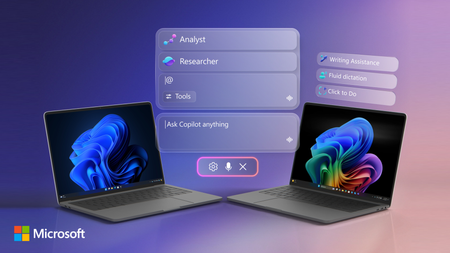
Access Copilot and agents right from the taskbar; find answers across your files, email, and meetings, and turn ideas into polished content using voice or text. AI is right there where you already work, so you can move faster, stay in your flow, and make better decisions without switching context, opening other apps or moving to the browser. And if you do have a Copilot+ PC, you can use fluid voice dictation across apps, find files with natural language search, take action on anything on your screen, and refine writing anywhere, even offline. Jeremy Chapman, Microsoft 365 Director, shows how whether you’re planning projects, collaborating with teammates, or building solutions, you can move faster, stay focused, and turn context into real outcomes. Stop searching across apps. New Copilot capabilities in Windows Search understand your work context and surfaces answers using data from your Microsoft 365 environment. Get started with Copilot experiences in Windows 11. Run AI tasks without interrupting your workflow. Agents stay visible and trackable in the Windows 11 taskbar. Watch here. Interact with content on your screen using Click to Do. Extract text, send content to Microsoft 365 Copilot, or convert a static table into a usable Excel file. Take a look. QUICK LINKS: 00:00 — Ask Copilot 00:55 — Use voice with Copilot 02:30 — Agents on Windows 11 taskbar 04:19 — Copilot in File Explorer 05:19 — Copilot+ PC capabilities 07:04 — Click to Do 07:52 — Writing Assistance with Copilot 09:15 — Wrap up Link References Check out https://aka.ms/Windows11AI Unfamiliar with Microsoft Mechanics? As Microsoft’s official video series for IT, you can watch and share valuable content and demos of current and upcoming tech from the people who build it at Microsoft. Subscribe to our YouTube: https://www.youtube.com/c/MicrosoftMechanicsSeries Talk with other IT Pros, join us on the Microsoft Tech Community: https://techcommunity.microsoft.com/t5/microsoft-mechanics-blog/bg-p/MicrosoftMechanicsBlog Watch or listen from anywhere, subscribe to our podcast: https://microsoftmechanics.libsyn.com/podcast Keep getting this insider knowledge, join us on social: Follow us on Twitter: https://twitter.com/MSFTMechanics Share knowledge on LinkedIn: https://www.linkedin.com/company/microsoft-mechanics/ Enjoy us on Instagram: https://www.instagram.com/msftmechanics/ Loosen up with us on TikTok: https://www.tiktok.com/@msftmechanics Video Transcript: -Windows does a lot more than launch and run apps. Now with built-in AI, it can do much more for you and you don’t need special skills to make that happen. There are capabilities that light up on any hardware that runs Windows 11, and some that go even further on Copilot+ PCs with on‑device AI processing. Let’s go ahead and start with what anyone running Windows 11 can use right now. So to pull up AI experiences with advanced reasoning, you’ll start with the Search box in the Taskbar, where your familiar search still remains the same, but now you can also use it with AI prompts. So here, I’ll type, “When is my performance review due?” And by drawing on information from my Microsoft Teams and Outlook calendar, Copilot identifies my performance review meeting so I can prepare for it. It’s an experience powered by Microsoft 365 Copilot, which uses Work IQ to understand my work context. -Next with AI, it’s often easier just to say what you want and you can now use voice with Microsoft 365 Copilot because of its multi-modal support. You’ll use a long press on the Copilot key or Windows key + C if your device doesn’t have that, to activate voice control. And now I can interact with Copilot to help build a presentation that I’m working on. So for this slide I’ll ask, “Robin sent me a stat about incorporating organic design. I think it was in email, maybe Teams?” And it takes my voice command, it’s using Work IQ with Microsoft 365 Copilot to run intelligent searches, figuring out which Robin I mean while pulling in relevant context and shared information about the meeting from across my Microsoft 365 apps. - [Copilot] Robin mentioned that incorporating organic design has been shown to boost employee creativity by 15%. That’s a pretty cool stat! - Not bad. Can you turn that into a catchy statement on this slide here? - [Copilot] Absolutely. How about this? Creativity matters. Create the space for it. - Love it. I’ll need Amber to sign off on this. So when’s my next meeting with Amber? - [Copilot] Your next one-on-one with Amber is on Thursday at 10:30 in the morning. That should be a great time to review it together. - [Jeremy] Thanks, Copilot. - [Copilot] You got it. Happy to help. Let me know if there’s anything else you want to fine tune before that one on one. -This uses advanced speech‑to‑text and tightly integrates on‑device input with cloud AI, so it works on any connected Windows 11 device. Now let’s try something more challenging. Some AI tasks take longer than a quick prompt‑and‑response, and some need to run in parallel while you keep working. That’s where Agents on the Windows 11 taskbar can help. So I’m going to start by tapping into the new Windows Search box. Now, this uses new Windows shell integration, so that long running agents can be viewed similar to apps. So I just need to start with the @ symbol to pull up my agents Now I can find, open, monitor and work with my agents directly from the taskbar. So in this case, I’m going to choose the Researcher agent. I’ll ask Researcher to compare public sentiment with our design principles. I like the direction it’s thinking, so I’ll go ahead and confirm. And this agent works hard, often for 10 minutes or more to research and generate its content. And you can work on other things or with other agents while each performs their work. -As agents run, there are status indicators directly on the taskbar, similar to when you download large files, where you can track progress and see once it’s complete. So, your agents stay visible and easy to check on as you work, not buried in browser tabs. Now let’s return to our completed Researcher run. The notification tells me that Researcher is finished with this turn and in the taskbar, I can even see a green checkmark on the Researcher icon. When I zoom in, there’s a short summary. And I can tap in to review it. -Now, this actually took around eight or so minutes to process in real time. Everything here was grounded using Work IQ for information that was in my company. And you’ll see its answer is very well-informed and extremely comprehensive using our study for public sentiment vs. core design principles, it’s laying out its reasoning and all of its cited sources. Of course, Windows is also where you can go to find and open your files and now, your SharePoint and OneDrive cloud files will show up right inside the File Explorer. Using File Explorer Home, you can easily get to your recent files, your favorites and files shared with you. -Then the new Copilot control lets you Ask Microsoft 365 Copilot for file insights like summaries, context, or next steps for documents. So for this Design Principles doc here, I’ll ask Copilot to review it and tell me what percentage of employees prefer workspaces that incorporate sustainable materials. And in just a few seconds, based on information deeply nested within that document, it finds that over 70% say they do and even provides supporting context. So, you don’t have to open the file or leave your flow to find the right one, whether that’s local or in the cloud. And everything I’ve shown so far works on any Windows 11 device with a Microsoft 365 work or school account and access to Copilot. -Now let’s look at what’s unique to Copilot+ PCs, where on‑device AI and small language models deliver fast, private processing. So I’ll highlight a few of the capabilities that work on a Copilot + PC even if you don’t have Microsoft 365. First, the new Fluid Dictation works across all apps and uses on-device models for quicker, more natural voice typing as well. You can enable voice access in Settings, which on first run guides you through the experience and what it can do to interact with Windows. -So I’m going to show an experience working across two common text editors, Notepad and Word. You can start it using either the microphone icon in the taskbar, or by saying, “Voice access, wake up. Open Notepad.” It uses powerful AI running on your local device to automatically correct grammar, add punctuation, and, um, even remove filler words that you, uh, speak. Select all. Copy. Open Word. Paste. And that was just scratching the surface for what Voice access with Fluid Dictation can do. And here are some of the common commands that you can use to interact with Windows and your apps. -Second, to help you quickly find your files anywhere, improved Windows search uses semantic understanding across local files and Microsoft 365. You don’t need exact names, just describe what you remember. For example, this broad search here for project updates pulls up relevant files and folders of content using hybrid semantic search, and they might contain the word project or maybe synonyms, or contain related content in context of the files or even images within the files. -Next, Click to Do lets you interact with anything on your screen. You can take actions on content or ask Microsoft 365 Copilot a question about what’s on your screen without needing to switch context. So in this case, I’ll going to pull up this PDF file and you’ll see that it opens the file in the Edge browser. Now, if I scroll down, you can see that I have a stylized table on my screen, which by the way, could be text or an image. So I’ll hit the Windows Key + left mouse click to open Click to Do. And you can also use Windows key + Q. Now you’ll see that it’s recognizing all of the text in the screenshot. I can copy it as a CSV, Save or Share it. I’ll use Convert to table with Excel. And it instantly opens Excel and becomes a usable table and you can work directly with the data. -From here, if you also use Microsoft 365 at work or school with a Copilot+ PC, even more powerful capabilities light up. Writing Assistance with Microsoft 365 Copilot helps you quickly craft content with AI-powered rewriting and proofreading, and because it runs locally, it even works offline. This enables you to use generative AI from any app with text field input. So I’m going to go ahead and use our line-of-business app here for project planning. There’s a description and business justification field, and I’ll add a bit more detail here. -And this works everywhere, kind of like your clipboard, so when I select text, the Writing Assistance button appears. Now with it, I can choose options to rewrite it in different ways. In this case, I’ll choose professional. It rewrites my text entry and then gives me three options. So I’ll go ahead and choose the third option here, I like that one, so I’ll go ahead and replace my previous text with it. And that can be used on any line-of-business or other app without any code changes because it’s just built into Windows. -And finally, if you are a developer, new native support in the Model Context Protocol in Windows gives your agents a standardized way to connect with apps, tools, and files to automate tasks. You can use built-in agent connectors for File Explorer and Windows Settings, allowing your agents to manage local file operations and to modify defined device configurations. -Windows 11’s built-in AI moves the intelligence closer to you right in the flow of your work. To learn more, check out aka.ms/Windows11AI and keep watching Microsoft Mechanics for the latest updates and thanks for watching.840Views0likes0CommentsBuilding with Azure OpenAI Sora: A Complete Guide to AI Video Generation
In this comprehensive guide, we'll explore how to integrate both Sora 1 and Sora 2 models from Azure OpenAI Service into a production web application. We'll cover API integration, request body parameters, cost analysis, limitations, and the key differences between using Azure AI Foundry endpoints versus OpenAI's native API. Table of Contents Introduction to Sora Models Azure AI Foundry vs. OpenAI API Structure API Integration: Request Body Parameters Video Generation Modes Cost Analysis per Generation Technical Limitations & Constraints Resolution & Duration Support Implementation Best Practices Introduction to Sora Models Sora is OpenAI's groundbreaking text-to-video model that generates realistic videos from natural language descriptions. Azure AI Foundry provides access to two versions: Sora 1: The original model focused primarily on text-to-video generation with extensive resolution options (480p to 1080p) and flexible duration (1-20 seconds) Sora 2: The enhanced version with native audio generation, multiple generation modes (text-to-video, image-to-video, video-to-video remix), but more constrained resolution options (720p only in public preview) Azure AI Foundry vs. OpenAI API Structure Key Architectural Differences Sora 1 uses Azure's traditional deployment-based API structure: Endpoint Pattern: https://{resource-name}.openai.azure.com/openai/deployments/{deployment-name}/... Parameters: Uses Azure-specific naming like n_seconds, n_variants, separate width/height fields Job Management: Uses /jobs/{id} for status polling Content Download: Uses /video/generations/{generation_id}/content/video Sora 2 adapts OpenAI's v1 API format while still being hosted on Azure: Endpoint Pattern: https://{resource-name}.openai.azure.com/openai/deployments/{deployment-name}/videos Parameters: Uses OpenAI-style naming like seconds (string), size (combined dimension string like "1280x720") Job Management: Uses /videos/{video_id} for status polling Content Download: Uses /videos/{video_id}/content Why This Matters? This architectural difference requires conditional request formatting in your code: const isSora2 = deployment.toLowerCase().includes('sora-2'); if (isSora2) { requestBody = { model: deployment, prompt, size: `${width}x${height}`, // Combined format seconds: duration.toString(), // String type }; } else { requestBody = { model: deployment, prompt, height, // Separate dimensions width, n_seconds: duration.toString(), // Azure naming n_variants: variants, }; } API Integration: Request Body Parameters Sora 1 API Parameters Standard Text-to-Video Request: { "model": "sora-1", "prompt": "Wide shot of a child flying a red kite in a grassy park, golden hour sunlight, camera slowly pans upward.", "height": "720", "width": "1280", "n_seconds": "12", "n_variants": "2" } Parameter Details: model (String, Required): Your Azure deployment name prompt (String, Required): Natural language description of the video (max 32000 chars) height (String, Required): Video height in pixels width (String, Required): Video width in pixels n_seconds (String, Required): Duration (1-20 seconds) n_variants (String, Optional): Number of variations to generate (1-4, constrained by resolution) Sora 2 API Parameters Text-to-Video Request: { "model": "sora-2", "prompt": "A serene mountain landscape with cascading waterfalls, cinematic drone shot", "size": "1280x720", "seconds": "12" } Image-to-Video Request (uses FormData): const formData = new FormData(); formData.append('model', 'sora-2'); formData.append('prompt', 'Animate this image with gentle wind movement'); formData.append('size', '1280x720'); formData.append('seconds', '8'); formData.append('input_reference', imageFile); // JPEG/PNG/WebP Video-to-Video Remix Request: Endpoint: POST .../videos/{video_id}/remix Body: Only { "prompt": "your new description" } The original video's structure, motion, and framing are reused while applying the new prompt Parameter Details: model (String, Optional): Your deployment name prompt (String, Required): Video description size (String, Optional): Either "720x1280" or "1280x720" (defaults to "720x1280") seconds (String, Optional): "4", "8", or "12" (defaults to "4") input_reference (File, Optional): Reference image for image-to-video mode remix_video_id (String, URL parameter): ID of video to remix Video Generation Modes 1. Text-to-Video (Both Models) The foundational mode where you provide a text prompt describing the desired video. Implementation: const response = await fetch(endpoint, { method: 'POST', headers: { 'Content-Type': 'application/json', 'api-key': apiKey, }, body: JSON.stringify({ model: deployment, prompt: "A train journey through mountains with dramatic lighting", size: "1280x720", seconds: "12", }), }); Best Practices: Include shot type (wide, close-up, aerial) Describe subject, action, and environment Specify lighting conditions (golden hour, dramatic, soft) Add camera movement if desired (pans, tilts, tracking shots) 2. Image-to-Video (Sora 2 Only) Generate a video anchored to or starting from a reference image. Key Requirements: Supported formats: JPEG, PNG, WebP Image dimensions must exactly match the selected video resolution Our implementation automatically resizes uploaded images to match Implementation Detail: // Resize image to match video dimensions const targetWidth = parseInt(width); const targetHeight = parseInt(height); const resizedImage = await resizeImage(inputReference, targetWidth, targetHeight); // Send as multipart/form-data formData.append('input_reference', resizedImage); 3. Video-to-Video Remix (Sora 2 Only) Create variations of existing videos while preserving their structure and motion. Use Cases: Change weather conditions in the same scene Modify time of day while keeping camera movement Swap subjects while maintaining composition Adjust artistic style or color grading Endpoint Structure: POST {base_url}/videos/{original_video_id}/remix?api-version=2024-08-01-preview Implementation: let requestEndpoint = endpoint; if (isSora2 && remixVideoId) { const [baseUrl, queryParams] = endpoint.split('?'); const root = baseUrl.replace(/\/videos$/, ''); requestEndpoint = `${root}/videos/${remixVideoId}/remix${queryParams ? '?' + queryParams : ''}`; } Cost Analysis per Generation Sora 1 Pricing Model Base Rate: ~$0.05 per second per variant at 720p Resolution Scaling: Cost scales linearly with pixel count Formula: const basePrice = 0.05; const basePixels = 1280 * 720; // Reference resolution const currentPixels = width * height; const resolutionMultiplier = currentPixels / basePixels; const totalCost = basePrice * duration * variants * resolutionMultiplier; Examples: 720p (1280×720), 12 seconds, 1 variant: $0.60 1080p (1920×1080), 12 seconds, 1 variant: $1.35 720p, 12 seconds, 2 variants: $1.20 Sora 2 Pricing Model Flat Rate: $0.10 per second per variant (no resolution scaling in public preview) Formula: const totalCost = 0.10 * duration * variants; Examples: 720p (1280×720), 4 seconds: $0.40 720p (1280×720), 12 seconds: $1.20 720p (720×1280), 8 seconds: $0.80 Note: Since Sora 2 currently only supports 720p in public preview, resolution doesn't affect cost, only duration matters. Cost Comparison Scenario Sora 1 (720p) Sora 2 (720p) Winner 4s video $0.20 $0.40 Sora 1 12s video $0.60 $1.20 Sora 1 12s + audio N/A (no audio) $1.20 Sora 2 (unique) Image-to-video N/A $0.40-$1.20 Sora 2 (unique) Recommendation: Use Sora 1 for cost-effective silent videos at various resolutions. Use Sora 2 when you need audio, image/video inputs, or remix capabilities. Technical Limitations & Constraints Sora 1 Limitations Resolution Options: 9 supported resolutions from 480×480 to 1920×1080 Includes square, portrait, and landscape formats Full list: 480×480, 480×854, 854×480, 720×720, 720×1280, 1280×720, 1080×1080, 1080×1920, 1920×1080 Duration: Flexible: 1 to 20 seconds Any integer value within range Variants: Depends on resolution: 1080p: Variants disabled (n_variants must be 1) 720p: Max 2 variants Other resolutions: Max 4 variants Concurrent Jobs: Maximum 2 jobs running simultaneously Job Expiration: Videos expire 24 hours after generation Audio: No audio generation (silent videos only) Sora 2 Limitations Resolution Options (Public Preview): Only 2 options: 720×1280 (portrait) or 1280×720 (landscape) No square formats No 1080p support in current preview Duration: Fixed options only: 4, 8, or 12 seconds No custom durations Defaults to 4 seconds if not specified Variants: Not prominently supported in current API documentation Focus is on single high-quality generations with audio Concurrent Jobs: Maximum 2 jobs (same as Sora 1) Job Expiration: 24 hours (same as Sora 1) Audio: Native audio generation included (dialogue, sound effects, ambience) Shared Constraints Concurrent Processing: Both models enforce a limit of 2 concurrent video jobs per Azure resource. You must wait for one job to complete before starting a third. Job Lifecycle: queued → preprocessing → processing/running → completed Download Window: Videos are available for 24 hours after completion. After expiration, you must regenerate the video. Generation Time: Typical: 1-5 minutes depending on resolution, duration, and API load Can occasionally take longer during high demand Resolution & Duration Support Matrix Sora 1 Support Matrix Resolution Aspect Ratio Max Variants Duration Range Use Case 480×480 Square 4 1-20s Social thumbnails 480×854 Portrait 4 1-20s Mobile stories 854×480 Landscape 4 1-20s Quick previews 720×720 Square 4 1-20s Instagram posts 720×1280 Portrait 2 1-20s TikTok/Reels 1280×720 Landscape 2 1-20s YouTube shorts 1080×1080 Square 1 1-20s Premium social 1080×1920 Portrait 1 1-20s Premium vertical 1920×1080 Landscape 1 1-20s Full HD content Sora 2 Support Matrix Resolution Aspect Ratio Duration Options Audio Generation Modes 720×1280 Portrait 4s, 8s, 12s ✅ Yes Text, Image, Video Remix 1280×720 Landscape 4s, 8s, 12s ✅ Yes Text, Image, Video Remix Note: Sora 2's limited resolution options in public preview are expected to expand in future releases. Implementation Best Practices 1. Job Status Polling Strategy Implement adaptive backoff to avoid overwhelming the API: const maxAttempts = 180; // 15 minutes max let attempts = 0; const baseDelayMs = 3000; // Start with 3 seconds while (attempts < maxAttempts) { const response = await fetch(statusUrl, { headers: { 'api-key': apiKey }, }); if (response.status === 404) { // Job not ready yet, wait longer const delayMs = Math.min(15000, baseDelayMs + attempts * 1000); await new Promise(r => setTimeout(r, delayMs)); attempts++; continue; } const job = await response.json(); // Check completion (different status values for Sora 1 vs 2) const isCompleted = isSora2 ? job.status === 'completed' : job.status === 'succeeded'; if (isCompleted) break; // Adaptive backoff const delayMs = Math.min(15000, baseDelayMs + attempts * 1000); await new Promise(r => setTimeout(r, delayMs)); attempts++; } 2. Handling Different Response Structures Sora 1 Video Download: const generations = Array.isArray(job.generations) ? job.generations : []; const genId = generations[0]?.id; const videoUrl = `${root}/${genId}/content/video`; Sora 2 Video Download: const videoUrl = `${root}/videos/${jobId}/content`; 3. Error Handling try { const response = await fetch(endpoint, fetchOptions); if (!response.ok) { const error = await response.text(); throw new Error(`Video generation failed: ${error}`); } // ... handle successful response } catch (error) { console.error('[VideoGen] Error:', error); // Implement retry logic or user notification } 4. Image Preprocessing for Image-to-Video Always resize images to match the target video resolution: async function resizeImage(file: File, targetWidth: number, targetHeight: number): Promise<File> { return new Promise((resolve, reject) => { const img = new Image(); const canvas = document.createElement('canvas'); const ctx = canvas.getContext('2d'); img.onload = () => { canvas.width = targetWidth; canvas.height = targetHeight; ctx.drawImage(img, 0, 0, targetWidth, targetHeight); canvas.toBlob((blob) => { if (blob) { const resizedFile = new File([blob], file.name, { type: file.type }); resolve(resizedFile); } else { reject(new Error('Failed to create resized image blob')); } }, file.type); }; img.onerror = () => reject(new Error('Failed to load image')); img.src = URL.createObjectURL(file); }); } 5. Cost Tracking Implement cost estimation before generation and tracking after: // Pre-generation estimate const estimatedCost = calculateCost(width, height, duration, variants, soraVersion); // Save generation record await saveGenerationRecord({ prompt, soraModel: soraVersion, duration: parseInt(duration), resolution: `${width}x${height}`, variants: parseInt(variants), generationMode: mode, estimatedCost, status: 'queued', jobId: job.id, }); // Update after completion await updateGenerationStatus(jobId, 'completed', { videoId: finalVideoId }); 6. Progressive User Feedback Provide detailed status updates during the generation process: const statusMessages: Record<string, string> = { 'preprocessing': 'Preprocessing your request...', 'running': 'Generating video...', 'processing': 'Processing video...', 'queued': 'Job queued...', 'in_progress': 'Generating video...', }; onProgress?.(statusMessages[job.status] || `Status: ${job.status}`); Conclusion Building with Azure OpenAI's Sora models requires understanding the nuanced differences between Sora 1 and Sora 2, both in API structure and capabilities. Key takeaways: Choose the right model: Sora 1 for resolution flexibility and cost-effectiveness; Sora 2 for audio, image inputs, and remix capabilities Handle API differences: Implement conditional logic for parameter formatting and status polling based on model version Respect limitations: Plan around concurrent job limits, resolution constraints, and 24-hour expiration windows Optimize costs: Calculate estimates upfront and track actual usage for better budget management Provide great UX: Implement adaptive polling, progressive status updates, and clear error messages The future of AI video generation is exciting, and Azure AI Foundry provides production-ready access to these powerful models. As Sora 2 matures and limitations are lifted (especially resolution options), we'll see even more creative applications emerge. Resources: Azure AI Foundry Sora Documentation OpenAI Sora API Reference Azure OpenAI Service Pricing This blog post is based on real-world implementation experience building LemonGrab, my AI video generation platform that integrates both Sora 1 and Sora 2 through Azure AI Foundry. The code examples are extracted from production usage.1.4KViews0likes0Comments
How I can app for my Bonus card on Microsoft
Applying for your Bonus Card on Microsoft platforms is simple and convenient. You can access exclusive deals, track your savings, and manage your purchases seamlessly by integrating your Bonus Card with Microsoft services. Visit the official Microsoft Store or AppSource to download the Bonus Card application and start saving instantly. Stay connected with the latest offers by linking your card to Microsoft Rewards for additional benefits. http://www.bonusah.nlAI Agents in Production: From Prototype to Reality - Part 10
This blog post, the tenth and final installment in a series on AI agents, focuses on deploying AI agents to production. It covers evaluating agent performance, addressing common issues, and managing costs. The post emphasizes the importance of a robust evaluation system, providing potential solutions for performance issues, and outlining cost management strategies such as response caching, using smaller models, and implementing router models.1.7KViews3likes1CommentWebinar Series for Microsoft AI Agents
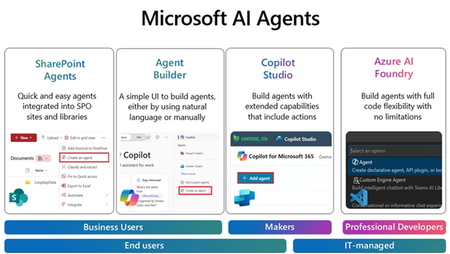
Join us for an exciting and insightful webinar series where we delve into the revolutionary world of Microsoft Copilot Agents in SharePoint, Agent builder, Copilot Studio and Azure AI Foundry! Discover how the integration of AI and intelligent agents is set to transform the future of business processes, making them more efficient, intelligent, and adaptive. In this webinar series, we will explore: The Power of Microsoft Copilot Agents: Learn how these advanced AI-driven agents can assist you in automating routine tasks, providing intelligent insights, and enhancing collaboration within your organization. Seamless Integration with Microsoft Graph: See how Copilot Agents work seamlessly with Microsoft Graph data to improve information retrieval, boost productivity, and automate mundane tasks. Real-World Applications: See real-world examples of how businesses are leveraging Copilot Agents to drive innovation and achieve their goals. Future Trends and Innovations: Get a glimpse into the future of AI in business processes and how it will continue to evolve and shape the way we work. Join us for the Webinars every week, at 11:30am PST/1:30pm CST/2:30 EST: (Click on the webinar name to join the live meeting on the actual date/time or use the .ics file at the bottom of the page to save the date on your calendar) April 2nd: Agents with SharePoint - Watch this Webinar recording for an overview of SharePoint Agents and its key capabilities to enable your organization with powerful Agents helping you search for information within seconds in large SharePoint libraries with 100's of documents. April 9th: Agents with Agent Builder - Watch this Webinar recording for an overview of Agent Builder and its key capabilities to enable organization with "No code" Agents that can be created by any business user within minutes. April 16th: Agents with Copilot Studio- Join us for an overview of Copilot Studio and its key capabilities to enable organization with "Low code" Agents that can help create efficiency with existing business processes. We will feature a few real-life demo examples and answer any questions. April 24th: Agents with Azure AI Foundry - Join us for an overview of Azure AI Foundry and its key capabilities to enable your organization with AI Agents. We will feature a demo of AI agents for prior authorization and provide resources to accelerate your next project. Don't miss this opportunity to stay ahead of the curve and unlock the full potential of AI and Copilot Agents in your organization. Register now and be part of the future of business transformation! Speakers: Jaspreet Dhamija, Sr. MW Copilot Specialist - Linkedin Michael Gannotti, Principal MW Copilot Specialist - LinkedIn Melissa Nelli, Sr. Biz Apps Technical Specialist - LinkedIn Matthew Anderson, Director Azure Apps - LinkedIn Marcin Jimenez, Sr. Cloud Solution Architect - LinkedIn Thank you!