mcp
4 TopicsUnlocking AI-Driven Data Access: Azure Database for MySQL Support via the Azure MCP Server
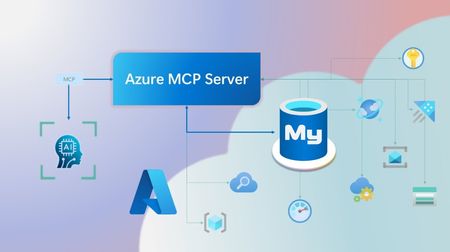
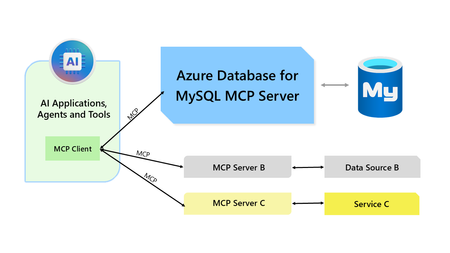
Step into a new era of data-driven intelligence with the fusion of Azure MCP Server and Azure Database for MySQL, where your MySQL data is no longer just stored, but instantly conversational, intelligent and action-ready. By harnessing the open-standard Model Context Protocol (MCP), your AI agents can now query, analyze and automate in natural language, accessing tables, surfacing insights and acting on your MySQL-driven business logic as easily as chatting with a colleague. It’s like giving your data a voice and your applications a brain, all within Azure’s trusted cloud platform. We are excited to announce that we have added support for Azure Database for MySQL in Azure MCP Server. The Azure MCP Server leverages the Model Context Protocol (MCP) to allow AI agents to seamlessly interact with various Azure services to perform context-aware operations such as querying databases and managing cloud resources. Building on this foundation, the Azure MCP Server now offers a set of tools that AI agents and apps can invoke to interact with Azure Database for MySQL - enabling them to list and query databases, retrieve schema details of tables, and access server configurations and parameters. These capabilities are delivered through the same standardized interface used for other Azure services, making it easier to the adopt the MCP standard for leveraging AI to work with your business data and operations across the Azure ecosystem. Before we delve into these new tools and explore how to get started with them, let’s take a moment to refresh our understanding of MCP and the Azure MCP Server - what they are, how they work, and why they matter. MCP architecture and key components The Model Context Protocol (MCP) is an emerging open protocol designed to integrate AI models with external data sources and services in a scalable, standardized, and secure manner. MCP dictates a client-server architecture with four key components: MCP Host, MCP Client, MCP Server and external data sources, services and APIs that provide the data context required to enhance AI models. To explain briefly, an MCP Host (AI apps and agents) includes an MCP client component that connects to one or more MCP Servers. These servers are lightweight programs that securely interface with external data sources, services and APIs and exposes them to MCP clients in the form of standardized capabilities called tools, resources and prompts. Learn more: MCP Documentation What is Azure MCP Server? Azure offers a multitude of cloud services that help developers build robust applications and AI solutions to address business needs. The Azure MCP Server aims to expose these powerful services for agentic usage, allowing AI systems to perform operations that are context-aware of your Azure resources and your business data within them, while ensuring adherence to the Model Context Protocol. It supports a wide range of Azure services and tools including Azure AI Search, Azure Cosmos DB, Azure Storage, Azure Monitor, Azure CLI and Developer CLI extensions. This means that you can empower AI agents, apps and tools to: Explore your Azure resources, such as listing and retrieving details on your Azure subscriptions, resource groups, services, databases, and tables. Search, query and analyze your data and logs. Execute CLI and Azure Developer CLI commands directly, and more! Learn more: Azure MCP Server GitHub Repository Introducing new Azure MCP Server tools to interact with Azure Database for MySQL The Azure MCP Server now includes the following tools that allow AI agents to interact with Azure Database for MySQL and your valuable business data residing in these servers, in accordance with the MCP standard: Tool Description Example Prompts azmcp_mysql_server_list List all MySQL servers in a subscription & resource group "List MySQL servers in resource group 'prod-rg'." "Show MySQL servers in region 'eastus'." azmcp_mysql_server_config_get Retrieve the configuration of a MySQL server "What is the backup retention period for server 'my-mysql-server'?" "Show storage allocation for server 'my-mysql-server'." azmcp_mysql_server_param_get Retrieve a specific parameter of a MySQL server "Is slow_query_log enabled on server my-mysql-server?" "Get innodb_buffer_pool_size for server my-mysql-server." azmcp_mysql_server_param_set Set a specific parameter of a MySQL server to a specific value "Set max_connections to 500 on server my-mysql-server." "Set wait_timeout to 300 on server my-mysql-server." azmcp_mysql_table_list List all tables in a MySQL database "List tables starting with 'tmp_' in database 'appdb'." "How many tables are in database 'analytics'?" azmcp_mysql_table_schema_get Get the schema of a specific table in a MySQL database "Show indexes for table 'transactions' in database 'billing'." "What is the primary key for table 'users' in database 'auth'?" azmcp_mysql_database_query Executes a SELECT query on a MySQL Database. The query must start with SELECT and cannot contain any destructive SQL operations for security reasons. “How many orders were placed in the last 30 days in the salesdb.orders table?” “Show the number of new users signed up in the last week in appdb.users grouped by day.” These interactions are secured using Microsoft Entra authentication, which enables seamless, identity-based access to Azure Database for MySQL - eliminating the need for password storage and enhancing overall security. How are these new tools in the Azure MCP Server different from the standalone MCP Server for Azure Database for MySQL? We have integrated the key capabilities of the Azure Database for MySQL MCP server into the Azure MCP Server, making it easier to connect your agentic apps not only to Azure Database for MySQL but also to other Azure services through one unified and secure interface! How to get started Installing and running the Azure MCP Server is quick and easy! Use GitHub Copilot in Visual Studio Code to gain meaningful insights from your business data in Azure Database for MySQL. Pre-requisites Install Visual Studio Code. Install GitHub Copilot and GitHub Copilot Chat extensions. An Azure Database for MySQL with Microsoft Entra authentication enabled. Ensure that the MCP Server is installed on a system with network connectivity and credentials to connect to Azure Database for MySQL. Installation and Testing Please use this guide for installation: Azure MCP Server Installation Guide Try the following prompts with your Azure Database for MySQL: Azure Database for MySQL tools for Azure MCP Server Try it out and share your feedback! Start using Azure MCP Server with the MySQL tools today and let our cloud services become your AI agent’s most powerful ally. We’re counting on your feedback - every comment, suggestion, or bug-report helps us build better tools together. Stay tuned: more features and capabilities are on the horizon! Feel free to comment below or write to us with your feedback and queries at AskAzureDBforMySQL@service.microsoft.com.346Views2likes0CommentsFueling the Agentic Web Revolution with NLWeb and PostgreSQL
We’re excited to announce that NLWeb (Natural Language Web), Microsoft’s open project for natural language interfaces on websites now supports PostgreSQL. With this enhancement, developers can leverage PostgreSQL and NLWeb to transform any website into an AI-powered application or Model Context Protocol (MCP) server. This integration allows organizations to utilize a familiar, robust database as the foundation for conversational AI experiences, streamlining deployment and maximizing data security and scalability. Soon, autonomous agents, not just human users, will consume and interpret website content, transforming how information is accessed and utilized online. During Microsoft //Build 2025, Microsoft introduced the era of the open agentic web, in which the internet is an open agentic web a new paradigm in which autonomous agents seamlessly interact across individual, organizational, team and end-to-end business contexts. To realize the future of an open agentic web, Microsoft announced the NLWeb project. NLWeb transforms any website to an AI-powered application with just a few lines of code and by connecting to an AI model and a knowledge base. In this post, we’ll cover: What NLWeb is and how it works with vector databases How pgvector enables vector similarity search in PostgreSQL for NLWeb Get started using NLWeb with Postgres Let’s dive in and see how Postgres + NLWeb can redefine conversational web interfaces while keeping your data in a familiar, powerful database. What is NLWeb? A Quick Overview of Conversational Web Interfaces NLWeb is an open project developed by Microsoft to simplify adding conversational AI interfaces to websites. How NLWeb works under the hood: Processes existing data/website content that exists in semi-structured formats like Schema.org, RSS, and other data that websites already publish Embeds and indexes all the content in a vector store (i.e PostgreSQL with pgvector) Routes user queries through several processes which handle natural langague understanding, reranking and retrieval. Answers queries with an LLM The result is a high-quality natural language interface on top of web data, giving developers the ability to let users “talk to” web data. By default, every NLWeb instance is also a Model Context Protocol (MCP) server, allowing websites to make their content discoverable and accessible to agents and other participants in the MCP ecosystem if they choose. Importantly, NLWeb is platform-agnostic and supports many major operating systems, AI models, and vector stores and the NLWeb project is modular by design, so developers can bring their own retrieval system, model APIs, and define their own extensions. NLWeb with PostgreSQL PostgreSQL is now embedded into the NLWeb reference stack as a native retriever, creating a scalable and flexible path for deploying NLWeb instances using open-source infrastructure. Retrieval Powered by pgvector NLWeb leverages pgvector, a PostgreSQL extension for efficient vector similarity search, to handle natural language retrieval at scale. By integrating pgvector into the NLWeb stack, teams can eliminate the need for external vector databases. Web data stored in PostgreSQL becomes immediately searchable and usable for NLWeb experiences, streamlining infrastructure and enhancing security. PostgreSQL's robust governance features and wide adoption align with NLWeb’s mission to enable conversational AI for any website or content platform. With pgvector retrieval built in, developers can confidently launch NLWeb instances on their own databases no additional infrastructure required. Implementation example We are going to use NLWeb and Postgres, to create a conversational AI app and MCP server that will let us chat with content from the Talking Postgres with Claire Giordano Podcast! Prerequisites An active Azure account. Enable and configure the pg_vector extensions. Create an Azure AI Foundry project. Deploy models gpt-4.1, gpt-4.1-mini and text-embedding-3-small. Install Visual Studio Code. Install the Python extension. Install Python 3.11.x. Install the Azure CLI (latest version). Getting started All the code and sample datasets are available in this GitHub repository. Step 1: Setup NLWeb Server 1. Clone or download the code from the repo. git clone https://github.com/microsoft/NLWeb cd NLWeb 2. Open a terminal to create a virtual python environment and activate it. python -m venv myenv source myenv/bin/activate # Or on Windows: myenv\Scripts\activate 3. Go to the 'code/python' folder in NLWeb to install the dependencies. cd code/python pip install -r requirements.txt 4. Go to the project root folder in NLWeb and copy the .env.template file to a new .env file cd ../../ cp .env.template .env 5. In the .env file, update the API key you will use for your LLM endpoint of choice and update the Postgres connection string. For example: AZURE_OPENAI_ENDPOINT="https://TODO.openai.azure.com/" AZURE_OPENAI_API_KEY="<TODO>" # If using Postgres connection string POSTGRES_CONNECTION_STRING="postgresql://<HOST>:<PORT>/<DATABASE>?user=<USERNAME>&sslmode=require" POSTGRES_PASSWORD="<PASSWORD>" 6. Update your config files (located in the config folder) to make sure your preferred providers match your .env file. There are three files that may need changes. config_llm.yaml: Update the first line to the LLM provider you set in the .env file. By default it is Azure OpenAI. You can also adjust the models you call here by updating the models noted. By default, we are assuming 4.1 and 4.1-mini. config_embedding.yaml: Update the first line to your preferred embedding provider. By default it is Azure OpenAI, using text-embedding-3-small. config_retrieval.yaml: Update the first line to postgres. You should update write_endpoint to postgres and You should update postgres retrieval endpoint is enabled to 'true' in the following list of possible endpoints. Step 2: Initialize Postgres Server Go to the 'code/python/misc folder in NLWeb to run Postgres initializer. NOTE: If you are using Azure Postgres Flexible server make sure you have `vector` extension allow-listed and make sure the database has the vector extension enabled, cd code/python/misc python postgres_load.py Step 3: Ingest Data from Talk Postgres Podcast Now we will load some data in our local vector database to test with. We've listed a few RSS feeds you can choose from below. Go to the 'code/python folder in NLWeb and run the command. The format of the command is as follows (make sure you are still in the 'python' folder when you run this): python -m data_loading.db_load <RSS URL> <site-name> Talking Postgres with Claire Giordano Podcast: python -m data_loading.db_load https://feeds.transistor.fm/talkingpostgres Talking-Postgres (Optional) You can check the documents table in your Postgres database and verify the table looks like the one below. To verify all the data from the website was uploaded. Test NLWeb Server Start your NLWeb server (again from the 'python' folder): python app-file.py Go to http://localhost:8000/ Start ask questions about the Talking Postgres with Claire Giordano Podcast, you may try different modes. Trying List Mode: Sample Prompt: “I want to listen to something that talks about the advances in vector search such as DiskANN” Trying Generate Mode Sample Prompt: “What did Shireesh Thota say about the future of Postgres?” Running NLWeb with MCP 1. If you do not already have it, install MCP in your venv: pip install mcp 2. Next, configure your Claude MCP server. If you don’t have the config file already, you can create the file at the following locations: macOS: ~/Library/Application Support/Claude/claude_desktop_config.json Windows: %APPDATA%\Claude\claude_desktop_config.json The default MCP JSON file needs to be modified as shown below: macOS Example Configuration { “mcpServers”: { “ask_nlw”: { “command”: “/Users/yourname/NLWeb/myenv/bin/python”, “args”: [ “/Users/yourname/NLWeb/code/chatbot_interface.py”, “—server”, “http://localhost:8000”, “—endpoint”, “/mcp” ], “cwd”: “/Users/yourname/NLWeb/code” } } } Windows Example Configuration { “mcpServers”: { “ask_nlw”: { “command”: “C:\\Users\\yourusername\\NLWeb\\myenv\\Scripts\\python”, “args”: [ “C:\\Users\\yourusername\\NLWeb\\code\\chatbot_interface.py”, “—server”, “http://localhost:8000”, “—endpoint”, “/mcp” ], “cwd”: “C:\\Users\\yourusername\\NLWeb\\code” } } } Note: For Windows paths, you need to use double backslashes (\\) to escape the backslash character in JSON. 3. Go to the 'code/python’ folder in NLWeb and run the command. Enter your virtual environment and start your NLWeb local server. Make sure it is configured to access the data you would like to ask about from Claude. # On macOS source ../myenv/bin/activate python app-file.py # On Windows ..\myenv\Scripts\activate python app-file.py 4. Open Claude Desktop. It should ask you to trust the 'ask_nlw' external connection if it is configured correctly. After clicking yes and the welcome page appears, you should see 'ask_nlw' in the bottom right '+' options. Select it to start a query. 5. To query NLWeb, just type 'ask_nlw' in your prompt to Claude. You'll notice that you also get the full JSON script for your results. Remember, you must have your local NLWeb server started to use this option. Learn More Vector Store in Azure Postgres Flexible Server Generative AI in Azure Postgres Flexible Server NLWeb GitHub repo includes: A reference server for handling natural language queries PGvector integration859Views3likes1CommentModel Context Protocol (MCP) Server for Azure Database for MySQL
We are excited to introduce a new MCP Server for integrating your AI models with data hosted in Azure Database for MySQL. By utilizing this server, you can effortlessly connect any AI application that supports MCP to your MySQL flexible server (using either MySQL password-based authentication or Microsoft Entra authentication methods), enabling you to provide your business data as meaningful context in a standardized and secure manner.2.6KViews2likes0CommentsApril 2025 Recap: Azure Database for PostgreSQL Flexible Server
Hello Azure Community, April has brought powerful capabilities to Azure Database for PostgreSQL flexible server, On-Demand backups are now Generally Available, a new Terraform version for our latest REST API has been released, the Public Preview of the MCP Server is now live, and there are also a few other updates that we are excited to share in this blog. Stay tuned as we dive into the details of these new features and how they can benefit you! Feature Highlights General Availability of On-Demand Backups Public Preview of Model Context Protocol (MCP) Server Additional Tuning Parameters in PG 17 Terraform resource released for latest REST API version General Availability of pg_cron extension in PG 17 General Availability of On-Demand Backups We are excited to announce General Availability of On-Demand backups for Azure Database for PostgreSQL flexible server. With this it becomes easier to streamline the process of backup management, including automated, scheduled storage volume snapshots encompassing the entire database instance and all associated transaction logs. On-demand backups provide you with the flexibility to initiate backups at any time, supplementing the existing scheduled backups. This capability is useful for scenarios such as application upgrades, schema modifications, or major version upgrades. For instance, before making schema changes, you can take a database backup, in an unlikely case, if you run into any issues, you can quickly restore (PITR) database back to a point before the schema changes were initiated. Similarly, during major version upgrades, on-demand backups provide a safety net, allowing you to revert to a previous state if anything goes wrong. In the absence of on-demand backup, the PITR could take much longer as it would need to take the last snapshot which could be 24 hours earlier and then replay the WAL. Azure Database for PostgreSQL flexible server already does on-demand backup behind the scenes for you and then deletes it when the upgrade is successful. Key Benefits: Immediate Backup Creation: Trigger full backups instantly. Cost Control: Delete on-demand backups when no longer needed. Improved Safety: Safeguard data before major changes or refreshes. Easy Access: Use via Azure Portal, CLI, ARM templates, or REST APIs. For more details and on how to get started, check out this announcement blog post. Create your first on-demand backup using the Azure portal or Azure CLI. Public Preview of Model Context Protocol (MCP) Server Model Context Protocol (MCP) is a new and emerging open protocol designed to integrate AI models with the environments where your data and tools reside in a scalable, standardized, and secure manner. We are excited to introduce the Public Preview of MCP Server for Azure Database for PostgreSQL flexible server which enables your AI applications and models to talk to your data hosted in Azure Database for PostgreSQL flexible servers according to the MCP standard. The MCP Server exposes a suite of tools including listing databases, tables, and schema information, reading and writing data, creating and dropping tables, listing Azure Database for PostgreSQL configurations, retrieving server parameter values, and more. You can either build custom AI apps and agents with MCP clients to invoke these capabilities or use AI tools like Claude Desktop and GitHub Copilot in Visual Studio Code to interact with your Azure PostgreSQL data simply by asking questions in plain English. For more details and demos on how to get started, check out this announcement blog post. Additional Tuning Parameters in PG17 We have now provided an expanded set of configuration parameters in Azure Database for PostgreSQL flexible server (V17) that allows you to modify and have greater control to optimize your database performance for unique workloads. You can now tune internal buffer settings like commit timestamp, multixact member and offset, notify, serializable, subtransaction, and transaction buffers, allowing you to better manage memory and concurrency in high-throughput environments. Additionally, you can also configure parallel append, plan cache mode, and event triggers that opens powerful optimization and automation opportunities for analytical workloads and custom logic execution. This gives you more control for memory intensive and high-concurrency applications, increased control over execution plans and allowing parallel execution of queries. To get started, all newly modifiable parameters are available now through the Azure portal, Azure CLI, and ARM templates, just like any other server configuration setting. To learn more, visit our Server Parameter Documentation. Terraform resource released for latest REST API version A new version of the Terraform resource for Azure Databases for PostgreSQL flexible server is now available, this brings several key improvements including the ability to easily revive dropped databases with geo-redundancy and customer-managed keys (Geo + CMK - Revive Dropped), seamless switchover of read replicas to a new site (Read Replicas - Switchover), improved connectivity through virtual endpoints for read replicas, and using on-demand backups for your servers. To get started with Terraform support, please follow this link: Deploy Azure Database for PostgreSQL flexible server with Terraform General Availability of pg_cron extension in PG 17 We’re excited to announce that the pg_cron extension is now supported in Azure Database for PostgreSQL flexible server major versions including PostgreSQL 17. This extension enables simple, time-based job scheduling directly within your database, making maintenance and automation tasks easier than ever. You can get started today by enabling the extension through the Azure portal or CLI. To learn more, please refer Azure Database for PostgreSQL flexible server list of extensions. Azure Postgres Learning Bytes 🎓 Setting up alerts for Azure Database PostgreSQL flexible server using Terraform Monitoring metrics and setting up alerts for your Azure Database for PostgreSQL flexible server instance is crucial for maintaining optimal performance and troubleshooting workload issues. By configuring alerts, you can track key metrics like CPU usage and storage etc. and receive notifications by creating an action group for your alert metrics. This guide will walk you through the process of setting up alerts using Terraform. First, create an instance of Azure Database for PostgreSQL flexible server (if not already created) Next, create a Terraform File and add these resources 'azurerm_monitor_action_group', 'azurerm_monitor_metric_alert' as shown below. resource "azurerm_monitor_action_group" "example" { name = "<action-group-name>" resource_group_name = "<rg-name>" short_name = "<short-name>" email_receiver { name = "sendalerts" email_address = "<youremail>" use_common_alert_schema = true } } resource "azurerm_monitor_metric_alert" "example" { name = "<alert-name>" resource_group_name = "<rg-name>" scopes = [data.azurerm_postgresql_flexible_server.demo.id] description = "Alert when CPU usage is high" severity = 3 frequency = "PT5M" window_size = "PT5M" enabled = true criteria { metric_namespace = "Microsoft.DBforPostgreSQL/flexibleServers" metric_name = "cpu_percent" aggregation = "Average" operator = "GreaterThan" threshold = 80 } action { action_group_id = azurerm_monitor_action_group.example.id } } 3. Run the terraform initialize, plan and apply commands to create an action group and attach a metric to the Azure Database for PostgreSQL flexible server instance. terraform init -upgrade terraform plan -out <file-name> terraform apply <file-name>.tfplan Note: This script assumes you have already created an Azure Database for PostgreSQL flexible server instance. To verify your alert, check the Azure portal under Monitoring -> Alerts -> Alert Rules tab. Conclusion That's a wrap for the April 2025 feature updates! Stay tuned for our Build announcements, as we have a lot of exciting updates and enhancements for Azure Database for PostgreSQL flexible server coming up this month. We’ve also published our Yearly Recap Blog, highlighting many improvements and announcements we’ve delivered over the past year. Take a look at our yearly recap blog here: What's new with Postgres at Microsoft, 2025 edition We are always dedicated to improving our service with new array of features, if you have any feedback or suggestions we would love to hear from you. 📢 Share your thoughts here: aka.ms/pgfeedback Thanks for being part of our growing Azure Postgres community.906Views3likes0Comments