mcp server
5 TopicsUsing Microsoft Sentinel MCP Server with GitHub Copilot for AI-Powered Threat Hunting
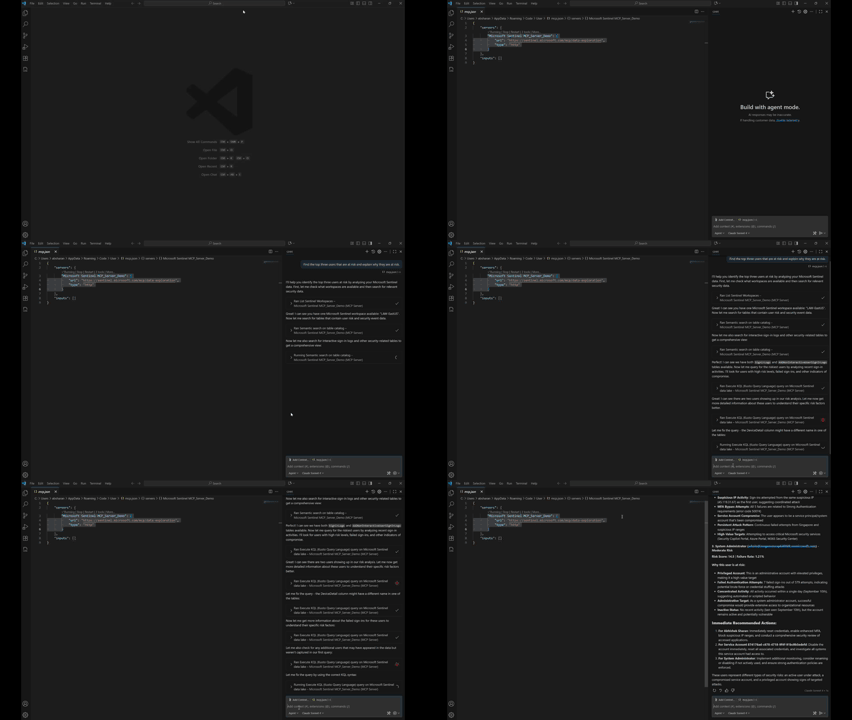
Introduction This post walks through how to get started with the Microsoft Sentinel MCP Server and showcases a hands-on demo integrating with Visual Studio Code and GitHub Copilot. Using the MCP server, you can run natural language queries against Microsoft Sentinel’s security data lake, enabling faster investigations and simplified threat hunting using tools you already know. This blog includes a real-world prompt you can use in your own environment and highlights the power of AI-assisted security workflows. What is the Microsoft Sentinel MCP Server? The Model Context Protocol (MCP) allows AI models to access structured security data in a standard, context-aware way. The Sentinel MCP server connects to your Microsoft Sentinel data lake and enables tools like GitHub Copilot or Security Copilot to: Search security data using natural language Summarize findings and explain risks Build intelligent agents for security operations Prerequisites Make sure you have the following in place: Onboarded to Microsoft Sentinel Data Lake Assigned the Security Reader role Installed: Visual Studio Code GitHub Copilot extension (Optional) Security Copilot plugin if building agents Setting Up MCP Server in VS Code Step 1: Add the MCP Server In VS Code, press Ctrl + Shift + P Search for: MCP: Add Server Choose HTTP or Server-Sent Events Enter one of the following MCP endpoints: Use Case Endpoint Data Exploration https://sentinel.microsoft.com/mcp/data-exploration Agent Creation https://sentinel.microsoft.com/mcp/security-copilot-agent-creation Give the server a friendly name (e.g., Sentinel MCP Server) Choose whether to apply it to all workspaces or just the current one When prompted, Allow authentication using an account with Security Reader access Verify the Connection Open Chat: View > Chat or Ctrl + Alt + I Switch to Agent Mode Click the Configure Tools icon to ensure MCP tools are active Using GitHub Copilot + Sentinel MCP Once connected, you can use natural language prompts to pull insights from your Sentinel data lake without writing any KQL. Demo Prompt: 🔍 “Find the top three users that are at risk and explain why they are at risk.” This prompt is designed to: Identify the highest-risk users in your environment Explain the reasoning behind each user's risk status Help prioritize investigation and response efforts You can enter this prompt in either: VS Code Chat window (Agent Mode) Copilot inline prompt area Expected Behavior The MCP server will: Query multiple Microsoft Sentinel sources (Identity Protection, Defender for Identity, Sign-in logs) Correlate risk events (e.g., risky sign-ins, alerts, anomalies) Return a structured response with top users and risk explanation Sample Output from My Tenant Results Found: User 1: 233 risk score - 53 failed attempts from suspicious IPs User 2: 100% failure rate indicating service account compromise User 3: Admin account under targeted brute force attack This demo shows how the integration of Microsoft Sentinel MCP Server with GitHub Copilot and VS Code transforms complex security investigations into simple, conversational workflows. By leveraging natural language and AI-driven context, we can surface high-risk users, understand the underlying threats, and take action — all within a familiar development environment, and without writing a single line of KQL. More details here: What is Microsoft Sentinel’s support for MCP? (preview) - Microsoft Security | Microsoft Learn Get started with Microsoft Sentinel MCP server - Microsoft Security | Microsoft Learn Data exploration tool collection in Microsoft Sentinel MCP server - Microsoft Security | Microsoft LearnHow We Built an AI Operations Agent Using MCP Servers and Dynamic Tool Routing
Modern operations teams are turning to AI Agents to resolve shipping delays faster and more accurately. In this article, we build a “two‑brain” AI Agent on Azure—one MCP server that reads policies from Blob Storage and another that updates order data in Azure SQL—to automate decisions like hazardous‑material handling and delivery prioritization. You’ll see how these coordinated capabilities transform a simple user query into a fully automated operational workflow500Views0likes0CommentsGraphRAG and PostgreSQL integration in docker with Cypher query and AI agents (Version 2*)
This is update from previous blog (version 1): GraphRAG and PostgreSQL integration in docker with Cypher query and AI agents | Microsoft Community Hub Review the business needs of this solution from version 1 What's new in version 2? MCP tools for GraphRAG and PostgreSQL with Apache AGE This solution now includes MCP tools for GraphRAG and PostgreSQL. There are five MCP tools exposed: [graphrag_search] Used to run query (local or global) with runtime-tunable API parameters. One important aspect is that query behavior can be tuned at runtime, without changing the underlying index. [age_get_schema_cached] Used for schema inspection and diagnostics. It returns the graph schema (node labels and relationship types) from cache by default; and can optionally refresh the cache by re‑querying the database. This tool is typically used for introspection or debugging, not for answering user questions about data. [age_entity_lookup] Used for quick entity discovery and disambiguation. It performs a simple substring match on entity names or titles and is especially useful for questions like “Who is X?” or as a preliminary step before issuing more complex graph queries. [age_cypher_query] Executes a user‑provided Cypher query directly against the AGE graph. This is intended for advanced users who already know the graph structure and want full control over traversal logic and filters. [age_nl2cypher_query] Bridges natural language and Cypher. This tool converts a natural‑language question into a Cypher query (using only Entity nodes and RELATED_TO edges), executes it, and returns the results. It is most effective for multi‑hop or structurally complex questions where semantic interpretation is needed first, but execution must remain deterministic. Besides that, This solution now uses Microsoft agent framework. It enables clean orchestration over MCP tools, allowing the agent to dynamically select between GraphRAG and graph query capabilities at runtime, with a looser coupling and clearer execution model than traditional Semantic Kernel function plugins. The new Docker image includes graphRAG3.0.5. This version stabilizes the 3.x configuration‑driven, API‑based architecture and improves indexing reliability, making graph construction more predictable and easier to integrate into real workflows. New architecture Updated Step 7 - run query in Jupyter notebook This step runs Jupyter notebook in docker, which is the same as stated in previous blog. > docker compose up query-notebook After clicking the link highlighted in the above screen shot, you can explore all files within the project in the docker, then find the query-notebook.ipynb. https://github.com/Azure-Samples/postgreSQL-graphRAG-docker/blob/main/project_folder/query-notebook.ipynb But in this new version of notebook, the graphRAG3.0.5 uses different library for local Search and global Search. New Step 8 - run agent and MCP tools in Jupyter notebook This step runs Jupyter notebook in docker. > docker compose up mcp-agent Click on the highlighted URL, you can start working on agent-notebook.ipynb. https://github.com/Azure-Samples/postgreSQL-graphRAG-docker/blob/main/project_folder/agent-notebook.... Multiple scenarios of agents with MCP tools are included in the notebook: GraphRAG search: local search and global search examples with direct mcp call. GraphRAG search: local search and global search examples with agent and include mcp tools. Cypher query in direct mcp call. Agent to query in natural language, and mcp tool included to convert NL2Cypher. Agent with unified mcp (all five mcp tools), and based on the question route to the corresponding tool. ['graphrag_search', 'age_get_schema_cached', 'age_cypher_query', 'age_entity_lookup', 'age_nl2cypher_query'] Router agent: selecting the right MCP tool The notebook also includes a router agent that has access to all five MCP tools and decides which one to invoke based on the user’s question. Rather than hard‑coding execution paths, the agent reasons about intent and selects the most appropriate capability at runtime. General routing guidance used in this solution Use [graphrag_search] when the question requires: full dataset understanding, themes, patterns, or trends across documents, exploratory or open‑ended analysis, global understanding or evaluation where we have a corpus of many tokens. In these cases, GraphRAG’s semantic retrieval and aggregation are a better fit than explicit graph traversal. Use AGE‑based tools [age_get_schema_cached, age_entity_lookup, age_cypher_query, age_nl2cypher_query] when the question involves: specific entities or explicit relationships, deterministic graph traversal or filtering, questions that depend on graph structure rather than document semantics, complex graph queries involving multiple entities or multi‑hop paths. Within the AGE toolset: [age_entity_lookup] is typically used for quick entity discovery or disambiguation. [age_cypher_query] is used when a precise Cypher query is already known. [age_nl2cypher_query] is used when the question is expressed in natural language but requires a non‑trivial Cypher query to answer. [age_get_schema_cached] is reserved for schema inspection and diagnostics. The router agent dynamically selects between semantic search and deterministic graph tools based on question intent, keeping retrieval, graph execution, and orchestration clearly separated and extensible. Note: The repository also includes [age_get_schema] and [age_get_schema_details] MCP tools for debugging and development purposes. These are not exposed to agents by default and are superseded by [age_get_schema_cached] for normal use. Key takeaways GraphRAG and postgreSQL AGE querying serve different purposes and each has its advantages. MCP tools provide a uniform interface to both semantic search and deterministic graph operations. Microsoft Agent Framework enables tool‑centric orchestration, where agents select the right capability at runtime instead of hard‑coding logic in prompts. The Jupyter‑based agent workflow makes it easy to experiment with different interaction patterns, from direct tool calls to fully routed agent execution. What's next In this solution, the MCP server and agent runtime are architecturally separated but deployed together in a single Docker container to demonstrate how MCP tools work and to keep local experimentation simple. There are other deployment options, such as running MCP servers remotely, where tools can be hosted and operated independently of the agent runtime. Contributions and enhancements are welcome.452Views1like0CommentsUnlocking AI-Driven Data Access: Azure Database for MySQL Support via the Azure MCP Server
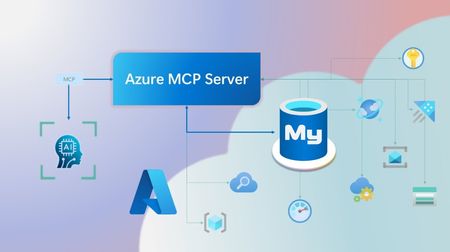
Step into a new era of data-driven intelligence with the fusion of Azure MCP Server and Azure Database for MySQL, where your MySQL data is no longer just stored, but instantly conversational, intelligent and action-ready. By harnessing the open-standard Model Context Protocol (MCP), your AI agents can now query, analyze and automate in natural language, accessing tables, surfacing insights and acting on your MySQL-driven business logic as easily as chatting with a colleague. It’s like giving your data a voice and your applications a brain, all within Azure’s trusted cloud platform. We are excited to announce that we have added support for Azure Database for MySQL in Azure MCP Server. The Azure MCP Server leverages the Model Context Protocol (MCP) to allow AI agents to seamlessly interact with various Azure services to perform context-aware operations such as querying databases and managing cloud resources. Building on this foundation, the Azure MCP Server now offers a set of tools that AI agents and apps can invoke to interact with Azure Database for MySQL - enabling them to list and query databases, retrieve schema details of tables, and access server configurations and parameters. These capabilities are delivered through the same standardized interface used for other Azure services, making it easier to the adopt the MCP standard for leveraging AI to work with your business data and operations across the Azure ecosystem. Before we delve into these new tools and explore how to get started with them, let’s take a moment to refresh our understanding of MCP and the Azure MCP Server - what they are, how they work, and why they matter. MCP architecture and key components The Model Context Protocol (MCP) is an emerging open protocol designed to integrate AI models with external data sources and services in a scalable, standardized, and secure manner. MCP dictates a client-server architecture with four key components: MCP Host, MCP Client, MCP Server and external data sources, services and APIs that provide the data context required to enhance AI models. To explain briefly, an MCP Host (AI apps and agents) includes an MCP client component that connects to one or more MCP Servers. These servers are lightweight programs that securely interface with external data sources, services and APIs and exposes them to MCP clients in the form of standardized capabilities called tools, resources and prompts. Learn more: MCP Documentation What is Azure MCP Server? Azure offers a multitude of cloud services that help developers build robust applications and AI solutions to address business needs. The Azure MCP Server aims to expose these powerful services for agentic usage, allowing AI systems to perform operations that are context-aware of your Azure resources and your business data within them, while ensuring adherence to the Model Context Protocol. It supports a wide range of Azure services and tools including Azure AI Search, Azure Cosmos DB, Azure Storage, Azure Monitor, Azure CLI and Developer CLI extensions. This means that you can empower AI agents, apps and tools to: Explore your Azure resources, such as listing and retrieving details on your Azure subscriptions, resource groups, services, databases, and tables. Search, query and analyze your data and logs. Execute CLI and Azure Developer CLI commands directly, and more! Learn more: Azure MCP Server GitHub Repository Introducing new Azure MCP Server tools to interact with Azure Database for MySQL The Azure MCP Server now includes the following tools that allow AI agents to interact with Azure Database for MySQL and your valuable business data residing in these servers, in accordance with the MCP standard: Tool Description Example Prompts azmcp_mysql_server_list List all MySQL servers in a subscription & resource group "List MySQL servers in resource group 'prod-rg'." "Show MySQL servers in region 'eastus'." azmcp_mysql_server_config_get Retrieve the configuration of a MySQL server "What is the backup retention period for server 'my-mysql-server'?" "Show storage allocation for server 'my-mysql-server'." azmcp_mysql_server_param_get Retrieve a specific parameter of a MySQL server "Is slow_query_log enabled on server my-mysql-server?" "Get innodb_buffer_pool_size for server my-mysql-server." azmcp_mysql_server_param_set Set a specific parameter of a MySQL server to a specific value "Set max_connections to 500 on server my-mysql-server." "Set wait_timeout to 300 on server my-mysql-server." azmcp_mysql_table_list List all tables in a MySQL database "List tables starting with 'tmp_' in database 'appdb'." "How many tables are in database 'analytics'?" azmcp_mysql_table_schema_get Get the schema of a specific table in a MySQL database "Show indexes for table 'transactions' in database 'billing'." "What is the primary key for table 'users' in database 'auth'?" azmcp_mysql_database_query Executes a SELECT query on a MySQL Database. The query must start with SELECT and cannot contain any destructive SQL operations for security reasons. “How many orders were placed in the last 30 days in the salesdb.orders table?” “Show the number of new users signed up in the last week in appdb.users grouped by day.” These interactions are secured using Microsoft Entra authentication, which enables seamless, identity-based access to Azure Database for MySQL - eliminating the need for password storage and enhancing overall security. How are these new tools in the Azure MCP Server different from the standalone MCP Server for Azure Database for MySQL? We have integrated the key capabilities of the Azure Database for MySQL MCP server into the Azure MCP Server, making it easier to connect your agentic apps not only to Azure Database for MySQL but also to other Azure services through one unified and secure interface! How to get started Installing and running the Azure MCP Server is quick and easy! Use GitHub Copilot in Visual Studio Code to gain meaningful insights from your business data in Azure Database for MySQL. Pre-requisites Install Visual Studio Code. Install GitHub Copilot and GitHub Copilot Chat extensions. An Azure Database for MySQL with Microsoft Entra authentication enabled. Ensure that the MCP Server is installed on a system with network connectivity and credentials to connect to Azure Database for MySQL. Installation and Testing Please use this guide for installation: Azure MCP Server Installation Guide Try the following prompts with your Azure Database for MySQL: Azure Database for MySQL tools for Azure MCP Server Try it out and share your feedback! Start using Azure MCP Server with the MySQL tools today and let our cloud services become your AI agent’s most powerful ally. We’re counting on your feedback - every comment, suggestion, or bug-report helps us build better tools together. Stay tuned: more features and capabilities are on the horizon! Feel free to comment below or write to us with your feedback and queries at AskAzureDBforMySQL@service.microsoft.com.429Views3likes0Comments
o3-deep-research is failed with the status incomplete with the reason as content filter
I working on an to do an deep research on internal data. I'm using currently the Azure OpenAI Responses API with MCP Tool. The underlying MCP server deployed into ACA with search and fetch tool with signatures in complaint with the specification (https://developers.openai.com/apps-sdk/build/mcp-server#company-knowledge-compatibility). OpenAI client created with 03-deep-research model with MCP tool, in a loop response status being checked. (https://learn.microsoft.com/en-us/azure/foundry/openai/how-to/deep-research#remote-mcp-server-with-deep-research) Deep Research is being carried out for sometime, I could see in the log that handshake has been made, ListTools invoked, search tool is called post that fetch is called for the queries framed by the model.. But intermittently, the response status is becoming "incomplete" with incomplete reason as "content_filter". Otherwise the deep research is working fine. Not able identify the root cause as there is seems to be no way to identify what caused the content filtration whether its the prompt or completion. How to debug and check the root cause and rectify this ? Or is there known issue with the o3-deep-research model's intermediate reasoning completions Or search and fetch tool results are causing this ? I had uploaded a file made it available to MCP server, the search and fetch tool uses an Azure OpenAI agent to search the data using File Search and fetch tool gets the content of the file based on the id passed. For same file and same research topic the issue is not occurring always but intermittently.199Views0likes1Comment