managed identity
6 TopicsLessons Learned #551: Azure SQL Connection Timeouts: Three Things to Check
An application starts reporting intermittent timeouts when connecting to Azure SQL Database. Some requests succeed, others fail, and a test from a developer’s laptop works perfectly. The database appears online, no recent deployment seems related, and the natural reaction is to ask: Is Azure SQL unavailable? Is the firewall blocking the connection? Should we increase the connection timeout? Should we change the driver or scale the database? Those are reasonable questions, but they may lead the investigation in the wrong direction. The most important lesson is simple: A timeout tells us how long the application waited. It does not tell us what the application was waiting for. Not every “SQL timeout” happens inside Azure SQL From the application’s point of view, opening a database connection may involve several operations: Resolving the server name. Reaching the SQL endpoint. Obtaining a Microsoft Entra access token. Waiting for an available pooled connection. Completing the SQL login. Executing the first command. When all these operations are reported through the same application method or log entry, it can look as though Azure SQL took thirty seconds to accept the connection. In reality, only part of that time may have been spent connecting to the database. In one anonymized support scenario, the application experienced problems mainly on its first connection. Network tests were successful and no corresponding SQL connection failure was identified. The investigation eventually showed that access-token acquisition was consuming a significant part of the available time. Increasing the SQL timeout or changing the firewall would not have addressed the real delay. Check 1: Capture the complete error and the exact time A screenshot containing only “Connection Timeout Expired” is rarely enough. Capture: The complete exception and inner exception. The operation being performed. The driver and version. The authentication method. The exact timestamp in UTC. Whether the issue affects every connection or only some of them. The wording around the timeout matters. For example, a timeout while obtaining a connection from the pool points toward the application’s pooling and concurrency behavior. A pre-login or TLS error belongs to a different investigation. A command timeout after the connection was established is usually a query-performance problem rather than a connection problem. Check 2: Measure the application timeline The application should record important operations separately. A simple timeline can completely change the investigation: 10:14:20.100 Token acquisition started 10:14:28.400 Token acquired 10:14:28.405 SQL connection started 10:14:29.050 SQL connection established The complete operation took almost nine seconds, but Azure SQL connection establishment took less than one second. Useful measurements include: Token-acquisition duration. Time waiting for a pooled connection. SQL connection-open duration. SQL command duration. Number of retry attempts. Applications using Microsoft Entra authentication must obtain an access token before authenticating to Azure SQL. Measuring that operation separately helps distinguish an identity delay from a database connectivity problem. This is particularly useful when the issue appears: On the first connection after startup. After a token expires. Only with Managed Identity or Workload Identity. Intermittently, while SQL authentication connections remain unaffected. Check 3: Test from the application environment A successful connection from a laptop does not validate the path used by an application running in: Azure App Service. Azure Functions. Azure Kubernetes Service. A virtual machine. An on-premises application server. A container or integration runtime. The laptop and the application may use different DNS servers, routes, firewalls, proxies and identities. Connectivity and DNS tests should therefore be performed from the environment that is actually failing. This becomes especially important when Private Endpoint is used. The application should continue connecting with: <server>.database.windows.net It should not use the Private Endpoint IP address or the privatelink.database.windows.net hostname directly. Direct login attempts using the private IP or the private-link FQDN fail; the normal logical-server FQDN must remain in the connection string. From the affected environment, confirm that: The expected DNS server answers the request. The server FQDN resolves to the expected private IP. The Private Endpoint connection is approved. The Private DNS zone is linked correctly. The resolved address is reachable through the intended route. A test from an unrelated machine is still useful for comparison, but it does not prove that the application path is healthy. Observed symptom Likely investigation area Timeout while obtaining a connection from the pool Application connection pooling Server name cannot be resolved DNS TCP connection to the endpoint cannot be established Network path, firewall or routing Error during the pre-login handshake TLS, driver, network interruption or pre-login processing Authentication or access-token error Microsoft Entra authentication, identity or token acquisition Timeout during the post-login phase Login completion, session initialization or server-side processing Execution or command timeout after connecting Query execution and database performance Avoid changing several things at once During a production incident, it is tempting to: Increase the timeout. Add firewall rules. Change the connection policy. Upgrade the driver. Restart the application. Clear connection pools. Applying several changes together makes it difficult to determine which one helped, and some may only hide the symptom. A better approach is to define one hypothesis: We believe DNS in the application environment is resolving the public endpoint instead of the Private Endpoint. Then define: The evidence supporting the hypothesis. One controlled change. The expected result. How the result will be measured. How the change will be reverted. Azure SQL supports Proxy and Redirect connection policies, which determine how traffic flows after reaching the Azure SQL gateway. The policy is configured for the logical server, so it should be verified before making firewall assumptions or changes. What should we collect before opening a support request? A small but precise evidence package can avoid several rounds of questions: Complete error and inner exception. Exact UTC timestamps. Application platform and location. Public or Private Endpoint. Server FQDN used by the application. Driver and version. Authentication method. Token, pool, connection and command durations. DNS result from the affected environment. Whether the issue is constant, intermittent or limited to the first connection. Recent application, network, identity or configuration changes.532Views0likes0Comments
DMS - Support for Managed Identity for Azure SQL Managed Instance migration
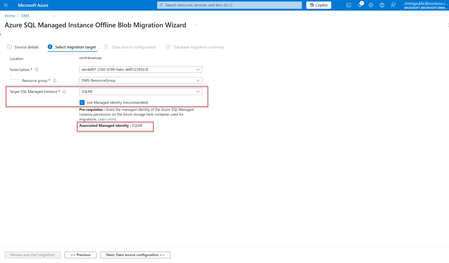
Azure Database Migration Service (DMS) has introduced a new feature that supports the use of Managed Identity for migrating to Azure SQL Managed Instance. This enhancement simplifies the migration process and ensures secure and seamless integration with Azure Database Migration services. In this blog post, we will dive into the prerequisites, permissions or role(s) required, and how to use this associated Managed identity for migrating to Azure SQL Managed Instance. Currently, this feature is supported through Azure Portal, PowerShell, and Az cmdlets. Prerequisites Before you begin the migration to Azure SQL Managed Instance using Managed identity, ensure that following prerequisites are in place: 1. The Target Azure SQL Managed Instance's associated Managed Identity: Azure Database Migration Service only supports Managed Identity that is associated with the target Azure SQL Managed Instance. How to identify the associated Managed Identity? Once you start the migration to Azure SQL Managed Instance using Azure Database Migration Service and on second page, select the target Azure SQL Managed instance, its associated Managed Identity will be displayed if "Use Managed Identity" is selected (default), as highlighted below. Alternatively, you can follow these steps: a) Go to the target Azure SQL Managed Instance's home page. b) On the left menu, under Security > Identity: If User-assigned Managed Identity is present, the associated Managed Identity will be same as selected under the Primary Identity. If there is no User-assigned Managed Identity and only System-assigned Managed Identity is enabled, the associated Managed Identity will be System-assigned Managed Identity and have the same name as the Azure SQL Managed Instance's name. For example, for ABCSQLMI - Azure SQL Managed Instance the System-assigned Managed Identity will be "ABCSQLMI". 2) Permissions: Assign the "Storage Blob Data Reader" role on the storage account to the target instance's associated Managed Identity. Steps to Assign Permissions In the Azure portal, go to the storage account that will be used in migration for keeping the backup files. On the left menu under Access Control (IAM), click on "+Add" > Add role assignment Select or search for builtin role "Storage Blob Data Reader", click Next. Assing this role access to Managed Identity by selecting the associated Managed Identity identified in the previous step as the member. Note: When migrating to Azure SQL Managed Instance or Azure SQL Virtual Machine via Azure portal make sure the signed in user has Storage Blob Data Reader access on the Blob container that contains the backup files. This permission is needed to list folders and files in the blob container during migration setup via Azure portal only. How to use associated Managed identity for migration? Upon initiating the migration to Azure SQL Managed Instance using Azure Database Migration Service, navigate to the second page and select the target Azure SQL Managed Instance. If the "Use Managed Identity" option is selected (default), the associated Managed Identity will be displayed and used for the migration (as shown in the first image above). Once Managed identity is used for the migration, DMS will utilize this Managed identity for reading the backup files on the Azure blob storage and thus removing the need for SAS keys. Limitations: Azure Database Migration Service supports Managed Identity that is associated with the target Azure SQL Managed Instance only. It can be either User assigned, or System assigned Managed identity. Currently, this feature is supported through Azure Portal only. Ensure that the storage account has the "Allow storage account key access" enabled. Benefits of using Managed Identity: Using Managed Identity for Azure SQL Managed Instance migrations offers several security benefits: Enhanced Security: Managed identities eliminate the need to use SAS key, reducing the risk of SAS key token exposure. Simplified Management: As associated Managed Identity of the target Azure SQL MI is used, it allows for seamless integration with Azure Database Migration services, making it easier to manage access permissions and roles. Improved Efficiency: The streamlined authentication process speeds up migrations and reduces the complexity of managing SAS keys. Improved Compliance: By using Managed Identity, user can ensure that they adhere to security best practices and compliance requirements, as it is managed securely by Azure. All the above benefits make Managed Identity better than SAS key token. Learn more. Conclusion The new feature supporting Managed Identity in Azure Database Migration Service for Azure SQL Managed Instance migrations offers a secure and efficient way to manage permissions during the migration process. By following the steps outlined above and leveraging the security benefits of Managed Identity, you can ensure a smooth and secure migration to Azure SQL Managed Instance.1.1KViews0likes0CommentsLesson Learned #527:Calling Azure OpenAI with Managed Identity via sp_invoke_external_rest_endpoint
A day ago, I was working on a service request where our customer got the following error message: {"response":{"status":{"http":{"code":401,"description":""}},"headers":{"Date":"Mon, 07 Jul 2025 19:36:30 GMT","Content-Length":"297","Content-Type":"application\/json","apim-request-id":"cabfb91a-5ede-4371-91d5-XXX","x-ms-client-request-id":"Not-Set","strict-transport-security":"max-age=31536000; includeSubDomains; preload","x-content-type-options":"nosniff"}},"result":{"error":{"code":"PermissionDenied","message":"The principal `XXXX-YYYY-4d9e-8e70-13c98fb84e7a` lacks the required data action `Microsoft.CognitiveServices/accounts/OpenAI/deployments/chat/completions/action` to perform `POST /openai/deployments/{deployment-id}/chat/completions` operation."}}}. Following I would like to share my experience resolving this issue. The first thing was to try reproducing the issue in our lab. So, I began integrating Azure OpenAI with Azure SQL Database to perform sentiment analysis based on fictitious feedback. I created a SQL table called CustomersInfo which contains fictitious customer feedback: CREATE TABLE CustomersInfo ( CustomerID INT PRIMARY KEY IDENTITY(1,1), Name NVARCHAR(100), Feedback NVARCHAR(MAX), Sentiment NVARCHAR(20) NULL ); INSERT INTO CustomersInfo (Name, Feedback) VALUES ('Anna', 'The product arrived damaged and no one responded to my messages.'), ('John', 'I loved the service, it was fast and the product is excellent.'), ('Emily', 'It was okay, but I think packaging could be better.'), ('David', 'I will never buy here again, terrible service.'), ('Sophia', 'Everything was perfect, thank you for the follow-up.'), ('Michael', 'Delivery time was average, but the product did not meet expectations.'), ('Laura', 'Great overall experience, I would recommend it.'), ('James', 'I expected more quality for the price I paid.'), ('Isabella', 'Easy to order, great customer support.'), ('Robert', 'I didn’t like it, but at least they gave me a refund.'); I configured Azure OpenAI and permissions by creating an Azure OpenAI resource Endpoint: https://openaiexample.openai.azure.com Model: gpt-4 Roles granted to the EntraID user that is connecting to the database: Cognitive Services OpenAI User Cognitive Services User I then enabled the SQL database to call the OpenAI endpoint using Managed Identity: CREATE DATABASE SCOPED CREDENTIAL [https://openaiexample.openai.azure.com] WITH IDENTITY = 'Managed Identity', SECRET = '{"resourceid":"https://cognitiveservices.azure.com"}'; DECLARE @response NVARCHAR(MAX); DECLARE Payload NVARCHAR(MAX) = '{ "messages": [ { "role": "system", "content": "You are a helpful assistant." }, { "role": "user", "content": "Classify the sentiment of the following customer feedback as Positive, Negative, or Neutral. Feedback: The product arrived damaged and no one responded to my messages." } ], "max_tokens": 50 }'; EXEC sp_invoke_external_rest_endpoint @url = 'https://openaiexample.openai.azure.com/openai/deployments/gpt-4.1-jmjurado/chat/completions?api-version=2025-01-01-preview', @method = 'POST', @credential = [https://openaiexample.openai.azure.com], Payload = Payload, @response = @response OUTPUT; DECLARE @json NVARCHAR(MAX) = @response; SELECT JSON_VALUE(c.value, '$.message.content') AS Respuesta FROM OPENJSON(@json, '$.result.choices') AS c; To encapsulate this logic, we created a stored procedure: CREATE OR ALTER PROCEDURE AnalizarSentimiento @Texto NVARCHAR(MAX), @Sentimiento NVARCHAR(50) OUTPUT AS BEGIN DECLARE @response NVARCHAR(MAX); DECLARE Payload NVARCHAR(MAX) = '{ "messages": [ { "role": "system", "content": "You are a helpful assistant." }, { "role": "user", "content": "Classify the sentiment of the following customer feedback as Positive, Negative, or Neutral. Feedback: ' + @Texto + '" } ], "max_tokens": 50 }'; EXEC sp_invoke_external_rest_endpoint @url = 'https://openaiexample.openai.azure.com/openai/deployments/gpt-4.1-jmjurado/chat/completions?api-version=2025-01-01-preview', @method = 'POST', @credential = [https://openaiexample.openai.azure.com], Payload = Payload, @response = @response OUTPUT; SELECT @Sentimiento = JSON_VALUE(c.value, '$.message.content') FROM OPENJSON(@response, '$.result.choices') AS c; END; Now, I'm ready to execute the procedure and retrieve the data: DECLARE @Sentimiento NVARCHAR(50); EXEC AnalizarSentimiento @Texto = 'The product arrived damaged and no one responded to my messages.', @Sentimiento = @Sentimiento OUTPUT; SELECT @Sentimiento AS Resultado; However, I got the following result {"response":{"status":{"http":{"code":401,"description":""}},"headers":{"Date":"Mon, 07 Jul 2025 19:36:30 GMT","Content-Length":"297","Content-Type":"application\/json","apim-request-id":"cabfb91a-5ede-4371-91d5-XXX","x-ms-client-request-id":"Not-Set","strict-transport-security":"max-age=31536000; includeSubDomains; preload","x-content-type-options":"nosniff"}},"result":{"error":{"code":"PermissionDenied","message":"The principal `XXXX-YYYY-4d9e-8e70-13c98fb84e7a` lacks the required data action `Microsoft.CognitiveServices/accounts/OpenAI/deployments/chat/completions/action` to perform `POST /openai/deployments/{deployment-id}/chat/completions` operation."}}} Analyzing the error message, it appears that principal ID that I'm using for this Managed Identity to perform the call has not access to the endpoint. Even adding the client_id keyword didn't resolve the issue. CREATE DATABASE SCOPED CREDENTIAL [https://openaiexample.openai.azure.com] WITH IDENTITY = 'Managed Identity', SECRET = '{"client_id":"YYYYY-ZZZZ-4b75-XXX-9ab8e8c14c1e", "resourceid":"https://cognitiveservices.azure.com"}'; After several troubleshooting steps and by analyzing the error message, I identified that the client_id from the error message referenced in the response belongs to the system-assigned managed identity of the Azure SQL Server. Once I granted the necessary permissions to this identity, I was able to connect and successfully perform the operation.1.2KViews0likes0Comments
External Table in ADX
Hi, I'm trying to create an external table in ADX which uses a Synapse Analytics (SA) database view (called undelivered). The undelivered view itself is query data from a Cosmos analytical store I've create a user defined idenity Added the identiy to the ADX cluster, SA and Cosmos Updated the ADX database: .alter-merge cluster policy managed_identity[ { "ObjectId": "a3d7ddcd-d625-4715-be6f-c099c56e1567", "AllowedUsages": "ExternalTable" } ] Created the database users in SA -- Create a database user for the ADX Managed Identity CREATE USER [adx-synapse-identity] FROM EXTERNAL PROVIDER; -- Grant read permissions ALTER ROLE db_datareader ADD MEMBER [adx-synapse-identity]; GRANT SELECT ON OBJECT::undelivered TO [adx-synapse-identity]; From within SA I can "SELECT * FROM undelivered" and the correct information is returned But when I come to create the external table in ADX: .create-or-alter external table MyExternalTable ( Status: string ) kind=sql table=undelivered ( h@'Server=tcp:synapse-xxxxx.sql.azuresynapse.net,1433;Database="Registration";ManagedIdentityClientId=<key>;Authentication=Active Directory Managed Identity;' ) with ( managed_identity = "<key>" ) I get the error: Managed Identity 'system' is not allowed by the managed_identity policy for usage: ExternalTable So even with me specifying the managed identity I want to use it is still trying to use the system one. How can I get the external table created with the correct managed identity? Any questions please just ask Thanks350Views0likes0Comments
How to use Sqlpackage with Managed Identity
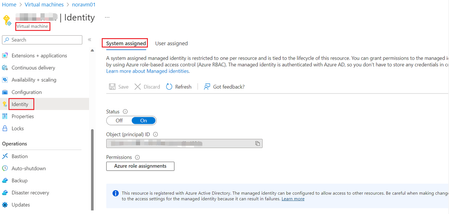
To export Azure SQL database using Sqlpackage and Managed Identity: Step1 Enable system assigned managed identity on an Azure VM Step2 - Enable AAD auth on Azure SQL server - Conn to Azure SQL database via AAD admin - Create contained user for the managed identity (using Azure VM name as contained username) create user <vmname> from external provider; alter role db_owner add member <vmname>; Step3 On the Azure VM where we enabled System assigned Managed Identity, execute below to test getting access token: # Using PowerShell’s Invoke-WebRequest, make a request to the local managed identity's endpoint to get an access token for Azure SQL: $response = Invoke-WebRequest -Uri 'http://169.254.169.254/metadata/identity/oauth2/token?api-version=2018-02-01&resource=https%3A%2F%2Fdatabase.windows.net%2F' -Method GET -Headers @{Metadata="true"} # Convert the response from a JSON object to a PowerShell object: $content = $response.Content | ConvertFrom-Json # Extract the access token from the response: $AccessToken = $content.access_token Step4 Run sqlpackage + managed identity to export database ./sqlpackage.exe /at:$AccessToken /Action:Export /TargetFile:"C:\AdventureWorksLT.bacpac" \ /SourceConnectionString:"Server=tcp:{yourserver}.database.windows.net,1433;Initial Catalog=AdventureWorksLT;MultipleActiveResultSets=False;Encrypt=True;TrustServerCertificate=False;Connection Timeout=30;" # OR ./sqlpackage.exe /at:$($AccessToken_Object.Token) /Action:Export /TargetFile:"C:\AdventureWorksLT.bacpac" \ /SourceConnectionString:"Server=tcp:{yourserver}.database.windows.net,1433;Initial Catalog=AdventureWorksLT;MultipleActiveResultSets=False;Encrypt=True;TrustServerCertificate=False;Connection Timeout=30;" Reference: Tutorial: Use a managed identity to access Azure SQL Database - Windows - Azure AD - Microsoft Entra | Microsoft Learn How managed identities for Azure resources work with Azure virtual machines - Microsoft Entra | Microsoft Learn SqlPackage Export - SQL Server | Microsoft Learn7.5KViews0likes2Comments