logic apps automation
3 Topics💲Announcing Free Grant and Pricing for Logic Apps Automation
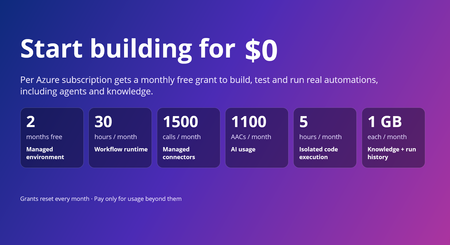
Today, we're announcing pricing for Azure Logic Apps Automation, now in public preview, along with monthly free grants that make it easier to start building, experimenting, and bringing automations to life. Logic Apps Automation is Azure's fully managed platform for business process automation and orchestration, including AI-powered automation. It's built for every builder with an automation problem, not just developers, and the free grants make it easy to go from idea to a working automation without a purchase decision up front. The free grant covers one managed environment per subscription and includes usage across key Logic Apps Automation capabilities, so you can start with your first use case, experiment with AI-powered automation, and run workloads in production within the included limits; then move to paid usage as your needs grow. Start today @ https://auto.azure.com/ Start free with monthly grants Every Azure subscription gets a monthly free grant across the platform. The only exception is Managed Environment which is a one-time free grant for first 60 days. When the usage stays within these limits you pay nothing. When it goes beyond these limits, you pay only for the additional usage. Usage Component Monthly free grant (per subscription) Core Platform Managed environment One environment, free for the first 60 days (2 months) Core Platform Workflow runtime 108,000 execution-seconds (about 30 hours) Core Platform Data retention 1 GB Optional Capabilities Managed connector calls 1,000 Standard + 500 Enterprise Optional Capabilities Knowledge storage 1 GB Optional Capabilities AI usage 1,100 AACs Optional Capabilities Isolated code execution 18,000 seconds (about 5 hours) What this means in practice Explore the platform, not a trimmed-down experience. The grants include workflow runtime, AI usage, knowledge, connectors, and sandboxed code, so you can explore every capability from day one. Build and iterate without watching the meter. With approximately 30 hours of execution time included each month, you can author, test, and run workflows as you build out your automation. Scale into paid usage as your needs grow. Grants reset every month, and you pay only for usage beyond them. Simple, usage-based pricing Beyond the included grants, Logic Apps Automation uses a pay-as-you-go pricing model across the capabilities your automations use. Billing has two parts: Core Platform: the managed environment, workflow runtime, and run-history retention that provide the foundation for your automations. Optional Capabilities: AI usage, knowledge storage, isolated code execution via sandbox and managed connectors, billed only when your workflows use them. For rates, regional pricing, and a worked monthly cost example, see Azure Logic Apps Automation pricing. How does the free grant works The free grant applies to the first environment you create in a subscription. Look for the Free tag next to an environment's name to see which is the free one Free environment period: The managed environment is free for 60 days, starting from the time you create it. Existing customers: If you already use Logic Apps Automation, create a new environment to use the free grant. The first new environment you create in your subscription receives it. Track your usage: In your environment, go to Settings and select the Free Grants tab to see your monthly limits and how much you've used. Important: Free grants are tied to the free environment. If you delete your free environment, you lose the ability to use the free grants, and you can't get them back by creating a new environment. Availability Logic Apps Automation is in public preview in Australia East, East Asia, North Central US, Southeast Asia, Sweden Central, UK South, and West US. Preview pricing and availability may change before general availability. Get started If you already have an Azure subscription, your included grants are available to help you start building today. Create your first Automation project, start from a template or with the AI workflow assistant, and explore what you can build with Logic Apps Automation. Get started with Logic Apps Automation Quickstart: build your first workflow Read the full pricing details MS Learn documentation Watch the Logic Apps Automation video series Share feedback or request a feature, or just let us know what you build with Automation!599Views0likes0Comments🆕Orchestrate Foundry Prompt and Hosted Agents with Logic Apps Automation
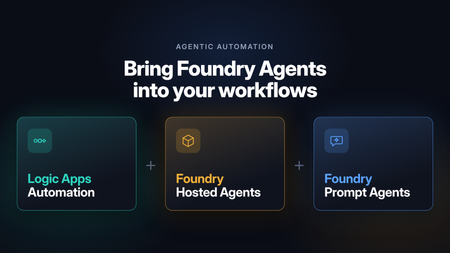
Microsoft Foundry is retiring workflows on December 1, 2026. After that date, the visual workflow designer and running workflows in the Foundry portal won’t be supported. For business process automation that combines deterministic steps with AI reasoning, the Foundry migration guide recommends Azure Logic Apps. Logic Apps is especially well suited to building these processes visually: Foundry agents become steps in a workflow, running alongside built-in actions, APIs, and MCP servers in the same run. Beyond the migration, there’s a broader question many teams face once an agent is working. Most agents start out as interactive, chat-based experiences: a person asks, and the agent responds. Putting that same agent to work in a business process means it has to run autonomously, started by an API call or an event instead of a person, running in the background and at scale. It also has to fit alongside the deterministic steps the process already depends on, such as gathering data before the agent runs and validating and acting on its output afterward. With support for Foundry Prompt Agents and Foundry Hosted Agents, Azure Logic Apps Automation gives you a direct way to do this. Any agent you’ve built in Foundry can become a step in a workflow. It can be started by an API call, a schedule, or an event from one of 1,400+ connectors, run in the background at scale, and sit between the deterministic steps that come before and after it. Before we get to the workflow side, here’s a quick look at the two agent types. If you want the full picture, the Foundry Agent Service overview compares them in detail. What are Foundry Prompt Agents A Prompt Agent is an agent you configure rather than code. You write instructions, pick a model, attach tools, and Foundry runs it. There’s nothing to deploy and no scaling to think about. It can use the Foundry model and tool catalogs, including knowledge sources like Azure AI Search and Foundry IQ. You pay for the tokens and tool calls it uses, with no separate platform charge. If you can write down what the agent should do and which tools it needs, a Prompt Agent will usually do the job, and it’s the quickest way to get something working. The prompt agent quickstart walks through building one. What are Foundry Hosted Agents A Hosted Agent is your own agent code, packaged as a container and run on Microsoft Foundry Agent Service. You can build it with Microsoft Agent Framework, LangGraph, the OpenAI Agents SDK, or your own code. Foundry handles the hosting and scaling. Since it’s your code, you decide how the agent loop works. Each session gets its own isolated sandbox with the CPU and memory you choose, and files and state persist between turns. Each Hosted Agent also gets its own Microsoft Entra agent identity, so you can see and audit what it does like any other identity in your tenant. Hosted Agents use the same models and tools as Prompt Agents. On top of tokens and tool calls, you pay for the compute they use (vCPU and memory hours). You can read more about how Hosted Agents work. A simple way to choose: start with a Prompt Agent. Move to a Hosted Agent when you need custom code or custom orchestration or want to bring your own code and framework. Orchestrate Foundry agents with Logic Apps workflows An agent in Foundry runs when someone or something calls it. Most business processes start somewhere else: an email comes in, a ticket is opened, a file lands in SharePoint, or a schedule fires. They usually end somewhere else too, with a record updated or someone getting a message. Logic Apps covers both ends and everything in between: a trigger to start the agent, deterministic steps around it, and branching, retries, timeouts, and parallel branches for the agent call. The next two sections show what that looks like. Every run shows up in run history, with the inputs, what the agent returned, and what happened next. When something goes wrong, you can see exactly where. The Learn article on automating Foundry agents with workflows covers the setup step by step. Run agents autonomously from any trigger The simplest setup is a trigger, an agent, and an action. Say a support email arrives in Outlook. The workflow sends it to a Prompt Agent that classifies it and drafts a reply, then creates a ticket with the result. This runs every time an email arrives, with no one starting it. Schedules work the same way. A recurrence trigger could call a Hosted Agent every Monday to go through last week’s data and post a summary in Teams. Mix agentic reasoning with deterministic steps Most processes are largely rule-based, with a step or two that needs adaptive reasoning or a decision. In Logic Apps you use an agent for those steps and keep everything else as deterministic steps. Before the agent runs, collect what it needs. Look up the customer in your CRM, pull the contract from SharePoint, or query a database, and pass all of it in. After it runs, check what came back. Validate it against a schema, apply your business rules, and send anything uncertain to a person for approval. Then write the result to the right system with a connector. Use both agent types in one workflow You don’t have to pick one type of agent per process. A workflow can call a Prompt Agent for a quick classification and send only the harder cases to a Hosted Agent for a longer analysis. The workflow passes output from one agent to the next, runs agents in parallel when they don’t depend on each other, and brings the results back together. Each agent stays small, and the end-to-end logic lives in the workflow, where you can see it and change it. How to use Foundry Agents from Workflows Hosted Agent You can create Foundry Hosted Agents directly from your Logic Apps Automation application. Pick your Foundry project and model deployment, and the app takes care of identity, permissions, and readiness checks for you. In a workflow, the Foundry Hosted agent action sends the agent its instructions, task, files, and any workflow actions you’ve added as tools. It returns the agent’s final response and generated files for the next steps to use. For details, see Foundry Hosted Agents for an overview and Create and use a Foundry Hosted Agent for step-by-step setup. https://youtu.be/foN9oPu5lRE Prompt Agent You can call an existing Foundry Prompt Agent from a workflow or create a new one right from the designer . Connect to your Foundry project, then either pick an agent from the list or select Create new agent and give it a name, a model, and instructions. The agent is created and hosted in Foundry. You can also give the agent tools from Logic Apps: actions from 1,400+ connectors, built-in actions, APIs, MCP servers, and other workflows. https://youtu.be/YkM7dHzHjdM Roadmap Today, workflows can invoke Hosted Agents that you create from your Logic Apps Automation app. We’re adding support for selecting an existing Hosted Agent from your Foundry project and invoking it from a workflow. Get Started Read to automate! Start building at auto.azure.com Automation QuickStart Automation Documentation - https://auto.azure.com/docs/400Views1like0CommentsHybrid Logic Apps - SQL as storage provider benchmarking
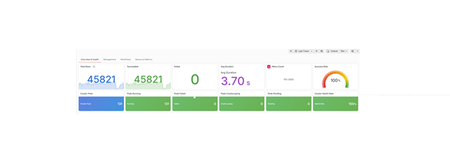
Key findings for technical decision makers Hybrid Logic Apps ran a high-volume, file-driven integration workload on deliberately modest on-premises hardware: one host shared by the cluster, file storage and SQL Server 2025. Across both 30-minute tests there were no failed runs, and the one-hour dashboard view showed 45,821 successful runs at a 100% success rate. The database was not a cost driver: SQL Server used an average of 1.83% of host CPU capacity. Most runs finished in about 4 seconds, with a longer tail for the slowest 1%. The factor that most affects scale is storage, not server count, because adding workflow instances does not add disk capacity. For planning, budget for dedicated storage for the database and files as volumes grow, size capacity on peak and tail response times rather than averages, and validate with your own workloads. These results are a baseline for one workload, not a product-wide capacity guarantee. A practical look at throughput, latency, reads, writes, and locks The primary goal of this exercise is to evaluate SQL read and write behavior and the time spent waiting for locks under integration load. Workflow throughput supplies the workload context; it is not a substitute for those database measurements. This is a mixed-workload observation, not an isolated SQL capacity test. In a 30-minute baseline, files were offered to an Azure Logic Apps workflow at approximately 100 files per second. SQL CPU usage remained low, while a substantial file backlog accumulated. The lesson is not that one component is necessarily slow. It is that a useful benchmark must connect offered load, completed throughput, latency, and waiting rather than treating any one metric as the answer. The SQL comparison tells a different story from workflow throughput alone: average workflow-state data-file write I/O latency rose from 12.958 to 38.652 ms, while accumulated instance-wide lock waiting remained near 1,470 task-seconds. Faster workflow completion did not mean that every SQL measurement improved. A repeat of the same 30-minute workload subsequently showed 3.87% higher successful throughput, 6.40% lower p95 execution latency, and 8.68% lower p99 execution latency, with no failed workflow runs in either measured window. Both measurements are retained below: the repeat was an observed improvement, not proof of a tuning change or a product-wide performance guarantee. The workflow The workflow snapshot shows the processing sequence used in the benchmark. The workflow is taken such that huge set of I/O operations are performed during the workflow executions to simulate the SQL benchmarking under high I/O operations. The workflow performs six steps: Detect a newly created file in a receiving folder. Insert a business record into SQL. Read the source file's contents. Create a copy in a destination folder. Delete the source file. Delete the destination copy. This is a synthetic processing-and-cleanup scenario, not an archival workflow: both test-file copies are removed on successful completion. A successful run means that the complete sequence finished, not just that the SQL insert succeeded. Infrastructure: OpenShift K8se cluster with single node, one shared disk The deployment topology is a hosted Windows machine running an on-premises, single-node OpenShift cluster in a Linux VM, with local SMB storage and SQL Server 2025 on the same Windows host. The SMB files, SQL data and transaction logs, and cluster VM storage all share the same host drive and backing disk. Different folders or virtual disks on that shared backing disk do not create independent I/O capacity. The workflow operates in a fully disconnected runtime environment: the execution and data paths shown remain local, without an external runtime-service dependency for this workflow. This documents the supplied runtime topology, not an independent network-isolation test or a claim about offline installation and management. Autoscaling adds workflow pods, not OpenShift nodes or additional disks. The configured 1-10 replicas therefore share the same single-node compute and storage resources. This layout matters when interpreting performance. File creation, reads, copies, and deletion can overlap with SQL reads, data writes, transaction-log writes, and cluster storage activity on the same disk. More pods can increase that shared I/O demand without increasing disk capacity. Storage delays can also lengthen transactions and the time locks remain held, but the topology alone does not establish that disk contention caused the measured blocking or throughput limit. How the baseline was measured The test offered small, 1 KiB files at a target rate of 100 files per second for 30 minutes. The existing workflow and database configuration were retained during the measurement; this was a baseline, not a tuned result. Measurements covered file publication, workflow starts and outcomes, execution duration, SQL request timing, SQL process resources, database-file I/O, and blocking. Existing autoscaling remained enabled, so this was not a fixed-replica benchmark. Observability also has a cost: these are instrumented results, not a claim of zero measurement overhead. SQL benchmark: reads, writes, and locking periods The database results below come from the two measured 30-minute exercises, not from the one-hour dashboard view later in this post. SQL counter snapshots bracket each exercise: approximately 1,801.16 seconds for the initial workflow-state observation and 1,801.74 seconds for the repeat. Business-data counter coverage is approximately 1,801.16 and 1,801.71 seconds. The workflow load-generation window itself is exactly 1,800 seconds. Evaluation Plain-language question What the saved measurements can answer Read How much information does SQL retrieve, and how long do disk reads take? Physical database-file read counts and average I/O latency; completed SQL request timing. Write How much information does SQL save, and how long do data and log writes take? Physical data-file and log-file write counts and average I/O latency; completed SQL request timing. Locking period How long does an operation wait for another operation, and how long does the owner hold its lock? Accumulated lock-wait time, waiting-task counts, and sampled blocking. Individual lock-hold durations were not recorded. Read and write I/O: volume and latency The two database roles are labeled workflow state and business data. Each row below describes a file-I/O operation, not an individual SQL statement. Database role / file I/O operation Initial count Repeat count Initial average ms/I/O Repeat average ms/I/O Workflow state / data Read 35,169 9,331 0.896 0.571 Workflow state / data Write 74,146 90,913 12.958 38.652 Workflow state / log Write 318,134 334,775 0.938 1.115 Business data / data Read 104 19 0.923 0.474 Business data / data Write 124 14 0.919 0.714 Business data / log Write 25,826 27,018 1.152 1.425 Average read I/O latency = read-stall milliseconds / read I/O count. Average write I/O latency = write-stall milliseconds / write I/O count. These are operation-weighted counter ratios, not averages of sample averages. The repeat performed fewer physical data reads and more workflow-state writes. Its average workflow-state data-file write latency was approximately three times the initial value. Workflow-state log writes also became slower on average. The small business-data file-I/O counts should not be treated as a stable disk-performance estimate. A read satisfied from memory need not cause a physical file read. Likewise, many row changes can be persisted together, and transaction-log writes are distinct from later data-page writes. Consequently, these counts are not SELECT counts, INSERT counts, or committed business-record counts. None of the file-I/O averages is the duration of an entire SQL statement or transaction. Completed SQL request timing SQL requests provide a separate view of elapsed server-side work. The trace selected events completed within each exact 30-minute window. Percentiles are approximate; requests still running at cutoff are excluded. Database role / request type Window Completed events Average ms p95 ms p99 ms Workflow state / remote call Initial 1,127,136 1.780 2.431 62.479 Workflow state / remote call Repeat 1,170,736 1.647 1.643 52.385 Business data / remote call Initial 81,114 0.960 1.354 14.487 Business data / remote call Repeat 84,220 1.041 1.225 15.503 Workflow state / SQL batch Initial 586 0.244 0.382 0.557 Workflow state / SQL batch Repeat 645 101.029 33.750 7,967.948 A remote call is a completed RPC event, not necessarily one statement. These request populations mix reads, writes, and supporting work; they do not establish separate SELECT-only or INSERT-only latency distributions. Batch events are shown separately rather than hidden inside the much larger remote-call population. Database-wide activity can include monitoring and dashboard requests, so this is not an application-only isolation test. The repeat improved workflow-state remote-call latency, but business-data p99 and batch latency worsened. There is no basis for saying that all SQL latency improved. Lock waiting: duration, concurrency, and observation period A lock hold belongs to the operation owning the lock: acquisition through release. A lock wait belongs to another operation waiting to obtain a conflicting lock. These are different periods; a waiting operation's duration does not reveal precisely how long the owner held the lock. Locking measurement Scope Initial Repeat Accumulated lock-wait time SQL instance 1,473.235 s 1,467.470 s Lock-waiting task count SQL instance 51,283 50,548 Wait-time / waiting-task counter ratio SQL instance 28.728 ms 29.031 ms Range/update coordination waits SQL instance 1,287.958 s 1,273.562 s Update coordination waits SQL instance 183.449 s 168.197 s Other lock waits SQL instance 1.828 s 25.711 s Peak sampled blocked requests Workflow-state database 16 20 Snapshots showing blocked requests Workflow-state database 85 / 353 78 / 354 Longest span of consecutive positive blocking snapshots Workflow-state database Approximately 15.2 s Approximately 10.2 s The cumulative lock counters are instance-wide and reported once, not added again for each database. Other activity on the instance can contribute. They count waiting SQL tasks, not unique transactions, locks, or workflow runs. The mean counter ratio is not a measured per-lock hold time or a lock-wait percentile. 1,473 accumulated wait-seconds does not mean the database was continuously blocked for 1,473 seconds. Concurrent tasks can wait at the same time. The totals cannot be divided by test duration and described as the percentage of the test spent blocked. The roughly five-second snapshots count requests blocked by another identified session. They do not record each request's wait type or lock lifetime. The longest positive-snapshot span means blocking was present at successive observations; different requests may have been involved, and blocking could have stopped between samples. It is not proof of one continuous blocking episode or one transaction holding a lock for that long. No blocked business-data requests were seen in the snapshots; brief blocking between samples remains possible. For write-related context, instance-wide waiting for transaction-log flushes accumulated 1,200.092 seconds initially and 1,390.289 seconds in the repeat. These are task-wait sums, not individual commit latency or additional time to add to workflow duration. What this does and does not establish The exercise establishes measured read/write I/O volume and average latency, mixed SQL request timing, and aggregate lock waiting with sampled blocking under the workflow workload. It does not establish isolated SQL read/write capacity, statement-specific read/write latency, exact blocking-episode lengths, or p50/p95/p99 lock-hold durations. One-hour dashboard results (Initial + repeat) These are actual values from the supplied dashboard with Last 1 hour visibly selected. This is a rolling dashboard observation, not a newly executed one-hour controlled load test. Measurement Dashboard result Selected observation period Last 1 hour Total runs displayed 45,821 Successful runs displayed 45,821 Failed runs displayed 0 Displayed successful count / 3,600 seconds 12.728 runs/second Average execution duration displayed 3.70 seconds Success rate displayed 100% Retry count No data Processing beyond the cutoff This supplied dashboard view spans a longer period than the 30-minute baseline. Processing continues after file generation stops. The displayed run total belongs to the dashboard's selected scope and aggregation. It is not the number of successful completions during the fixed measurement window, and it has not been reconciled to the exact benchmark cohort. The curve shows run counts over time, not a cumulative completion counter; its bucket size is not specified here, so the vertical values should not be read as runs per second. Latency: look beyond the average Successful workflow execution duration Result Average 4.11 seconds p50 Approximately 3.89 seconds p95 Approximately 6.20 seconds p99 Approximately 13.01 seconds Maximum 23.71 seconds These durations measure workflow execution after a run starts. They exclude time spent waiting in the receiving folder. As the backlog grows, a file's arrival-to-completion time can be much longer. Each point summarizes one minute. Workflow duration uses seconds; SQL request duration uses milliseconds. The SQL panels separate requests associated with workflow state from requests associated with business data, without exposing database identities. The first few minutes show higher workflow latency than much of the later window. The chart exposes this change but does not, by itself, establish its cause. The workflow chart includes successful runs completed by cutoff. SQL timing includes captured completed requests; requests still running at cutoff are not represented in those percentiles. Workflow bucket and whole-window comparison percentiles were computed from the observed completed runs; displayed values are rounded. SQL percentiles are approximate. SQL activity in the broader observation period These supplied SQL panels provide broader context, not additional fixed-window baseline results. SQL operations per second counts database work, not completed workflow runs: one workflow can require multiple SQL operations. The CPU line here is measured in milliseconds of SQL execution CPU time, not the percentage of host capacity shown below. Dashboard time ranges and aggregation differ from the baseline charts, so their averages and totals should not be substituted for the 30-minute measurements. SQL process measurement Result Average CPU, normalized to host capacity 1.83% Peak sampled CPU, normalized to host capacity 8.08% Physical memory at the first recorded sample Approximately 1.20 GiB Physical memory at the last recorded sample and peak Approximately 3.15 GiB These are instance-wide SQL process measurements, not workflow-container utilization or total machine utilization. CPU points represent roughly five-second interval averages, not instantaneous peaks. The dashed reference uses the reported full-window average; the recorded series ends slightly before cutoff and is not extrapolated. A system can have CPU headroom while work waits for storage, another transaction, a network response, or another part of the workflow. Aggregate CPU usage can also hide a narrower, serialized bottleneck. Configured scaling and application resources The deployment's configured scaling values were captured after the repeat. Application-configuration fingerprints matched before and after the test. Scaling setting Captured value Minimum replicas 1 Maximum replicas 10 Polling interval 30 seconds Configured cooldown 300 seconds Polling and cooldown values describe configuration, not guaranteed reaction times. Actual scaling also depends on controller decisions and stabilization. The dashboard's matching-pod count rises from about one to five, then steps down through four to three during the repeat. A later increase occurs after the measurement cutoff, while queued work continues processing. This panel counts matching pod records; it does not filter explicitly for readiness. It should not be interpreted as proof that every displayed pod was ready at every instant. Independent runtime checks found one ready replica before the repeat and three after it. The captured resource budget also distinguishes the application container from the entire pod: Resource scope, per replica CPU request CPU limit Memory request Memory limit Application container 0.425 cores 1 core 1,844 MiB 2 GiB Whole pod, including supporting containers 0.501 cores 1.5 cores 2 GiB 4.5 GiB Green represents usage; yellow represents the summed application-container limits. The chart's resource scope excludes supporting containers, so it is not the whole-pod or cluster resource budget. The CPU usage line is a five-minute rate expressed in cores. Memory usage is the containers' working set. As the number of matching application containers changes, their summed limits change too; this does not mean usage suddenly rose to the limit. These application metrics are not interchangeable with SQL process CPU percentages or SQL process physical memory. Aggregate headroom also does not exclude per-container throttling or uneven load distribution. Supplied latency dashboard This supplied panel shows p50 3.60 s, p95 5.47 s, and p99 10.5 s for its selected scope. Its time filter is not visible, so these values are not substituted for the fixed-window comparison above. Run and SQL trends beyond the repeat window This view extends beyond the 20:54:59 IST measurement cutoff and includes continued processing. Values are counts in the dashboard's time buckets, not a cumulative total or a documented runs-per-second rate. SQL duration and SQL CPU time here are in milliseconds. They are not workflow execution time or host CPU percentage. The dashboard aggregation covers a different scope from the verified 30-minute SQL measurements. How to use these results This is a baseline for one synthetic workflow, payload size, workload shape, and deployment. It is not a product-wide capacity limit, service-level guarantee, or comparison between deployment platforms. Workflow outcomes describe runs started within the measurement window and their status at cutoff. They are time-window totals, not a file-by-file correlation audit; concurrent executions of the same workflow can contribute. SQL process resources and wait measurements can include other activity on the same instance; individual SQL requests are not equivalent to workflow runs. For organizations that must keep integrations close to their data, whether for regulatory, data-residency or operational reasons, Hybrid Logic Apps brings the Logic Apps platform into their own datacenter. In this benchmark, the workflow ran fully disconnected on a single on-premises host, with SQL Server 2025 storing workflow state and no dependency on an external runtime service. The business value is straightforward. Sensitive data stays on site, workflow state lives in a database your team already operates and protects, capacity scales automatically within the hardware you own, and when demand spikes, work queues instead of failing. Teams also build on the same Logic Apps skills they use in Azure, rather than maintaining a separate integration stack for on-premises workloads.